Video Editing Workstation Guide
How to build a video editing workstation. — Resolve. Premiere. FCP. Done right.
Most editors waste money on the wrong part. A R20k GPU with 32GB of RAM stutters on a 4K HDR timeline. 64GB and a fast NVMe scratch drive fix more lag than a CPU upgrade ever will. Here's the build order that actually matters.
- RAM minimum 4K
- 64GB
- storage rule
- 3 drives
- build tiers (SA)
- R35-110k
The editor workload — Resolve vs Premiere vs FCP
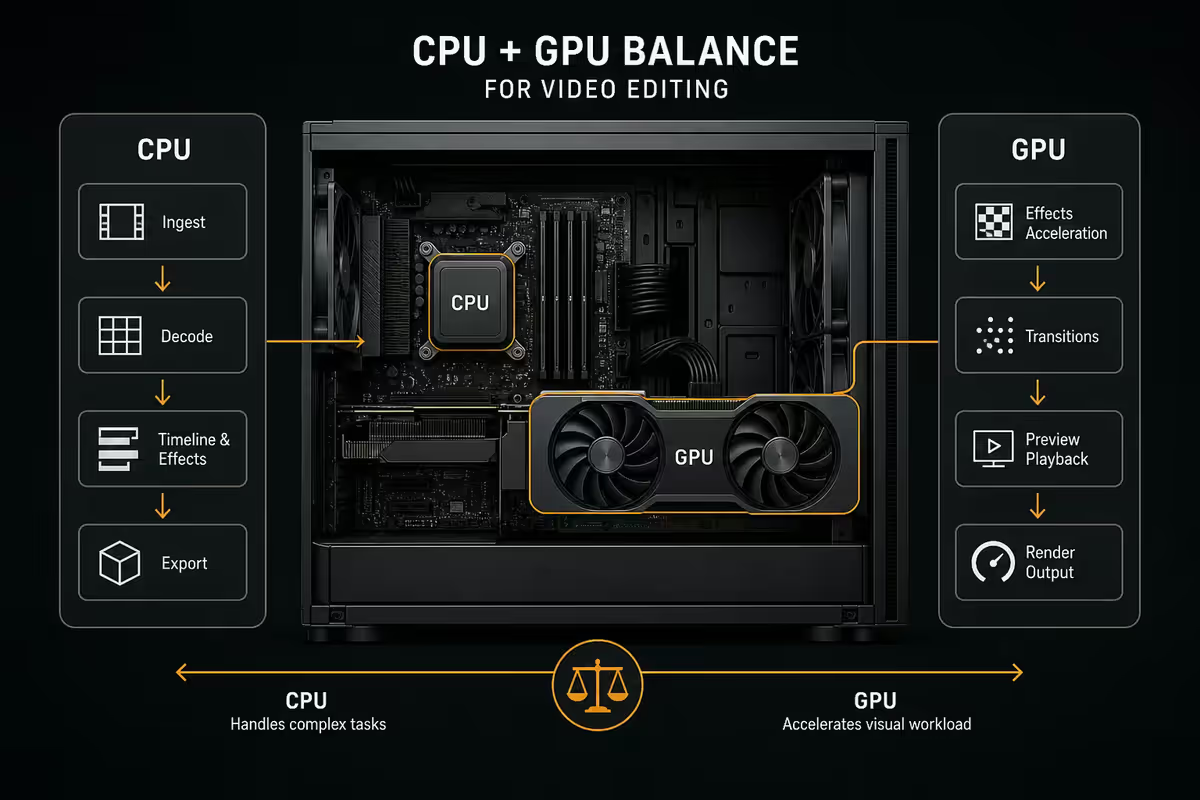
Before you spec a single part, name your software. DaVinci Resolve, Adobe Premiere Pro and Final Cut Pro each lean on different components, and the wrong build leaves money on the table.
DaVinci Resolve is the GPU-hungry one. Colour grading, Magic Mask, noise reduction and the Fusion compositing page all run on the GPU. A weak GPU here means stuttering playback even on a fast CPU. Resolve Studio also benefits from CUDA cores (NVIDIA) for AI features, though AMD's RX 9070 XT is now genuinely competitive.
Adobe Premiere Pro is more CPU-bound. Most of the timeline scrubbing, codec decoding and effects rendering happens on the CPU. The GPU helps with Lumetri colour and exports via Mercury Playback Engine, but a mid-range GPU (RTX 5070) is enough for most Premiere editors. Where Premiere bites you is RAM — multiple sequences with effects layered up can swallow 40GB+.
Final Cut Pro only runs on macOS, and it's heavily tuned for Apple Silicon's Media Engine. ProRes and HEVC decode happens on dedicated silicon, freeing the GPU. On an M4 Max, FCP edits 8K ProRes RAW with the GPU barely waking up — a feat no Windows tower matches at the same price.
| Editor | Bottleneck | Priority spend |
|---|---|---|
| DaVinci Resolve Studio | GPU + VRAM | RTX 5080/5090, 64GB RAM, fast NVMe cache |
| Adobe Premiere Pro | CPU + RAM | Ryzen 9 9950X, 64GB+ DDR5, mid GPU |
| Final Cut Pro (Mac only) | Media Engine | M4 Max or M4 Ultra, 64GB unified |
| Mixed (Resolve + Premiere) | Balanced CPU/GPU | Ryzen 9 9950X + RTX 5080 |
CPU + GPU balance — get this right first
The single biggest mistake video editors make: putting an RTX 5090 next to a Ryzen 7 7700. The CPU bottlenecks every timeline interaction, every codec decode, every export — and you get RTX 5070 performance from a 5090 you overpaid for.
Match the tier to your editor. If you're a Resolve colourist, weight GPU heavier than CPU. If you're a Premiere editor, do the opposite. For mixed workflows, the sweet spot is a 12-16 core CPU paired with a 12-16GB VRAM GPU.
CPU tier ladder for editors (2026)
- Entry (R7 000-R10 000): Ryzen 7 9700X or Core Ultra 7 265K. 8 cores. Fine for 1080p / light 4K SDR.
- Sweet spot (R12 000-R16 000): Ryzen 9 9900X (12C) or Core Ultra 9 285K (24C hybrid). Right for almost every editor.
- High-end (R18 000-R24 000): Ryzen 9 9950X (16C) or 9950X3D. The pick for multi-cam 4K HDR and AI workflows.
- Workstation (R45 000+): Threadripper 7960X (24C) or 7970X (32C). For colourists running heavy noise reduction or Fusion compositing at scale.
GPU tier ladder for editors (2026)
| GPU | VRAM | Best for | SA price (2026) |
|---|---|---|---|
| RTX 5070 | 12GB | 1080p / 4K SDR, Premiere | R14 000-R17 000 |
| RTX 5070 Ti | 16GB | 4K HDR Resolve, mid-tier colour | R20 000-R23 000 |
| RTX 5080 | 16GB | Sweet spot for 4K HDR Resolve | R26 000-R30 000 |
| RTX 5090 | 32GB | 8K, multi-cam, AI-heavy timelines | R52 000-R62 000 |
| AMD RX 9070 XT | 16GB | Resolve on a budget — strong value | R18 000-R21 000 |
RAM — 64GB is the new minimum for 4K HDR
If you remember nothing else from this guide, remember this: 64GB DDR5 is the realistic minimum for 4K HDR editing in 2026. 32GB still works for 1080p and lighter SDR 4K cuts, but the moment you open Fusion or layer Lumetri instances in Premiere, you're spilling to swap and your timeline stutters.
Real-world RAM usage by workflow:
- Premiere with 4K SDR multi-cam + Lumetri: 28-40GB
- Resolve with 4K HDR + colour page + Fusion node: 35-55GB
- Resolve with multi-cam 4K HDR + noise reduction + Magic Mask: 60-80GB
- Premiere + After Effects open simultaneously: 50-90GB
Speed matters too. On AM5 platforms, target DDR5-6000 CL30 (the AMD sweet spot — anything faster forces a 1:2 memory controller divider and loses gains). On LGA1851 with Intel Core Ultra, DDR5-6400 CL32 is the sweet spot and DDR5-7200 is worth it for Premiere. Two 32GB sticks beat four 16GB sticks for stability on AM5 — running four sticks drops the safe speed to DDR5-5600.
When 96GB-128GB is worth it: colourists running noise reduction passes, multi-cam edits with 6+ angles, AI-driven object removal in Resolve, or anyone leaving Premiere + After Effects + Photoshop open all day. For these, two 48GB DDR5 modules (96GB total) is now the smart kit on AM5 — DDR5-5600 minimum.
The three-drive storage rule
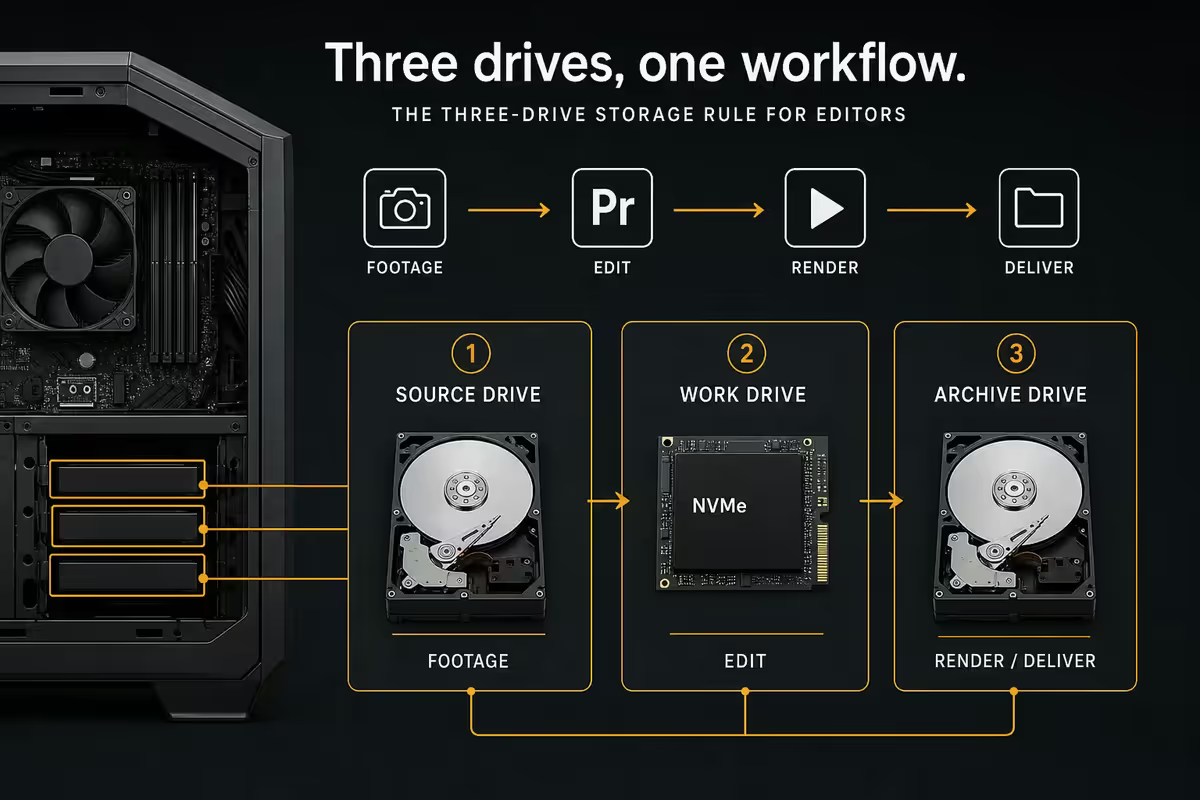
If there's one thing seasoned editors will tell every newcomer, it's this: never put your OS, your project cache and your media on the same drive. Even on the fastest Gen5 NVMe, mixing them creates contention that shows up as dropped frames during playback.
The three drives every editor needs
- Drive 1 — OS + apps (1-2TB NVMe Gen4): Windows or macOS, Resolve, Premiere, plugins, browsers. A Samsung 990 Pro 1TB (~R2 800) or WD Black SN850X 2TB (~R4 500) is perfect. Speed matters less here — capacity and reliability win.
- Drive 2 — active project + cache (2-4TB NVMe Gen4/5): your current project's media, Resolve's GPU cache, Premiere's media cache and previews. This is the drive that needs speed. Samsung 990 Pro 2TB or Crucial T705 2TB Gen5 (~R5 500-R7 500).
- Drive 3 — media library + archive (4-8TB NVMe or SATA SSD): finished projects, raw footage library, render outputs. Capacity over raw speed. WD Black SN850X 4TB (~R7 000) or a 4TB SATA SSD if budget is tight.
The "buy enough storage upfront" rule. Editors fill drives faster than any other PC user. A single 4K HDR shoot day produces 200-500GB of raw footage. A finished 10-minute edit with cache and rendered exports easily hits 1.5TB. Buy at minimum 8TB of total storage at the start, even on entry-tier builds — running out at deadline is the universal editor nightmare.
External archive — Thunderbolt 4 / USB 4
For backup and archive once a project ships, a Samsung T9 2TB external SSD on Thunderbolt 4 / USB 4 (40Gbps) reads and writes at ~2 000MB/s — fast enough to ingest a day's shoot in minutes. On AM5, the ASUS ProArt X870 and MSI MAG X870 Tomahawk include native USB 4. On LGA1851, the ASUS ProArt Z890 Creator and MSI MEG Z890 ACE add Thunderbolt 4 directly. Don't bother with 10Gbps USB-C for serious offloads — it bottlenecks every fast modern external drive.
Monitor — colour accuracy actually matters
Editors get monitors wrong more often than any other part. A 240Hz gaming panel looks gorgeous in stores and lies to you about colour. For video work, what matters is factory calibration, gamut coverage and bit depth — not refresh rate.
Minimum spec for serious editing: 100% sRGB / 95%+ DCI-P3, true 10-bit colour (not 8-bit + FRC), factory calibration with delta-E < 2 and a hardware calibration report in the box. IPS or OLED panel.
Monitor picks by tier
- Best value (R12 000-R14 000): ASUS ProArt PA279CRV — 4K, 99% DCI-P3, 10-bit, factory calibrated. The default sensible pick.
- Pro mid-tier (R18 000-R22 000): BenQ SW272Q — 2K, 99% Adobe RGB, hardware calibration via Palette Master Element. Photo + video crossover monitor.
- HDR mastering (R45 000+): LG UltraFine 32EP950 OLED or Apple Pro Display XDR (Mac users) — true HDR reference levels.
Dual-monitor setup wins. Most working editors run two displays: a primary calibrated panel for the preview/colour page, and a secondary 27" 1440p for timelines, bins, scopes and reference footage. The productivity gain is enormous and a second monitor needn't be expensive — a basic 27" IPS 1440p at R4 500 paired with a R12 000 ProArt is a fantastic combination.
Mac Studio M4 Max vs Windows — the honest take
It's the question every video-editing buyer asks at some point: should I build a Windows tower or buy a Mac Studio? The answer depends entirely on what you edit and what you deliver.
Mac Studio M4 Max edits 8K ProRes RAW faster than any Windows tower under R150k — that's not marketing, it's measured. Apple's Media Engine decodes ProRes and HEVC on dedicated silicon, so the GPU and CPU barely move while playback runs silently. For Final Cut Pro and ProRes-heavy workflows, nothing in the Windows world keeps up at the price.
But the picture flips for colourists. DaVinci Resolve scales better on a Windows tower with RTX 5080/5090, especially on noise reduction, Fusion compositing and AI features. The Windows side also wins on price-to-performance and on upgrade paths — you can drop in a new GPU in two years; the Mac Studio is sealed for life.
| Workflow | Mac Studio M4 Max (R65-95k) | Windows tower at same price |
|---|---|---|
| Final Cut Pro | Unmatched — Media Engine wins | Not available (FCP is Mac only) |
| DaVinci Resolve colour | Strong, but GPU-limited | Wins — RTX 5080/5090 scales further |
| Premiere Pro 4K SDR | Fine, slightly slower on exports | Fine, faster on exports |
| ProRes / ProRes RAW | Unmatched on Media Engine | Workable but CPU-heavy |
| Noise reduction + AI | Solid | Wins with RTX CUDA / Tensor |
| Upgradability | Sealed unit, no upgrades | GPU, RAM, storage all swappable |
| Noise + power draw | Near-silent, ~80W | Audible under load, 400-700W |
The candid summary: if your delivery format is ProRes and you value silence and a sealed box, the Mac Studio M4 Max with 64GB unified memory is genuinely worth the R75k it costs in SA. If your home is Resolve, your media is H.265/H.264 and you want to upgrade the GPU in two years, build a Windows tower — you'll get more performance per Rand and a longer useful life.
Three full workstations by budget
Tier 1: 1080p / 4K SDR editor — R35 000
For YouTubers, social-video creators and entry-level 4K SDR editors. Handles Premiere and Resolve at 1080p effortlessly and 4K SDR comfortably.
| Part | Pick | ZAR (2026) |
|---|---|---|
| CPU | AMD Ryzen 9 9900X (12C) | R12 500 |
| GPU | NVIDIA RTX 5070 12GB | R15 000 |
| Motherboard | ASUS ProArt X870 (USB 4) | R6 800 |
| RAM | 64GB DDR5-6000 CL30 (2 × 32) | R5 800 |
| Storage | Samsung 990 Pro 1TB + WD SN850X 2TB | R6 500 |
| Cooler | Arctic Liquid Freezer III 280 | R2 800 |
| PSU + case | Corsair RM850e + Lian Li Lancool 216 | R4 100 |
| Tier 1 total | ~R35 500 |
Tier 2: 4K HDR + light colour — R65 000
The sweet spot for serious freelancers, brand-content editors and Resolve users tackling 4K HDR with colour pages. Real headroom for two-year futureproofing.
| Part | Pick | ZAR (2026) |
|---|---|---|
| CPU | AMD Ryzen 9 9950X (16C) | R19 500 |
| GPU | NVIDIA RTX 5080 16GB | R28 000 |
| Motherboard | ASUS ProArt X870E Creator (USB 4 + 10GbE) | R9 500 |
| RAM | 64GB DDR5-6000 CL30 (2 × 32) | R5 800 |
| Storage | 1TB OS + 2TB cache + 4TB media (3 × NVMe Gen4) | R12 500 |
| Cooler | Noctua NH-D15 G2 or Arctic LFIII 360 | R3 200 |
| PSU + case | Corsair RM1000e + Fractal North XL | R5 500 |
| Monitor add-on | ASUS ProArt PA279CRV 4K calibrated | R12 500 |
| Tier 2 total (with monitor) | ~R96 500 / R65 000 tower only |
Tier 3: Colourist / multi-cam pro — R110 000+
For Resolve colourists, multi-cam-heavy editors and studios delivering 4K HDR or 8K finishes. Real Threadripper headroom is optional but the RTX 5090 here is the unlock.
| Part | Pick | ZAR (2026) |
|---|---|---|
| CPU | Ryzen 9 9950X3D or Threadripper 7960X | R23 000 / R46 000 |
| GPU | NVIDIA RTX 5090 32GB | R55 000 |
| Motherboard | ASUS ProArt X870E or Pro WS TRX50-Sage | R9 500 / R22 000 |
| RAM | 128GB DDR5-6000 ECC (2 × 64 or 4 × 32 RDIMM) | R14 500 |
| Storage | 1TB OS + 2TB Gen5 cache + 2 × 4TB media NVMe | R22 000 |
| Cooler | Arctic LFIII 420 or Noctua NH-U14S TR5-SP6 | R3 800 |
| PSU + case | Corsair AX1500i + Fractal Define 7 XL | R10 500 |
| Monitor add-on | BenQ SW272Q or LG UltraFine 32EP950 | R18 000-R55 000 |
| Tier 3 total (9950X3D + 5090, no monitor) | ~R112 000 |
Common video-editing build mistakes
Skimping on RAM to "save for the GPU". The most common mistake we see. A R30k GPU on 32GB of RAM stutters more than a R18k GPU on 64GB. Buy 64GB first, then choose the GPU.
One drive for everything. Even a Samsung 990 Pro 4TB used as OS + cache + media will drop frames during 4K HDR playback. Three drives or you'll regret it within a month.
Buying a 240Hz gaming monitor. 60-75Hz with factory-calibrated 10-bit colour beats 240Hz with 8-bit + FRC every time for editing. Save the high-refresh panel for gaming.
Ignoring USB 4 / Thunderbolt 4. If your motherboard only has USB-C 10Gbps, you're throttling every external SSD and camera card reader. Spec USB 4 from the start — paying for the right motherboard upfront beats replacing it later.
Underestimating the PSU. RTX 5080 + Ryzen 9 9950X under load draws 600-700W. A "good enough" 750W PSU runs hot and loud. Step up to 850-1000W for headroom — quieter under load and futureproofs a GPU upgrade.
Forgetting backup. A single NVMe failure mid-project costs you a week's work. Budget for a 4-8TB external Thunderbolt 4 SSD and a cloud or NAS backup destination from day one.
Key takeaways
- Match the build to the editor: Resolve = GPU + VRAM, Premiere = CPU + RAM, FCP = Mac Media Engine.
- 64GB DDR5 is the realistic minimum for 4K HDR — never start lower if your timeline matters.
- The three-drive rule: OS, cache, media — never mix them on one NVMe.
- Sweet spot tower at R65k: Ryzen 9 9950X + RTX 5080 + 64GB + 3 × NVMe + ProArt monitor.
- Mac Studio M4 Max wins for ProRes + FCP; Windows wins for Resolve colourists wanting upgrade paths.
- Buy enough storage upfront — 8TB minimum total, even on entry-tier builds.
Frequently asked questions
What's the best CPU for video editing in 2026?
Ryzen 9 9950X (16 cores) is the sweet spot for Resolve and Premiere. Core Ultra 9 285K matches it for Premiere but trails slightly on Resolve. For mixed workloads under R45k, the Ryzen 9 9900X (12 cores, ~R12 500) is the best price-to-performance.How much RAM do I need for 4K video editing?
64GB is the realistic minimum for 4K HDR in 2026. Resolve's Fusion and Fairlight pages alone can use 20-30GB on complex projects. 32GB still works for 1080p and lighter 4K SDR. 96-128GB is worth it for colourists running noise reduction or multi-cam edits.Does the GPU really matter for video editing?
For DaVinci Resolve — yes, enormously. Colour, noise reduction, Magic Mask and Fusion all run on the GPU. An RTX 5070 vs RTX 5090 is the difference between real-time and stuttering 4K HDR playback. For Premiere the GPU matters less; for FCP, Apple's Media Engine does the heavy lifting.What's the three-drive storage rule?
Drive 1: OS + apps (1-2TB NVMe). Drive 2: active project + cache (2-4TB Gen4/5 NVMe). Drive 3: media library + archive (4-8TB NVMe or SATA SSD). Mixing them is the single biggest reason editors get stuttering timelines.Is Mac Studio M4 Max better than a Windows workstation?
For FCP and ProRes-heavy workflows, Mac Studio M4 Max (R65-95k) is unmatched. For DaVinci Resolve colour, a Windows tower with RTX 5080/5090 wins on price-to-performance and upgradability. Choose Mac for ProRes + silence; Windows for Resolve + GPU upgrade paths.What monitor should I get for video editing?
A factory-calibrated display with 100% sRGB / 95% DCI-P3 and 10-bit colour. ASUS ProArt PA279CRV (4K, R12 000) or BenQ SW272Q (2K, R18 000) are excellent under R20k. Add a 27" 1440p secondary for timelines — dual-monitor is a productivity multiplier.How much should I budget for a workstation in SA?
R35 000 gets a capable 1080p/4K SDR rig. R65 000 is the 4K HDR sweet spot. R110 000+ is the colourist/multi-cam tier with RTX 5090 and 128GB RAM. Add R12-55k for a calibrated reference monitor and a Thunderbolt 4 archive SSD across all tiers.Do I need a Thunderbolt 4 / USB 4 port?
Yes for any serious external SSD or camera card workflow. USB 4 / Thunderbolt 4 at 40Gbps hits ~2 000MB/s on a Samsung T9 external. On AM5, ASUS ProArt X870 and MSI MAG X870 Tomahawk include USB 4. On LGA1851, ASUS ProArt Z890 Creator and MSI MEG Z890 ACE add Thunderbolt 4.
Get the Evetech app
Exclusive app-only prices, daily flash sales, and free delivery on orders over R4,000 — download the app and start saving.