Profession · Video Editing
Best PC for Adobe Premiere Pro. — 4K H.265 multicam, no proxies needed.
Premiere in 2026 leans on the GPU harder than ever — Mercury Playback Engine, Lumetri colour, NVENC export, Generative Extend. The build that beats the spec sheet is the one that balances CPU and GPU, then puts the budget into RAM and four drives.
- RAM for 4K
- 64GB
- NVENC export speed
- 5×
- SA build tiers
- R30-85k
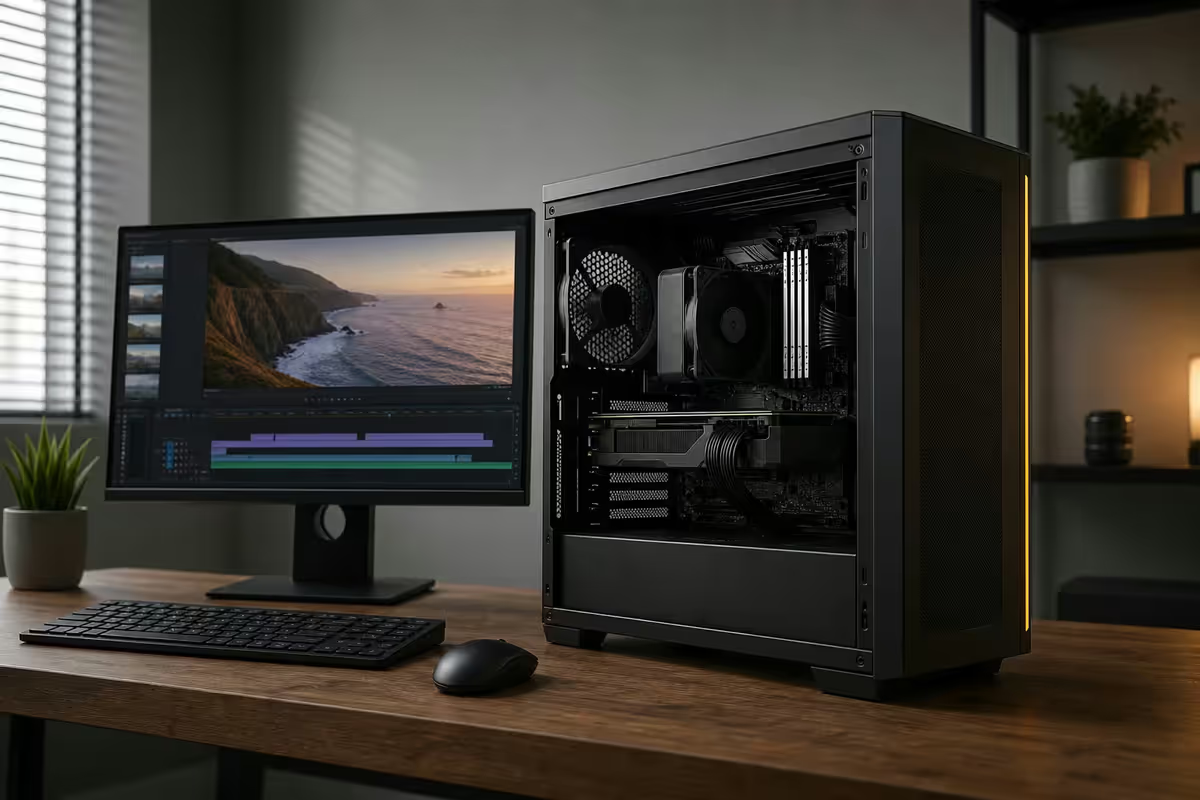
What Premiere Pro 2026 actually does to your PC
Premiere Pro in 2026 is a fundamentally different application from the one most editors learned five years ago. The 2026 release leans heavily on the GPU through the Mercury Playback Engine, ships AI tools that depend on CUDA tensor cores, and assumes you're cutting H.265 — the codec that punishes weak hardware harder than anything since DVCPro HD.
A typical SA editor's working day stresses the machine across five dimensions:
- 4K H.265 multicam — Sony FX3 / Canon R5 C / mirrorless A-cam plus a B-cam or wedding multi-angle. H.265 decoding is brutal on CPU; multicam multiplies the load.
- Lumetri colour grading — every node is GPU-accelerated. Real-time grading on 4K only works if your GPU has the VRAM and bandwidth.
- AI Auto Reframe — turning horizontal masters into Reels/Shorts/TikTok vertical cuts. Uses GPU AI acceleration.
- Generative Extend — the new Sora-style fill that extends clips by a few seconds. Pulls from cloud but still hits local VRAM hard during preview.
- Text-based editing — auto-transcription and edit-from-transcript. CPU-heavy on initial transcription, then memory-heavy as your project grows.
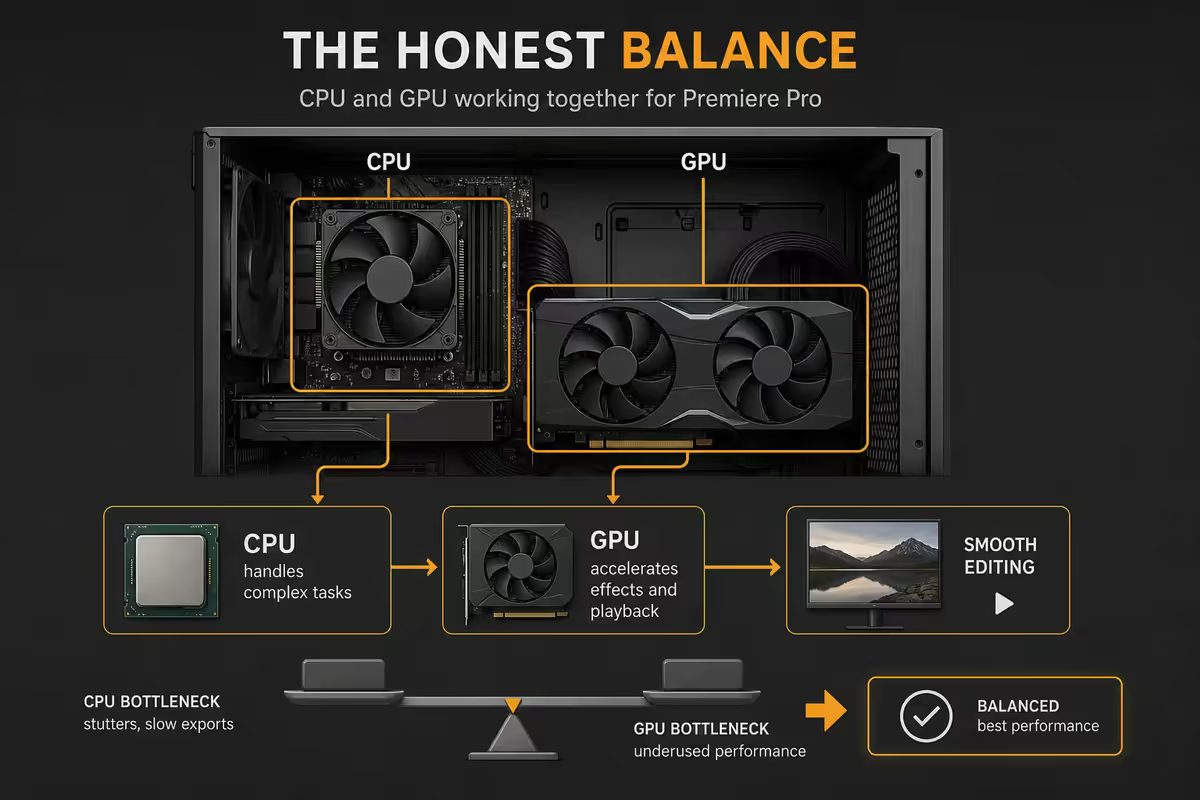
The single most useful mental model: CPU does decode and audio. GPU does playback, effects, colour and export. RAM holds the project. Storage feeds the codec. A weak link in any of the four breaks the timeline.
CPU + GPU balance — the honest take
Five years ago the advice was: "Buy the strongest CPU, the GPU barely matters." That advice was correct then. It is not correct now.
Adobe rewrote large parts of the Mercury Playback Engine between 2022 and 2025 to push more of the pipeline onto CUDA. Real-time 4K playback, Lumetri colour, Warp Stabiliser, scaling, AI features, transitions — all GPU. Even H.264 / H.265 decode now uses the GPU's hardware video decoder when the codec matches (NVDEC on NVIDIA, hardware decode on AMD).
The practical rule for a 2026 Premiere build:
- 12-16 CPU cores is the sweet spot. More cores doesn't help Premiere itself — the application can't fully use them on most editing workloads. Spend the saved money on GPU.
- RTX 5070 Ti is the practical floor for serious 4K work. 16GB VRAM is enough for most timelines; the 50-series NVENC encoder is meaningfully better than 40-series.
- RTX 5080 is the right pick if you do heavy colour grading or AE compositions alongside Premiere.
- RTX 5090 is overkill for Premiere alone, but justified if you also run DaVinci Resolve neural engine or Unreal Engine.
| Component | Budget tier | Pro tier |
|---|---|---|
| CPU | Ryzen 7 9700X / Core Ultra 7 265K | Ryzen 9 9900X / Core Ultra 9 285K |
| GPU | RTX 5060 Ti 16GB / 5070 | RTX 5070 Ti / 5080 |
| Cores you actually use | 8-12 | 12-16 |
| VRAM target | 12-16GB | 16-24GB |
| Bottleneck | GPU on colour grading | None for 4K H.265 multicam |
RAM — 64GB is the new 32GB
RAM is the single most under-spec'd component on the editing PCs we see come in for upgrades. 16GB is a non-starter for Premiere 2026 — the application alone wants 8-10GB, and once you add a 4K project with multicam, multiple Lumetri grades, the OS overhead and a Chrome tab open to your client brief, you're swapping to disk constantly.
The 2026 minimums by workload:
- 32GB — minimum for HD or single-camera 4K. Wedding videographers and YouTubers cutting 1080p can survive on this.
- 64GB — realistic target for 4K multicam, Lumetri-heavy projects, or anyone running After Effects alongside Premiere via Dynamic Link.
- 128GB — high-end colour graders and editors with 6K/8K source material, or commercial pipelines doing live-action + 3D work.
DDR5-6000 or DDR5-6400 is the right speed for both AM5 and LGA-1851. Faster RAM (DDR5-7200+) shows almost no benefit in Premiere — the application is bandwidth-bound at much lower speeds than gaming workloads. Buy capacity, not speed.
Four drives. Not one. Not two.
After RAM, single-drive setups are the second-biggest cause of laggy Premiere timelines on otherwise capable PCs. Premiere reads source media, writes preview renders, writes cache files and writes auto-saves — frequently in parallel. Pointing all of that at one SSD is a recipe for stuttery playback.
The 4-drive workflow that just works:
| Drive role | What goes there | Spec target |
|---|---|---|
| OS drive | Windows, Premiere, plugins | 1TB NVMe Gen4 |
| Scratch / cache | Media cache, preview renders, audio peaks | 2TB NVMe Gen4 |
| Media drive | Active project footage, project files | 2TB NVMe Gen4 or 4TB SATA SSD |
| Archive drive | Finished projects, original masters | 8-16TB HDD |
Splitting media and cache onto separate drives means Premiere is reading source from one drive and writing previews to another — no contention. This single change makes a bigger real-world difference for most editors than upgrading CPU or RAM.
In Premiere itself, point the cache drive in Preferences > Media Cache at your scratch drive, and your project files at the media drive. The defaults send everything to your OS drive, which is exactly wrong.
NVENC and the 5× export speedup
If you export to H.264 or H.265 — and almost everyone delivering to YouTube, social, web review or client preview does — your RTX card's NVENC encoder is the single biggest workflow upgrade you'll experience.
A 10-minute 4K H.265 timeline exported at standard YouTube bitrate:
| Export path | Approx time | Quality at same bitrate |
|---|---|---|
| CPU only (software encode) | ~45 minutes | Baseline (highest) |
| RTX 4070 NVENC | ~12 minutes | Within 1-2% of CPU |
| RTX 5070 / 5070 Ti NVENC | ~8-10 minutes | Visually indistinguishable |
| M4 Max ProRes hardware encode | ~7 minutes | Class-leading |
The 50-series NVENC has a meaningfully improved H.265 encoder vs the 40-series — slightly better quality at the same bitrate, and faster encode. For client-delivery, social, YouTube and web exports the difference vs CPU encoding is invisible to the human eye.
When to use CPU encode anyway: mastering ProRes for archive, encoding to a codec NVENC doesn't support (AV1 on older cards, certain professional intermediates), or when you specifically need the very best quality at very low bitrate for streaming. For everyone else, NVENC is the answer.
ProRes proxies — the smooth-timeline cheat code
Even a perfectly balanced build will choke on raw 4K H.265 multicam with 3+ angles. The codec is just that hard to decode in real time. The answer is not to buy more CPU — it's to use proxies.
Proxies are low-resolution copies of your media (typically 1/4 resolution ProRes 422 LT) that Premiere uses for smooth timeline playback. You edit using the proxies; on export, Premiere automatically switches back to the original full-resolution media. The proxies are throwaway.
Why ProRes specifically: ProRes is an intra-frame codec — every frame is independent and decodes instantly. H.265 is inter-frame — most frames depend on neighbouring frames, so scrubbing backwards is brutally expensive. ProRes proxies scrub like silk; H.265 source does not, even on top-end hardware.
The Premiere workflow:
- Media Browser → right-click footage → Generate Proxies.
- Choose preset: ProRes 422 LT, 1/4 resolution. (Other formats work; this is the one.)
- Wait for Adobe Media Encoder to batch the conversion. A typical wedding day's footage takes 30-90 minutes — run overnight.
- Edit on proxies. The toggle at the bottom of the Source/Program monitor switches between proxy and full-res preview.
- Export uses full-res automatically. No manual switch required.
SA build tiers — R30k, R55k and R85k
R30,000 entry tier — YouTuber / wedding videographer
Single-camera 4K, HD multicam, light Lumetri. Will handle 4K H.265 with proxies. Realistic spec:
| Component | Pick |
|---|---|
| CPU | Ryzen 7 9700X (8C / 16T) |
| GPU | RTX 5060 Ti 16GB |
| RAM | 32GB DDR5-6000 (2 × 16GB) |
| Storage | 1TB NVMe Gen4 OS + 2TB NVMe Gen4 media |
| Motherboard | B650 or B850 |
| Cooler | 240mm AIO or strong air |
| PSU | 750W 80+ Gold |
R55,000 commercial tier — full-time editor
4K multicam without proxies. Real-time Lumetri. AE via Dynamic Link. The build most working SA editors should target:
| Component | Pick |
|---|---|
| CPU | Ryzen 9 9900X (12C / 24T) or Core Ultra 9 285K |
| GPU | RTX 5070 Ti 16GB |
| RAM | 64GB DDR5-6000 (2 × 32GB) |
| Storage | 1TB OS + 2TB scratch + 2TB media (all NVMe Gen4) + 8TB HDD archive |
| Motherboard | X870 or Z890 |
| Cooler | 360mm AIO |
| PSU | 850-1000W 80+ Gold |
R85,000+ pro tier — colour grader / commercial pipeline
6K/8K source, heavy Lumetri, parallel AE renders, DaVinci Resolve neural-engine work. Build for hours of unattended export:
| Component | Pick |
|---|---|
| CPU | Ryzen 9 9950X (16C / 32T) or Core Ultra 9 285K |
| GPU | RTX 5080 16GB or RTX 5090 24GB |
| RAM | 128GB DDR5-6000 (2 × 64GB) |
| Storage | 1TB OS + 4TB scratch + 4TB media (all NVMe Gen4) + 16TB HDD or NAS archive |
| Motherboard | X870E or Z890 |
| Cooler | 360mm AIO + extra case airflow |
| PSU | 1000-1200W 80+ Platinum |
Mac vs PC for Premiere — the honest take
Adobe ships near-identical Premiere builds for Mac and Windows. The real question is which platform suits your codec, your plugins and your wider workflow. After running both side-by-side on real client work for years, here's the unvarnished answer.
Where the M4 Max Mac Studio wins
- Native 4K H.265 decode. Apple's media engine decodes H.265 (HEVC) in hardware faster than any PC GPU. You can scrub 4-cam 4K H.265 multicam in real time, no proxies — something a 50-series RTX card still can't quite manage.
- ProRes hardware encode / decode. The dedicated ProRes engine is genuinely class-leading. If your pipeline is ProRes-native (corporate, broadcast, anything mastering to ProRes), the M4 Max is unbeatable.
- Power, noise, heat. ~150W under sustained editing load. Silent fan profile. No Eskom load-shedding heat concerns.
- Lumetri scopes. Performance parity with PC — both are GPU-accelerated and run smoothly.
Where the PC still wins
- After Effects compositions. AE leans harder on raw GPU power than Premiere, and the high-end RTX 5080/5090 beats the M4 Max GPU on most AE workloads — particularly anything 3D, particle-heavy or using GPU-accelerated effects like Trapcode.
- Plugin ecosystem. Mister Horse, Red Giant Universe, Trapcode Suite, BorisFX — all PC-first. Many have Mac builds but they ship later, have more bugs, and some effects are GPU-accelerated only on PC.
- Rand-per-performance. An R55k PC build with RTX 5070 Ti matches an R80k+ M4 Max for most Premiere work outside of native H.265 multicam. The difference funds a second monitor, a colour-managed display, or two years of Adobe CC.
- Upgrade path. RAM, storage and GPU upgradeable. M4 Max is fixed at purchase — choose your spec carefully because there's no upgrade later.
| Workload | R55k PC build | M4 Max Mac Studio (R80k+) |
|---|---|---|
| 4K H.265 multicam (native) | Needs proxies | Real-time, no proxies |
| ProRes encode/decode | Good | Class-leading |
| Lumetri scopes | Parity | Parity |
| After Effects 3D | Wins by 20-30% | Capable but slower |
| Third-party plugins | Full ecosystem | Subset, often delayed |
| NVENC H.265 export | 5× faster than CPU | Hardware ProRes faster still |
| Price in SA | R55,000 | R80,000+ |
| Upgrade later | Yes | No |
Common Premiere build mistakes
Spending the entire budget on CPU and skipping GPU. The classic 2019 build advice. Premiere 2026 is GPU-dependent — pairing a 16-core CPU with a GTX 1660 will hand you a worse editing experience than a 12-core CPU with an RTX 5070 Ti at the same total cost.
One drive for everything. The single biggest cause of "my PC has good specs but Premiere feels laggy" complaints. OS, media, cache and previews fighting for the same SSD lanes. Split them.
16GB RAM on a 4K project. Non-starter. Premiere will swap constantly to disk, scrubbing will stutter, and AE Dynamic Link will fail. 32GB minimum; 64GB if 4K is your daily.
Buying 4 × 16GB DDR5 on AM5. Drops memory speed dramatically and introduces stability issues. Always 2 sticks on AM5.
Forgetting NVENC exists. Editors paying for hours of CPU-only encode time when their RTX card is sitting idle. Check Export > Hardware Encoding is on. If you're seeing slow H.264/H.265 exports, this is almost always why.
Editing 4K H.265 native and complaining about scrubbing. The codec is the problem, not your PC. Generate ProRes proxies. The 30 minutes you spend on ingest saves hours of scrubbing pain across the edit.
Buying a M4 Max because "Macs are better for video." Sometimes true, often not. Check whether your plugin stack is even available on Mac before spending R80k+.
Key takeaways
- Premiere 2026 is more GPU-dependent than it was in 2020 — balance CPU and GPU, don't overspend on cores.
- 64GB RAM is the realistic 4K target. 32GB is the floor. 16GB will choke even on capable hardware.
- Run a 4-drive workflow — OS, scratch, media, archive. Splitting cache from media drives is bigger than any CPU upgrade.
- RTX 5070 Ti NVENC cuts 4K H.265 export time roughly 5× vs CPU-only encoding — at visually identical quality.
- Generate ProRes 422 LT proxies at 1/4 resolution for smooth 4K H.265 multicam editing — Premiere swaps back for export.
- SA build tiers: R30k entry (YouTuber / wedding), R55k commercial (full-time editor), R85k+ pro (colour grading).
- M4 Max wins on native H.265 and ProRes. PC wins on AE, plugins and Rand-per-FPS. Match the platform to your codec and plugin stack.
Frequently asked questions
What is the best PC for Adobe Premiere Pro in South Africa in 2026?
A balanced Ryzen 9 9900X or Core Ultra 9 285K with RTX 5070 Ti, 64GB DDR5 and a 4-drive NVMe workflow. Budget around R55,000-R65,000 for a commercial editor. Mercury Playback Engine is GPU-heavy in 2026 — balanced builds beat CPU-heavy ones.How much RAM do I need for Adobe Premiere Pro?
32GB minimum for HD work. 64GB realistic target for 4K editing, multicam and AE Dynamic Link. 16GB will choke on 4K H.265 multicam and is the single most common cause of laggy editing on otherwise capable PCs.Does Adobe Premiere Pro use the GPU?
Yes, heavily — far more in 2026 than five years ago. Mercury Playback Engine offloads Lumetri, scaling, blending, effects and most AI features to the GPU. NVENC on RTX 4070+ / 5070+ accelerates H.264/H.265 export roughly 5× vs CPU-only.Is Mac or PC better for Adobe Premiere Pro?
Depends on your codec. M4 Max Mac Studio (ZAR 80k+) is unbeatable for native 4K H.265 and ProRes. PC wins on After Effects, third-party plugins (Mister Horse, Red Giant) and pure price-to-performance. Match the platform to your daily workflow.What storage setup do I need for Premiere Pro?
The 4-drive workflow: 1TB NVMe Gen4 OS drive, 2TB NVMe Gen4 scratch/cache, 2TB NVMe Gen4 (or 4TB SATA SSD) media, and an 8-16TB HDD for archive. Single-drive setups are the second-biggest cause of laggy 4K timelines after low RAM.Will an RTX 5070 export H.265 faster than CPU only?
Roughly 5× faster on typical 4K H.265 exports. A 10-minute timeline that takes 45 minutes on CPU encodes in 8-10 minutes via NVENC. Visual quality difference at the same bitrate is invisible for delivery to YouTube, web or client review.Why is my Premiere Pro timeline laggy?
Usual suspects in order: only 16GB RAM (upgrade to 64GB), single drive for OS and media (split to scratch + media), editing 4K H.265 native without proxies (generate 1/4 res ProRes proxies), or GPU acceleration disabled (check Project Settings > Renderer = Mercury Playback Engine GPU Acceleration CUDA).What is a ProRes proxy workflow and do I need it?
Proxies are low-res copies of your media (typically 1/4 ProRes 422 LT) that Premiere uses for smooth timeline playback. You edit on proxies; export switches back to full-res automatically. For 4K H.265, proxies are the single biggest workflow upgrade for editors on mid-range PCs.
Get the Evetech app
Exclusive app-only prices, daily flash sales, and free delivery on orders over R4,000 — download the app and start saving.