WFH Build Guide · By Profession
Best PC for working from home. — Quiet on Zoom. Calm in load-shedding.
A real WFH workload is 30 browser tabs, Teams + Slack always on, a Zoom call mid-spreadsheet, and the lights going off twice a day. Your PC has to handle all four — quietly.
- RAM sweet spot
- 16-32GB
- build tiers
- R15k-R40k
- UPS minimum
- 850VA+
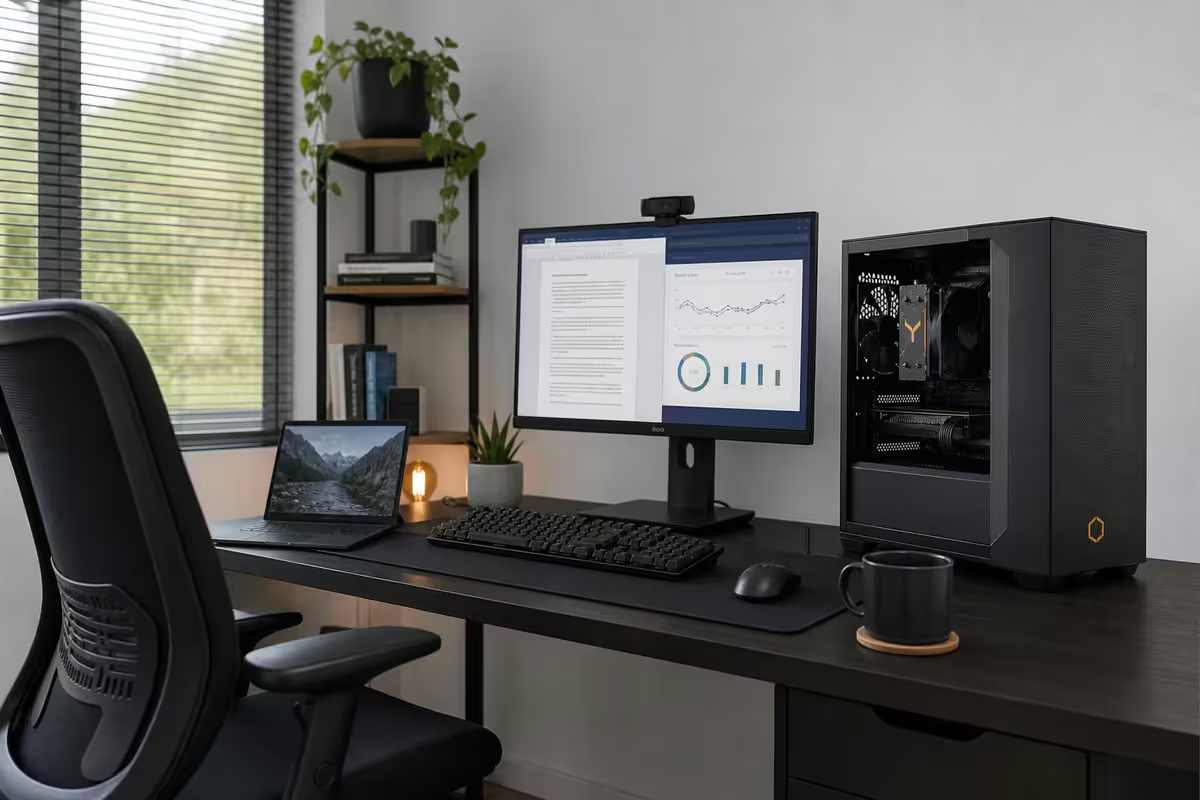
What WFH PCs actually do all day
Look at any honest WFH desktop screenshot and you'll see the same eight things open: Outlook, Teams, Slack, Chrome with 25-40 tabs, Excel, a Zoom call, OneDrive syncing in the background, and a Spotify tab nobody admits to. Once a week, Photoshop, Premiere or DaVinci Resolve gets opened for an hour. Every quarter, a finance person opens an Excel spreadsheet so large it deserves its own postal code.
That mix is deceptively heavy. None of those apps is demanding on its own — but running together, they keep 12-18GB of RAM permanently warm, push the CPU to 30-50% utilisation on every Teams screen-share, and reward fast NVMe storage every time you alt-tab.
| WFH workload | Demands | Bottleneck if undersized |
|---|---|---|
| Office + email + chat | 8-12GB RAM, modest CPU | Sluggish alt-tab |
| Heavy browser (30+ tabs) | 16-24GB RAM | Tabs reload, swap to disk |
| Video calls (Teams/Zoom/Meet) | 4-8 strong CPU cores | Camera stutter, dropped audio |
| Occasional Photoshop / Premiere | 16GB+ RAM, NVMe SSD | Lag on every brush stroke |
| Large Excel models | Strong single-thread CPU | "Calculating" for minutes |
The right WFH PC isn't about peak performance — it's about quiet, consistent responsiveness under sustained mixed load. That's a very different optimisation target from gaming or content creation, and the build looks different.
CPU + RAM — finding the sweet spot
For WFH in 2026, the goldilocks zone is a mid-tier 6-8 core CPU with 32GB of DDR5 RAM. Above that you're paying for performance you won't feel; below that, you'll notice slowdowns on a typical workday.
The CPU shortlist:
- Ryzen 5 7600 (R4,500) — 6 cores, 12 threads, AM5 platform with upgrade path to Ryzen 9000-series. Strong pick for office-only WFH.
- Core i5-14400 (R4,800) — 10 cores (6P+4E), 16 threads. Excellent value, integrated UHD graphics, runs cool and quiet.
- Ryzen 7 7700 (R6,500) — 8 cores, 16 threads. The right pick if you do video editing, Photoshop, or run developer toolchains alongside Teams.
- Core i7-14700 (R7,800) — 20 cores (8P+12E), useful for heavy parallel work but overkill for most WFH.
The RAM rules:
- 16GB DDR5 (R900-R1,200) — floor for office-only WFH. Fine for Outlook + Teams + Chrome with 15-20 tabs.
- 32GB DDR5 (R1,500-R2,200) — the modern sweet spot. Handles 40+ tabs, Photoshop side project, and large Excel models without swapping.
- 64GB DDR5 (R3,500-R5,000) — only if you run multiple VMs, Docker containers, or do full-time video editing alongside WFH.
Dual monitors — the 27" 1440p case
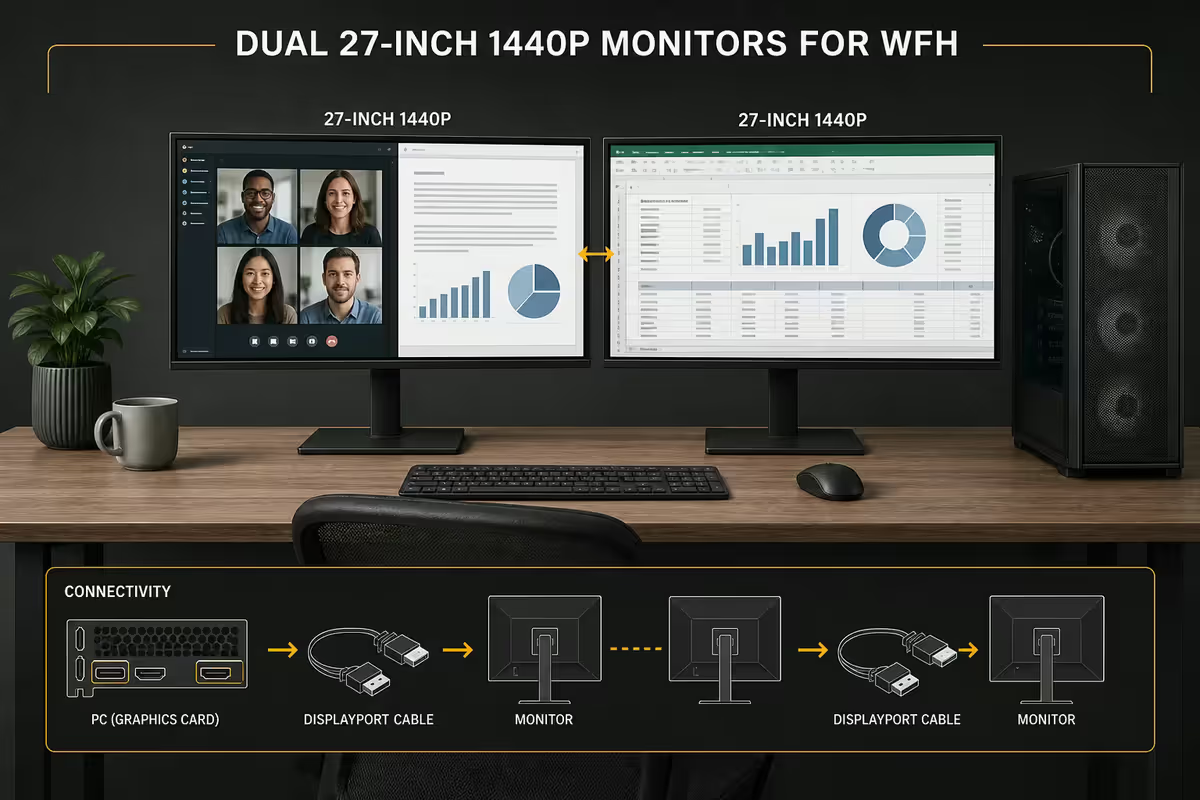
If there's one upgrade that pays back its cost in the first week, it's a second monitor. Dual 27" 1440p (QHD, 2560x1440) at 100Hz+ is the productivity sweet spot for 2026 — and it's the configuration that landed for our entire Centurion office.
Why 27" 1440p and not 24" 1080p or 32" 4K?
- 24" 1080p — pixel density is low at modern viewing distance. Text looks soft, you'll fit one full document not two.
- 27" 1440p — 109 PPI is the sweet spot. Two full A4 documents side by side at 100% zoom, sharp text, no scaling weirdness.
- 32" 4K — beautiful but you'll need to scale Windows to 150%, which breaks legacy apps and burns budget. Save it for video editors.
| Monitor | What you get | SA price (per unit) |
|---|---|---|
| Samsung ViewFinity S6 27" | 1440p 100Hz, USB-C 65W | R6,500-R7,200 |
| LG 27UP850N 27" | 4K IPS, USB-C 90W, ergonomic stand | R7,200-R8,000 |
| Dell U2723QE 27" | 4K IPS, USB-C 90W hub, KVM | R8,200-R9,500 |
| Dell P2725H 27" | 1440p, USB-C, value pick | R5,800-R6,500 |
| HP E27q G5 27" | 1440p IPS, height-adjustable | R5,500-R6,200 |
Don't skip the monitor arm. A basic dual-arm clamp (Brateck, North Bayou or VonHaus, R800-R1,800) frees the desk underneath, lets you fine-tune height for posture, and makes the whole setup look 10x more intentional on background-on Zoom calls.
Quiet build for video calls
Nothing kills professional presence faster than a fan whoosh on every screen-share. The good news: a quiet WFH PC is easier and cheaper to build than a quiet gaming PC — because the heat load is lower.
The quiet stack:
- Oversized air cooler. Noctua NH-U12S Redux (R900) or Be Quiet Pure Rock 2 (R650) — keeps a Ryzen 5 / Core i5 under 65°C without the fan ever spinning past 1000 RPM under WFH load.
- Low-RPM case fans. Noctua NF-A12x25 (R450 each) or Be Quiet Silent Wings 4 (R380) at 600-900 RPM. 3 intake + 1 exhaust in a mid-tower is plenty.
- Sealed 80+ Gold PSU. Be Quiet Pure Power 12 (R1,400) or Seasonic Focus GX (R1,800) — fanless under WFH load, no coil whine. Avoid bargain-basement PSUs at all cost; they sing on every audio peak.
- SSD-only storage. No spinning hard drives. The seek-click of a 7,200 RPM HDD is the most distinctive "I'm at home" sound on a Teams call.
- Foam mat under the tower. R150 from any decent hardware shop. Absorbs low-frequency vibration that travels through a wooden desk.
A correctly-built WFH PC measures 22-28 dB at the desk under typical load — quieter than the fridge in the next room, and well below the noise floor of any decent microphone.
Load-shedding survival kit (UPS + ISP failover)
SA WFH isn't WFH if you're scrambling to save documents the moment Eskom blinks. Two upgrades change everything — and together they cost less than a single quarter's lost productivity.
UPS — minimum 850VA, ideally 1000-1500VA
A line-interactive UPS (not the cheap offline kind) gives you 10-20 minutes of clean power when the grid drops — enough to finish a Teams call, save documents, and shut down cleanly. Pick by VA rating:
- 850VA / 510W (R2,500-R3,500) — Mecer ME-850-VU, APC Back-UPS BX1100C-AS. Powers tower + one monitor for ~10 minutes. Minimum for serious WFH.
- 1000VA / 600W (R3,500-R4,500) — Mecer ME-1000-VU, Eaton 5E1100i. Powers tower + dual monitors + router for ~12-15 minutes. The right pick for most WFH users.
- 1500VA / 900W (R5,000-R6,500) — APC Back-UPS Pro BR1500MS, Eaton 5E1500i. Powers full desk + fibre router + LTE backup for 25-40 minutes. For uninterrupted session continuity.
Dual ISP failover
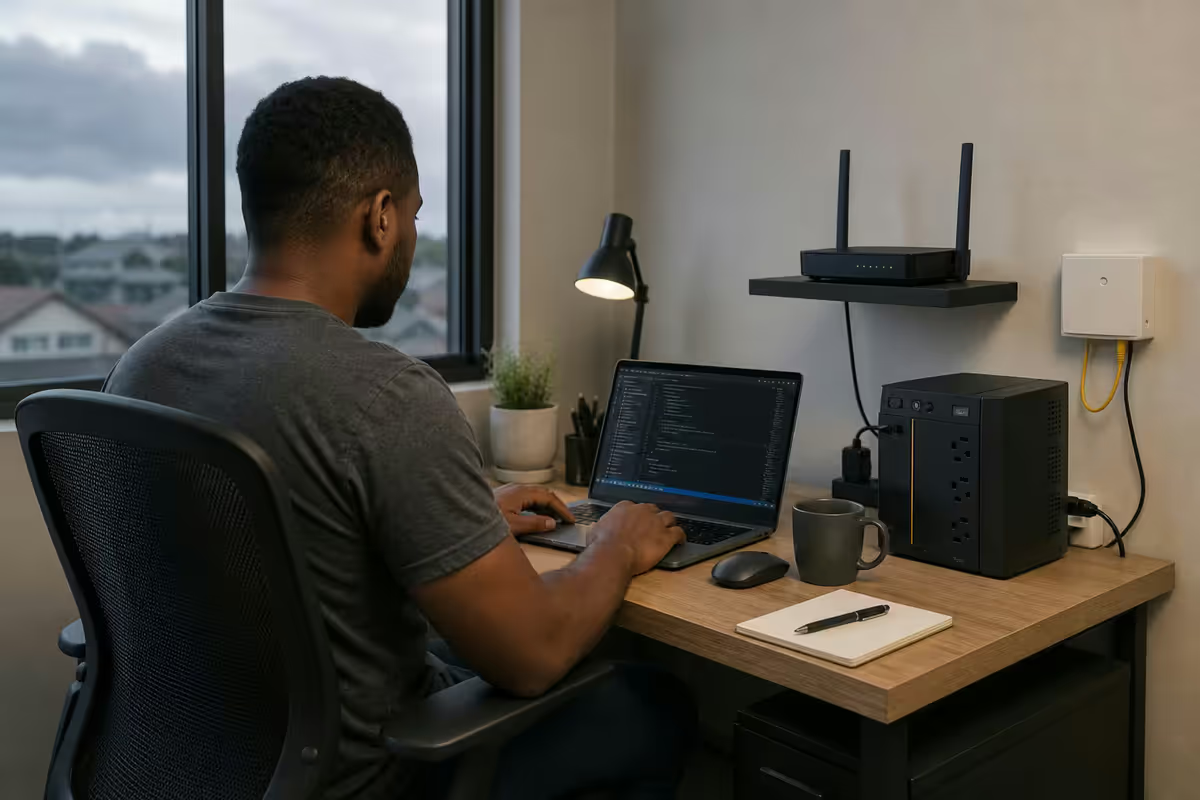
A power UPS doesn't help if your fibre line goes down at the ISP side. A dual-WAN router with automatic failover switches to LTE/5G the second your fibre drops, and most users won't notice the swap mid-Teams call.
- MikroTik hAP ax3 (R2,200) — dual WAN with auto-failover, advanced QoS. Best price-to-feature ratio if you're comfortable with RouterOS.
- GL.iNet Beryl AX (R2,800) — much friendlier UI, OpenWRT-based, USB tethering to a phone or LTE dongle in seconds.
- TP-Link Omada ER605 (R1,800) — business-grade dual WAN, easy web UI, cloud management option.
The full SA continuity stack: Fibre (Vumatel/Openserve/Frogfoot, R600-R1,200/month for 100/100 Mbps) + Rain/MTN/Vodacom LTE backup (R300-R600/month) + dual-WAN router. Total monthly cost R900-R1,800. Cheaper than a single half-day of missed client meetings.
Recommended WFH builds — three ZAR tiers
Three builds we'd happily put on our own desks. All in stock, all assembled at our Centurion workshop, all benched against 8 hours of mixed WFH load before shipping.
| Tier | What you get | Built price |
|---|---|---|
| Starter WFH (R15k) | Ryzen 5 7600 · 16GB DDR5 · 500GB NVMe · iGPU · Be Quiet 500W | R14,500-R15,500 |
| Sweet-spot WFH (R25k) | Ryzen 5 7600 / i5-14400 · 32GB DDR5 · 1TB NVMe · iGPU · Pure Power 12 · Pure Rock 2 | R22,500-R26,000 |
| Creative WFH (R40k) | Ryzen 7 7700 · 32GB DDR5 · 2TB NVMe · RTX 4060 · NH-U12S · Seasonic Focus GX 650W | R38,000-R42,000 |
All-in-one vs tower vs mini-PC
For most WFH users, a standard mid-tower is the right pick — quietest, easiest to upgrade, best price/performance. But the alternatives have their place:
- Mid-tower (recommended). Best thermals, quietest, full upgrade path. Sits on the floor — invisible on calls.
- Mini-PC (Dell OptiPlex Micro / HP EliteDesk 800 Mini / Lenovo ThinkCentre M75q). Tidy on a small desk, business-grade reliability, IT-friendly. Often noisier under load — read the review before committing.
- All-in-one (HP EliteOne / Lenovo ThinkCentre M90a / iMac). Single-cable elegance. You're paying a premium for integrated display and locked-in upgrade path. Hard to recommend over a tower + monitor for the same money.
Mac vs Windows for WFH in SA
The most common "should I just buy a Mac?" question. The honest answer: only if your team uses Final Cut, Logic Pro, or your work is design / video-heavy. For everyone else, Windows is the better SA WFH pick — and the cost gap is bigger than people realise.
| Factor | MacBook Air M3 + Studio Display | Windows tower + 2x 27" 1440p |
|---|---|---|
| Buy-in cost (SA) | R55,000-R75,000 | R28,000-R42,000 |
| Productivity in Office/Teams | Equivalent | Equivalent |
| RAM upgradeable later | No (soldered) | Yes (standard DIMM) |
| IT department support in SA | Sometimes | Always |
| Local repair / parts availability | Limited, Apple Premium only | Every tech shop |
| Multi-monitor flexibility | Hub required, limited at base spec | Native dual / triple |
| Standby battery during load-shedding | Built-in (laptop) | External UPS required |
Where Mac wins: creative roles (Final Cut, Logic Pro, Xcode), iOS development, and the all-day-on-battery laptop story. The M3 chip is genuinely excellent for video editing and audio production.
Where Windows wins (the SA reality): your employer's IT will support it without question, parts are stocked at every tech retailer countrywide, you can swap in a bigger SSD or more RAM in 2027 without a full hardware refresh, and you spend R15,000-R30,000 less for measurably equivalent Office productivity.
Key takeaways
- Ryzen 5 7600 or Core i5-14400 + 32GB DDR5 is the WFH sweet spot — R18k-R22k built and silent under load.
- Dual 27" 1440p monitors on an arm is the single highest-ROI upgrade — buy a second screen before anything else.
- An 850-1000VA line-interactive UPS is non-negotiable in SA — R2,500-R4,500 for full session continuity.
- Fibre + LTE failover via MikroTik or GL.iNet keeps Teams calls alive when your ISP drops out.
- Windows wins SA WFH on cost, repairability and IT support — Mac only if your role demands Final Cut or Logic.
Frequently asked questions
What is the best PC for working from home in South Africa?
A Ryzen 5 7600 or Core i5-14400 with 32GB DDR5 and a 1TB NVMe SSD — R18,000-R22,000 from Evetech. Pair with dual 27" 1440p monitors, a noise-cancelling headset and a 1000VA UPS.How much RAM do I need for a work-from-home PC?
16GB is the floor for office-only work; 32GB is the modern sweet spot for browser-heavy workflows with occasional creative apps. 64GB only if you run VMs or full-time video editing.Do I need a UPS for working from home in South Africa?
Yes — non-negotiable for any serious remote worker. A line-interactive 850VA-1000VA UPS (Mecer / APC / Eaton) gives 10-15 minutes of clean power to save and shut down cleanly. R2,500-R4,500.What CPU should I buy for a work-from-home PC in 2026?
Ryzen 5 7600 or Core i5-14400 for office WFH. Step up to Ryzen 7 7700 if you run 30+ browser tabs, do occasional Photoshop, or a side gig in video editing. Skip Ryzen 9 / Core i9 — overkill and hotter.Should I get a Mac or a Windows PC for working from home?
Windows for most SA WFH users — your IT supports it, parts are everywhere, and a comparable Windows setup is R15,000-R30,000 cheaper. Choose Mac only for Final Cut / Logic Pro / design-heavy work.What's the best monitor setup for working from home?
Dual 27" 1440p at 100Hz+ is the productivity sweet spot — sharp text, two A4 documents side by side, no scaling weirdness. Strong picks: Dell U2723QE, LG 27UP850N, Samsung ViewFinity S6.How do I keep my PC quiet for video calls?
Oversized air cooler, low-RPM Noctua or Be Quiet fans, sealed 80+ Gold PSU (no coil whine), SSD-only storage, and a foam mat under the tower. A well-built WFH PC measures 22-28 dB at the desk.Do I need dual ISPs for working from home in South Africa?
For serious remote workers, yes. Fibre primary + LTE/5G backup via a MikroTik hAP ax3 or GL.iNet Beryl AX router. Total monthly cost R900-R1,800 — cheaper than half a day of missed meetings.
Get the Evetech app
Exclusive app-only prices, daily flash sales, and free delivery on orders over R4,000 — download the app and start saving.