SA WiFi Optimisation
The best WiFi in your SA home. — Brick walls. Mesh. Real placement rules.
A 100 Mbps fibre line that delivers 8 Mbps in the bedroom isn't an ISP problem — it's a physics problem. SA homes have brick, cement and 1970s plaster doing battle with the WiFi spec. Here's how to actually win.
- brick wall loss
- 12-25 dB
- typical mesh gain
- 2×
- 2026 sensible floor
- WiFi 6
SA home reality — your walls are the WiFi problem
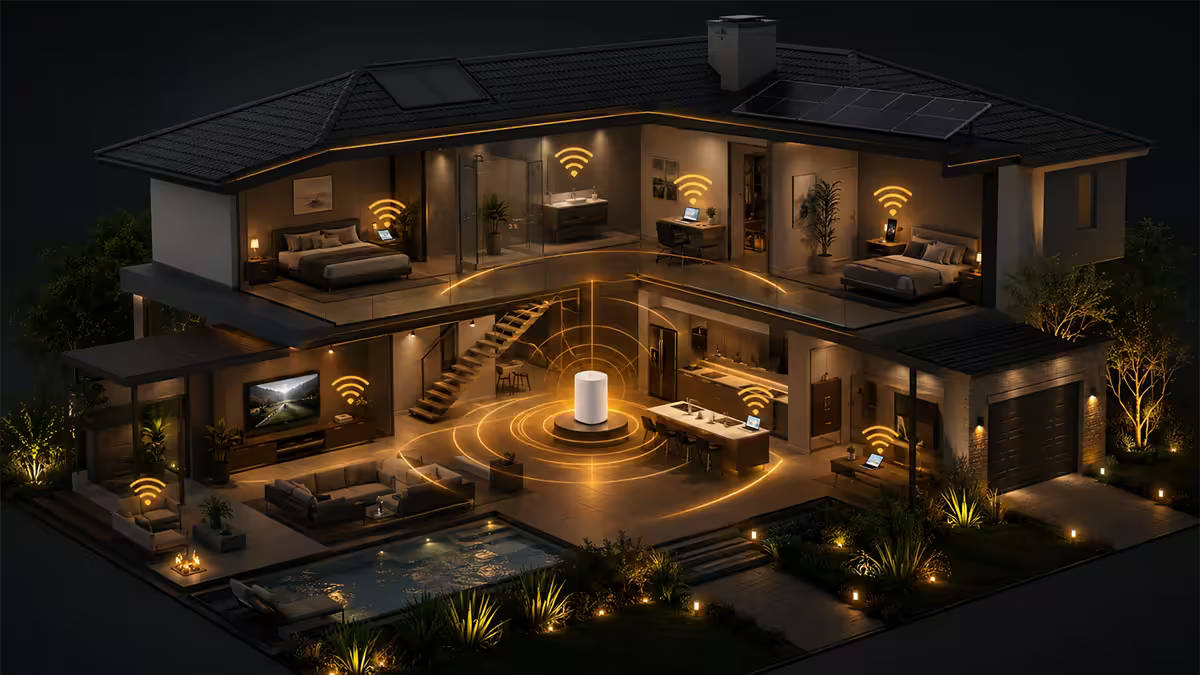
WiFi standards were largely written and tested in North America, where most homes are built from timber frame, drywall and minimal masonry. Signal passes through those walls with minor attenuation — 3-6 dB per wall, easy. SA homes are different. We build from brick, cement, concrete and double-skin walls that have stood for forty years and will stand another forty.
The result is that a router rated for "350 m² coverage" can struggle to deliver good signal across a 90 m² SA home. The brochure was measured in an empty timber-walled test space. Your house has three internal brick walls between the router and the bedroom.
| Wall type | 5 GHz attenuation | Practical effect |
|---|---|---|
| Plasterboard / drywall | 2-4 dB | Negligible |
| Single internal brick | 12-18 dB | Visible slowdown one room over |
| Double brick / cement | 20-25 dB | Dead zone two rooms over |
| Reinforced concrete | 25-35 dB | No signal one wall away |
| Geyser / fridge / TV (metal) | 15-25 dB | Equivalent of a brick wall |
Once you accept that the walls are the problem, the solution becomes obvious: stop trying to push more signal through them and start placing radios on the right side of them. A correctly placed mesh node 6 metres from the router behind one brick wall delivers more bandwidth than a flagship router 12 metres away behind three.
Router placement — central, elevated, away from metal
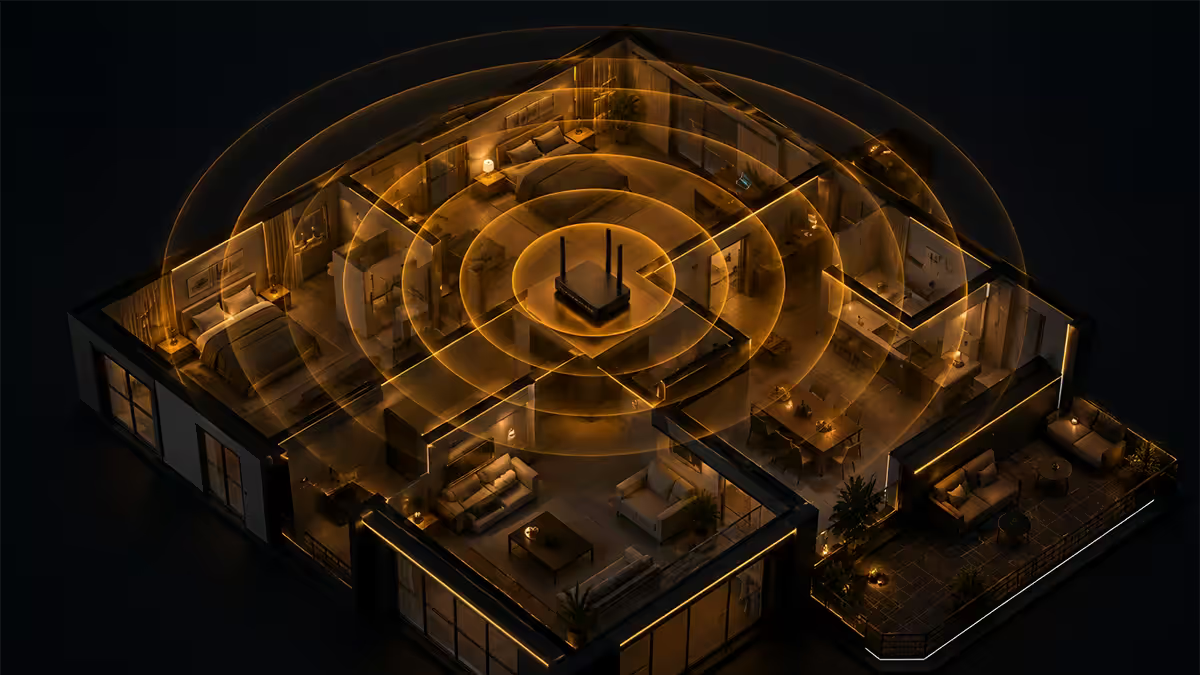
WiFi radiates roughly spherically from the antennas. A router placed in a corner of the house throws three-quarters of its signal into the garden, the neighbour's house, or the road. The same router placed centrally puts almost all of that signal inside your home.
The placement rules that matter, ranked:
- Central in floor plan. Find the room with the most other rooms around it — that's where the router belongs.
- Elevated. 1.5-2 metres off the floor minimum. Floor-mounted routers lose signal through the floor and into the ceiling void above.
- Away from metal. Don't place behind TVs (metal back), inside metal cabinets, on top of fridges or near geysers. Metal blocks WiFi as effectively as a brick wall.
- Out of cabinets / cupboards. Wood reflects and absorbs some signal; the closed environment kills airflow which makes the router thermal-throttle.
- Away from microwaves / cordless phones. Both spew interference on 2.4 GHz. Keep 2 metres between the router and either.
A wall-mounted router in a central hallway frequently beats an expensive flagship router on a corner study desk. Placement is free; replacing the router is not.
2.4 GHz vs 5 GHz vs 6 GHz — when to use which
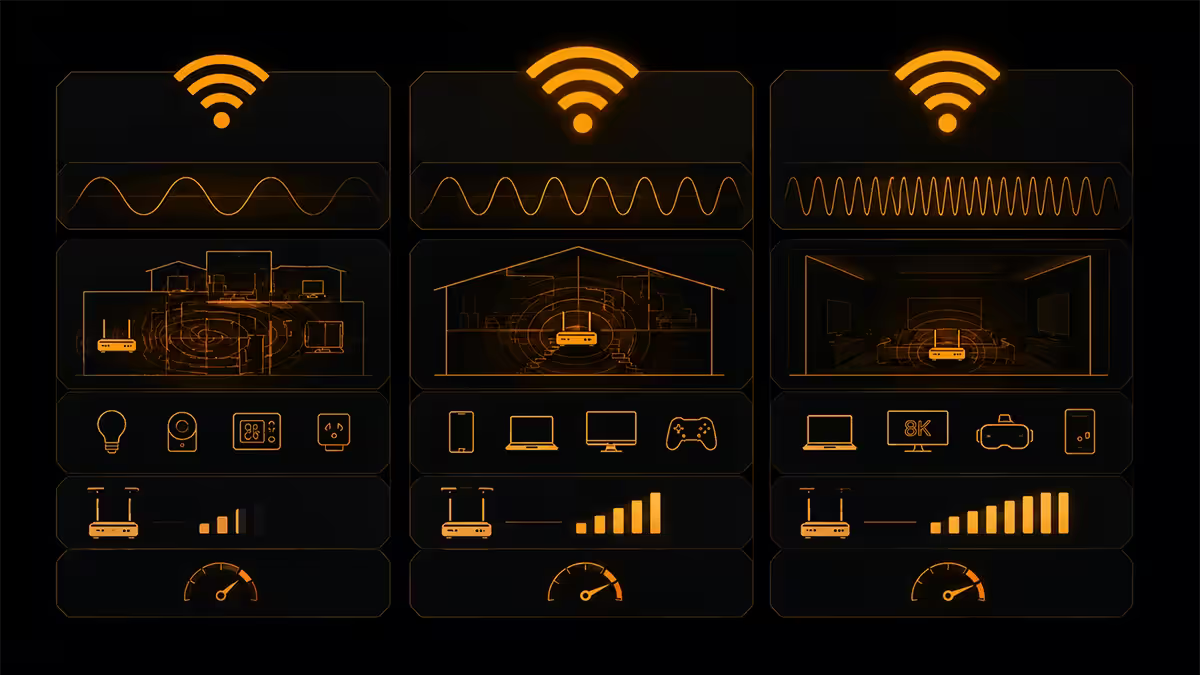
| Band | Speed · range | Best for |
|---|---|---|
| 2.4 GHz | ~400 Mbps · long range, walls okay | IoT, security cams, smart plugs |
| 5 GHz | 1-2.4 Gbps · medium range, struggles with brick | Phones, laptops, streaming |
| 6 GHz (WiFi 6E/7) | 2-3.5 Gbps · short range, almost no interference | WiFi 6E phones, dense apartments |
2.4 GHz is slow but penetrative. It still has the longest reach through brick walls and it's where every IoT device, smart plug, doorbell camera and smart bulb sits because they don't need bandwidth — they need reach. Don't disable 2.4 GHz even if your phone never uses it; your smart home depends on it.
5 GHz is the workhorse for phones, laptops, streaming devices and games consoles. It's fast and modern devices auto-roam to it when in range, falling back to 2.4 GHz at distance. Most of your home's actual traffic happens here.
6 GHz (WiFi 6E and 7 only) is currently underused in SA because few devices support it. It's interference-free and very fast but has the shortest range. In a stand-alone suburban home, 6 GHz is mostly redundant; in a dense apartment block (Sandton, Cape Town CBD, Stellenbosch student accommodation) it can be the difference between functional WiFi and chaos.
Mesh vs single router with access points
Mesh systems (TP-Link Deco, ASUS ZenWiFi, Eero, Ubiquiti AmpliFi) ship as 2-3 identical units that talk to each other and present a single network to your devices. Set-up is consumer-friendly (everything via app), the system handles roaming automatically, and you can add more nodes later. The catch: wireless backhaul between nodes uses some of the available spectrum, so a wireless mesh delivers 60-85% of its theoretical throughput at each node.
Single router with wired access points (Ubiquiti UniFi APs, Aruba InstantOn, even consumer routers in AP mode) delivers full bandwidth at each access point because the backhaul is ethernet. Lower latency too. The downside: setup is more technical, and you need ethernet cable runs to each AP location — which means crawling in ceiling voids or running surface trunking.
WiFi 6, 6E or 7 — which generation matters in 2026?
WiFi 6 (802.11ax) is the 2026 practical baseline. Supported by every phone and laptop sold in the last 4 years, mature firmware, excellent value. A TP-Link Deco X55 mesh or ASUS RT-AX86U single router covers a typical 3-bedroom SA home for R4 000-R7 000.
WiFi 6E (802.11ax with 6 GHz) adds the 6 GHz band. Useful in dense apartment buildings where the 2.4 GHz and 5 GHz bands are saturated with neighbours' networks. Largely redundant in suburban stand-alone homes. Worth the small premium if you own WiFi 6E devices (iPhone 15+, Samsung S23+, recent Pixels).
WiFi 7 (802.11be) introduces MLO (Multi-Link Operation) which combines bands for stability and faster switching. The peak speeds are theoretical and require WiFi 7 client devices to even be requested. WiFi 7 phones started shipping in late 2024; WiFi 7 laptops in 2025. If you're an early-adopter household with multiple WiFi 7 devices, the TP-Link Deco BE65 or ASUS ZenWiFi BT8 are worth the premium. Otherwise, WiFi 6 is the sensible buy.
Channel width — 80 vs 160 MHz
Channel width is how wide a slice of the radio spectrum each WiFi channel uses. Wider channels deliver more bandwidth but are more crowded and more vulnerable to interference. The default options:
- 20 MHz — 2.4 GHz default, narrow, slow, most resilient to interference.
- 40 MHz — 2.4 GHz wide, rarely useful in SA suburbs (too much neighbour interference).
- 80 MHz — 5 GHz default, modern devices target this. Works well in most homes.
- 160 MHz — 5 GHz wide, doubles theoretical throughput, only works without nearby competing networks.
Leave it on auto. Modern routers measure the spectrum and pick the widest usable channel in real time. Manually forcing 160 MHz in a townhouse complex frequently makes things slower because the router can't actually clear the wider channel of interference. The router's algorithm will pick correctly almost every time.
Why the ISP-supplied router is the bottleneck
The router Vumatel, Openserve, Frogfoot, MetroFibre or your reseller supplied as part of the install is invariably an entry-level unit with the cheapest antennas the BoM allowed, basic WiFi 5 or low-end WiFi 6 silicon, and firmware tuned for minimum customer-service calls rather than maximum performance.
It will deliver fine speeds at the same desk as the router. Move two rooms away, behind two brick walls, and it falls apart. This is the cause of the vast majority of "the WiFi in my bedroom is bad" complaints in SA.
The fix: put the ISP router into bridge mode (no WiFi, no NAT) and connect your own WiFi 6 mesh system or router behind it. The ISP unit becomes a pure modem; your network gets the full benefit of proper hardware. Most ISPs support bridge mode but you may need to call support to activate it.
For most SA homes, a TP-Link Deco X55 or ASUS ZenWiFi XD6S mesh at R4 500-R6 500 doubles or triples the measured WiFi throughput in your bedroom, study and kitchen — without changing your fibre line. The fibre was never the bottleneck; the supplied router was.
Dead zones — and the MoCA / powerline reality
A dead zone is a room where WiFi simply doesn't reach with usable speed. In a SA brick home, common dead zones are: bedroom on the opposite side of the geyser, study behind two internal walls, outdoor patio behind a cement wall, and the granny flat or garage with detached structure.
Real fixes, ranked by effectiveness:
- Wired ethernet to a second access point in or near the dead zone. Most reliable, fastest, lowest latency. Requires cable runs.
- Mesh node with wired backhaul — same as above but uses consumer mesh hardware for easier setup.
- Mesh node with wireless backhaul — works if the dead-zone wall can still pass some signal. Performance varies; setup is plug-and-play.
- Powerline adapters (TP-Link AV2000, Devolo Magic) — performance varies wildly with home electrical wiring age. Test with returnable units first.
- WiFi range extender — last resort. Halves available bandwidth at the extender and is invisible to the main router. Functional but lossy.
MoCA (ethernet over coaxial cable) is rare in SA because most homes never had whole-house coax distribution. If you do have coax running to multiple rooms (some older homes with DStv distribution), MoCA adapters are very reliable. Otherwise, skip.
Across the 200,000+ custom builds we've shipped from Centurion, one of the most common post-purchase support questions is "my new PC has slow WiFi". The PC's WiFi card is rarely the issue — it's the ISP-supplied router two brick walls away. A R5 000 mesh upgrade solves more "slow internet" tickets than any motherboard or driver fix ever does. Buyers consistently underspend on the router relative to the PC.
Behind the Build · From customer support tickets
Key takeaways
- SA brick walls drop 5 GHz signal 12-25 dB per wall — placement matters more than router spec.
- Central, elevated, away from metal. A hallway wall mount beats a corner study desk.
- Mesh with wired backhaul is the SA-home ideal. Wireless mesh works but loses 15-30%.
- WiFi 6 is the sensible 2026 floor. WiFi 6E for dense apartments; WiFi 7 only with matching devices.
- Replace the ISP-supplied router. It's almost certainly the bottleneck.
Frequently asked questions
Why is WiFi so bad in SA homes specifically?
SA homes are typically built from brick, concrete and double-cement walls — far denser than the timber-frame construction WiFi standards were designed around. A single internal brick wall can attenuate 5 GHz signal by 12-18 dB. Double-skin cement walls (common in older homes) can drop it 25 dB or more. This is why your fibre delivers 100 Mbps to your router but you measure 8 Mbps two rooms away. The walls are the problem, not the router.Where should I put my router for the best coverage?
Central in the house and elevated — ideally 1.5-2 metres off the floor, away from walls and metal objects. WiFi radiates roughly spherically, so a router in the corner of your home throws three-quarters of its signal into your neighbour's house. Avoid placing the router behind a TV (metal back), inside a cabinet, in a metal-framed Reolink mount, or on top of a fridge (large metal mass). A wall mount in a hallway typically beats a desk in a corner study.What's the difference between 2.4 GHz, 5 GHz and 6 GHz WiFi?
2.4 GHz penetrates walls better, has longer range, but is slow (max ~400 Mbps in WiFi 6) and shares the band with microwaves, baby monitors and Bluetooth. 5 GHz is much faster (up to 2.4 Gbps), shorter range, struggles with brick walls. 6 GHz (WiFi 6E/7 only) is fastest, almost no interference, but has the shortest range and the same wall problems as 5 GHz. Most modern devices auto-roam between bands.Mesh WiFi vs single router with access points — which is better?
Mesh is easier to set up but uses some bandwidth for backhaul between nodes (15-30% loss unless you wire the nodes together). Single router with wired access points delivers full bandwidth to each node and lower latency, but requires running ethernet to each AP location. For SA homes with brick walls, mesh with wired backhaul (best of both) is the ideal. Wireless mesh works but is slower than the spec sheets suggest.Is WiFi 6, 6E or 7 worth upgrading to in 2026?
WiFi 6 is the practical baseline — fast, efficient, supported by every device sold in the last 4 years. WiFi 6E adds the 6 GHz band which is genuinely useful in dense apartment buildings but redundant in suburban homes. WiFi 7 introduces MLO (Multi-Link Operation) which combines bands for stability — worth the premium if you're an early-adopter household with WiFi 7 phones and laptops. For most SA buyers, a good WiFi 6 mesh is the right purchase.What's wrong with the router my ISP supplied?
ISP-supplied routers from Vumatel, Openserve, Frogfoot, MetroFibre etc. are usually entry-level WiFi 5 or low-end WiFi 6 units with basic antennas and limited firmware. They work but they leave bandwidth on the floor — particularly through brick walls. Replacing with a TP-Link Deco / ASUS ZenWiFi / Ubiquiti AmpliFi mesh routinely doubles measured throughput in the rooms furthest from the ONT, without any change to your fibre plan.What is channel width 80 vs 160 MHz and which should I use?
Channel width is how wide a slice of the radio spectrum each WiFi channel uses. Wider = more bandwidth but more crowded and more interference. 80 MHz on 5 GHz is the modern default and works well in most SA homes. 160 MHz delivers double the theoretical throughput but only works if you have no neighbouring WiFi networks on the same channel — rarely true in apartments or estate clusters. Leave it on auto and let the router decide.Do powerline adapters or MoCA help with dead zones?
Powerline (TP-Link AV2000, Devolo Magic) works in SA but performance varies wildly with the age of your home's electrical wiring. Newer wiring delivers 200-400 Mbps; 1970s wiring can drop to 30-50 Mbps. Test before committing. MoCA (over coax) is uncommon in SA because most homes don't have coax distribution. The genuinely reliable fix for dead zones is wired ethernet to a second access point — it's just the option people most want to avoid.