Desktop Networking Guide
WiFi adapter vs ethernet. — Wired wins. Wireless when it has to.
Most desktops ship with ethernet only — fine until the day you can't run a cable to the router. PCIe card, USB dongle, onboard module, mesh backhaul: four different fixes, each with a specific use case.
- ethernet latency
- 1-3 ms
- WiFi latency
- 5-30 ms
- per brick wall
- 5-10 dB
The desktop-without-WiFi reality
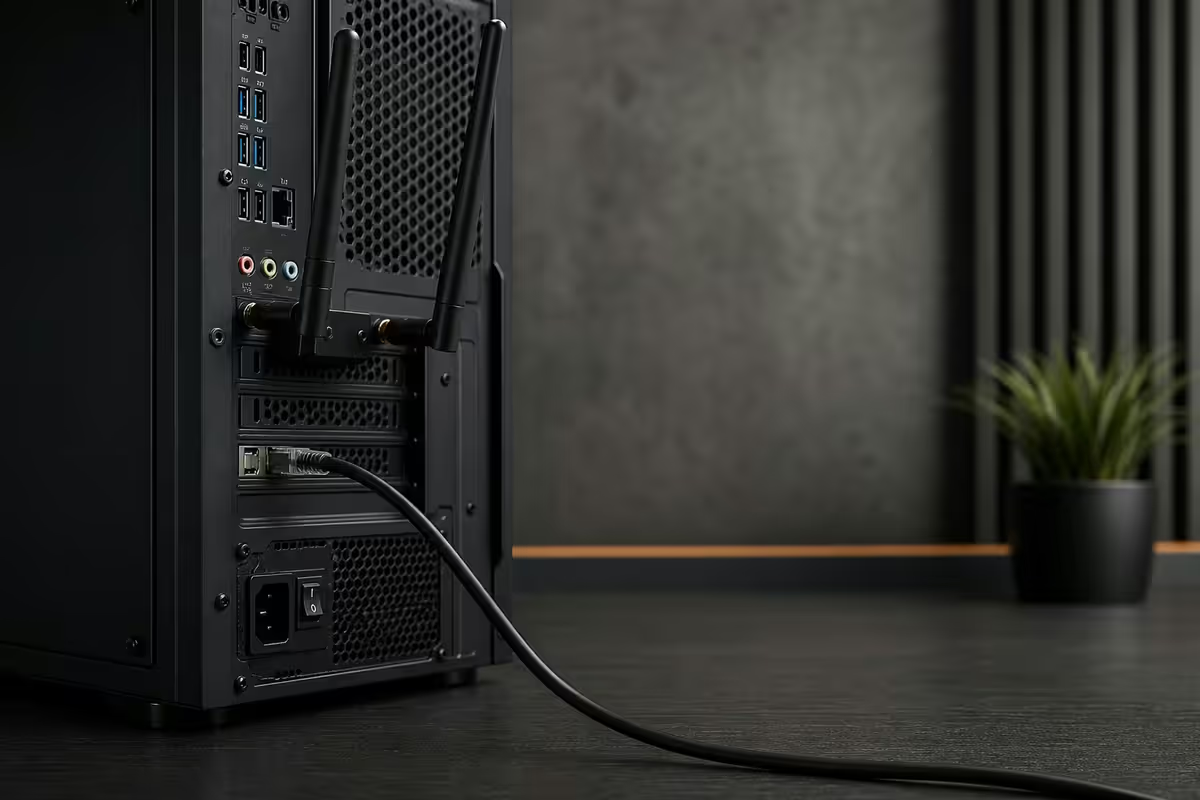
Pre-built desktops and mid-range custom builds usually ship with ethernet only. The motherboard maker decided that anyone serious enough to buy a tower would have a cable run to the router. This is right more often than it's wrong — but every year, a percentage of customers unbox a new build and ask the same question on day two: "where's the WiFi?"
You only get built-in WiFi if the motherboard explicitly carries it. The model name is the giveaway: MSI MAG B650 Tomahawk WiFi, ASUS TUF Gaming B760M-Plus WiFi, Gigabyte X870 AORUS Elite WiFi — the suffix is the entire signal. The same boards without "WiFi" in the name skip the module to save $5-10 on the BOM. On the spec sheet you're looking for an Intel WiFi module name (AX211, AX411, BE200) or "Realtek 8852CE" or similar.
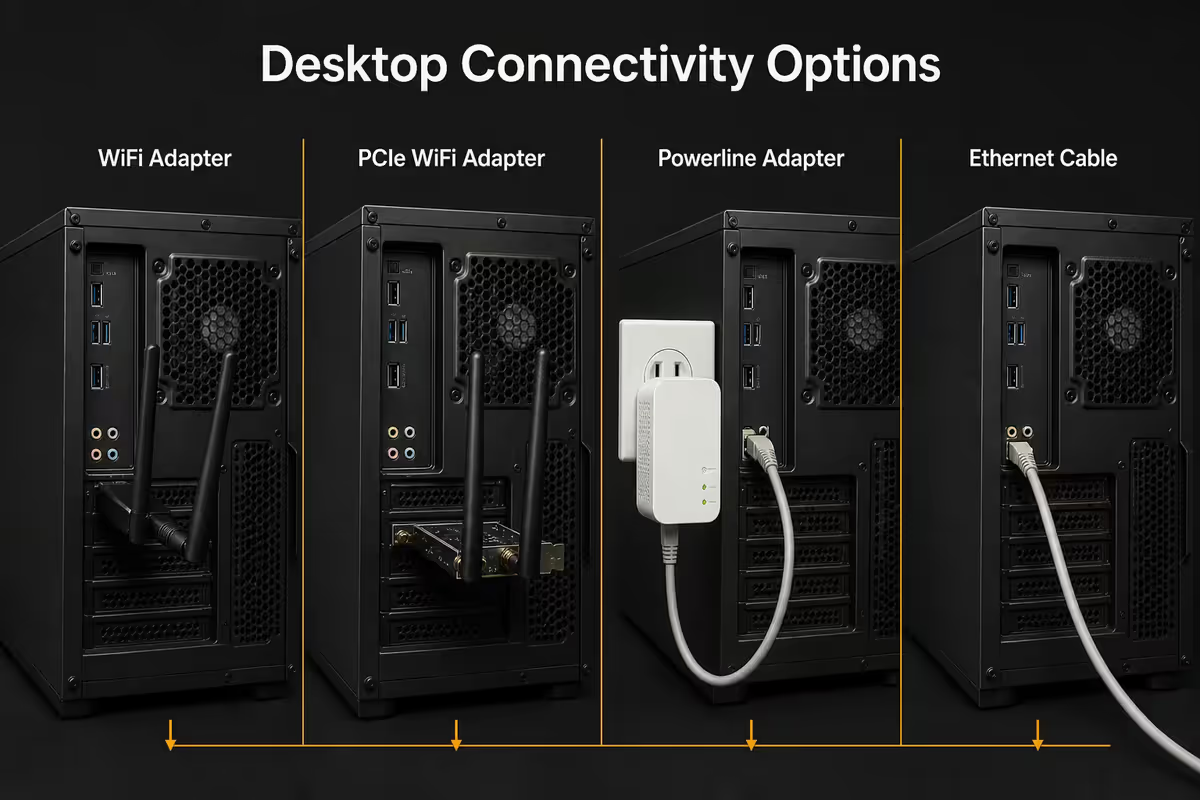
If you've already bought a board without WiFi and need wireless, you have three reasonable routes: add a PCIe WiFi card (best performance), plug in a USB WiFi adapter (cheapest, easiest), or run an ethernet cable if you can. The desktop motherboard cannot magically grow a WiFi module — it's a hardware addition either way.
The four connectivity options compared
| Option | Best for | Real-world performance |
|---|---|---|
| Ethernet (wired) | Anyone who can run a cable | 1-3ms latency, full link speed always |
| Onboard WiFi (motherboard) | New builds, no cable run possible | Latest WiFi 6E / 7, integrated, clean install |
| PCIe WiFi card | Adding WiFi to existing desktop | Within 5-10% of onboard, full antennas |
| USB WiFi dongle | Temporary / last resort | Variable signal, smaller antenna, USB-limited |
PCIe WiFi card (TP-Link Archer TX55E, Asus PCE-AXE5400, Gigabyte GC-WBAX210) installs in a spare PCIe x1 slot. It includes a back-panel bracket with two SMA antenna connectors and a pair of external antennas. The card sits inside the case; the antennas are on cables you can position. This is the right answer for almost every "add WiFi to a desktop" scenario.
USB WiFi dongle (TP-Link Archer T3U, Asus USB-AX55, Netgear A7000) is the simplest option — plug into a USB-A port, install drivers, done. The downsides are real: smaller internal antenna, USB-A bandwidth ceiling (USB 3.0 caps practical throughput around 400-700 Mbps), and the dongle position dictated by the rear of the case which is often the worst spot in the room for signal.
Onboard WiFi — Intel AX211, AX411, BE200
If you're choosing a motherboard now, spend the extra R300-R500 for the WiFi variant. The integration is cleaner than any aftermarket card and the modules are excellent:
| Module | Standard | Headline speed |
|---|---|---|
| Intel Wi-Fi 6E AX211 | WiFi 6E (2.4 / 5 / 6 GHz) | Up to 2.4 Gbps, BT 5.3 |
| Intel Wi-Fi 6E AX411 | WiFi 6E with improved MU-MIMO | Up to 2.4 Gbps, BT 5.3 |
| Intel Wi-Fi 7 BE200 | WiFi 7 (320 MHz channels, MLO) | Up to 5.8 Gbps, BT 5.4 |
| Realtek 8852CE / BE | Budget alternative | Solid but historically thinner driver support on Linux |
All current modules also handle Bluetooth 5.3 or 5.4 — useful for headphones, controllers and gamepads. The single WiFi/BT combo card serves both functions from the same antenna pair.
Antenna placement matters more than card choice
A WiFi 7 card with antennas crammed behind a metal case rear, blocked by the desk, behind a monitor, performs worse than a basic USB dongle with line-of-sight to the router. Antenna position is the single biggest variable.
The placement rules:
- Vertical, not horizontal. Most WiFi antennas are omnidirectional in the horizontal plane — vertical orientation maximises coverage.
- A fist apart. The two antennas should be 15-20cm apart for proper MU-MIMO spatial separation. Touching antennas reduce diversity gain.
- Above the case, not behind it. Use the included SMA extension cable (or buy a 1m extension) to lift the antennas onto the desktop, top of monitor stand, or a wall-mount bracket above the desk.
- Away from metal. Cases, monitor arms, server racks, large monitors all reflect and block. A 30cm shift can swing signal by 10dBm.
- Toward the router, not away. If the router is in the lounge and the desk is in the study, point the antennas at the wall between them.
A magnetic-base antenna placed on the top of a monitor or atop the desk often gains 5-10dBm of signal versus the back-of-case default. The signal improvement translates directly to throughput.
When ethernet wins — every time you can
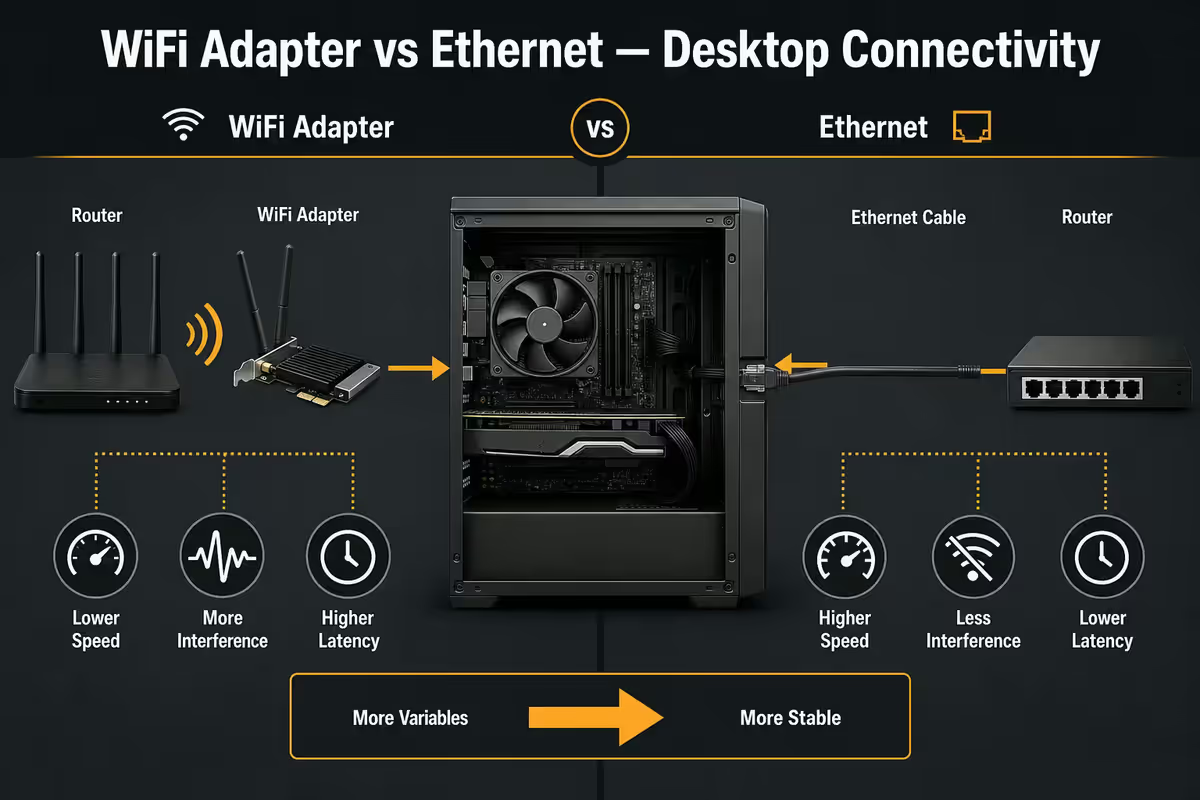
Wireless can be made fast. It cannot be made low-latency in the way wired ethernet is low-latency. The contention for airtime, the protocol overhead, the retries, the variable channel conditions — all add up to 5-30ms of jitter even on the best WiFi 7 setup. Ethernet is 1-3ms with near-zero jitter.
Ethernet wins for:
- Competitive online gaming. Valorant, CS2, Apex, Fortnite — the latency difference is felt. WiFi can spike 50-100ms during interference; ethernet doesn't.
- Video calls / streaming production. Twitch, Zoom, Teams. WiFi packet loss causes the audio dropouts and frozen video that wired connections never have.
- Large file transfers / backup. Sustained gigabit (or 2.5G) is realistic on ethernet; WiFi varies wildly with conditions.
- NAS / home server access. Local file workflows. Ethernet just works; WiFi is the variable.
- Anywhere bandwidth pressure matters. 4K streaming + game download + family browsing concurrently is fine on ethernet, painful on shared WiFi.
A 10m ethernet cable in SA costs R80-R150. Even a 20m run is under R300. The cost-to-quality ratio of wired is unbeatable wherever the cable can physically go.
When WiFi makes sense
There are legitimate cases where wireless is the right choice — not a compromise but the correct engineering answer:
- Rented apartment or house where drilling holes or running visible cable isn't permitted.
- Complex floor plan where the only viable cable route involves multiple rooms or going outside the building.
- Temporary setup. A student desk for one academic year — not worth a permanent cable install.
- Aesthetic-critical workspace where a visible cable across the floor is unacceptable.
- Light productivity workload. Office docs, email, browsing, video calls — WiFi 6E does all of this without breaking sweat.
For productivity work the wireless vs wired difference is largely invisible. Web browsing, video calls, document editing, even 1080p streaming all run fine on WiFi 6E with a decent signal. The hard cases are competitive gaming, content uploads and bandwidth-saturated households.
MoCA, powerline and the SA brick-home problem
When you can't cable and WiFi struggles, there are two intermediate options people forget exist:
MoCA (Multimedia over Coax) uses existing coaxial TV cabling to carry ethernet. Where it exists, MoCA 2.5 delivers near-gigabit performance with ethernet-like latency. The catch in SA: most homes don't have whole-house coax cabling — it's an American convention. If you have a single satellite or aerial run, MoCA can't help.
Powerline adapters (TP-Link AV1300 / AV2000, D-Link DHP-701AV) use mains wiring to carry network. You plug one into a wall socket near the router and ethernet-cable it; you plug another near the desk and ethernet-cable that. Performance varies wildly with wiring quality, surge protectors and noise sources. Rated speeds are theoretical maxima — real-world throughput is typically 80-300 Mbps on a 1300 Mbps-rated AV1300 kit.
The SA brick reality: a single double-brick wall costs roughly 5-10dBm; a concrete slab between floors costs 10-20dBm. A 100m² double-storey suburban home with the router at one end loses 30-50dBm by the far corner — pushing signal from a strong -45dBm at the router down to a marginal -85dBm at the distant desk. This is where mesh systems (TP-Link Deco X50, Asus ZenWiFi, Ubiquiti UniFi) earn their cost. A mesh node placed centrally with wired backhaul to the router gives the entire home strong signal where a single router could not.
Key takeaways
- Ethernet wins on latency — every time you can run the cable. 1-3ms wired vs 5-30ms wireless.
- If building, choose a WiFi-variant motherboard (Intel AX211 / BE200) — cleanest integration.
- If upgrading an existing PC, PCIe WiFi card beats USB dongle every time. Antennas extend outside case.
- Antenna placement matters more than card choice. Vertical, above desk, away from metal, toward router.
- SA brick homes need mesh systems more than they need stronger desktop cards. Fix the path, not the endpoint.
Frequently asked questions
Does a desktop PC have WiFi built in?
Only if the motherboard has a WiFi module fitted — usually indicated by "WiFi" in the board model name. Check the spec sheet for an Intel AX211, AX411, BE200, or Realtek 8852CE/BE module listing.What's the difference between PCIe WiFi card and USB WiFi dongle?
PCIe cards have larger external antennas, support the latest WiFi standards and are limited only by the PCIe slot bandwidth. USB dongles are smaller, plug into USB-A, and are limited by USB bandwidth and proximity to the case. PCIe cards perform meaningfully better in real homes.Is ethernet always faster than WiFi?
For latency, yes — 1-3ms wired vs 5-30ms wireless. For raw bandwidth, modern WiFi 6E/7 can match gigabit on paper, but real conditions, walls and interference always favour wired.What is Intel AX211, AX411 and BE200?
Intel's current WiFi modules. AX211/AX411 are WiFi 6E (2.4 Gbps). BE200 is WiFi 7 (5.8 Gbps, 320 MHz channels). All include Bluetooth 5.3+.Where should I place WiFi antennas on a desktop?
Vertical, a fist apart, above the case, away from metal, pointing toward the router. Use SMA extension cables to lift antennas to the desk surface for 5-10dBm signal gain.When does WiFi make sense for a desktop?
Rented spaces where cabling isn't allowed, complex floor plans without neat cable routes, temporary setups, or general productivity. Always cable if you can; WiFi if you must.What are MoCA and powerline as alternatives?
MoCA uses coax TV cabling — rare in SA homes. Powerline uses mains wiring (TP-Link AV1300, AV2000) — works but heavily dependent on home wiring quality. Real throughput typically 80-300 Mbps.Why does WiFi struggle in SA brick homes?
Double-brick walls cost 5-10dBm each; concrete floors 10-20dBm. A single router rarely covers a whole SA home. Mesh systems with wired backhaul (TP-Link Deco, Asus ZenWiFi, Ubiquiti UniFi) are the standard fix.
Get the Evetech app
Exclusive app-only prices, daily flash sales, and free delivery on orders over R4,000 — download the app and start saving.