Peripheral Buying Guide
How to choose a capture card.
The peripheral most streamers overspend on. 4K60 HDR sounds impressive until you remember Twitch caps you at 1080p. Here's the gear that actually fits the stream you're building.
- SA price range
- R2.5k-R12k+
- capture tiers
- 1080p60 → 4K60 HDR
- form factor
- Internal · External
Internal PCIe vs external USB capture card
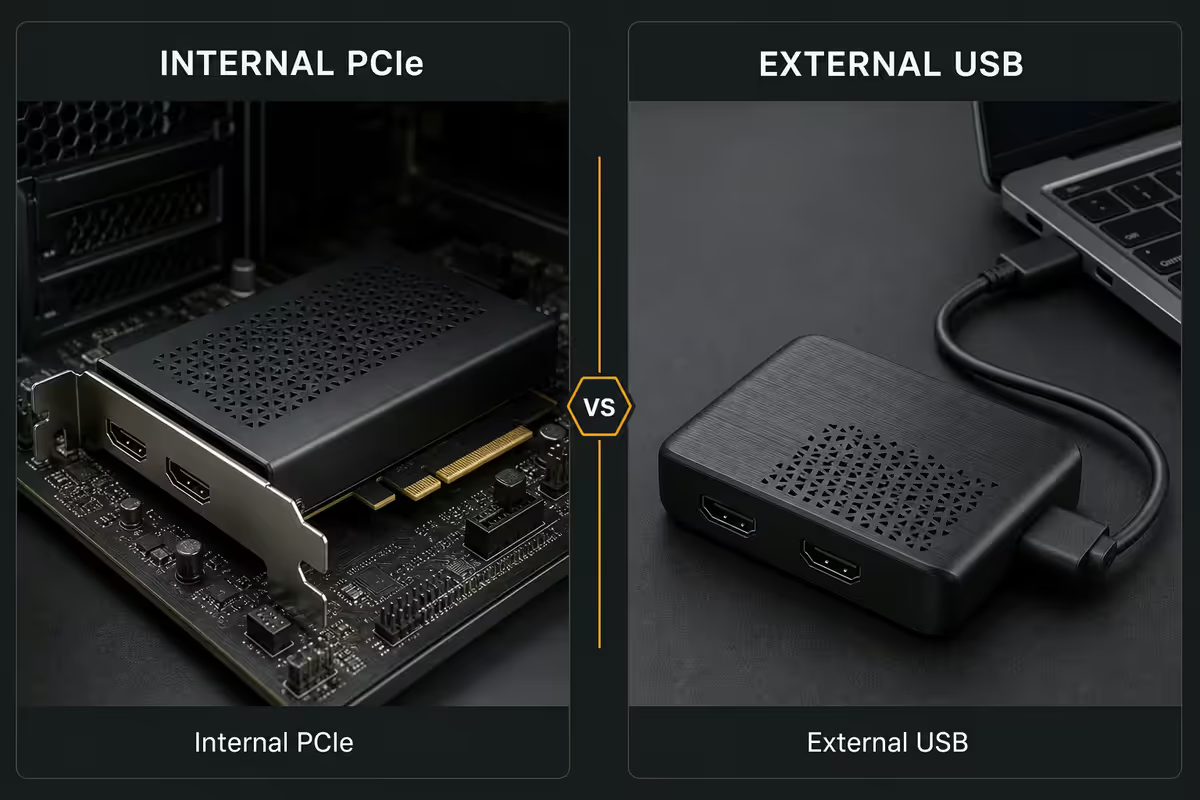
Every capture card sold in South Africa falls into one of two form factors. The choice has nothing to do with quality and everything to do with where it lives in your setup.
| Form factor | Best for | Trade-off |
|---|---|---|
| External USB 3.0 / USB-C | Most streamers, laptops, console-only setups | Shares USB controller bandwidth |
| Internal PCIe (x1 / x4) | Dual-PC streaming, permanent install | Uses a slot, desktop only |
| Camera-only (Cam Link 4K) | DSLR / mirrorless webcam upgrade | Not for console capture |
External USB cards (Elgato HD60 X, Elgato 4K X, AverMedia Live Gamer Ultra 2.1) plug into any USB 3.0 port on a desktop or laptop. They're portable — you can move them between rigs in seconds, take them to a friend's house for couch co-op streams, and never open a case to install them. The cost: they share your motherboard's USB controller bandwidth with everything else on those ports.
Internal PCIe cards (Elgato 4K60 Pro MK.2, AverMedia Live Gamer 4K 2.1) slot into a PCIe x4 lane and bypass USB entirely. The card gets dedicated bandwidth, latency is fractionally lower, and you can chain multiple cards on the same rig. The cost: you give up a slot you might want for your sound card, secondary GPU, NVMe expansion or 10GbE NIC.
Resolution, refresh rate & HDR pass-through
This is where most streamers overspend. The marketing pushes 4K60 HDR hard, but Twitch and YouTube cap your output well below what 4K needs.
Capture resolution is what the card grabs and sends to OBS. Pass-through resolution is what the card sends to your gaming monitor or TV. The two are independent — the Elgato HD60 X captures at 1080p60 but passes through 4K60 HDR cleanly to your display.
Three practical tiers exist today:
- 1080p60 capture / 4K60 HDR pass-through (HD60 X, Live Gamer Ultra 2.1) — the right pick for almost every streamer. Your stream output is 1080p60 max anyway.
- 4K60 HDR capture / 4K60 HDR pass-through (Elgato 4K X, 4K60 Pro MK.2, Live Gamer 4K 2.1) — only useful if you record local 4K archives for YouTube uploads or run a dual-PC rig.
- 4K144 HDR pass-through / 4K60 HDR capture (Game Capture 4K Pro) — overkill for almost everyone. Pro setups with 4K144 OLED monitors and serious content output only.
HDR pass-through chain. For HDR to reach your TV, every link must support it: your console output, the capture card pass-through port, the HDMI 2.0 / 2.1 cable, and the display. One weak link breaks the chain and you'll get SDR on the monitor. Stick to certified HDMI 2.1 cables under 2m for any 4K HDR work.
Dual-PC streaming setups
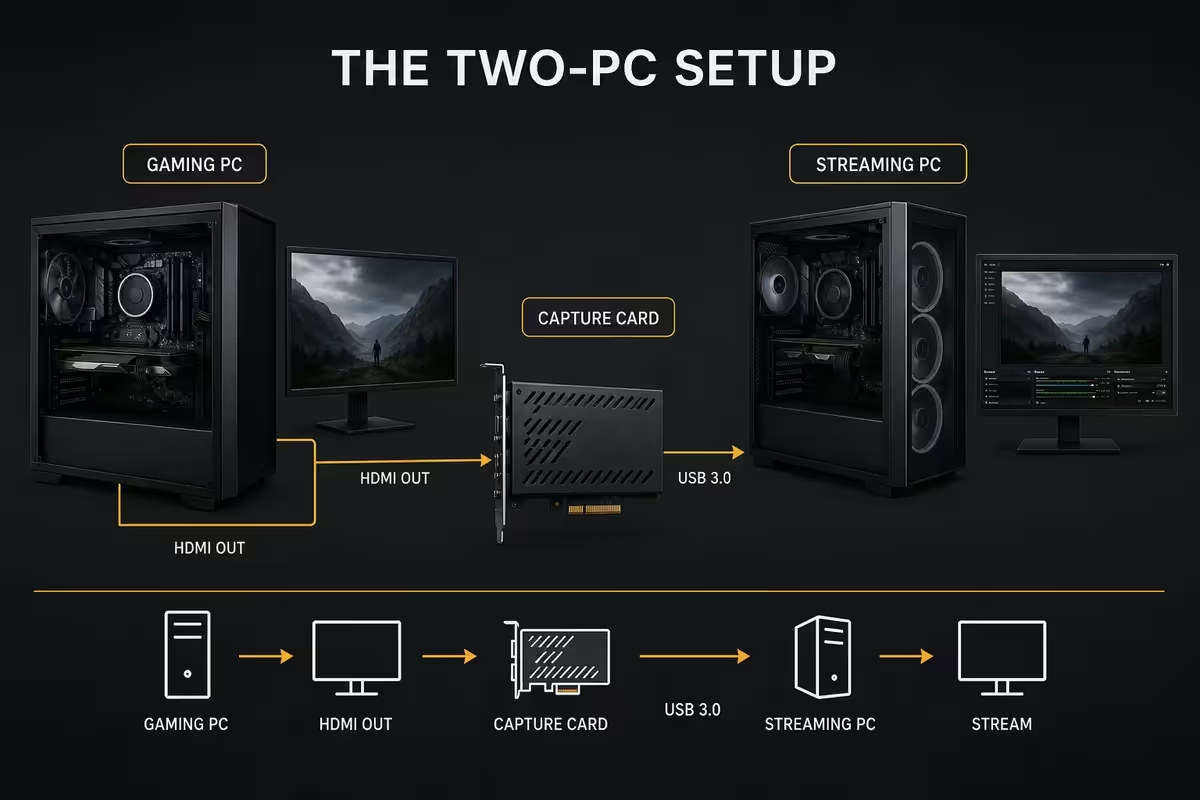
If you stream alone from one PC, you don't need a capture card — OBS captures your screen directly. Capture cards become essential the moment you split gaming and streaming across two machines.
How dual-PC works. Your gaming PC outputs HDMI to the capture card installed in your streaming PC. The gaming PC stays free to focus 100% on the game; the streaming PC handles OBS, browser sources, alerts, encoding and uploading to Twitch or YouTube. Frame drops on the streaming PC never affect your gameplay.
When dual-PC makes sense: you stream at 1440p or 4K, you play CPU-heavy titles (Tarkov, MMOs, RTS), or you've hit the encoder limits of a single PC's GPU. For most streamers playing FPS titles at 1080p, single-PC streaming with NVENC is fine and the dual-PC complexity isn't worth it.
Internal PCIe wins here. A dual-PC rig is a permanent install — the streaming PC sits in the same spot every day, the capture card never moves. The Elgato 4K60 Pro MK.2 or AverMedia Live Gamer 4K 2.1 give you dedicated bandwidth and zero USB contention with your stream deck, mic interface, lighting controllers and other peripherals.
Console capture — PS5, Xbox, Switch & Switch 2
Modern consoles play nicely with current-gen capture cards, but each platform has quirks worth knowing before you wire anything up.
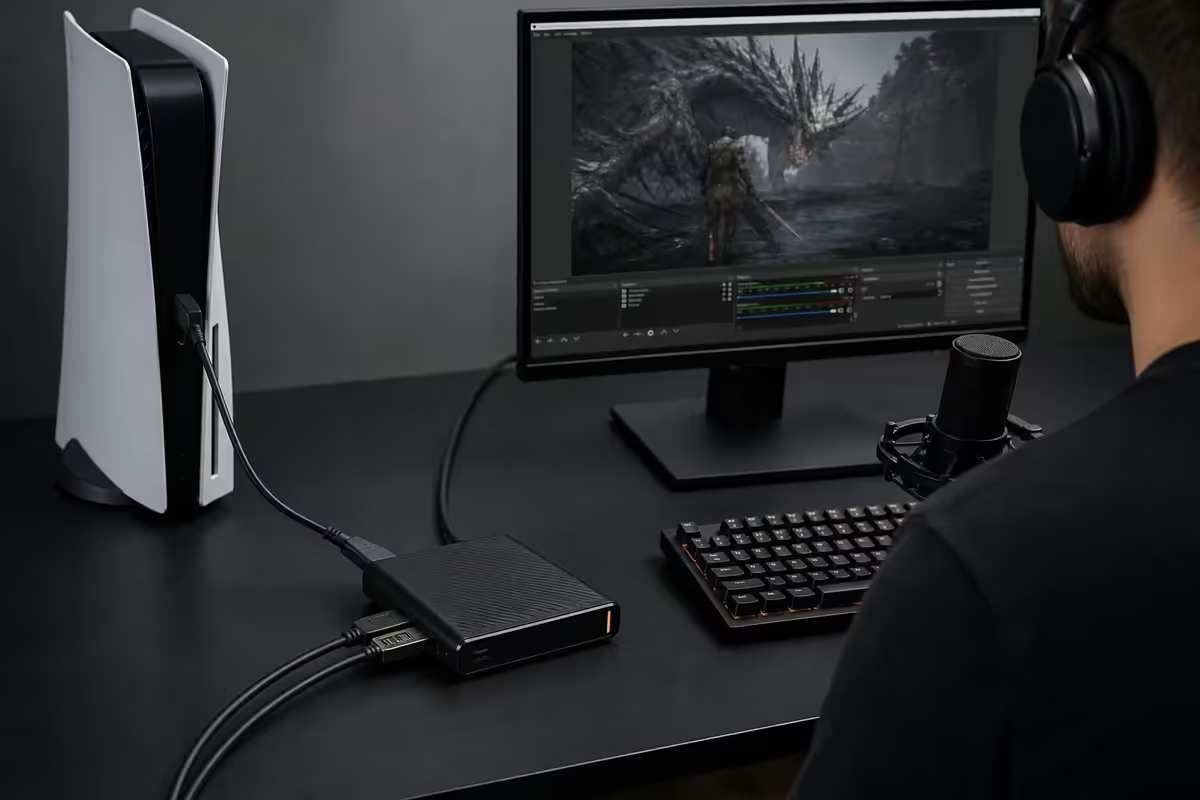
PS5. Outputs 4K60 HDR over HDMI 2.1. HDCP is enabled by default for video apps (Netflix, Disney+) and disabled for gameplay — so games stream fine but you can't capture in-app content. No menu toggle exists, the system handles it per-app. The HD60 X handles PS5 1080p60 capture; the 4K X handles PS5 4K60 HDR capture if you want full archive quality.
Xbox Series X|S. Outputs 4K60 HDR. HDCP can be toggled off entirely via Developer Mode if you need to capture any video app content (rare). Plays cleanly with every modern card.
Nintendo Switch & Switch 2. Switch tops out at 1080p60 SDR docked — the HD60 X is perfect. Switch 2 outputs 4K60 HDR via its new dock, so if you want native-quality Switch 2 captures, step up to the 4K X or a 4K-capable internal card. Neither Switch uses HDCP, so capture is always clean.
Retro consoles. The HD60 X accepts 480p/720p signals fine through a passive HDMI converter (e.g. RetroTink for Wii / PS2 / GameCube via component). For pure CRT consoles a dedicated upscaler in front of the capture card is essential.
OBS, Streamlabs, XSplit & latency
Every modern capture card works with OBS Studio, Streamlabs Desktop and XSplit out of the box. The card appears as a video source like a webcam — pick it from a dropdown, set the resolution, you're live.
Elgato cards ship with the Elgato 4K Capture Utility (good for quick recordings) and Game Capture HD (legacy, mostly used for editing clips). Streamers use OBS or Streamlabs as the main capture source instead — the bundled software is more for one-off uploads.
AverMedia cards bundle RECentral for recording and stream pre-sets. Like Elgato's tools, it's useful for content creators uploading raw footage to YouTube, but most streamers route directly through OBS.
Capture latency is real. The HDMI signal hitting OBS lags 100-300ms behind the original — that's normal and unavoidable. Never play off the OBS preview window. Always use the pass-through HDMI to a dedicated gaming monitor; that signal is zero-latency because the card is just looping HDMI through.
Recommended capture cards by use case
| Use case | Pick | SA price |
|---|---|---|
| Best value (most streamers) | Elgato HD60 X (external USB) | R2900-R3200 |
| Budget / legacy | Razer Ripsaw HD or older HD60 S+ | R1800-R2500 |
| 4K60 HDR external | Elgato 4K X (USB-C 3.2 Gen 2) | R6200-R7000 |
| 4K60 HDR internal | Elgato 4K60 Pro MK.2 (PCIe x4) | R5800-R6500 |
| 4K60 internal alternative | AverMedia Live Gamer 4K 2.1 (GC575) | R5500-R6200 |
| 4K144 HDR pro | Elgato Game Capture 4K Pro | R10500-R12500 |
| DSLR / mirrorless webcam | Elgato Cam Link 4K | R3200-R3800 |
| 1080p60 external alternative | AverMedia Live Gamer Ultra 2.1 | R3000-R3500 |
Common capture card mistakes
Buying 4K capture when you stream 1080p. The single most common overspend. Twitch and YouTube live caps stream bitrate well below 4K-quality. A R3000 HD60 X delivers identical stream output to a R12000 Game Capture 4K Pro for 1080p60 Twitch streams.
Plugging external cards into USB 2.0 ports. Older motherboards mix USB 2.0 (black) and USB 3.0 (blue) connectors on the back panel. A USB 3.0 card on a USB 2.0 port silently downgrades to 1080p30 — half the framerate. Always verify the port colour or check spec on your motherboard manual.
Ignoring HDCP requirements. Trying to capture PS5 media apps (Netflix, Disney+, in-game licensed cinematics) results in a black OBS preview. This isn't a card defect — HDCP works as designed. Plan for gameplay capture only; treat any media-app capture as a no-go.
Breaking the HDR pass-through chain. Buying a 4K60 HDR card and pairing it with a 1.8m R30 HDMI cable from a petrol station gives you SDR on the monitor. HDR needs HDMI 2.1 certified Premium cable, short runs, and confirmed HDR support on every device in the chain.
Skipping the pass-through display entirely. Trying to play directly off the OBS preview window introduces 100-300ms of input lag — unplayable for any competitive title. Always route the pass-through HDMI to a dedicated gaming monitor and game on that screen.
Key takeaways
- Elgato HD60 X (R3000) is the right pick for almost every streamer — 1080p60 capture, 4K60 HDR pass-through.
- External USB for portability and laptops; internal PCIe only for dual-PC permanent installs.
- 4K capture is overkill for Twitch / YouTube live streamers — buy a 1080p card and save R3000+.
- Always game off the pass-through HDMI to a real monitor — never off the OBS preview window.
- Don't waste capture spend on a R30 HDMI cable — certified Premium HDMI 2.1 keeps the HDR chain intact.
Frequently asked questions
What capture card should I buy for streaming?
Elgato HD60 X (R3000) for almost every streamer — external USB, 1080p60 capture, 4K60 HDR pass-through. Step up to the 4K X (R6500) only if you record 4K archives, or 4K60 Pro MK.2 (R6000) for dual-PC PCIe installs.Internal PCIe or external USB capture card — which is better?
External USB is the right call for most people — portable, laptop-friendly, plug-and-play. Internal PCIe only wins for dual-PC permanent installs or when you want zero USB bandwidth contention.Do I need 4K60 HDR or is 1080p60 enough?
1080p60 is enough for Twitch and YouTube live — they cap bitrate below 4K needs. Buy 4K only for local archives, YouTube uploads or dual-PC rigs that downscale on the streaming PC.What is HDMI pass-through?
Pass-through sends the original console / PC signal straight to your monitor while the capture card grabs a copy. Pass-through can be higher resolution than capture — HD60 X captures 1080p60 but passes 4K60 HDR to your display.Will a capture card work with PS5, Xbox Series X and Switch 2?
Yes — every modern Elgato and AverMedia card handles PS5, Xbox Series X|S, Switch and Switch 2. PS5 has HDCP on for video apps but off for games. Xbox lets you toggle HDCP via dev settings. Switch never uses HDCP.Single PC or dual PC streaming — which needs a capture card?
Single PC streaming uses OBS to capture your screen directly — no card needed. Capture cards are required for console streaming, dual-PC setups, and DSLR webcam capture via Cam Link 4K.How much should I spend on a capture card in South Africa?
R2500-R3500 covers the HD60 X — best value for almost every streamer. R5500-R7000 buys 4K60 HDR capture (4K X or 4K60 Pro MK.2). R10000+ for 4K144 HDR pro tier — overkill for almost everyone.Does a capture card cause lag?
Pass-through is zero-latency — direct HDMI loop. Captured signal to OBS has 100-300ms of latency, which is why you should never play off the OBS preview. Always game on the pass-through monitor.
Get the Evetech app
Exclusive app-only prices, daily flash sales, and free delivery on orders over R4,000 — download the app and start saving.