First Build · Mistakes
The 10 first-build mistakes — and how to avoid every one.
Forgotten I/O shields. Bent CPU pins. The CPU 8-pin that's apparently optional. The same ten mistakes turn up in support tickets every week — almost all of them five-second saves if you knew about them in advance.
By the end of this guide, you'll know the ten most common mistakes first-time SA builders make, the exact moment they happen, and how to avoid them. Read this before opening any box.
- common mistakes
- 10
- avoidable
- 90%
- avg save time
- 5 sec
Phase 1 — Pre-purchase mistakes (3)
- 01
Skipping the RAM QVL check
You buy a "fast" DDR5-6400 kit, install it, and Windows reports it running at DDR5-4800. The RAM isn't on your motherboard's QVL (Qualified Vendor List), so it defaulted to a conservative speed. → Fix: before buying RAM, check the motherboard's QVL page for your exact kit model. If not listed, expect to manually tune sub-timings in BIOS or pick a different kit. - 02
Buying a GPU too long for your case
Flagship GPUs are 320-360mm long. Mid-tower cases vary 340-410mm in supported GPU length. Mismatch = expensive return shipping. → Fix: cross-reference your specific GPU's length to the case's "max GPU length" spec before ordering. Both numbers are on the manufacturer product pages. - 03
Undersizing the PSU
You add 65W CPU + 250W GPU + 50W misc = 365W, see "500W PSU is enough" online, buy a 500W generic. Reality: you want headroom (1.4×), brand-name PSU and certification — minimum 650-750W 80+ Gold for any modern gaming build. → Fix: (CPU TDP + GPU TDP + 80W) × 1.4, then round up to the next standard wattage. Pick branded 80+ Gold modular.
Phase 2 — Assembly mistakes (4)
- 04
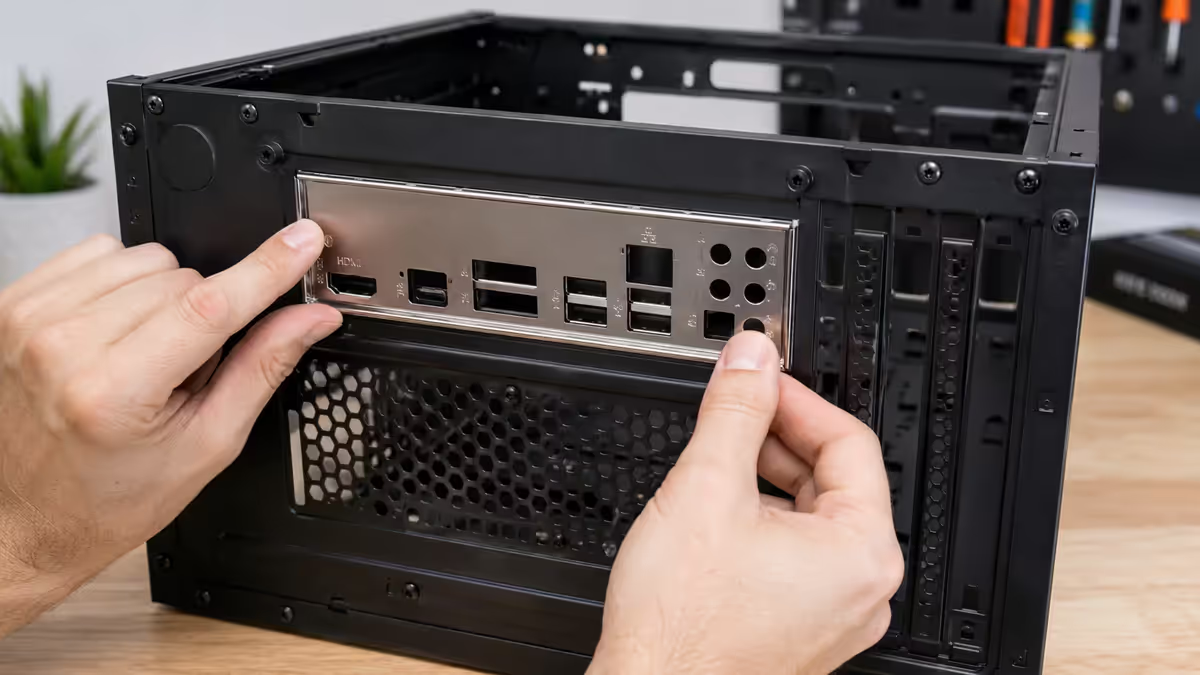
Forgetting the I/O shield
The metal plate around the rear motherboard ports has to go into the case BEFORE you screw the motherboard down. Skip it and you have to unmount the motherboard to install a R0 piece of metal. → Fix: most modern motherboards now ship with the I/O shield pre-attached. If yours doesn't, the very first step after opening the case is pressing the shield into the rear opening. - 05
Bent CPU pins or motherboard pins
On AMD AM4 (pins on CPU) — dropping the CPU into the socket bends pins, destroying the CPU. On AMD AM5 and Intel LGA (pins on socket) — forcing the CPU bends socket pins, destroying the motherboard. → Fix: align the triangle marker on the CPU with the marker on the socket. Gently lower the CPU straight down. Zero force. If it doesn't drop freely, lift and re-align. - 06
Wrong or missing motherboard standoffs
Standoffs raise the motherboard above the case tray. Missing standoffs cause shorts that destroy components. Extra standoffs in wrong locations also cause shorts. → Fix: count the motherboard's screw holes. Verify exactly that many standoffs are installed in the case, in matching positions, before placing the motherboard. - 07
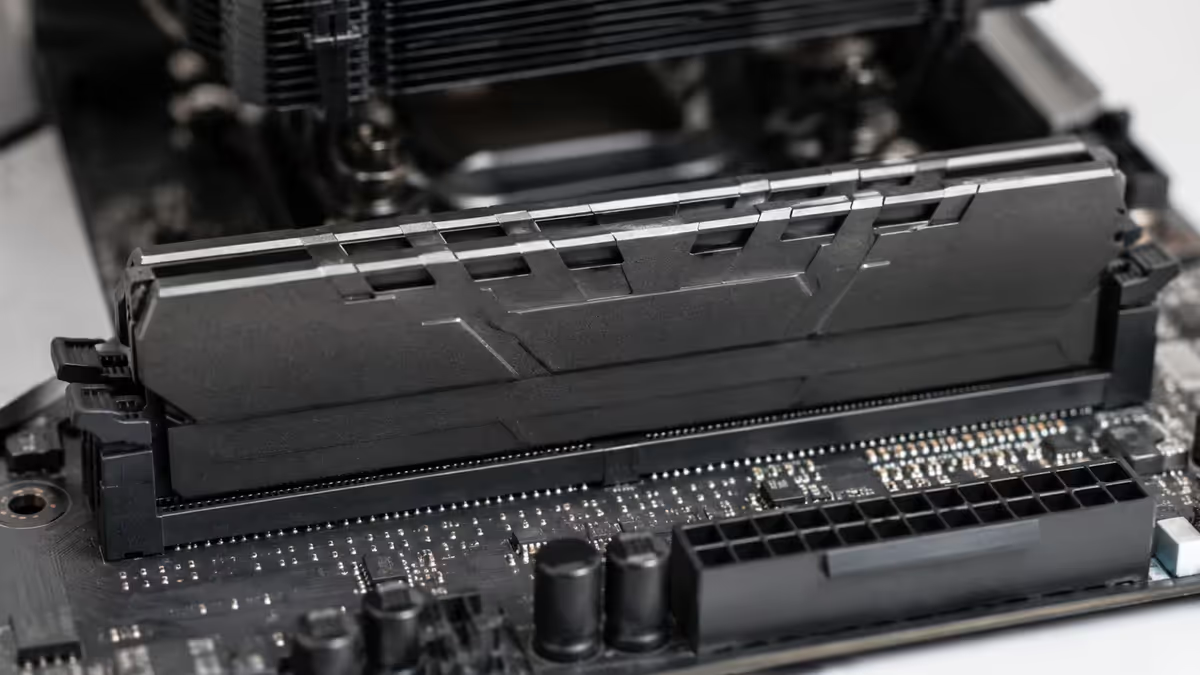
RAM not fully seated
RAM needs noticeable pressure to seat fully. First-time builders push gently, see the side clips half-locked, and assume done. PC fails to boot. → Fix: push down firmly on both ends of the RAM stick until BOTH side clips click into the locked position. The clip should be parallel to the slot edge, not at an angle.
Phase 3 — Cable mistakes (2)
- 08
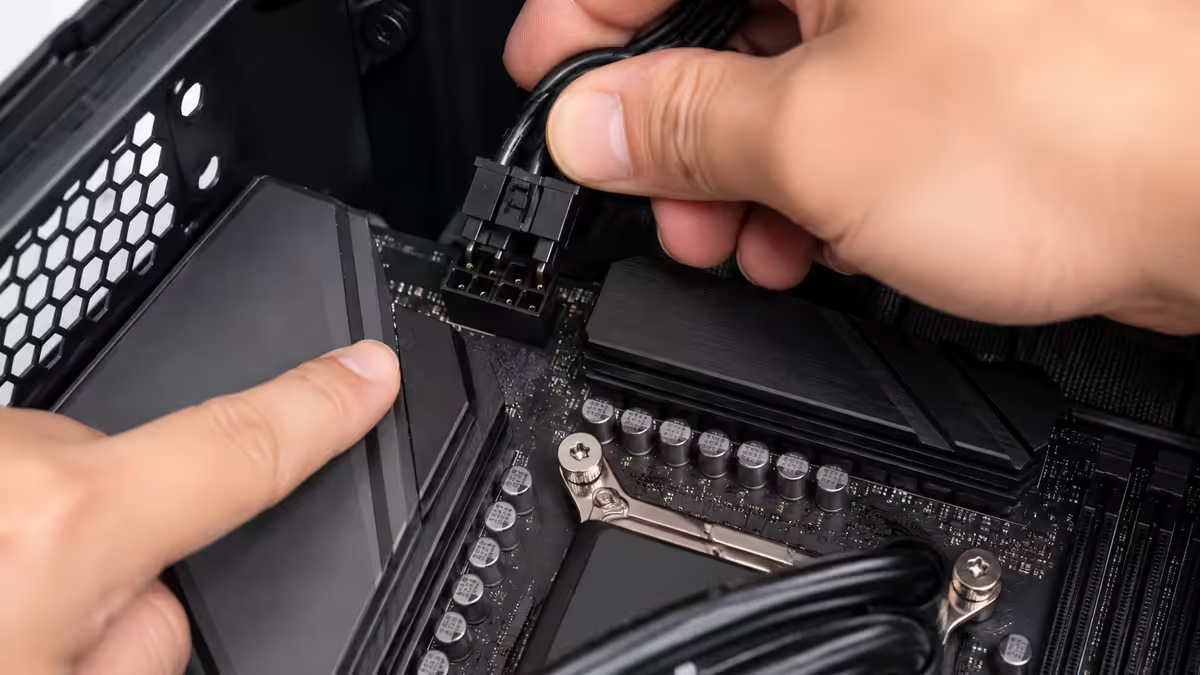
Forgetting the CPU 8-pin power
The 24-pin gets all the attention. The CPU 8-pin (sometimes 4+4-pin, labelled EATX12V or EPS) at the top of the motherboard is mandatory. Without it, PC won't boot. → Fix: after plugging the 24-pin into the right side of the motherboard, plug the 8-pin at the top above the CPU socket. High-end motherboards have two — install both. - 09
Front-panel header connected wrong
The tiny power, reset and LED pins go to a labelled but cryptic header on the motherboard. Wrong polarity on the LEDs (still works but they won't light), wrong order on power/reset (PC won't turn on). → Fix: open your motherboard manual to the front-panel header diagram. Use the labelled connectors on each cable. POWER SW and RESET SW connect to the matching pins; polarity doesn't matter for these. LED pins are polarity-sensitive (+/-).
Phase 4 — First-boot mistake (1)
- 10
Not enabling XMP / EXPO in BIOS
Your "DDR5-6000" RAM defaults to DDR5-4800 in BIOS until you enable the XMP (Intel) or EXPO (AMD) profile. Result: you paid for fast RAM but got slow RAM speeds and noticeably reduced game performance. → Fix: on first boot, enter BIOS (Del key during POST). Find the XMP / EXPO setting. Set to Profile 1 or "Enabled". Save and reboot. Your RAM now runs at its rated speed.
The right order of operations
The order matters because each step constrains the next. Do this:
- Unbox all parts. Verify nothing is missing or damaged.
- Lay motherboard on its box. Install CPU, RAM and M.2 SSD here — easier than after it's in the case.
- Install I/O shield in the case (if not pre-attached).
- Verify standoffs are correct in the case — count vs motherboard screw holes.
- Mount motherboard. Start screws by hand to avoid cross-threading. Tighten in a star pattern, gently.
- Install PSU. Fan facing down (intake from below the case).
- Install CPU cooler. Air tower or AIO mount. Pea-sized thermal paste in centre of CPU.
- Install GPU. Into the top PCIe x16 slot. Screw to case.
- Cables. 24-pin → CPU 8-pin → GPU power → SATA → front panel → fans.
- First boot. Enter BIOS. Enable XMP/EXPO. Verify CPU temps. Then install Windows.
Key takeaways
- Most "won't boot" calls trace to RAM not fully seated, CPU 8-pin missed, or front panel header miswired.
- I/O shield first. Standoffs counted. Then motherboard. Skipping this order means rework.
- CPU placement = zero force, straight down. Bent pins = destroyed CPU or motherboard.
- Enable XMP / EXPO in BIOS on first boot. Without it, fast RAM runs slow.
- None of these damage the PC permanently. All of them are five-second fixes once you know to check.
Frequently asked questions
What's the most common first PC build mistake?
Forgetting the I/O shield before mounting motherboard. Solved by placing the shield in the case before anything else.How can I avoid bending CPU pins?
Align the CPU's triangle marker with the socket's marker. Lower straight down with zero force. If it doesn't drop freely, lift and re-orient.Do I really need to install standoffs before the motherboard?
Yes — they prevent the motherboard from shorting on the case. Missing or wrong-position standoffs cause the most common 'dead PC' first-build outcome.What happens if I forget to plug in the CPU 8-pin power?
PC won't boot. The 8-pin EATX12V/EPS at the top of the motherboard powers the CPU. Often missed in favour of the 24-pin main connector.How tight should I make the screws when building a PC?
Snug, not torqued. Stop the moment resistance increases. PC screws strip easily.Why won't my PC turn on after first build?
Check in order: RAM fully seated (both clips), CPU 8-pin plugged, PSU switch on (1 not 0), front panel header on right pins, standoff issues.Should I use the cooler's pre-applied thermal paste?
For first install yes. Never reuse spread paste — always clean and reapply if cooler is removed.Do I need to install Windows separately or is it included?
Custom builds need Windows separately. Buy a Windows 11 Home OEM key (R1,500-R3,000). Use Microsoft Media Creation Tool to make a USB installer.
Get the Evetech app
Exclusive app-only prices, daily flash sales, and free delivery on orders over R4,000 — download the app and start saving.
Related Articles5