Storage Upgrade Guide
How to add more storage.
Three tiers. One spare slot. Done in 30 minutes.
- fastest
- Secondary M.2
- as bulk
- SATA SSD
- for archive
- HDD only
Why you need more storage
Storage is the most predictable upgrade in PC ownership. Two years after the build, almost every drive is full. The maths is simple.
A typical modern AAA game now ships at 100-200 GB. Call of Duty: Black Ops, Modern Warfare, Microsoft Flight Simulator 2024, Star Citizen — all crossed the 150 GB line. Five of them and a fresh Windows 11 install fill a 1TB drive. Add a Steam library, Adobe Creative Cloud, a few work projects and a photo backup, and the "plenty of space" boot drive is suddenly red in File Explorer.
The other storage pressure points in 2026:
- 4K media files. A single 4K 60fps video clip from a phone can hit 500MB per minute. An hour of family video footage = 30 GB.
- Photo libraries. Raw photo files from modern mirrorless cameras average 40-80 MB each. A wedding shoot, holiday gallery or year of phone backups easily hits 200-500 GB.
- Work projects. Video editing project files, CAD models, software dev environments, virtual machine images — all storage-heavy.
- OS updates. Windows 11 itself plus its update history can quietly consume 60-100 GB over 2 years.
Three storage tier options
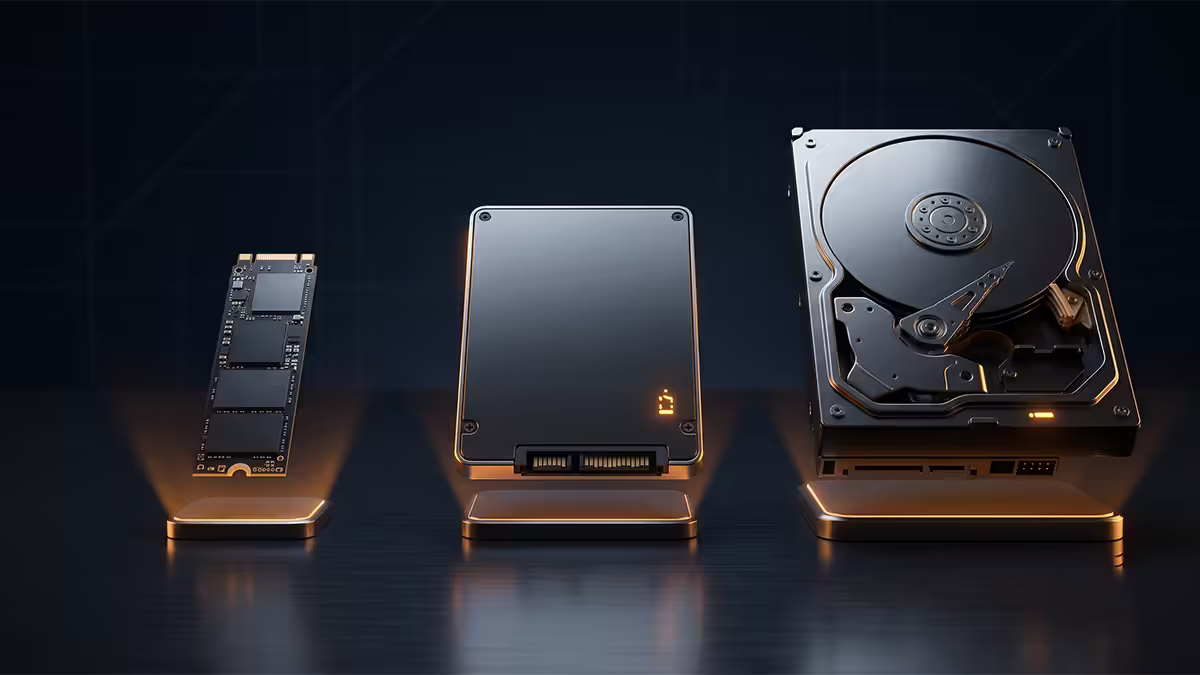
All modern storage falls into three practical tiers. Pick by speed need first, then capacity, then budget.
| Tier | Real-world speed | Best for | SA cost per TB |
|---|---|---|---|
| M.2 NVMe SSD (Gen 4/5) | 5,000-12,000 MB/s | OS, games, active workloads | R900-R1,800 |
| 2.5" SATA SSD | ~550 MB/s | Bulk SSD storage, second tier | R750-R1,000 |
| 3.5" mechanical HDD | ~150 MB/s | Archive, media library, backups | R375-R800 |
The hierarchy in practice: add a second M.2 NVMe first — biggest speed-per-rand value and no cables. Fall back to a SATA SSD only if your motherboard's M.2 slots are all populated. Add an HDD only for cold archive needs (media library, backups) where speed genuinely doesn't matter.
Install an M.2 NVMe SSD (fastest option)
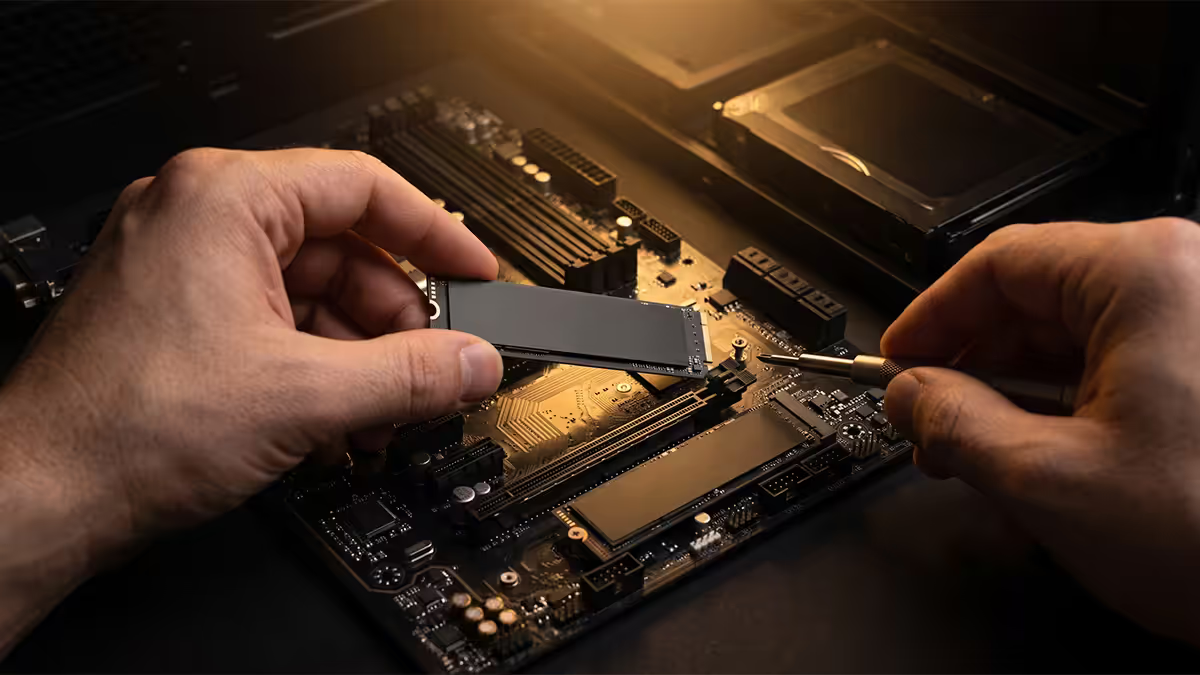
The cleanest, fastest upgrade. No cables, plugs straight into the motherboard.
Step-by-step:
- Power off the PC, unplug the power cable. Touch the case metal to discharge static.
- Open the side panel. Locate the empty M.2 slot — it's a small horizontal slot near the CPU socket and PCIe slots, often hidden under a motherboard heatsink labelled "M.2".
- Remove the M.2 heatsink screws (usually 1-2 small Phillips screws) and lift the heatsink off. Peel off any blue protective film from the underside thermal pad.
- Insert the NVMe drive at a 30° angle into the slot until it seats firmly. Lower it flat against the standoff.
- Secure with the included M.2 screw. Modern boards often have a tool-free latch instead.
- Reattach the motherboard heatsink (see our M.2 heatsink install guide for thermal pad orientation).
- Close case, power on. The drive will appear in BIOS and Windows Disk Management — see the format section below.
Install a 2.5" SATA SSD
Slower than NVMe but cheaper per GB at large capacities and works on every modern PC. Two cables required.
Step-by-step:
- Locate the 2.5" drive bay or tray in your case. Most modern cases have a removable tray behind the motherboard or in the front drive cage.
- Mount the SSD to the tray with 4 small screws (included with most cases or with the SSD packaging).
- Slide the tray back into the case.
- Connect SATA data cable — small flat L-shaped connector — from drive to a SATA port on the motherboard.
- Connect SATA power cable from the PSU — looks similar to data but slightly wider with 15 pins. Some PSUs daisy-chain multiple SATA power connectors on one cable.
- Close case, power on. Format in Windows Disk Management.
SATA cable tip: motherboards usually ship with 2-4 SATA cables included. If yours doesn't have one spare, grab any SATA III cable for R30-R50 at SA retailers. Brand doesn't matter at SATA speeds.
Install a 3.5" mechanical HDD
Same cabling as SATA SSD but the drive itself is much larger and uses a 3.5" drive bay (not 2.5").
Step-by-step:
- Locate the 3.5" drive cage — usually front-bottom of the case, behind the front panel.
- Mount the HDD to the cage with 4 screws or rail clips. Use the rubber grommets if your case includes them — they reduce vibration noise.
- Connect SATA data cable from HDD to motherboard SATA port.
- Connect SATA power cable from PSU. Some older PSU cables use Molex (4-pin) instead of SATA power — use a SATA-to-Molex adapter if needed (R30 at SA retailers).
- Close case, power on. Format in Disk Management.
Format the new drive in Windows
Windows doesn't auto-mount new drives. You have to initialise and format them once before they're usable.
Step-by-step:
- Right-click the Start button → click Disk Management.
- Wait for the "Initialize Disk" prompt to appear. Select GPT (not MBR — GPT is the modern standard and supports drives over 2TB) → click OK.
- Locate the new drive in the lower pane — it'll show as "Unallocated" with a black bar.
- Right-click the unallocated space → New Simple Volume.
- Click through the wizard: keep default size (uses all space), assign a drive letter (D:, E:, etc.), choose NTFS, give the volume a label ("Games", "Media", "Backup"), tick Quick Format.
- Click Finish. The drive is ready to use in File Explorer.
Quick Format takes 10-20 seconds even on huge drives — it doesn't scan for bad sectors, just writes the file table. Full Format scans every sector and takes 1-12 hours depending on capacity. Quick Format is fine for new drives from reputable brands.
Migrate Windows to the new drive (clone)
If you want Windows on the new (faster) drive, you don't need to reinstall — just clone.
Tools (all free):
- Macrium Reflect Free — the universal SA-friendly choice. Works for any brand combination.
- Samsung Data Migration — Samsung-to-Samsung only, automated and clean.
- Acronis True Image OEM — included free with WD, Crucial and Kingston SSDs.
Clone process (Macrium Reflect Free):
- Install both drives (old + new) in the PC. Format the new one as above.
- Download Macrium Reflect Free from macrium.com. Install.
- Open the app → see both drives listed → click Clone this disk under the current Windows drive.
- Drag-and-select the new drive as the destination → click Next.
- Confirm and start. Cloning a 500 GB drive to a faster NVMe typically takes 30-60 minutes.
- Power off, remove the old drive temporarily. Boot from the new drive to verify Windows starts normally.
- Reinstall the old drive as secondary. Set the new drive as primary boot in BIOS (Del/F2 during boot → Boot order).
SA pricing breakdown (May 2026)

| Drive type & capacity | Typical SA retail | Best-value pick |
|---|---|---|
| 1TB Gen 4 NVMe | R1,000 - R1,200 | Lexar NM790 |
| 2TB Gen 4 NVMe | R1,700 - R2,000 | Lexar NM790 / WD Black SN770 |
| 4TB Gen 4 NVMe | R3,300 - R3,800 | Lexar NM790 / Crucial T500 |
| 8TB Gen 4 NVMe | R6,200 - R7,000 | Crucial T500 / WD Black SN850X |
| 1TB Gen 5 NVMe | R2,200 - R2,800 | Crucial T705 / Samsung 9100 Pro |
| 2TB Gen 5 NVMe | R3,500 - R4,500 | Crucial T705 / Samsung 9100 Pro |
| 2TB SATA SSD | R1,400 - R1,700 | Samsung 870 EVO / Crucial MX500 |
| 4TB SATA SSD | R2,800 - R3,200 | Samsung 870 EVO / Crucial MX500 |
| 4TB HDD | R1,400 - R1,700 | WD Red / Seagate IronWolf |
| 8TB HDD | R3,000 - R3,800 | WD Red Plus / Seagate IronWolf |
SA brand picks by use case
NVMe (M.2)
- Best value: Lexar NM790 — Gen 4, R900-R1,000/TB.
- Best sustained workload: WD Black SN850X — Gen 4, DRAM, R1,200/TB.
- Premium pick: Samsung 990 Pro — Gen 4, DRAM, ~R1,300/TB.
- Gen 5 enthusiast: Crucial T705 / Samsung 9100 Pro — for those workloads that genuinely use Gen 5 bandwidth (large file transfers, professional video editing).
SATA SSD
- Best value: Crucial MX500 — proven design, R700/TB at 4TB.
- Premium pick: Samsung 870 EVO — best endurance and warranty.
3.5" HDD
- NAS / always-on: WD Red Plus — designed for 24/7 operation, helium-filled.
- Desktop / occasional use: Seagate IronWolf — similar warranty, slightly louder.
- Bulk archive: Toshiba N300 — cheapest reliable option per TB at 8TB+.
Common storage upgrade mistakes
Buying a Gen 5 NVMe for a gaming PC. Modern games load barely faster on Gen 5 vs Gen 4 — the bottleneck is decompression in software, not storage bandwidth. Spend the saved money on more capacity or a better GPU.
Not checking M.2 slot lanes. On some budget boards, populating the secondary M.2 slot disables one of the SATA ports. Read your manual before installing — moving a SATA drive cable to a different port is a 5-minute job if you know it's coming.
Forgetting the M.2 thermal pad. The motherboard heatsink has a thin thermal pad on the underside with a blue protective film. Peel it off before reattaching, or thermal transfer to the heatsink doesn't work. See our M.2 heatsink install guide.
Using an HDD for the OS. Modern Windows 11 feels physically broken on a mechanical drive — boot times of 60-90 seconds, sluggish File Explorer, every app launch is slow. HDDs are archive-only in 2026.
Skipping the backup before cloning. Clone is reliable but not 100% — back up critical files to an external drive or cloud first. A failed clone with no backup is heartbreak.
Key takeaways
- Add a secondary M.2 NVMe first — fastest, no cables, biggest speed-per-rand value.
- Check your motherboard manual before buying — confirm spare M.2 slot count and generation.
- SATA SSD as a second-tier option only when M.2 slots are full or budget requires it.
- 3.5" HDD strictly for archive, media library and bulk backups — never the OS.
- Format new drives in Disk Management (GPT + NTFS); clone Windows with Macrium Reflect Free.
Frequently asked questions
Which type of storage should I add to my PC?
Secondary M.2 NVMe SSD for most users — fastest, no cables, plugs into a spare M.2 slot. Step down to SATA SSD if M.2 slots are full. HDD only for archive/bulk storage.How do I check if my motherboard has a spare M.2 slot?
Check the manual or product page online. Most modern AM5/LGA1851 boards have 2-3 M.2 slots. Primary slot is Gen 5 or Gen 4 with full lanes; secondaries often Gen 4.Will adding a second drive slow down my existing drive?
Almost never. M.2 slots have dedicated PCIe lanes. On budget boards, the secondary M.2 may share lanes with a SATA port — check the manual for lane-sharing notes.How do I format a new drive in Windows?
Right-click Start → Disk Management → Initialize Disk (GPT) → New Simple Volume → NTFS → assign letter → Finish. Quick Format is fine for new drives.Can I move Windows to a new SSD without reinstalling?
Yes — clone the drive using Macrium Reflect Free, Samsung Data Migration or Acronis True Image. Install new drive, run the clone tool, change BIOS boot order to the new drive.What's the best 1TB or 2TB NVMe SSD to buy in South Africa?
Lexar NM790 for value (1TB R1,100, 2TB R1,800). Step up to WD Black SN850X or Samsung 990 Pro for sustained workloads.Is a SATA SSD still worth buying in 2026?
Only if M.2 slots are full or you need 4TB+ on a budget. Capped at ~550 MB/s. Crucial MX500 and Samsung 870 EVO are the SA picks.When is a mechanical HDD still useful?
Archive, backup, large media libraries. ~R375/TB at 4TB. WD Red and Seagate IronWolf are the reliable SA picks. Never for the OS or active gaming.
Get the Evetech app
Exclusive app-only prices, daily flash sales, and free delivery on orders over R4,000 — download the app and start saving.