PC Building · Step-by-Step
How to install a PSU.
— Fan-down. 24-pin first. Both EPS connectors.
- saves time
- Modular
- bottom intake
- Fan-down
- EPS next
- 24-pin first
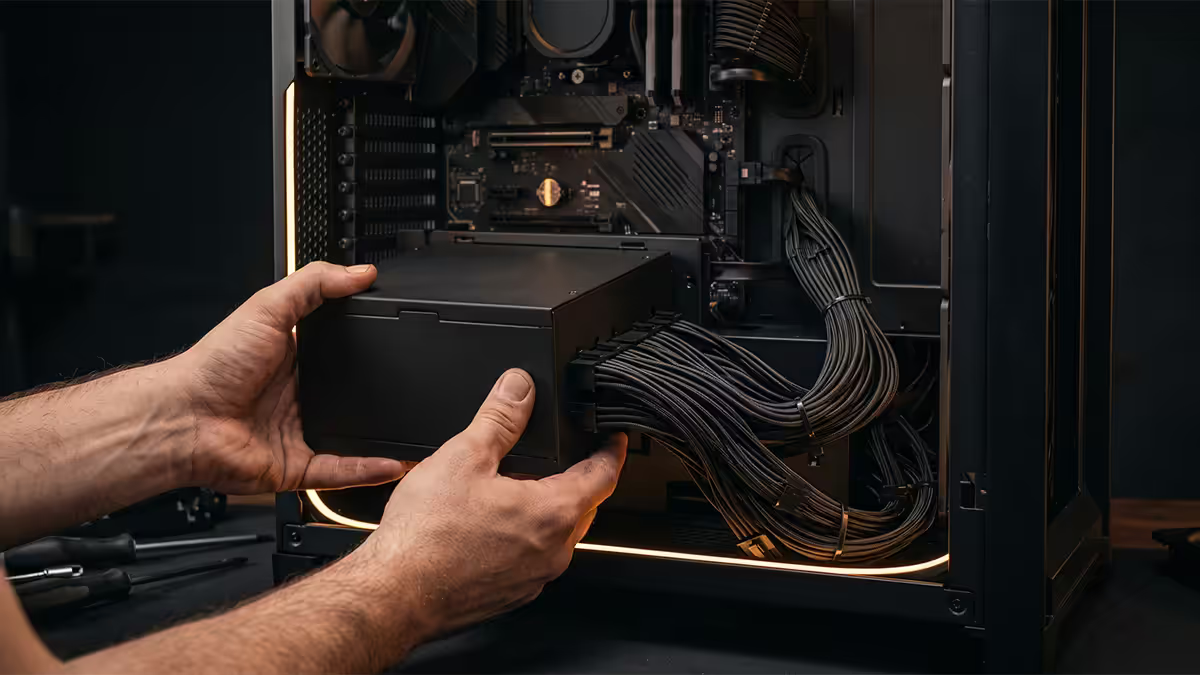
Pre-install verification
Before sliding the PSU into the case, confirm three things — each prevents an annoying reverse-out later.
1. PSU type (modular vs semi-modular vs non-modular). Modular has every cable detachable from the PSU body; only plug in the ones you'll use. Semi-modular has the 24-pin ATX and CPU EPS cables permanently attached, with PCIe / SATA / Molex detachable. Non-modular has all cables fixed. Modular is dramatically easier to install — no spare cable nest stuffed into the basement.
2. Case has a bottom PSU shroud vs no shroud. Modern mid-towers (Lian Li Lancool, Fractal Pop, NZXT H7, Corsair 5000D, MSI MAG Forge) all have a metal shroud covering the PSU bay. Older or budget cases might have no shroud — the PSU sits exposed at the bottom of the chamber. Shroud cases offer cleaner builds but slightly more cable-management work.
3. Mounting orientation. 99% of modern cases mount the PSU at the bottom-rear with the fan facing down through a bottom intake vent. A handful of old-school or budget cases mount the PSU at the top with the fan facing up. Look inside the case — there's only one spot it can physically go.
Fan-up vs fan-down — and how to tell
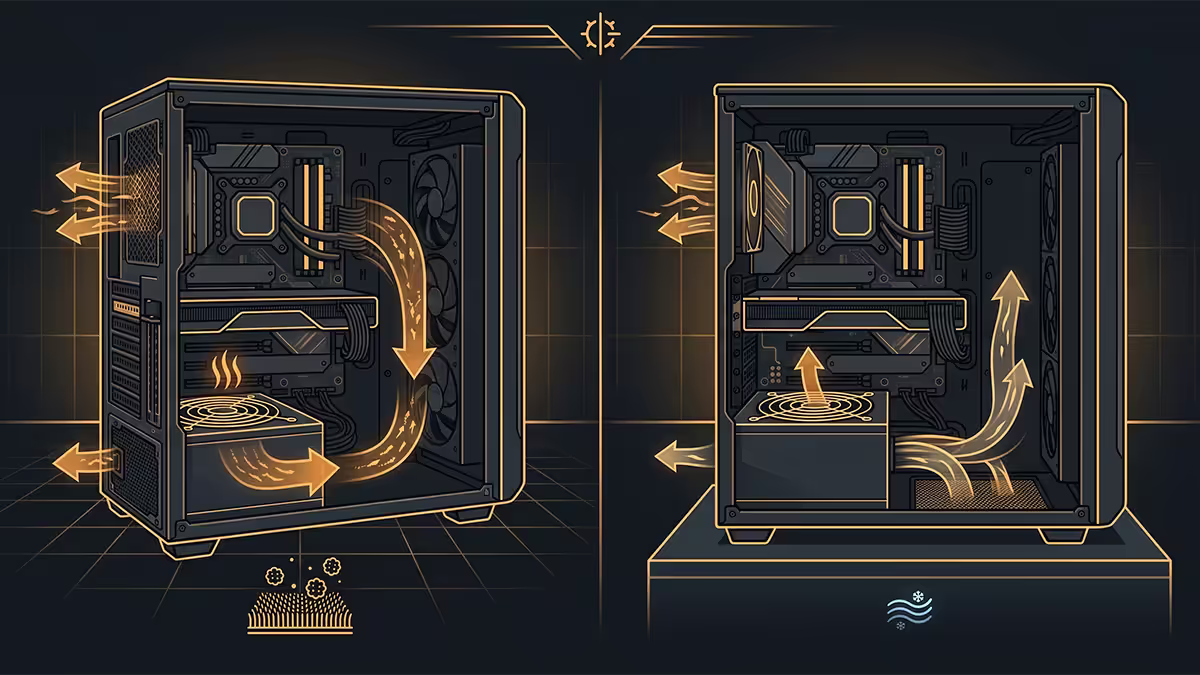
The orientation matters because the PSU fan pulls cool air across the internal components for cooling. The question is where that air comes from.
Fan-down is correct for cases with a bottom intake vent + dust filter. The PSU pulls cool, dust-filtered air from outside the case (underneath), exhausts hot air out the rear. This is the standard configuration for virtually every case built in the last decade.
Fan-up is correct only when:
- The case has no bottom vent (rare in 2026 — mostly old budget cases or some HTPC chassis).
- The PSU mounts at the top of the case (e.g., classic Corsair Carbide design, old NZXT Source 220).
- The bottom intake vent is blocked or covered (some compact cases).
How to tell: turn the empty case on its side and look at the bottom panel. If you see a grille / vent / dust filter directly below where the PSU mounts, that's a bottom intake — fan-down. If the bottom panel is solid metal, fan-up.
Mounting the PSU
With the right orientation confirmed and modular cables pre-plugged:
Step 1. Slide the PSU into the case from the rear cutout. On most cases the PSU enters from the back panel where the four mounting screw holes align with the case's rear PSU bracket. Hold the PSU level — the fan should face the bottom intake vent.
Step 2. Align the four screw holes on the PSU shell with the four holes on the case's rear bracket. Insert one screw by hand to hold the PSU in place, then the other three.
Step 3. Tighten with a PH2 (Phillips #2) screwdriver in a star pattern — top-left, bottom-right, top-right, bottom-left. Snug only. Overtightening can deform the PSU shell or strip the case's mounting holes.
Screws are typically supplied with the case, not the PSU. They're usually 6-32 UNC pan-head machine screws. If your case didn't come with them, any computer-hardware kit screw will work — same thread spec as 3.5" HDD mounting screws.
Cable connection order
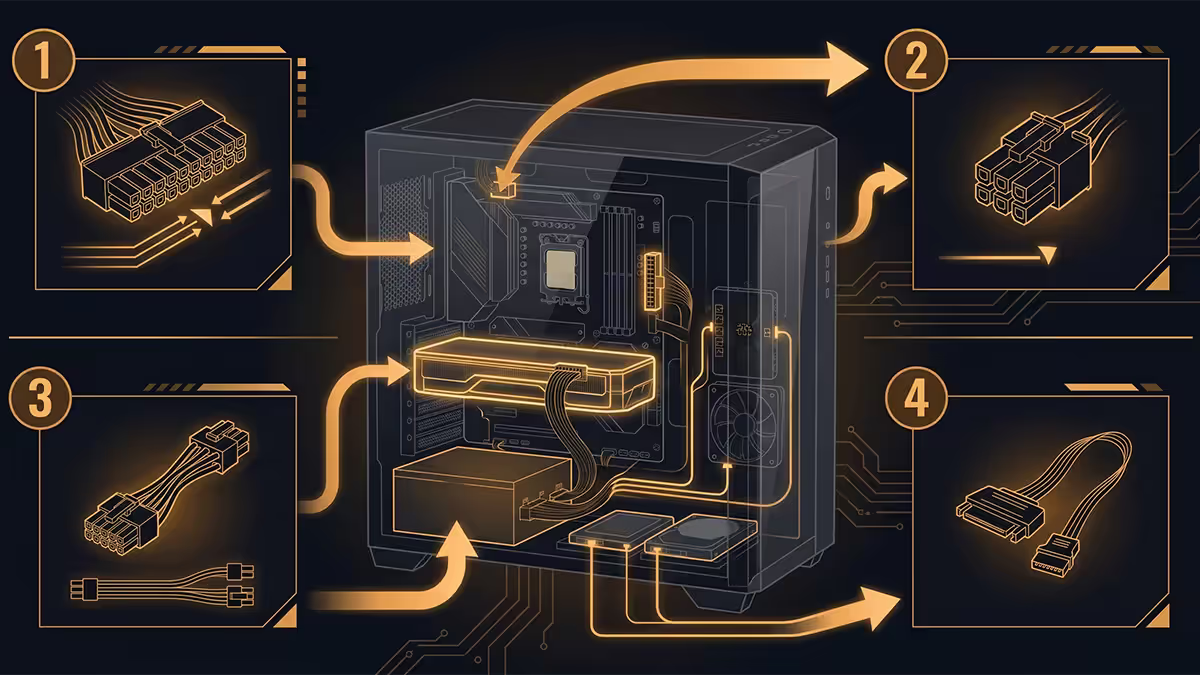
Cables connect in a specific order for two reasons: access (some cables are easier to install before others are in the way) and verification (essential cables go first so missing ones are caught before the build is "finished").
| Order | Cable | What it powers |
|---|---|---|
| 1 | 24-pin ATX | Motherboard main power |
| 2 | CPU 8-pin EPS (or 8+8 on high-end) | CPU VRM |
| 3 | PCIe 8-pin or 12V-2x6 (16-pin) | GPU |
| 4 | SATA power | SSDs, HDDs, fan/RGB hubs, AIO pumps |
| 5 | Molex / PWM splitter | Legacy fans, old peripherals (rare in 2026) |
Step 1 — 24-pin ATX main power
The biggest cable connector in the build. The 24-pin connects to the right edge of the motherboard (when looking at the front of the board with the I/O panel on the left). It's keyed — there's only one orientation that fits.
Procedure: route the 24-pin cable from the PSU through the PSU shroud cutout into the space behind the motherboard tray. Bring it back through the right-edge rubber grommet near the motherboard's 24-pin socket. Align the connector's clip with the locking tab on the socket, then press firmly until you hear/feel a click. The clip should engage.
If it won't seat: you're trying to plug it in 180° rotated. Flip it. The connector has rounded and squared pins on opposite sides — it only fits one way.
Step 2 — CPU 8-pin EPS
The CPU EPS (Entry-level Power Supply) connector delivers power to the CPU's VRM. It's at the top-left of the motherboard, near the I/O panel. This is the most-forgotten cable in the build — easy to overlook because the board POSTs without it for the briefest moment before throwing a no-CPU-power error.
Single 8-pin (4+4) connector: standard for most motherboards. Connect the full 8-pin (or both halves of a 4+4 if your PSU supplies it that way).
Dual 8-pin EPS connectors: common on Z890, X870E, X870, TRX50 motherboards. Connect both — they're both wired to deliver current to the CPU VRM, and the second one becomes critical under multi-core load on high-end CPUs (Ryzen 9 7950X3D, Core Ultra 9 285K, Threadripper 7000-series).
Don't confuse with PCIe 8-pin. CPU EPS and PCIe 8-pin connectors look similar but are not interchangeable — they have different pin layouts and different power delivery profiles. CPU EPS cables are usually labelled "CPU" or "EPS" or "P4+4" on the PSU side; PCIe cables are labelled "PCIe" or "VGA". Don't force a PCIe cable into a CPU socket or vice versa.
Step 3 — PCIe / 12V-2x6 power to the GPU
GPU power requirements have evolved. Three common scenarios:
Older / lower-power GPUs (RTX 4060, RX 7600, RTX 3060): single 8-pin PCIe cable.
Mid-range cards (RTX 4070 Super, RX 7800 XT): dual 8-pin PCIe or one 12V-2x6 (16-pin) cable.
High-end cards (RTX 4080, 4090, 5080, 5090, RX 7900 XTX, RX 9070 XT): 12V-2x6 (16-pin) connector, capable of 600 W through a single cable.
Procedure: route the GPU power cable from the PSU up through the PSU shroud near the GPU. Seat the connector fully into the GPU — this is the single most important step. A partially seated 12V-2x6 can develop high-resistance contact and cause the rare melting incidents reported in 2023. Press until the clip clicks; then visually verify no gap between connector and GPU socket.
Step 4 — SATA power for drives, fan hubs and pumps
SATA power is a daisy-chain cable — typically four SATA connectors on one cable line. Connect drives in any order; the chain order doesn't matter.
What needs SATA power in a modern build:
- 2.5" SSDs (SATA SSDs only — NVMe M.2 SSDs power off the motherboard).
- 3.5" HDDs.
- Fan or RGB controller hubs (Corsair Commander, NZXT RGB Controller, ASUS Aura hub).
- AIO water-cooler pumps (most modern AIOs use SATA power, but some pull power from a CPU_FAN header).
- Optical drives (if installed — rare in 2026).
Route the SATA chain along the rear of the case toward your drives. If your build has a single M.2 NVMe and no fan hub, you may not need a SATA cable at all — common in clean 2026 builds.
Cable routing for clean management
The principle: every cable except where it physically connects to a component should live behind the motherboard tray, out of sight.
Standard routing path:
- PSU cables exit through the cutout in the PSU shroud (left side of shroud, behind the motherboard tray).
- Cables travel up the back of the case, secured with built-in velcro straps or zip-tie anchors on most modern cases.
- Each cable comes through a rubber-grommeted cutout in the motherboard tray only where it needs to connect — minimising visible cable on the motherboard side.
- Excess cable length tucked into the basement (under the PSU shroud).
Cable management tools: the velcro straps that ship with most modular PSU cables today are the cleanest option — reusable, adjustable, and they don't damage cable jackets the way zip ties can. Zip ties are still fine; just don't overtighten and crimp the cable.
First-boot safety check
Before flipping the rear PSU switch ON, run through this checklist:
- 24-pin ATX — fully seated, clip engaged.
- CPU EPS — both 8-pins if applicable, fully seated.
- GPU power — fully seated, no visible gap on the 12V-2x6.
- SATA power — connected to every drive and hub that needs it.
- Front panel headers — Power Switch, Reset Switch, Power LED, HDD LED all wired correctly.
- CPU cooler power — fan/pump connected to CPU_FAN header.
- Case fans — connected to motherboard or fan controller.
- RAM — fully seated in correct slots (usually A2 + B2 for dual-channel).
- M.2 SSDs — fully seated and screwed in.
- Cables clear of fans — no cable dangling into a fan blade.
Then: flip the rear PSU switch to ON (the "I" position), plug the AC cable into the wall, and press the case power button. The system should POST within 5-15 seconds — fans spin, lights illuminate, motherboard debug LEDs cycle through the boot sequence.
If nothing happens: rear PSU switch off, unplug AC, then check (1) CPU EPS connected, (2) 24-pin fully seated, (3) RAM seated correctly, (4) front-panel Power Switch header wired to the correct pins on the motherboard. The vast majority of "no POST" issues are one of these four.
Common PSU install mistakes
Forgetting the CPU 8-pin entirely. The most common no-POST cause we see. The 24-pin powers the motherboard, the CPU EPS powers the CPU itself. Both are required.
Connecting only one of two CPU EPS connectors on high-end boards. Causes intermittent crashes under multi-core load. Plug in both whenever the motherboard has two sockets.
Confusing PCIe 8-pin with CPU 8-pin EPS. The connectors look similar but are wired differently. PCIe in the CPU socket = no POST or worse. Check the cable label.
PSU fan-up in a fan-down case. Causes elevated PSU temps and reduced lifespan. Always verify the case's bottom-vent presence before mounting.
Partial 12V-2x6 seating. Looks plugged in but isn't fully home. Press firmly until the clip clicks, then visually verify no gap.
Cables routed across the motherboard instead of behind the tray. Cosmetic, but also blocks airflow and makes future upgrades harder. Route everything behind the tray.
Flipping PSU switch on before all cables connected. Don't. Connect everything first. The PSU switch is the last step before pressing the case power button.
Key takeaways
- Mount the PSU fan-down for any modern case with a bottom intake vent + dust filter — almost every case built in the last decade.
- Connect cables in order: 24-pin ATX → CPU EPS (both, if dual) → GPU PCIe/12V-2x6 → SATA → Molex.
- Modular saves install time and produces a cleaner build — worth the R200-R400 premium over semi-modular.
- Don't confuse CPU 8-pin EPS with PCIe 8-pin — different pinouts, not interchangeable.
- Rear PSU switch stays OFF until every cable is connected. Final pre-POST check is the safest moment.
Frequently asked questions
Should the PSU fan face up or down?
Fan-down for any case with a bottom intake vent + dust filter — standard for modern cases. Fan-up only when the bottom panel is solid or the PSU mounts at the top of the case.What order do I connect PSU cables?
24-pin ATX first, then CPU 8-pin EPS (both, if your board has two), then GPU PCIe or 12V-2x6, then SATA power, finally Molex if needed.What is the difference between modular, semi-modular and non-modular PSUs?
Modular: every cable detaches; cleanest install. Semi-modular: 24-pin + EPS fixed, others detachable. Non-modular: all cables fixed. Fully modular is the install-time winner.How many screws does a PSU need?
Four — one in each corner of the PSU shell, attached from the rear of the case. Snug only, don't overtighten. Screws (6-32 UNC) usually come with the case, not the PSU.Why is there a second CPU 8-pin connector on my motherboard?
High-end boards (Z890, X870E, TRX50) include a second 8-pin for additional current to the CPU under heavy multi-core load. Always connect both if your board has two sockets.What is a 12VHPWR / 12V-2x6 connector?
A 16-pin PCIe power connector delivering up to 600 W. Used by RTX 4000/5000 series and high-end RX 7000/9000 cards. ATX 3.1 PSUs include it natively; older PSUs need an adapter.Do I need to flip the PSU switch before first boot?
Rear PSU switch stays OFF until all cables are connected and verified. Then flip on, plug AC, press case power button.How do I route PSU cables for clean cable management?
Route every cable through the PSU shroud cutout into the space behind the motherboard tray; bring each cable forward only where it needs to connect; secure with velcro / zip-tie anchors on the rear of the tray.
Get the Evetech app
Exclusive app-only prices, daily flash sales, and free delivery on orders over R4,000 — download the app and start saving.