Networking · Low Latency
How to set up a gaming network for low latency. — Wired first. Every hop counts. SA routes verified.
Your ping is the sum of every hop between your keyboard and the game server. Most are invisible. All of them are fixable. Here's the SA-specific playbook for the cleanest possible route to AWS Cape Town, Joburg game servers and the international edge.
- Cat 6 wired latency
- ~0.2ms
- SA → AWS Cape Town
- 15-30ms
- SA → EU game servers
- 140-180ms
The wired-first principle
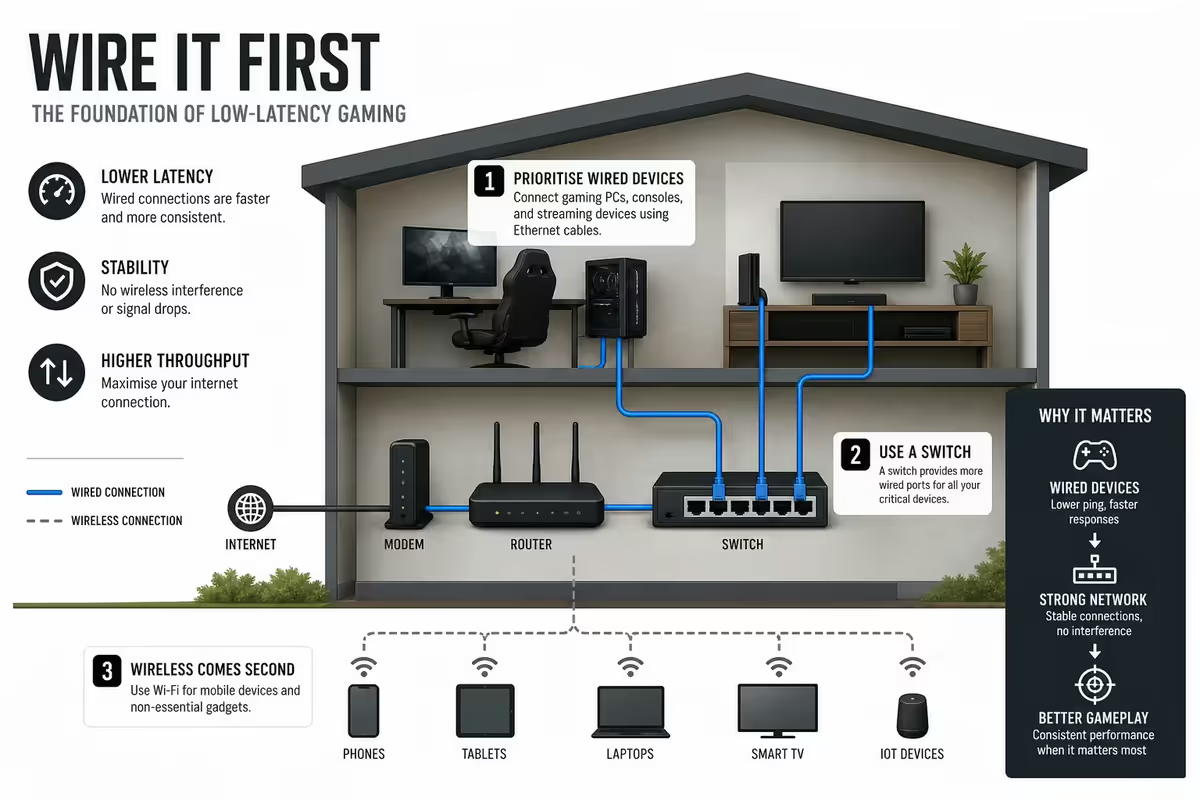
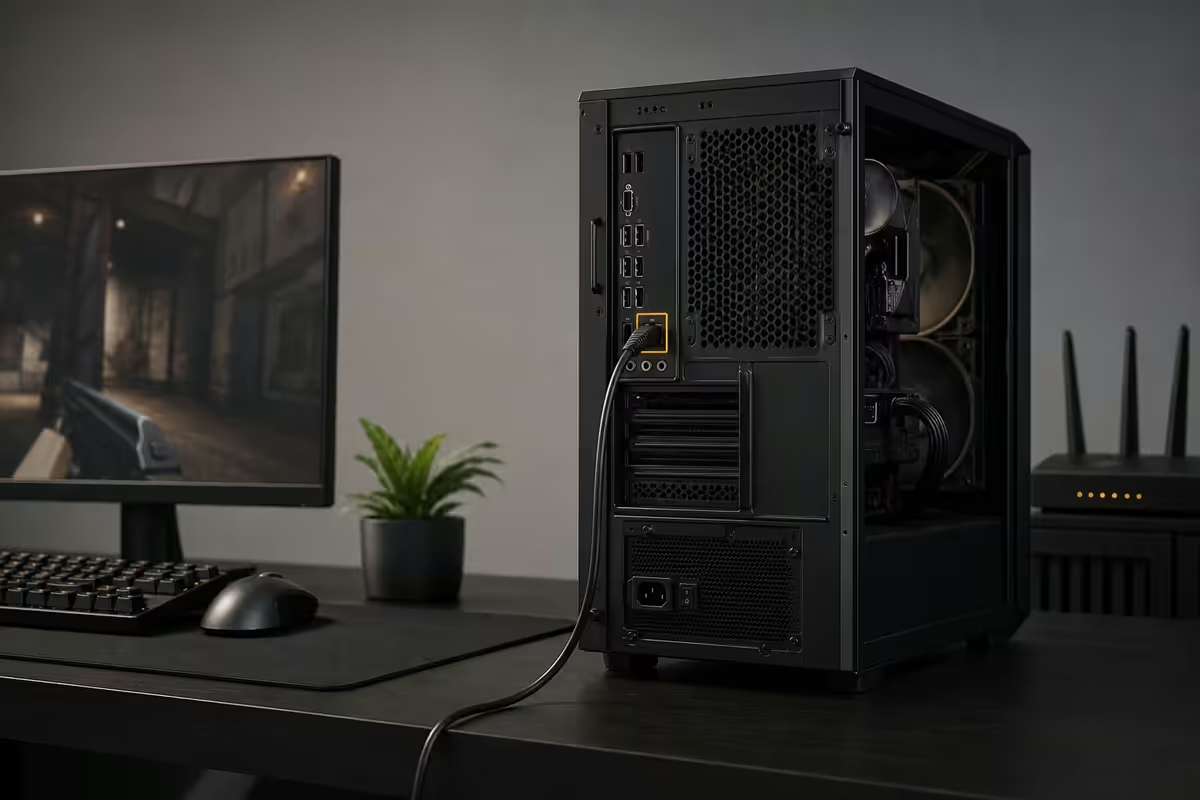
The single biggest latency improvement available is the cable between your gaming PC and the router. Everything else in this guide assumes you've done this. Cat 6 Ethernet adds 0.1-0.3ms of latency end-to-end. Modern WiFi 6/6E adds 2-10ms typical, and spikes to 30-100ms under interference or congestion.
More importantly than the absolute ping figure: wired latency is consistent. No jitter from packet retransmissions, no signal fade as you walk in front of the antenna, no channel-contention spikes when your housemate's phone joins the WiFi. Competitive play depends on inputs landing at predictable times — wired makes that happen.
How to run cable cleanly:
- Cat 6 or Cat 6a is the right cable for any 1-2.5 Gigabit home network. Skip Cat 5e (legacy). Skip Cat 7/8 (marketing — no benefit at home speeds).
- Flat-profile cables tuck under skirting boards and along door frames. Acceptable for short runs (under 15m).
- Round shielded cables for longer runs through ceilings or walls.
- Crimp your own RJ45s if the run requires fishing through a small hole — a R200 crimp tool pays for itself first job.
Switch vs hub vs daisy chain
If you need more wired devices than your router has ports, you need a switch. Don't confuse this with a hub.
An unmanaged Gigabit (or 2.5 Gigabit) switch from TP-Link, Netgear, D-Link or Mikrotik is the right buy. R250-R800 for 5-8 ports. Plug it into one router port, plug all your wired devices into the switch. Each device gets its own full bandwidth — no contention.
Avoid:
- Hubs — obsolete devices that broadcast every packet to every port. None on the market anymore but check the spec sheet.
- Daisy-chaining consumer routers as "switches" — adds processing latency and often introduces packet drops.
- Powerline adapters as a replacement for Ethernet — fine as a last resort but adds 3-10ms of variable latency.
For a multi-device gaming household, a 2.5G unmanaged switch (TP-Link TL-SG105S, Mikrotik CRS305) future-proofs the network at modest cost. SA gaming PCs from 2024-onwards usually ship with 2.5G NICs.
Enable QoS — prioritise the gaming PC by MAC
QoS (Quality of Service) is the router feature that decides which device's packets go through first when the network is busy. By default most routers treat all devices equally — which means your housemate's 4K Netflix stream competes with your game packets.
Set up gaming QoS:
- Log into your router admin page (192.168.0.1 / 192.168.1.1 / 192.168.8.1).
- Find the QoS / Bandwidth Control / Traffic Prioritisation section. Names vary by vendor.
- Enable QoS. If asked, set the mode to "WAN" or "Latency-priority" rather than throughput.
- Set your upload and download speeds manually — slightly below your ISP's advertised speeds (90% is the safe starting point).
- Add your gaming PC's MAC address with highest priority tier.
- Most modern routers (Asus AiProtection, TP-Link HomeShield, Asus ROG Rapture series, Mikrotik) include preset "Gaming" profiles. Use them.
Why this matters in SA: household upload speeds on most fibre plans are 50-200 Mbps. When even a single device starts uploading a phone backup or streaming to YouTube, your game packets compete for that upload slot. QoS makes sure they win.
Switch to gaming DNS
DNS (Domain Name System) is the service that translates "valorant.riotgames.com" into the IP address your packets go to. ISPs default to their own DNS, which is almost always slower and less reliable than public alternatives.
| DNS | SA latency | Notes |
|---|---|---|
| Cloudflare | 1-3ms | 1.1.1.1 / 1.0.0.1 — fastest, SA presence via NAPAfrica |
| 2-5ms | 8.8.8.8 / 8.8.4.4 — well-distributed SA edge | |
| NextDNS | 3-7ms | Anycast with optional ad / tracker blocking |
| Quad9 | 5-10ms | 9.9.9.9 — security-focused, blocks known malicious domains |
| ISP default | 5-25ms | Usually slower, occasional outages |
Where to set it: ideally on your router (one change, all devices benefit). Otherwise, Windows: Settings → Network → Properties → DNS server assignment → manual. Use 1.1.1.1 as primary and 8.8.8.8 as secondary. The latency difference is small but the consistency is real — and Cloudflare's privacy policy is the strongest of the public DNS options.
ISP peering — where SA latency is won or lost
This is where SA-specific routing matters more than any home setting. ISPs reach the wider internet through peering arrangements — direct connections to other networks at internet exchanges. SA's main exchange is NAPAfrica, hosted by Teraco in Cape Town, Johannesburg and Durban.
An ISP with strong NAPAfrica peering can route your packets to AWS Cape Town in 15-30ms, to Google's local edge in 5-15ms, and to Microsoft Azure Joburg in 10-25ms. An ISP without strong local peering routes your traffic to London or Frankfurt and back, adding 150-200ms of latency to a local game.
This is why two SA fibre ISPs with the same "advertised speed" can deliver completely different gaming experiences. Speed tests only measure throughput. Latency to actual game servers is the real number.
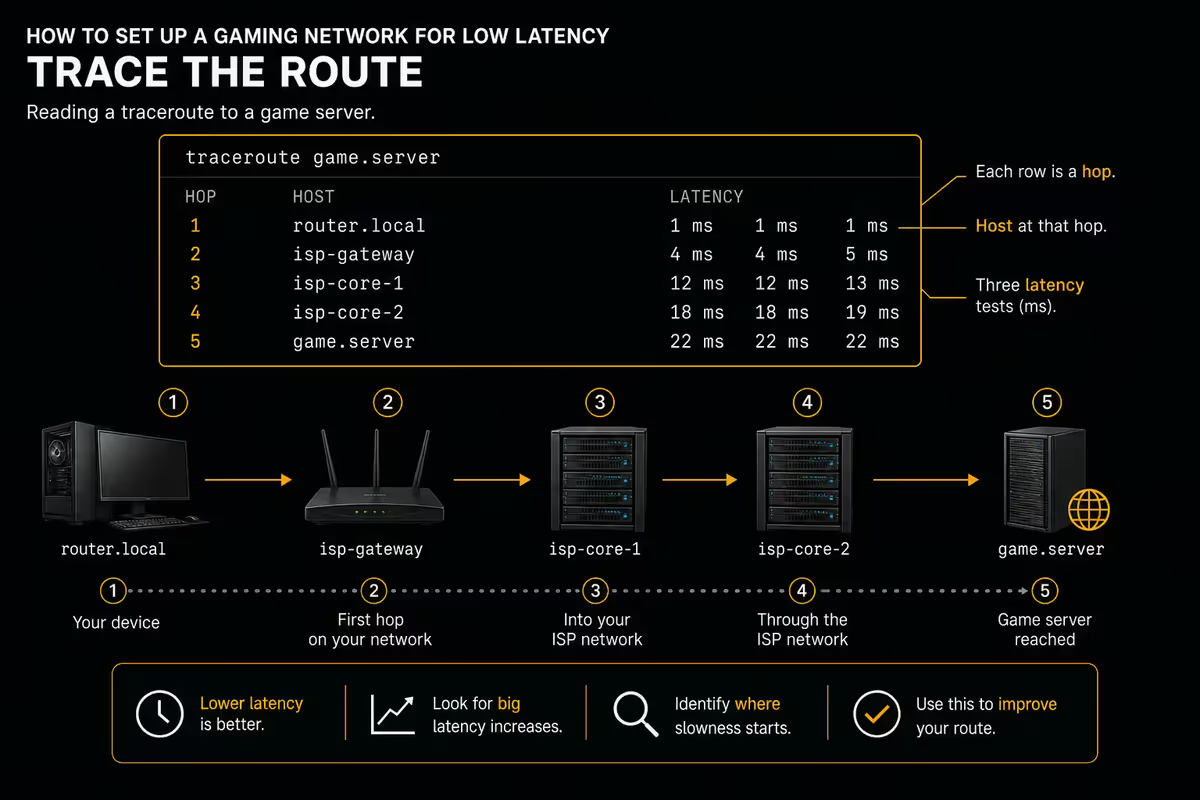
Reading a traceroute to a game server
Traceroute is the diagnostic tool that shows you every hop between your PC and a destination, with latency at each. Master this and you can pinpoint where any latency problem lives.
How to run it: open Command Prompt (Windows key + R, type "cmd", Enter) and run:
tracert -d valorant-cape.riotgames.com
The -d flag skips reverse DNS, making the output cleaner. You'll get something like this:
How to read it:
- Hops 1-3 inside your home + ISP should be 1-5ms each.
- The NAPAfrica or first ISP edge hop should land 5-12ms.
- AWS Cape Town / Joburg edge should be 15-30ms from anywhere in SA.
- If any hop jumps suddenly (e.g. hop 3 = 5ms, hop 4 = 180ms), that hop is your problem. Usually an ISP routing issue.
- Asterisks (*) on a hop mean the router didn't respond to traceroute. Not a problem if subsequent hops respond normally.
Detect and fix double NAT
Double NAT is one of the most common SA fibre setup problems. It happens when your network has two routers in series, each doing NAT translation. Symptoms: NAT shows as "Strict" on Xbox/PlayStation, voice chat fails to connect in some games, peer-to-peer lobbies don't work, port forwarding doesn't take effect.
Common cause in SA: Vumatel ONT, Openserve ONT, or Rain LTE/5G modem (each acts as a router) with your own router behind it. Both devices are doing NAT, hence the name.
How to detect: on Windows, run tracert 8.8.8.8. If hop 1 is your router (192.168.x.x) and hop 2 is another private IP (10.x.x.x or 172.16.x.x), you have double NAT. Game consoles report it directly as "Type 3 / Strict NAT".
How to fix:
- Best: put the ISP device in bridge mode so it acts as a pure modem and only your router does NAT. Each ISP brand has a different procedure — search "[ISP name] ONT bridge mode" for the specific guide.
- Acceptable: enable DMZ on the ISP device pointing at your router's WAN IP. This forwards all incoming traffic through to your router. Less clean than bridge mode but easier.
- Avoid: ignoring it. Strict NAT will progressively break more games as Valorant, Apex, CS2, Overwatch and others tighten anti-cheat-related connection requirements.
Ping spike root-cause checklist
When ping spikes start happening mid-game, work this list in order:
- Is the PC on WiFi? If yes, switch to wired. The spike often disappears entirely.
- Is another device on the network downloading? Phone backup, Windows Update, console firmware update. Pause it, check ping again.
- Is QoS enabled and configured? Without QoS, any heavy traffic on the network spikes game ping.
- Run PingPlotter to the game server — watch for which hop introduces the spike. Hop 1-3 = your network. Hop 4+ = ISP or beyond.
- Reboot the router — clears connection table overflow, often a silent cause of spikes after months of uptime.
- Switch DNS if not already on Cloudflare/Google.
- Test on a phone hotspot — if mobile data delivers cleaner ping than your fibre, the problem is fibre-side (ISP or router).
- Run traceroute during a spike — captures the offending hop in the log.
- Update router firmware if out of date by more than 12 months.
- Contact ISP with traceroute evidence if hops 3-5 show consistent slow ms.
SA-specific routes and ISP recommendations
SA gaming routing has matured enormously in 2024-2026 thanks to AWS Cape Town (af-south-1) and Microsoft Azure Joburg (south-africa-north) regions, plus expanded NAPAfrica peering. The result: most modern competitive games host SA-local servers reachable in 15-30ms from quality ISPs.
| Game | Server location | SA target ping |
|---|---|---|
| Valorant | AWS Cape Town | 15-25ms |
| CS2 | Joburg (Valve) | 8-18ms |
| Apex Legends | AWS Cape Town | 18-30ms |
| Overwatch 2 | AWS Cape Town | 20-35ms |
| Marvel Rivals | AWS Cape Town | 22-35ms |
| Fortnite | Joburg edge | 15-25ms |
| Rocket League | EU (no SA host) | 140-180ms |
| League of Legends | EUW (no SA host) | 140-180ms |
Key takeaways
- Wired Ethernet first — Cat 6 adds 0.1-0.3ms vs WiFi's 2-10ms typical and unpredictable jitter.
- QoS by MAC — pin the gaming PC at highest priority. Prevents housemate traffic from stealing your packets.
- Cloudflare (1.1.1.1) or Google (8.8.8.8) DNS — both have strong SA presence.
- ISP peering decides SA gaming latency. NAPAfrica-peered ISPs route to AWS Cape Town in 15-30ms.
- Master traceroute. Fix double NAT. Switch ISPs if your routing is broken.
Frequently asked questions
Is wired Ethernet really lower latency than WiFi?
Yes — meaningfully so for competitive gaming. Quality Cat 6 Ethernet adds 0.1-0.3ms of latency end-to-end. Modern WiFi 6/6E adds 2-10ms typical and spikes higher under congestion. More importantly, wired latency is consistent — no jitter from retransmissions, signal fading or channel contention. For ranked competitive play, the wired difference is real and worth a cable run.What is QoS and should I enable it for gaming?
QoS (Quality of Service) is a router feature that prioritises specific devices or traffic types. Enable it and add your gaming PC's MAC address with highest priority. This means when your housemate streams 4K Netflix, your game packets still get through first. Most modern routers (Asus AiProtection, TP-Link HomeShield, Mikrotik) include gaming-specific QoS modes. Use them.Which DNS is best for gaming in SA?
Cloudflare (1.1.1.1) and Google (8.8.8.8) are the standard low-latency picks in SA, both with local presence in Cape Town and Joburg internet exchanges. NextDNS (anycast) and Quad9 (9.9.9.9) are alternatives. Don't use your ISP's default DNS — it's almost always slower and less reliable. The latency difference is small (1-5ms) but consistency is the real win.What is double NAT and why does it matter for gaming?
Double NAT is when your network has two routers in series, both doing NAT translation. Symptoms: NAT shows as 'Strict' or 'Type 3' in Xbox/PlayStation, voice chat fails to connect, peer-to-peer game lobbies don't work. Common cause: ISP-supplied router (Vumatel ONT, Openserve, Rain modem) plus your own router behind it. Fix: put the ISP device in bridge mode so only your router does NAT, or enable DMZ on the ISP device pointing at your router.How do I read a traceroute to a game server?
Open Command Prompt and run 'tracert game.server.com'. You'll see each hop your packets take. Read latency at each line — sudden jumps reveal where the slow link is. Hops in SA should be 1-15ms. AWS Cape Town and Joburg connections should reach the AWS edge in 15-30ms. If you see 50ms+ to the first AWS hop, your ISP is routing internationally instead of via local peering — a known issue with some SA ISPs.Which SA ISP has best gaming latency?
Generally, Cool Ideas, RSAWeb, Frogfoot and Vumatel are top-tier for gaming peering — strong NAPAfrica and direct-AWS routes. Webafrica, Afrihost (depending on backbone), MWeb and Telkom are usually solid. ISPs to scrutinise: some smaller resellers route through international transits when they should be using local peering, adding 100-200ms to local game servers. Run traceroute to game servers before committing to a long fibre contract.What is jitter and why does it matter for gaming?
Jitter is the variation in ping over time. A connection with 20ms ping and 1ms jitter feels rock-solid. A connection with 15ms ping and 30ms jitter feels broken — your inputs land at unpredictable times. WiFi typically has higher jitter than wired. Low-quality cabling and bad routes also add jitter. PingPlotter or Cloudflare Speed Test measures jitter alongside ping.Should I use a gaming VPN like ExitLag or WTFast?
Sometimes — but only when your ISP routes badly to a specific game server. ExitLag, WTFast and NoPing tunnel your traffic through better-routed paths. For SA players hitting EU or US game servers, a gaming VPN can drop ping by 30-80ms if your ISP routes the long way. For local SA-hosted games (AWS Cape Town / Joburg), a VPN almost always adds latency rather than removing it. Test before subscribing.
Get the Evetech app
Exclusive app-only prices, daily flash sales, and free delivery on orders over R4,000 — download the app and start saving.