First-Boot BIOS Guide
How to set up BIOS on a new PC build. — Del key. Ten settings. Save and exit.
The first ten minutes inside the BIOS decide whether your new build runs at rated speed or at defensive defaults. Most settings can stay on Auto — but the half-dozen that matter, matter a lot.
- key to enter
- Del
- enable first
- XMP/EXPO
- boot order
- USB → SSD
Entering the BIOS
Press the power button. The moment the screen lights up, start tapping Del — 4 or 5 times per second. Don't hold it down (some boards interpret a held key as a stuck key). Just tap, tap, tap until the BIOS menu appears.
On a small number of older boards (some Gigabyte, some MSI) and on many laptops, the key is F2 instead of Del. The boot splash usually shows the right key briefly — but it flashes by quickly. Hammer Del first; if that fails, hammer F2 on the next try.
If Windows boots first, you missed the window. No worry — restart and try again. The BIOS post screen on modern boards is fast (1-2 seconds on a fast SSD) so don't worry if you have to retry a couple of times.
UEFI vs Legacy BIOS
Modern motherboards (anything 2014 or later) use UEFI — Unified Extensible Firmware Interface. Compared to the old text-only legacy BIOS, UEFI offers:
- A graphical interface with mouse support.
- Fast boot (skip POST checks for known hardware).
- Support for drives larger than 2.2TB and GPT partition tables.
- Secure Boot (cryptographic verification of bootloaders).
- Network boot, RAID configuration and fan control from BIOS.
All current boards (AM5, LGA1851, Intel 800-series, AMD X870/B850) are UEFI by default with no legacy option. You don't need to enable UEFI manually — it's the only mode. The CSM setting (Compatibility Support Module) is a backwards-compatibility shim for installing very old OSes and should stay disabled for Windows 10/11.
Set boot order
Boot order tells the firmware which drive to look at first for an operating system. For a brand-new build with no OS installed yet, you want the USB Windows installer first, then your SSD.
First-boot (no OS yet):
- 1st: UEFI USB drive (your Windows installer)
- 2nd: M.2 SSD (your primary drive)
- 3rd: M.2_2 (if installed)
After Windows install is complete: move M.2 SSD to position 1 so the system boots from the SSD without checking USB. Some users leave USB at position 1 — fine if you remove the USB after install, but boot is slightly slower as the firmware checks empty USB ports first.
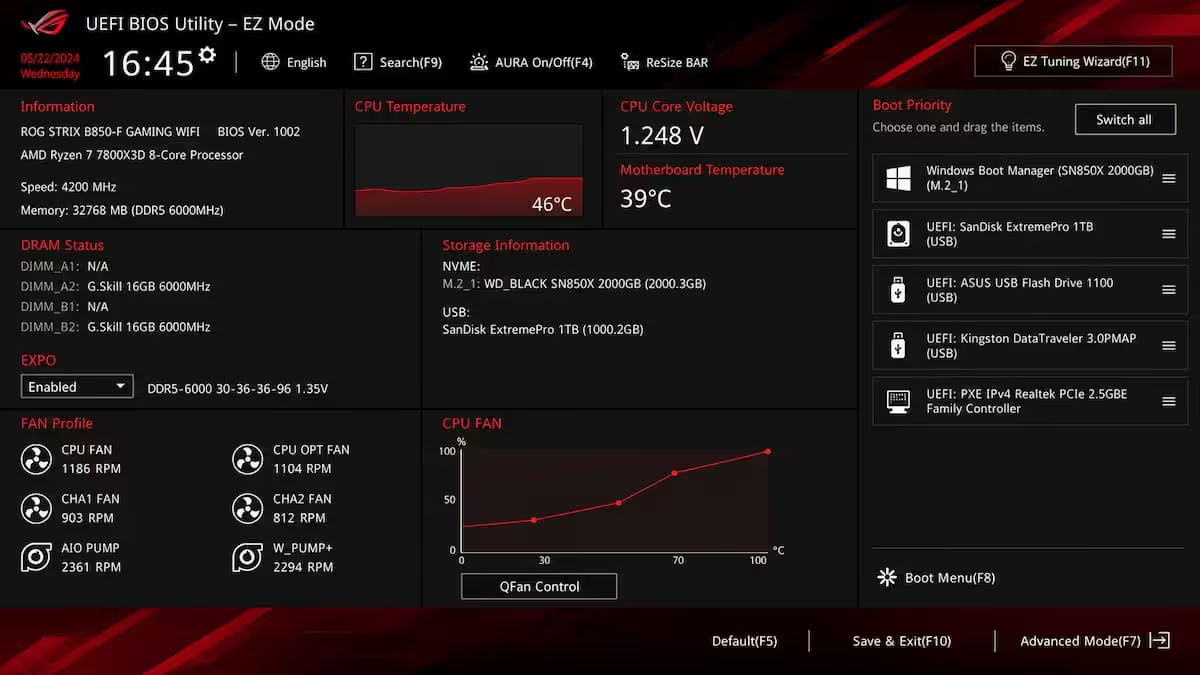
Where to find it: Boot tab in the BIOS, or in EZ Mode there's usually a drag-and-drop boot priority panel at the bottom.
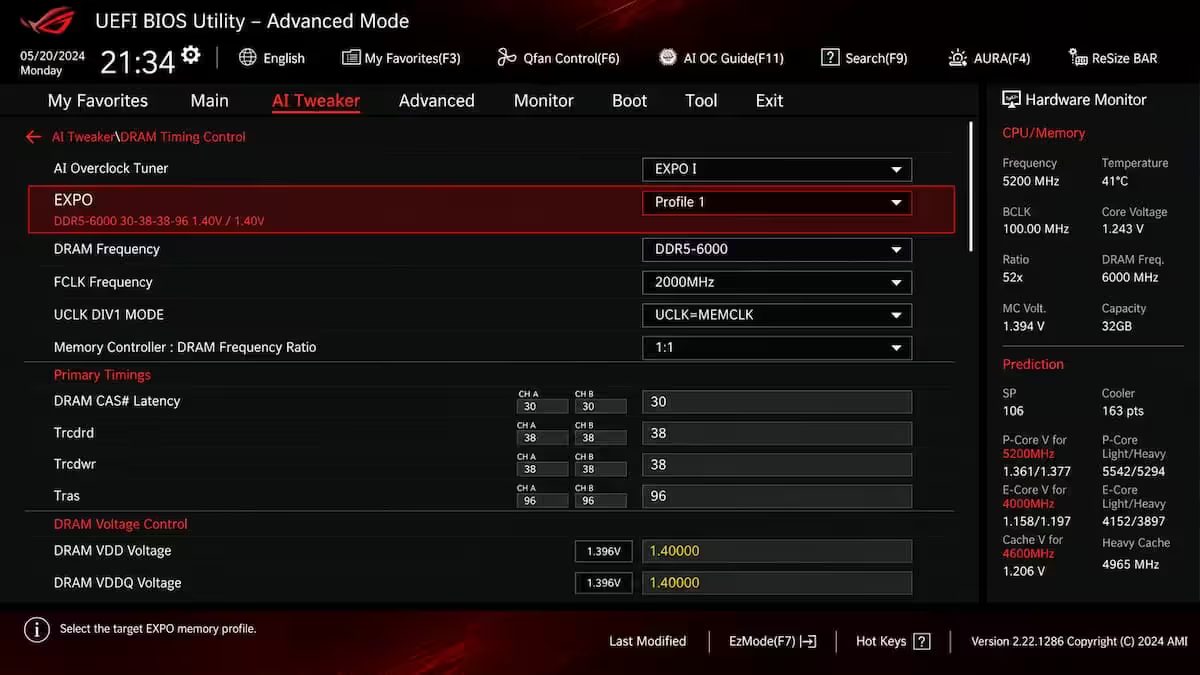
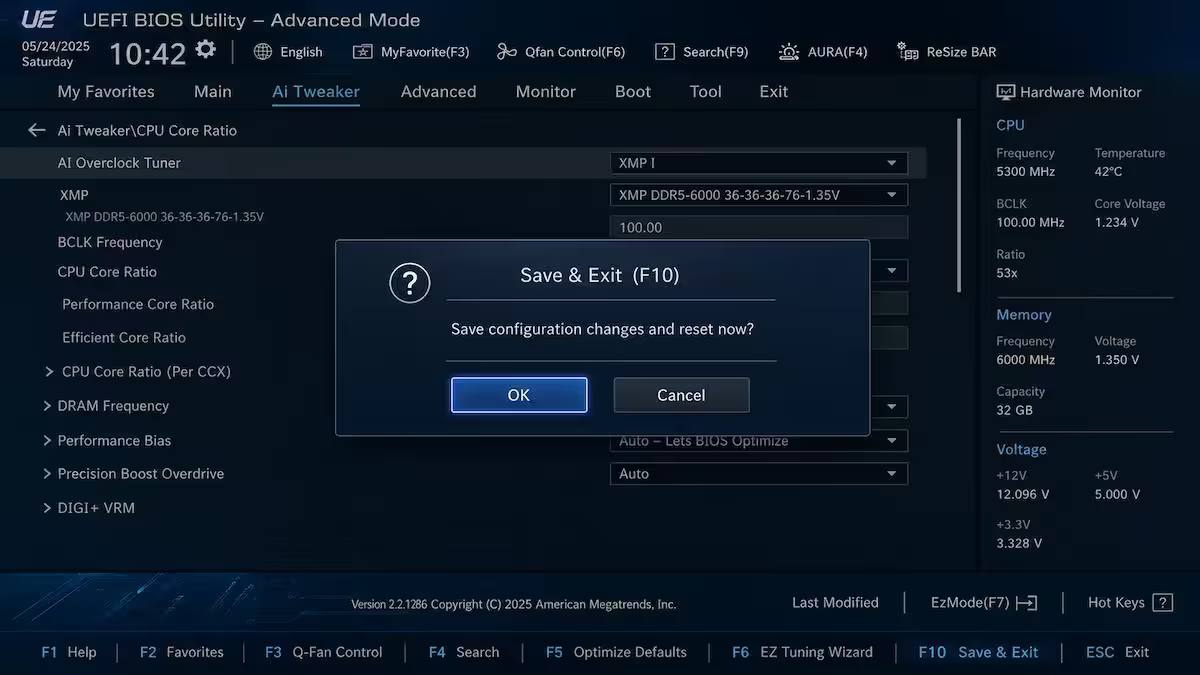
Enable XMP / EXPO (the most important toggle)
RAM kits ship with two profiles in their SPD (Serial Presence Detect) chip:
- JEDEC baseline. A conservative speed every system runs at safely — typically DDR5-4800 on most modern kits.
- XMP / EXPO profile. The advertised speed and timings — DDR5-6000, DDR5-6400, DDR5-7200 etc.
Motherboards boot at JEDEC by default — defensive behaviour for compatibility. You bought DDR5-6000 RAM; you have to tell the board to use that profile.
| Platform | Profile name | Where in BIOS |
|---|---|---|
| Intel (LGA1700, LGA1851) | XMP / XMP 3.0 | AI Tweaker / OC tab |
| AMD (AM5) | EXPO | AI Tweaker / OC tab |
| AMD (AM4) | DOCP (ASUS) / A-XMP (MSI) | AI Tweaker / OC tab |
Most kits ship with two XMP/EXPO profiles — Profile 1 (the advertised speed) and Profile 2 (often a more conservative fallback). Use Profile 1 first. If the system fails to POST or BSODs in Windows, drop to Profile 2.
Configure fan curves
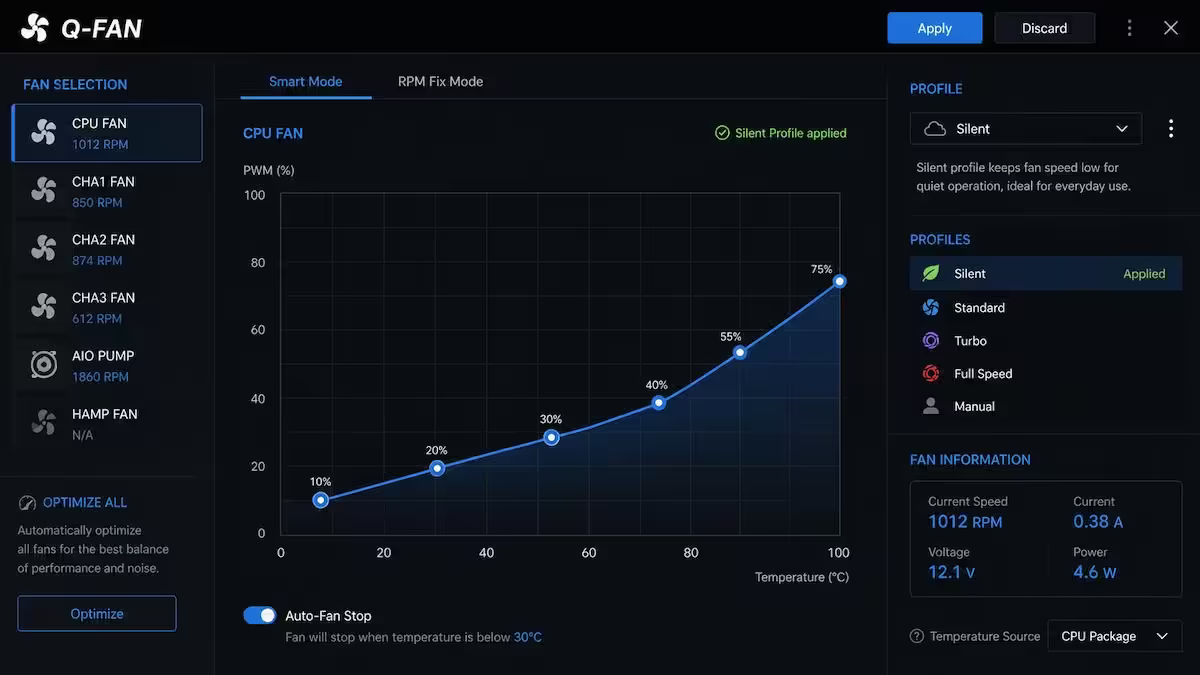
Fan curves map temperature to fan speed. Default curves are often aggressive — fans ramp up at 60°C, which makes the PC sound like a hairdryer during light gaming.
A reasonable silent-default curve:
| Temperature | Fan PWM % | Audible? |
|---|---|---|
| 30°C (idle) | 25-30% | Inaudible |
| 50°C (light load) | 40% | Quiet hum |
| 65°C (gaming) | 55-65% | Noticeable |
| 80°C (heavy load) | 85% | Loud |
| 90°C (thermal limit) | 100% | Hairdryer |
AIO pumps: set to constant 75-100% (not curve-controlled). Pump RPM should be steady; speed variation kills cooling efficiency.
Case fans: set to the CPU temperature source (not motherboard) — that's the temp that actually matters for thermal management.
Enable Secure Boot for Windows 11
Secure Boot uses cryptographic signatures to ensure only trusted bootloaders run at startup. It blocks rootkits that try to load before the OS. Windows 11 requires it; the installer refuses to proceed without it.
Where to find it: Boot → Secure Boot. Set Secure Boot State to Enabled. OS Type should be Windows UEFI.
Why it's off by default: defensive setting for users dual-booting Linux distros that aren't signed, or for some specialised hardware. For almost every builder installing Windows 11, turn it on.
TPM 2.0 — required for Windows 11
TPM (Trusted Platform Module) 2.0 is a hardware-backed security feature that stores encryption keys, supports BitLocker drive encryption and confirms the system identity. Windows 11 requires TPM 2.0.
All modern CPUs (AMD Ryzen 5000/7000/8000/9000, Intel 11th gen and later) include a built-in TPM that needs to be turned on in BIOS — it's not a physical chip on the motherboard anymore for most desktops.
| Platform | BIOS setting name | Where to find |
|---|---|---|
| AMD (Ryzen) | fTPM (firmware TPM) — Enabled | Advanced → AMD CBS or AMD fTPM Configuration |
| Intel | Intel PTT (Platform Trust Tech) — Enabled | Advanced → PCH-FW Configuration |
Resizable BAR / Smart Access Memory
Resizable BAR (ReBAR) — also marketed as Smart Access Memory (SAM) on AMD chipsets — lets the CPU access the GPU's entire VRAM in a single mapped region instead of 256MB chunks at a time. Result: 2-5% gaming performance gain on supported games, no downside on any modern hardware.
Required: a CPU and motherboard from 2021 onwards (all current platforms support it), a recent GPU (Nvidia 30-series+, AMD RX 6000+, Intel Arc), and recent GPU drivers.
Where to enable: Advanced → PCI Subsystem → set Re-Size BAR Support to Enabled. Above 4G Decoding may need to be on first (often auto on modern boards).
CSM and modern boot
CSM (Compatibility Support Module) is a legacy-BIOS emulation shim — it lets the board boot non-UEFI operating systems and older bootloaders. For modern Windows 10/11 it should be disabled.
CSM disabled is also a requirement for Secure Boot, faster boot times and modern boot devices (NVMe drives boot most reliably with CSM off).
Where to find it: Boot → CSM Support → Disabled. Some boards label it "Legacy USB Support" or hide it under a deeper menu.
Date, time and when to update BIOS
Date and time. Set these correctly. If the date is wrong (typically 2010 or 2018 on a fresh CMOS battery), Windows activation can fail, websites will throw certificate errors and timestamps on files will be wrong.
BIOS updates. Don't update unless you have a specific reason:
- Installing a CPU newer than the board's release date (Ryzen 9000 on an older B650 board).
- Specific bug fix mentioned in release notes for an issue you're hitting.
- Feature you actually need (e.g., a new memory profile support).
Don't update for: "newer = better", marketing line, or "just to be current". BIOS updates carry small risk; see our BIOS update guide for safe procedures.
Saving and exiting
F10 = Save changes and exit. Press F10, confirm Yes, the board reboots with new settings applied.
Esc = Exit without saving. Useful if you've changed something and aren't sure — discard and start over.
F7 = Toggle EZ Mode / Advanced Mode (on ASUS and most others). Advanced Mode shows every setting; EZ Mode shows the common ones in a visual layout.
F9 = Load Optimised Defaults. The nuclear option if you've changed too much and want to start over. After F9, you'll need to re-enable XMP, Secure Boot, TPM and ReBAR.
Common BIOS setup mistakes
Forgetting to enable XMP/EXPO. Leaves your DDR5-6000 RAM running at DDR5-4800. Major performance hit on Ryzen especially, where memory speed directly affects Infinity Fabric clocks.
Trying to install Windows 11 with Secure Boot or TPM off. The installer halts with "this PC can't run Windows 11". Fix in BIOS, retry.
Updating BIOS for no reason. "Newer version available" isn't a reason. Stable working BIOS doesn't need updating unless a specific need arises.
Loading Optimised Defaults and then forgetting to re-enable XMP. F9 resets everything — including the settings you fought to get right. Always recheck after a defaults load.
Wrong boot order after install. Leaving USB in position 1 after Windows install slows every boot by 1-2 seconds. Move SSD to position 1 once the OS is installed.
Aggressive fan curves at idle. Default curves often ramp fans up at 50°C. A reasonable silent profile keeps the PC inaudible during desktop use.
Key takeaways
- Hammer Del at power-on. Most modern boards use UEFI with a graphical EZ Mode.
- Enable XMP/EXPO first — single biggest free performance gain on any new build.
- Secure Boot + TPM 2.0 + UEFI mode = Windows 11 requirements. Turn all three on.
- Enable Resizable BAR / SAM for free 2-5% GPU performance with no downside.
- Don't update BIOS without a specific reason. F10 to save, reboot to BIOS once to verify settings stuck.
Frequently asked questions
How do I enter the BIOS on a new PC build?
Hammer the Del key from the moment you press power. Tap 4-5 times per second until the BIOS menu appears. Some older boards use F2.What BIOS settings should I change on a new build?
XMP/EXPO on, boot order USB-then-SSD, Secure Boot on, TPM on, Resizable BAR on, CSM off, fan curves to silent, date/time correct. Most everything else can stay on Auto.What is XMP and why is it disabled by default?
XMP / EXPO is the profile that runs your RAM at its advertised speed. Off by default for compatibility — nearly every customer-built PC that reaches our QC bench arrives with it disabled. Single biggest performance unlock.Do I need to enable Secure Boot and TPM for Windows 11?
Yes — both required by the Windows 11 installer. fTPM on AMD, PTT on Intel. Off by default on many boards.What is Resizable BAR and should I enable it?
Lets the CPU access full GPU VRAM at once. 2-5% gaming gain, no downside on modern hardware. Always enable.Should I update BIOS before configuring it?
Only if there's a specific reason — new CPU compatibility or critical bug fix. Don't update just because a newer version exists.What fan curves should I set in BIOS?
Silent default: 30% at 40°C, 50% at 60°C, 75% at 75°C, 100% at 85°C. AIO pump at constant 75-100%, not curve-controlled.How do I save BIOS settings and exit?
F10 = save and exit. Esc = exit without saving. F7 = toggle Easy/Advanced. F9 = load optimised defaults. Always reboot to BIOS once to verify settings stuck.
Get the Evetech app
Exclusive app-only prices, daily flash sales, and free delivery on orders over R4,000 — download the app and start saving.