Gaming Performance · Setup
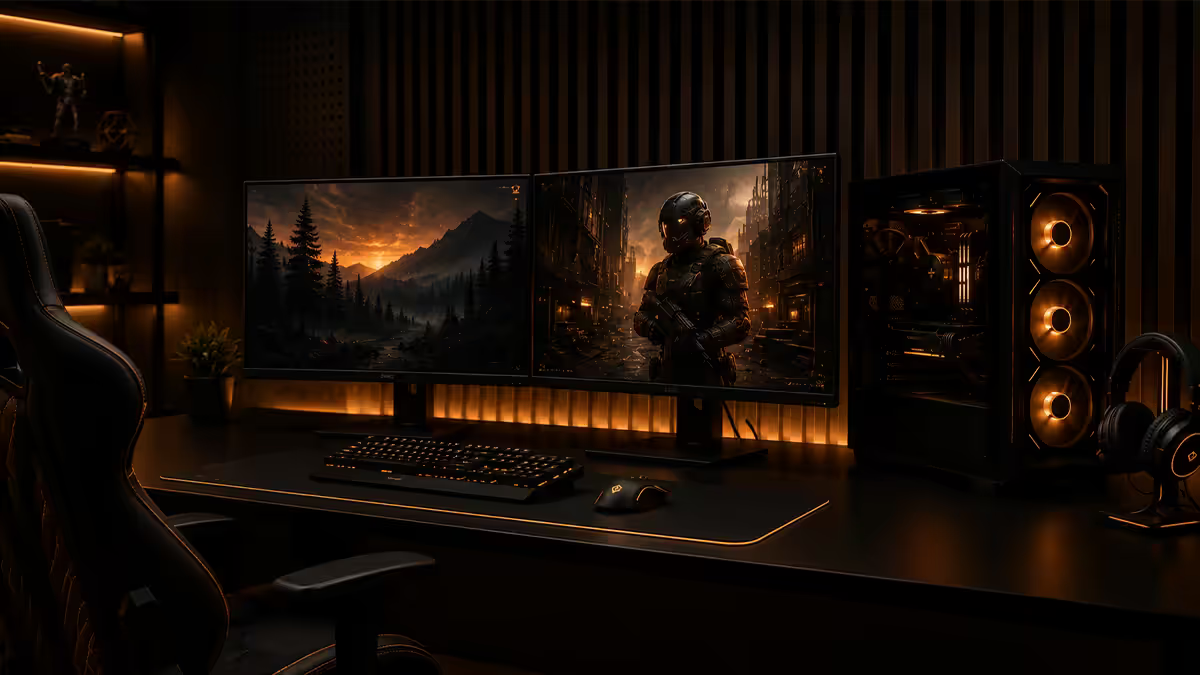
Dual monitors, done right.
A second monitor isn't just more screen — it's Discord, OBS, stats, chat, music and your map all without alt-tabbing. Set up correctly, it costs ~5% GPU headroom and pays back hours a week. Set up wrong, it ruins your frame pacing.
- setup time
- 15 min
- GPU cost typical
- ~5%
- Hz mix · works fine
- 240+100
GPU output combo — what you've got
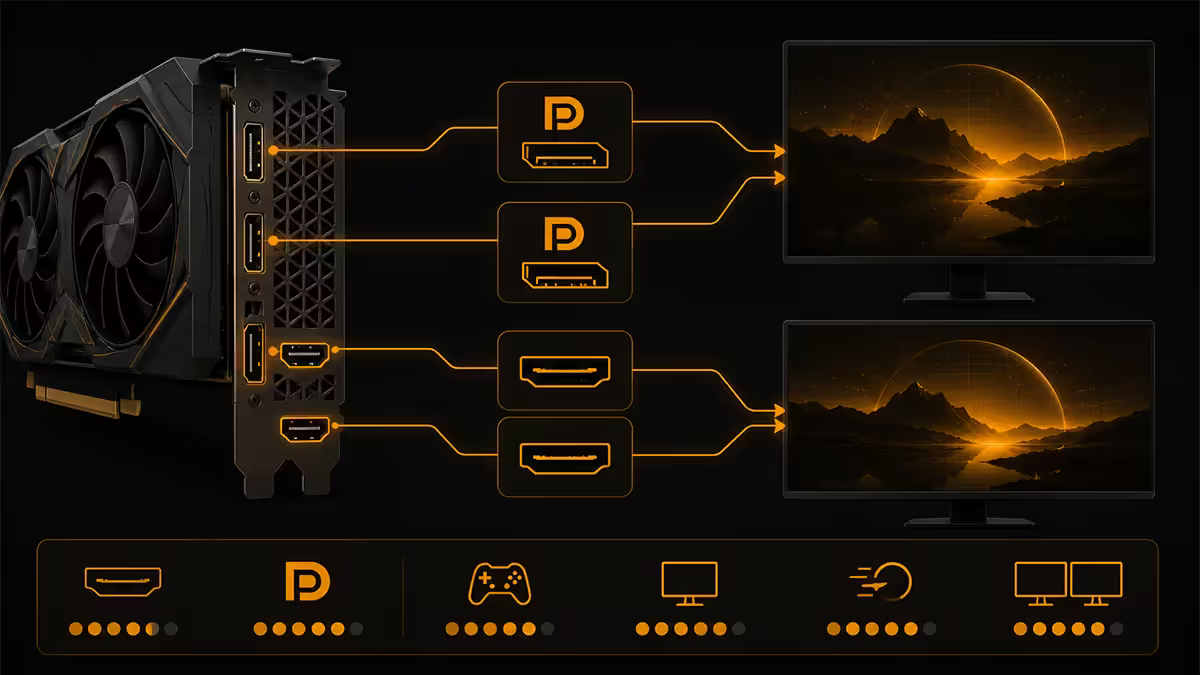
Every current discrete GPU has at least three video outputs — usually three DisplayPort and one HDMI on NVIDIA and AMD, four DisplayPort + USB-C / HDMI variations on Intel Arc. Two monitors easily fit.
The right combo for dual-monitor gaming: DisplayPort 1.4 or 2.1 on both monitors. DisplayPort gives you:
- Full G-Sync / FreeSync / Adaptive-Sync support without quirks.
- Higher bandwidth — 240Hz at 4K and 480Hz at 1440p are DisplayPort 2.1 territory.
- Cleaner handling of monitor sleep and resume.
- Display Stream Compression (DSC) support for the highest-Hz panels.
HDMI is fine as a backup. HDMI 2.1 supports 4K 120Hz comfortably and 4K 144Hz with DSC. For a 1440p 100Hz secondary monitor, HDMI 2.0 is enough. The issues some users hit on HDMI — VRR dropping out, EDID confusion at boot — are mostly older-generation problems. On a current GPU and current monitor, HDMI 2.1 dual-monitor setups are reliable.
Don't mix DVI or VGA on a modern gaming PC — even if your secondary monitor supports them. DVI maxes at 144Hz 1080p and doesn't carry audio; VGA is analogue and dead. Both occasionally cause sleep/resume problems with the rest of the system.
Windows arrangement (the 10-minute setup)
Once both monitors are physically connected, the Windows side takes about ten minutes. Here's the precise sequence that avoids the common mistakes.
- 1
Open Display settings.
Right-click on the desktop → Display settings. You'll see two boxes labelled 1 and 2 representing the monitors as detected. - 2
Identify each monitor.
Click "Identify" to see the number on each physical panel. Drag the on-screen boxes so they match the physical arrangement on your desk — left and right boxes match left and right monitors. - 3
Set your main display.
Click on the panel you want as primary (the high-Hz gaming one), then tick "Make this my main display." Taskbar, Start menu and default-launch apps now appear on the primary. - 4
Set refresh rate per monitor.
Scroll down → Advanced display → choose each monitor from the dropdown → set "Choose a refresh rate" to the highest available. Windows 11 24H2 lets you set 240Hz on the primary and 100Hz on the secondary independently. - 5
Enable HDR per monitor (optional).
If the primary supports HDR for gaming, enable HDR only for that panel. Leaving HDR off on the secondary (where you read Discord and browse) gives more accurate sRGB colour. - 6
Configure GPU control panel.
NVIDIA Control Panel → Set up G-Sync → enable for fullscreen, target only the primary. AMD Adrenalin → enable FreeSync per monitor as supported.
Which monitor goes where (and why)
Treat your two monitors as having different jobs — and pick which one does which based on its strengths.
Primary monitor (the gaming one):
- Highest refresh rate you own — 240Hz Fast IPS or QD-OLED is the modern sweet spot.
- 1440p or 4K resolution depending on GPU.
- Direct in your line of sight — the panel you spend 95% of game time looking at.
- Set as "Main display" in Windows — this is where adaptive sync engages cleanly.
Secondary monitor (the everything else one):
- 1440p IPS at 100Hz or 120Hz — sharp text for Discord and browsers, smooth enough scrolling.
- Often a smaller size — 24-inch is comfortable next to a 27-inch primary.
- Off to one side, angled slightly inward.
- Runs at its own refresh rate independent of the primary — adaptive sync isn't critical here.
A common mistake is using your old 1080p 60Hz monitor as the secondary. It works, but two real downsides emerge: text on the secondary looks much fuzzier than on the primary, and the visual contrast when you drag a window between panels (which happens dozens of times an hour) feels jarring. If you're upgrading the primary anyway, putting another R4,500-R5,500 toward a matched 1440p 100Hz secondary is a noticeable quality-of-life jump.
Mixed refresh rate reality
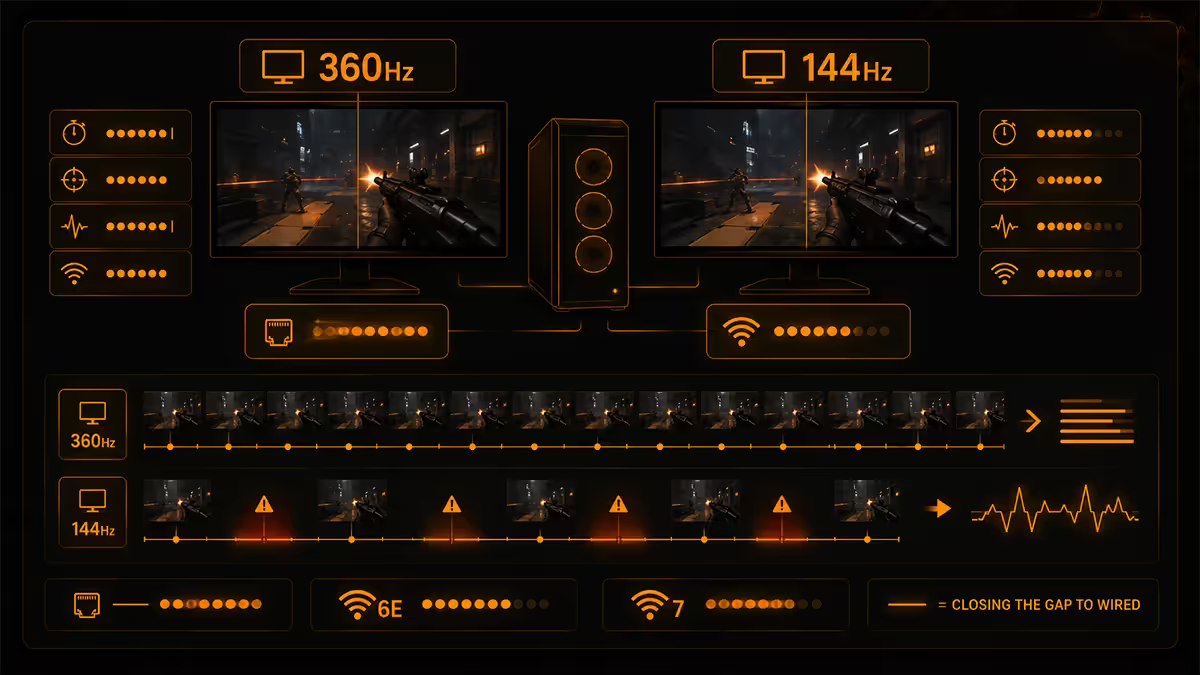
Mixing a high-Hz primary with a lower-Hz secondary used to be a Windows pain point. Until about Windows 11 22H2, dragging a window between a 144Hz panel and a 60Hz panel would cause juddering on the primary because Windows had to slow the entire desktop compositor to the lowest Hz.
Windows 11 24H2 (the late-2025 update) fixed this for most setups. Each monitor now refreshes at its own rate independently. The primary stays at 240Hz; the secondary stays at 100Hz. The desktop compositor handles cross-monitor frame pacing without forcing both panels to the lowest Hz.
What still requires attention:
- Older driver versions can break this — keep NVIDIA / AMD / Intel drivers current.
- Some apps (older video players, some streaming overlays) still force monitor-wide V-Sync. Move them to the primary if they cause stutter.
- Multi-monitor exclusive fullscreen still works best with the active game on the primary — keep your fullscreen game window there.
G-Sync & FreeSync with two monitors
Adaptive sync works per monitor on dual-monitor setups, but with some real limitations worth knowing.
What works: the primary monitor running a fullscreen game gets full G-Sync or FreeSync. The variable refresh window operates normally; tearing is eliminated; latency stays low. This is the case you actually care about for gaming.
What's limited: only one active VRR session at a time on most setups. If you start a second game on the secondary monitor while the primary game is also running, adaptive sync engages on the foreground window's monitor and the other one refreshes statically. For 99% of dual-monitor users (one game + Discord/chat) this is invisible.
What you should set:
- NVIDIA Control Panel → Set up G-Sync → enable for "fullscreen mode only" — prevents G-Sync from trying to engage on the secondary's borderless windows.
- Adaptive sync OFF on the secondary monitor entirely if you don't game on it — saves a tiny bit of GPU overhead.
- Keep V-Sync ON in the driver as a backstop, OFF in each individual game.
Across the 200,000+ custom PCs we've shipped from our Centurion warehouse, dual-monitor setups have become the default for mid- and high-tier gaming builds. A large and growing share of R20k+ gaming PCs we ship in 2026 leave with two monitors. The most common pairing in our sales: a 27-inch 1440p 240Hz Fast IPS primary plus a 24-inch 1440p 100Hz IPS secondary. Comes in around R12,500 combined and matches almost any GPU from RTX 4070 upward.
Evetech Hardware Team — Behind the Build, from our setup logs
Picking the panels — SA recommendations
The dual-monitor setup is two purchases, not one. Optimise each panel for its job.
| Role | Sweet-spot pick | SA price |
|---|---|---|
| Primary (240Hz gaming) | Gigabyte M27Q X / LG 27GR75Q (27" 1440p 240Hz Fast IPS) | R7,500-R9,500 |
| Primary (premium OLED) | Alienware AW3225QF / LG 27GS95QE (1440p QD-OLED 240Hz) | R22,000-R32,000 |
| Primary (esports) | BenQ XL2566K+ (24.5" 1080p 360Hz Fast TN) | R14,500-R17,500 |
| Secondary (productivity) | LG 24UL500 / Samsung S24A600 (24" 1440p 100Hz IPS) | R3,800-R5,500 |
| Secondary (vertical for Discord/code) | Dell P2422H portrait-rotatable (24" 1080p 100Hz) | R3,200-R4,200 |
| Secondary (budget reuse) | Any old 1080p 60Hz panel you already own | R0 |
Do you need a KVM switch?
Short answer: not for a single-PC dual-monitor gaming setup. KVM switches solve a different problem — sharing one set of monitors, keyboard and mouse between two separate computers (typically a gaming PC and a work laptop).
When you do want a KVM:
- Working from home using a company laptop, but you want it to drive your gaming PC's screens, keyboard and mouse during work hours.
- Splitting between a gaming PC and a media / streaming PC.
- Quickly switching between two builds for testing or comparison.
If you only have one PC, just plug both monitors into the GPU and you're done. KVMs add cost (R1,800-R6,000), latency (often 5-15ms), and one more failure point. Skip unless you genuinely need to switch sources.
Key takeaways
- Use DisplayPort on both monitors where possible. HDMI 2.1 is fine as backup; skip DVI / VGA.
- Set the highest-Hz, best-panel monitor as Main display in Windows. Adaptive sync engages cleanly there.
- Mixed refresh rates work on Windows 11 24H2. Each monitor runs at its own Hz independently.
- Pair a 240Hz primary with a 1440p 100-120Hz IPS secondary. Avoid 1080p 60Hz as a secondary if you can.
- KVM switches aren't needed for a single-PC dual-monitor setup — only when sharing screens with a second PC.
Frequently asked questions
Can I run a dual monitor gaming setup on any GPU?
Yes — every current discrete GPU (RTX 4060 and above, RX 7600 and above, Intel Arc B-series) has at least three output ports, usually 3× DisplayPort + 1× HDMI. The real question isn't ports but performance — running a 4K secondary monitor with a 240Hz primary while gaming costs about 5-10% of the GPU's headroom, which most cards can absorb.Should I have my fullscreen game on the primary or secondary monitor?
Always the primary monitor (the one set as 'Main display' in Windows). Adaptive sync, exclusive fullscreen and HDR all work most reliably on the primary panel. Set your highest-Hz, best-panel monitor as primary in Windows Display settings — Discord, OBS, stats and chat go on the secondary.Can I mix different refresh rate monitors?
Yes — Windows 11 24H2 handles mixed refresh rate monitors cleanly. Your 240Hz primary refreshes at 240Hz, your 100Hz secondary at 100Hz, independently. Older Windows builds had stuttering issues, but the 24H2 update fixed the cross-monitor frame pacing for most users. Updated graphics drivers also matter.Does G-Sync or FreeSync work with two monitors connected?
Yes, but adaptive sync engages per-monitor based on the active foreground app. The primary monitor running an adaptive-sync game gets the full G-Sync / FreeSync benefit. The secondary monitor refreshes at its own static rate. Two simultaneous active VRR sessions are not supported — but for the dual-monitor gaming case, you almost never need them.What should I pick as a secondary monitor?
1440p IPS at 100-120Hz is the sweet spot — sharp Discord text, smooth scrolling for browsers and Twitch, no need to push the GPU hard. Examples in SA: LG 27UL500 (1440p IPS 100Hz, ~R4,500), Samsung Smart Monitor M7 (1440p IPS 60Hz, ~R5,500). Avoid putting a 60Hz panel as secondary — the contrast against a 240Hz primary is unpleasant when you drag a window between them.Do I need a KVM switch for dual monitor gaming?
No, not for a single-PC dual-monitor setup. KVMs are needed when two separate PCs share the same monitors and peripherals. A standard single-PC dual-monitor gaming setup just needs two cables from the GPU to the two panels. KVMs come in if you're switching between a gaming PC and a work laptop using the same screen and mouse.Can dual monitors hurt gaming performance?
Yes, slightly. Driving a second high-resolution panel costs roughly 3-8% GPU headroom even when the game is on the primary. The penalty grows with secondary monitor resolution and Hz. A 1440p 100Hz secondary alongside a 1440p 240Hz primary is usually invisible in benchmarks. A 4K 144Hz secondary alongside is more noticeable, particularly at the GPU's upper limit.Should I use HDMI or DisplayPort for dual monitors?
DisplayPort wherever you can. DisplayPort 1.4 / 2.1 supports higher bandwidth (240Hz+ at 4K, 480Hz at 1440p), cleaner G-Sync / FreeSync support, and Multi-Stream Transport for chained monitors. Use HDMI 2.1 for the secondary if your GPU only has one DP — it's perfectly fine for 100Hz 1440p productivity work.
Get the Evetech app
Exclusive app-only prices, daily flash sales, and free delivery on orders over R4,000 — download the app and start saving.