Workstation Setup Guide
How to set up triple monitors.
Three screens is the productivity ceiling for most desks — past which the gains tail off and the cable mess catches up. Here's how to get there cleanly, with the GPU, mount, and arrangement that actually work.
- GPU minimum
- 3 outputs
- desk depth
- 80 cm
- three-panel range
- R8k-R45k
GPU outputs — the bit nobody checks first
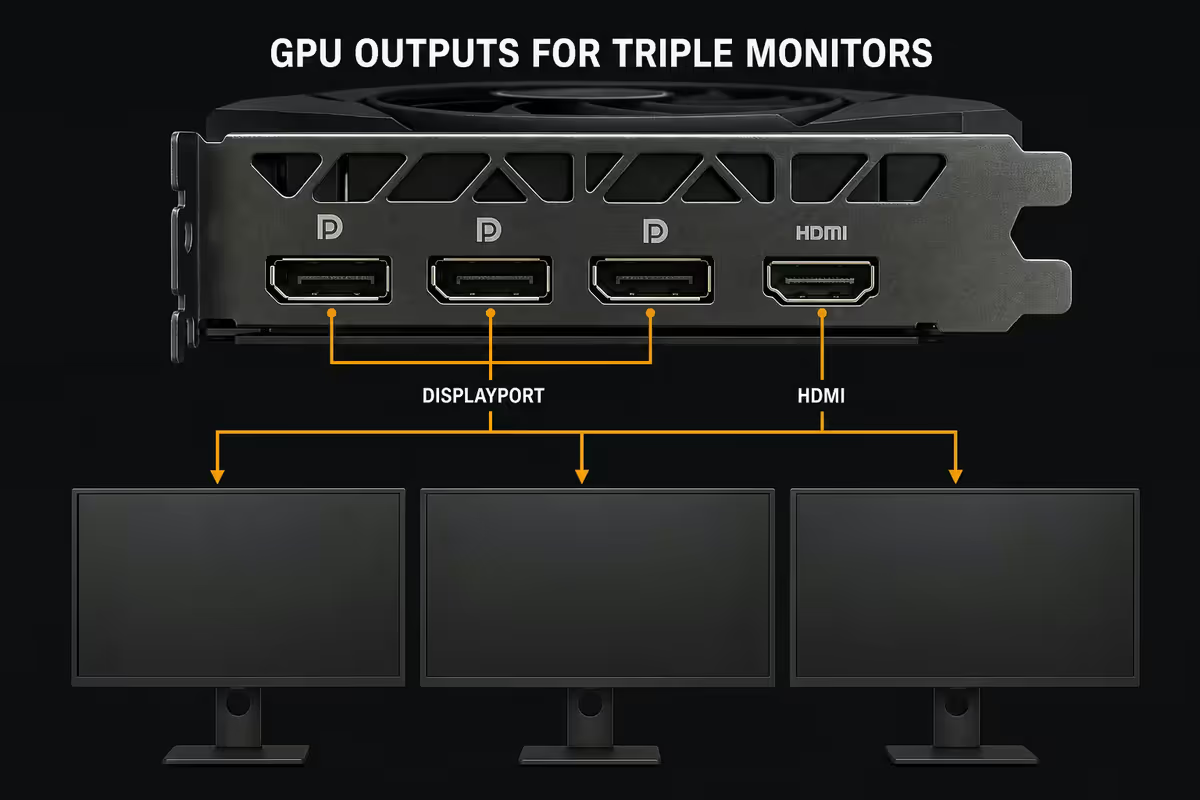
Before you buy the third monitor, count the outputs on the back of your graphics card. Almost every modern discrete GPU supports three or more displays simultaneously, but the physical port mix is where setups stall.
| GPU tier | Typical output layout | Triple monitor verdict |
|---|---|---|
| Integrated (Ryzen / Core Ultra) | 1× HDMI + 1× DP + 1× USB-C | Three 1080p/1440p fine for productivity |
| RTX 4060 / RX 7600 | 1× HDMI + 3× DisplayPort | Three productivity, light surround gaming |
| RTX 4070 / RX 7700 XT | 1× HDMI + 3× DisplayPort | 5760×1080 surround gaming at 60-90 fps |
| RTX 4080 / RX 7900 XT | 1× HDMI + 3× DisplayPort | 7680×1440 surround comfortably |
| RTX 5090 / pro workstation | 3× DP 2.1 + 1× HDMI 2.1 | Triple 4K surround viable |
The catch — most consumer GPUs ship with one HDMI port and three DisplayPort outputs. If you've inherited two monitors with HDMI-only inputs from old setups, you'll need DisplayPort-to-HDMI active adapters (R250-R400 each) or to swap monitors. Passive adapters won't work for high refresh rates above 60Hz.
USB-C / Thunderbolt 4 monitors are increasingly common and useful — they accept video, deliver up to 100W charging to a laptop, and act as a dock for peripherals. On a triple setup, one USB-C monitor as the centre primary cleans up the cable count significantly.
Desk depth and the mounting reality
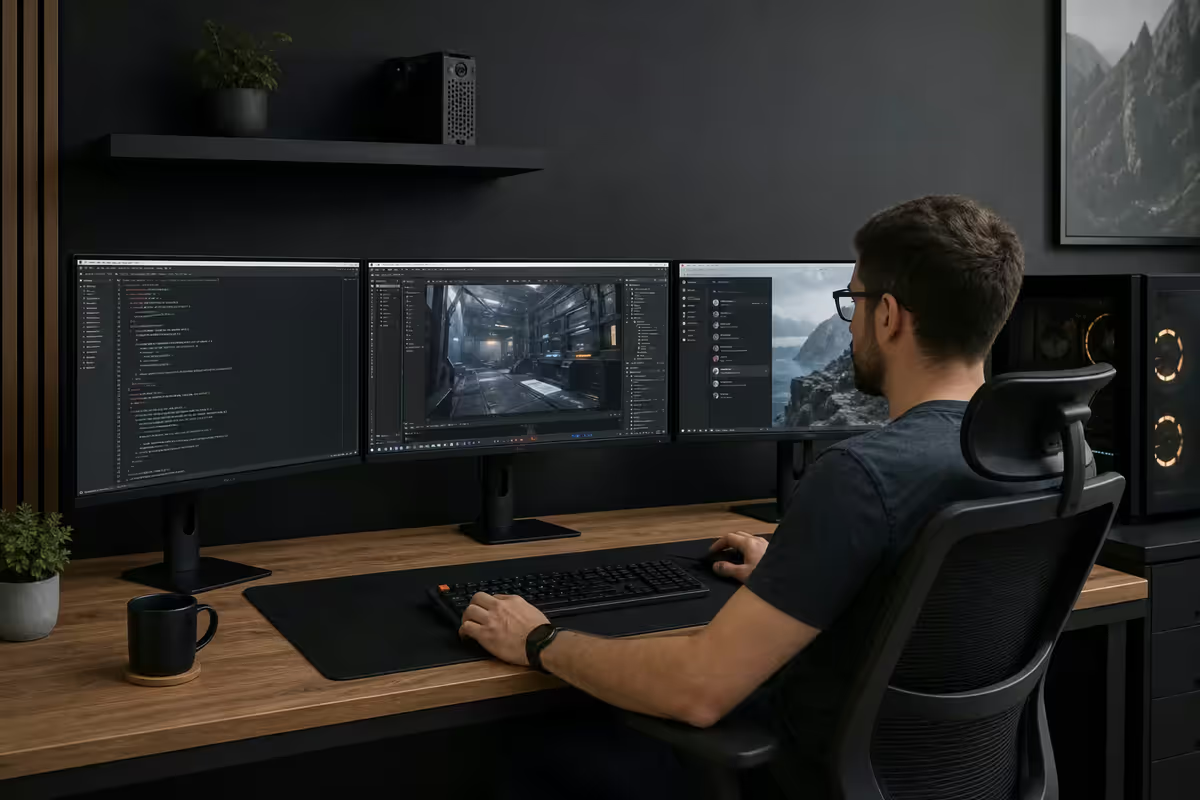
Three 27-inch monitors side-by-side measure roughly 183cm wide at the bezels. That fits on most desks (140-160cm wide desks force the sides off the edges; 180cm+ desks accommodate cleanly). The real constraint is depth.
Standard office desks ship at 60-70cm deep. Triple 27-inch panels on factory stands force the centre monitor uncomfortably close — typically 45-55cm from your eyes, where 70-90cm is the ergonomic sweet spot. There are three fixes:
- Deeper desk. 80cm+ depth is the gold standard. Custom-cut desks and gaming-specific brands (Secretlab Magnus Pro, Eureka L60) ship at this depth as standard.
- Triple monitor arm. A desk-clamp arm pushes monitors back over the desk edge, recovering depth and freeing the surface under the panels. Budget R1,800-R4,500 for a quality triple arm.
- Shorter native stands. Some monitor stands collapse to a slim footprint (Dell U-series, LG UltraFine), helping reclaim 8-12cm of desk depth.
Weight is the second mount factor. A typical 27-inch IPS monitor weighs 4.5-6kg without stand. Three of them on a single desk-clamp arm is 13-18kg of cantilever load — verify your arm's rated weight capacity and your desk's edge thickness (most arms require 1.5-6cm desktop thickness).
Windows multi-display arrangement
Plug in three monitors and Windows 11 mostly does the right thing on the first boot — three rectangles appear in Settings → System → Display, ready to drag into the physical order. Get the order wrong and your mouse pointer disappears off-screen instead of moving to the panel you can see.
The setup checklist:
- Identify — click each rectangle and Windows displays its number on the matching physical screen. Drag rectangles to match left-centre-right order.
- Set primary — the centre panel should be primary. This is where the taskbar lives by default and where new windows open.
- Per-display scaling — a 32-inch 4K centre with 24-inch 1080p sides needs 150% scaling on the centre and 100% on sides for matching text size. Set this per display, not globally.
- Refresh rate per panel — mixed-Hz triples confuse some apps. Set the highest each can do, then test that videos and games run smoothly.
- Window snap zones — Windows 11's Snap Layouts work across multiple monitors. Win+Shift+arrow moves a window to the next display.
PowerToys FancyZones (free Microsoft utility) adds custom zone layouts per monitor — particularly useful for portrait orientation where standard Windows snap zones don't quite fit. Worth the 10-minute setup.
Workflow split — the productivity case
Three displays only pay off if you assign each one a job. The most common arrangement that survives long-term:
Left monitor — comms and reference. Slack, Teams, Outlook, browser with documentation. Things you glance at frequently but don't actively type in. Portrait orientation here is gold for long Slack threads, code review and article reading.
Centre monitor — primary work. The IDE, the design canvas, the spreadsheet, the document. This is the panel directly in front of you and the one your eyes return to constantly. Landscape orientation, highest resolution and refresh rate you can afford.
Right monitor — secondary work or media. Reference browser tabs, secondary IDE window for tests, music player, Twitter/X feed, video call window during meetings. Lower priority panel that gets glanced at but not focused on.
For content creators, the arrangement shifts: timeline on centre, preview on right (so client meetings can be conducted with the preview facing visitors), reference and project bins on left. For traders and analysts, mixed-instrument tickers live on the side panels with primary charts on the centre.
When to rotate a panel to portrait
Portrait orientation is the under-used trick of the triple-monitor world. One 27-inch panel rotated 90 degrees gives you 2160 vertical pixels — enough to display two A4 pages side-by-side, an entire long Slack thread without scrolling, or a code file with 100+ lines visible at once.
Portrait wins for:
- Long-form reading (articles, documentation, books)
- Slack, Discord, Teams conversation windows
- Code review where vertical context matters
- Twitter/X timelines, RSS readers, news
- Mobile app testing (matches phone aspect ratio)
- Layout work for vertical-format content (posters, social stories)
Portrait loses for: spreadsheets (most are wider than tall), video editing timelines, anything with a horizontal timeline UI, and games (which assume landscape).
If your monitor stand supports 90-degree rotation natively (most Dell, LG, BenQ and ASUS ProArt panels do), it's a 10-second swap. If not, a single-monitor arm with rotation costs R600-R1,200 and pairs cleanly with the existing stands on the other two displays.
Bezel-corrected gaming — NVIDIA Surround & AMD Eyefinity
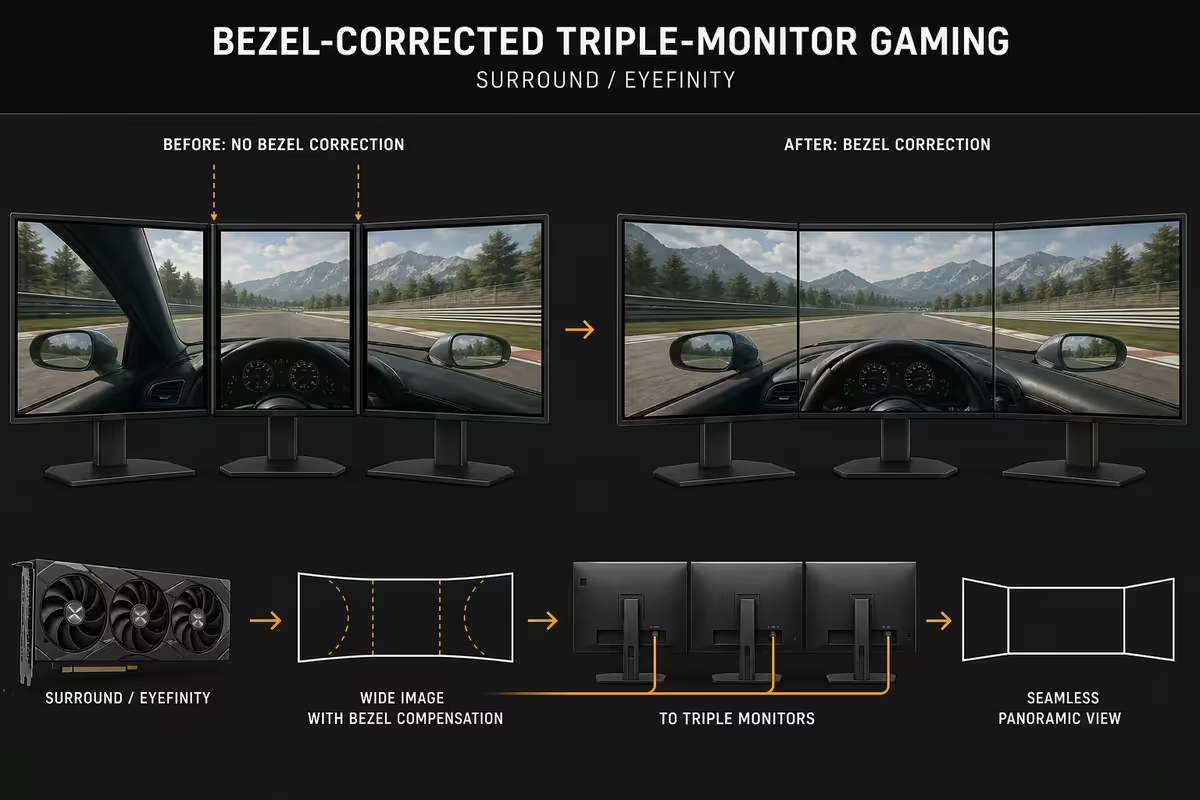
Gaming across three monitors is a different beast from productivity. Where Windows treats each panel as a separate display, NVIDIA Surround (GeForce cards) and AMD Eyefinity (Radeon cards) combine the three into a single ultra-wide virtual display the game treats as one canvas.
The trade-offs are real:
- Identical resolution required. All three monitors must match — three 1080p, three 1440p, or three 4K. Mixed resolution kills surround.
- Identical refresh rate required. All three at 60Hz, 144Hz or 240Hz — no mixing.
- Identical orientation. No portrait flanker for gaming; surround needs three landscape panels.
- FOV scaling matters. Some games don't support 5760×1080 cleanly — UI elements stretch or clip on the side panels.
- Bezel correction compensates for the physical gap between panels so the game world flows naturally past the bezel edges instead of being awkwardly hidden.
Sim racing is where triple-screen gaming earns its keep — the peripheral vision matters for tracking corner apexes and rival cars alongside you. iRacing, Assetto Corsa, F1 24 and rFactor all support proper triple-screen rendering with per-monitor projection that eliminates the fisheye effect cheaper surround modes suffer.
Sim racing triples — the one place this all makes sense
If you're building a sim rig, triple monitors aren't optional — they're table stakes. The wraparound field of view from three 32-inch panels approaching ear level transforms Assetto Corsa Competizione from a video game into something approaching the real cockpit experience.
Sim racing specifics:
- Curved arrangement, not flat. Side panels angle inward 35-45 degrees — far more aggressive than productivity setups.
- 27-32 inch panels at 1440p. The sweet spot of size and pixel density for sim distance (60-90cm from eyes).
- Triple-monitor rig stand. Not desk mounts — purpose-built rigs (Trak Racer, Sim-Lab, Next Level Racing) hold the panels at correct height and angle.
- RTX 4070+ minimum. Three 1440p at 90+ fps in modern sims demands serious GPU horsepower.
Cable management for the clean look
A triple setup has at minimum six cables behind the desk — three power and three display — before peripherals. The default state is a tangled mess; the clean state takes 45 minutes of intentional work.
The build-up:
- Mount a power strip under the desk with adhesive strips or screw mounts. Surge-protected with at least 6 outlets.
- Route display cables along the monitor arm channels (quality arms have integrated channels — use them).
- Velcro tie-wraps every 15-20cm bundle cables together cleanly. Reusable and don't damage cable jackets.
- Adhesive cable clips on the rear desk edge hold individual cables in place where Velcro bundles don't reach.
- Cable raceway / channel down the desk leg if you're hiding everything below.
Budget R400-R800 for cable management supplies — power strip, Velcro pack, adhesive clips, and a cable raceway. The result reads visually as one unit instead of three separate displays, and disconnecting one monitor for service later stays manageable.
Recommended panels by use case
| Use case | Pick | SA price (each) |
|---|---|---|
| Productivity (mixed sizes OK) | Dell U2723QE 27" 4K + 2× Dell U2422H 24" 1080p | R12,500 / R4,200 |
| Coder triple (matched 1440p) | 3× LG 27QN880 27" 1440p | R7,500 |
| Creative reference colour | 3× BenQ PD2725U 27" 4K | R18,500 |
| Surround gaming 1080p | 3× Samsung Odyssey G3 27" 1080p 165Hz | R4,800 |
| Surround gaming 1440p | 3× LG UltraGear 27GR75Q 27" 1440p 165Hz | R9,500 |
| Sim racing wraparound | 3× ASUS TUF VG279QM1A 27" 1080p 240Hz | R6,200 |
| Triple monitor arm | Ergotron LX Triple HD or HumanCentric Triple | R3,200-R5,500 |
Key takeaways
- Count GPU outputs first — most cards have one HDMI plus three DisplayPort, not three HDMI.
- 80cm desk depth is the gold standard; under that, a triple monitor arm is the fix.
- Centre primary, sides angled 20° inward — and rotate one side to portrait for chat & reference.
- NVIDIA Surround & AMD Eyefinity require identical resolution and refresh rate across all three panels.
- Budget R400-R800 for cable management — the setup reads as one unit, not three.
Frequently asked questions
Do I need a special GPU for triple monitors?
Any GPU with three or more display outputs works. Every NVIDIA RTX 3050 and up, every Radeon RX 6600 and up, and the integrated graphics on Ryzen 7000/9000 APUs and Core Ultra all support three displays simultaneously. The catch is output mix — many cards have one HDMI and three DisplayPort, so check your monitors before buying.Can I mix monitor sizes and resolutions across three displays?
Yes for productivity, no for bezel-corrected gaming. Windows handles mixed sizes and resolutions cleanly — your desktop spans across them with scaling per display. NVIDIA Surround and AMD Eyefinity require identical resolutions and refresh rates across all three. For productivity you can run a 32-inch 4K centre with two 24-inch 1080p side displays without issue.How much desk depth do I need for three monitors?
Minimum 80cm depth for three 27-inch monitors on a curved arrangement. Standard desks are 60-70cm deep, which forces monitors uncomfortably close. The fix is either a deeper desk, monitor arms (which let you push displays back over the edge), or shorter monitor stands. Most office desks struggle with three 32-inch screens — measure before buying.Should I rotate one of my monitors to portrait?
Portrait orientation transforms one display into the most useful productivity surface in the setup. The natural pick is the left or right monitor for chat, code review, long documents, X feeds and reference articles. Most modern monitor stands support 90-degree rotation; if yours doesn't, a R600-R1,200 third-party arm solves it. Worth noting — text on a portrait IPS panel reads beautifully.What GPU do I need to game across three monitors?
For 5760x1080 surround gaming, an RTX 4070 or RX 7700 XT handles most current titles at 60-90 fps. For 7680x1440 (three 1440p displays), step up to an RTX 4080 or RX 7900 XT. For triple 4K surround, an RTX 5090 is the realistic floor. Most surround gamers run 1080p centre with sides at the same resolution — the GPU load is roughly 3x a single 1080p display.Can I use a triple monitor setup with a laptop?
Yes, but the laptop becomes the bottleneck. Thunderbolt 4 and USB4 docks (Caldigit TS4, Anker 568) can drive two or three external displays from a single cable, but each monitor adds GPU load. Discrete-GPU gaming laptops handle it; ultrabooks with integrated graphics will struggle past three 1080p panels. For a permanent triple setup, a desktop with proper outputs always works better than dock gymnastics.What's the best monitor arrangement for productivity vs gaming?
Productivity favours a centre primary with one portrait flanker and one landscape secondary — comms left, code centre, reference right (or reversed). Gaming favours three identical landscape displays in a shallow inward curve so the side panels add peripheral vision rather than competing for focus. The two arrangements rarely satisfy both use cases, which is why dual-use builds often compromise on landscape-everywhere.How do I manage cables behind three monitors?
Each monitor needs power and display cable, so a triple setup has six cables before peripherals. The clean approach is a single triple-monitor arm with built-in cable channels, a power strip mounted under the desk, and DisplayPort cables routed along the arm. Velcro ties and adhesive cable clips finish the look. Budget R400-R800 for proper cable management — the result reads as one unit, not three.
Get the Evetech app
Exclusive app-only prices, daily flash sales, and free delivery on orders over R4,000 — download the app and start saving.