Router QoS for Gamers
QoS for gaming. — Your priority lane, not your magic ping cure.
Quality of Service won't lower your ping to a Frankfurt CS2 server. What it will do is stop your latency from spiking when the household starts a Netflix 4K stream, a Twitch upload and a Steam download simultaneously. Here's how to set it up properly.
- setup time
- 15 min
- spike prevented
- ~150ms
- SA ISPs with QoS
- 0
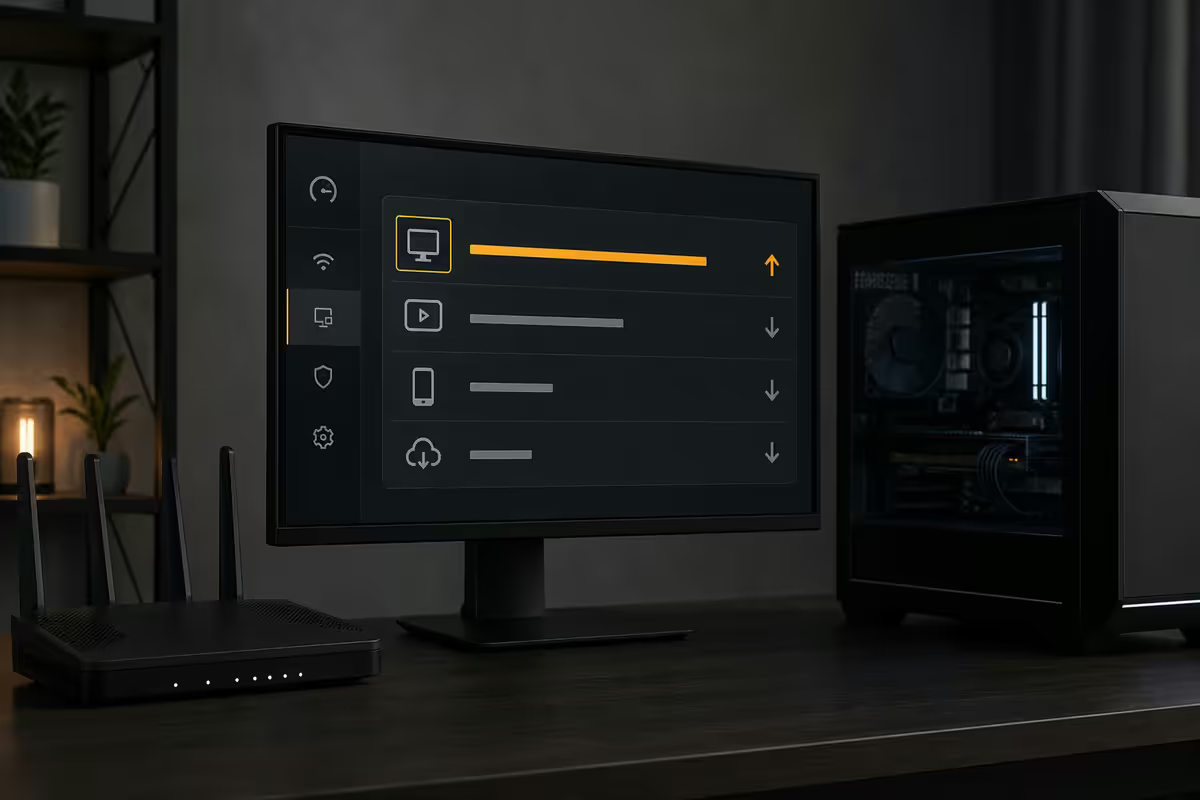
What QoS actually does
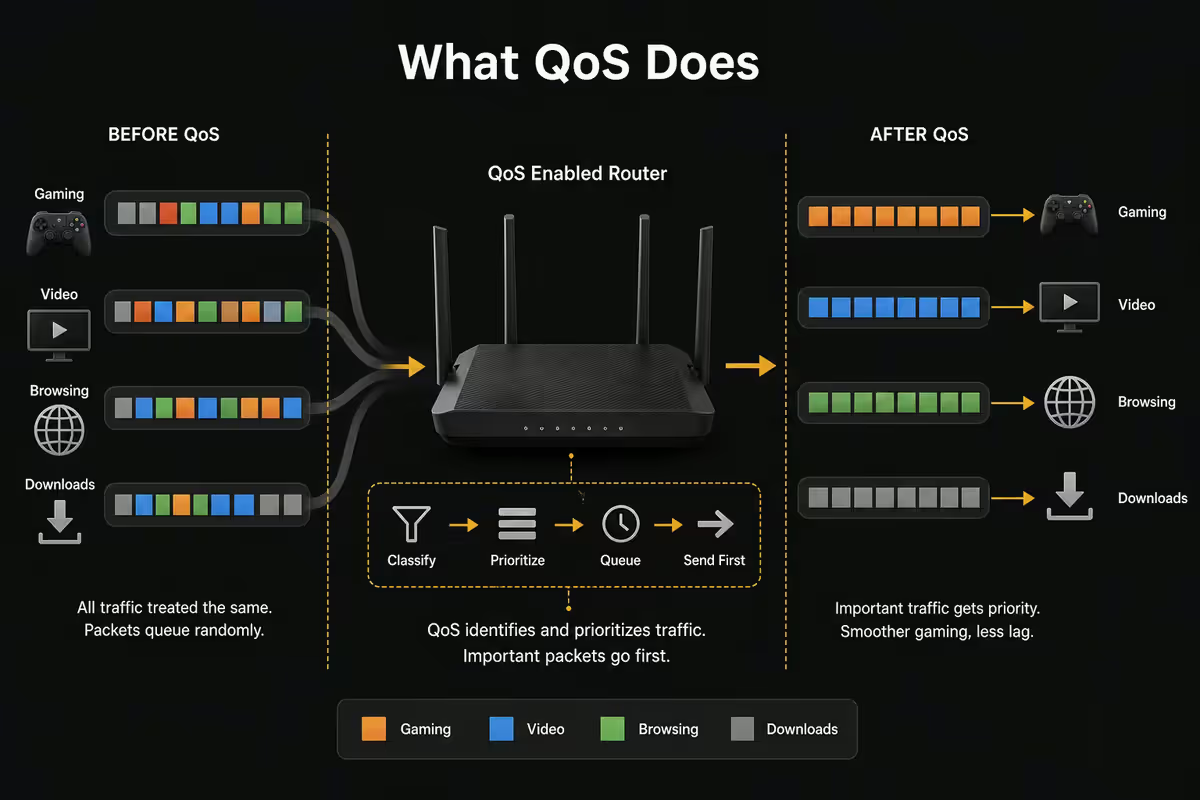
Quality of Service is a traffic management system that lives on your router. When multiple devices on your home network all want bandwidth at the same time, QoS decides whose packets get sent first. It's the difference between “everything moves slightly slower” and “your gaming PC gets a fast lane, everyone else queues.”
The technical reality: every packet leaving your home travels through the router's outbound queue. By default packets are handled first-come-first-served, so a Steam download or 4K Netflix stream can completely saturate the queue and push your CS2 packets behind hundreds of others. QoS rules reorder that queue — your gaming traffic moves to the front.
Critically, QoS only controls traffic at your router. Once packets leave your fibre line and hit your ISP's network, they're at the mercy of every other hop between you and the game server. Your router's QoS has zero influence over what happens on Vumatel's backhaul, AWS's transit links, or the undersea cable carrying your packets to Frankfurt.
When QoS actually matters
QoS makes a measurable difference when you've got multiple bandwidth-hungry workloads on the same connection. The typical SA household with a gamer, a Netflix-streaming family, and someone uploading work files to Google Drive is the classic case. Without QoS, your CS2 ping jumps from 30ms to 200+ms the moment those other workloads start. With QoS configured properly, your ping stays steady.
QoS helps most when:
- You have 100-200 Mbps fibre shared by 4+ active devices.
- Someone in the household streams to Twitch/YouTube while you play (upload contention).
- Steam/Epic/PSN game downloads run in the background during sessions.
- Multiple Netflix/DStv Now/Showmax 4K streams hit the same line.
- Smart home devices (cameras, doorbells) upload cloud video.
QoS doesn't help when:
- You're the only person using the connection (no contention to manage).
- Your high ping is from distance to overseas game servers (QoS doesn't lower base ping).
- The bottleneck is at your ISP's backhaul, not your router.
- Your fibre line is uncongested — 1Gbps lines rarely benefit unless heavily shared.
Asus AiProtection + Adaptive QoS setup
Asus routers running AsusWRT (or AsusWRT-Merlin third-party firmware) have the most user-friendly QoS implementation. Adaptive QoS auto-detects traffic type — game packets get high priority without needing manual rules per port or app.
Setup walkthrough:
- Log into router admin (typically
router.asus.comor192.168.1.1). - Run a speedtest at fast.com — note your actual upload/download.
- Go to Adaptive QoS in the side menu.
- Enable QoS at top of the page. Enter your accurate upload and download — round down 5% to leave headroom.
- Choose Adaptive QoS type (auto-detect).
- Select the Game preset, which prioritises latency-sensitive packets.
- Under Bandwidth Limiter, exempt your gaming PC's MAC address.
- Save and test — your CS2 ping should now stay steady under household load.
If you have AiProtection Pro enabled, you'll also have access to per-device traffic priority and per-app bandwidth quotas. Useful for restricting kids' downloads during your gaming hours.
TP-Link HomeShield QoS setup
TP-Link Archer routers with HomeShield offer device-level priority rather than app-level. The trade-off is that you manage QoS by which devices matter, not which apps — which works well if your gaming PC is dedicated.
Setup walkthrough:
- Log into router admin (
tplinkwifi.netor192.168.0.1). - Run a speedtest, note actual upload/download.
- Go to Advanced > QoS.
- Enable QoS. Set upload and download bandwidth to the measured speeds.
- Under Device Priority, find your gaming PC in the list. Set High.
- Set duration to Always if it's your daily-driver gaming machine.
- For routers with HomeShield Pro, enable Gaming Acceleration for per-app traffic classification.
- Save and test under load.
Mikrotik Queue Trees — the enthusiast option
Mikrotik RouterOS gives you industrial-grade traffic shaping. The hAP ax3, hAP ax2 and RB5009 are popular SA home choices. The QoS configuration is more manual but vastly more flexible — you can shape by IP, MAC, protocol, port and DSCP markings.
Basic Mikrotik QoS approach using Queue Trees:
- Open Winbox. Go to Queues > Queue Tree.
- Create a parent queue with your total upload bandwidth (e.g. 95% of measured).
- Create a child queue for "gaming-priority" pointing at your gaming PC's IP or a mangle-marked traffic class.
- Create a child queue for "bulk" for everything else.
- Set gaming-priority to priority 1; bulk to priority 8.
- Use Mangle rules in IP > Firewall to mark gaming traffic by destination port (game server ports) or by source IP (your PC).
- Apply HTB (Hierarchical Token Bucket) for guaranteed minimum bandwidth even under contention.
If this feels intimidating, that's because it is — but Mikrotik forums and the Reddit r/mikrotik wiki have step-by-step configs you can adapt. The result is the most precise gaming QoS available outside an enterprise switch.
Prioritise your gaming PC by MAC address
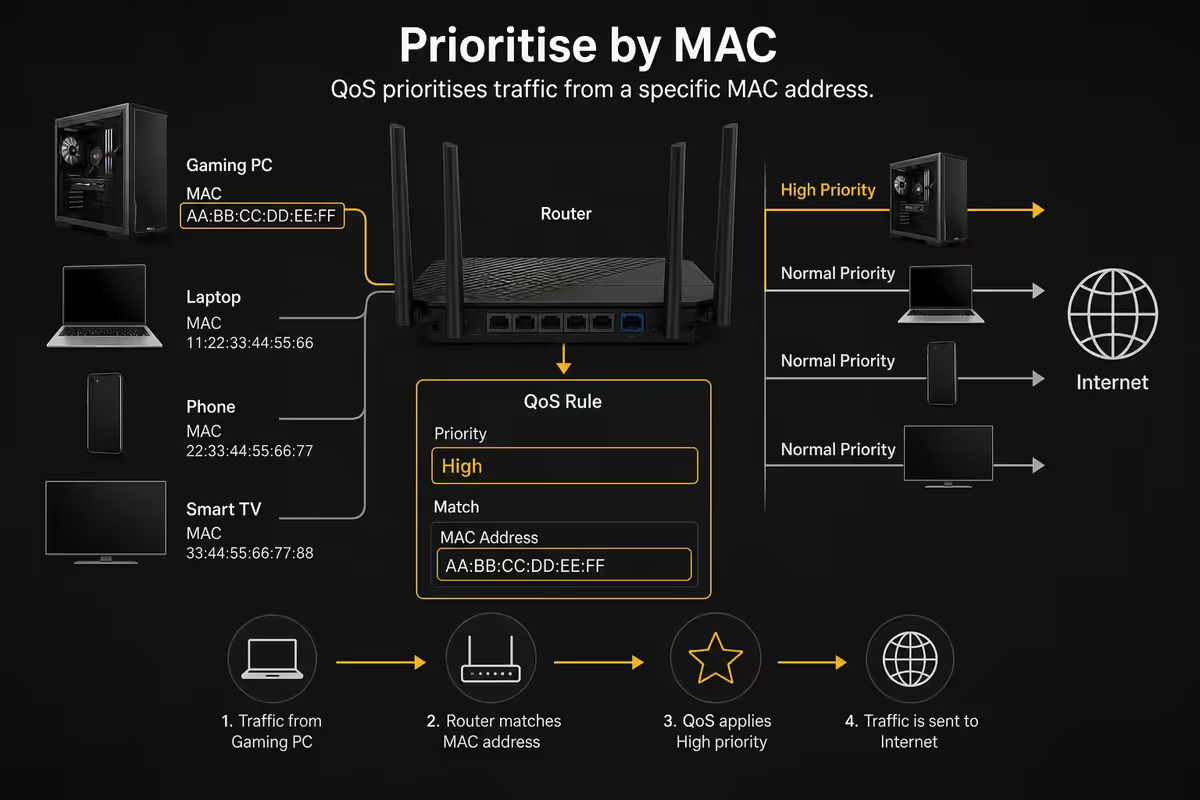
MAC-address-based priority is more reliable than IP-based because your PC's IP can change (DHCP lease, reboot, network change) but the MAC is permanent. Always reserve a static IP for your gaming PC at the same time you add it to QoS rules — that way your priority rule stays bound to the device.
Steps:
- On your gaming PC, run
ipconfig /all(Windows) — note the Physical Address of the active adapter. - In your router's DHCP settings, create a static reservation binding that MAC to a fixed IP.
- In QoS settings, add a high-priority rule for that MAC.
- For Wi-Fi gaming PCs, MAC randomization in Windows 11 needs to be disabled per-SSID, or the rule won't match next time you connect.
Gaming SSID and VLAN separation
A more aggressive approach: broadcast a separate Wi-Fi SSID dedicated to gaming, assigned to its own VLAN with guaranteed bandwidth. Other household devices stay on the main SSID and can't drown out your priority. This is what enterprise networks do and consumer routers have caught up.
On Asus ROG and high-end Asus AX models, look for "Game Mode" under WiFi settings — it creates a secondary 5GHz SSID with airtime fairness disabled (so your gaming machine doesn't have to share airtime equally with smartphones). On TP-Link Archer GX/GE models, the "Game Boost" SSID is the same concept.
For Mikrotik users, you'd configure a separate VLAN (e.g. VLAN 100 for gaming), assign it to a dedicated SSID via CAPsMAN or per-interface SSID, then apply QoS to that VLAN with priority over the main network VLAN.
SA ISP reality — no application QoS exists
It's worth saying plainly: no South African ISP offers application-level QoS, gaming priority or low-latency tier as part of a home fibre product. Vumatel, Openserve, Frogfoot, Octotel, FibreCo, MetroFibre and Webafrica all deliver best-effort traffic. Once your packets leave your router, they're commodity bytes treated identically to everyone else's.
There's no "Vumatel gamer plan" or "Openserve low-latency tier." If a reseller markets one, what they're actually selling is either (a) a slightly better-peered routing path, or (b) just normal fibre with a marketing label. Look at the actual SLA — none of them promise application QoS because none of the underlying networks deliver it.
What is real: peering differences between ISPs. Some resellers (Cool Ideas, Afrihost, Webafrica) have better peering to specific game CDNs than others. If your Valorant ping to Frankfurt is 180ms on one ISP and 150ms on another, that's peering and routing, not QoS.
Marketing myths to ignore
"Dedicated gaming lane." Marketing for Killer Networks NICs and certain gaming routers. What it actually does is identify game traffic and assign it to a higher router queue priority — i.e. QoS, with a fancier name. It does not create a physical lane and does not affect anything outside your home network.
"Gaming-grade Wi-Fi." A 6GHz Wi-Fi 6E or Wi-Fi 7 link gives you lower medium contention and higher throughput. Useful, but it's the radio that helps — not the gaming branding. Any Wi-Fi 6E/7 router works the same for latency given the same radio environment.
"Reduce ping by 50%." Routers cannot reduce baseline ping to overseas servers. They can prevent ping spikes from household congestion, which the marketing screenshot probably shows. Read carefully.
"Pro esports approved." Pro esports play on LAN at venues with dedicated low-latency networks. The home router endorsement is sponsorship money, not technical superiority.
Key takeaways
- QoS prevents household-congestion ping spikes — not overseas baseline ping.
- Configure at the router. Asus Adaptive QoS, TP-Link HomeShield, Mikrotik Queue Trees.
- Always prioritise by MAC address with a static IP reservation.
- Set bandwidth values to 90-95% of measured speed — leaves shaping headroom.
- Gaming SSID + VLAN gives the most predictable latency in busy households.
- No SA ISP offers application QoS — for overseas ping use a gaming VPN.
Frequently asked questions
What is QoS and what does it actually do?
QoS (Quality of Service) is a router-level traffic management system. It prioritises certain devices, applications or protocols when total bandwidth demand exceeds what your line can deliver. In practical terms, it keeps your gaming PC's traffic ahead of Netflix, Twitch streamer uploads and large downloads on the same connection. QoS does not reduce your ping to overseas game servers — it only controls what happens at your router's last hop.Will QoS lower my ping to overseas game servers?
No. The 180ms ping to a Frankfurt CS2 server is set by undersea cable geography and ISP peering — your router has zero influence over that. QoS reduces ping spikes caused by household congestion (latency jumping from 30ms to 200ms when someone starts a Steam download). It does not reduce the baseline ping floor. For lower overseas ping you need a closer game server or a gaming VPN like ExitLag.How do I enable QoS on an Asus router?
On Asus routers running AsusWRT or Merlin firmware, go to Adaptive QoS in the side menu. Enable QoS, choose Adaptive (auto-detect game packets) and pick the Game priority preset. Set your accurate upload/download speeds at the top of the page. For best results add your gaming PC's MAC address to the Bandwidth Limiter exemption list. AiProtection Pro should be enabled to access full Adaptive QoS features.How do I enable QoS on a TP-Link router?
On TP-Link Archer routers with HomeShield, go to Advanced > QoS. Enable QoS, set total upload and download speeds (run a fast.com test first), and add devices in priority order. Your gaming PC should be set to High priority by MAC address. Newer models with HomeShield Pro support per-app traffic identification and gaming presets.Is Mikrotik QoS better than consumer routers?
Mikrotik's QoS via Queue Trees and HTB (Hierarchical Token Bucket) is more granular and lower-latency than any consumer router preset, but requires manual configuration in RouterOS or Winbox. Mikrotik can prioritise by IP, MAC, protocol, port and DSCP markings. For SA fibre users who want predictable gaming latency in a busy household, a Mikrotik hAP ax3 or RB5009 with proper QoS rules is the gold standard.Should I run a separate gaming SSID on my router?
It can help. A separate SSID assigned to a dedicated VLAN with reserved bandwidth gives you predictable performance regardless of other traffic on the network. On consumer routers, this is typically labelled "Gaming SSID" or "Game Mode". On Asus and TP-Link routers it pairs with QoS rules to lock in priority. For households with streamers/work calls, a gaming SSID is the easiest win.Do SA ISPs offer QoS or gaming priority?
No. South African ISPs — Vumatel, Openserve, Frogfoot, Octotel, FibreCo, MetroFibre — all deliver best-effort fibre with no application-level QoS. Some Telkom mobile data plans throttle by app type but that's the opposite of gaming priority. Any QoS you implement is purely on your home router. Don't believe marketing that promises ISP-level "gaming priority" — it doesn't exist on SA fibre lines.Is the "dedicated gaming lane" marketing real?
Mostly no. Routers marketed with "dedicated gaming lane" tech (Killer Networks, GameFirst) implement QoS — they identify gaming packets via signature analysis and assign them a higher queue priority on the router's outbound link. That's identical to what generic QoS does, with a friendlier dashboard. It doesn't create a separate physical lane and it doesn't affect your ISP's network at all.
Get the Evetech app
Exclusive app-only prices, daily flash sales, and free delivery on orders over R4,000 — download the app and start saving.