Parents' Guide · PC Gaming Safety
Parental controls that actually work. — For SA parents whose kids are on the PC.
The controls built into Windows, Steam and Discord are free and surprisingly capable — once you know which to enable and which gap to close with a conversation. Here's the calm, practical version.
- to set everything up
- ~20 min
- for the core stack
- R0
- to enable controls in
- 4 apps
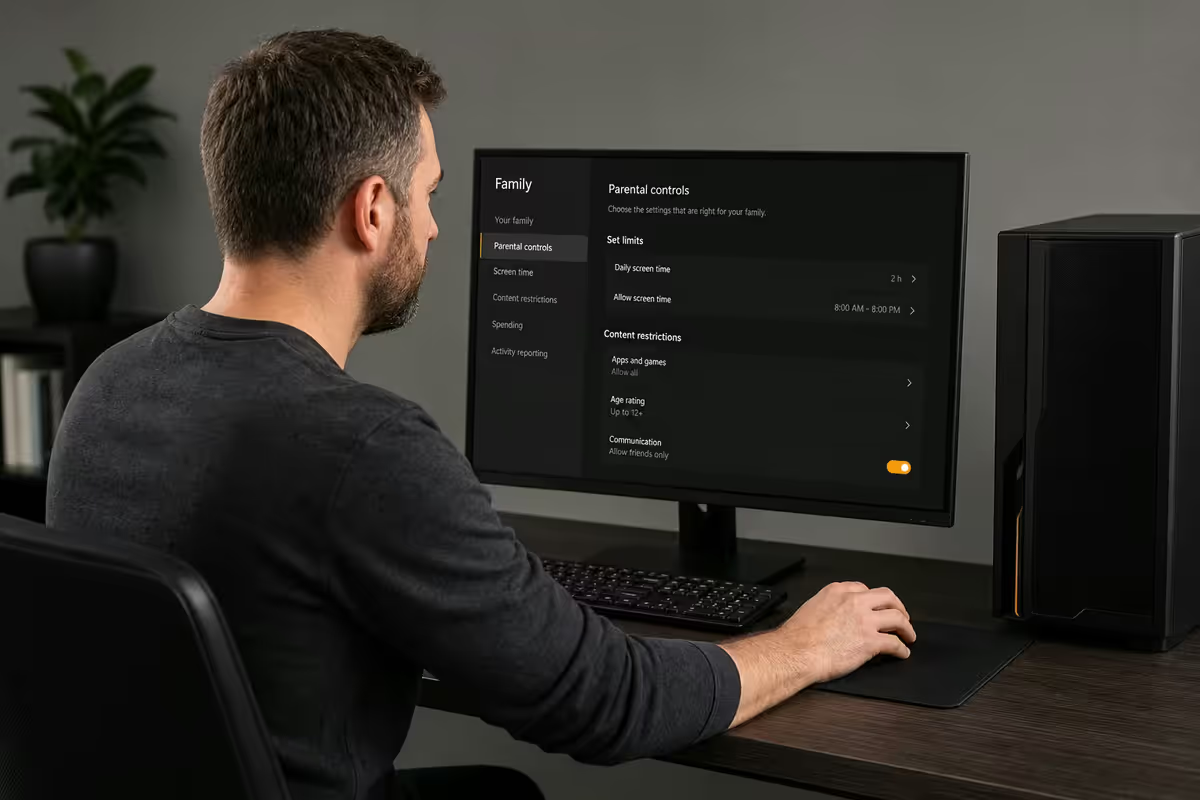
Start here: Microsoft Family Safety
If your child games on a Windows 11 PC, this is the foundation. It's free, built in, and once you've set it up you can manage everything from your phone — no need to physically sit at the gaming PC every time something needs adjusting.
What you'll do, in order:
- Make sure your child has their own Microsoft account (and their own Windows user profile on the PC — not yours).
- Sign in to family.microsoft.com as the parent and add the child to your family group.
- Accept the family-group invite on the child's account.
- Install the Microsoft Family Safety app on your phone (iOS or Android) — this becomes your control panel.
Once that's done, you can set screen time, content filters, spending limits on the Microsoft Store, and view weekly activity reports — all from your phone, all without touching the child's PC.
Screen time and daily limits
This is usually the first thing parents want, and Microsoft Family Safety does it well. You can set limits per device (PC, Xbox, phone) and per app — so a child might have 3 hours of total screen time but only 1 hour of Fortnite within that.
How to set it up: open the Family Safety app → tap your child's name → Screen time. You can enforce a daily total (e.g. weekdays 2 hours, weekends 4 hours) and a schedule window (no gaming between 21:00 and 07:00). Each game can have its own sub-limit. When the time runs out, Windows locks the child out gracefully and they can request more time, which lands as a notification on your phone for one-tap approval or denial.
The Eskom load-shedding angle
If you set a strict 2-hour daily limit and the power goes out for 3 hours during your child's allocated window, you've effectively cancelled gaming for the day. Many SA parents handle this one of two ways:
- The "weekly budget" approach — set a weekly total instead of daily (e.g. 14 hours/week). Kids learn to budget across the week and load shedding doesn't accidentally cost them a day.
- The "ask before extending" approach — keep daily limits, but make it clear that load-shedding outages can be made up with a phone request. The child asks, you approve from your phone, time is added. This teaches negotiation rather than entitlement.
Content filters — web, apps, games
Family Safety filters live in three layers, and you'll likely want to enable all three:
Web filters (Edge browser only): blocks adult sites and forces SafeSearch on Bing/Google. Important caveat — this only works in Microsoft Edge. If your child can install Chrome or Firefox, the web filter doesn't apply. The fix is to block Chrome/Firefox installation at the Windows account level (Standard users can't install most apps).
App and game filters by age: set an ESRB / PEGI age rating cap (e.g. PEGI 12). Any app or game rated higher won't launch on the child's account. The catch: this only enforces against apps installed through the Microsoft Store or signed into Microsoft Family Safety. Steam games and standalone installers run outside this rating system.
Spending limits: set a Microsoft Store balance for the child (e.g. R200/month) and they can't exceed it without your approval. Requests come to your phone.
Steam Family View and library sharing
Steam is where most PC games actually live, and Microsoft Family Safety doesn't see inside it. You'll need to set Steam controls separately.
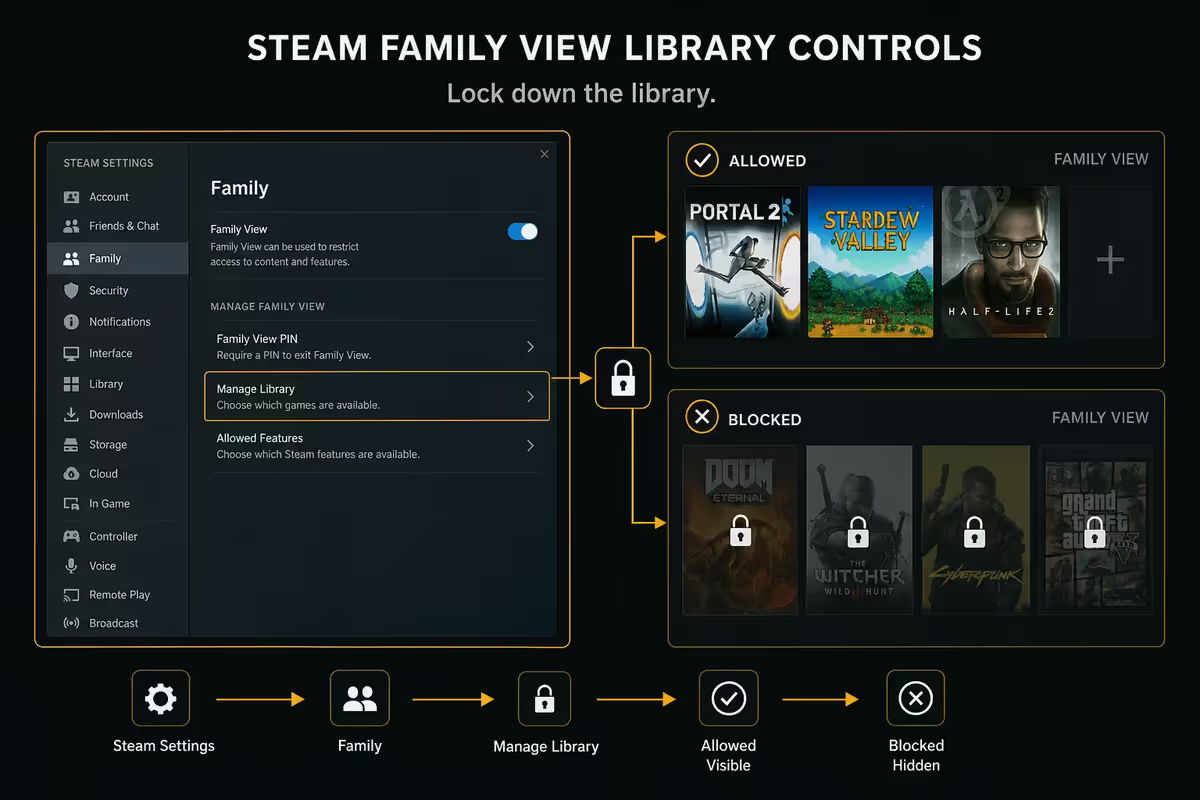
Steam Family View (Steam → Settings → Family) lets you set a PIN-protected mode. With Family View on, the child can play only the games you've explicitly whitelisted, can't access the Steam Store or community pages, can't change settings, and can't add friends — all without your 4-digit PIN.
Steam Families (the newer, broader system) allows up to 6 family accounts to share a library, with per-child age limits and individual playtime limits. Each child can play their own purchases plus shared family-library games subject to their age cap.
For most SA parents, the combination is: Family View on the child's Steam account + a small whitelist of approved games + the child's own Microsoft account screen time limit handling the total daily/weekly cap.
Epic, Battle.net, EA App — what actually works
Steam is the most parent-friendly. The others vary widely:
| Platform | What it offers | What's missing |
|---|---|---|
| Steam | Family View + Steam Families, full game whitelist, store lock, chat lock, playtime limits | Nothing major — this is the gold standard |
| Epic Games | Parental controls portal — age rating cap, spending limit, voice/text chat off | No granular game whitelist; relies on rating cap |
| Battle.net (Blizzard) | Parental controls via account.battle.net — playtime windows, spending | Setup is buried; documentation is patchy |
| EA App | Age rating filter, EA Family for purchase control | Limited chat control; no detailed playtime reporting |
| Rockstar (GTA, RDR) | Minimal — relies on launcher ESRB rating | Almost nothing platform-side; lean on Family Safety |
| Riot (Valorant, LoL) | Account age verification, restricted matchmaking under 18 | No parent portal; controls live in account settings |
The practical pattern: set every launcher's age cap to match your child's age, disable voice/text chat where the option exists, then let Microsoft Family Safety handle the overall daily time budget. Don't try to set per-app limits inside every launcher — you'll go mad. Use Family Safety as the master clock.
The in-game chat moderation gap
Here's the thing no parental-control software has fully solved: in-game voice chat is unmoderated in almost every major title. Fortnite, Valorant, Warzone, Apex, Roblox, GTA Online — anyone your child plays with can say anything. The platforms have report buttons but real-time moderation doesn't exist at scale.
Your practical options:
- Disable voice chat entirely in the game's own settings. Most kids will protest, but this is the cleanest fix for younger players.
- Set voice chat to friends only — supported in Fortnite, Roblox and most newer titles. Means the child can only talk to people they've added, who you can vet.
- Use a push-to-talk key and require headphones — gives you and your child the option to overhear what's being said.
- Game in a shared space — kids gaming in the lounge or kitchen, not a bedroom with the door closed, is the lowest-tech parental control that exists. It also tends to be the most effective.
Discord and the off-platform reality
Discord deserves its own section because it's where the conversation continues after the game ends. A kid blocked from Fortnite voice chat will usually move to a Discord call with the same friends. This isn't sneaky — Discord is just where gamers hang out.
Discord Family Centre (rolled out in 2023) lets you link your child's Discord account to yours. You get a weekly summary email: which servers they joined, who they messaged, who they added as friends. You don't see message content — Discord is end-to-end private on DMs — but you see the social graph.
Beyond Family Centre, enable these on the child's account:
- User Settings → Privacy & Safety → Filter all direct messages (blocks DMs from non-friends).
- Who can send you a friend request: Friends of Friends or Server Members only.
- Disable "Allow direct messages from server members" by default on every server.
- Sensitive media filter: Block all (under Privacy & Safety).
Discord's official minimum age is 13 — under that is against their terms and accounts are removed when discovered. If your child is younger than 13, the honest conversation is whether Discord is the right platform yet, not whether the controls are tight enough.
Parental controls are not a substitute for the conversation
This is the part of the guide that most articles skip, and it's the most important one.
Every parental-control feature in this guide can be defeated by a determined teenager with a phone, a friend's PC, or a free VPN. The technical controls buy you peace of mind for the years when your child can't bypass them, and they make casual exposure to unwanted content much less likely. But they don't replace your child's own judgement, and they don't replace your relationship.
The three conversations worth having before your child is online:
- "If something makes you uncomfortable, come to me — you won't be in trouble." Kids who hide exposure get hurt longer. Make it cheap to surface.
- "You don't owe anyone online your real name, school, suburb or photo." Repeat this until it's reflex. The username can be anything — the personal details cannot.
- "Adults don't befriend kids online unless something's wrong." Straightforward, age-appropriate framing of the actual risk profile.
Kids whose parents have these conversations consistently are far safer than kids whose parents only have the technical controls dialled in. Pair the two.
Common mistakes SA parents make
Letting the child use the parent's Windows account. Family Safety can't enforce anything against an Administrator account. Always create a separate Standard user for each child.
Setting controls only on the PC and forgetting Xbox, phone and tablet. Microsoft Family Safety covers PC + Xbox in one account. Phones need separate setup (iOS Screen Time or Android Family Link). All three matter.
Trusting ESRB ratings to cover chat exposure. A 7+ game like Roblox has the same chat exposure as a 17+ game. The rating describes content, not interaction.
Setting limits without explaining them. Kids who understand the "why" cooperate. Kids who only see the "what" find workarounds. Have the conversation.
Forgetting to review weekly activity reports. Family Safety sends a summary every Monday — open it. The conversation about what your child actually played last week is much easier when you've seen the data.
Buying expensive third-party software before trying the free stack. Microsoft + Steam + Discord built-ins cover 90% of what most parents need. Qustodio, Bark and Net Nanny only earn their R150-R300/month when you need cross-device dashboards covering multiple iPhones and Androids.
Key takeaways
- Microsoft Family Safety is your foundation — free, built into Windows 11, manages PC + Xbox from your phone.
- The child must have their own Standard Windows account, not the parent's account, or none of the controls work.
- Steam Family View + a small whitelist handles the biggest game library on Windows. Other launchers vary; set what you can.
- Voice chat in online multiplayer is unmoderated everywhere. Disable it or restrict to friends for under-12s.
- Discord Family Centre + privacy settings give you visibility of the chat that happens around the games.
- Build a flexible policy for Eskom — a weekly screen-time budget beats a rigid daily one in SA.
- Software is half the answer. The conversation about what to do when something feels wrong is the other half.
Frequently asked questions
What's the best parental control software for PC gaming in SA?
Microsoft Family Safety (free, built into Windows 11) is the right starting point for 90% of SA parents. It handles screen time across PC and Xbox, content filters by ESRB age rating, app and game blocking, and weekly activity reports emailed to you. Layer Steam Family View on top for Steam library control and Discord's built-in family centre for chat. Third-party tools like Qustodio or Bark are only worth paying for if you need cross-device coverage across iPhones, Androids and PCs from a single dashboard.How do I set screen time limits on Windows 11 for my child's gaming?
Sign in to family.microsoft.com with your parent account, add your child as a family member, then under Screen time set daily limits per device and per app. You can allow 2 hours total but cap Fortnite to 45 minutes, or block weekdays entirely and allow longer weekend sessions. The settings sync across PC and Xbox. The child can request more time in-app and you approve or deny it from your phone.Does Steam have parental controls?
Yes — Steam Family View (Settings → Family) lets you pin-lock the store, community, friends list, chat and individual games. You whitelist which games in your library the child can play. Steam Families (the newer system) extends this with library sharing across up to 6 family accounts and per-child age limits. Both are free. The catch: Steam can't enforce screen time on its own — you need Microsoft Family Safety or Steam's own playtime limits (in Family settings) for that.Can I block in-game chat in Fortnite, Valorant or Roblox?
Partly. Each game's own settings allow disabling voice chat, text chat, or restricting them to friends only. Fortnite has the most granular parental settings (epicgames.com → Account → Parental Controls). Roblox has account-restricted mode. Valorant only lets you mute individuals. But none of these block chat from outside the game — Discord, WhatsApp and Steam chat are separate platforms where conversations continue. This is the gap most parents underestimate.What age should I let my child play online multiplayer games?
ESRB and PEGI guidelines suggest 13+ for most online multiplayer titles, but the more useful question is whether your specific child can handle voice chat with strangers. Many SA parents start younger children on friends-only or family-only multiplayer (Minecraft Realms, Roblox private servers, Fortnite Party Royale with friends), then graduate to open multiplayer around 12-13 once the child knows how to mute, block and report. There's no universal age — it's about the chat, not the gameplay.How does Discord handle parental controls?
Discord introduced its Family Centre in 2023. Once linked to your child's account, you see a weekly summary: which servers they joined, who they messaged, who they added as friends. You do not see message contents (Discord is end-to-end private on DMs). Combined with Discord's built-in safety settings (Direct Message filters set to 'Filter all DMs', friend requests limited to mutual friends), it's a reasonable framework. The minimum age is 13 — younger accounts are against Discord's terms of service.Will parental controls slow down my child's gaming PC?
Microsoft Family Safety has zero measurable impact on game performance — it's part of Windows. Steam Family View and Discord Family Centre are equally lightweight. The only parental tools that can cause issues are aggressive third-party monitoring suites (some older versions of Qustodio or Net Nanny) which hook into network traffic and can add latency to online multiplayer. The built-in Microsoft + Steam + Discord stack is the right starting point — fast, free and effective.My kid keeps finding ways around the controls — what now?
This is normal. Kids will try secondary accounts, friends' machines, guest mode and VPNs. The technical answer: enforce on the PC (separate Windows user accounts with limited rights, BIOS password, no admin password on the child account), enforce on the router (most ASUS and TP-Link routers have time-based device blocking by MAC address), and check activity reports weekly. The honest answer: no software combination is bulletproof, which is why the conversation matters more than the lock. A child who understands why limits exist is far easier to manage than one who only sees the limit.