Backup & Recovery
How to back up your gaming PC.
Most data loss we see at the Centurion service bench was preventable. A working backup is closer to a 30-minute setup and R200 a month than the all-day project people imagine.
- copies · media · off-site
- 3-2-1
- cloud (Backblaze SA)
- ~R200/mo
- restore test interval
- 90 days
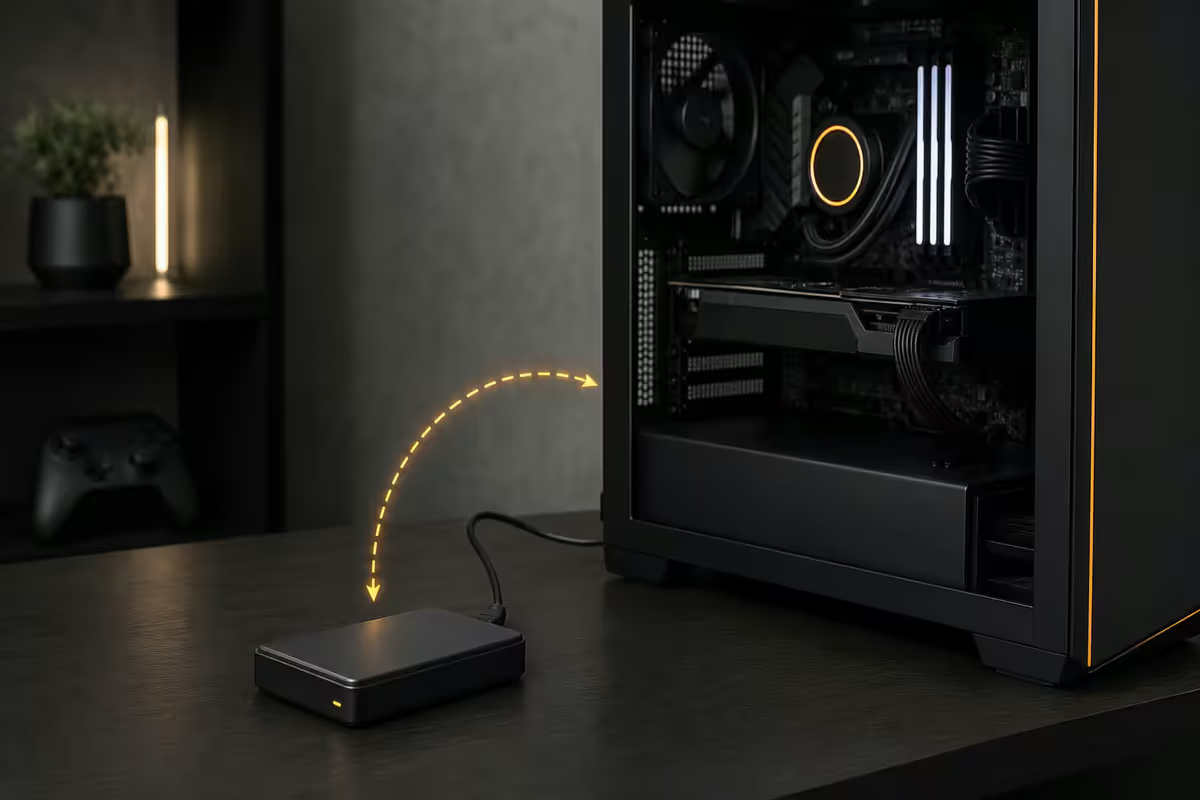
The 3-2-1 rule — and why it survives every threat
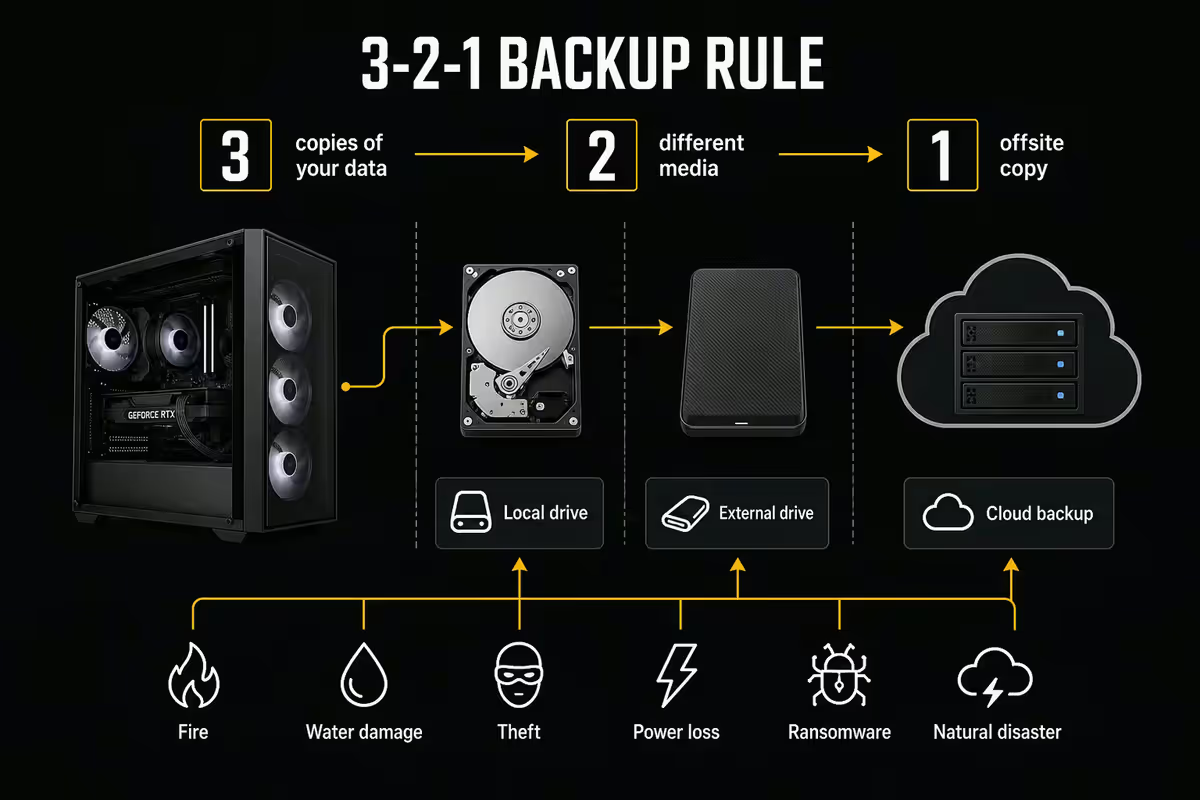
Backup professionals settled on the 3-2-1 rule decades ago for a reason: it survives almost every realistic data-loss scenario without requiring expensive enterprise tooling. The rule is simple:
- 3 copies of your data total.
- On 2 different media types (e.g. internal SSD + external HDD, or SSD + cloud).
- With 1 copy stored off-site — physically removed from your home or office.
Why three copies, not two? Because a single backup that's never tested has a non-trivial chance of being silently corrupted. Two backup copies allow cross-verification. Why two media types? Because a single failure mode (e.g. a power surge, a fire, a ransomware attack) can take out everything on the same disk family at once. Why off-site? Because theft, fire, flood, and lightning don't care that your external drive sits two metres from your tower.
For a typical gaming PC in 2026, the practical 3-2-1 looks like this:
| Copy | Where it lives | Cost (SA) |
|---|---|---|
| Copy 1 — original | Main NVMe SSD inside the PC | Already paid for |
| Copy 2 — local backup | External USB SSD/HDD or NAS | R1,500-R8,000 once-off |
| Copy 3 — off-site | Cloud (Backblaze, OneDrive, iDrive) | R145-R250 / month |
Total realistic cost for a SA gamer with a moderate file collection: R3,000-R8,000 once-off for the local-side hardware, plus R1,800-R3,000 per year for cloud. Less than a single GPU upgrade.
What to actually back up — be ruthless
The biggest mistake new backup users make is trying to back up everything. Steam libraries, game install folders, OS app caches, Windows temp files — all of it. The backup balloons to 800GB, cloud uploads take a week, and nothing ever finishes.
Be ruthless about prioritisation:
Tier 1 — must back up (irreplaceable)
- Documents, Desktop, Pictures, Downloads folders — personal files, family photos, work documents, tax records.
- Single-player game saves not synced to Steam Cloud or Xbox Cloud. Check the
C:\Users\YourName\Documents\My Games,%APPDATA%, and%LOCALAPPDATA%folders for game save data. - Mod folders — Skyrim, Fallout, Cyberpunk mod loadouts and configs that took hours to assemble.
- Browser bookmarks and passwords — usually synced automatically by Chrome/Edge/Firefox accounts, but verify.
- Streaming or content creation projects — OBS scene files, OBS recording archive, video editing project files, Photoshop PSDs.
Tier 2 — system image (recovery convenience)
- Full image of your OS drive — Windows install, all programs, all settings. Restores to factory state in 30-60 minutes instead of a 4-hour rebuild.
- Driver collection — GPU, chipset, audio driver installers saved to backup so you can re-install offline if needed.
Tier 3 — skip or selective
- Steam, Epic, Battle.net libraries — skip. Re-downloading 200GB from Steam over a 100Mbps fibre connection takes 5-6 hours. Backing up and restoring 200GB from cloud is slower and burns space.
- Windows temp, page file, hibernation files — skip. These regenerate.
- Movies, ripped media archives — selective. Decide if these are worth backup space; for many users they're not irreplaceable.
Built-in Windows tools — what they do and don't
Windows 11 ships with three backup-adjacent tools. They cover the basics for free but each has gaps.
File History
What it does: automatically backs up Documents, Desktop, Pictures, Music, Videos and Contacts to a connected external drive at scheduled intervals. Keeps version history so you can restore older copies of files.
What it misses: doesn't back up game saves outside the standard user folders, doesn't create a system image, doesn't back up to cloud destinations. Fine as one layer of a 3-2-1 strategy, never as the only backup.
Backup and Restore (Windows 7)
What it does: the legacy tool still ships in Windows 11. Creates full system images and file backups to an external drive. Schedules automatic backups weekly or monthly.
What it misses: dated UI, no cloud destination support, slow incremental performance compared to modern tools. Adequate for emergency system images but feels its age.
OneDrive Folder Backup
What it does: automatically syncs Documents, Desktop and Pictures folders to OneDrive cloud. With Microsoft 365 Family (R1,749/year covering 6 users) you get 1TB per user.
What it misses: only syncs the three standard folders by default, doesn't handle system images, doesn't catch game save data outside user folders. Excellent first layer for personal documents.
Third-party software that's actually worth using
Macrium Reflect Free — the long-standing community favourite for Windows system imaging. Creates complete bootable system images, supports incremental backups, can restore to dissimilar hardware. The free version covers everything a home user needs. Pro version (~R900) adds advanced scheduling and ransomware protection. Direct download from macrium.com.
Veeam Agent for Microsoft Windows (Free) — enterprise-grade free tier. More technically demanding to configure than Macrium, but flexible scheduling and robust incremental performance. Free for personal use up to one PC. Worth the learning curve if you're already comfortable with technical software.
Duplicati — open-source backup focused on cloud destinations. Encrypts before upload (so even your cloud provider can't read the contents), supports almost every cloud backend including B2, S3, Google Drive, OneDrive. Ideal for users who want strong privacy on cloud backup.
FreeFileSync — not a true backup tool but excellent for one-way mirror sync to an external drive or NAS. Free, open-source, blindingly fast. Pair with Macrium for system images and you have a complete free stack.
What to avoid: generic "PC Optimisation" suites that bundle a backup feature alongside registry cleaners. Their backup quality is consistently lower than focused tools, and the bundled "optimisations" do more harm than good.
Cloud backup — SA pricing reality in Rands
Cloud backup costs in South Africa fluctuate with the Rand. The figures below are accurate as of mid-2026; expect 5-10% variance.
| Service | What you get | SA price (ZAR) |
|---|---|---|
| Backblaze Computer Backup | Unlimited per PC, encrypted | R165-R200 / month |
| iDrive Personal | 5TB across all devices | ~R250 / month |
| OneDrive (M365 Family) | 1TB each, 6 users, Office apps | R145 / month bundle |
| Google One Premium | 2TB across all devices | ~R190 / month |
| Backblaze B2 (DIY with Duplicati) | Pay-per-GB, ~R0.10/GB/month | R50-R150 typical |
| iCloud+ 2TB (Apple ecosystem) | 2TB, syncs across Apple devices | ~R190 / month |
Restore-time bandwidth matters in SA. Backblaze offers a paid "restore by mail" service where they ship a hard drive — useful when you'd otherwise burn 40 hours pulling down a TB on fibre. For most users restoring a few GB of personal files, regular fibre download is fine.
The NAS-local plan — premium option for bigger collections
If you have more than 500GB of irreplaceable data, multiple PCs in the household, or media production work, a NAS becomes the elegant solution. A NAS (Network-Attached Storage) is essentially a small always-on file server running in your home.
Practical SA NAS options in 2026:
| NAS | Best for | SA price (unit only) |
|---|---|---|
| Synology DS224+ | Mainstream, polished software | R7,500-R9,000 |
| Asustor Drivestor 4 Pro | Budget 4-bay, 2.5GbE | R6,000-R7,500 |
| Synology DS423+ | 4-bay, more capacity headroom | R11,000-R13,000 |
| QNAP TS-464 | Power user, virtualisation | R12,000-R15,000 |
| DIY TrueNAS (mini-PC + drives) | Maximum flexibility, learning curve | R8,000-R20,000+ |
Add NAS-rated drives — Seagate IronWolf, WD Red Plus — in pairs for RAID 1 (mirror) redundancy. A pair of 8TB drives is roughly R5,500-R7,500 in SA. Don't use desktop drives in a NAS; they're not designed for 24/7 operation and degrade quickly.
A NAS is local storage, not off-site. Pair it with cloud backup (Backblaze, B2, or the NAS's built-in cloud sync features) for true 3-2-1.
Setting up automatic schedules
A backup you have to remember to run is a backup that won't run. Automate everything.
Recommended schedule for most gamers:
- Daily — incremental file backup of Documents, Desktop, Pictures and game-save folders to external drive or NAS (runs in 5-15 minutes overnight).
- Daily — OneDrive / Backblaze continuous cloud sync of user folders (runs whenever files change).
- Weekly — full system image to external drive via Macrium Reflect (runs in 30-60 minutes during off hours).
- Monthly — verification check: open a random file from each backup tier, confirm it reads correctly.
- Quarterly — full restore drill (covered below).
Macrium Reflect and Veeam Agent both include capable scheduling that runs invisibly via Windows Task Scheduler. OneDrive and Backblaze run continuous background sync. The setup work is once-off; the maintenance is monthly verification.
The restore drill — the only test that matters
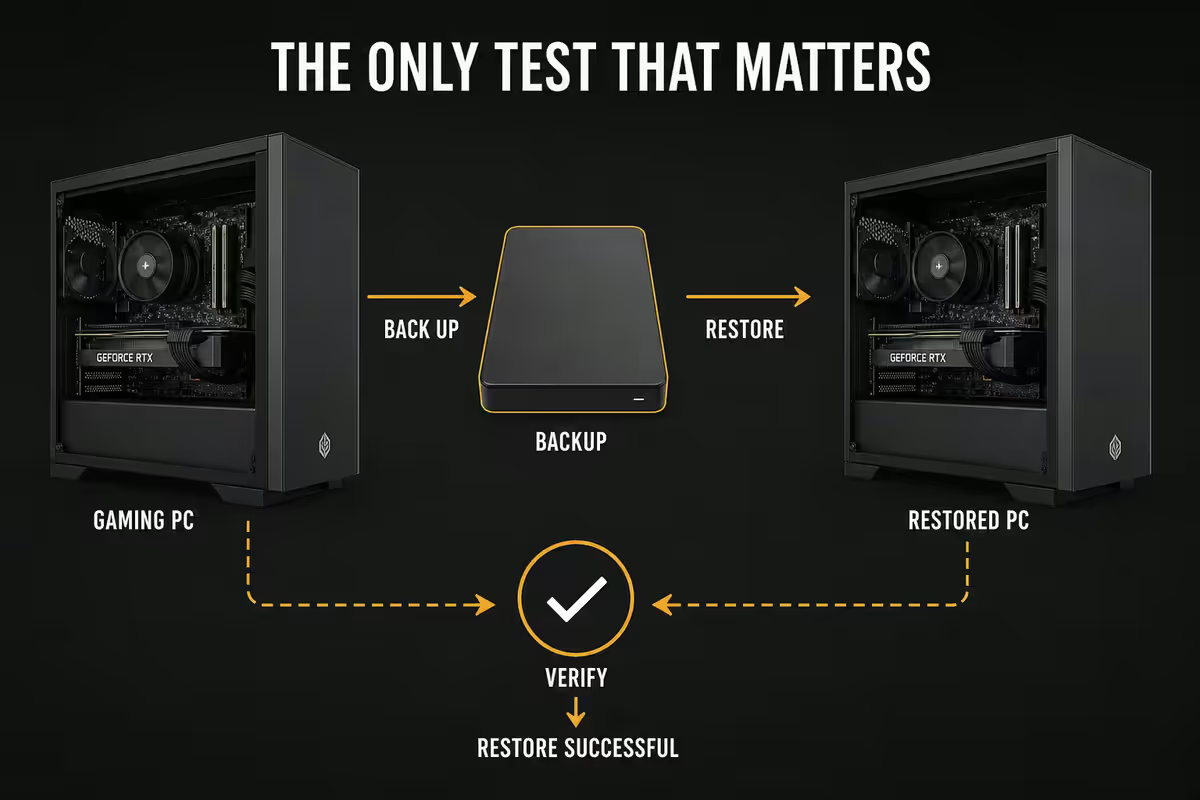
A backup you've never restored is a wish, not a backup. Test restores quarterly at minimum.
The 90-day drill:
- Pick a non-critical file from each backup tier (cloud, local external, NAS).
- Restore it to a different folder — don't overwrite the working original.
- Open the restored file and verify it's intact and correct.
- Note the time taken to locate, restore and verify.
The annual full drill: once a year, perform a complete system restore to a spare drive. Pull a spare SSD or HDD, connect it, restore your latest system image to that disk, then boot from it and verify Windows loads, programs work, and personal files are accessible. This takes 60-90 minutes but proves the entire backup chain works end-to-end.
Load-shedding strategy for backup integrity
South Africa's intermittent power supply creates two backup-specific risks: in-progress backups being killed mid-transfer (potentially corrupting the backup chain) and long cloud uploads that never complete within a single power window.
Practical mitigations:
- Use a UPS rated for clean shutdown — a 1500VA line-interactive UPS (Mecer / APC / Eaton, R3,500-R6,500) gives you 10-20 minutes to complete an in-progress write and shut down cleanly. Configure your backup software to detect UPS status and pause/resume.
- Schedule backups during stable power windows — check EskomSePush for your area's typical schedule and run heavy operations between expected outages.
- Prefer software with resume support — Backblaze, Veeam Agent and Macrium Reflect all resume interrupted operations automatically. Avoid older tools that restart from scratch on interruption.
- Split large backups into smaller incrementals — a 500GB full backup that runs once per month is fragile during load shedding. Split it into daily 5-15GB incrementals and a weekly differential — much more resilient.
- Use mobile data for critical cloud uploads in emergencies — if a deadline file must reach off-site backup before a power outage, your phone hotspot is faster than waiting 6 hours for fibre to come back.
Key takeaways
- 3-2-1 rule survives almost every threat — 3 copies, 2 media types, 1 off-site.
- Back up personal files, game saves, system image. Skip the Steam library — re-download is faster.
- Free stack works: Macrium Reflect Free + OneDrive + external SSD covers most SA gamers.
- Pair backups with a UPS so load shedding doesn't corrupt incremental chains.
- Test restore every 90 days. A backup you haven't tested is a guess.
Frequently asked questions
What is the 3-2-1 backup rule?
3 copies of your data, on 2 different media types, with 1 copy stored off-site. For a gaming PC this typically means: the original on your main SSD, a local backup on an external drive or NAS, and an off-site copy in cloud storage (OneDrive, Backblaze, iDrive). If any single location fails — drive crash, theft, fire, ransomware — you have at least one other working copy.What should I actually back up on a gaming PC?
Personal files first (Documents, Desktop, Pictures, Downloads), then game saves not synced to cloud (Mod folders, single-player save files for games without Steam Cloud), system image of your OS drive (so you can restore Windows + apps quickly), and finally archive media (videos, ROMs, large game install backups). Don't back up your entire Steam library — it's faster to re-download from Steam than restore from a local backup.Is OneDrive enough for backup?
OneDrive (1TB with Microsoft 365 Family at R1,749/year) handles personal files well — Documents, Desktop, Pictures sync automatically. It's not a complete backup solution: it won't back up game saves from non-OneDrive locations, system images, or files larger than the OneDrive limit. Use OneDrive for personal documents and pair it with a system image tool (Macrium Reflect) plus an external drive for full coverage.What's the best free backup software for Windows?
Macrium Reflect Free remains the strongest free option for full system imaging and incremental file backups. Veeam Agent for Microsoft Windows (free tier) is excellent for technical users wanting more granular scheduling. Windows built-in File History handles user files only and is fine as one layer of a 3-2-1 strategy, but not as your only backup.How much does cloud backup cost in South African Rands?
Backblaze Computer Backup is around R165-R200 per month for unlimited data per PC (currency volatility applies). iDrive offers 5TB plans at ~R250/month. OneDrive 1TB bundled in Microsoft 365 Family (6 users) is ~R145/month. For 2TB Google One: ~R190/month. Off-site cloud costs roughly R2,000-R3,500 per year for adequate gaming-PC coverage — the trade-off is restore-time bandwidth on SA fibre.Should I use a NAS for backup?
A NAS (Synology DS224+, Asustor Drivestor 4) is an excellent local backup target — R6,500-R12,000 for the unit, plus drives. Pair two large HDDs in RAID 1 (mirror) for redundancy. The NAS handles automatic backup, version history, and serves media to other devices. A NAS is local — pair it with cloud backup for true 3-2-1 coverage. Don't rely on NAS alone.How does load shedding affect my backup schedule?
Load shedding interrupts long backup operations and can corrupt incremental backup chains. Practical strategies: schedule backups during stable power windows (check the EskomSePush app for your area), use a UPS to give the PC clean shutdown time during outages, prefer backup software with resume support (Backblaze, Veeam), and split large backups into smaller incremental jobs that complete within shorter power windows. Cloud uploads especially benefit from resumable transfers.How often should I test that my backups actually restore?
Every 90 days at minimum. A backup you never test is a hope, not a backup. Restore a non-critical file from each backup tier (cloud, local external, NAS) and verify it opens correctly. Annually, run a full restore drill: pretend your main SSD died, restore from backup to a spare drive, boot and verify. Most data loss incidents we see at Evetech could have been prevented — or recovered — if the user had tested their backup once.
Get the Evetech app
Exclusive app-only prices, daily flash sales, and free delivery on orders over R4,000 — download the app and start saving.