Gaming PC Security Guide
How to secure your gaming PC.
— Defender is enough. Backups are not optional.
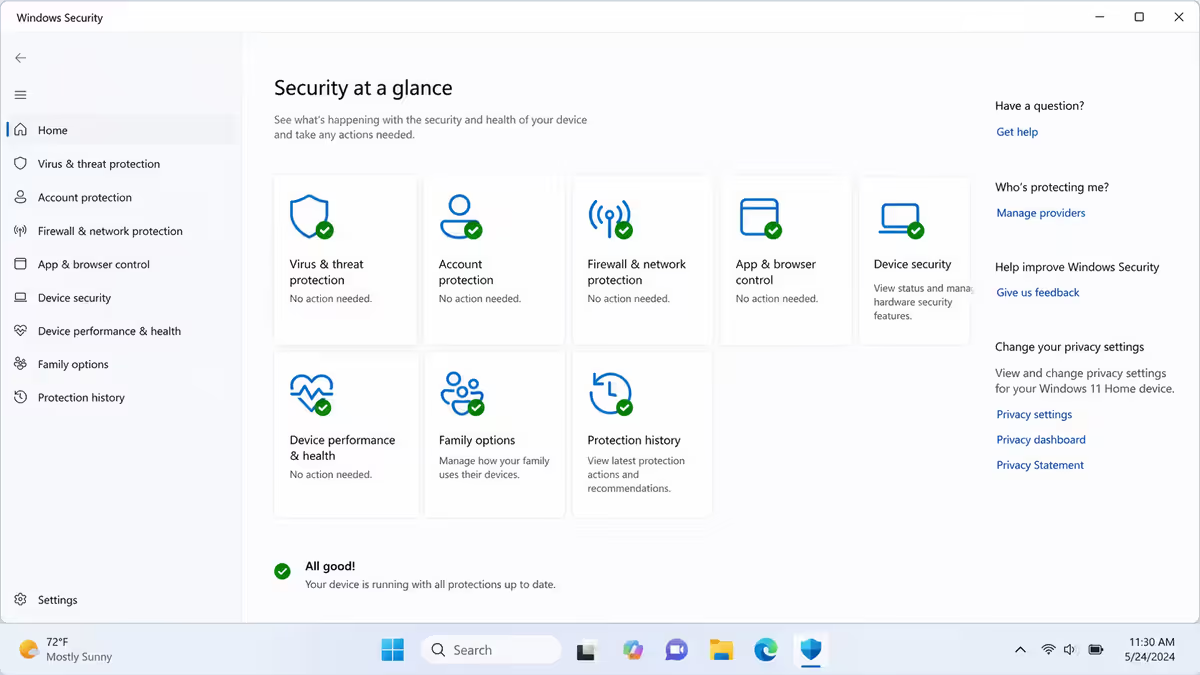
Windows Defender is enough
The biggest misconception in PC security is that you need paid antivirus. In 2026, you almost certainly don't.
Microsoft's Windows Defender (now branded as Microsoft Defender) has spent the last decade catching up to and in many independent tests now surpassing commercial antivirus. AV-Comparatives, AV-Test and SE Labs all rate Defender in the top tier for real-world malware detection. It's free, updates automatically through Windows Update, and is deeply integrated with Windows for low system impact.
Where Defender wins for gamers specifically:
- Automatic Game Mode exemptions — Defender pauses heavy scans while a game is running.
- No nagware. No "renew your subscription!" popups in the middle of Counter-Strike.
- Real-time SmartScreen blocks downloaded executables that don't match a known good signature — catches most consumer malware.
- Tight integration with Windows Hello, BitLocker and the rest of the security stack.
- Cloud-delivered protection: new threats found globally update your local signatures within minutes.
When paid antivirus might make sense: enterprise environments needing centralised management, specialist niches like ESET for malware analysis or Malwarebytes for second-opinion scanning, or if you have a compliance requirement. For 95% of consumer gaming use, free Defender + good habits beats Norton, McAfee and Kaspersky every day.
Windows Update discipline
Windows Update is the single most important security tool you have. About 80% of consumer malware exploits patched vulnerabilities — meaning if you'd updated, you wouldn't be infected.
In 2026, Windows 11 auto-installs security updates by default. Your job is to not break it.
Settings to verify:
- Settings > Windows Update > "Get the latest updates as soon as they're available" — toggle on.
- Settings > Windows Update > Advanced options > "Receive updates for other Microsoft products" — toggle on.
- Pause updates: only use this for 1-3 days when you have a critical task in progress. Don't leave it paused.
- Optional driver updates: install GPU drivers from NVIDIA App or AMD Adrenalin instead — they're more current.
Restart on schedule. Updates don't fully apply until you restart. Set Active Hours under Update settings so it doesn't restart while you're gaming, then let it restart at night. Pretending updates don't exist by never restarting is the gamer-specific version of leaving your front door unlocked.
BitLocker encryption
If your laptop is stolen or your desktop SSD is pulled, what's on the drive? With BitLocker, the answer is nothing readable. Without it, the answer is everything — game licences, browser history, saved passwords, photos.
BitLocker (Windows 11 Pro): full-disk encryption built into Windows. Enable via Settings > Privacy & Security > Device encryption (yes, even though it's Pro, the toggle lives here). Save the recovery key to your Microsoft account — without it, you cannot recover the drive if BitLocker locks itself.
Device Encryption (Windows 11 Home): a simpler version, enabled by default on modern hardware with TPM 2.0. Less granular control than full BitLocker but adequate for most users.
Is encryption worth it on a desktop? Less critical than on a laptop (desktops don't travel and aren't stolen as easily) but still worthwhile if your desktop has any sensitive data. The performance cost on modern NVMe SSDs is <1%.
Windows Hello and TPM 2.0
Windows Hello replaces password entry with PIN, fingerprint, or face recognition. All three are more secure than typing a password because the credential lives only on the device — there's nothing for a remote attacker to phish or steal.
PIN: the baseline. Set 6+ digits. Unlike a Microsoft account password, your PIN is local to the device — a stolen PIN doesn't compromise your cloud accounts.
Fingerprint: most modern laptops include a fingerprint reader. Fast, equally secure, brilliant for daily use. Desktop fingerprint readers (USB or built-in keyboard ones) are available but rarely worth retrofitting.
Face (IR camera): Surface devices, ThinkPad X-series, some Dell laptops include the IR camera for face login. Fastest, most convenient. Standard webcams don't work — you need the actual IR depth sensor.
TPM 2.0 (Trusted Platform Module) is the hardware chip that anchors all of this. Mandatory on Windows 11 (and on every motherboard since 2020). It stores encryption keys, prevents tampering, and makes secure boot meaningful. Verify it's enabled in BIOS — most factory defaults have it on.
Microsoft account vs local account
Windows 11 strongly nudges you toward signing in with a Microsoft account. The trade-offs are real on both sides.
| Aspect | Microsoft account | Local account |
|---|---|---|
| Sync across devices | Yes — settings, files via OneDrive | No |
| BitLocker recovery key | Auto-saved to account | You must store it yourself |
| App Store / Xbox app | Native | Limited functionality |
| Privacy from Microsoft | Less | More |
| Account takeover risk | Microsoft account compromise = device access | Isolated |
| Game launchers (Steam, Epic) | Same | Same |
Most gamers should use a Microsoft account with strong password + 2FA + Windows Hello. The BitLocker recovery auto-backup alone justifies it. Local accounts are for privacy-focused users who accept the manual recovery-key burden.
Password manager picks
If you remember any of your passwords without checking, your passwords aren't strong enough. The fix is a password manager.
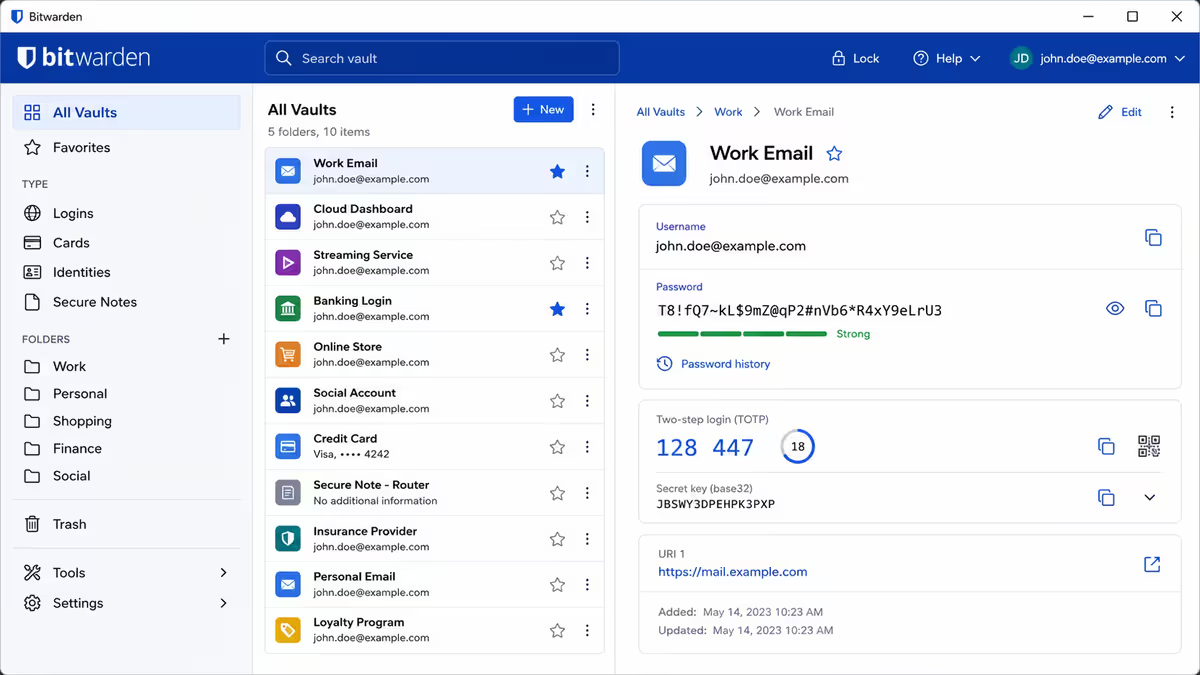
Bitwarden (free, open-source) — the right pick for most users. Generates strong passwords, syncs across Windows / browser / phone, audited by independent security firms, free tier covers unlimited passwords. Premium tier (R30/month) adds emergency access and security reports.
1Password (paid, ~R65-R100/month). Slicker UX, better family sharing, travel mode hides selected vaults at border crossings. Worth it if you'll genuinely use the polish.
Built-in browser password managers (Chrome, Edge, Firefox). Adequate for personal use. The drawback: harder to access on mobile if you use a different browser there.
Avoid: LastPass (multiple major breaches 2022-2023), browser password managers that aren't from Big Three browsers, anything stored in a text file or spreadsheet.
2FA everywhere. Steam, Discord, your Microsoft account, your email, your bank. Use an authenticator app (Microsoft Authenticator, Authy, Bitwarden's built-in) instead of SMS where possible — SIM swapping is a real attack in SA.
Browser hardening
Your browser is where most attacks land. Hardening it well costs nothing and prevents the majority of consumer attacks.
Choose a sensible browser: Firefox (privacy-respecting, open-source), Brave (Chromium-based with built-in ad/tracker blocking), or Edge (Microsoft, well-secured, good performance). Avoid stand-alone "Chrome Pro" or weird browser builds — they often bundle adware.
Install uBlock Origin. The single most important browser extension for security — blocks malvertising, which is one of the largest infection vectors. Free, open-source, lightweight.
Set up DNS-based ad/tracker blocking. NextDNS (free tier covers most users) or AdGuard DNS in your router blocks ads, trackers and known malware domains at the DNS level. One configuration covers every device on your network.
Be careful with extensions. Browser extensions can read every page you visit. Install only from known publishers. Audit your extension list quarterly — remove anything you don't use.
Disable third-party cookies. Firefox does this by default, Brave too. Edge and Chrome have the option in Privacy settings.
Cracked games — the #1 malware vector
If we could give one piece of security advice to gamers in 2026, it would be this: do not download cracked games.
Roughly 40% of consumer gaming-PC malware infections we see at Evetech trace to cracked-game downloads. The threat landscape has shifted dramatically since the 2010s — cracked games used to come with annoying-but-survivable ransomware. In 2026, they predominantly carry:
- Silent cryptominers. Mines crypto in the background using your GPU when you're not gaming. Symptoms: GPU fans spinning at idle, electricity bill climbing, GPU lifespan halved.
- Credential stealers. Reads saved browser passwords, Steam session tokens, Discord login, banking sessions. Sells access to your accounts on underground markets.
- Remote access trojans (RATs). Gives an attacker full control of your machine. Used for further scams, crypto wallet theft, or as a botnet node.
- Wallet stealers. Specifically targets MetaMask, Phantom and other crypto wallets stored in browsers.
The "free" game cost in 2026: a halved-lifespan GPU + drained accounts + the time/cost of nuke-and-reinstall recovery. Steam sales, GOG, Epic free weekly games, and Humble Bundle exist. The price of a legitimate game is far cheaper than the cleanup.
Same warning for: cracked Photoshop, pirated Office, fake "Steam key generators" on YouTube, "Free Cyberpunk 2077" tutorial links, GTA modded clients from sketchy sites. Mods themselves are usually fine; mods downloaded from random "promoted" links in YouTube descriptions are usually not.
Anti-cheat permissions — the kernel-level question
Modern multiplayer games increasingly use kernel-level anti-cheat: software that runs at the same privilege level as Windows itself. Examples in 2026:
- Vanguard — Riot Games (Valorant, League of Legends in some regions). Boots-time driver.
- Easy Anti-Cheat (EAC) — Epic Games. Used by Fortnite, Elden Ring, Apex Legends, dozens of others.
- BattlEye — Battle Eye Innovations. Rainbow Six Siege, DayZ, PUBG.
- FairFight — Battlefield series.
- VAC (Valve Anti-Cheat) — Steam games. Less invasive than kernel-level alternatives.
The security trade-off: these tools have deeper system access than most software. The risk is theoretical rather than actual — Riot, Epic, BattlEye are reputable companies with strong security operations, and their software has never been confirmed as a malware vector. The privacy trade-off is real: they report activity to game servers, run on boot, and can examine your processes.
If you're privacy-conscious: choose games that don't require kernel anti-cheat. Single-player games, most indies, and many multiplayer games (Counter-Strike 2, Dota 2, Overwatch, Helldivers 2) avoid kernel modules. Vanguard's boot-time driver is the most invasive — disabling it requires uninstalling the game.
Backup strategy — the 3-2-1 rule
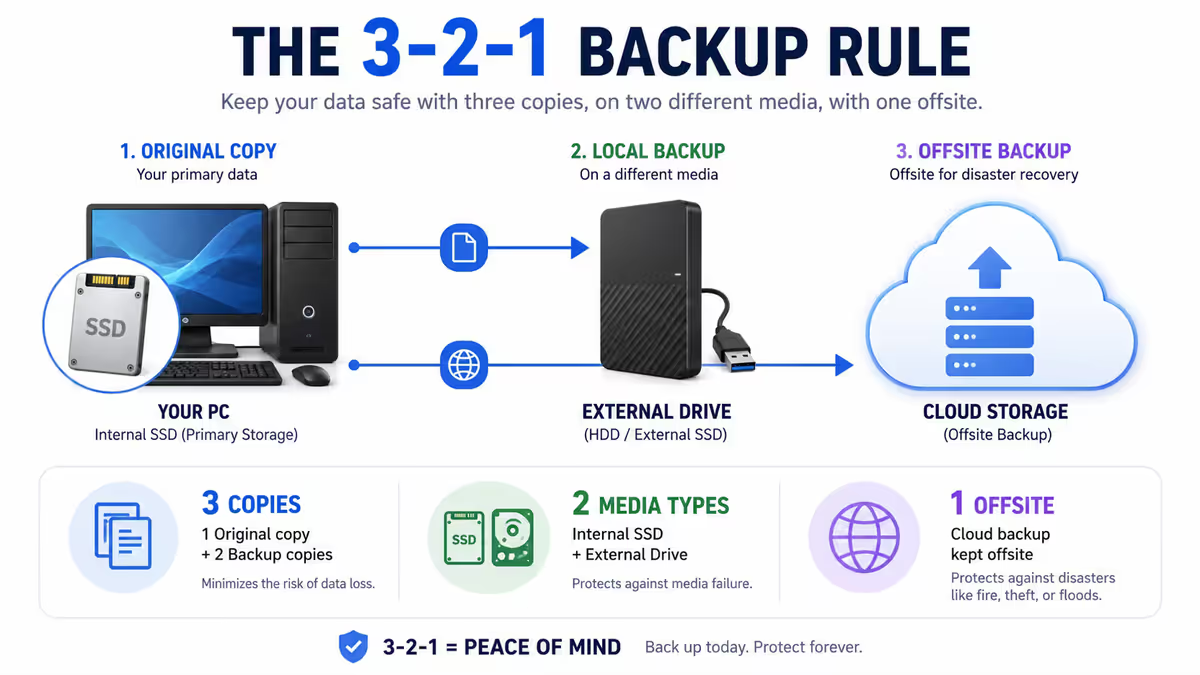
No security setup is complete without backups. The 3-2-1 rule is the industry standard.
3 copies of important data, on 2 different storage types, with 1 copy offsite.
Practical implementation for a gaming PC:
| Copy | Where | What it protects against |
|---|---|---|
| Copy 1 (primary) | Local NVMe SSD in PC | Daily use, no protection from disk failure or theft. |
| Copy 2 (different storage) | External SSD or NAS at home | Local disk failure recovery, fast restore. |
| Copy 3 (offsite) | Cloud — OneDrive, Backblaze, pCloud | Fire, theft, ransomware, water damage. |
What to back up: documents, photos, videos, music libraries, browser bookmarks and saved logins (via password manager sync), game save files (most use cloud already — verify), important downloads. What not to back up: game install files (re-download from Steam), Windows itself (reinstallable), cached files.
SA-friendly cloud picks: OneDrive (Microsoft 365 R130-R200/month, includes 1TB), Backblaze (~R130/month unlimited), pCloud (lifetime plans available, EU servers).
Test your backups quarterly. An untested backup is a hope, not a backup. Pick a random file, delete the local copy, and restore from backup. If you can't, fix it immediately.
Wi-Fi network security
Your home Wi-Fi is the perimeter of your PC's network defence. A compromised router is a compromised network.
Six steps to a secured router:
- Change the default admin password. Single biggest risk. Default credentials are public knowledge.
- Enable WPA3 encryption (or WPA2 if WPA3 unavailable). Disable older WEP/WPA1 entirely.
- Disable WPS. Wi-Fi Protected Setup has well-known PIN brute-force exploits.
- Update router firmware. Most consumer routers ship with outdated firmware. Check quarterly.
- Set up a guest network. Put IoT devices (smart bulbs, cameras, fridge) on guest network, isolated from your gaming PC.
- Disable remote admin. The router admin panel should be accessible only from inside the network, not from the internet.
Scam awareness — Steam, Discord, fake giveaways
Gaming-specific scams have evolved into a sophisticated industry. The patterns to watch for in SA:
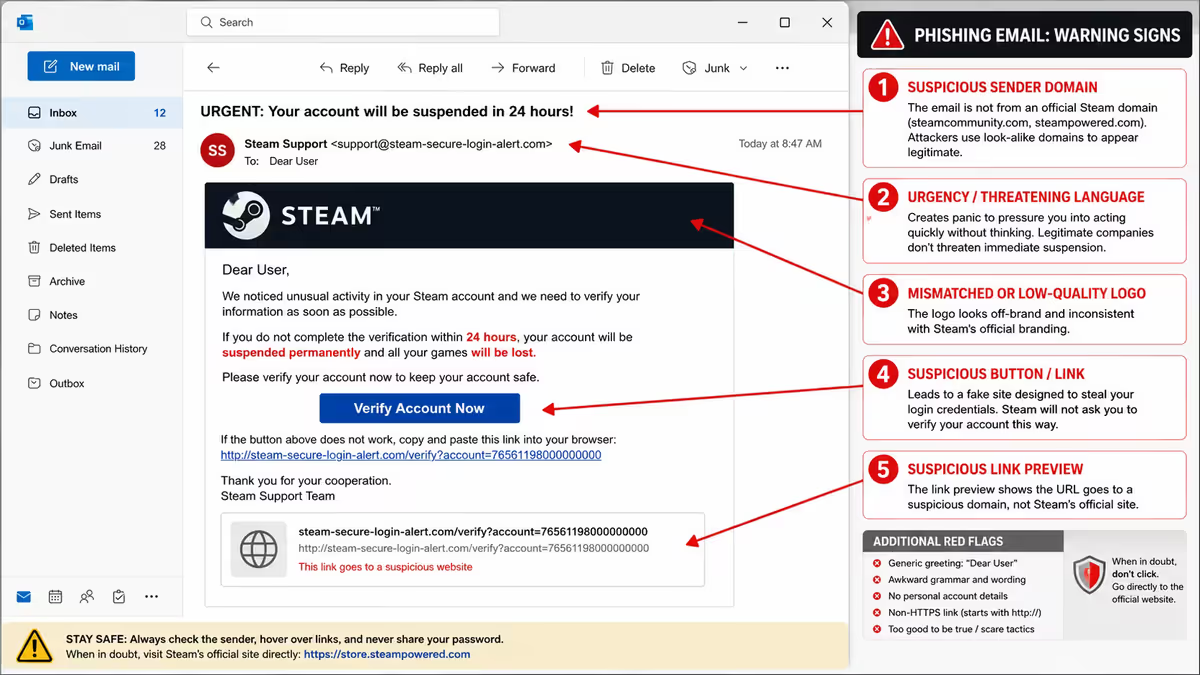
Steam phishing. Emails claiming "Steam Guard locked" or "trade hold expired" with a link to a fake Steam login page. The fake page steals your session token. Always navigate to steamcommunity.com manually, never via email links.
Discord nitro scams. Friend's hacked account sends "free Nitro link" to you. Link steals your Discord token. Treat unexpected gift links from friends with suspicion — confirm via voice call or alternate channel.
Fake giveaway streams. YouTube and Twitch "giveaway" streams showing fake RTX 5090 giveaways or Steam wallet codes. Direct viewers to a malicious URL or extract account credentials via "verify your Steam" pages.
Trade scams. "I'll send first" item trade offers that pressure you into accepting a deal where the item value is bait-and-switched. Use Steam's official trade interface only.
Tech support scams. "Microsoft" calls about a virus on your PC. Microsoft never calls you. Hang up.
SIM swapping (SA-specific.) Attackers convince MTN/Vodacom/Cell C/Telkom to port your number to their SIM. They then receive your SMS 2FA codes and reset accounts. Use authenticator apps instead of SMS 2FA wherever possible, and add a SIM-swap protection PIN with your carrier.
Common security mistakes
Paying for antivirus you don't need. Windows Defender is sufficient for almost every user. Norton, McAfee and Kaspersky add no security and remove R600-R1,500/year from your budget.
Reusing passwords across sites. One leaked password = compromised access everywhere. Bitwarden makes per-site unique passwords effortless.
Using SMS 2FA for accounts that matter. SIM swapping is real. Use Microsoft Authenticator, Authy or Bitwarden 2FA codes instead.
Skipping Windows updates "to avoid bugs." The bugs you'll avoid are far less harmful than the exploits you'll catch. Restart your PC at least once a week.
No backup of any kind. Your PC will fail eventually — drive failure, theft, fire, ransomware. Without a backup, your photos, documents and game saves are gone forever.
Downloading cracked games. The single largest infection vector for gamers in 2026. Cryptominers and credential stealers ride along with "free Cyberpunk."
Default router admin password. Public knowledge — anyone within Wi-Fi range can log in and reconfigure your network.
Trusting "Microsoft support" calls. Microsoft never calls you about a virus. The call is the scam.
Key takeaways
- Windows Defender + Windows Update + caution covers ~95% of real threats. Skip paid antivirus.
- Enable BitLocker (Pro) or Device Encryption (Home). Save the recovery key in two places.
- Use Bitwarden (free, open-source) for unique passwords per site. Enable 2FA via authenticator app, not SMS.
- Run 3-2-1 backups: local SSD + external drive + cloud (OneDrive / Backblaze). Test quarterly.
- Never download cracked games — 40% of gaming-PC infections come from there. WPA3, change router admin password.
Frequently asked questions
Do I need paid antivirus for my gaming PC?
No, for almost every user Windows Defender is sufficient. It now matches or beats Norton/McAfee in independent tests, costs nothing, and is well-integrated with Game Mode.Should I enable BitLocker on my gaming PC?
Yes on laptops (often default-on). Worthwhile on desktops with sensitive data. Performance cost on NVMe SSDs is <1%. Save the recovery key in two places.What is the biggest security risk for gaming PCs in 2026?
Cracked games and pirated keygens — 40% of consumer infections trace to torrent or "free game" downloads carrying cryptominers and credential stealers.Is invasive anti-cheat software a security risk?
Theoretical risk, not actual. Vanguard, EAC and BattlEye run with kernel privileges but are run by reputable studios. Privacy trade-off is real. Choose non-kernel-AC games if concerned.What is the 3-2-1 backup rule?
3 copies of important data, on 2 different storage types, with 1 copy offsite. Example: PC SSD + external drive + cloud (OneDrive/Backblaze).Should I use Windows Hello with PIN, fingerprint, or face?
All three are stronger than typed passwords because the credential never leaves the device. Use PIN as baseline + fingerprint or face if hardware available.Is Bitwarden, 1Password or built-in best?
Bitwarden is best free (open-source, audited, syncs anywhere). 1Password is best paid (slicker UX). Browser built-in is acceptable for personal use. Avoid LastPass.How do I secure my home Wi-Fi for gaming?
Change default admin password, enable WPA3, disable WPS, update firmware, set up guest network for IoT, disable remote admin. Plug router into UPS for load-shedding.
Get the Evetech app
Exclusive app-only prices, daily flash sales, and free delivery on orders over R4,000 — download the app and start saving.