Gaming Performance
Optimise your PC for VR gaming.
Two displays running at 90Hz, supersampled past native, sustained for hours. VR is the most demanding load any consumer PC ever runs. Here’s the tuning that turns a stutter-fest into Half-Life: Alyx feeling like magic again.
- per second
- 2× frames
- target refresh
- 90-120Hz
- supersample
- 130-140%
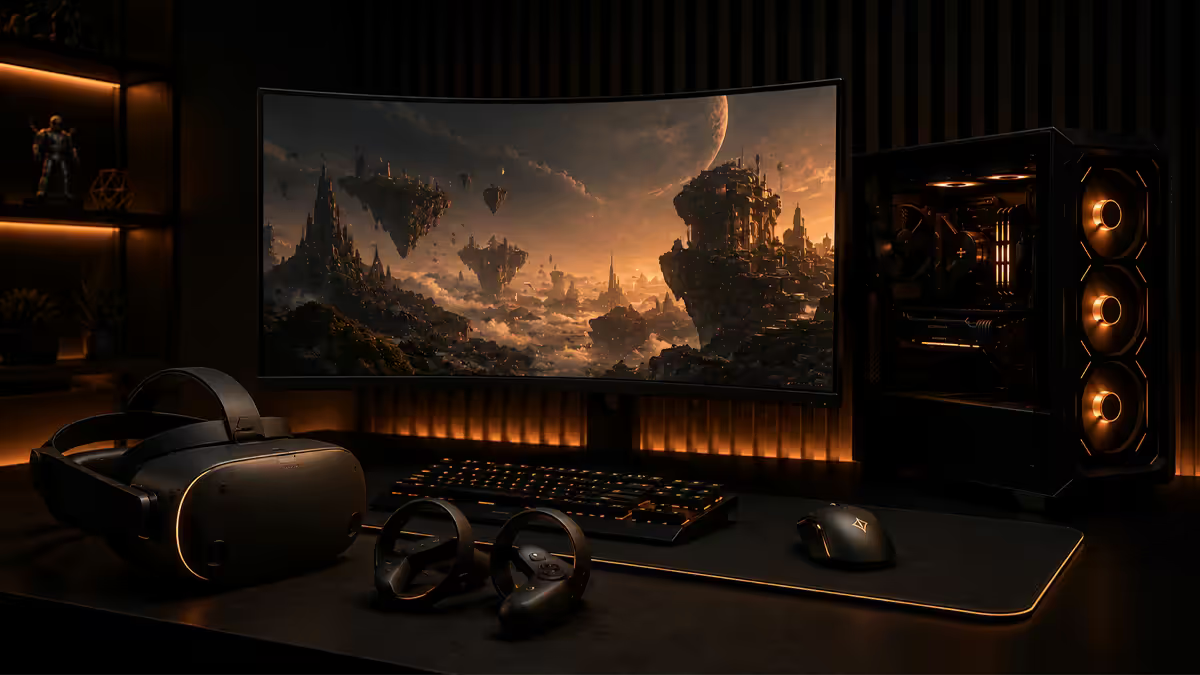
VR headsets in SA — what’s actually available in 2026
The headset market in SA has narrowed in 2026 to roughly five units that matter for PCVR. Meta dominates the entry tier; Pimax and Bigscreen Beyond own the enthusiast space; Valve Index is fading but still around. Quick reality check on what each one demands from your PC.
| Headset | Per-eye resolution | SA retail / import landed |
|---|---|---|
| Meta Quest 3 | 2064×2208 @ 90/120Hz | R10,500 (512GB) |
| Meta Quest 3S | 1832×1920 @ 90Hz | R6,800 (128GB) |
| Pimax Crystal Light | 2880×2880 @ 90Hz | R18,500-R22,000 (import) |
| Bigscreen Beyond 2 | 2560×2560 OLED @ 90Hz | R26,000-R32,000 (import) |
| Valve Index (legacy) | 1440×1600 @ 120/144Hz | R14,500 used / R20,000 new |
Quest 3 is the realistic SA entry point at R10,500 — it functions both as a standalone Android headset and as a PCVR headset over Link cable or Air Link. The PCVR experience is genuinely good with the right setup. Pimax and Bigscreen Beyond are import-only and demand top-tier PCs to drive their higher native resolutions.
GPU and CPU tier per headset
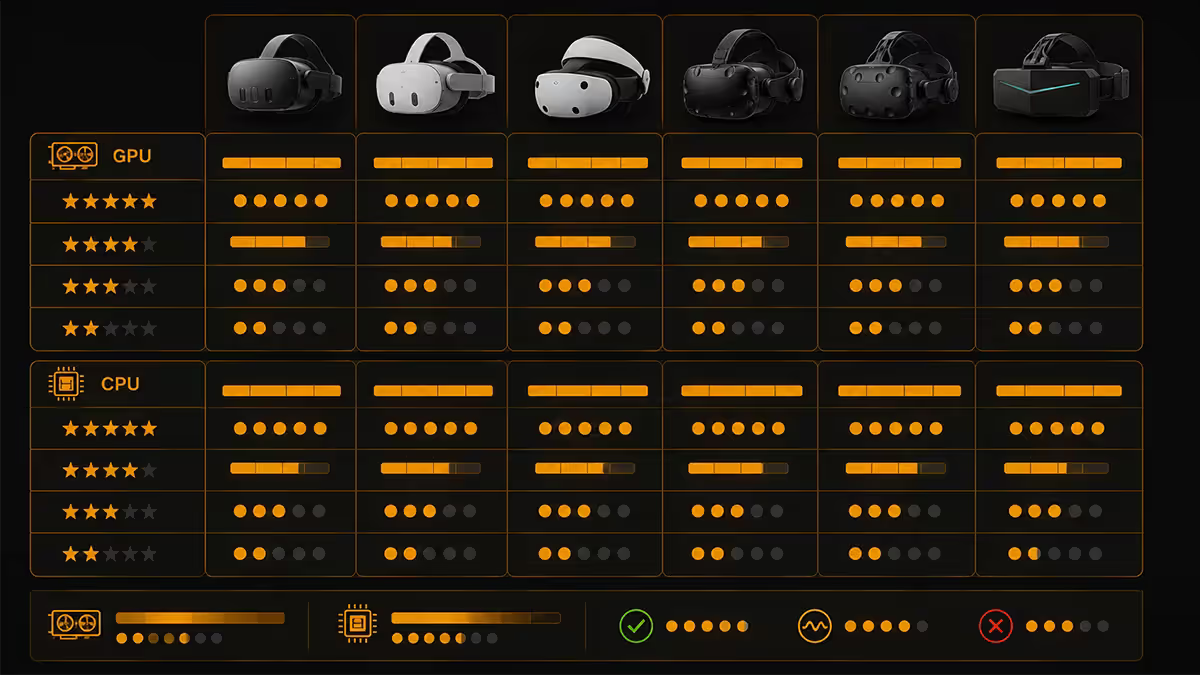
VR renders the world twice — one frame for the left eye, one for the right — so the GPU workload is roughly 1.8-2.0× a flat-panel game at the same effective resolution. Add 130-140% supersampling (you really do need it for the panels to look sharp) and the multiplier creeps higher.
Quest 3 / Quest 3S minimum and recommended
- Minimum to enjoy PCVR: RTX 3070 / RX 6800 + Ryzen 5 5600X / Core i5-12400.
- Sweet spot: RTX 4070 Super / RX 7800 XT + Ryzen 7 7700X / Core i5-14600K.
- Headroom for supersampling 140% at 90Hz: RTX 4070 Ti Super / RX 7900 XT + Ryzen 7 9700X / Core i7-14700K.
Pimax Crystal Light recommended
- Minimum to drive native 90Hz: RTX 4080 / RX 7900 XTX + Ryzen 7 7800X3D / Core i7-14700K.
- Comfortable at 110% supersampling: RTX 4090 / RX 9090 XT + Ryzen 9 7950X3D.
Bigscreen Beyond OLED recommended
- Minimum: RTX 4080 Super / RX 7900 XTX + Ryzen 7 7800X3D.
- Sweet spot: RTX 4090 / RTX 5090 + Ryzen 9 7950X3D.
- The OLED panel’s per-pixel sharpness means 100% render scale looks excellent — supersampling is less critical than on LCD headsets.
Link cable and USB-C — the boring detail that breaks everything
Quest Link runs over USB 3.0 (5 Gbps) at minimum. Higher bitrates (encoded video back to the headset) need a stable, high-bandwidth USB controller path with minimal contention.
Recommended setup:
- Use the official Meta Link cable (R650 in SA) or a verified 3rd-party fibre-optic Link cable (Kuject, NewVision — R450-R900). Most generic USB-C cables don’t meet the bandwidth spec.
- Plug into a rear motherboard USB 3.0 / 3.2 Gen 1+ port — these route directly off the chipset for the cleanest signal path.
- Avoid front-panel USB-C unless it’s wired to a dedicated motherboard header (check your case spec).
- Don’t share the port’s controller with a busy hub, external SSD or capture device.
USB-C port standards relevant to Link: USB 3.0 / USB 3.1 Gen 1 = 5 Gbps (minimum, fine for default Link). USB 3.2 Gen 2 = 10 Gbps. USB4 / Thunderbolt 4 = 40 Gbps (overkill but rock solid). For high-bitrate Link sessions, USB 3.2 Gen 2 is the sweet spot.
Air Link and WiFi 6E in SA homes
Wireless PCVR over Meta Air Link or Virtual Desktop has reached genuinely usable quality on WiFi 6E hardware. The dedicated 6GHz band has dramatically reduced congestion in a typical SA home where 2.4 and 5GHz are already crowded with neighbours’ routers.
For Air Link to work well, you need:
- WiFi 6E router or WiFi 7 router — TP-Link Archer BE800, Asus RT-BE96U, MSI Roamii BE Lite. Avoid WiFi 6 if you have any other option.
- PC connected by wired Ethernet (2.5GbE or 1GbE) directly to the router. WiFi-to-WiFi is asking for trouble.
- Headset and PC ideally on the same floor, within 6-8m line of sight to the router.
- No competing 6GHz neighbours in your apartment block — the 6GHz band is still relatively empty in SA, so most users have it to themselves.
Virtual Desktop vs Meta Air Link: Virtual Desktop (R250 on Quest Store) is the better paid option in 2026 — more codec choices (H.264, H.265, AV1), more bitrate granularity (50-200 Mbps), and dedicated networking diagnostics. Meta’s free Air Link has improved but still trails on stability for some users.
Codec choice: H.265 is the default for most users — good quality, low encoding load on GPU. AV1 is genuinely sharper and lower bandwidth, but requires an RTX 4070+ GPU (Nvidia) or RX 7700 XT+ (AMD) for hardware encoding. If your GPU supports it, use AV1.
Render scale — the dial that matters most
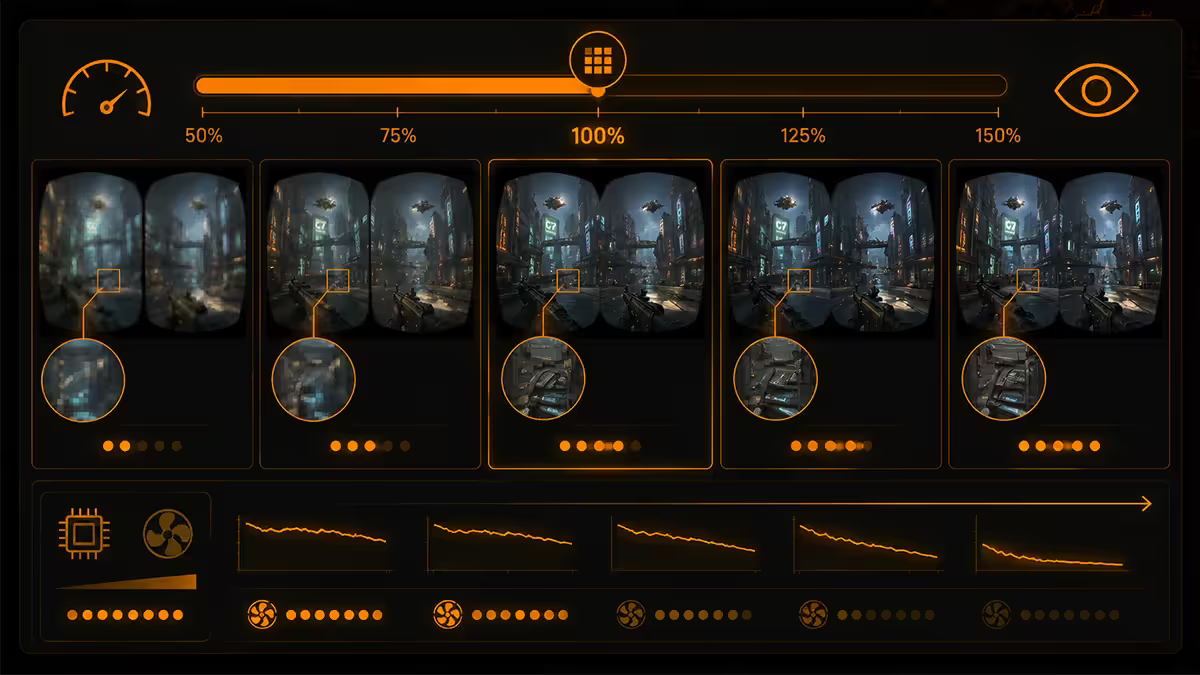
Render scale (also called supersampling or pixel density) tells your GPU to render at a higher internal resolution than the headset’s panels, then downsample for display. Counter-intuitive but real: VR headsets look blurry at 100% render scale because of how the panel-to-lens-to-eye optical chain works.
The numbers:
- Quest 3: 130-140% supersampling makes a transformative sharpness difference vs 100%.
- Pimax Crystal Light: 110-120% is usually plenty; the native resolution is already very high.
- Bigscreen Beyond: 100-110% is fine; OLED per-pixel sharpness already compensates.
- Valve Index: 130-150% supersampling on capable GPUs makes the LCD panel look much better.
Tuning rule: in a new game, start at 100% render scale at native refresh. If you have GPU headroom (frametime well under target), increase render scale in 10% increments until you start to see frame drops. Back off 10% and lock it. Don’t drop refresh rate first — VR is much more sensitive to low frame rate than to reduced supersampling.
Motion smoothing / ASW — when to use it
When your GPU can’t hit the headset’s refresh rate, the runtime can synthesise extrapolated frames. Oculus calls it ASW (Asynchronous Spacewarp). SteamVR calls it Motion Smoothing. The principle is the same: take your real 45 FPS, predict where the world will be in 11ms, and present a synthetic frame so the headset still gets 90 FPS.
The trade-off: the world stays steady so you don’t get motion sickness, but synthetic frames have visible artefacts — usually visible at hand movements, fast turns, or thin moving objects (think the controller passing in front of a textured background).
When to enable motion smoothing:
- Slow exploration / cockpit sims (MSFS, DCS) — the artefacts are barely visible and the comfort gain is real.
- Mid-range GPUs running demanding games — better than persistent stutter.
When to disable it:
- Fast-paced action (Beat Saber, Pavlov, Boneworks) — artefacts on hand movements are distracting.
- High-end GPUs (RTX 4080+) that can hold native refresh — no benefit to enabling it.
- Bigscreen Beyond OLED — the response time is so fast that motion smoothing artefacts are more visible than on LCD.
SteamVR settings and OpenXR runtime
SteamVR is the universal OpenXR runtime for most PCVR. A few settings genuinely matter and most people leave them on defaults that aren’t ideal.
Per-application supersampling
Set the global supersampling to 100% (no global multiplier). Then in each game’s SteamVR per-application settings, dial supersampling per-title to whatever your GPU can hold. This avoids over-supersampling games that already do internal supersampling (like Half-Life: Alyx).
Refresh rate selection
Quest 3 supports 72, 80, 90 and 120Hz over Link. For most PCVR content, 90Hz is the sweet spot. 120Hz feels noticeably smoother in fast games (Beat Saber, racing) but doubles the frametime budget and demands much more GPU. Reserve 120Hz for high-end GPUs with content that can hit it.
Per-eye direct mode
Always on. Lets the GPU push frames directly to the headset’s compositor without going through the desktop compositor first. SteamVR enables this by default; verify it’s not been disabled.
Frametime graph
Enable the SteamVR performance graph in the dashboard. Two lines matter: GPU frametime (should stay below your refresh target — 11.1ms for 90Hz, 8.3ms for 120Hz) and CPU frametime. CPU spikes show as visible head-rotation judder; GPU spikes show as motion smoothing kicking in.
Recommended VR-ready Evetech configurations
| Tier | Build spec | SA price |
|---|---|---|
| Entry VR (Quest 3) | Ryzen 5 7600X + RTX 4070 Super + 32GB DDR5 | R28,000-R32,000 |
| Comfortable Quest 3 PCVR | Ryzen 7 7700X + RTX 4070 Ti Super + 32GB DDR5 | R38,000-R44,000 |
| Sim cockpit (MSFS / DCS) | Ryzen 7 7800X3D + RTX 4080 Super + 32GB DDR5 6000 | R52,000-R60,000 |
| Pimax Crystal Light tier | Ryzen 9 7950X3D + RTX 4090 + 64GB DDR5 | R85,000-R95,000 |
| Bigscreen Beyond enthusiast | Ryzen 9 9950X3D + RTX 5090 + 64GB DDR5 | R115,000-R135,000 |
| WiFi 6E router for Air Link | TP-Link Archer BE800 or Asus RT-BE96U | R6,500-R12,000 |
| Link cable | Meta Link Cable (5m fibre) or Kuject 5m | R450-R900 |
Common VR optimisation mistakes
Cheap third-party Link cable. The R200 Takealot generic USB-C “compatible with Quest Link” cable almost never sustains 5 Gbps under load. Spend the R450-R650 for a verified Link cable.
Front-panel USB-C with shared controller. Many cases route the front USB-C through a Gen 1 internal header that shares its controller with another port. The shared bandwidth causes Link instability. Use rear motherboard ports.
WiFi 5 router for Air Link. Air Link over WiFi 5 is bearable for slow content but unusable for anything fast. WiFi 6 minimum; WiFi 6E strongly preferred. The R6,500 spent on a new router transforms the experience.
Maxing render scale without checking GPU headroom. Cranking supersampling to 200% looks gorgeous on screenshots but drops frame rate to 45 FPS, triggers motion smoothing, and feels worse than 110% at native 90Hz.
Ignoring CPU tier for VR sims. A weak CPU in DCS World or MSFS causes head-rotation judder that no GPU upgrade can fix. Pair an X3D Ryzen with high-resolution VR.
Key takeaways
- VR is two displays at 90Hz, supersampled — GPU load is 1.8-2× a comparable flat-panel game.
- Plug Link cable into a rear motherboard USB 3.2 Gen 1+ port. Front-panel USB-C is the #1 cause of Link instability.
- WiFi 6E (or WiFi 7) is mandatory for usable Air Link. WiFi 5 is unusable; WiFi 6 is the bare minimum.
- Tune render scale (supersample) before refresh rate. 130-140% on Quest 3, 110-120% on Pimax, 100-110% on Beyond OLED.
- X3D Ryzen chips are genuinely transformative for VR sims. Pair them with high-resolution headsets.
Frequently asked questions
What GPU do I need for VR gaming in 2026?
RTX 4070 Super / RX 7800 XT minimum for Quest 3. RTX 4070 Ti Super / RX 7900 XT for Pimax Crystal Light. RTX 4080+ for Bigscreen Beyond. VR needs one tier above your monitor equivalent.Should I use Quest Link (wired) or Air Link (wireless)?
Link cable for competitive/fast-paced VR (Beat Saber, racing sims). Air Link over WiFi 6E for sit-down sims and social VR. Quality WiFi 6E router makes Air Link genuinely viable.Do I need a dedicated USB-C port for the Quest Link cable?
Yes — a dedicated rear motherboard USB 3.0 / 3.2 Gen 1+ port. Front-panel USB-C and shared hub ports cause Link instability and frame drops.What WiFi do I need for Air Link in SA?
WiFi 6 minimum; WiFi 6E strongly preferred. PC wired to router; headset on same floor within 6-8m line of sight. WiFi 7 future-proof but not yet supported by Quest 3.What is motion smoothing / ASW and should I use it?
Synthesises predicted frames when GPU can’t hit refresh target. Good for slow sims, bad for fast action. Disable if your GPU has headroom.What render scale and supersampling should I run?
130-140% on Quest 3, 110-120% on Pimax, 100-110% on Bigscreen Beyond OLED. Always tune render scale before refresh rate.Is Virtual Desktop better than Meta Air Link?
Often yes. More codec options (AV1 included), more bitrate granularity, better diagnostics. Worth the R250 for a serious PCVR user.What CPU should I have for VR gaming?
Ryzen 5 7600X / Core i5-13600K minimum. Ryzen 7 7800X3D or 9800X3D ideal for sims (DCS, MSFS). VR is more GPU-bound, but weak CPUs cause judder.
Get the Evetech app
Exclusive app-only prices, daily flash sales, and free delivery on orders over R4,000 — download the app and start saving.