Triple Monitor MacBook Setup
MacBook with triple monitors. — Which M-chip. Which dock. Which compromise.
Apple's external-display matrix is the most misunderstood spec on the MacBook. The base M chip can drive one external. M Pro caps at two. M Max breaks the limit. And DisplayLink lets you cheat your way past it — at a price macOS makes you pay.
- native 3+ lid
- M-Max
- 2 ext + lid
- M-Pro
- SA workstation
- R110k+
The chip matrix — what each Mac can actually drive
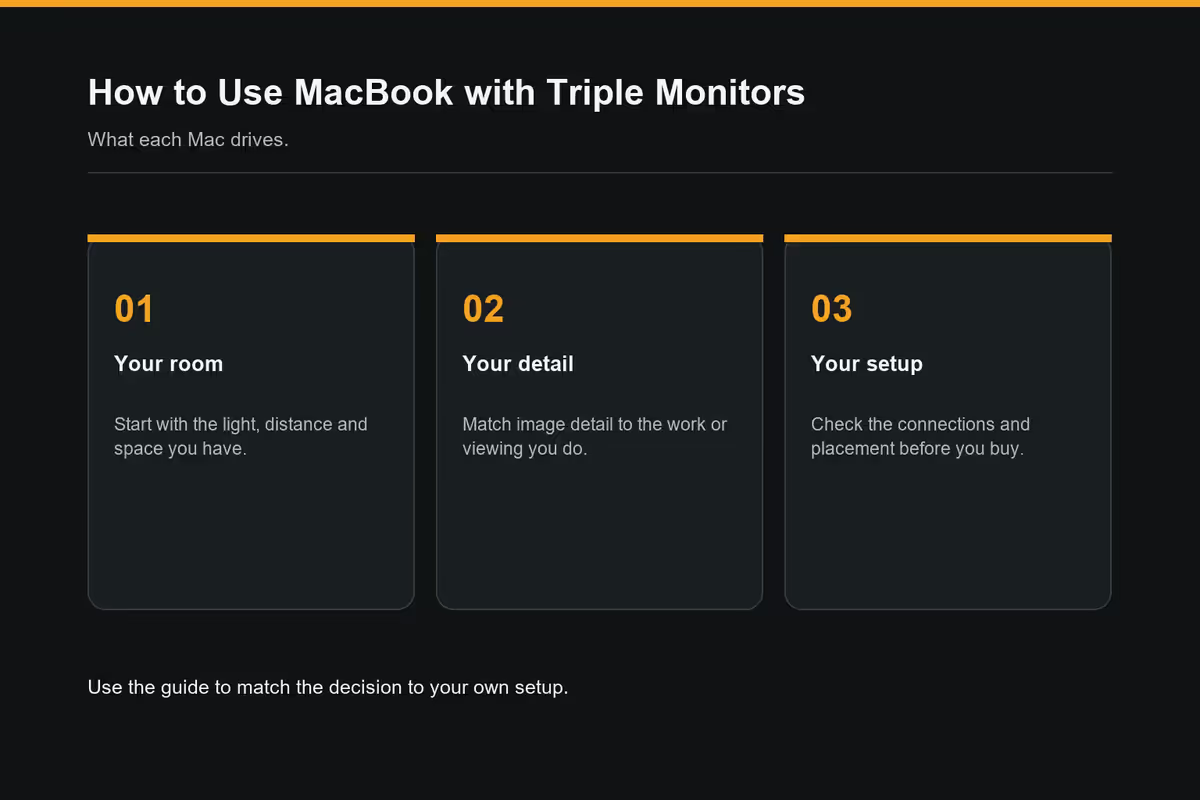
Apple's external display matrix is gated by the M-chip tier, not by the number of Thunderbolt ports. A MacBook Pro with three TB4 ports and an M Pro can't drive three external displays natively — the chip is the limit, not the cable.
Need DisplayLink for anything beyond Apple's native limit. Fine for café-first users.
Sweet spot for most pros. Lid closed gets you to triple. Add DisplayLink if you want lid + 3 ext.
The only chip that does triple external + lid open without DisplayLink. Workstation-grade.
Desktop class. Worth noting because some "MacBook" workstation searches end here.
Practical takeaway: if you want three external displays with the MacBook lid open (so you have a fourth canvas), the M3 Max or M4 Max MacBook Pro is the only configuration that does it natively. Everything else needs DisplayLink to reach the third display.
DisplayLink — the workaround that mostly works
DisplayLink is a chip that encodes screen content over USB. A driver on macOS decodes it and renders to a virtual display. It's how MacBook Airs end up with six monitors on YouTube — and why those setups always lag in screen recordings.
What DisplayLink does well:
- Static productivity — browser, docs, Slack, terminal, IDE side panels.
- Reference content — documentation, datasheets, dashboards refreshing every few seconds.
- Communication — Zoom self-view, Teams chat, Asana, Notion.
What DisplayLink does badly:
- Full-screen video — HDCP blocks Netflix / Disney+ / Apple TV+ entirely on DisplayLink-driven displays.
- Video editing — timeline scrubs are choppy, preview drops frames.
- 3D / motion graphics — frame rate caps at 30-45fps depending on USB bandwidth.
- Wake reliability — DisplayLink screens take 5-10 seconds to re-enumerate after sleep.
Why macOS hates MST (and what to do about it)
DisplayPort's Multi-Stream Transport (MST) lets one DisplayPort cable carry multiple display streams to a hub that fans them out. Windows supports this natively. macOS has never supported MST. It sees the MST hub as a single screen and mirrors content.
This catches new buyers constantly. You see an "MST hub — 3 monitors from one cable!" product on Amazon, plug it into your Mac, get one mirrored display, and conclude the Mac is broken. It isn't. macOS just doesn't speak MST.
The alternatives:
- Thunderbolt daisy-chaining — each TB4 display can pass through another TB4 display. Apple-supported, works perfectly. Limited by the chip's display matrix.
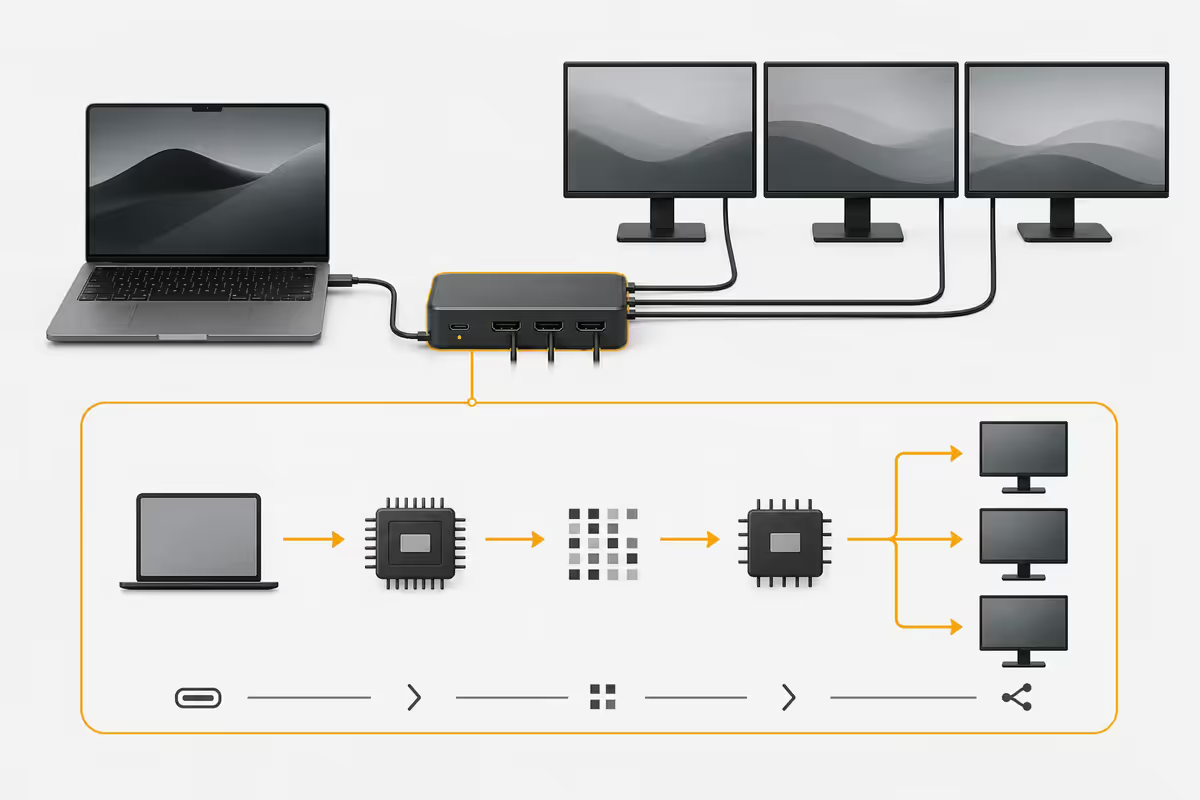
- Multiple direct outputs from the dock — CalDigit TS4 and OWC docks expose 2-3 separate DP/HDMI outputs from a single TB4 upstream. Each output is its own canvas.
- DisplayLink — uses USB rather than DisplayPort and bypasses MST entirely.
Which Thunderbolt dock to buy
The dock is the centrepiece of any serious MacBook + triple monitor setup. Choose based on which display chain you need.
| Dock | Display config | SA price |
|---|---|---|
| CalDigit TS4 (gold standard) | 2× DP 1.4 + 1× TB4 downstream — perfect for M Max triple | R8,500 - R10,500 |
| OWC Thunderbolt Hub | 3× TB4 downstream — chain three TB4 displays | R6,500 - R8,500 |
| Plugable UD-7400PD (DisplayLink) | DisplayLink built-in for non-Max Macs | R5,500 - R7,000 |
| j5create JCD555 (budget DisplayLink) | DisplayLink, dual HDMI + DP, USB-C | R3,800 - R4,500 |
| Apple Pro Display XDR daisy-chain (Apple only) | Native, single TB4 cable to Mac | Display-priced |
Real-world layouts — split, centred, symmetric
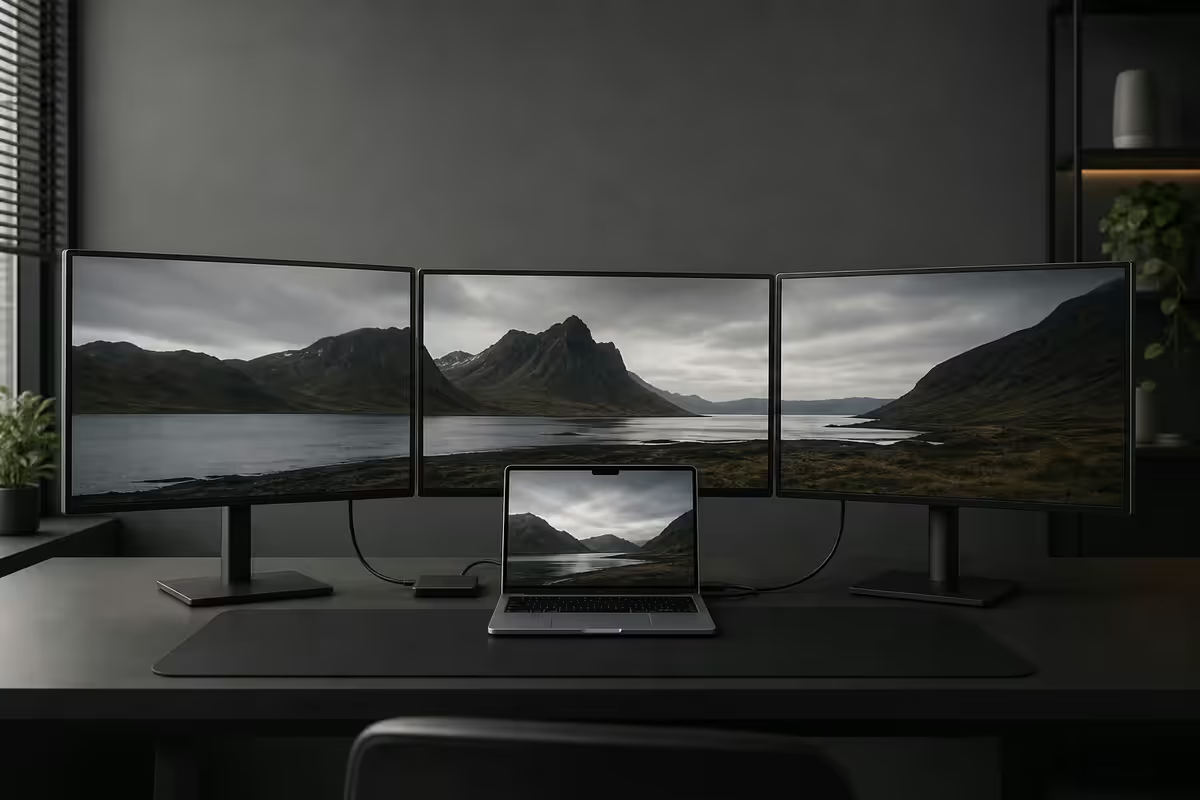
Three identical displays sounds equal but rarely is. Most pros run one primary in the centre and two reference displays at the wings — turning your head matters less than turning your eyes.
Recommended layouts:
- Centred primary (most common) — main work centre, comms left, reference right. Centre monitor at eye level, side monitors angled inward 10-15°.
- Split focus — two main displays centred (IDE + browser side-by-side), third off to one side for chat/comms. Centre seam roughly between primary eye axis.
- Symmetric (rare) — three identical roles. Editing finalist work where each pane has equal weight (multi-cam edit, dashboards). Demands ultrawide neck movement.
- Vertical wing — two horizontal + one rotated to portrait for long documents or code. Verify your monitor stand allows portrait pivot and check macOS Display arrangement actually accepts it (some screens behave oddly when rotated).
For 3× 27" 1440p: total horizontal span is around 180cm — make sure your desk is at least that wide before you commit. The cheaper monitor arms struggle at the corners of a desk that wide; use a tri-arm pole-mount system or three separate stands.
Performance overhead — what driving three displays costs
Apple Silicon's unified memory means GPU and CPU share RAM. Driving three external 4K displays plus the internal Retina at 60Hz consumes around 3-5GB of memory just for frame buffers, plus active rendering for whatever apps are visible.
Memory minimums:
- Browser + docs + chat on triple 4K — 18GB unified RAM minimum; 24GB comfortable.
- IDE + emulator + browser — 24GB minimum; 36GB if you run Docker or Xcode simultaneously.
- Video editing + colour grade preview on triple 4K — 36GB minimum; 48-64GB for ProRes 4K timelines.
- 3D / motion graphics — 64GB+ becomes the practical floor.
For three 1440p (rather than 4K) the memory pressure drops about 35% — 24GB handles most workflows comfortably.
Sleep, wake, and the reliability question
A triple-monitor setup is only useful if it wakes correctly every morning. Reliability scales inversely with how many non-native displays you have.
Wake reliability tiers:
- All-native via Thunderbolt — perfect. Open lid, all displays come back within 2 seconds. M Max territory.
- Two native + one DisplayLink — good. DisplayLink display takes 5-10 seconds to enumerate, sometimes flickers briefly.
- One native + two DisplayLink — passable. Daily setup, occasional manual cable-pull-and-reconnect once a week.
- All-DisplayLink — fragile. Reboot or unplug-replug becomes routine. Avoid where possible.
For maximum reliability: set "Wake for network access" off (System Settings → Battery → Options) — it interferes with display enumeration on some docks. And don't put the Mac to sleep with the lid closed if you rely on display wake; use Shut Down or full screen lock instead.
The ZAR build — what a real workstation costs
| Component | Pick | SA price |
|---|---|---|
| MacBook | MacBook Pro 14" M4 Max, 36GB unified, 1TB | R62,000 - R68,000 |
| Monitor 1 (centre) | 27" 4K IPS — Dell U2725QE or LG 27UP850 | R9,500 - R12,000 |
| Monitor 2 + 3 (sides) | 2× 27" 1440p IPS — LG 27UP500 / Dell P2725D | R11,000 (R5,500 each) |
| Thunderbolt 4 dock | CalDigit TS4 | R8,500 - R10,500 |
| Triple monitor arm | Ergotron HX or Vivo triple pole-mount | R5,500 - R8,000 |
| Keyboard + Trackpad | Magic Keyboard with Touch ID + Magic Trackpad | R6,500 - R7,800 |
| Chair | Aeron / Herman Miller Sayl / Ergohuman Plus | R8,000 - R15,000 |
| UPS (load shedding insurance) | Mecer 1000VA line-interactive | R2,200 - R3,200 |
| Total realistic workstation | Native triple, M Max, dock, arms, chair | R113k - R134k |
Key takeaways
- M Max is the only MacBook chip that does 3 external + lid open natively. Below that, DisplayLink.
- macOS doesn't support MST — never buy a DisplayPort daisy-chain hub for Mac.
- CalDigit TS4 is the gold-standard dock for native triple; Plugable UD-7400PD for DisplayLink builds.
- 24GB unified RAM minimum for triple 4K; 36GB+ for video / 3D.
- SA workstation realistic at R110k-R125k complete; pragmatic DisplayLink build R65k-R75k.
Frequently asked questions
Can a MacBook Air run three external monitors?
Not natively. The M3 and M4 MacBook Air support two external displays only when the lid is closed (one external when the lid is open, on M3). For three external displays from an Air, you need a DisplayLink adapter (Plugable, j5create) — the OS treats the DisplayLink display as a virtual screen driven over USB. Performance is fine for static work (browser tabs, docs, Slack), poor for video playback or anything with motion.Which MacBook supports three external monitors natively?
MacBook Pro with M3 Max or M4 Max supports up to four external displays plus the internal — three external while the lid is open is fully supported. MacBook Pro with M Pro chip (M3 Pro, M4 Pro) supports two external plus the internal, or three external with the lid closed. MacBook Pro base M3/M4 and MacBook Air support one to two external maximum without DisplayLink. The chip tier is the gate, not the port count.What is DisplayLink and does it work on Mac?
DisplayLink is a USB-to-video compression technology — a chip in the adapter encodes the screen content over USB and a macOS driver decodes it. It works on every Apple Silicon Mac but has caveats: HDCP-protected content (Netflix, Disney+) won't play, video editing timeline scrubs are laggy, and 4K@60Hz needs USB 3.2 Gen 2 or Thunderbolt to be smooth. For static productivity work it's transparent; for motion-heavy work, prefer native HDMI/USB-C displays.Why does macOS hate MST?
Multi-Stream Transport (MST) is a DisplayPort feature that lets one cable drive multiple monitors via a hub. Windows supports MST natively. macOS has never properly supported MST — it sees an MST hub as a single mirrored display, not as separate canvases. If you've bought a DisplayPort daisy-chain hub expecting it to give you multiple displays on Mac, return it. You need Thunderbolt daisy-chaining, separate HDMI outputs, or DisplayLink instead.What Thunderbolt dock should I buy for triple monitors on a MacBook?
For M Max or M4 Max MacBook Pros running native triple display: the CalDigit TS4 (R8,500-R10,500 in SA via Yuppiechef/Takealot) is the gold standard with 2x DisplayPort 1.4 + 1x Thunderbolt 4 downstream for chaining. For Air or base Pro needing DisplayLink-assisted triple: Plugable UD-7400PD (around R6,500 in SA) or the j5create JCD555 (around R4,200). Always verify the dock's stated Mac compatibility and the supported display matrix — manufacturer specs include Mac-specific limits.How much VRAM do I need for three external 4K monitors on a Mac?
VRAM isn't allocated the way it is on a Windows discrete GPU — Apple Silicon uses unified memory. For three 4K external displays, allocate 24GB minimum of unified RAM (M Pro 18GB will work but you'll see paging under load); 36GB is comfortable; 48GB+ for video editing or 3D work driving three 4K externals. The Pro Display XDR config Apple recommends starts at 32GB unified — that's the practical floor for serious external multi-display work.Does sleep and wake work reliably with triple monitors on Mac?
Native Thunderbolt connections wake reliably. DisplayLink-driven displays often need 5-10 seconds after wake to re-enumerate, and occasionally need manual disconnection and reconnection of the USB-C cable. The most reliable setup is one Thunderbolt dock handling 1-2 native displays plus 1 DisplayLink display — wake reliability degrades as you add more DisplayLink screens. For 24/7 reliability, M Max with all-native displays remains the only zero-compromise route.How much does a complete triple-monitor MacBook Pro workstation cost in South Africa?
A complete 2026 ZAR build for native triple-monitor work — MacBook Pro 14" M4 Max (R65,000), three 27" 1440p IPS monitors at R5,500 each (R16,500), CalDigit TS4 dock (R9,500), monitor arms (R6,000 for triple), Magic Keyboard + Trackpad (R6,500), good chair (R8,000-R15,000) — totals around R110,000-R125,000 before tax. A pragmatic "looks the part" version with a base M4 Pro MacBook and DisplayLink can come in at R65,000-R75,000 with similar peripherals.
Get the Evetech app
Exclusive app-only prices, daily flash sales, and free delivery on orders over R4,000 — download the app and start saving.