SA Load Shedding Guide
MacBook through load shedding. — Built-in UPS. R1,200 keeps the router up.
The MacBook is the easiest part of an SA work-from-home setup. Apple Silicon laptops sail through 2-4 hour stages without breaking a sweat. The hard part is keeping the fibre router alive — and that's a R1,200 problem with a clean solution.
- your battery
- Built-in UPS
- hotspot ready
- Wi-Fi 6
- planning window
- 4-hour
Why MacBook is built-in UPS
Every MacBook ships with a battery sized for a full work day. An M-series MacBook running light tasks pulls 3-7W from the battery, against a battery capacity of roughly 70-100Wh depending on model. The math is in your favour: a single stage of load shedding (2-2.5 hours typically) consumes 15-25% of a full charge for most users.
This isn't a feature — it's the entire point of a laptop. The shock for many SA users new to Apple Silicon is realising you don't need a desk-mounted UPS at all. Your MacBook is the UPS. The wall plug is the charger, used between stages.
- MacBook Air M3/M4: 52.6Wh battery, ~18 hours light use advertised, 12-15 hours real.
- MacBook Pro 14" M4: 72.4Wh battery, ~22 hours, 14-18 hours real.
- MacBook Pro 16" M4 Pro/Max: 100Wh battery, ~24 hours, 14-19 hours real.
Even the smallest MacBook Air, with degraded battery 4 years into ownership, comfortably handles a four-hour stage with charge to spare.
Pre-load-shedding routine
The 15 minutes before a scheduled stage are when the win-or-lose decision is made. Build a habit:
- Top up the MacBook to 90-100%. Plug in 30-60 minutes before the stage starts.
- Check the router UPS battery indicator. If it's been a long day of stages, the router UPS may need a charge top-up first.
- Sync everything to cloud. Save the doc you're working on, push any code commits, let iCloud catch up, download any large files preemptively (don't try to pull a 5GB video during a stage).
- Cache documents for offline. Open Notion, Google Docs and Slack briefly so the local cache is fresh.
- Confirm meetings. If you have a video call during the stage, send a quick message to the other party — "I'm on a load-shedding hotspot, let me know if I drop." Sets expectations.
MacBook battery realistic runtime
Real-world numbers from MacBooks running a typical SA work load (Slack, Zoom, Chrome with 8-12 tabs, occasional video call):
| Workload during stage | Drain rate | Stage 2 (2.5h) battery use |
|---|---|---|
| Writing, single document | 3-5W | 8-12% |
| Browsing + Slack | 5-9W | 15-22% |
| Video call (Zoom/Teams) | 15-25W | 30-45% |
| Photo editing (Lightroom) | 12-20W | 25-40% |
| Video editing (Final Cut) | 20-35W | 45-65% |
| Xcode compilation bursts | 25-45W | 50-75% |
The headline: a 2.5-hour stage leaves you with 75-90% battery remaining for light work. Even 30-minute video calls during the stage end with the battery above 60%. Heavy compute (Xcode, video editing) is where you start watching the percentage drop.
Internet during the outage — router back-up
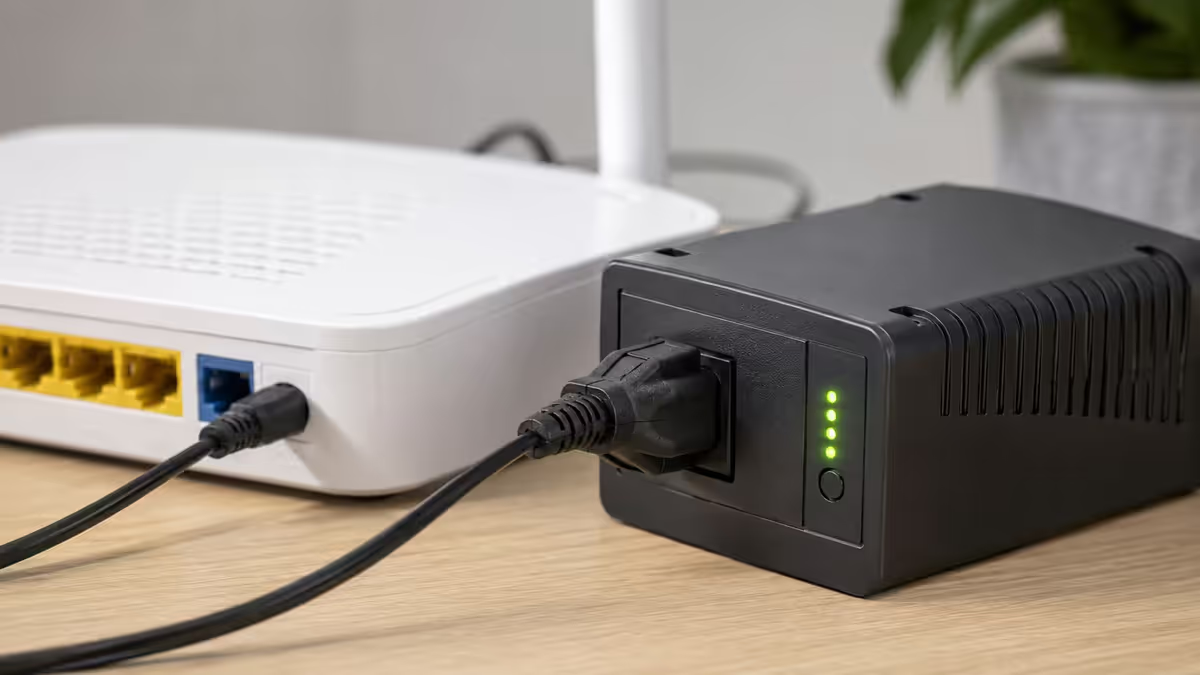
The MacBook stays up. The router and ONT (fibre optical network terminal) do not, unless you add power back-up. This is the highest-impact fix you can make to your work-from-home setup.
The Mecer Mini-UPS is purpose-built for SA fibre routers. Around R1,000-R1,400 in retail, it accepts the same 12V DC barrel input as most fibre routers and ONTs, switches over instantly when mains drops, and provides 8-12 hours of runtime per charge — easily covering 2-3 consecutive stages.
Sizing: the 18Wh model works for almost all home fibre routers. If you have a fancy mesh router or a separate ONT and router, the 30Wh or 40Wh model is the safer pick. Check your router's power requirements (sticker on the bottom) — most are 12V at 1-2A which is well within the Mini-UPS spec.
Alternative: an inverter on a deep-cycle battery. If you also need to power a desk monitor, dual-screen setup, or printer, a 1200VA-2400VA inverter with a 100Ah deep-cycle battery (R8,000-R15,000 fully kitted) does the whole desk. For MacBook + router only, this is dramatic overkill — the Mini-UPS is the right answer.
MacBook as hotspot & iPhone fallback
If your router goes down (no UPS, UPS battery died, ISP-side outage) the fallback is mobile data. macOS handles this cleanly:
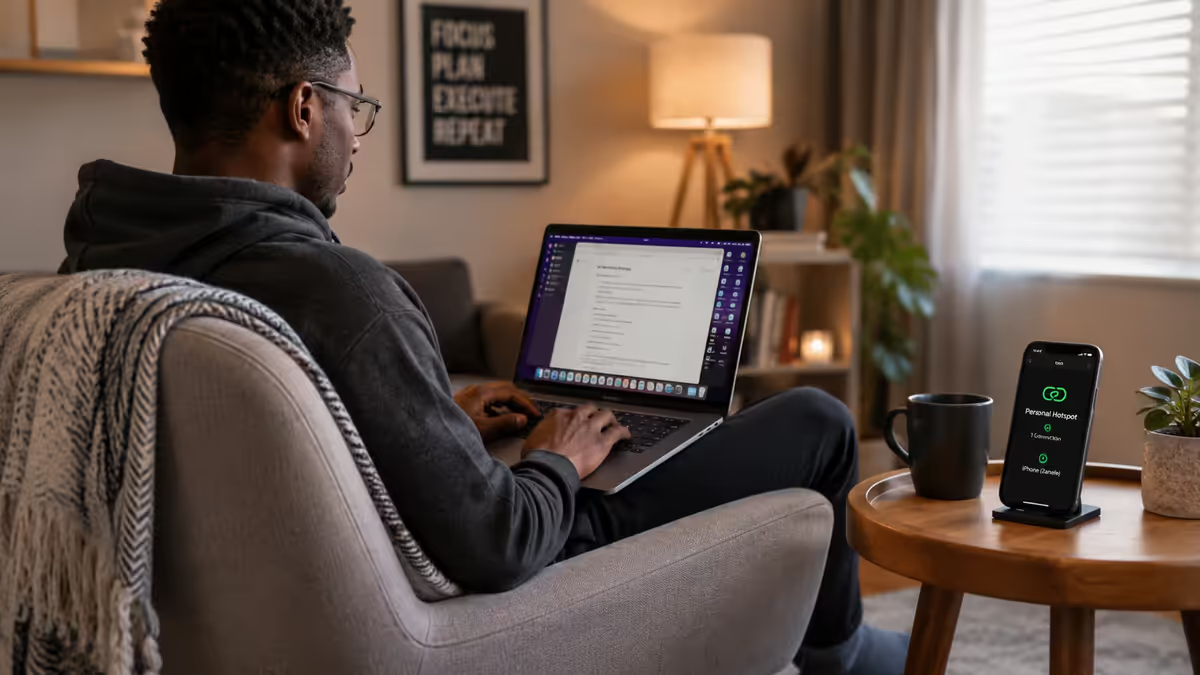
- iPhone Personal Hotspot — settings → Personal Hotspot. Sign in with the same Apple ID on your MacBook and the iPhone hotspot appears under the Wi-Fi menu without needing a password every time. macOS auto-connects when home Wi-Fi is unavailable.
- Android hotspot — same basic process, but you'll enter the password the first time and the macOS hand-off isn't as polished.
- 5G hotspot — if you have 5G coverage at home, the hotspot speeds typically beat home fibre. Cell tower power back-up varies by carrier (MTN and Vodacom invest more heavily than smaller networks), so this isn't guaranteed during prolonged stages.
- Sharing data efficiently — for video calls over hotspot, disable HD video to reduce data usage. Slack, email, browsing are fine on standard hotspot bandwidth.
Data top-ups during heavy load shedding weeks: a R250 once-off "anytime" data bundle from MTN or Vodacom (typically 25-50GB) covers a full week of hotspot work for one person. Stack a R50 night-time bundle if you're a heavy user.
Power banks for MacBook (USB-C PD)
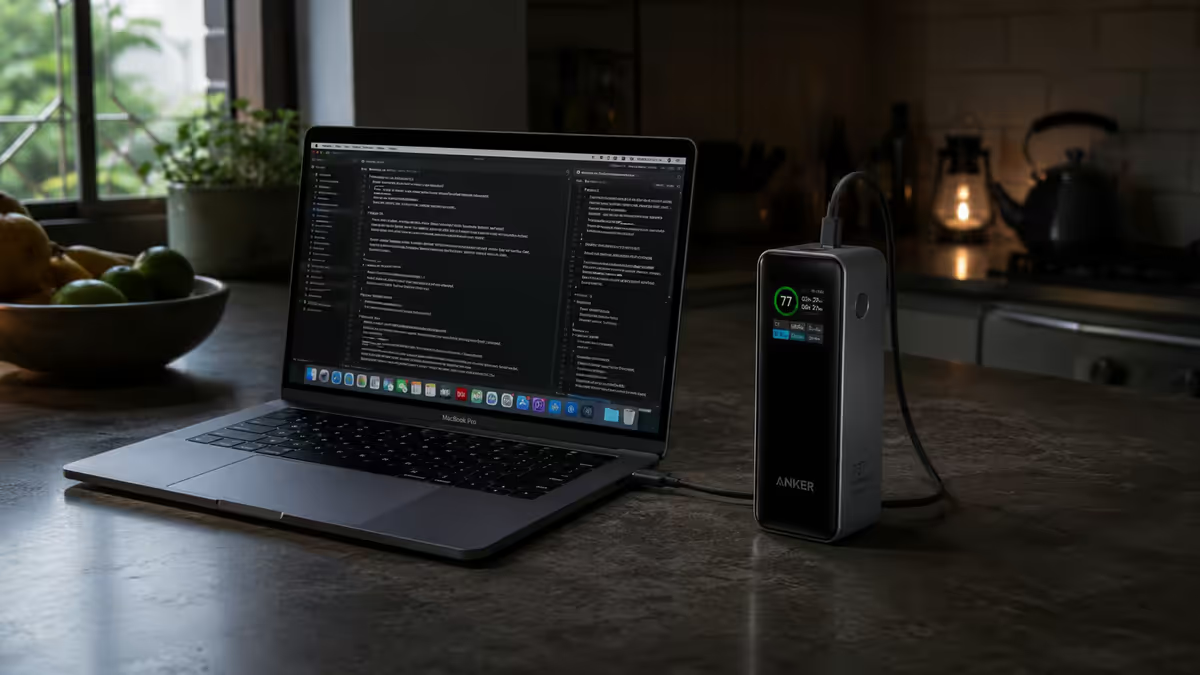
A USB-C PD (Power Delivery) bank charges the MacBook at full speed using the same USB-C charging port. This is your second-line back-up for back-to-back stages or extended Stage 4-6 sessions.
| Power bank | Spec | SA price |
|---|---|---|
| Anker 737 (140W) | 24,000mAh · charges 16" MacBook Pro full | R2,800-R3,500 |
| Ugreen 145W Nexode | 25,000mAh · charges 16" Pro 1.5x | R2,500-R3,200 |
| Baseus Blade 65W | 20,000mAh · MacBook Air full, Pro 14" 0.8x | R1,800-R2,200 |
| Anker 535 (30W) | 20,000mAh · slow charge, Pro 14" trickle | R1,200-R1,500 |
| Romoss PB30 PD | 30,000mAh budget · MacBook Air 1.5x | R900-R1,200 |
Sizing for your MacBook:
- MacBook Air M3/M4: any 65W PD bank with 20,000mAh+ gives you a full recharge plus running time. Baseus Blade or Anker 535 is plenty.
- MacBook Pro 14": aim for 96W+ output and 25,000mAh+ capacity. Ugreen 145W or Anker 737.
- MacBook Pro 16": 140W output, 24,000mAh+ minimum. Anker 737 is the standard choice — anything lower and you'll charge slowly when on full load.
EskomSePush + scheduling around stages
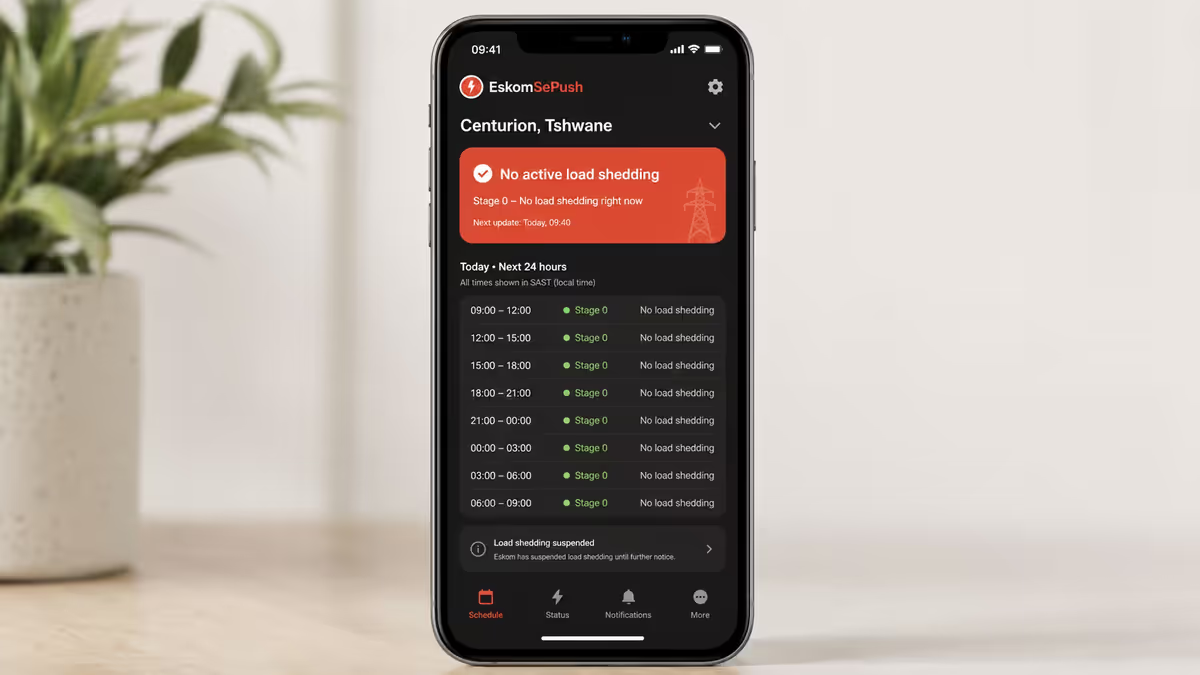
Treat EskomSePush as your second calendar. Block stages on your work calendar and schedule deep-work blocks during grid-up windows. The free EskomSePush tier covers the basics; the paid tier (~R12/month) adds early-warning notifications and a few stage-quality features.
Habits that compound:
- Intensive work in grid-up hours. Video calls, large file uploads, software updates, Time Machine backups — schedule these for when the power is on.
- Light work during stages. Writing, reading, sketching, planning, code review (offline file). These run forever on a MacBook battery.
- Save the meeting buffer. If a stage runs 14:00-16:30, schedule meetings 12:30-13:30 or 17:00 onwards. Avoid the high-failure window for important calls.
- End-of-day backup. Time Machine + Backblaze run during grid-up; if a stage hits mid-backup you're typically fine, but starting fresh on power is more reliable.
Productivity habits during stages
A 2-4 hour stage is plenty of high-quality writing time if you set up for it. Some habits SA Mac users develop:
- Drop display to 50% brightness. The single biggest battery saving, with no usability cost in normal indoor light.
- Enable Low Power Mode for the stage. System Settings → Battery → Low Power Mode "Only on Battery". Adds 20-30% to runtime.
- Quit Slack, Teams and Discord when not actively using them. They drain battery via background sync.
- Use Safari instead of Chrome. Meaningfully more efficient on macOS.
- Set Focus Mode for the stage. Notifications off, Do Not Disturb on. Stages become reliable focus windows.
File sync strategies for offline use
Cloud sync that requires a live connection is useless during a router-down stage. Configure your sync clients ahead of time:
- iCloud Drive — keep the Desktop and Documents folders synced with "Keep Originals Downloaded" enabled on files you might need offline. The default "Optimise Storage" mode evicts files when local space runs low — fine for most users, but the offline-pinned folders override this.
- Dropbox — use Smart Sync's "Available offline" toggle on specific folders. Right-click any folder → "Make available offline".
- Google Drive (or Drive for Desktop) — mark folders as "Available offline". For Google Docs specifically, install the Chrome extension or use the macOS app to enable offline editing.
- Notion — Notion's macOS app caches recently-opened pages. Open the pages you'll need before the stage starts and you'll have read access during the outage.
- Email — Apple Mail and Outlook both cache the last 30 days by default. You can read and compose offline; messages send when connectivity returns.
External display considerations
Mains-powered external monitors won't work during load shedding without a UPS on them — and UPSing a 27" monitor is expensive and impractical for a transient need. The honest answer: work on the MacBook's internal display during stages.
If you really need a second screen during outages:
- Portable USB-C monitors (Innocn, Ugreen, ViewSonic VG1655) — 15-16" panels with their own battery (4-6 hours) or USB-C powered. R3,000-R5,000.
- iPad as second display (Sidecar) — works wirelessly with macOS, leverages the iPad's own battery. Free if you have an iPad.
- An old MacBook running Universal Control — if you have an old MacBook Air gathering dust, it works as a secondary display via Universal Control or AirPlay. Free, on its own battery.
Common mistakes
Buying a wall UPS for the MacBook. Wasted money. The MacBook is the UPS. Spend that R2,000 on a USB-C PD power bank instead — same battery purpose, fully portable.
Forgetting to top up before stages. Starting a stage at 35% battery means a 2.5-hour stage on a video call leaves you scrambling. Top up to 90% before each scheduled stage.
Running to 0%. Deep discharges are the worst thing you can do to lithium-ion. End your stage at 10-15% and shut the MacBook down rather than letting it cut out.
Not having a router UPS. The single highest-ROI work-from-home upgrade in SA. If you only do one thing from this guide, do this.
Trying to keep a full desktop alive on UPS. 27" monitor + dock + speakers + printer needs a serious inverter setup costing R10,000+. For most people, just switch to MacBook-only mode during the stage.
No data top-up for hotspot weeks. When the router UPS battery dies, you're on iPhone hotspot. If your data allowance is tight, you'll throttle right when you need internet most. Buy a once-off 25-50GB bundle at the start of heavy stage weeks.
Scheduling important video calls during stages. Hotspot video is workable but not professional. Move important calls outside scheduled stage windows when possible.
Key takeaways
- Your MacBook is the UPS — no wall-UPS needed. M-series handles 4-8 hours of light work comfortably.
- R1,200 Mecer Mini-UPS for the router is the single highest-ROI work-from-home upgrade in SA.
- USB-C PD power bank (R1,500-R3,500) covers back-to-back stages and Stage 4+ extended outages.
- iPhone Personal Hotspot is your router fallback — macOS auto-connects via the same Apple ID.
- Top up before stages, switch on Low Power Mode, drop to 50% brightness — never run to 0%.
Frequently asked questions
Can I work on my MacBook during load shedding?
Yes — comfortably. M-series MacBooks were designed to be portable workstations. A typical 2-2.5 hour Stage 2 uses only 15-25% of battery on light work.How long does a MacBook battery last during load shedding?
M3/M4 MacBook: 14-18 hours light use; 8-12 hours mixed; 6-9 hours heavy compute. Multiple stages in a day comfortably.What about my internet during load shedding?
R1,200 Mecer Mini-UPS for the router gives 8-12 hours per charge — solves 90% of the problem. Fallback: iPhone Personal Hotspot.Do I need a UPS for my MacBook?
No. The MacBook battery is the UPS. Spend the budget on a USB-C PD power bank instead — same battery purpose, portable.What is the best power bank for MacBook during load shedding?
USB-C PD bank, 65W min for Air, 100W+ for Pro. SA top picks: Anker 737, Ugreen 145W Nexode, Baseus Blade. R1,800-R3,500 range.How do I use my iPhone as a hotspot for MacBook?
Settings → Personal Hotspot on iPhone. With same Apple ID on Mac, hotspot appears in Wi-Fi menu and auto-connects when home Wi-Fi unavailable.Can I still use an external monitor during load shedding?
Only if it has its own power. Portable USB-C monitors (R3,000-R5,000) work for 4-6 hours on battery. Mains-powered desk monitors don't.What apps should I download for SA load shedding?
EskomSePush is essential. Configure iCloud, Dropbox, Google Drive for offline pinning of frequently-used folders.
Get the Evetech app
Exclusive app-only prices, daily flash sales, and free delivery on orders over R4,000 — download the app and start saving.