MacBook for Seniors — Easy-to-Use Guide
A MacBook your parents can actually use. — Less helpline. More FaceTime.
macOS was quietly designed to be the simplest mainstream computer on earth. Zoom, large cursors, Reader View, Voice Control and a single calm Dock. Set it up once, walk away, and stop being the family IT department.
- Air M4 sweet spot
- R17k
- setup time
- 90 sec
- expected lifespan
- 6-8 yrs

Why a Mac is simpler than Windows for non-techs
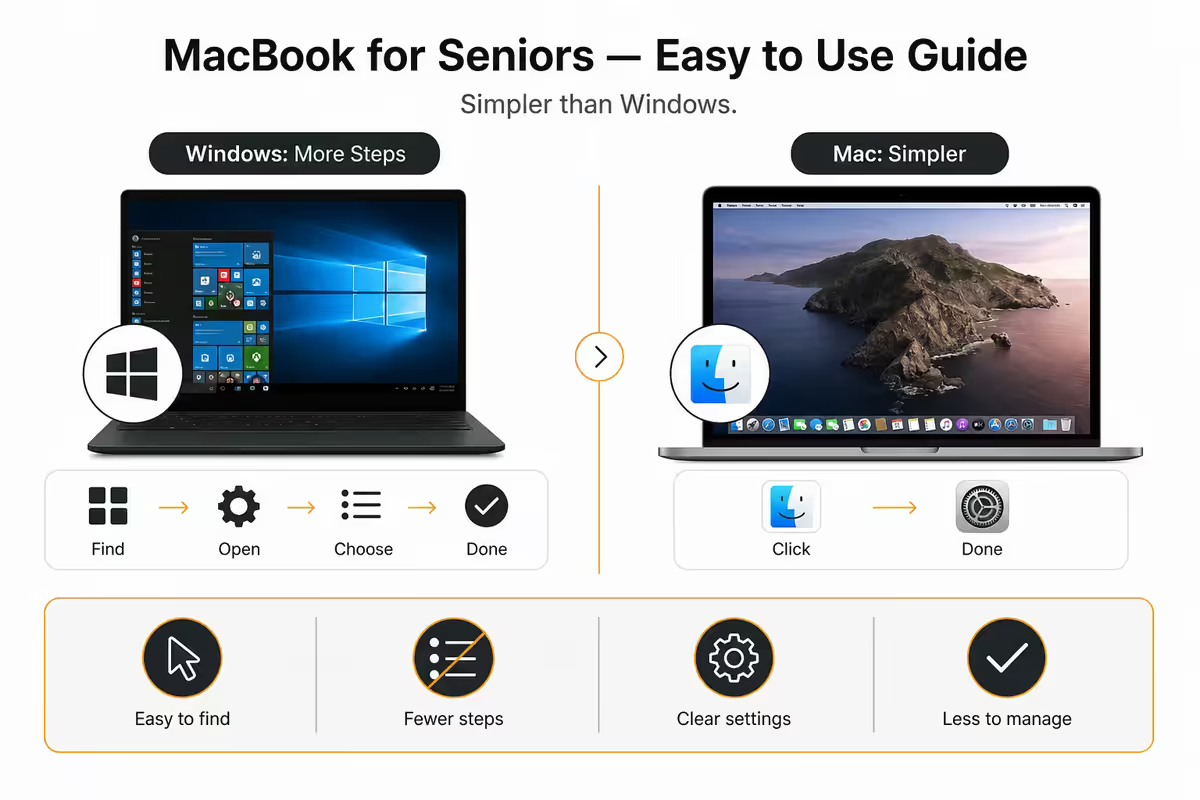
This is the part of the conversation tech-savvy children get wrong. They assume Windows is "what everyone uses" and so it must be the default. In reality, macOS is the lowest-friction mainstream computer for a non-technical user — and the gap has only widened in 2026.
A typical Windows 11 laptop greets a new user with: a Microsoft account sign-up, an OneDrive nag, three pop-ups asking to set Edge as default, a Copilot push, a McAfee trial that auto-renews, a printer driver wizard, and forty Start-menu tiles for apps they didn't install. By comparison, the first thing a new MacBook does is ask the user's name. Then it just works.
For an elderly parent, the genuine wins are:
- One App Store. No "download exe from random website." No tech-support scam pop-ups.
- The Dock and Menu Bar never move. The layout doesn't redesign itself every two years.
- Updates happen quietly overnight. No surprise restarts mid-letter.
- Built-in antivirus (XProtect) runs invisibly. No subscription, no nag screens.
- FaceTime, iMessage, Photos and Mail all come pre-installed and pre-configured.
The "Macs are for creative pros" framing is a marketing relic. In 2026, the most quietly senior-friendly computer on the planet is a MacBook Air.
Which MacBook to buy in SA
There is one right answer for nearly every senior buyer in South Africa, and three configurations to choose between.
| Configuration | Best for | SA price (2026) |
|---|---|---|
| MacBook Air M4 13" · 16 GB · 256 GB | The sweet spot for most seniors | R17,000-R19,000 |
| MacBook Air M4 13" · 16 GB · 512 GB | Lots of family photos & videos | R21,000-R23,000 |
| MacBook Air M4 15" · 16 GB · 512 GB | Severe vision difficulty, prefers big screen at home | R26,000-R29,000 |
| MacBook Pro 14" M4 | Overkill — skip unless they edit video | R32,000+ |
| iPad Air + Magic Keyboard | Tablet-first user who barely types | R15,000-R20,000 |
Why 16 GB and not 8 GB? macOS uses RAM intelligently, but 16 GB gives you 6-8 years of comfortable use rather than 4-5. The R1,500 upcharge is the single best long-term-value upgrade on the spec sheet.
Why 256 GB SSD is fine. If you turn on iCloud Photos and iCloud Drive (we recommend both — covered below), the storage on the laptop barely fills up. Photos live in iCloud; the Mac only caches recent ones.
macOS Accessibility setup — the 90-second walkthrough
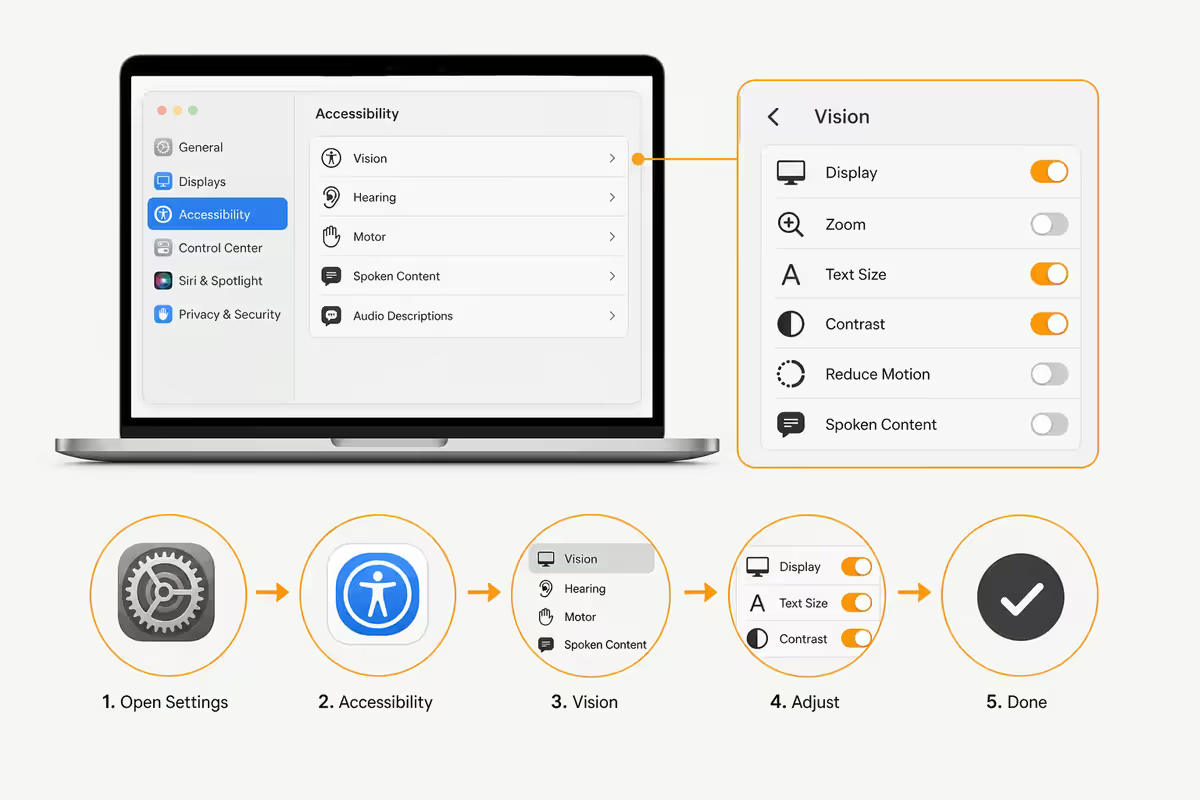
Apple's Accessibility menu is the single most under-used feature on the Mac. Every senior should switch on a handful of these the day the machine is unboxed. Open System Settings → Accessibility and walk through the following:
Vision
- Display → Larger Text: drag the slider one or two notches up. Affects Mail, Messages, Notes, Safari Reader — everywhere that matters.
- Display → Pointer Size: drag it surprisingly large. The cursor becomes findable without squinting.
- Display → Reduce Motion + Reduce Transparency: tick both. Less animation, more readable interface.
- Zoom: turn on "Use scroll gesture with modifier keys to zoom" (default: Control + scroll). Now zooming into anything is two-finger trackpad scroll while holding Ctrl.
- Hover Text: hold Cmd and hover anything — pops up a large enlarged tooltip showing what's under the cursor. Magic for small buttons.
- Spoken Content: highlight any text, press Option-Esc, the Mac reads it aloud in a natural voice.
Motor
- Voice Control: hands-free control via voice ("Click File", "Open Mail", "Scroll down"). Useful for users with arthritis or tremor.
- Sticky Keys: keyboard shortcuts work without holding multiple keys at once.
- Slow Keys: ignores accidental brief key presses — helpful for shaky hands.
Hearing
- Live Captions: on-screen subtitles for FaceTime, YouTube, Zoom — works on any audio system-wide.
- Mono Audio: useful for users with hearing loss in one ear.
- Hearing Devices: direct pairing with Made-for-iPhone hearing aids and AirPods Pro hearing-test feature.
The simple-layout Dock — what to pin, what to hide
By default, a new Mac's Dock has 14 apps in it, half of which a senior will never use. Trim it ruthlessly. Right-click each app you don't want → Options → Remove from Dock.
Pin only these — in this order — left to right:
- Safari (web)
- Mail (email)
- FaceTime (video calls)
- Messages (iMessage + SMS with kids)
- Photos (family albums)
- News (newspaper replacement)
- Notes (shopping lists, reminders)
- Calendar (doctor appointments)
- App Store (only place to install anything new)
- System Settings (in case help is needed)
Right-click the Dock → Dock Settings → drag Size and Magnification to large. Set Position to Bottom (never Left or Right — confuses muscle memory).
Also set Desktop & Dock → Stage Manager OFF, Hot Corners all set to "None" (accidental triggers are confusing), and Mission Control → Group windows by application OFF.
FaceTime with the grandkids — the killer app
If you only set up one thing on the Mac, set up FaceTime. The grandparent-grandchild video call is the genuine emotional centre of the device.
One-time setup: sign in to FaceTime with the Apple ID. Open Contacts, add every family member's name, mobile number and Apple ID email. Now FaceTime can call anyone in the contacts list with one tap. Show them how to tap a contact's name, then tap the green camera icon. That's the whole skill.
Centre Stage keeps the speaker's face centred and zoomed in even if they wander around the kitchen. SharePlay lets a grandparent watch the same movie or look at the same photo album as the grandchild while they talk — incredibly powerful for kids who get bored of "just talking".
Audio quality on FaceTime is genuinely better than WhatsApp video, Skype or Zoom — wider frequency range, smarter noise suppression, and the M-series chip handles the upscaling locally. The connection is end-to-end encrypted by default.
Apple Watch + iPhone + Mac — the medical-alert trio
For seniors who live alone, the Apple Watch + iPhone pairing is the most significant peace-of-mind upgrade in the family-care toolkit. The Mac doesn't directly pair with the Watch, but it joins the trio via iCloud — every reading, every alert, every Health entry syncs across all three.
The four features that matter most for seniors:
- Fall Detection (default ON for users 55+) — detects a hard fall, waits 60 seconds, then automatically calls emergency services and sends the location to designated family contacts. Available on Watch SE 2, Series 9 onwards, Ultra 2.
- Irregular Heart Rhythm Notifications — flags possible atrial fibrillation episodes in the background.
- Medical ID on Lock Screen — paramedics can swipe up on the locked Watch and see allergies, medications, blood type, and emergency contacts without unlocking.
- Emergency SOS — hold the side button until it sirens, then auto-dials emergency services. The cellular Watch Ultra 2 and SE 2 work without the iPhone nearby.
The Health app on the Mac lets the family see — with the senior's permission — their step count, average heart rate, sleep patterns and any flagged irregular events. It's not surveillance; it's a check-in that catches problems early.
Scams, phishing & the family safety rules
The number-one risk to a senior's MacBook isn't a virus. It's a phone call, an SMS, or a fake pop-up convincing them to hand over an Apple ID password or remote-access their machine. Train the family to follow these rules:
- Apple never calls you. Apple never SMSes you. Apple never asks for a password. If a call or message claims to be from Apple, hang up. Then ring the family.
- "Your computer is infected" pop-ups are always fake. macOS never displays these. Close Safari (Cmd-Q) and never tap the phone number on screen.
- Microsoft, SARS, Eskom and the bank never ask for remote-access software. If anyone tells the parent to install AnyDesk, TeamViewer or "remote support", the family rule is: hang up, then ring the kids.
- If the message creates urgency or fear, it's a scam. "Your account will be deleted in 24 hours" — scam. "Your tax is overdue" — scam. Real institutions don't operate on 24-hour deadlines with click-here links.
macOS already handles the technical layer. XProtect blocks known malware, Gatekeeper stops unsigned apps from running, and Safari Intelligent Tracking Prevention blocks the worst ad networks. The social-engineering layer is what training fixes.
Key takeaways
- macOS is genuinely simpler than Windows for non-technical seniors — fewer prompts, no antivirus nags, calmer interface.
- MacBook Air M4 13-inch, 16 GB, 256 GB at R17,000-R19,000 is the right buy for nearly every senior in SA.
- The 90-second Accessibility walkthrough — Larger Text, big Pointer, Reduce Motion, Hover Text, Spoken Content — transforms the daily experience.
- Pin only 10 apps to the Dock. Hide everything else. The home screen should feel like an appliance, not a workshop.
- FaceTime is the killer app. Pair with iPhone + Apple Watch for fall detection and Medical ID — total peace of mind.
- The family rule: Apple never calls, never SMSes, never asks for a password. Train this once and the scam risk drops 90%.
Frequently asked questions
Is a MacBook really easier than Windows for seniors?
Yes — fewer pop-ups, no antivirus prompts, no driver chaos, a single App Store, no surprise restarts, and almost zero ongoing maintenance. The Dock and Menu Bar never move. For a senior who wants to FaceTime grandkids and read news, MacBook Air M4 is the lowest-hassle laptop in SA in 2026.Which MacBook should I buy for an elderly parent?
MacBook Air M4 13-inch, 16 GB RAM, 256 GB SSD — R17,000-R19,000 at Evetech. Light, big enough to read with scaled text, M4 silicon will last 6-8 years of light use.How do I make the text and icons bigger on macOS?
System Settings → Displays → Larger Text. Desktop & Dock → Size slider for icons. Accessibility → Display → Pointer Size for the cursor. Safari has its own Reader View. Whole setup takes 90 seconds.What is VoiceOver and when should a senior use it?
Full screen reader for blind/low-vision users — has a learning curve. For mild vision difficulty, start with Zoom, Hover Text and Spoken Content — far easier than full VoiceOver.Can I set up a MacBook so my parent can't accidentally break it?
Yes — Standard user (not Admin), Screen Time limits, Find My on, iCloud Photos + Drive, pin only the apps they use, hide everything else.How does FaceTime work for keeping in touch with family?
Free, built in, works between any Apple devices. Tap a contact, tap FaceTime, call connects. SharePlay shares movies or photos during the call. Audio quality is far better than WhatsApp or Skype.Can the MacBook work with an Apple Watch for medical alerts?
Watch pairs with iPhone — Mac sees Watch data via iCloud. Fall detection, irregular heart rhythm alerts, Medical ID on lock screen, and Emergency SOS make Watch + iPhone + MacBook a complete senior-safety trio.What about scams, phishing emails, and viruses on a MacBook?
macOS has XProtect + Gatekeeper running silently — no third-party antivirus needed. Real risk is fake calls/SMS. Family rule: Apple never calls you, never SMSes you, never asks for a password.
Get the Evetech app
Exclusive app-only prices, daily flash sales, and free delivery on orders over R4,000 — download the app and start saving.