macOS Accessibility · The Full Menu
Every Accessibility feature, explained plain. — Vision. Motor. Hearing. Speech.
Apple's Accessibility suite has won international design awards for being the most comprehensive of any mainstream operating system. Most users have never opened the menu. Here's what's in it, who it's for, and how to switch it on.
- categories
- 5
- built-in features
- 40+
- extra cost. Ever.
- R0
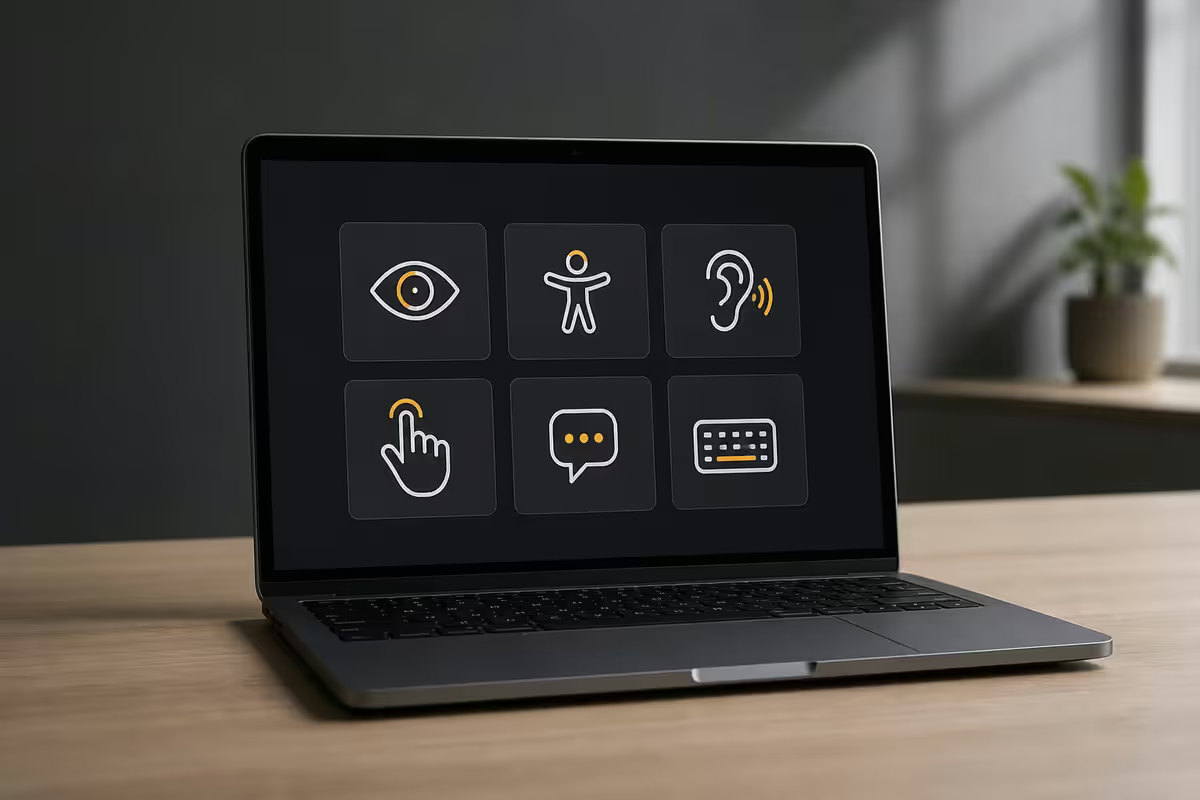
Apple's accessibility ethos — why it's different
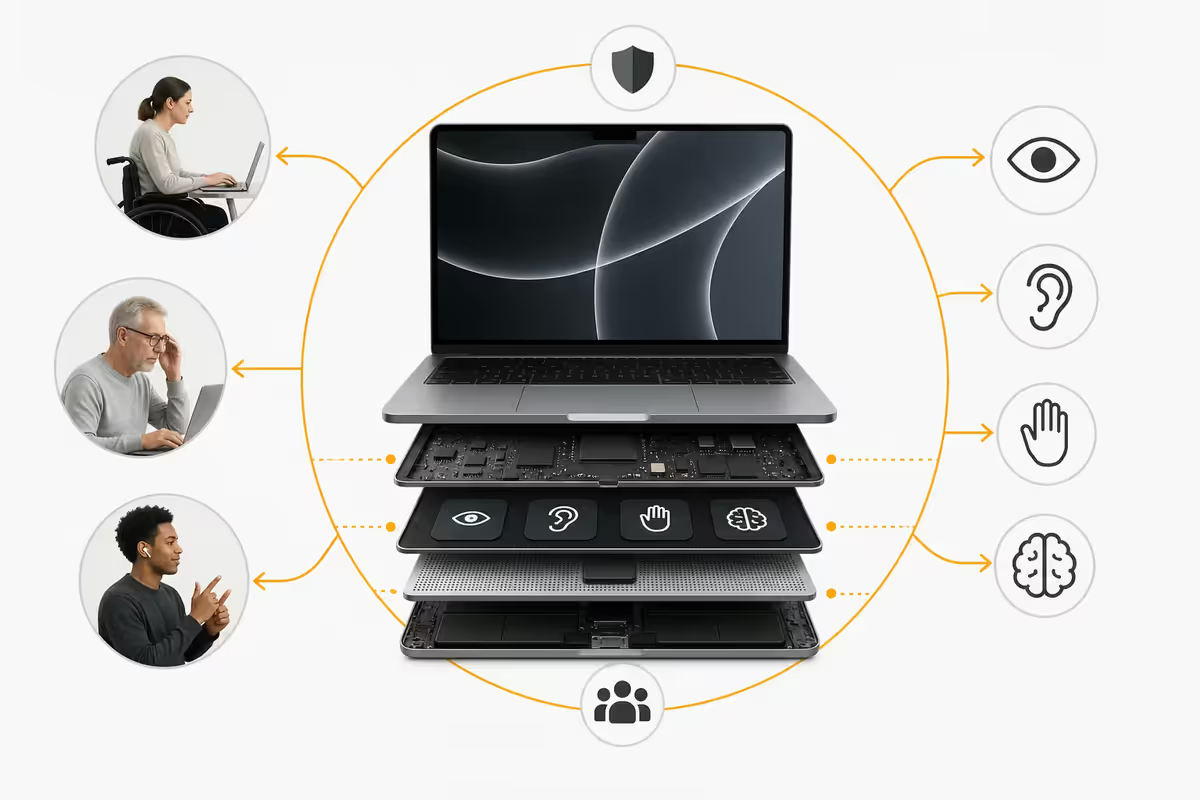
In 2026, Apple's Accessibility suite has won the iF Design Award, the Red Dot Design Award and the prestigious World Wide Web Consortium accessibility recognition. The reason isn't only the number of features — Windows has caught up on most individual capabilities. It's the design coherence: every Accessibility feature looks and behaves like a first-class macOS feature, not a bolted-on afterthought.
Three principles drive the design:
- Built-in, never an add-on. No App Store downloads, no subscriptions, no separate "Accessibility Edition" of macOS.
- On-device by default. VoiceOver, Live Captions, Voice Control and Personal Voice all run on the Neural Engine locally. No audio uploaded to a cloud, no privacy compromise.
- Compose-able with the rest of the system. Pair Voice Control with Shortcuts. Pair Live Captions with FaceTime. Pair Personal Voice with iMessage. The features aren't siloed.
The result is a system where a user with low vision, a user with arthritis, a user with severe motor impairment, and a user who's lost their voice can all use the same MacBook — without buying anything extra, without installing anything, without configuring a separate accessibility account.
Vision — for users with low vision, blindness or colour difference
VoiceOver
Apple's full screen reader. Speaks aloud every interface element, document, web page and notification. Activate with Cmd-F5 or System Settings → Accessibility → VoiceOver. Navigation uses the VO key (Control+Option) plus arrows: VO-Right reads the next element, VO-Space activates it.
There's a learning curve, but Apple ships a built-in VoiceOver Training course right in the same menu that walks through every gesture step by step. The VoiceOver Practice mode lets you try gestures without affecting the system. For braille users, VoiceOver pairs with over 70 refreshable braille displays out of the box.
Zoom
Magnifies the screen — full screen, picture-in-picture, or just hover. Configure via Accessibility → Zoom:
- Keyboard zoom: Cmd-Option-= to zoom in, Cmd-Option-Minus to zoom out.
- Scroll-gesture zoom: hold a modifier (default Ctrl) and two-finger scroll to zoom anywhere.
- Hover Zoom: a magnified window follows the cursor — great for low-vision users who want a magnifier without losing the rest of the screen.
- Touch Bar zoom (where applicable) magnifies a single area for proofreading.
Hover Text
Hold Cmd and hover any text — macOS pops up an enlarged, high-contrast tooltip showing what's under the cursor. Brilliant for users with mild vision difficulty who don't want to zoom the whole screen. Font, size, and colour are all customisable.
Display
A grab-bag of vision-quality-of-life toggles:
- Larger Text — system-wide text scaling for Mail, Messages, Notes, Safari Reader.
- Pointer Size — drag the cursor slider as big as you need. Surprisingly helpful for everyone.
- Reduce Motion — strips animation, less visual fatigue.
- Reduce Transparency — improves contrast against the wallpaper.
- Increase Contrast — bolder borders, darker text.
- Differentiate Without Color — adds shapes/labels to colour-coded UI for colour-blind users.
- Colour Filters — Greyscale, Red/Green, Blue/Yellow filters tuned for major colour-vision differences.
- Smart Invert / Classic Invert — dark-mode for apps that don't natively support it.
Spoken Content
Highlight any text anywhere in macOS, press Option-Esc, and the Mac reads it aloud in a natural voice. Configure speaking voice (over 100 voices in 30+ languages), speaking rate, and a hold-key-and-the-Mac-narrates-the-screen mode. Less daunting than full VoiceOver for casual reading.
Motor — for users with limited dexterity, tremor or paralysis
Voice Control
Control the entire Mac by speaking. "Open Mail." "Click Send." "Scroll down." "Show numbers" overlays a number on every clickable element so you can say "Click 7." Dictation mode lets you type entire emails by voice with punctuation commands ("comma", "new paragraph", "all caps").
Custom commands let you chain actions — say "Morning routine" and Voice Control opens Mail, Calendar and the news app at once. Runs on-device on M-series Macs; no audio uploaded.
Switch Control
For users with severe motor impairment. A switch can be a head switch, a sip-and-puff switch, a foot pedal, a single key on a keyboard, or even a head-tracking gesture from the front camera. macOS highlights one interface element at a time; the user activates the switch to select.
Configurable scanning patterns, dwell time, audio cues, and an entire on-screen keyboard mode. It's life-changing technology for users with ALS, cerebral palsy or quadriplegia — and it's been built into every Mac for over a decade at no extra cost.
Pointer Control
Refines the mouse and trackpad behaviour:
- Mouse Keys — control the cursor with the numeric keypad when a mouse isn't usable.
- Trackpad Options — tweak click force, dragging, drag lock, and three-finger drag for users with limited grip.
- Head Pointer — front camera tracks head movement to move the cursor. Pair with Dwell Control to "click" by holding still.
- Alternate Pointer Actions — replace clicks with sounds, facial expressions or other inputs.
Keyboard adaptations
- Sticky Keys — press modifiers one at a time. No more contorting fingers for Cmd-Shift-4.
- Slow Keys — ignores brief, accidental key presses. Helpful for tremor.
- Key Repeat tuning, including switching it off entirely for users who hold keys longer than intended.
- Accessibility Keyboard — an on-screen panel with custom buttons and dwell-click support.
Hearing — for deaf or hard-of-hearing users
Live Captions
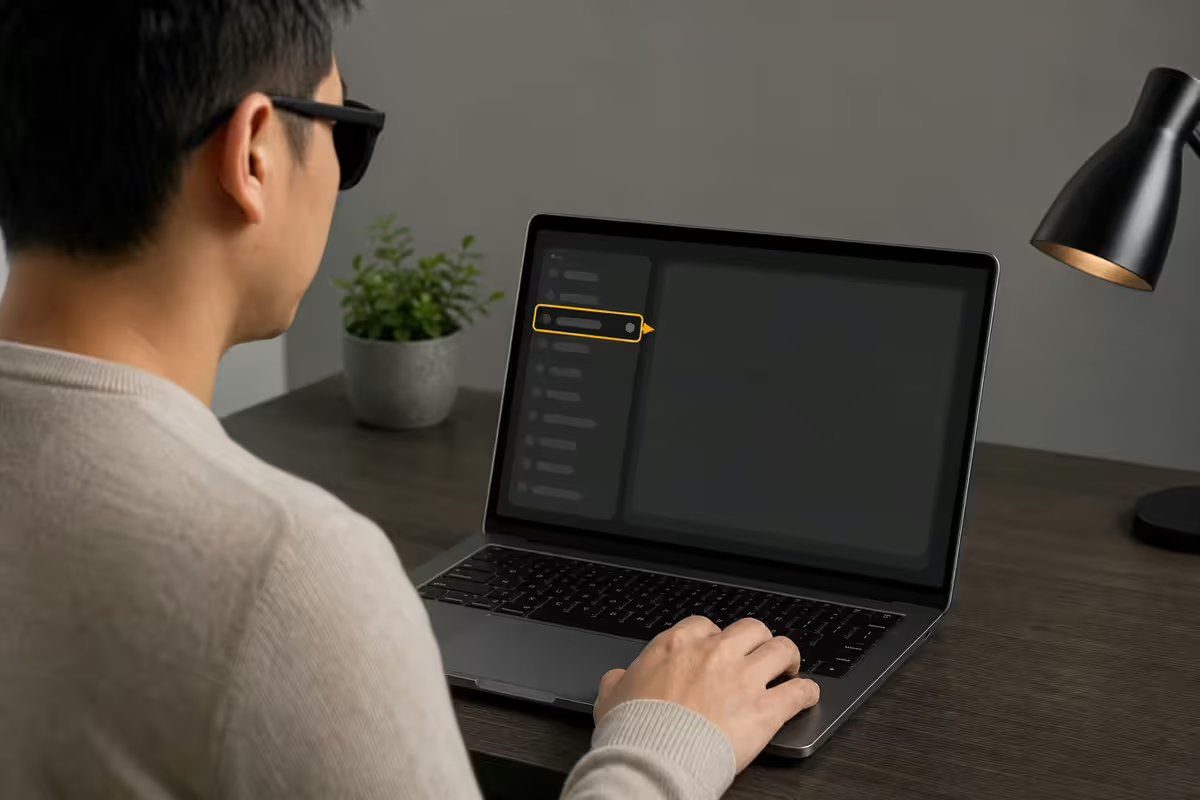
Real-time subtitles for any audio on the Mac — FaceTime, Zoom, YouTube, podcasts, system audio. Runs entirely on-device on M-series Macs using the Neural Engine, no internet required, no privacy concerns. Accuracy on clear English audio in 2026 is excellent — comparable to a professional human captioner for most use cases, including SA English accents.
Drag the captions window anywhere on screen. Resize the text. Choose colour scheme. Caption a real-world conversation by holding the Mac near the speaker (handy in meetings or noisy restaurants).
Hearing Devices & AirPods
macOS pairs natively with Made-for-iPhone (MFi) hearing aids — direct stereo audio streaming, no intermediate accessory required. Volume and program switching from the Menu Bar. AirPods Pro 2 onwards include a clinical-grade Hearing Aid feature: the Mac shows a hearing-test wizard, then the AirPods become FDA-cleared hearing aids for mild to moderate hearing loss. A genuine R5,000 medical device for the price of an audio accessory.
RTT (Real-Time Text)
Text-based phone calls — typed letters appear character-by-character on the recipient's screen as you type. The modern replacement for the TTY of the 1980s. Available where the local carrier supports RTT (not all SA networks — check with Vodacom/MTN/Cell C).
Mono Audio
Combines left and right stereo channels into both ears. Crucial for users with hearing loss in only one ear so they don't miss any audio panned to the "deaf side".
Visual & Haptic alerts
Screen flashes when an alert sound plays. Notifications flash the camera LED. Pair with an Apple Watch and the wrist taps for every alert — so a deaf user never misses a notification or doorbell.
Speech — for users who can't speak, or are losing their voice
Personal Voice
One of the most quietly profound features in any operating system. The user records 150 short randomly-chosen phrases on the Mac (about 15 minutes of speaking). The Neural Engine spends the next overnight charge training a synthetic voice that sounds like them.
If the user later loses their voice — to ALS, throat cancer, stroke, vocal cord surgery — they can type text into Live Speech (below) and the Mac speaks the words aloud in their original voice. The entire training process happens locally; no audio is uploaded to Apple or anywhere else.
For someone diagnosed with a degenerative speech condition, recording a Personal Voice while their voice is still strong is a quietly extraordinary gift to their future self and family.
Live Speech
Type a phrase, press Return, the Mac speaks it aloud using the system voice or the user's Personal Voice. Works in FaceTime calls, in-person conversations, lectures and the like. Pre-saved phrases ("Yes please", "Thank you", "Can you repeat that?") are available with a single click for common responses.
General — system-wide adaptations
- Accessibility Shortcut — triple-press the Touch ID button to toggle frequently-used Accessibility features on/off. Configurable to anything from VoiceOver to Zoom to Colour Filters.
- Siri — Type to Siri (instead of voice) and Voice Feedback control for users who prefer keyboard or silent operation.
- Apple Pay — completion confirmation by feedback instead of double-press for users with motor difficulty.
- iPhone Mirroring + AssistiveTouch — mirror an iPhone onto the Mac and use the Mac's accessibility features to control the iPhone. Effectively a way to make every iOS app inherit macOS's Accessibility stack — including Switch Control, Voice Control, and Hover Text.
- Vehicle Motion Cues — animated dots reduce motion sickness when using the Mac in a moving vehicle (passenger seat of a car, train, etc.).
Third-party & AAC apps that pair with macOS Accessibility
Apple's accessibility APIs are open to third-party developers, and the strongest apps make full use of them. Some standout examples:
| App | What it does | Works with |
|---|---|---|
| Proloquo + Proloquo2Go | Symbol-based AAC for non-speaking users | Switch Control, Voice Control |
| TouchChat | Text-to-speech AAC with research-backed vocabularies | Switch Control, Eye Tracking via iOS |
| Predictable | Word-prediction speech app for users with motor difficulty | Switch Control, Voice Control |
| Voice Dream Reader | Text-to-speech reading for dyslexia & low vision | Spoken Content, Hover Text |
| Microsoft Office for Mac | Strong VoiceOver support across Word, Excel, Outlook | VoiceOver, Voice Control |
| Zoom for Mac | Live Captions overlay + ASL pin support | Live Captions, VoiceOver |
| Tobii Computer Control | Eye-tracking pointer (with Tobii hardware) | Pointer Control, Dwell Click |
| OK Hand Tracking | Hand-gesture pointer using front camera | Pointer Control |
For users on a tight budget, Apple's built-in features cover the majority of what these specialist apps offer — particularly for users who don't have complex compound disabilities. The third-party ecosystem fills in the edges: AAC vocabularies tuned for autism, eye-tracking hardware for ALS, and specialised dyslexia readers.
Key takeaways
- macOS organises Accessibility into five categories: Vision, Motor, Hearing, Speech and General. 40+ features in total.
- Everything is built in, on-device, and free. No App Store downloads, no subscriptions, no privacy compromise.
- VoiceOver + Zoom + Hover Text for vision. Voice Control + Switch Control for motor. Live Captions + AirPods hearing aid for hearing.
- Personal Voice + Live Speech preserve a user's voice in their own voice — quietly profound for users facing speech loss.
- Third-party AAC apps (Proloquo, TouchChat) and eye-tracking hardware (Tobii) extend the system for edge cases.
- A MacBook prescribed by an OT for accessibility is a deductible SA medical expense — worth checking with your tax advisor.
Frequently asked questions
What Accessibility features does macOS include?
Five categories: Vision (VoiceOver, Zoom, Hover Text, Display, Spoken Content), Motor (Voice Control, Switch Control, Pointer Control, Sticky/Slow Keys), Hearing (Live Captions, Hearing Devices, RTT, Mono Audio), Speech (Personal Voice, Live Speech), General (Shortcut, Siri, Apple Pay, iPhone Mirroring). All built in, no extra cost.What is VoiceOver and how do I use it?
Apple's built-in screen reader. Activate with Cmd-F5. Navigation uses Control+Option+arrows. Built-in VoiceOver Training course walks through every gesture.How do I turn on Zoom on a Mac?
System Settings → Accessibility → Zoom. Ctrl + two-finger-scroll zooms anywhere. Cmd-Option-= for keyboard zoom. Hover Zoom follows the cursor.What is Voice Control on macOS?
Operate the Mac entirely by voice. "Open Mail", "Click Send", "Show numbers" overlays numbers on every clickable element. Designed for motor impairment, useful for hands-busy users too. Runs offline.What is Switch Control and who is it for?
Mac operation using a single switch (head switch, sip-and-puff, foot pedal, spacebar). Life-changing for users with ALS, cerebral palsy or quadriplegia. Built into every Mac for over a decade.What are Live Captions and how good are they?
Real-time subtitles for any audio on the Mac. Runs offline on M-series. 2026 accuracy excellent including SA English accents.What is Personal Voice and how does it work?
Record 150 short phrases (15 min). Neural Engine generates a synthetic voice that sounds like you. If you later lose your voice, type into Live Speech and the Mac speaks in your original voice. Runs locally.Do third-party Mac apps support Accessibility?
Yes — Proloquo, TouchChat, Predictable, Voice Dream Reader, Microsoft Office, Zoom, Tobii eye-tracking. Apple's accessibility APIs are open to developers.
Get the Evetech app
Exclusive app-only prices, daily flash sales, and free delivery on orders over R4,000 — download the app and start saving.