Mac Fix · Care
Clean and maintain your MacBook. — A 30-minute tune-up every six months.
Most MacBooks aren't ageing — they're just dirty. Compressed air, distilled water, the right angle and a software pass twice a year keeps a Mac looking and running like new, 4-5 years in.
- keyboard cleaning angle
- 75°
- tune-up schedule
- Every 6mo
- SA service price
- R450+
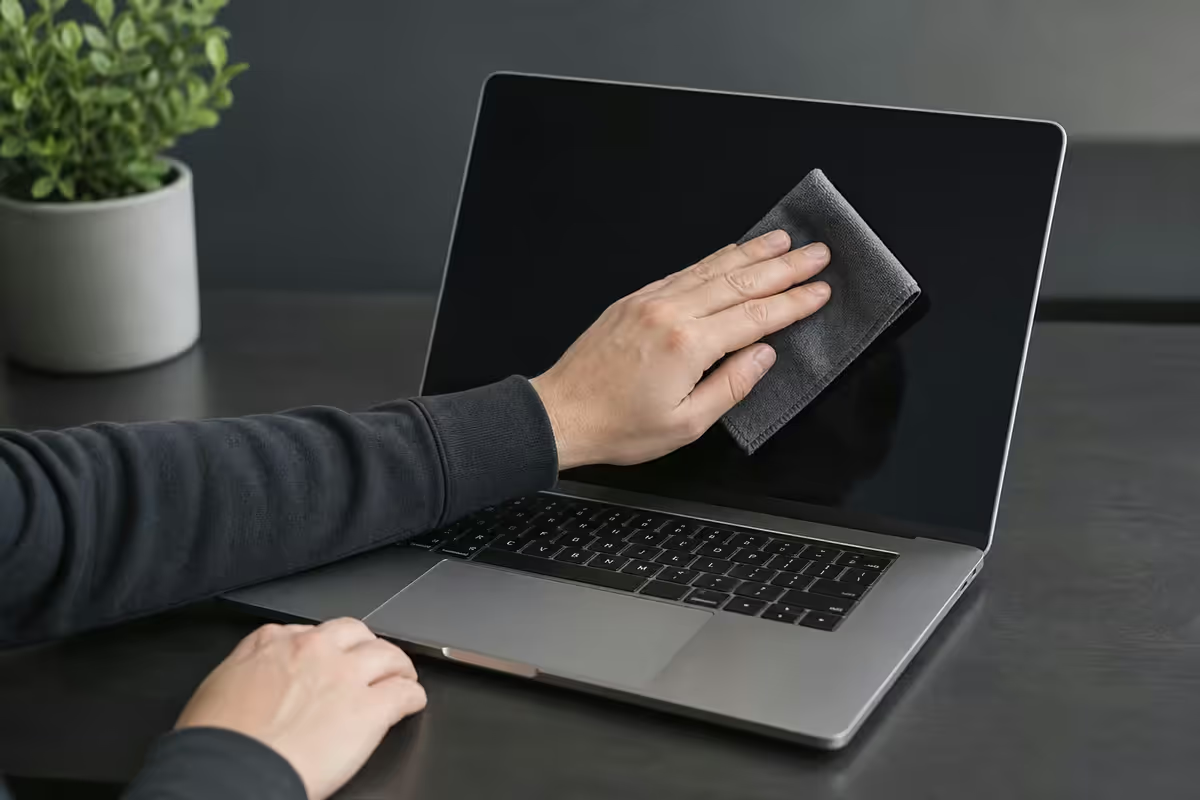
The cleaning kit (R350 once-off)
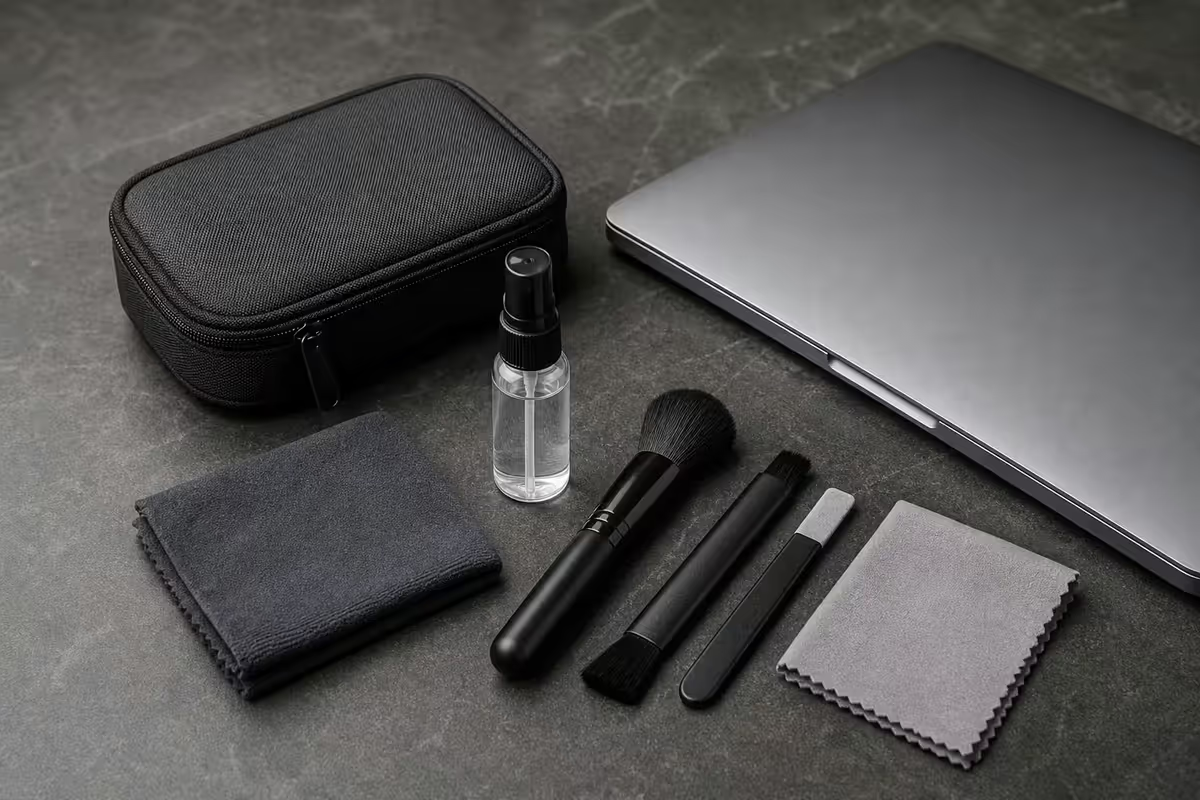
Half the battle is having the right stuff ready. Once you stock the basics they last for years.
| Tool | Use | SA price |
|---|---|---|
| Compressed air can (with straw) | Keyboard, vents, ports | R90-R140 |
| Microfibre cloths (3-5 pack) | Screen, palm rest, shell | R80-R150 |
| iKlear cleaner | Screen safe-clean liquid | R200-R250 |
| Distilled water (500ml) | Free alternative for screen | R30-R50 |
| Wooden toothpicks | USB-C lint removal | R20 |
| 70% isopropyl alcohol (small bottle) | Stubborn palm rest oil only | R30-R60 |
What NOT to buy: Windex, glass cleaner, ammonia-based anything, hydrogen peroxide, methylated spirits, kitchen towel, generic microfibre that turns out to be polyester knock-off. These all damage the screen's anti-reflective coating in ways that are visually obvious within months.
Keyboard cleaning — the 75° angle
Apple publishes specific guidance for keyboard cleaning, and they're right about the angle. The 75° tilt does two things: gravity pulls crumbs out, and air pressure dislodges them at the optimal direction relative to the key sleds.
The procedure:
- Shut down the Mac and unplug all cables.
- Tilt the laptop at 75° — three-quarters upright. Stand it on a folded towel or against a wall.
- Hold compressed air with the straw 1 cm above the keys. Spray in short bursts.
- Move across the keyboard in a zigzag pattern — left to right, then top to bottom.
- Rotate the MacBook 90° (left side now down). Repeat.
- Rotate 90° again (upside down). Repeat. Then 90° once more to finish.
- Wipe the surface with dry microfibre to catch any visible dust.
For stuck or sticky keys (after a juice spill or coffee splash): never pry off MacBook keys. The scissor mechanism is fragile and replacements are expensive. Take it to an AASP — the cleaning is straightforward but key removal requires the right tool.
Screen cleaning — distilled water or iKlear
The MacBook screen is the most damage-prone surface and the easiest to wreck with the wrong cleaner. Get this one right.
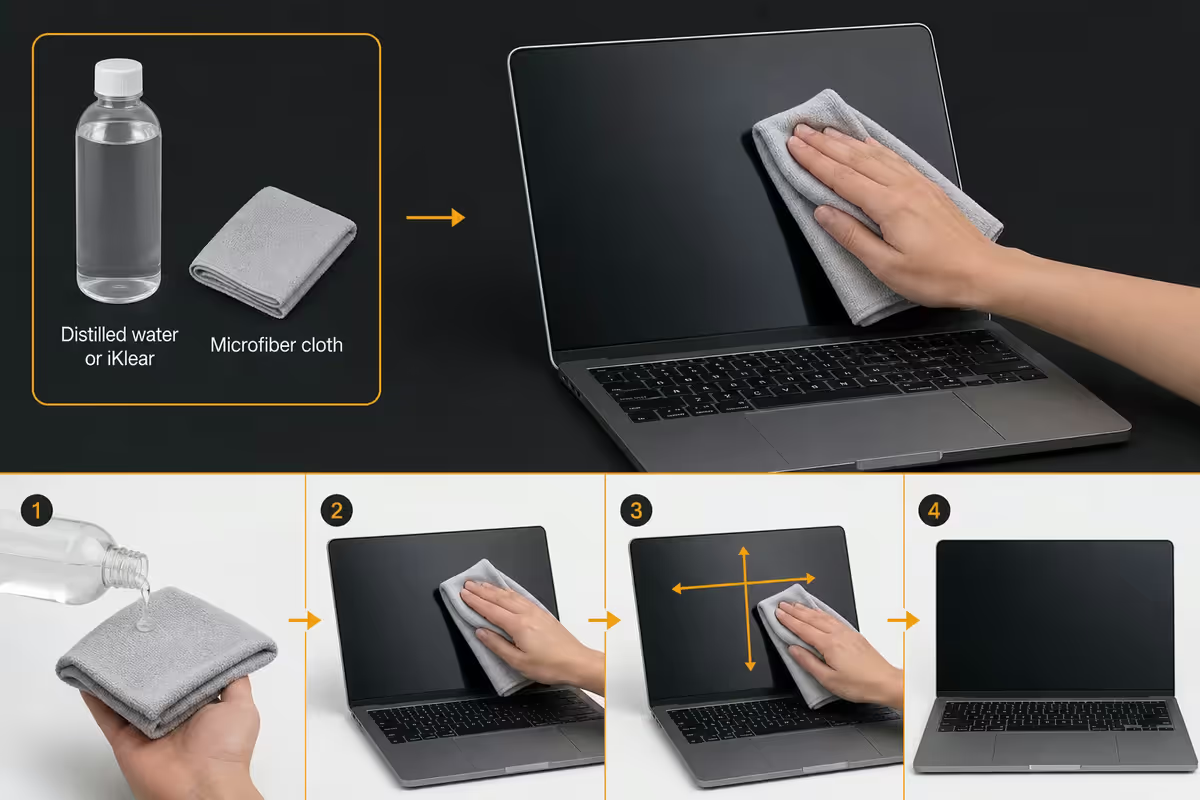
Apple's official position: shut down, unplug, use a soft, lint-free microfibre cloth (the polishing cloth that ships with Studio Display works well, or the one in your iKlear box). For oily marks, slightly dampen with distilled water or iKlear cleaner. Wipe in straight lines or gentle circles — never scrub.
Why distilled water and not tap water: tap water contains minerals (calcium, fluoride, chlorine) that leave white spots and streaks as they dry. Distilled water evaporates clean. R30-R50 a bottle at any pharmacy lasts years.
Why iKlear: the only mass-market cleaner officially documented as Apple-safe — non-streaking, anti-static, leaves no residue and is gentle on the anti-reflective coating. R200-R250 for a small bottle that lasts 1-2 years.
What kills screens:
- Glass cleaner / Windex — ammonia strips anti-reflective coating, leaving cloudy patches
- Hydrogen peroxide — strips coatings, can yellow plastic bezels
- Kitchen towel / tissue — fibres scratch the coating microscopically
- Spraying liquid directly on the screen — liquid migrates under the bezel and can damage the display panel. Always spray onto the cloth.
- Scrubbing — even with the right cloth, hard scrubbing wears the coating
The palm rest oil problem
Below your wrists, the aluminium palm rest accumulates a slight greasiness over time — skin oils, lotion residue, the occasional food crumb. Left alone it builds into visible darker patches that feel slightly tacky.
Weekly maintenance: wipe down with dry microfibre. Done.
Monthly deeper clean: lightly damp microfibre with distilled water. Wipe in straight lines from one side to the other. Dry with a second microfibre.
For stubborn oil residue (3+ year MacBook): a tiny drop of 70% isopropyl alcohol on the cloth (never the Mac). IPA cuts oil quickly without damaging the anodised finish. Apply, wipe, dry immediately. Don't let IPA pool or sit — extended exposure can dull the anodisation finish.
The trackpad: microfibre + distilled water only. The haptic trackpad surface is precision-engineered and reacts badly to alcohol or chemical cleaners. If something sticky won't come off, take it to a service centre — don't experiment.
Ports, vents and lint
USB-C ports gather pocket lint that prevents proper charger seating. The symptom: "the charger only works at certain angles" or "the magsafe / USB-C clicks in but doesn't charge."
The fix:
- Power off the Mac.
- Use a wooden toothpick — never metal (shorts pins, damages the receptacle).
- Gently rotate the toothpick inside the port to dislodge compacted lint.
- Tilt the Mac and tap gently to drop the lint out.
- Finish with a short blast of compressed air.
Vents (on Pro models with active cooling): compressed air blown across (not into) the vent grilles dislodges accumulated dust. On Apple Silicon Air models (M2/M3/M4) there are no vents — the chassis is the heat exchanger. Don't worry about it.
Speaker grilles: compressed air at an angle (not perpendicular) to push dust out rather than further in. A soft brush from a camera cleaning kit also works well.
Shell case vs sleeve — the heat debate
There's a genuine trade-off here and the answer is clearer than most reviewers admit.
Hard shell cases (clip-on plastic — Speck, MOSISO, etc.):
- Pros: scuff protection, helps in school/student bags with rough handling, available in fun colours
- Cons: traps heat — the aluminium body IS the heatsink. Insulating it raises operating temperature 3-6°C, which translates to noisier fans and slightly faster battery wear
- Verdict: fine for light-use Macs (Air, browsing only). Don't put one on a MacBook Pro running heavy workloads
Hard sleeves (Tomtoc, Bellroy, Incase Compact Sleeve, Peak Design):
- Pros: transport protection without thermal cost, easy on/off, often water-resistant, professional appearance
- Cons: the Mac is unprotected while in use
- Verdict: best balance for most users. Tomtoc starts around R350 in SA, Bellroy and Peak Design closer to R900-R1,500
The "patina" argument: Apple designs the aluminium body to age gracefully — small scuffs and dings on a 4-year-old MacBook are part of the look. Excessive case-paranoia about scratches is more anxiety than necessity. The screen, hinge, and ports are the failure-prone parts; the shell is just cosmetic.
Updates — always Time Machine first
Every 6 months when you do the cleaning tune-up, take 30 minutes to run the software pass too. The order matters.
- Plug in the Time Machine drive and let the hourly backup complete. Verify "Latest backup: just now" in the menu.
- Run macOS update. System Settings → General → Software Update. Apply all available updates. Let the Mac restart and settle (10-15 minutes).
- Update apps. App Store → Updates. Then Adobe Creative Cloud, Microsoft 365 (autoupdate is fine for these too).
- Run another Time Machine backup after updates settle — gives you a clean post-update restore point.
- Storage check. System Settings → General → Storage → run Recommendations.
- Battery health check. System Settings → Battery → Battery Health → verify Maximum Capacity hasn't suddenly dropped.
The reasoning for backup-first: macOS updates are stable 99.9% of the time, but the 0.1% case (rare incompatible kext, third-party driver conflict, weird FileVault interaction) leaves you booting to a recovery screen with no clean rollback. A fresh Time Machine snapshot taken minutes before the update is the difference between "frustrating evening" and "Genius Bar appointment."
Across the Macs we service at Evetech, the Macs that look (and run) like new at year 4 share three traits: a sleeve not a shell, compressed air every 6 months, and Time Machine that's actually current. The Macs that show their age at year 2 share opposite traits: shell case trapping heat, vents clogged with dust, owner skipping macOS updates "because it was working fine." The single biggest predictor of MacBook longevity isn't the spec sheet — it's whether anyone's looked after it. The R450 vent service we offer at the bench buys most older Pros another 2-3 years of cool, quiet operation.
Evetech Mac Service Team — From our service bench
Common cleaning mistakes
Spraying liquid directly on the screen or keyboard. Liquid migrates under the bezel and into the keyboard mechanism. Always dampen the cloth, never the Mac.
Using Windex or glass cleaner. Strips the anti-reflective coating. Permanent damage on Retina screens.
Removing keys to clean underneath. MacBook key sleds are fragile. Reseating them correctly requires specialist tools. Take it to AASP if you must.
Compressed air can held upside down. Releases liquid refrigerant onto the keyboard. Freezes electronics. Always upright.
Updating macOS without a backup. 99.9% of the time it's fine. The 0.1% case is a 4-hour problem that 5 minutes of preparation prevents.
Hard shell on a MacBook Pro running heavy workloads. Heat trapping accelerates fan wear and shortens overall lifespan. Sleeve only on a Pro.
Key takeaways
- Keyboard at 75°. Compressed air upright. Zigzag pattern, four rotations.
- Screen: microfibre + distilled water or iKlear. No Windex, no kitchen towel.
- Wooden toothpick (never metal) for USB-C lint. Compressed air to finish.
- Sleeve, not shell. Aluminium body is the heatsink — don't insulate it.
- Update order: Time Machine first, macOS update second, app updates third.
Frequently asked questions
How do I clean my MacBook keyboard properly?
Shut down. Tilt at 75°. Compressed air with straw, upright can, zigzag pattern. Rotate 90° and repeat. Apple's official guidance.What's the best thing to clean a MacBook screen with?
Lint-free microfibre cloth lightly damp with distilled water or iKlear. Never Windex, ammonia, hydrogen peroxide or kitchen towel — they strip the anti-reflective coating.How often should I clean my MacBook?
Weekly dry wipe of screen and keyboard. Monthly damp microfibre. Full 6-month tune-up with vents, ports, software updates twice yearly.How do I remove lint from a MacBook USB-C port?
Power off. Wooden toothpick (never metal) to dislodge. Tilt and tap. Compressed air to finish. Diagnose with "charger only works at certain angles."Should I use a case on my MacBook?
Sleeve yes (Tomtoc, Bellroy, Peak Design). Shell case iffy — traps heat and the aluminium body is the heatsink. Don't shell a MacBook Pro running heavy workloads.How do I clean the palm rest and trackpad?
Damp microfibre + distilled water. Stubborn palm rest oil: tiny drop of 70% IPA on the cloth. Trackpad: damp microfibre only — no chemicals.What's the right order for macOS updates and Time Machine?
Time Machine first, always. Then macOS update, then big app updates. The fresh snapshot is your insurance against the rare bad update.How much does a professional MacBook service cost in South Africa?
R450-R600 for external clean and vent service. R900-R1,400 for full diagnostic + internal dust + fan + thermal paste + software optimisation. AppleCare+ doesn't cover routine cleaning.
Get the Evetech app
Exclusive app-only prices, daily flash sales, and free delivery on orders over R4,000 — download the app and start saving.