Dual Monitor Setup Guide
How to set up dual monitors. — Matched pair. Centre-on-primary. Arms.
Two screens is a known productivity upgrade — but it's not just plug them in and go. Positioning, height matching, and the angle you toe them inward are the difference between an upgrade and a year of neck strain.
Matched pair vs mismatched — does it matter?
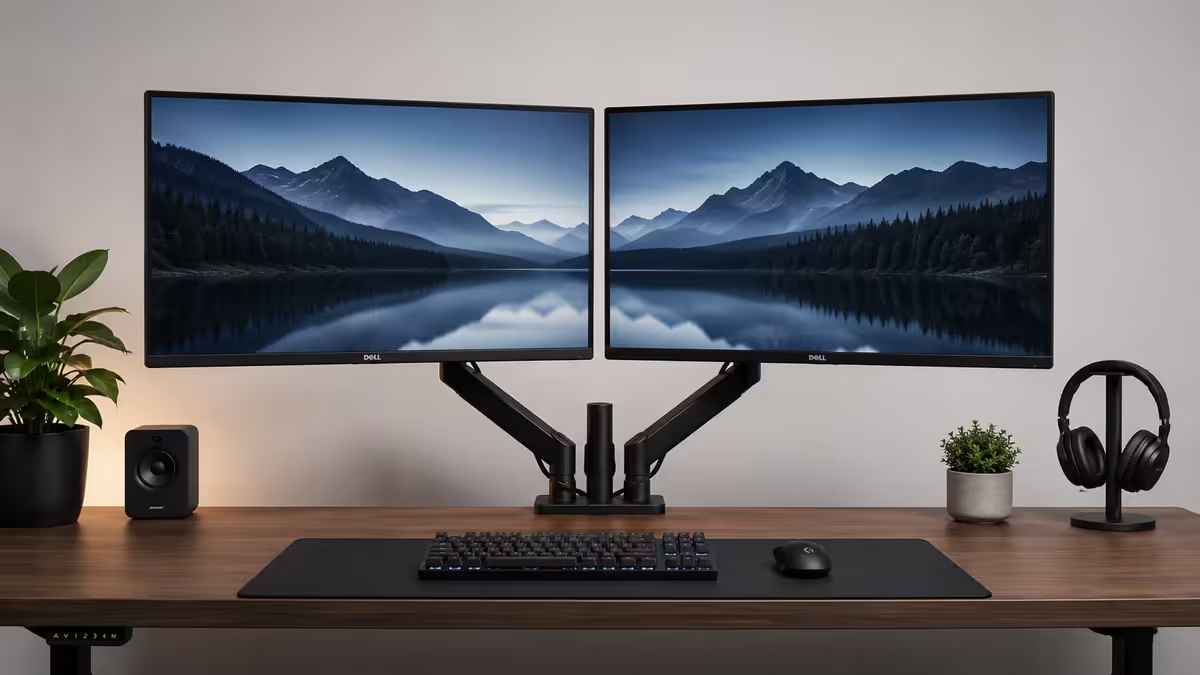
Matched monitors (same model, same size, same panel) give you the cleanest, most professional setup — bezel-to-bezel alignment, identical colour, identical brightness response. Your eye drifts across the visual field without needing to re-adjust.
Mismatched monitors work just fine functionally. Many people pair a new high-end primary (27-inch 1440p IPS) with an existing 24-inch 1080p secondary and the productivity gain is essentially the same. You'll notice the size and colour difference, but you stop noticing it within a week of use.
Match when: you have the budget to buy both new at once, or you work in colour-critical fields (design, photo, video). Mismatch is fine when: you're upgrading incrementally, the secondary is just for chat/Slack/reference docs, or you're starting on a budget.
27-inch 1440p — why it's the dual-monitor sweet spot
The size choice for dual monitors is one of the most over-thought decisions. The answer in 2026 is consistent across productivity research, eye-strain studies, and real-world adoption:
| Size pair | Best for | Trade-off |
|---|---|---|
| Dual 24" 1080p | Budget / WFH starter | Feels cramped after a year; text scaling needed at desk distance |
| Dual 27" 1440p | Most productive workflows | The sweet spot — sharp text, two docs at native scale |
| Dual 27" 4K | Designers, video editors | Needs scaling at 100% (text is tiny native); higher GPU/cable demands |
| Dual 32" 1440p | Code, large datasets | Too wide — eye swing across the full field strains over hours |
| Dual 32" 4K | Pro creative + reference | Premium pricing, needs 32-inch desk width per screen |
Twin 27-inch 1440p is the sweet spot because: the pixel density (109 PPI) is sharp enough to read 11-12pt text without scaling, the physical width fits 140cm-160cm desks side-by-side, and the viewing field stays inside your natural cone of attention without head-turning. You can also place two A4 documents side-by-side at native scale — which 1080p screens force into scaling.
Centre-on-primary positioning
This is the single most common dual-monitor mistake: people centre their chair on the gap between the two monitors. It feels symmetrical but it's wrong.
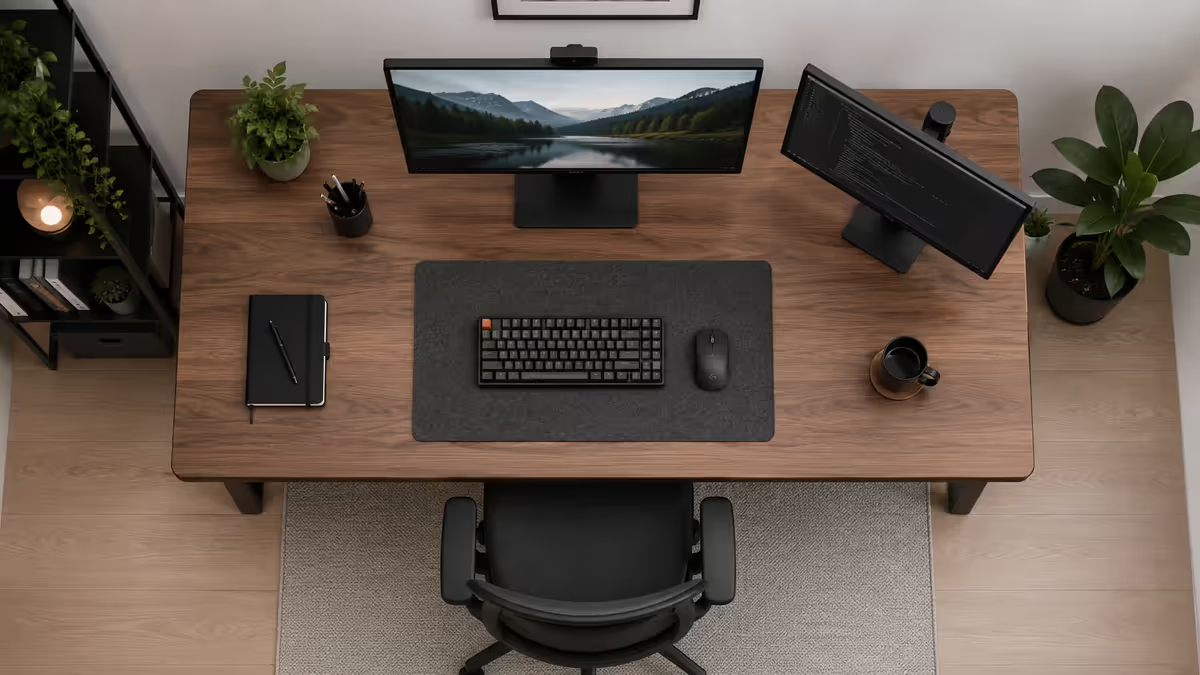
You will use one monitor — your primary — for 80-90% of your active work. Email, chat, reference docs, secondary tools live on the other screen and you glance at them. So your chair should centre on the centre of the primary, not on the gap.
The gap-centred setup has you turning your head all day to look at the primary, which becomes neck strain by month two. The primary-centred setup has your dominant monitor straight in front of you and your secondary off to one side at a glance.
Inward angle — toe them in 3-7 degrees
Two flat-parallel monitors mean the outer edges of each screen are further from your eye than the inner edges. Your eye focal distance shifts as you look across — small but real strain.
Solution: rotate each monitor inward 3-7 degrees so the surface of each screen faces toward your seated position. The outer and inner edges are now equidistant from your eye, focal distance stays consistent, and head-turn to read the far edges drops dramatically.
3 degrees is enough to feel the difference; 7 degrees is the maximum before the monitors look "facing each other" from the side. Monitor arms make this trivially adjustable. Fixed stands need shifting the stand base position to achieve the angle — annoying but worth it once.
Monitor arm vs stand — the dual-monitor amplification
For single monitors, an arm is a nice upgrade. For dual monitors, an arm is transformative. Here's why:
- Free desk space. Two monitor stands eat 40-60cm of desk depth each. Two arms attach to the rear edge of the desk and leave the entire surface clear. You can store keyboards, paperwork, even a laptop dock under the screens.
- Independent adjustment. Tilt the secondary monitor up to fit a phone-stand under it; pull primary forward when you need it close, push back when you don't. One-handed.
- Matched heights for free. Two stands with different bases will never sit exactly level. Two arms on the same rail (or two single arms) align top-edges perfectly.
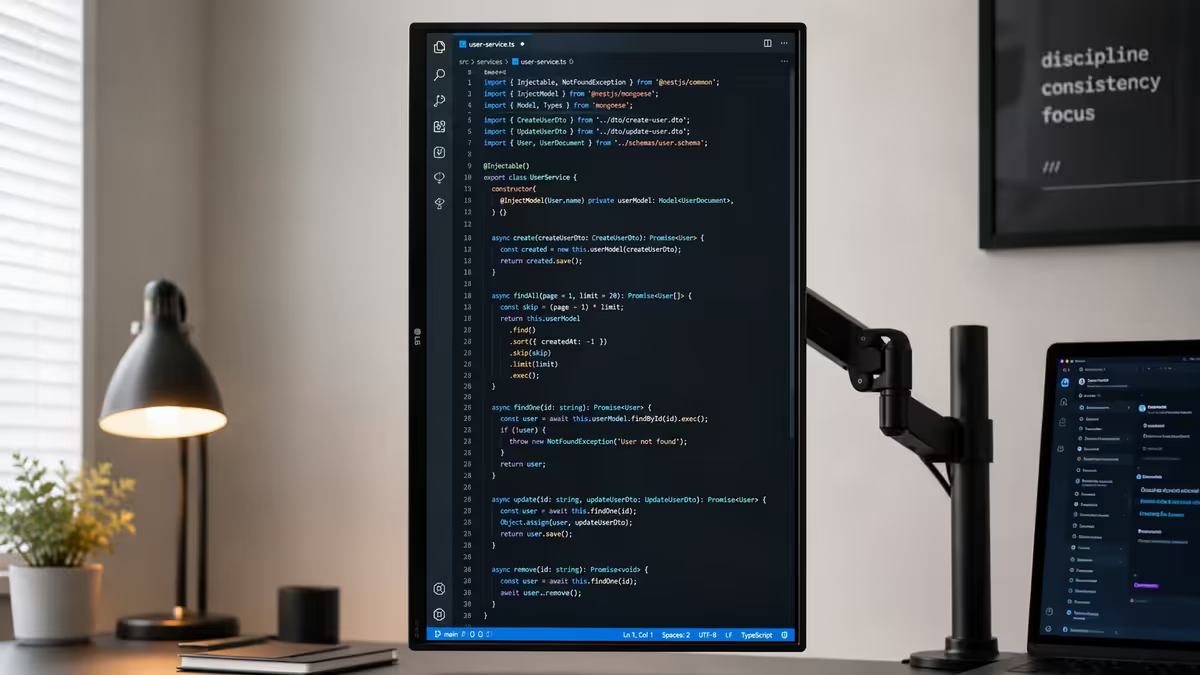
- Pivot to portrait. Many arms support 90-degree rotation. Brilliant for code review, document editing, or reading a long chat log on the secondary.
| Arm type | Best for | SA price |
|---|---|---|
| Single arms (two of them) | Most flexibility | R900-R1,800 each |
| Dual rail-mount arm | Matched movement, single clamp | R1,500-R3,500 |
| Heavy-duty (32"+ screens) | Ergotron LX HD, Brateck Pro | R2,500-R6,000 |
Primary on left or right — does it matter?
There's no universally correct answer. The right framework:
- Right-handed users: primary on the right tends to feel more natural — your dominant hand and primary screen align, mouse cursor lives where your visual attention sits.
- Left-handed users: primary on the left for the same reason.
- Interruption-driven workflows: if your secondary holds email/Slack/Teams (interrupters), put it on the off-hand side. Reduces visual draw on your primary work and only get pulled in when you intentionally look across.
- Reading-direction workflows: some users prefer primary on the left because they cluster windows left-to-right and want primary in the natural reading-start position.
Pick one based on the framework above, live with it for two weeks, and only switch if it actively bothers you. Most users settle into either side within a few days.
Windows display settings — the 5-minute setup
When you plug in the second monitor, Windows usually detects it automatically. The configuration steps that actually matter:
- Right-click desktop → Display settings. Drag the two monitor rectangles in the diagram to match your physical layout. Critical: the rectangles must match physical position or your mouse will jump weirdly between screens.
- Identify monitors. Click "Identify" to see which Windows-numbered monitor is which physically. Make the primary monitor (your dominant work screen) "Display 1" via the "Make this my main display" checkbox.
- Set resolution to native for each monitor (1920×1080 for 24" 1080p, 2560×1440 for 27" 1440p, 3840×2160 for 4K).
- Set scaling. 100% for 1440p at desk distance; 125% for 27" 4K; 150% for 32" 4K. Both monitors can have different scaling values — Windows handles per-monitor DPI fine.
- Multiple displays → Extend these displays (not duplicate, not single).
Taskbar configuration: Settings → Personalisation → Taskbar → "Show my taskbar on all displays" — turn ON. Then "Show taskbar buttons on" — "All taskbars" if you want both to show all open windows, or "Taskbar where window is open" if you prefer windows only show on their own taskbar.
Power-user shortcuts and software
| Shortcut | Action |
|---|---|
| Win + Left/Right | Snap window to half of current monitor |
| Win + Shift + Left/Right | Move window between monitors |
| Win + Up/Down | Maximise / restore window |
| Win + P | Project menu (Extend/Duplicate/Single) |
| Win + Tab | Task View (all open windows) |
| Win + Ctrl + D | New virtual desktop |
| Win + Ctrl + Left/Right | Switch virtual desktops |
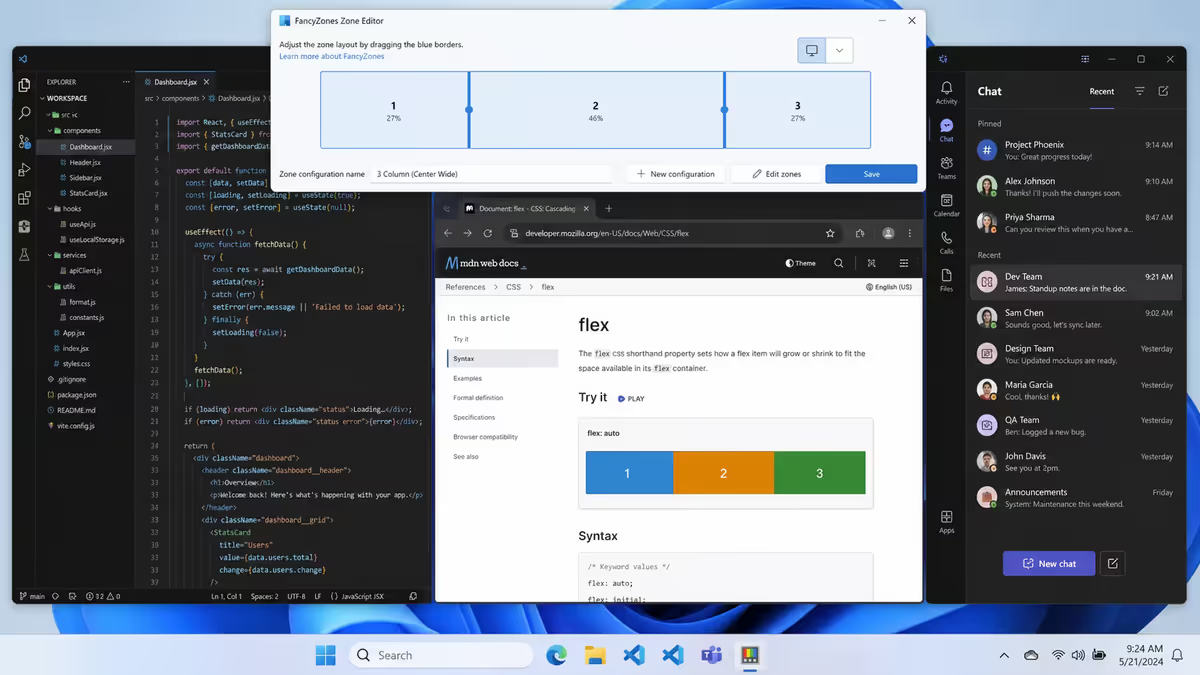
Microsoft PowerToys (free) — the single highest-impact dual-monitor power-up. Install it and enable:
- FancyZones — custom window-grid layouts per monitor. Draw your own zones, hold Shift while dragging windows to snap into them. The killer feature for power users.
- PowerToys Run — Alt+Space launcher (like Mac Spotlight).
- Always On Top — Win+Ctrl+T pins any window above all others. Brilliant for a video call window or notes overlay.
- Awake — prevent sleep mode without changing system power settings.
DisplayFusion (paid, R650 once-off): the premium alternative. Adds title-bar buttons to move windows between monitors with one click, per-monitor wallpaper, taskbar enhancements. Worth it for heavy multi-monitor users; PowerToys is enough for most.
Height and brightness matching
Height: both monitors should have their top edge at eye level when you sit upright. Match the heights exactly — a 5cm difference between left and right screen produces a subtle but persistent neck-tilt strain over hours. Monitor arms make this easy; stands require careful positioning.
Brightness: open each monitor's OSD (the buttons on the side or behind the screen) and set both to the same brightness percentage (typically 35-50% in a normally-lit room). Set both to the same colour temperature — 6500K is standard sRGB. Set contrast to default (typically 75-80%). Don't trust factory presets to match — they often don't.
Colour critical work: a hardware calibrator (X-Rite i1Display Pro, SpyderX) costs R3,500-R5,500 in SA and creates a precise ICC colour profile for each monitor. Windows loads the right profile per monitor automatically. Essential for design, photo and video work; overkill for typical office use.
Common dual-monitor mistakes
Centring on the gap between monitors. The most common mistake. Causes head-turning all day to view the primary screen. Centre on primary, place secondary at a glance.
Flat-parallel monitor placement. No inward angle means outer edges further from your eye than inner edges — focal-distance fatigue. Toe each monitor 3-7° inward toward your seated position.
Mismatched heights. A 5cm height difference between left and right screen produces persistent neck-tilt over hours. Match heights exactly — arms make this easy, stands need adjustment.
Skipping the monitor arm. Stock stands take 40-60cm of desk depth each and don't share. A pair of arms (R900-R1,800 each) frees the entire desk surface and pays back in productivity within months.
Buying mismatched brightness/colour and never calibrating. Two monitors with different factory brightness settings produce eye strain. Five minutes in each OSD to match brightness and colour temperature fixes this permanently.
Key takeaways
- Twin 27-inch 1440p IPS is the productivity sweet spot — sharp, fits, native scale for two A4 documents side-by-side.
- Centre on your primary monitor — never on the gap between two screens.
- Angle each monitor 3-7° inward toward your chair to keep focal distance and head-turn even.
- Monitor arms transform dual setups — free desk space, easier height-matching, one-handed adjustment.
- Install PowerToys for FancyZones — the single highest-impact dual-monitor productivity tool on Windows.
Frequently asked questions
Should both monitors be the same model?
For the cleanest setup, yes — matched bezels, size and colour. But mismatched works fine functionally; many users pair a new primary with an existing secondary and the productivity gain is the same.What size dual monitors are best for productivity?
Twin 27-inch 1440p is the sweet spot. Sharp text without scaling, fits 140cm-160cm desks, and stays inside your natural cone of attention without head-turn.How should I position dual monitors?
Centre your eye-track on the primary monitor (not the gap). Angle both monitors 3-7° inward toward your chair. Match heights with top edges at eye level.Is a monitor arm worth it for dual monitors?
Yes — even more so than for single monitors. Frees desk space, lets you adjust with one hand, and keeps screen heights matched. R1,500-R3,500 in SA.Should my primary monitor be on the left or right?
Right for most right-handers (mouse-hand side), left for left-handers. If your secondary holds Slack/email, put it on the off-hand side to reduce visual draw.How do I match colour and brightness between two monitors?
Manually match brightness, contrast and colour temperature (6500K) in both monitor OSDs. For colour-critical work, a hardware calibrator (X-Rite i1Display, SpyderX) creates ICC profiles per monitor.What Windows shortcuts help with dual monitors?
Win+Arrow to snap, Win+Shift+Left/Right to move windows between monitors, Win+P for project menu. PowerToys FancyZones is the killer add-on for custom layouts.Should I consider an ultrawide instead?
Ultrawide wins on no-bezel and immersive games. Dual 27-inch wins on total pixels, video-call flexibility, and independent screen management. Different trade-offs for different workflows.
Get the Evetech app
Exclusive app-only prices, daily flash sales, and free delivery on orders over R4,000 — download the app and start saving.