Productivity Guide
How to set up a MacBook for work. — Everything via shortcut. Mouse optional.
The default macOS install is fine for casual use. For real work — Slack, Notion, Linear, calendar, deep focus — you want a keyboard-first system that vanishes into muscle memory.
- total setup time
- 30 min
- modes minimum
- 3 Focus
- to memorise
- ~25 keys
The productivity philosophy — everything via shortcut
A well-configured MacBook isn't measured by app count. It's measured by how often your hand leaves the keyboard. Every time you reach for the trackpad to find a window, search a doc, jump between meetings or check Slack, you lose the thread.
The setup in this guide is built on one principle: any action you do more than twice a day should be one keyboard shortcut away. Not a Dock click. Not a Spotlight + type + arrow + enter sequence. One chord, instant result.
| What you do | Default Mac | This setup |
|---|---|---|
| Open Slack DMs | Click Dock → click DM tab | ⌘⇧K |
| New Linear ticket | Open app → click New Issue | ⌃Space → "ticket" → type |
| Snap window to right | Drag with trackpad | ⌃⌥→ |
| Search any Notion doc | Open Notion → click search | ⌘P |
| Switch to Deep Work focus | Manual Control Centre toggle | Auto at 09:00 daily |
| Emoji picker | ⌃⌘Space → scroll | :joy → instant |
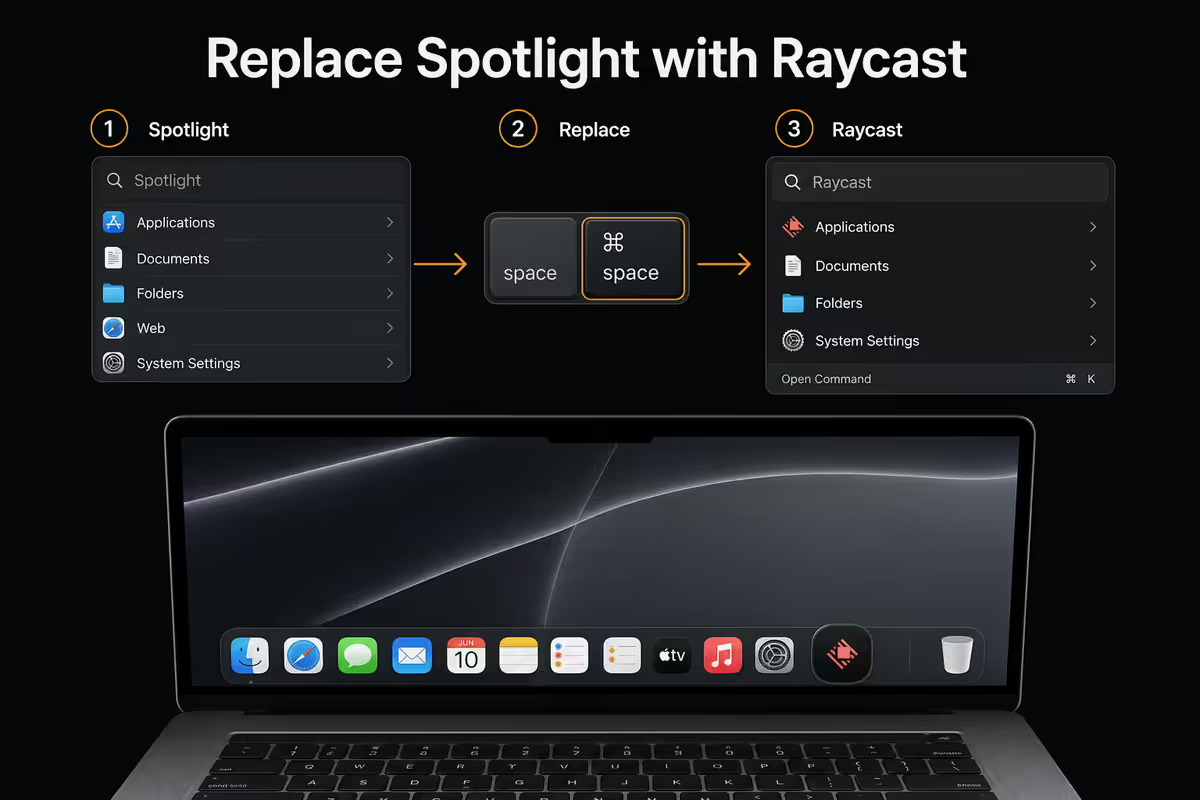
Replace Spotlight with Raycast
Raycast is the single most impactful install. Free for personal use, it replaces Cmd-Space and adds extensions for window management, snippets, clipboard history, calendar, Slack search, Linear ticket creation, ChatGPT, password lookups and 1,000+ community-built extensions.
Once installed: System Settings → Keyboard → Shortcuts → Spotlight → uncheck Cmd-Space. Open Raycast preferences and bind Cmd-Space to it. That single swap unlocks the whole keyboard-driven philosophy.
Must-install Raycast extensions:
- Clipboard History — your last 100 copies, fuzzy-searchable.
- Window Management — replaces Rectangle entirely; snap, move, resize.
- Snippets — your email signatures, meeting templates, Slack canned replies.
- Calendar — see today's meetings without opening Calendar.app.
- Slack Search — find channels and DMs without launching Slack.
- Linear — create issues, view inbox, comment from Raycast.
- Raycast AI (paid) — ChatGPT and Claude inline, summarisation, rewrites.
Spaces, Mission Control and Stage Manager
macOS Spaces are virtual desktops. Each Space can hold its own windows, apps and arrangement. Configured properly, you swipe between contexts — not between windows.
The four-Space layout for work:
- Space 1 — Communications. Slack, Mail, Calendar always open here.
- Space 2 — Deep Work. Notion, Linear, your IDE or Figma. Notifications off.
- Space 3 — Browser / Research. Arc or Chrome with project tabs.
- Space 4 — Meetings. Zoom, Notes, scratchpad. Empty between calls.
Move between Spaces with ⌃→ and ⌃←. Jump directly with ⌃1, ⌃2, etc — enable in System Settings → Keyboard → Shortcuts → Mission Control.
Stage Manager divides opinion. On a MacBook Pro 14/16 or external monitor it shines: single focus window, three or four side stacks ready to swap in. On the MacBook Air 13-inch the left rail eats horizontal space. Try it for a week — keep if it sticks, switch back to Spaces if not.
Focus modes — automate your work hours
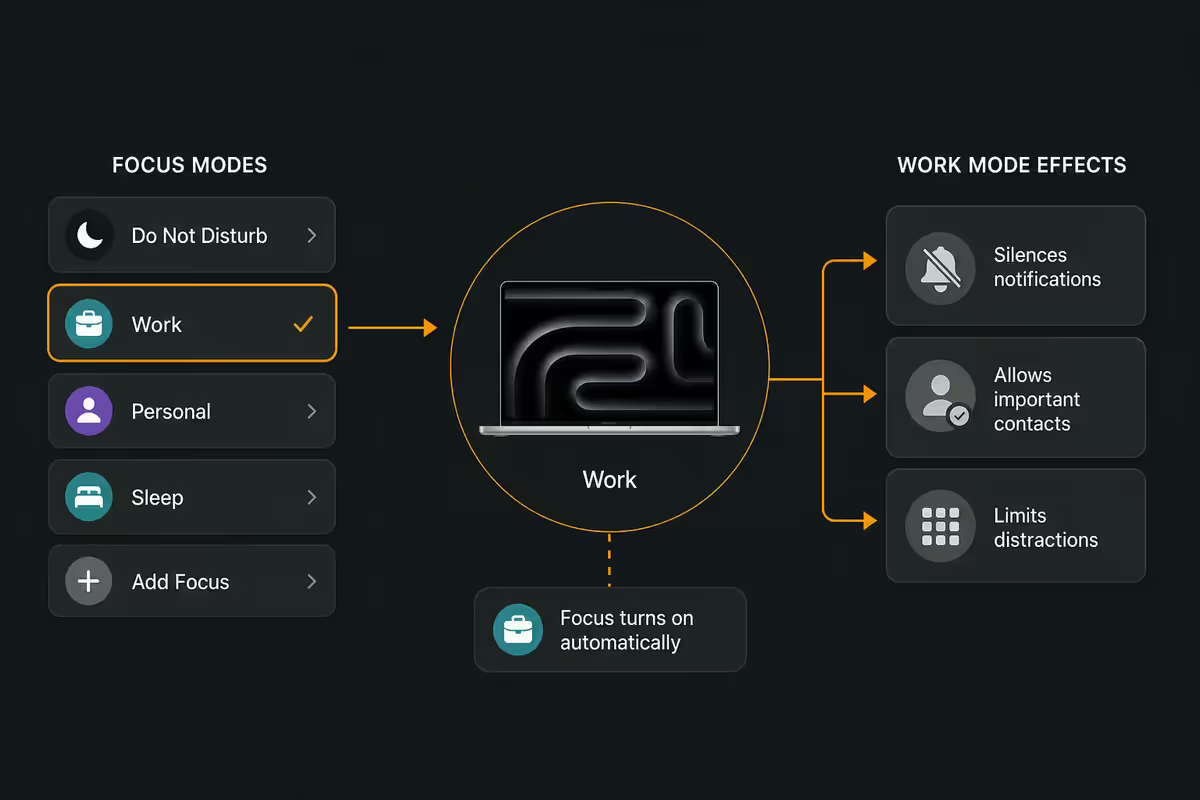
macOS Focus modes filter notifications and apps. The trick is automating them so they switch by time and context — not manually.
Three Focus modes everyone should configure:
- Deep Work — silences Slack, Mail, Calendar, social. Allow only direct manager + spouse. Auto-starts 09:00-12:00 weekdays.
- Meetings — Calendar, Zoom, Notes only visible. Slack auto-replies "in a meeting". Triggers when an event has "Zoom" or "Meet" in the title.
- Personal — silences every work app. Auto-starts 18:00 weekdays and all weekend. Most underrated of the three.
Slack, Notion and Linear — keyboard-driven
Slack
Essential shortcuts: ⌘K jump to any channel or person. ⌘⇧K direct messages only. ⌘⇧M all unread mentions. ⌘/ shortcut help menu (memorise everything else from here).
Configure: turn off all notifications except direct messages and explicit @mentions. Set channel-specific overrides for the three most important channels only. Snooze notifications globally during Focus.
Notion
Essential shortcuts: ⌘P search any page. ⌘N new page. ⌘[ back. / slash command inside any page (heading, toggle, callout, code, embed).
Install the desktop app — not just the browser. It runs as its own app icon, dockable, with its own Focus filter, and the keyboard shortcuts behave more reliably than browser tabs.
Linear
Essential shortcuts: G then I inbox. G then M my issues. C create issue. ⌘K command palette (move, prioritise, assign).
Linear is built keyboard-first by design — there's almost nothing in Linear you can't do without touching the trackpad. Spend 30 minutes with the shortcut cheat sheet on day one.
Pick a default browser intentionally
| Browser | Best for | Trade-off |
|---|---|---|
| Arc | Power users with multiple projects | Steep learning curve, sometimes slow updates |
| Safari | Battery life, iPhone sync | Some web apps misbehave |
| Chrome | Universal compatibility, dev tools | Burns RAM and battery |
| Firefox / Zen | Privacy-conscious users | Some enterprise SSO flows break |
| Edge | Microsoft 365 users | Workplace-only feel |
Most knowledge workers run two: Safari for personal browsing and iPhone sync, Arc or Chrome for work projects. Set the work browser as default — that way Slack and Mail links open in the project context, not your personal browsing.
Notch utilities and finishing touches
On MacBook Pro 14-inch and 16-inch (M2 and newer), the camera notch is dead screen space. Utilities turn it into a productivity dock.
- NotchNook (R0 trial, ~R300/year) — file drop tray, AirDrop indicator, music HUD, calendar peek.
- Alcove (free, App Store) — minimal music controller in the notch.
- Boring Notch (free, open source) — most customisable, requires more setup.
MacBook Air users (no notch on M2/M3 Air) can skip this category — the menu bar is already accessible.
The configured Mac, in five minutes a morning
Day-to-day flow looks like this:
- 09:00 — Deep Work auto-activates. Slack and Mail vanish from notifications.
- ⌃1 to Space 1, ⌘P in Notion, find today's plan. ⌃2 to Space 2, start the focus block.
- 11:30 — Calendar widget surfaces the 12:00 meeting. ⌃4 to Space 4, Zoom auto-launches.
- Meeting Focus triggers when Zoom opens. Slack auto-replies for 30 minutes.
- 14:00 — ⌘K in Slack to triage urgent threads. Linear inbox with G-I, knock through the queue.
- 18:00 — Personal Focus activates. Slack silences. The Mac becomes a personal device again.
Key takeaways
- Install Raycast and remap Cmd-Space — the single highest-impact install on a work Mac.
- Configure four Spaces (Comms / Deep Work / Browser / Meetings) and learn ⌃1-4 to jump.
- Set up three Focus modes (Deep Work / Meetings / Personal) with auto-triggers — set once.
- Learn ~25 shortcuts in Slack, Notion and Linear. After week one the mouse becomes optional.
- MacBook Pro users — install NotchNook or Alcove. The notch becomes the most useful inch of screen.
Frequently asked questions
What's the best MacBook for work in 2026?
MacBook Air M4 (16GB / 512GB) handles most knowledge work silently with 18+ hr battery. MacBook Pro M4 (16-24GB) earns its premium for developers, designers and heavy multi-monitor users.Should I use Stage Manager on my work MacBook?
Yes on 14/16-inch screens and external monitors. On 13-inch Air the left rail eats too much space — traditional Spaces are usually better.Is Raycast worth installing instead of Spotlight?
Yes, free for personal use, and the highest-impact single install on a work Mac. Replaces Spotlight + window manager + clipboard + snippets + Linear/Slack quick actions.How do I use Focus modes for work?
Three modes: Deep Work (silences everything but priority people 09:00-12:00), Meetings (auto when calendar event with Zoom/Meet), Personal (after 18:00, silences all work apps).What apps should I install on day one?
Raycast, Rectangle or Loop, Cleanshot X, Notion/Linear/Slack desktop apps, 1Password, Arc or Chrome, Rocket emoji picker, NotchNook (if notched).How do I set up keyboard shortcuts in Slack, Notion and Linear?
Slack ⌘K / ⌘⇧K / ⌘/. Notion ⌘P / ⌘N / / for slash commands. Linear G-I inbox / C new issue / ⌘K palette. Print the cheat sheets for week one.Should I use Notch utilities like NotchNook?
Yes for MacBook Pro 14/16-inch. NotchNook (paid), Alcove (free), or Boring Notch (open source). MacBook Air users skip — no notch.What's the best default browser for work on Mac?
Arc for power users, Safari for battery + iPhone sync, Chrome for compatibility. Most workers run two: Safari personal, Arc/Chrome work.
Get the Evetech app
Exclusive app-only prices, daily flash sales, and free delivery on orders over R4,000 — download the app and start saving.