Student Setup Guide
How to set up a MacBook for university. — Your laptop is your office now.
University is the first place your laptop becomes your entire workspace — lecture room, library carrel, group-project hub, deadline machine. Configure it like one.
- essential stack
- 8 apps
- layers minimum
- 3 backups
- once, forever
- eduroam

Your laptop is your office now
In high school your laptop was a homework helper. At university it's your entire infrastructure — lecture room, library carrel, group-project workspace, deadline manager and exam study tool. The setup needs to match that shift.
The principles for a student MacBook:
- One source of truth per category. One note app. One citation manager. One calendar. Picking three of each fragments your work.
- Offline-capable by default. Campus WiFi drops, load-shedding happens. Anything critical must work without internet.
- Backed up in three places. A stolen laptop or fried SSD shouldn't cost you a semester.
- Distraction-free when needed. Social media is engineered to compete with your focus. Focus modes are the counter.
Pick a note-taking app — and commit
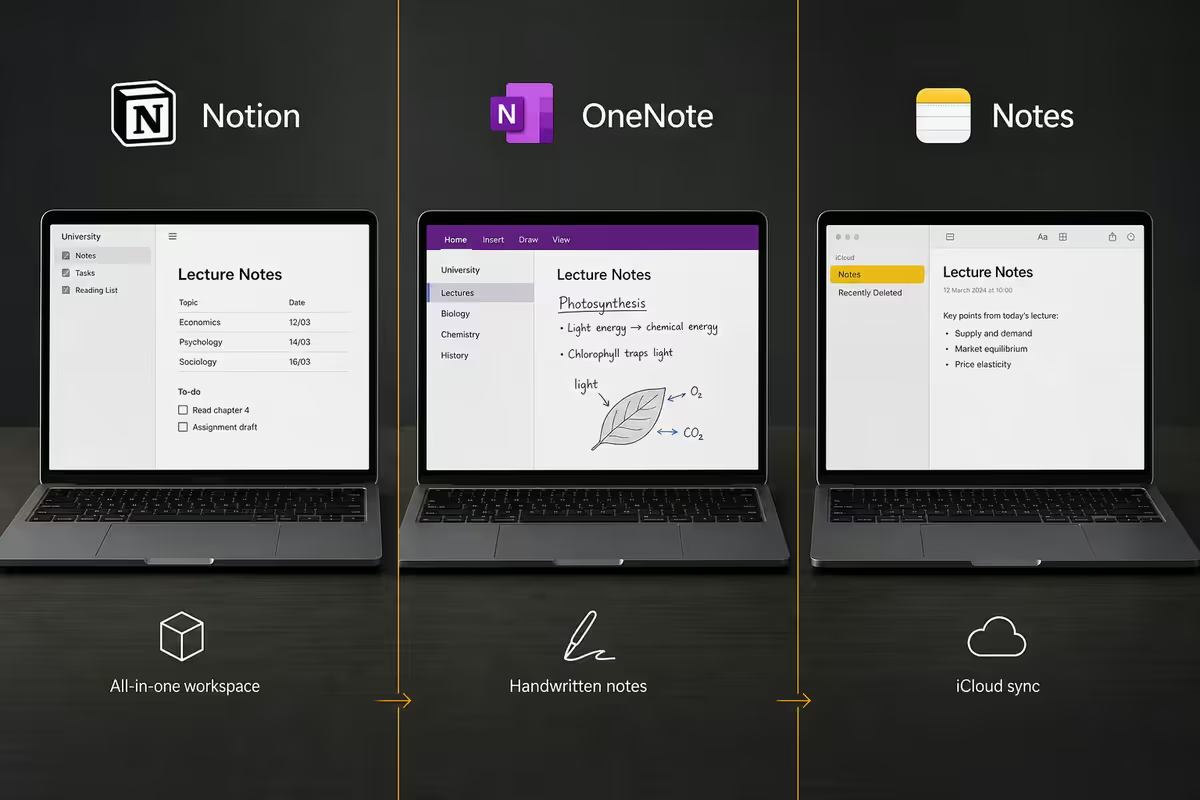
The "best note app" is whichever one you'll actually open every lecture for three years. Here are the four that dominate student workflows in 2026:
| App | Best for | Free for students? |
|---|---|---|
| Notion | Structured notes, group projects, databases | Yes (with .ac.za email) |
| Obsidian | Linked notes, science, law, research | Yes (always free) |
| Apple Notes | Casual capture, iPhone sync, sketches | Yes (built-in) |
| OneNote | Math, mixed-media notebooks, MS 365 users | Yes (Microsoft 365 A1) |
| Goodnotes 6 (iPad) | Handwritten notes with Apple Pencil | R150-R450 (one-off) |
Notion suits law, business, humanities students who structure outlines, build study databases and collaborate on group projects. Obsidian is the science / engineering / postgrad pick — local-first, linked notes, plain-text future-proof. Apple Notes is the dark horse — instant sync, scribble support, scanner built in. OneNote dominates if you're heavy in Microsoft 365 already.
iPad and Apple Pencil — when it earns its place
The MacBook + iPad combo is the gold standard for medical, stem, architecture and law students. The iPad covers the workflows the MacBook can't — handwritten math, anatomy sketches, case-file annotation, PDF markup with Pencil — while the MacBook handles long-form essays, research, Zoom and group projects.
Pairing for university:
- iPad (10th gen) or iPad Air + 1st-gen Apple Pencil — enough for handwritten notes, PDF annotation and Goodnotes. The Pro is overkill for most undergrads.
- Goodnotes 6 — best handwriting recognition, OCR-searchable notes, syncs across iPad/Mac/iPhone.
- Notability — alternative to Goodnotes with audio-sync recording (records lectures alongside your notes).
- Sidecar — turn the iPad into a second display for your MacBook during essay writing or Zoom calls (free, built-in macOS feature).
If budget is tight: the MacBook alone is enough. Skip the iPad for first year, see if you really need it for second. Many students discover they prefer typed notes anyway.
Zotero — the citation manager that ends bibliography panic
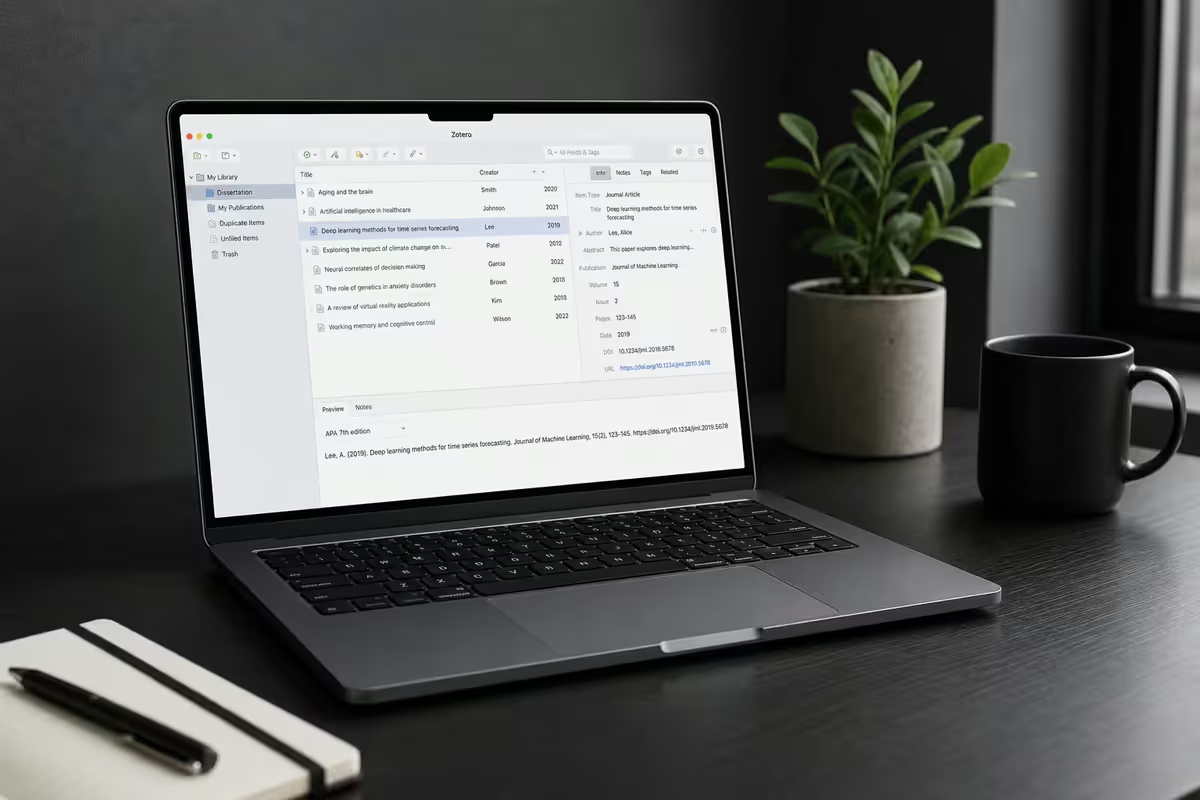
Every assignment from second year onward needs citations. Doing them manually wastes hours and you'll still misformat one. Zotero (free, open source) is the academic standard.
Set up in 10 minutes:
- Install Zotero for Mac (free at zotero.org) and the Zotero Connector browser extension.
- Sign up with your .ac.za email — gives you 2GB sync storage free.
- Install the Zotero Word plugin (auto-installed with Zotero) and the Notion/Obsidian integrations if you use those.
- Switch citation style to your faculty's house style (Harvard, APA 7, MLA 9 — check your style guide).
Now any paper, web article or book you find — Google Scholar, JSTOR, ScienceDirect — adds to your library with one click of the Connector. Zotero handles bibliography generation in Word, references in-line, and reformats the whole document if you change citation style mid-essay.
Study Focus mode — the one setting that improves your marks
Social media is engineered by world-class teams to compete with your attention during exam season. The native macOS Focus modes are the counter, and they're free.
Configure your Study Focus:
- System Settings → Focus → New Focus → name "Study".
- Allow only: Calendar, Reminders, Mail (filtered to your .ac.za email only), and your chosen note app.
- Block: WhatsApp, Instagram, TikTok, X / Twitter, Discord, Steam, games, YouTube (block via Screen Time too).
- Set a custom Home Screen that only shows your study apps (clean, distraction-free).
- Schedule to auto-activate during your usual study blocks (e.g. 14:00-17:00 weekdays).
- Share Across Devices ON — silences your iPhone simultaneously.
Pair with Screen Time daily limits on social apps. The friction of seeing "limit reached" is enough to redirect you back to studying 9 times out of 10.
eduroam, campus printers, IT services
eduroam WiFi — set up once, works everywhere
eduroam is the global academic WiFi roaming network. Once your MacBook is configured for your home university's eduroam, you'll auto-connect at every UCT / Wits / Stellenbosch / UJ / UP / Rhodes campus, plus 100+ universities worldwide if you ever travel for a conference or exchange.
Set up via your university's IT services portal — most provide a one-click profile installer (geteduroam) that handles certificate provisioning for you. Manual setup works too: WiFi → eduroam → enter [email protected] and your password.
Campus printers
Most SA universities use PaperCut or uniFLOW for managed campus printing. Download the print client from IT services (.pkg installer), sign in with student credentials, and every campus printer appears in your Print dialog. Top up credit at the library kiosks or via your student card balance.
Campus VPN (for off-campus database access)
SA universities give students access to ScienceDirect, JSTOR, SAGE Knowledge, Sabinet and more — but only from campus IP addresses. To use these from home (or load-shedding cafe sessions), connect via your university's VPN client. Usually GlobalProtect or FortiClient, both free from your IT services portal.
Back up like your degree depends on it (it does)
The single biggest difference between students who survive a lost laptop and students who don't is whether they configured offsite backup. Time Machine alone is not enough — if it's in the same bag as the MacBook, both get stolen together.
The three-layer backup setup:
| Layer | What it covers | SA cost |
|---|---|---|
| Time Machine to external SSD | Full restore, weekly snapshots | R1,200-R2,000 once (1TB SSD) |
| iCloud Drive (Desktop + Docs) | Continuous sync of your active files | R39/mo (200GB) or R169/mo (2TB) |
| Backblaze offsite | Unlimited cloud backup, theft-proof | ~R150/mo (unlimited) |
| iDrive (alternative) | Cloud backup, snapshots, file history | ~R130/mo (5TB) |
| Microsoft OneDrive (free 1TB) | Course assignments, MS Office files | Free (with .ac.za email) |
Bare minimum: iCloud Drive + Backblaze. R200/month total, your degree is theft-proof. Don't argue with this — students who skip this layer pay for it in tears at finals.
The Day-One Student Mac Setup checklist
First weekend with a new MacBook — work through this list once and you're set for the year:
- Sign into iCloud, turn on Find My Mac and Activation Lock.
- Install Microsoft 365 (free with .ac.za email) — Word, Excel, PowerPoint, OneDrive.
- Pick and install ONE note app — Notion / Obsidian / Apple Notes / OneNote.
- Install Zotero + Zotero Connector browser extension + Zotero Word plugin.
- Configure eduroam WiFi via your university's IT portal.
- Install campus print client (PaperCut / uniFLOW).
- Install university VPN client (GlobalProtect / FortiClient) for off-campus database access.
- Sign up for Backblaze (R150/month) and run the first backup overnight.
- Create the Study Focus mode and schedule it.
- Configure Screen Time daily limits on social apps.
- Set Calendar to Africa/Johannesburg timezone, subscribe to your faculty calendar.
Key takeaways
- Pick ONE note app and commit for at least a semester. Note-system shopping is procrastination.
- Zotero on day one. Tag every reference as you save it. Saves dozens of hours by third year.
- Microsoft 365 is free with your .ac.za email — install Word, Excel, PowerPoint, OneDrive.
- eduroam once, works at every SA university plus 100+ globally. Set up via your IT portal.
- Offsite backup is non-negotiable — Backblaze R150/month protects against theft, fire, SSD death.
Frequently asked questions
Which note-taking app is best for university on a MacBook?
There's no single best — it depends on your degree. Notion suits structured outline notes and group projects (free for students with .edu/.ac.za email). Obsidian wins for science / law / research where linked notes matter (free, local files). Apple Notes is fine for casual lecture capture and syncs perfectly with iPhone. Goodnotes 6 is essential if you use Apple Pencil with an iPad alongside your MacBook.Do I need an iPad with my MacBook for university?
Not strictly, but the MacBook + iPad combo is the gold standard for stem, medical and law students. iPad with Apple Pencil handles handwritten math, anatomy diagrams, case annotations and PDF markups in Goodnotes 6, while the MacBook handles long-form writing, research and Zoom. If budget allows, iPad (10th gen or Air) + 1st-gen Apple Pencil is enough — you don't need the Pro.How do I connect to eduroam WiFi?
Open the institution's eduroam configuration page (usually IT services portal) and download the geteduroam profile for macOS — installs in 30 seconds. Or manually: System Settings → WiFi → select eduroam → enter your university email and password. Once configured, your MacBook will auto-connect at any of the 100+ eduroam-participating SA universities and research institutions globally. No need to re-enter credentials.What's the best app for academic citations?
Zotero (free, open source) — the standard in academia. Install the Zotero browser extension; one-click adds any paper, web article or book to your library. Generates citations and bibliographies in APA, MLA, Harvard, Chicago or your institution's house style. Syncs across MacBook, iPad and iPhone. Better than the paid alternatives (EndNote, Mendeley) for most undergraduates.How do I back up my MacBook for university work?
Three layers: Time Machine to an external SSD (weekly), iCloud Drive for desktop and documents (continuous), and offsite cloud backup like Backblaze (~R150/month, unlimited) or iDrive. The offsite layer is non-negotiable for students — a stolen laptop, building flood or fire can erase years of work if your only backup sits in the same bag. Configure Backblaze on day one.How do I set up a Focus mode for studying?
System Settings → Focus → New Focus → name it 'Study'. Allow only Calendar, Mail (filtered to academic addresses), Reminders and your note-taking app. Block Slack, WhatsApp, Instagram, TikTok, Twitter/X and games. Schedule it to auto-activate during your usual study hours, or trigger it manually from Control Centre. The single biggest grade-improver of any setting on this list.Should I install Microsoft Office on my MacBook?
Yes — most SA universities require Word and PowerPoint for assignment submission, and all SA universities provide free Microsoft 365 to enrolled students with your .ac.za email. Sign up at office.com with your student email, install on up to 5 devices. Apple Pages and Keynote are excellent but exporting to .docx and .pptx sometimes breaks formatting your lecturer expects.How do I connect my MacBook to a campus printer?
Most SA universities use PaperCut or uniFLOW for campus printing. Download the print client from IT services (usually a self-install .pkg file), sign in with your student credentials, and your MacBook will see all campus printers automatically. For ad-hoc PDF printing at the library: AirPrint or PDF export to USB also works on most newer multifunction printers.
Get the Evetech app
Exclusive app-only prices, daily flash sales, and free delivery on orders over R4,000 — download the app and start saving.