Portable Monitor Buying Guide
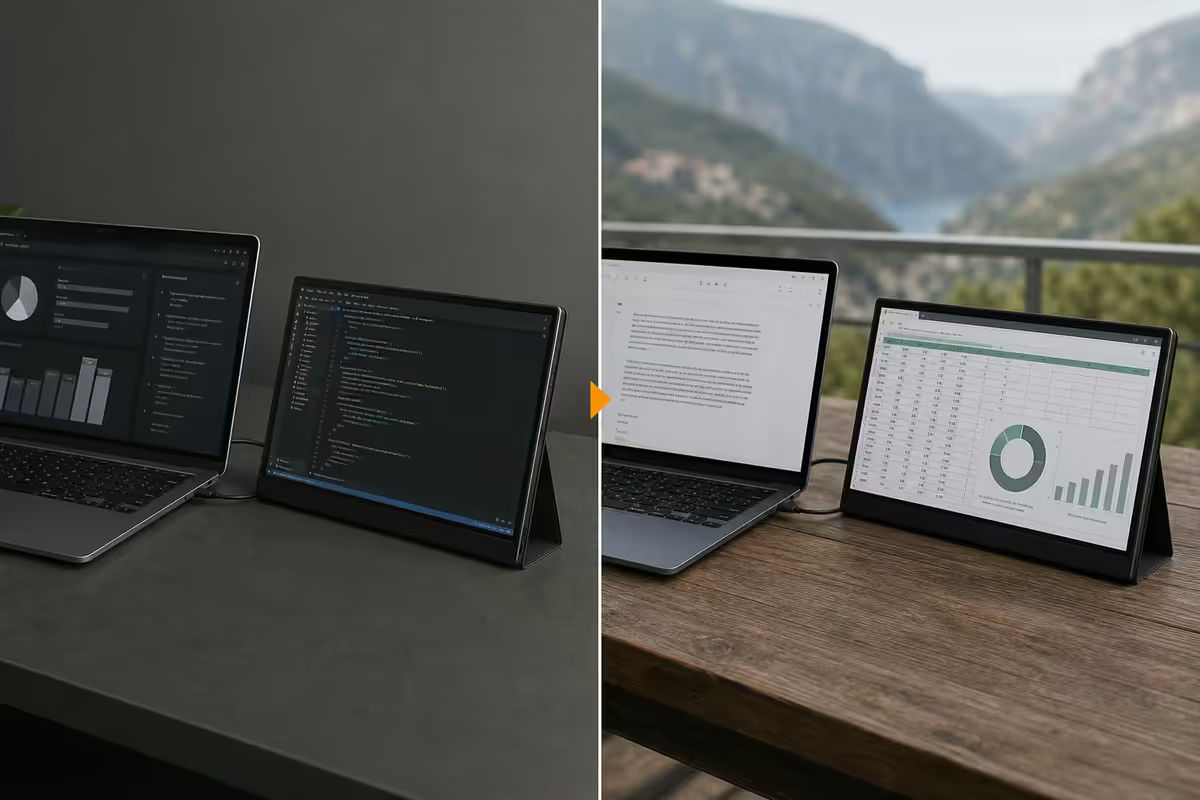
Work anywhere with a portable monitor. — One USB-C cable. Dual-screen in a backpack.
The category finally grew up. A 15.6" USB-C panel under 800g, a single cable to your laptop, and you've got your home-office dual-screen rig on a coffee shop table. Here's the version of this purchase that actually survives a year of travel.
- USB-C single-wire
- 1 cable
- travel sweet spot
- 15.6-17.3"
- charger powers both
- 65W PD
Portable monitor types & sizes
The category has consolidated around three usable sizes and two panel families. Anything else is either a novelty (tiny 10" panels for Raspberry Pi work) or a misnamed desktop monitor.
| Size | Best for | Weight band |
|---|---|---|
| 13.3" - 14" | Ultra-light travel, matches small ultrabooks | 550-700g |
| 15.6" | Sweet spot for most users — matches 14-16" laptops | 700-950g |
| 17.3" | Desktop-class workspace on the road, larger laptops | 1.1-1.4kg |
| Clip-on dual (Trio / Trio Max) | Attached side panels for serious multi-window | 1.0-1.5kg pair |
For a typical 14" or 16" business laptop (ThinkPad T-series, MacBook Pro 14/16, Dell XPS, Framework 16), the 15.6" panel is the right answer. It matches your laptop's panel height side-by-side, fits in any standard laptop sleeve, and stays under 1kg with kickstand. Anything smaller feels cramped after a few days; anything larger sacrifices the portability point.
17.3" monitors (Espresso 17 Pro, Innocn 17C1F) are aimed at users replacing a 24" home monitor with a single travel display. They're noticeably heavier and force a wider footprint on a café table, but the workspace difference is substantial. Worth it if your laptop is also 16"+ and you do extended sessions in one location.
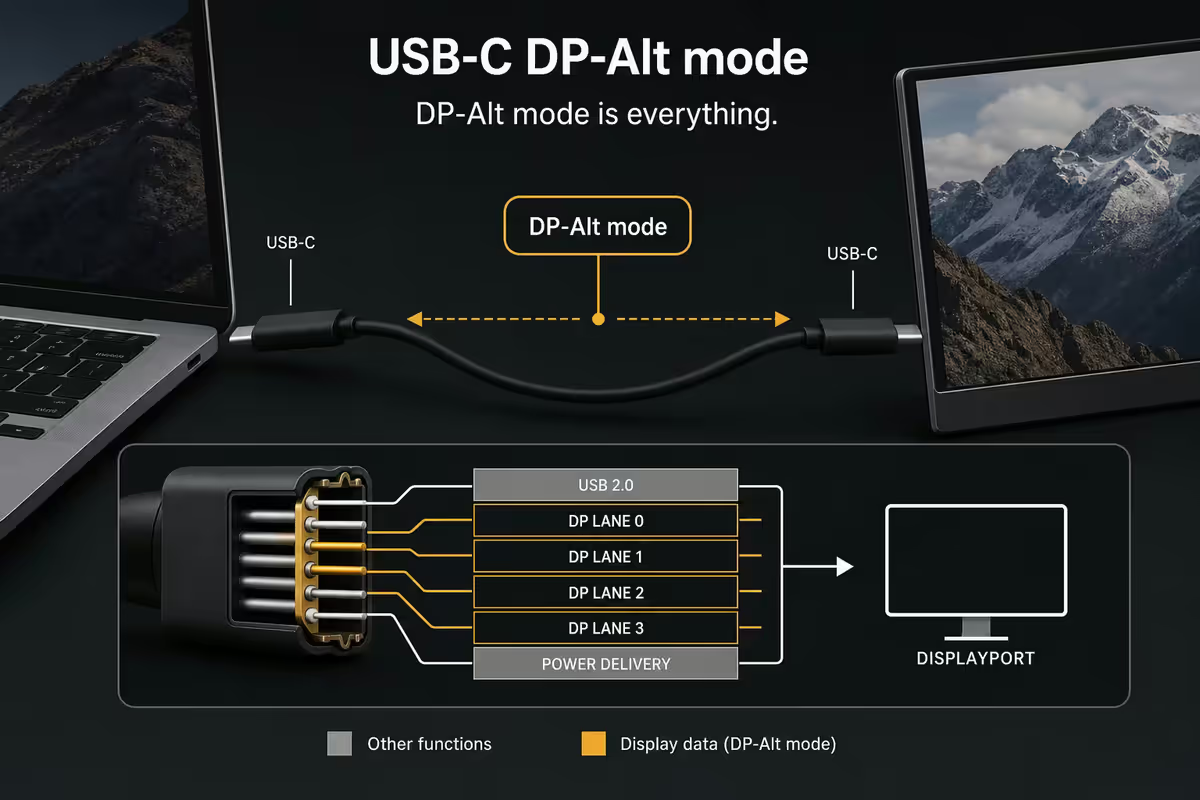
The USB-C question — DP-Alt mode is everything
The single-cable promise that makes portable monitors actually portable hinges on one spec line in your laptop's documentation: USB-C DisplayPort Alternate Mode (often shortened to "DP-Alt" or "USB-C video out"). Without it, your only options are HDMI plus a separate USB-A power cable — back to two cables and a tangle.
How to verify your laptop supports it:
- Look for a small "DP" or lightning-bolt icon next to one of your USB-C ports.
- Check the spec sheet for "USB-C with DisplayPort 1.4 Alt Mode" or "Thunderbolt 3/4" (Thunderbolt always includes DP-Alt).
- If your laptop already drives an external desktop monitor over USB-C without an adapter, you have DP-Alt.
Laptops that universally support it: all MacBooks (Air/Pro 2018+), Dell XPS 13/15/17, Latitude 7000/9000, ThinkPad X1/T/L-series, HP EliteBook 800/1000, Framework 13/16, Surface Laptop 5+ (with caveats), most 2022+ business ultrabooks.
Laptops that often don't: entry-level Acer Aspire / HP 250, older Asus VivoBook lines, many R6000-and-under laptops. If you bought your laptop for under R9000 in the last three years, double-check the spec sheet before committing to a single-cable portable monitor.
Powering the whole setup off one charger
The clean version of this looks like: laptop charger → portable monitor → laptop, with the monitor passing power through to the laptop while drawing what it needs (typically 7-15W). One wall socket, one USB-C cable visible.
For this to work cleanly, your monitor needs USB-C PD passthrough (most premium models have it; cheaper ones don't), and your charger needs enough wattage. The maths:
- 65W charger → monitor takes 10W → laptop gets 55W. Fine for productivity, lightweight creator work. Standard for MacBook Air, XPS 13, ultrabooks.
- 90W charger → monitor takes 12W → laptop gets 78W. Comfortable headroom for video calls + multitasking.
- 100W charger → monitor takes 15W → laptop gets 85W. Recommended for MacBook Pro 14/16, gaming laptops, heavy creative work.
Practical setup: plug your laptop's stock USB-C charger into the wall, then into the monitor's USB-C input port. Run one USB-C cable from the monitor's output port to your laptop. The monitor takes power, the laptop gets video + remaining power. Total cables visible: one charger, one short USB-C cable.
IPS 60Hz vs OLED 120Hz — what actually matters
The portable monitor market split into two tiers in 2024-2025: FHD IPS 60Hz (R3500-R8000) and QHD/4K OLED 120Hz (R13000-R22000). The middle has thinned out.
IPS 60Hz is the right pick for typical work-anywhere use. Documents, spreadsheets, video calls, browser-based tools, code editors and email don't benefit from 120Hz or OLED contrast. The R3500-R7000 you save funds a better laptop stand, a quality USB-C dock or another year of mobile data.
OLED 120Hz makes sense when:
- You're a photo or video editor who needs colour-accurate work away from your studio (Espresso, ViewSonic VP16-OLED).
- You want one travel display for both work and gaming (Switch / Steam Deck / PS5 docked).
- You're a designer using the monitor for client demos where colour fidelity matters.
- You're a serious YouTube creator editing on the road.
Outside those cases, the 60Hz IPS panel in a Lenovo ThinkVision M14 or ASUS ZenScreen will look indistinguishable from premium OLED for spreadsheet work — and that's the honest test.
Stands, kickstands & touch input
Two stand mechanisms dominate the category. Each has trade-offs that matter more than the marketing suggests.
Built-in kickstands (ASUS ZenScreen, Innocn, ViewSonic VG1655) add 200-300g of weight but deploy in two seconds and feel rock-solid on a café table. They survive being thrown into bags repeatedly. The angle range is limited (usually 15-60°), but it's the angle you actually use.
Origami magnetic cases (Espresso, Lenovo ThinkVision M14, ViewSonic VP16-OLED) double as protective sleeves and let the monitor itself stay under 7mm thick. The trade-off: the case can wear at the folds after 12-18 months of daily use, and angle adjustment is fiddlier. Looks fantastic on a desk.
Touch and pen input is now mature. Espresso Display 17 Pro supports 10-point capacitive touch with an active pen (sold separately, ~R2500) — genuinely useful for designers, illustrators and presenters who annotate live. Mobile Pixels Trio Max offers touch on the larger variant. For typical office workers, touch is a R3000-R4000 nice-to-have that rarely gets used.
The five portable monitors worth buying in SA
| Use case | Pick | SA price |
|---|---|---|
| Best overall value | ASUS ZenScreen MB16ACE (15.6" FHD IPS) | R6800-R7400 |
| Lightest single-cable option | Lenovo ThinkVision M14 (14" FHD IPS, 570g) | R6200-R6800 |
| Triple-screen clip-on setup | Mobile Pixels Trio / Trio Max (12.5"/14") | R9000-R13500 |
| OLED touch creative pick | Espresso Display 17 Pro (17.3" touch + pen) | R17500-R19500 |
| Colour-accurate creator pick | ViewSonic ColorPro VP16-OLED (15.6" OLED) | R14500-R16000 |
| Entry-level FHD option | Innocn / Arzopa 15.6" FHD USB-C | R3500-R4800 |
| Wide-screen workspace | Innocn 17C1F or ASUS ZenScreen MB17AHG (17.3") | R9500-R11500 |
ASUS ZenScreen MB16ACE earns the default pick — 15.6" FHD IPS, single USB-C cable, rock-solid built-in kickstand, lightweight smart cover, and Evetech / SA retail stock that's reliable year-round. After two years of testing every mainstream option, this is the one most people should buy.
Lenovo ThinkVision M14 is the answer if weight is your number-one constraint. 570g, beautifully built, two USB-C ports for daisy-chaining and PD passthrough. The 14" size matches MacBook Air and XPS 13 perfectly. Best-in-class for the truly nomadic.
Mobile Pixels Trio / Trio Max is a different category — clip-on side panels that turn your laptop into a triple-screen rig. Magnetic mounting plates attach to your laptop lid; the monitors slide out to either side. Game-changing for spreadsheet-heavy work and project management. Expect 200-400g of mounting weight on the lid even when stowed.
Espresso Display 17 Pro is the premium pick — 17.3" 4K OLED touch with active pen support, magnetic origami case, and an aluminium build that genuinely matches MacBook hardware. Eye-watering price, but for designers and creators who need a real second screen on the road, it delivers.
ViewSonic ColorPro VP16-OLED sits between the two — 15.6" OLED, factory-calibrated, sub-7mm thin. The right call for photo/video editors who don't need 17.3" but won't compromise on colour.
Common portable monitor mistakes
Buying before confirming DP-Alt mode. The most expensive mistake. If your laptop's USB-C ports are data-only, your single-cable dream becomes a two-cable HDMI workaround. Verify the spec sheet first.
Pairing a premium monitor with a cheap cable. A R150 generic USB-C cable will absolutely throttle a R18000 OLED panel — random flicker, dropped resolution, intermittent power. Spend R350-R450 on a braided cable rated for video and 100W PD. Anker, UGREEN and Cable Matters are reliable choices in SA.
Underspeccing the charger. If your laptop has a 90W power requirement and you pair it with a 65W charger feeding through the monitor, the laptop will throttle under load. Match charger wattage to the laptop's stock spec or go higher.
Buying 17.3" without measuring the sleeve. 17.3" portable monitors often don't fit standard 16" laptop sleeves. Order a dedicated case or downsize to 15.6" — losing the carry solution defeats the portability point.
Paying OLED money for office work. If you're using the monitor for spreadsheets, docs and email, R7000 of FHD IPS will look identical to R18000 of 4K OLED for the work that actually happens. Save the OLED money for genuinely colour-critical tasks.
Key takeaways
- 15.6" FHD IPS is the right size and panel for 90% of work-anywhere users — ASUS ZenScreen MB16ACE at R7000 is the default pick.
- Verify your laptop's USB-C ports support DisplayPort Alt Mode before buying — without it, single-cable operation is impossible.
- A 65W USB-C charger powers both monitor and ultrabook through PD passthrough; step up to 90W or 100W for heavier laptops.
- OLED 120Hz is only worth the R10000+ premium for colour-critical creative work — IPS 60Hz looks identical for office tasks.
- Spend R350-R450 on a quality braided USB-C cable rated for video and 100W PD — generic cables throttle even premium panels.
Frequently asked questions
Can a portable monitor really replace my second desktop screen?
For travel, hot-desking and hybrid work, yes. A 15.6" or 17.3" USB-C portable monitor gives the same dual-screen productivity uplift as a home setup. Premium OLED units (Espresso, ViewSonic VP16-OLED) genuinely match home office monitors; mid-tier IPS panels match for typical office work but trail on brightness in sunlit cafés.Does my laptop need USB-C DisplayPort Alt Mode?
Yes — single-cable operation requires DP-Alt Mode on your laptop's USB-C port. Most 2020+ business laptops support it; verify on the spec sheet or look for a "DP" logo next to the port. Without DP-Alt you need HDMI plus a separate USB-A power cable.What size portable monitor is best — 15.6 or 17.3 inch?
15.6" is the sweet spot for most travel users — matches typical 14-16" laptops, weighs 700-900g, fits standard laptop sleeves. 17.3" is for those wanting desktop-class workspace on the road, with the trade-off of 1.1-1.4kg weight and a dedicated case requirement.Do I need OLED or is IPS good enough?
IPS 60Hz is good enough for 90% of work-anywhere users — docs, spreadsheets, video calls, code editors. OLED 120Hz only matters for colour-critical creative work, mixed work + gaming, or client demos. The R4000-R12000 IPS-to-OLED jump rarely justifies itself for office work.Will my 65W laptop charger power both?
Usually yes — a portable monitor draws 7-15W, leaving ~50W for the laptop through PD passthrough. Sufficient for MacBook Air, XPS 13 and similar ultrabooks. For MacBook Pro 14/16, gaming laptops or heavy load, step up to 90W or 100W GaN.Can I get touch input on a portable monitor?
Yes — Espresso Display 17 Pro supports 10-point touch with an active pen for sketching. Mobile Pixels Trio Max has touch on the higher variant. Touch adds R2000-R4000 and is genuinely useful for designers and illustrators; nice-to-have for typical productivity work.Kickstand vs origami case — which is better?
Built-in kickstands (ASUS ZenScreen, Innocn) are sturdier and faster but add 200-300g. Origami cases (Espresso, Lenovo M14, ViewSonic VP16-OLED) keep monitors ultra-thin (sub-7mm) but the case can wear after 12-18 months and angles are less flexible. Kickstand wins for daily travel; origami for sleekness.What does a portable monitor cost in SA?
Entry-level FHD IPS 15.6" starts at R3500-R4500 (Innocn, Arzopa). Mid-tier sweet spot R6000-R8500 (ASUS ZenScreen, Lenovo M14). Premium OLED touch climbs to R15000-R22000 (Espresso 17 Pro, ViewSonic VP16-OLED). Clip-on dual setups land around R9000-R13500.
Get the Evetech app
Exclusive app-only prices, daily flash sales, and free delivery on orders over R4,000 — download the app and start saving.