Display Comparison · Setup
Ultrawide vs dual monitor. — One bezel break, or none?
The honest comparison nobody runs: dual wins productivity because the bezel is a natural separator. Ultrawide wins gaming and creator timelines because the bezel was breaking your immersion. Your work decides, not your screen budget.
- ultrawide ratio
- 21:9
- desk depth needed
- 75cm+
- cost band
- R10-25k
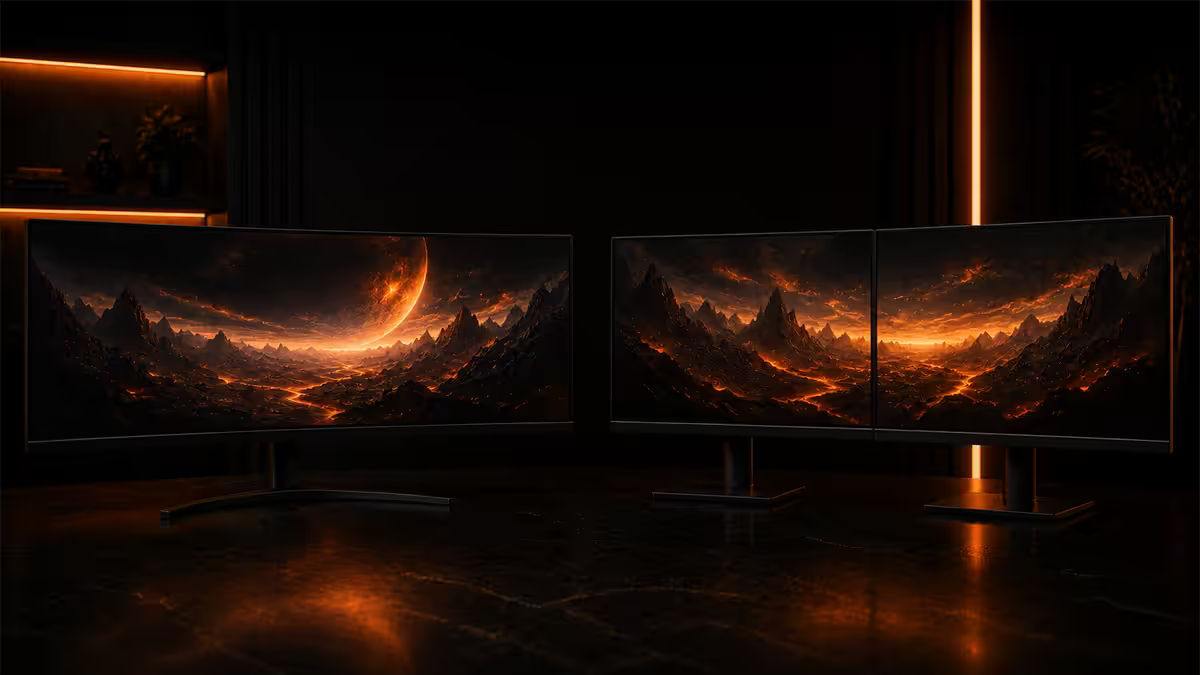
The bezel break — feature or bug?
Almost every ultrawide-vs-dual argument boils down to one question: do you want a bezel in the middle of your work or not? It sounds trivial. It isn't.
For some work, the bezel is a feature. It separates Slack from your code editor cleanly. Your eyes know where the boundary is without thinking. You drag windows to one side and they snap to that screen's full canvas. The bezel acts like a visual chapter break.
For other work, the bezel is a wound. Open a video timeline in DaVinci and the cut you needed to make is split across two screens. Drag a wide spreadsheet open and column N falls into the bezel. Play Cyberpunk and your enemy's head appears in the dead zone between panels.
The honest answer is: pick the setup that puts the bezel where you don't need to look at it.
Productivity reality — dual wins, with caveats
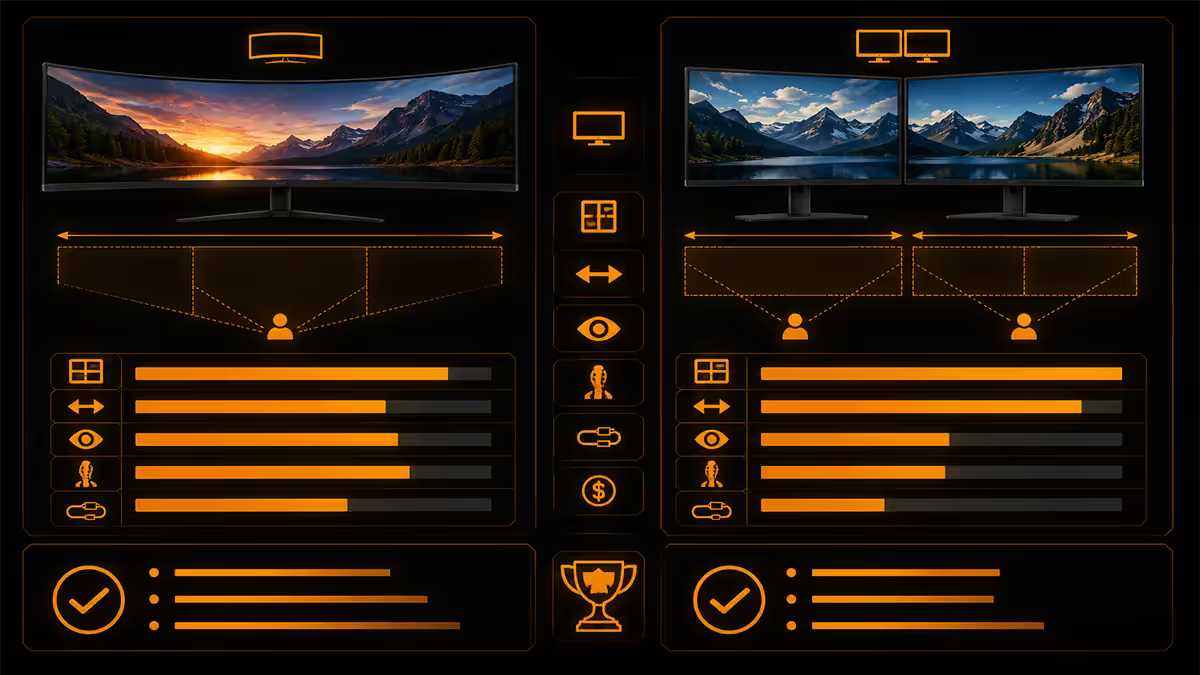
Dual monitor still wins for traditional knowledge work. Three reasons:
- Natural window separation. One screen for your "main" app (browser, IDE, doc). Other screen for everything else. The bezel makes that division visceral.
- Each screen is its own snap target. Win + Left/Right snaps within a screen. Two screens = four reliable snap zones.
- Cheaper. Two 27-inch 1440p IPS panels cost R10,000-R13,000 in SA. One 34-inch ultrawide costs R12,000-R18,000 for a comparable spec.
The caveat: ultrawides are much more productive than they were five years ago thanks to Windows 11 snap layouts and tools like PowerToys FancyZones. You can divide an ultrawide into three columns (one third for Slack, one third for browser, one third for code) and Windows handles the snapping. For some workflows this is better than dual — three vertical strips instead of one bezel-split horizontal axis.
If you're a heavy multitasker who keeps 5+ apps visible, dual still wins. If you're a deep-work person with one or two primary apps and reference material, ultrawide with FancyZones is excellent.
Gaming — ultrawide wins, no contest
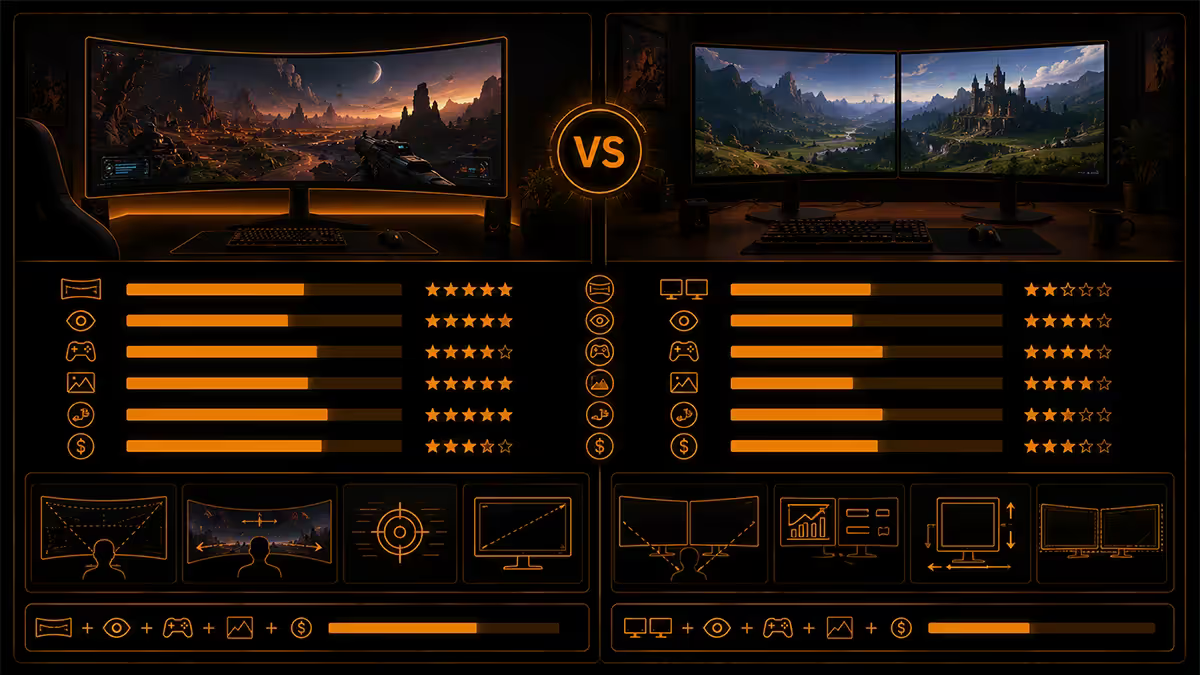
For gaming, ultrawide is the better setup, full stop. The reason: dual monitors don't work for gaming. You can't have a bezel down the centre of Cyberpunk's crosshair. Almost every gamer who runs dual treats the second monitor as a Discord/browser/OBS panel — the actual game stays on the primary.
An ultrawide at 21:9 (3440×1440) gives you the same vertical pixel count as 1440p plus a wider field of view. In games that support it natively — virtually every modern AAA — that's a genuine immersion upgrade. Driving sims, flight sims, open-world RPGs and first-person shooters all benefit dramatically.
32:9 super-ultrawides (49-inch, 5120×1440) take this further into "wraparound" territory. Best for sims and racing games where wider peripheral view is a real advantage. Not for competitive esports — too wide to scan quickly.
Creator workflow — depends on what you create
Creator work splits cleanly along app archetype:
Ultrawide wins for:
- Video editing (DaVinci Resolve, Premiere) — longer timeline, bigger preview, scrubbing without a bezel split.
- Audio production (Ableton, FL Studio, Pro Tools) — wider arrangement window, more mixer channels visible.
- Coding with reference — IDE and docs side-by-side on one continuous canvas.
- Wide spreadsheets / data analysis — 24+ columns visible without horizontal scroll.
Dual wins for:
- Graphic design (Photoshop, Illustrator, Figma) — main canvas one screen, panels and reference on the other.
- 3D work (Blender, Maya) — viewport and reference photos / texture sheets on separate screens.
- Reference-heavy writing — source material and target doc clearly separated.
- Streaming / OBS — game on one screen, OBS dashboard and chat on the other.
Video calls — the awkward ultrawide quirk
Most video conferencing apps haven't caught up to ultrawide. Zoom, Teams and Meet output 16:9 windows that sit weirdly small in the middle of an ultrawide. Gallery view fills more of the screen but caps at the app's grid layout.
Solutions:
- Snap zones. Park the call on one third of the ultrawide, notes or browser on the other two-thirds. Productive but the call itself is small.
- Gallery view. Zoom and Teams both let you spread participant tiles wider. Looks better on ultrawide than the default speaker view.
- External webcam. Almost no ultrawides have built-in webcams. Plan for a separate Logitech Brio or similar (R1,800-R3,500 in SA).
- Eye contact. A 34-inch ultrawide is wide enough that participants on the far side of your screen can clearly see you're not looking at them. Centre your video tile.
Dual setups handle video calls more gracefully — put the call on one full screen and work on the other. The bezel separates "the call" from "what I'm working on."
KVM and cabling complexity
If you swap between work laptop and personal PC at the same desk, KVM (keyboard-video-mouse) switching matters. Single ultrawide is significantly cleaner here:
Ultrawide + KVM: one display cable per machine. One KVM button or USB-C dock with display passthrough. Both machines see the full ultrawide canvas when active. Modern ultrawides (LG 34WP65G, Dell U3425WE) include built-in KVM that swaps with the input source button — under R200 of cable beyond the monitor.
Dual + KVM: needs a dual-DisplayPort KVM switch (R3,500-R6,500 in SA). Each switch event has to swap two displays plus USB. More cables, more friction, more failure points.
Desk depth — the SA flat-pack reality
An ultrawide needs more depth than most South African desks offer. The minimum comfortable viewing distance for a 34-inch ultrawide at 3440×1440 is 70-80cm from your eyes — text smaller than that and you're craning forward to read.
Common SA desk depths:
- Standard pine flat-pack desks (Game, Builders Warehouse) — typically 50-60cm deep. Too shallow for 34-inch ultrawide. Fine for dual 24-inch.
- L-shaped office desks — 60-75cm in the corner. Marginal for 34-inch.
- Sit-stand desks (Ergotron, FlexiSpot) — typically 75-80cm. Suitable for 34-inch.
- Custom-built or solid wood — go for 80cm+ if you want 45-inch super-ultrawide.
The monitor arm trick: a single-arm VESA mount (R900-R1,800) reclaims 50-80mm of depth by removing the monitor stand. The monitor floats above the desk surface with the arm clamping to the back edge. This pulls a 60cm desk into "75cm effective" territory.
The hybrid setup — ultrawide + vertical secondary
The configuration that quietly wins is neither pure dual nor pure ultrawide. It's one ultrawide as primary, plus a vertical 24-inch as secondary. You get the seamless wide canvas for your main work plus a dedicated tall column for reading material, code review, chat feeds, or documentation.
Cost in SA: 34-inch ultrawide (R14,000) + 24-inch IPS (R3,500) + dual arm (R1,800) = roughly R19,000-R20,000 total. Comparable to a premium dual 27-inch IPS setup but vastly more flexible.
Many devs, analysts and traders run this exact configuration. The vertical secondary kills horizontal scrolling for long docs, Slack threads, and stack traces. The ultrawide handles the work that wants breadth — IDE plus terminal plus browser, or wide dashboards.
SA cost comparison — what you actually pay
| Setup | Components | SA total |
|---|---|---|
| Entry dual | 2× 24" 1080p 75Hz IPS | R5,500-R7,000 |
| Mid dual | 2× 27" 1440p 144Hz IPS | R10,000-R13,000 |
| Premium dual | 2× 27" 1440p 240Hz IPS / OLED | R16,000-R28,000 |
| Entry ultrawide | 29-30" 2560×1080 75Hz | R5,500-R7,500 |
| Mid ultrawide | 34" 3440×1440 144Hz IPS | R12,000-R18,000 |
| Premium ultrawide | 34" 3440×1440 OLED / 240Hz | R22,000-R32,000 |
| Super-ultrawide | 45-49" 5120×1440 OLED | R28,000-R45,000 |
| Hybrid (ultrawide + vertical) | 34" UW + 24" rotated + dual arm | R18,000-R22,000 |
Key takeaways
- 01
Dual wins productivity
The bezel separates apps naturally and each screen is its own snap target. - 02
Ultrawide wins gaming and creator timelines
Seamless 21:9 with no bezel break in the centre of the action. - 03
Measure desk depth
75cm minimum for 34-inch ultrawide, 85cm+ for 45-inch. SA flat-pack desks rarely hit this. - 04
The hybrid is the best setup for devs, analysts and traders
Ultrawide primary + vertical secondary — quietly the winner. - 05
Competitive esports anti-cheat locks to 16:9
Ultrawide is a downgrade if you live in Valorant/Apex/CS2.
Frequently asked questions
Is an ultrawide monitor better than dual monitors for productivity?
It depends on how you work. Dual monitors win for windowed multitasking (Slack + browser + IDE in three discrete spaces) because the bezel is a natural separator. Ultrawides win for single-app deep work — wide spreadsheets, video timelines, code with reference docs side-by-side. PowerToys FancyZones and Microsoft's snap zones make ultrawides much more productive than they used to be.What's the best resolution for an ultrawide?
For 34-inch ultrawides, 3440×1440 is the sweet spot — sharp text, modest GPU demand, native support in virtually every game. For 45-49 inch super-ultrawides (32:9), 5120×1440 is the standard. Avoid 2560×1080 panels — they look stretched at desk distance unless you sit far back.Do all games support ultrawide?
Almost all modern AAA games support 21:9 natively (Cyberpunk, Baldur's Gate 3, Elden Ring, every Call of Duty since 2020). Most older games and a few competitive titles cap the FOV at 16:9 with black bars on the sides — Valorant and Apex Legends are anti-cheat-restricted at 16:9. Check PCGamingWiki for any specific title before buying.Will video calls look weird on an ultrawide?
Many video conferencing apps (Zoom, Teams, Google Meet) still output 16:9 windows that look small in the centre of an ultrawide. Most apps now have a 'gallery view' option that fills more screen real estate, and snap zones let you park the call on one side with notes on the other. Built-in webcams in ultrawides are uncommon — plan for a separate webcam.Is dual monitor better for content creation?
Mixed. For video editing — DaVinci Resolve, Premiere — a single ultrawide gives you a longer timeline and bigger preview without the bezel splitting your work. For reference-heavy work (graphic design, 3D modelling, music production) dual monitors let you keep reference and source on separate dedicated screens. Many pros run an ultrawide as primary plus a vertical secondary for reference.How deep does my desk need to be for an ultrawide?
A 34-inch curved ultrawide needs minimum 70-75cm desk depth for proper viewing distance (text at 70cm minimum from your eyes). A 45-inch super-ultrawide needs 80-90cm depth. Many SA flat-pack desks are only 60cm deep — measure before buying. A monitor arm bought separately can claw back 50-80mm of usable depth by moving the stand mass off the desk.Does KVM work better with ultrawide or dual?
Single ultrawide wins for KVM (one cable per machine, one display switch). Dual monitor setups need either a more expensive dual-DisplayPort KVM or accept that one screen always shows machine A. If you switch between work and personal PCs often, ultrawide is the cleaner setup. If you keep both PCs running side-by-side, dual works.What about a vertical secondary monitor?
A vertical second monitor is a genuine power move — superb for code review, reading docs, Twitter/Slack feeds, news monitoring. A 24-inch IPS rotated 90 degrees costs R3,000-R4,500 in SA. Pair it with an ultrawide as primary and you get the best of both worlds: wide primary canvas plus dedicated reading column. Many devs and analysts run this exact setup.
Get the Evetech app
Exclusive app-only prices, daily flash sales, and free delivery on orders over R4,000 — download the app and start saving.