Gaming Performance · Streaming Setup
Stream and game. — On one PC. With NVENC. Without the FPS hit.
The "you need a separate streaming PC" advice belongs to 2017. Modern NVIDIA, AMD and Intel GPUs ship dedicated hardware encoders that handle the stream in parallel with the game — typically a 1-3% FPS cost. The rest is OBS settings, bandwidth maths and audio routing.
- NVENC FPS cost
- 1-3%
- Twitch ceiling
- 6-8 Mbps
- enough in 2026
- 1 PC
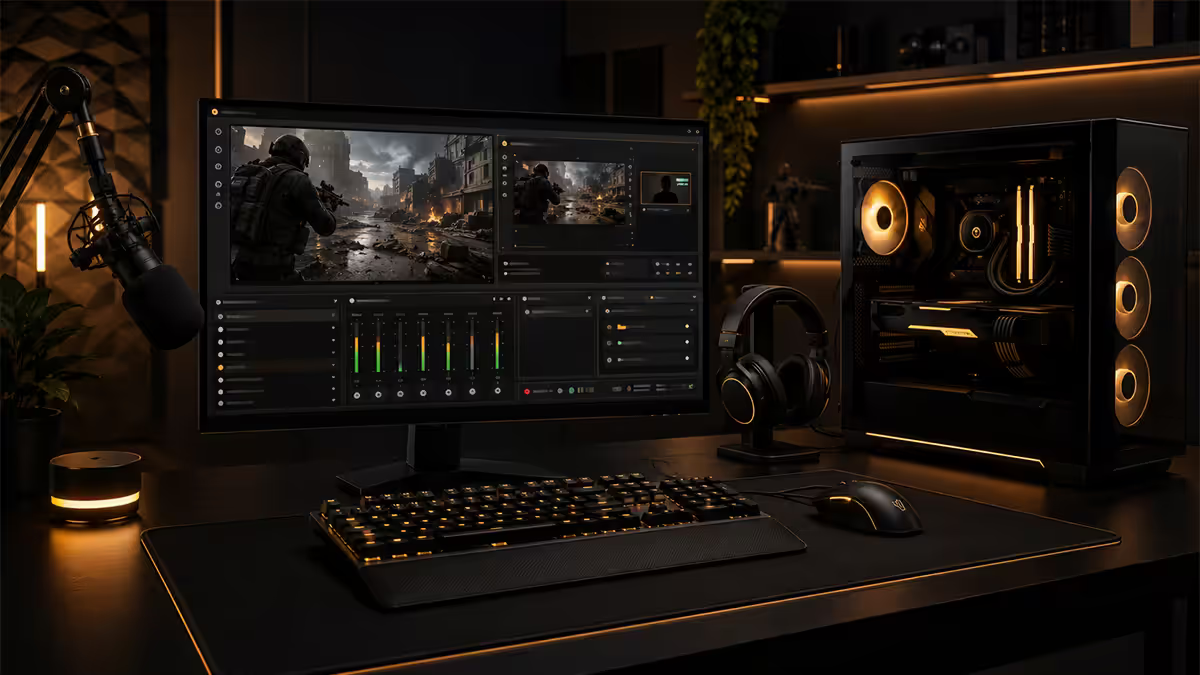
Single PC reality — NVENC, AMF, QuickSync
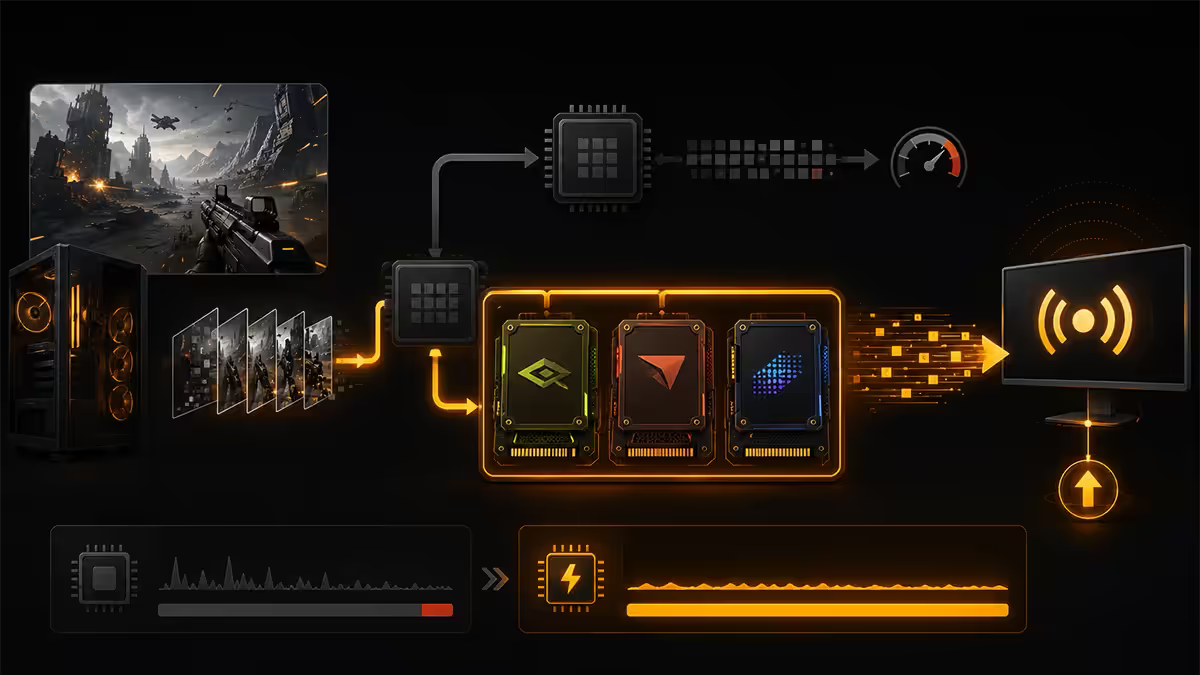
Modern GPUs ship with a dedicated hardware video encoder: NVIDIA's NVENC, AMD's AMF (Advanced Media Framework), Intel Arc's QuickSync. These are physical silicon blocks separate from the shader cores that handle game rendering. The encoder takes your game's framebuffer, compresses it into H.264 or HEVC or AV1, and hands it to OBS to send to the stream — all in parallel with rendering the next frame.
The performance cost is small. On an RTX 4070 or 5070 streaming at 1080p60 with NVENC HEVC, you'll measure a 1-3% drop in game FPS. On an RTX 4080 / 5080 streaming at 1440p60, it's essentially within margin of error. AMD AMF on RX 7900/9000 series is similarly low impact. Intel Arc QuickSync (B580 and up) is widely considered the best per-dollar encoder for budget streamers.
Why this matters: the "you need a dedicated streaming PC" advice came from the x264 software-encoder era when streaming meant taxing your CPU with high-quality H.264 encoding. With hardware encoders that now match x264 medium/slow quality, software encoding has become a niche choice for AV-club enthusiasts. For practical purposes, single-PC streaming is the default.
OBS Studio — the settings that matter
OBS Studio (free, open source) remains the universal streaming tool. Streamlabs Desktop is a OBS fork with built-in alerts and dashboard; either works. Settings below are for OBS Studio default UI.
Output settings (Settings → Output)
- Output Mode: Advanced (always — gives you the controls you actually need).
- Encoder: NVIDIA NVENC HEVC for YouTube/Kick; NVIDIA NVENC H.264 for Twitch.
- Rate Control: CBR (Constant Bitrate). VBR is theoretically better but causes problems with platform ingest.
- Bitrate: See SA fibre tier matchup below.
- Keyframe interval: 2 seconds (required by Twitch, recommended by YouTube/Kick).
- Preset: P5 (Slow) — best quality NVENC preset that still runs in real-time.
- Tuning: High Quality.
- Multipass mode: Two Passes (Quarter Resolution) — small quality bump on Ada/Blackwell.
- Profile: High.
- Look-ahead: Enabled.
- Psycho Visual Tuning: Enabled.
- GPU: 0 (use your main GPU).
- B-frames: 2.
Video settings (Settings → Video)
- Base (Canvas) Resolution: your monitor resolution (e.g., 1920x1080, 3440x1440, 2560x1440).
- Output (Scaled) Resolution: 1920x1080 for most streams; 2560x1440 if you have headroom and your platform allows.
- Downscale Filter: Lanczos (32 samples) — best quality.
- FPS: 60 fps. 30 fps only if your upload is severely constrained.
Audio settings
- Audio Bitrate: 160 kbps stereo (Twitch caps at 160; YouTube/Kick allow more but 160 is the universal safe bet).
- Sample rate: 48 kHz.
Bitrate maths — SA fibre tier reality
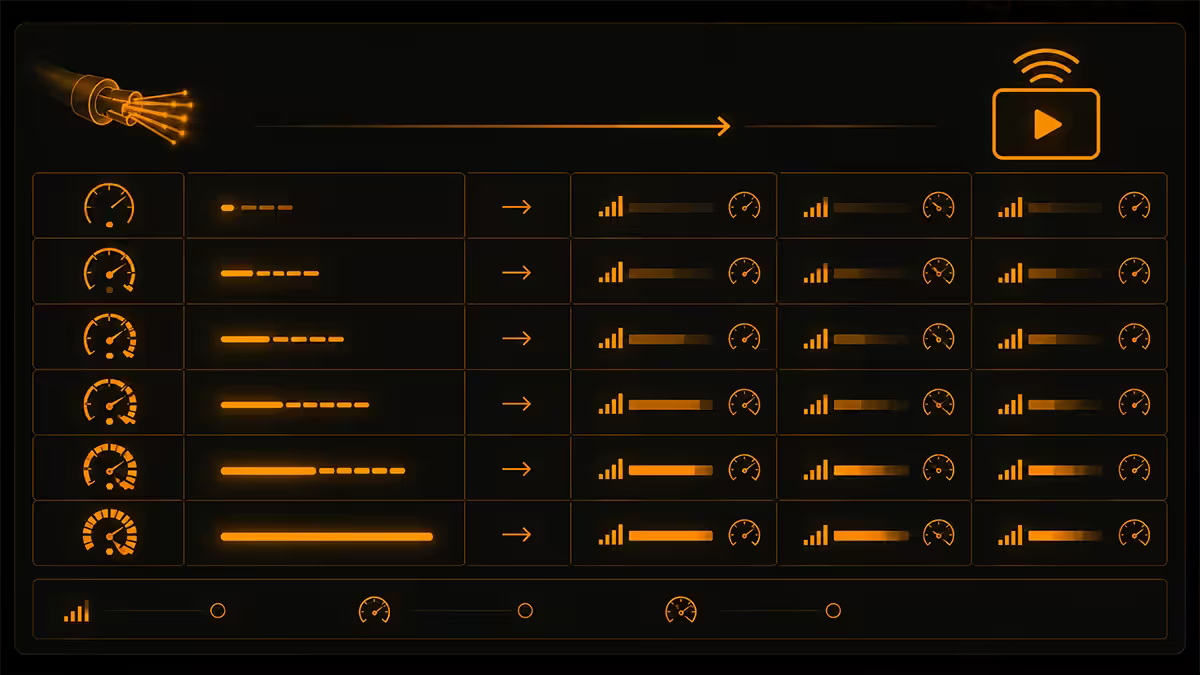
The single biggest mistake new streamers make is setting their bitrate to whatever YouTube recommends, regardless of their actual upload speed. Streaming at 80% of your upload leaves no headroom for retransmissions, family Netflix or your own background traffic. The result is buffer warnings and dropped frames on your stream.
The rule: stream bitrate ≤ 75% of your verified, stable upload speed at the time you stream. Run speedtest.net's upload test at 7pm if you stream at 7pm — fibre congestion in SA suburbs is real during peak hours.
| SA fibre tier | Stream bitrate ceiling | What you can do |
|---|---|---|
| 20 / 5 Mbps | ~3,500 kbps | 1080p30 (limited) or 720p60 |
| 50 / 25 Mbps | ~6,000 kbps | 1080p60 to Twitch (capped at 6-8K) |
| 100 / 50 Mbps | ~10,000-15,000 kbps | 1080p60 HEVC YouTube/Kick, multistream |
| 200 / 100 Mbps | ~25,000+ kbps | 1440p60 YouTube/Kick, 4K limited |
| 500 / 200+ Mbps | No real constraint | 4K60 HEVC/AV1, no compromises |
For most SA streamers in 2026, the realistic ceiling is the platform's limit, not the fibre's. Twitch caps non-partners at 6,000-8,000 kbps. YouTube Live accepts up to 50 Mbps. Kick accepts very high bitrates but the audience caps long before that matters.
Twitch vs YouTube Live vs Kick — 2026 reality
Choice of platform shapes everything else — bitrate ceiling, encoder choice, audience demographics, monetisation timing. The 2026 SA landscape:
Twitch
Still the largest gaming-native audience. Discoverability through "browsing live" remains relatively strong. Drawbacks: caps non-partners at 6,000-8,000 kbps and H.264 only (no HEVC, no AV1), which means visible artefacting on high-motion games. Partner approval is opaque and competitive. Subscription / bits monetisation works but pays out monthly via Twitch's processor with a SA banking process that some find frustrating.
YouTube Live
Accepts up to 50 Mbps, HEVC and AV1. Automatic VOD with potential Shorts conversion. Discoverability through the YouTube algorithm is increasingly the route to growth — streams convert to long-form videos that get recommended for weeks. Drawbacks: live audience tends to be smaller per stream than equivalent Twitch presence. Monetisation requires 1,000 subscribers + 4,000 watch hours (or 10M Shorts views) before the Partner Programme — but once accepted, revenue per view is generally higher than Twitch.
Kick
Highest non-partner bitrate ceiling, most generous revenue split (95% to streamer in the headline tier). Audience is smaller and more concentrated in certain content categories. Drawbacks: brand reputation is mixed; some sponsors avoid Kick. Discoverability via Kick's homepage curation is more editorial than algorithmic.
Multistreaming
Services like Restream, Aitum and OBS's built-in Multi-RTMP push your single OBS output to multiple platforms simultaneously. The catch: your upload bandwidth must support all platforms combined. Streaming 6,000 kbps to Twitch + 12,000 kbps to YouTube + 8,000 kbps to Kick needs 26,000 kbps upload + headroom — roughly 35,000 kbps of consistent upload. Achievable on 100/100 Mbps SA fibre and up; tight on 50 Mbps.
Dedicated streaming PC — when it's actually worth it
A dual-PC setup uses one PC to game and a second PC to handle the encoding, multi-source mixing, alerts and platform-talking. The gaming PC's signal is captured and sent to the streaming PC via either:
- HDMI capture card (Elgato 4K X, Elgato HD60 X, AverMedia GC553) — the gaming PC outputs HDMI to the capture card on the streaming PC. Adds a small frame of latency.
- NDI over Ethernet — gaming PC encodes a low-latency NDI stream over a dedicated gigabit cable to streaming PC. Free software, but encoding eats some gaming GPU cycles.
Dual PC genuinely makes sense for:
- Top-tier streamers running x264 software encoding at "slow" or "very slow" preset for maximum image quality (rare in the NVENC HEVC era).
- Multi-camera production with switching, green-screen compositing and complex scene setups.
- Streamers running multiple high-VRAM games where the encoder takes meaningful frame-time on a single GPU.
- Streamers who want absolute zero risk that the game crashing takes the stream down with it.
Dual PC does not make sense for: almost every streamer in 2026 on a modern RTX/RX/Arc GPU using NVENC/AMF/QuickSync. Spend the second-PC money on a better main GPU, a quality microphone, or a 1440p monitor instead.
Audio routing — Voicemeeter, GoXLR, or simpler
Audio is where amateur streams reveal themselves. Stream that leaks Discord, has music too loud, or distortion in the mic loses viewers in seconds. The fix is proper audio routing.
Software route — Voicemeeter Banana / Potato
Voicemeeter creates virtual audio buses on Windows. The pattern most streamers use:
- A1 (output 1): your headphones / speakers — hears everything.
- B1 (virtual bus to OBS Stream Mix): sends game + mic + music + alert audio to OBS, but excludes Discord.
- B2 (virtual bus for Discord): sends mic only to Discord, so your friends don't hear their own voices echoed back.
In each application's audio settings, you point its output and input to the appropriate Voicemeeter virtual cable. Discord's input becomes "VoiceMeeter Out B2", OBS's mic input becomes "VoiceMeeter Out B1", etc. Initial setup is fiddly; once done, you set and forget.
Hardware route — GoXLR Mini / GoXLR Full
The GoXLR is a physical audio mixer with faders for each channel (Mic, Game, Music, Chat, etc.) and a built-in audio interface. SA pricing for GoXLR Mini is roughly R6,500-R9,000. The benefit is physical control — you can mute Discord mid-stream or duck music with one finger. It's not necessary, but transformative for streamers who care about audio polish.
Microphone choice
For SA streamers in 2026 starting out, the entry tier is the RODE PodMic USB (R3,200) — dynamic, USB-C, sounds professional out of the box. Stepping up: Shure MV7+ (R6,500), Elgato Wave DX (R3,200 with separate interface). Avoid condenser mics (Blue Yeti, RODE NT-USB) unless you have a treated room — they pick up keyboard, fan noise and street sound.
Scenes, transitions and alert overlays
A polished stream has scenes that match its state. The basic scene set:
- Starting Soon — branded countdown screen.
- Just Chatting — webcam fullscreen with chat overlay.
- In Game — game source fullscreen with webcam corner overlay.
- BRB — branded "back soon" screen.
- Ending — outro with social handles.
Transitions: a Stinger (a short MP4/WebM video overlay between scenes) looks dramatically more professional than a fade or cut. Branded stinger packs on the OBS Studio market exist around R150-R500. For a free start, Fade at 300ms is the safe default.
Alert overlays: Streamlabs, Stream Elements and OWN3D all offer browser-source URLs you paste into OBS as a browser source. Customise the alert visuals and sounds in their web dashboard. Position the alert layer above the gameplay scene so it shows in-frame.
The "no second monitor" reality — phone for chat
The classic recommendation is a second monitor for chat + OBS stats. The classic SA reality is that the streamer's budget went on a better GPU instead. Workable solution: use your phone.
Twitch, YouTube and Kick all have mobile apps that show chat in real time. Twitch's Twitch Studio Mobile and Streamlabs' mobile app both have streamer-dashboard views showing chat, recent followers and stream stats. Position phone next to your monitor, set screen to never sleep during stream, mute the audio (to avoid feedback echo), and you have a chat monitor for free.
As you grow, a cheap 24-inch 1080p secondary monitor (R1,500-R2,500 in SA) is the obvious upgrade. Until then, the phone trick costs nothing.
Key takeaways
- NVENC / AMF / QuickSync hardware encoders make single-PC streaming the default in 2026 — 1-3% FPS cost.
- OBS: NVENC HEVC, CBR, P5 preset, bitrate at 75% of verified upload.
- Twitch caps at 6-8 Mbps H.264. YouTube/Kick accept HEVC and higher bitrates — better quality at the same upload.
- Voicemeeter for audio routing so Discord doesn't leak to viewers. Mic quality matters more than visual settings.
- No second monitor? Use your phone for chat. Loadshedding-proof power matters as much as encoding.
Frequently asked questions
Do I need a separate streaming PC to stream and game?
No. Modern NVIDIA GPUs (RTX 30/40/50 series) have a dedicated NVENC hardware encoder that runs alongside game rendering with near-zero performance impact — typically 1-3% FPS cost. AMD's AMF and Intel Arc's QuickSync work similarly. A dedicated streaming PC only makes sense if your stream is CPU-encoded x264 at very high settings, or if you're hitting GPU VRAM ceilings, or running multi-camera production. For almost every streamer in 2026, single-PC streaming is the right call.What bitrate should I stream at on SA fibre?
Keep your stream bitrate below 75% of your verified upload speed to leave headroom for retransmissions and other traffic. SA fibre tiers: 50 Mbps upload → stream at 6,000-8,000 kbps (Twitch's typical ceiling). 100 Mbps upload → stream at 10,000-15,000 kbps to YouTube/Kick (which accept higher bitrates than Twitch's 8,000 ceiling). 200 Mbps upload or higher → no real constraint; use platform-recommended bitrate for your resolution. Always run a speedtest.net upload test at your typical stream time, not 3am.What OBS settings should I start with?
Output mode: Advanced. Encoder: NVIDIA NVENC HEVC (Twitch native h.264) or NVENC HEVC for YouTube/Kick. Rate Control: CBR (constant bitrate). Bitrate: based on your upload (see SA fibre tiers). Preset: P5 (Slow). Tuning: High Quality. Profile: high. Look-ahead: on. Psycho Visual Tuning: on. B-frames: 2. Video output: 1920x1080 at 60fps for most streamers; 1440p60 for ultrawide creators. Audio: 160 kbps stereo. Save the profile so you can switch between streaming platforms easily.Twitch, YouTube or Kick — which platform in 2026?
Twitch remains the largest gaming audience but caps non-partners at 6,000-8,000 kbps and h.264, which hurts visual quality. YouTube Live accepts up to 50 Mbps and HEVC/AV1, offers automatic VOD with Shorts conversion, and is increasingly the platform discovery channel via the algorithm. Kick offers the highest non-partner bitrate (8,000+ kbps, often more) and a more generous revenue split but has lower active viewership. SA streamers in 2026 commonly multistream Twitch + YouTube via Restream/Aitum, with Kick as a third stream if community-aligned.Do I need a capture card?
For single-PC streaming, no. Capture cards (Elgato HD60 X, AverMedia GC553) are for either capturing a console (Xbox / PS5 / Switch) into your streaming PC, or in a dual-PC setup, capturing your gaming PC's output for the streaming PC. NDI (a network-based alternative) can replace capture cards in dual-PC setups over a dedicated gigabit link — no extra hardware. For console capture, the Elgato HD60 X (around R3,800 in SA) is the SA workhorse and supports 4K60 passthrough with 1080p60 capture.How do I route game audio, mic, Discord and alerts cleanly?
Voicemeeter Banana (or paid VoiceMeeter Potato) on Windows lets you route game audio, mic, Discord and OBS alerts onto separate virtual buses. Send the right buses to OBS and stream — viewers hear game + mic + alerts but not your friends in Discord (unless you choose). Hardware alternatives: GoXLR Mini (R6,500-R9,000 in SA) gives physical faders for the same routing. Audio routing is the single biggest difference between a polished stream and an amateur one.How do I do scene transitions and alert overlays?
In OBS, create scenes for each stream state — Just Chatting, In Game, BRB, Starting Soon, Ending. Set transition style (Stinger transitions with a video overlay look pro; Fade is the safe default). For alerts: Streamlabs, Stream Elements or OWN3D give browser-source URLs you paste into OBS as a browser source. Position them above gameplay so they're visible. Test alerts before going live using the platform's test event button.My second monitor died — how do I watch chat without one?
Use your phone. Twitch, YouTube and Kick all have mobile apps that show chat in real-time. Open your stream's dashboard on your phone, mute the audio (or you'll get feedback echo), prop it next to your monitor. Twitch Studio Mobile and Streamlabs Mobile also have specific dashboard apps with chat-only views. This is the universal SA streamer workaround when the budget hasn't yet stretched to a second monitor.
Get the Evetech app
Exclusive app-only prices, daily flash sales, and free delivery on orders over R4,000 — download the app and start saving.