Gaming Performance Guide
Best in-game settings for maximum FPS. — Same hardware, 30% more frames.
Five settings in every game silently torch a third of your frame rate for visual changes you'd never see in motion. Turn those off, then squeeze the rest with the right upscaler and frame-cap combination.
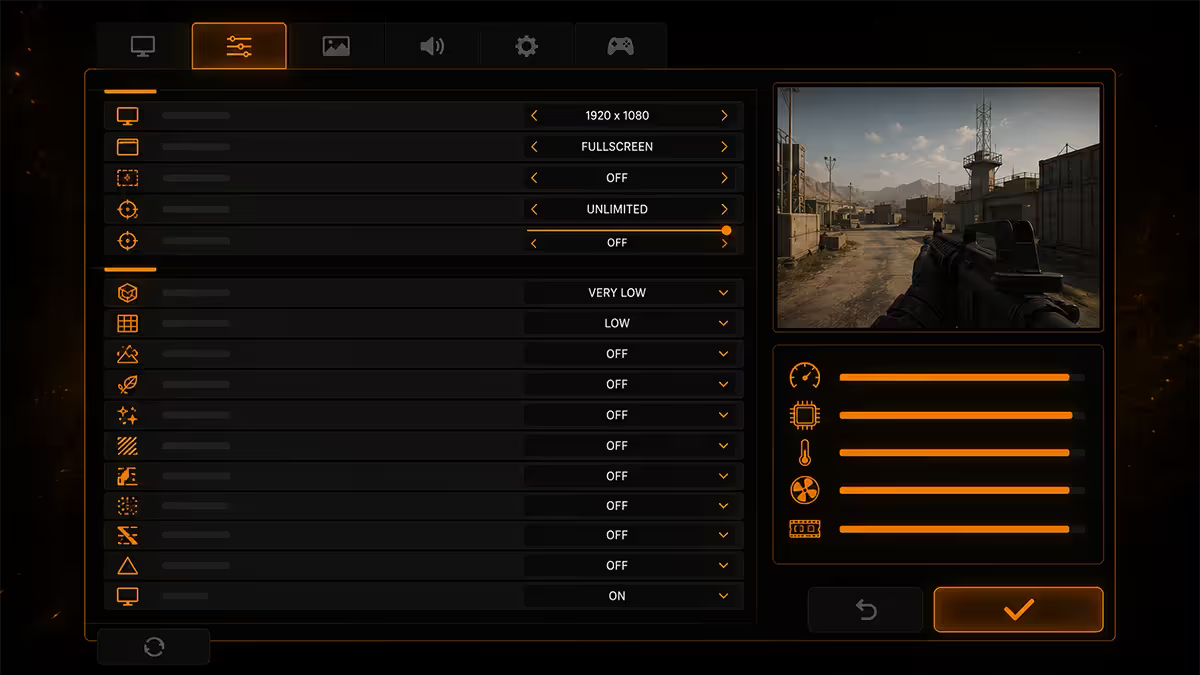
Why settings matter more than hardware
You can spend R30,000 upgrading a GPU and still leave 30-40% of your frame rate on the table because a single check-box in the graphics menu is silently chewing through GPU cycles for visual effects you'd never notice in motion. The reverse is also true: a sensibly tuned RTX 4060 will routinely out-perform an Ultra-preset RTX 4070 in the same game.
The default "Ultra" preset is a marketing setting. It's there so screenshot reviews can claim "max settings at 4K", not because every individual option scales sensibly. The settings most worth turning down are the ones that cost the most performance for the least visual return when the camera is actually moving.
Three principles drive every recommendation in this guide:
- Cost per visible pixel. A setting that costs 8% FPS but adds detail you can only see in still screenshots fails the test.
- Motion dominates perception. When the camera is moving at 144 Hz, your eye cannot resolve the difference between Medium and Ultra shadows. Ray-traced reflections on puddles disappear in peripheral vision.
- Frame consistency > raw average. A steady 120 FPS feels smoother than 90-180 wobble. Settings that cause stutters (low VRAM, ray tracing on cards without the RT cores) ruin the feel even at a high average.
The top six settings that always cost FPS for no visible gain
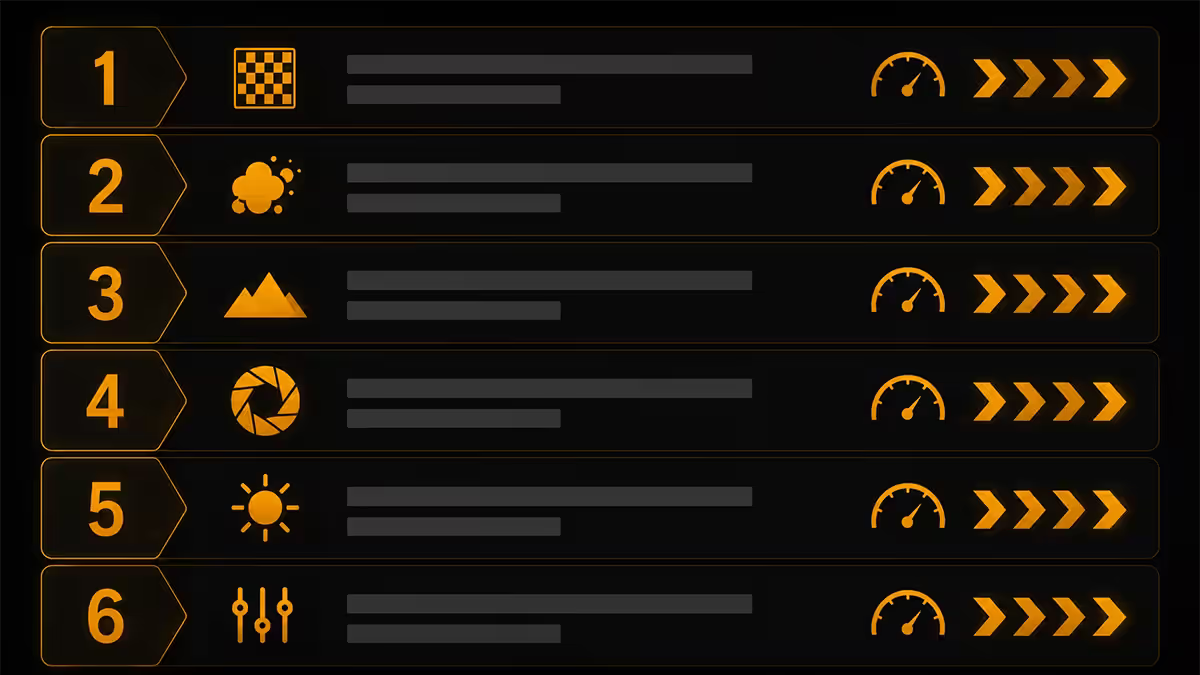
In every modern title these settings rank highest for performance cost vs visible improvement. Drop them first, in this order.
| Setting | Recommended | Typical FPS gain |
|---|---|---|
| Ray Tracing | Off (or Low only on RTX 50/RX 9000) | +25-50% |
| Shadow Quality | Medium (or High) | +8-15% |
| Ambient Occlusion | Medium / HBAO | +4-8% |
| Screen-Space Reflections | Medium | +5-10% |
| Volumetric Fog / Clouds | Medium | +5-12% |
| Motion Blur | Off | +5-10% |
Ray tracing — the biggest FPS killer in modern games
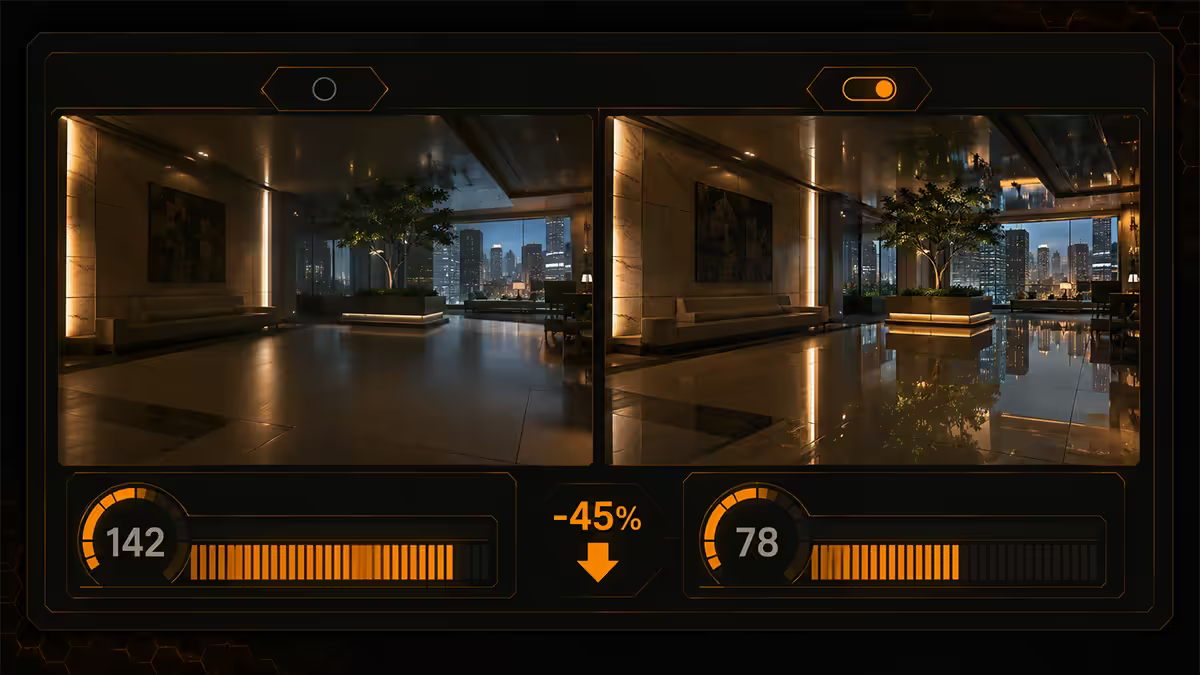
Ray tracing costs 25-50% FPS in titles that implement it heavily (Cyberpunk, Alan Wake 2, Black Myth: Wukong, Indiana Jones). The visual gain — accurate reflections, shadows and global illumination — is real, but mostly only visible in cutscenes or when the camera is static. In actual gameplay your peripheral vision can't process it.
On lower-tier RTX cards (RTX 4060, RTX 5060) and AMD's RX 7700/8700 tier, ray tracing simply isn't viable at 1440p without major compromises. On flagship cards (RTX 4090, RTX 5080/5090) it's playable but still expensive. Verdict: off by default, on only if your card is over-spec'd for the game.
Shadows, ambient occlusion and reflections
The next three drop together. Shadow quality Ultra renders shadows from every light source at maximum resolution — Medium uses lower-resolution shadow maps and culls minor sources, but in motion the difference is invisible. Ambient occlusion at Ultra calculates contact shadows at every pixel; HBAO+ or Medium does the same work at half the cost.
Screen-space reflections (SSR) reflect what's currently on-screen — at Ultra they're calculated at full resolution every frame. Medium drops the resolution slightly and recovers 5-10% FPS with no perceptible loss in any motion-heavy scene.
DLSS, FSR and XeSS — free FPS done right
Upscalers render the game at lower resolution and use AI (or temporal sampling, for FSR pre-3) to reconstruct a near-native image. The performance gain is enormous: 30-50% more FPS for a quality drop most players can't see in motion.
Pick by GPU:
- NVIDIA RTX — use DLSS. The DLSS 4 transformer model (March 2025+) is the highest-quality upscaler available. Quality mode at 1440p/4K is near-indistinguishable from native.
- AMD RX — use FSR 3.1 (or FSR 4 on RX 9000-series). FSR 4 brings AMD's quality in line with DLSS for the first time.
- Intel Arc — XeSS. Quality has improved significantly in 2025; Quality mode is now competitive with DLSS for most scenes.
Quality presets explained:
| Preset | Render scale | Best at |
|---|---|---|
| Quality | 67% (DLSS), 67% (FSR) | 1440p, 4K (default pick) |
| Balanced | 58% | 4K when Quality isn't enough |
| Performance | 50% | 4K only — soft at 1440p, blurry at 1080p |
| Ultra Performance | 33% | 8K or extreme RT scenarios only |
| DLAA / Native AA | 100% (AA only) | Image quality > FPS — DLSS as anti-aliasing |
The rule: Quality at 1440p or 4K, native or DLAA at 1080p (Performance upscaling looks bad below 1440p), and only drop to Balanced if you genuinely can't hit the frame rate you want.
Frame generation — when to use it, when to skip
Frame generation (DLSS 3/4 Frame Gen, FSR 3 Frame Gen, AFMF 2) inserts AI-generated frames between real rendered frames. Often doubles on-screen FPS but adds a tiny amount of input latency (typically 8-15 ms) because the GPU must hold the next real frame to interpolate.
Use frame gen when:
- Single-player titles where smoothness matters more than reaction time (Cyberpunk, Alan Wake 2, Hogwarts Legacy, Black Myth: Wukong).
- Your base frame rate is already 50+ FPS — frame gen below 40 FPS produces visible artefacts.
- You have a high-refresh monitor (120 Hz+) — 60 FPS interpolated to 120 only matters on a 120 Hz panel.
Skip frame gen for:
- Competitive shooters (CS2, Valorant, MW3, Apex, Overwatch 2). The latency penalty matters at the top end.
- Driving and racing sims with twitchy inputs.
- Any title where your base FPS is already 100+ — frame gen has diminishing returns and just adds latency.
V-Sync, G-Sync and FreeSync — eliminating screen tearing
If your FPS is higher than your monitor's refresh rate without sync, you get screen tearing — visible horizontal seams where the GPU sent half-frames. Traditional V-Sync solves tearing but introduces 1-2 frames of input lag.
The modern fix is variable refresh rate (VRR) — G-Sync (NVIDIA), FreeSync (AMD), or G-Sync Compatible (most NVIDIA cards with FreeSync monitors). The monitor matches its refresh rate to whatever the GPU is producing, frame-by-frame. No tearing, no lag.
The combination that works:
- Enable G-Sync / FreeSync in the GPU control panel (NVIDIA Control Panel or AMD Adrenalin).
- Cap your FPS 3-5 below your monitor's refresh rate (RTSS, NVIDIA Control Panel limiter, or in-game cap). 141 FPS on a 144 Hz panel; 237 on a 240 Hz panel.
- Leave V-Sync off in-game. Some recommend V-Sync on in the driver as a safety net; in 2026 it isn't necessary.
Why cap below refresh? G-Sync/FreeSync only works below the monitor's max refresh. If you hit the ceiling, the sync drops out and tearing reappears. A 3-5 FPS buffer keeps you in the variable range permanently.
Per-game settings recommendations
Generic presets are a starting point; the real optimisation is per-title. Here are the 2026 sweet-spot settings for four widely played games.
Counter-Strike 2
Competitive priority: visibility > visual fidelity. Settings: Low overall preset, but turn Model/Texture Detail to High (helps player visibility), Shadow Quality Medium (you need shadows for footstep direction tells), Effect/Shader Detail Low, MSAA 4x or higher (jaggies on player edges cost you frags), Boost Player Contrast On. NVIDIA Reflex Low Latency on. Cap FPS at monitor refresh -3. Most builds easily hit 300+ FPS at 1080p.
Valorant
Even more competitive-tuned than CS2. All settings Low, Material Quality Low, Detail Quality Low, UI Quality Low, VFX High (helps see ability effects), Bloom Off, Distortion Off, Anti-aliasing MSAA 2x (minimal cost, removes jaggies). Mid-range builds will exceed 400 FPS at 1080p.
Cyberpunk 2077
Single-player showcase title. On RTX 4070+: Ray Tracing Medium, Shadows High, Volumetric Fog Medium, SSR Medium, Cascaded Shadow Resolution Medium, DLSS Quality, DLSS Frame Generation On. Textures Ultra if VRAM allows. Path Tracing only on RTX 4090 / RTX 5080+.
Call of Duty: Modern Warfare III
Hybrid — competitive multiplayer wants high FPS, campaign wants visuals. Multiplayer settings: Texture Resolution High, Shadow Quality Low/Medium, Particle Quality Low, Volumetric Quality Off, DLSS/FSR Quality, NVIDIA Reflex On, Motion Blur Off. Campaign: bump everything two tiers higher and enable ray tracing if your card has the headroom.
Competitive vs single-player — different priorities entirely
The settings argument fragments along one fault line: are you chasing frames per second, or pictures per second?
Competitive (CS2, Valorant, MW3, Apex, Rainbow Six, Overwatch 2): visibility wins. Drop graphics settings to Low, keep textures and player models High for visibility, cap FPS at 3 below monitor refresh, NVIDIA Reflex / AMD Anti-Lag on, motion blur off, depth of field off, film grain off, chromatic aberration off. The goal is the cleanest, fastest, most consistent image possible.
Single-player narrative (Cyberpunk, RDR2, Alan Wake 2, Wukong, Hogwarts Legacy): visual immersion wins. Push settings as high as your hardware can sustain at 60-90 FPS, enable ray tracing if viable, use frame generation, accept slightly higher latency for a richer image. Use DLAA or DLSS Quality, not Performance.
Hybrid (Helldivers, Destiny 2, Warzone, Fortnite): balance — Medium-High preset, DLSS/FSR Quality, motion blur off, ray tracing off unless your GPU has serious headroom. Cap at monitor refresh -3.
Common mistakes that cost frames
Leaving everything on Ultra by default. The Ultra preset is a marketing benchmark, not a real-world recommendation. Even RTX 5080 owners benefit from settings tuning.
Turning DLSS / FSR off "for image quality". Modern DLSS Quality at 1440p or 4K is genuinely indistinguishable from native in motion. The "purist" instinct here costs you 35% of your frame rate for nothing.
Running 200 FPS into a 60 Hz monitor. A 60 Hz panel displays 60 frames per second maximum. Anything above that is wasted GPU cycles, extra power, extra heat, extra noise. Cap your FPS at monitor refresh -3.
Leaving frame generation on for competitive games. The extra latency matters in CS2, Valorant, MW3. Single-player only.
Not updating GPU drivers. Performance regressions appear and disappear between driver versions. Update NVIDIA via GeForce Experience or NVIDIA App; AMD via Adrenalin software. Once a month is enough.
Running background applications. Discord overlay, OBS, browser tabs, Adobe Creative Cloud, Razer Synapse, Logitech G HUB — every running process eats CPU and RAM. Close non-essentials before launching demanding titles, or use Game Mode (Windows 11) which throttles background tasks automatically.
Key takeaways
- Drop ray tracing, shadows, ambient occlusion, SSR, volumetric fog and motion blur first — 25-50% FPS back without visible loss in motion.
- Enable DLSS Quality (NVIDIA) or FSR 3.1 Quality (AMD) at 1440p and 4K — near-native image, 30-50% more FPS.
- Frame generation in single-player only — never competitive shooters where input latency matters.
- G-Sync / FreeSync on, V-Sync off, FPS capped 3 below monitor refresh — no tearing, no lag.
- Textures stay Ultra if VRAM allows — almost no FPS cost, biggest visible upgrade in any game.
Frequently asked questions
Which in-game settings cost the most FPS?
Ray tracing (25-50%), shadows Ultra (8-15%), ambient occlusion Ultra (4-8%), screen-space reflections Ultra (5-10%), volumetric fog Ultra (5-12%), motion blur (5-10%). Drop these first.Should I use DLSS, FSR or XeSS?
NVIDIA RTX use DLSS, AMD RX use FSR 3.1 or FSR 4, Intel Arc use XeSS. Quality preset at 1440p and 4K, DLAA / native at 1080p.Is frame generation worth using?
Yes for single-player when base FPS is 50+. No for competitive shooters — the latency penalty matters there.V-Sync, G-Sync or FreeSync — which is best for gaming?
G-Sync (NVIDIA) or FreeSync (AMD, also G-Sync Compatible). Cap FPS 3 below monitor refresh, V-Sync off in-game.What should I set texture quality to?
As high as VRAM allows. 8 GB = High, 12 GB+ = Ultra. Almost zero FPS cost, biggest visual upgrade.Should I disable motion blur?
Yes, in almost every case. Costs 5-10% FPS, most players find it distracting. Off by default.What FPS should I be targeting?
60 Hz monitor → 60 FPS. 144 Hz → 120-144. 240 Hz competitive → 200+. Frame consistency matters more than raw average.Why are my FPS lower than benchmark videos show?
Background apps, outdated drivers, settings higher than benchmark. Close background tasks, update GPU driver, match benchmark settings.
Get the Evetech app
Exclusive app-only prices, daily flash sales, and free delivery on orders over R4,000 — download the app and start saving.