Valorant · Competitive Tuning
Best settings for Valorant. — All low. Three things medium. Reflex on. Cap at refresh minus three.
Valorant is engineered to run on potato laptops, which means even modest GPUs can push triple-digit FPS. The settings tuning isn't about "max graphics" — it's about hitting your monitor's refresh rate consistently, preserving enemy clarity, and shaving milliseconds of input latency wherever possible.
- cap math
- refresh − 3
- edpi range
- 200-800
- reflex saving
- ~15-30 ms
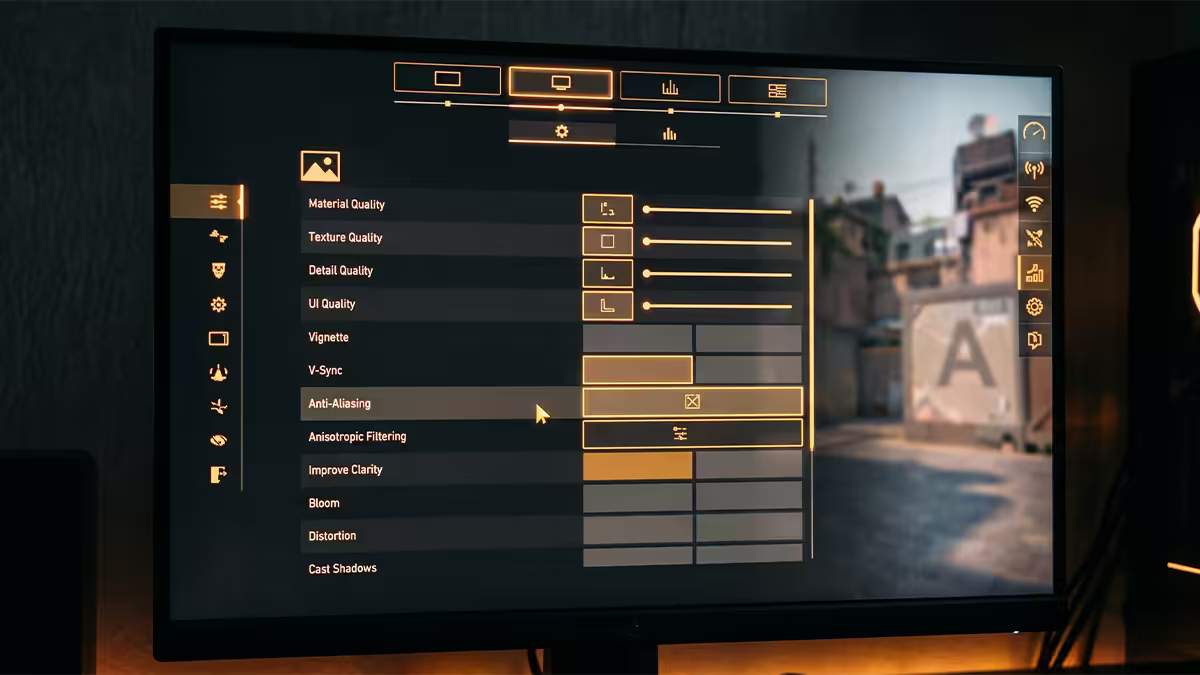
In-game graphics — what each toggle actually changes
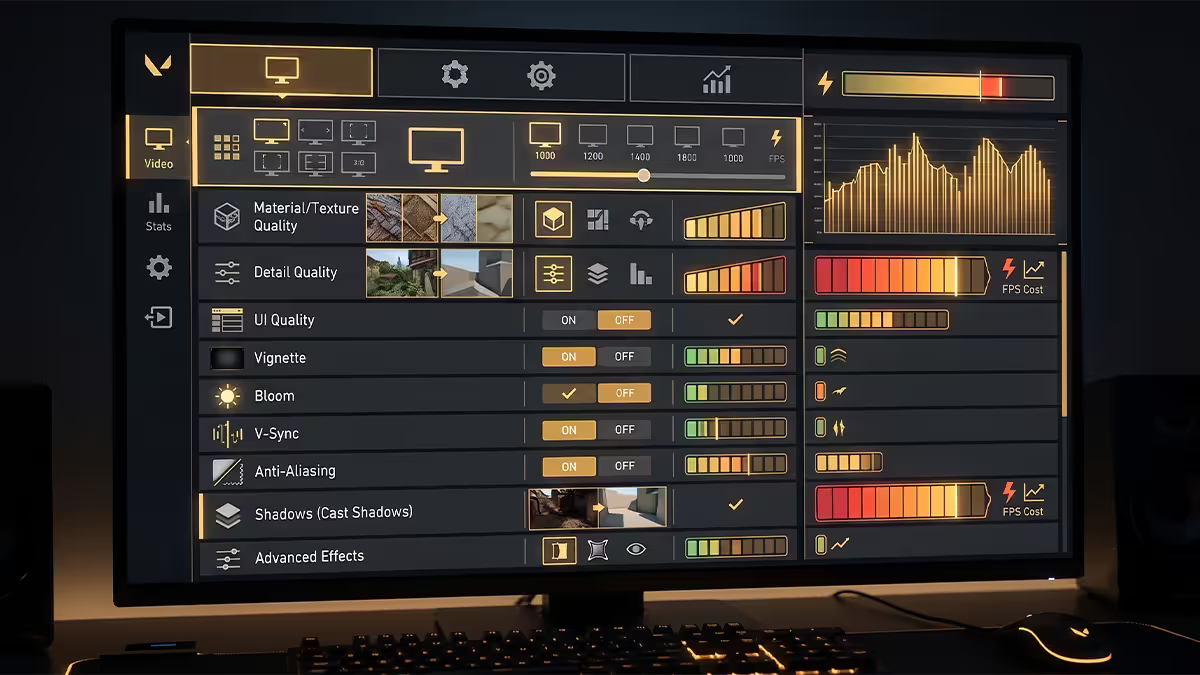
Valorant's graphics tab has 18 toggles. Most can be left at the lowest setting with zero competitive penalty. Three matter — they affect enemy character clarity at long range, which is more important than raw FPS once you're above 200.
| Setting | Recommended | Why |
|---|---|---|
| Material Quality | Medium | Enemy outlines look cleaner at distance |
| Texture Quality | Medium | Map texture detail aids spotting |
| Detail Quality | Medium | Smaller in-world objects render properly |
| UI Quality | Low | HUD looks fine, saves a few FPS |
| Vignette | Off | Visual darkening serves no competitive purpose |
| VSync | Off | Adds 8-16 ms latency, always |
| Anti-Aliasing | None / MSAA 2x | None gives more FPS; MSAA 2x cleaner edges if GPU allows |
| Anisotropic Filtering | 1x | Higher levels invisible in competitive play |
| Improve Clarity | On | Riot's sharpening filter; helps enemy clarity |
| Experimental Sharpening | Off | Overdone — produces ringing artifacts |
| Bloom | Off | Glare effect hurts spotting |
| Distortion | Off | Ability visual noise reduced |
| Cast Shadows | Off | Big FPS save, irrelevant to gameplay |
| First Person Shadows | Off | Removes player's shadow on walls |
Why Medium for the three quality settings? At Low, Valorant uses simplified material shaders that can render enemy character textures slightly muddier at range. The FPS cost of moving Material / Texture / Detail to Medium is minor on any GPU from a GTX 1660 / RX 6600 upwards, and the enemy clarity benefit is meaningful in practice.
Display mode and aspect ratio
Display Mode: Fullscreen. This is Valorant's "exclusive fullscreen" mode — the GPU gets direct frame-buffer access, bypassing the Windows compositor (DWM). Result: 4-8 ms lower input latency than Windowed Fullscreen / Borderless.
Resolution: Native. Run your monitor's native resolution. Many old guides recommend stretched 4:3 (e.g. 1440x1080 on a 1920x1080 panel) — this practice has largely fallen out of favour in 2025-2026 as monitors and GPUs have improved. The fictional FPS gain from lower resolution is now insignificant on capable hardware, and native gives you the cleanest enemy outlines.
Aspect Ratio Method: Fill. If you do prefer 4:3 (some pros still do for personal preference), set to Fill so the image stretches to your full screen rather than letterboxing.
Refresh Rate: native max. Confirm Windows Settings > Display > Advanced display matches what Valorant shows. If the in-game refresh drops to 60Hz despite the monitor being capable, your cable is the limiting factor or Windows hasn't picked up the EDID correctly.
NVIDIA Reflex (and AMD equivalent)
NVIDIA Reflex Low Latency is the single most impactful one-click setting. It reduces system latency by 15-30 ms — measurable, repeatable, and visible in side-by-side LDAT testing.
Setting: Settings > Graphics > NVIDIA Reflex Low Latency: On + Boost.
"On" enables the latency reduction. "Boost" forces the GPU to max clocks regardless of load, preventing latency spikes during quieter moments where the GPU might otherwise idle. There's no realistic downside on a desktop PC.
AMD Radeon users: enable Anti-Lag 2 (or Anti-Lag+ depending on driver branch) via Adrenalin Software for an equivalent effect. AMD's implementation lags NVIDIA's slightly in measured improvement but the gap has narrowed to roughly 3-5 ms.
Mouse sensitivity, DPI and EDPI
Sensitivity tuning matters more than any other setting because it directly affects your muscle memory. The math is simple:
EDPI (Effective DPI) = Mouse DPI × In-Game Sensitivity
A player at 800 DPI mouse with Valorant sens 0.4 has an EDPI of 320. A player at 1600 DPI mouse with sens 0.2 has the same EDPI (320) — they move the same distance in-game per cm of mouse movement, just with different mouse polling characteristics.
EDPI ranges seen in pro play:
- Low (200-350 EDPI): Slower, more deliberate aim. Favoured by players prioritising precision tracking. TenZ, Aspas, Demon1 sit here.
- Mid (350-500 EDPI): Balanced. Most pros are in this range.
- High (500-800 EDPI): Quick flicks, faster turn rates. Aceu, some Sentinel-focused players prefer this.
How to pick: start at 800 DPI mouse, in-game sens 0.4 (EDPI 320). Play 50 deathmatch rounds. If you feel like you're constantly overshooting heads, drop to 0.3 (EDPI 240). If you feel slow and behind enemy movement, bump to 0.5 (EDPI 400). Lock the setting in for at least two weeks before changing again.
Windows mouse settings: Pointer Speed must stay at the default 6/11 with "Enhance Pointer Precision" OFF. Any other setting introduces acceleration that ruins muscle memory.
FPS cap math — refresh minus three
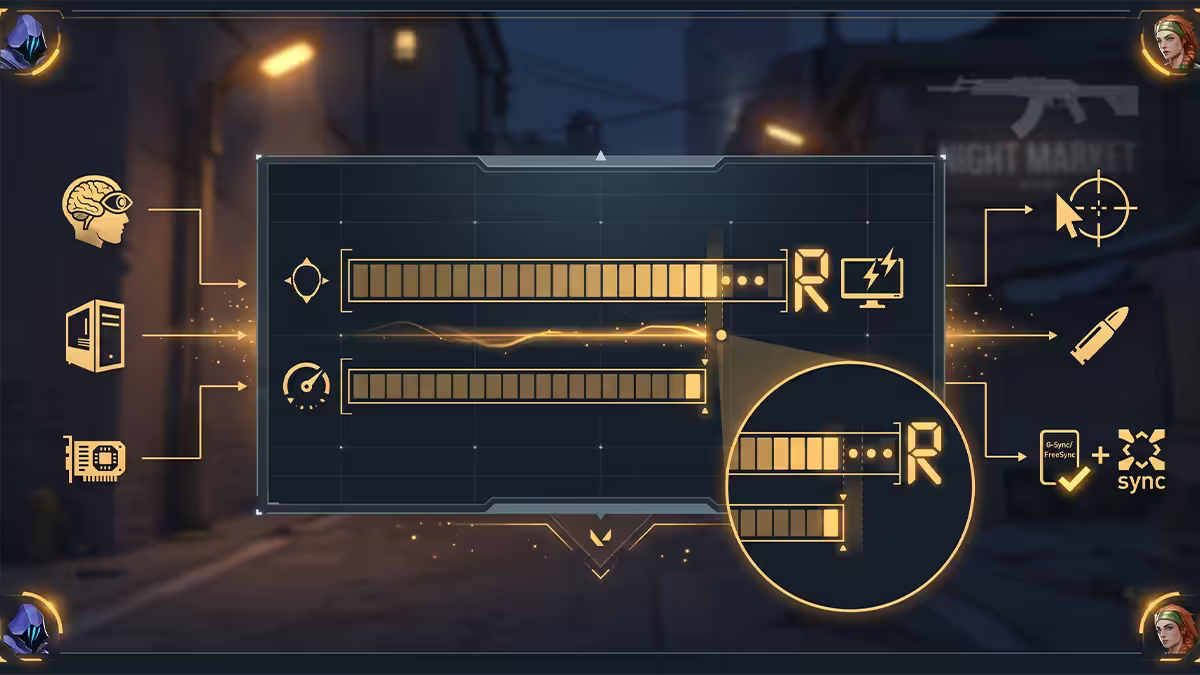
If you're running G-Sync or FreeSync, your FPS must stay inside the VRR window for the technology to work. When FPS exceeds your monitor refresh, you get tearing — VRR disengages because it can't sync above the panel max.
The fix: cap your max FPS to monitor refresh rate minus 3.
- 144Hz monitor → cap at 141 FPS
- 240Hz monitor → cap at 237 FPS
- 360Hz monitor → cap at 357 FPS
- 480Hz monitor → cap at 477 FPS
Why minus 3? Buffer for frame-time variance. If you cap at 240 on a 240Hz panel, occasional frame spikes hit 245-250 and VRR drops out briefly. Capping at 237 absorbs that variance.
Where to set it: Valorant Settings > Video > General > "Limit FPS Always" (set true) + "Max FPS Always" (set to your cap value). Also set "Limit FPS in Menus" to 60-120 — reduces GPU heat while you're in agent select or the lobby.
Launch options and Windows tweaks
Valorant on Riot Client doesn't accept arbitrary launch options the way Steam games do. The genuinely useful tweaks live in Windows:
- 1
Enable Hardware-Accelerated GPU Scheduling.
Settings > System > Display > Graphics > Default graphics settings > HAGS on. Saves 1-3 ms input latency on supported GPUs. - 2
Disable Xbox Game Bar.
Settings > Gaming > Xbox Game Bar > Off. Game DVR adds overhead and occasionally causes FPS dips during recording. - 3
Power Plan: Ultimate Performance.
Control Panel > Power Options > Show additional plans > Ultimate Performance. If you don't see it, enable via PowerShell:powercfg -duplicatescheme e9a42b02-d5df-448d-aa00-03f14749eb61 - 4
Disable Memory Integrity (Core Isolation).
Windows Security > Device security > Core isolation > Memory integrity Off. Frees 3-8 FPS on some systems by removing virtualisation overhead. Re-enable if you do sensitive work on the same PC. - 5
Set Valorant.exe priority to High.
Use Process Explorer or registry tweaks; tools like "Process Lasso" can automate this. - 6
Disable startup programs you don't need.
Task Manager > Startup. Discord, Spotify, RGB software — each adds background CPU load.
Network and buffering settings
Valorant's network connection matters more than most graphics tweaks. SA players connect to Riot's Frankfurt or Bahrain servers — typical ping is 130-180 ms unless you're using a gaming-focused ISP route.
Network checklist:
- Use ethernet, not WiFi. Even WiFi 6E adds 5-15 ms of jitter that's measurable on competitive comms. Ethernet costs R200 in cable and saves you ranks.
- Choose an ISP with good Riot routing. In SA, Vodacom Fibre and Vumatel/Frogfoot generally route to Frankfurt better than MTN or Cell C 5G. Run a ping test from speedtest.net or use riotpings.com to compare.
- Disable QoS on your router unless you've configured it specifically — most router QoS is poorly tuned and adds latency.
- Avoid Discord screen-sharing during ranked play. Adds 10-30 Mbps upload load and can cause packet loss.
- Network buffering setting: Valorant Settings > Video > Stats > Network Settings > Network Buffering: Minimum. Reduces lag compensation buffer at the cost of slightly more rubber-banding on bad connections.
Vanguard reality — what it does and doesn't
Riot Vanguard is a kernel-level anti-cheat that loads at Windows boot. It's been a controversy magnet since launch and gets blamed for almost every PC issue under the sun. The reality:
What Vanguard does:
- Runs as a Windows kernel driver from boot, scanning for memory tampering by cheats.
- Logs cheat attempts and bans hardware IDs (HWID bans).
- Requires UEFI Secure Boot and TPM 2.0 on Windows 11.
What Vanguard doesn't do:
- It doesn't significantly slow your PC for normal use. Boot time adds 1-2 seconds.
- It doesn't spy on your other applications beyond looking for known cheat signatures.
- It doesn't ruin gaming FPS. Performance impact in Valorant or other games is essentially zero.
Known incompatibilities: Vanguard sometimes conflicts with VMware, VirtualBox, certain VPNs (NordVPN, ExpressVPN had issues in 2024), some kernel-level streaming tools, and Linux dual-boot in certain configurations. If those are non-negotiable for your work, Valorant may not be a good fit for that specific PC.
Hitreg — why your shots sometimes don't count
If there's one Valorant complaint we hear constantly at our service bench, it's "the hitreg is broken — I clearly hit that headshot and it didn't register". Almost always, hitreg is working correctly and something else is the actual issue.
How Valorant's hitreg works: Riot's servers run at 128Hz tick rate. When you fire, your client packages "I shot at this pixel at this game-time", sends to server, server validates the shot against the recorded enemy position at that game-time minus your latency. If it's a hit, server confirms. Total round trip: your ping × 2 + processing.
Why shots feel like they don't register, in order of likelihood:
- 1
Ping spike at the moment of the shot.
If your ping briefly hit 250 ms during the shot, the server validation window was wider — and you saw a moment later than you fired. The enemy may have moved out of the hitbox by the server's calculation. - 2
Packet loss.
Even 1-2% packet loss can mean specific shot packets just don't arrive. Test withping -t riot-server-ipfor 60 seconds; anything above 0 lost = bad. - 3
Frame rate dip during the shot.
If you saw the enemy on screen but Valorant was rendering at 80 FPS in that millisecond instead of 240, your client recorded the shot at an out-of-date enemy position. - 4
Crosshair placement assumption.
Brutal truth — sometimes the shot wasn't actually on the head, but you remember it that way. Demo review is the only reliable way to check.
In short: hitreg "feels off" almost always means network, frame rate consistency, or perception — not server fault. Tune the network and FPS cap first.
Key takeaways
- All low except Material / Texture / Detail (medium) for enemy clarity.
- Fullscreen exclusive, VSync off, NVIDIA Reflex On + Boost. AMD: Anti-Lag 2.
- FPS cap = monitor refresh − 3. Stays inside VRR window.
- EDPI 200-800 range — pick one and stick with it for two weeks minimum.
- Hitreg complaints are usually network or FPS dips — not server bugs.
Frequently asked questions
What are the best graphics settings for Valorant?
Material / Texture / Detail Quality at Medium for enemy clarity. Everything else (UI, Vignette, VSync, Anti-Aliasing, Shadows, Bloom, Distortion) off or low. Improve Clarity on.Should I use fullscreen or windowed in Valorant?
Fullscreen exclusive — gives the GPU direct frame-buffer access for 4-8 ms lower input latency than Borderless. Only use Borderless if you alt-tab often.What is the optimal mouse sensitivity for Valorant?
EDPI (DPI × in-game sens) between 200 and 800. Common starting point: 800 DPI × 0.4 = 320 EDPI. Pick one and stick with it for at least two weeks — muscle memory is more valuable than the specific number.Should I enable NVIDIA Reflex in Valorant?
Yes — On + Boost. Reduces system latency by 15-30 ms with no realistic downside. AMD users enable Anti-Lag 2.What FPS should I cap Valorant at?
Your monitor refresh rate minus 3. 240Hz panel → cap 237. 360Hz → cap 357. Keeps frames in the VRR window.What are the best Valorant launch options?
Riot Client doesn't accept arbitrary launch options. Use Windows tweaks instead: HAGS on, Xbox Game Bar off, Ultimate Performance power plan, Memory Integrity off if you don't need it. Skip third-party FPS booster tools.Is Vanguard safe? Does it slow my PC?
Audited kernel-level anti-cheat. Adds 1-2 seconds to boot. Performance impact on gaming is essentially zero. Can conflict with VMware, some VPNs and Linux dual-boot.Why does Valorant feel like it's missing shots even when I aim correctly?
Almost always network or frame rate, not server bug. Ping spikes, packet loss or FPS dips during the shot mean what you saw rendered late relative to the server's reality. Tune network first.