Gaming Performance · Settings Guide
Best settings for Forza Horizon 6 — Dynamic res off. DLAA on. Reflections high.
FH6's Extreme preset is excellent — but three of its defaults are wrong. Dynamic resolution scaling, MSAA over DLAA, and ray-traced reflections cranked. Fix those three, gain 25-40% FPS, lose nothing visually.
- target for RTX 5070
- 1440p / 120
- target for RTX 5080
- 4K / 60+FG
- when FPS headroom
- DLAA
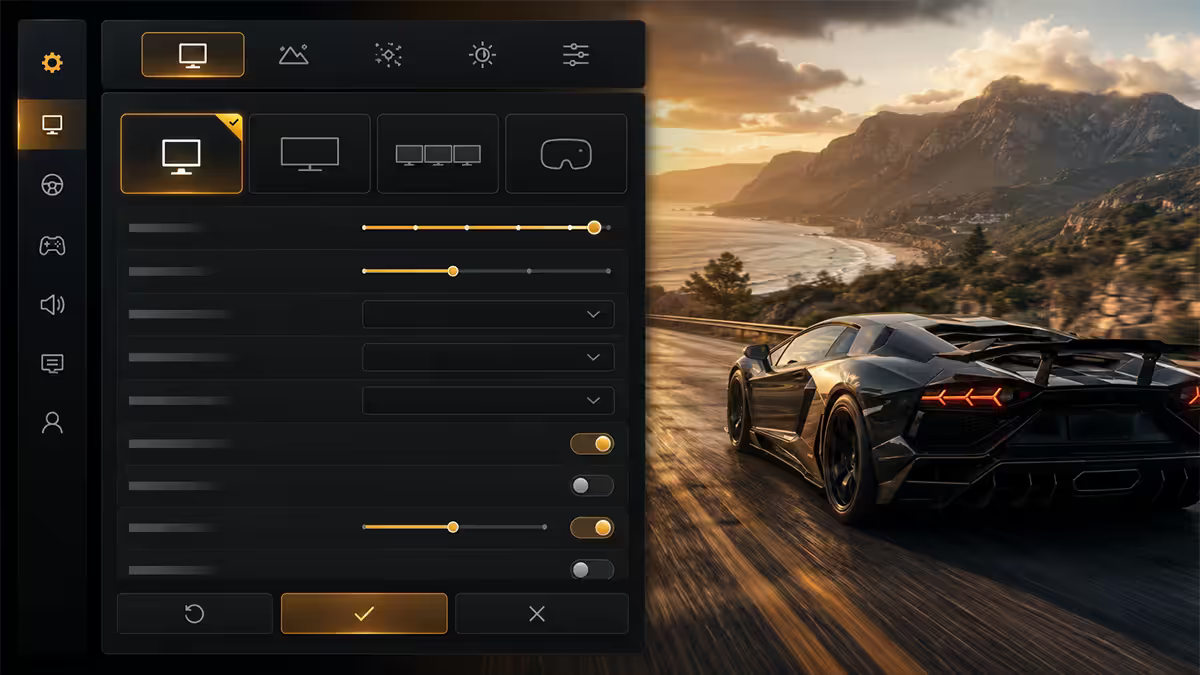
Start from Extreme, not Ultra
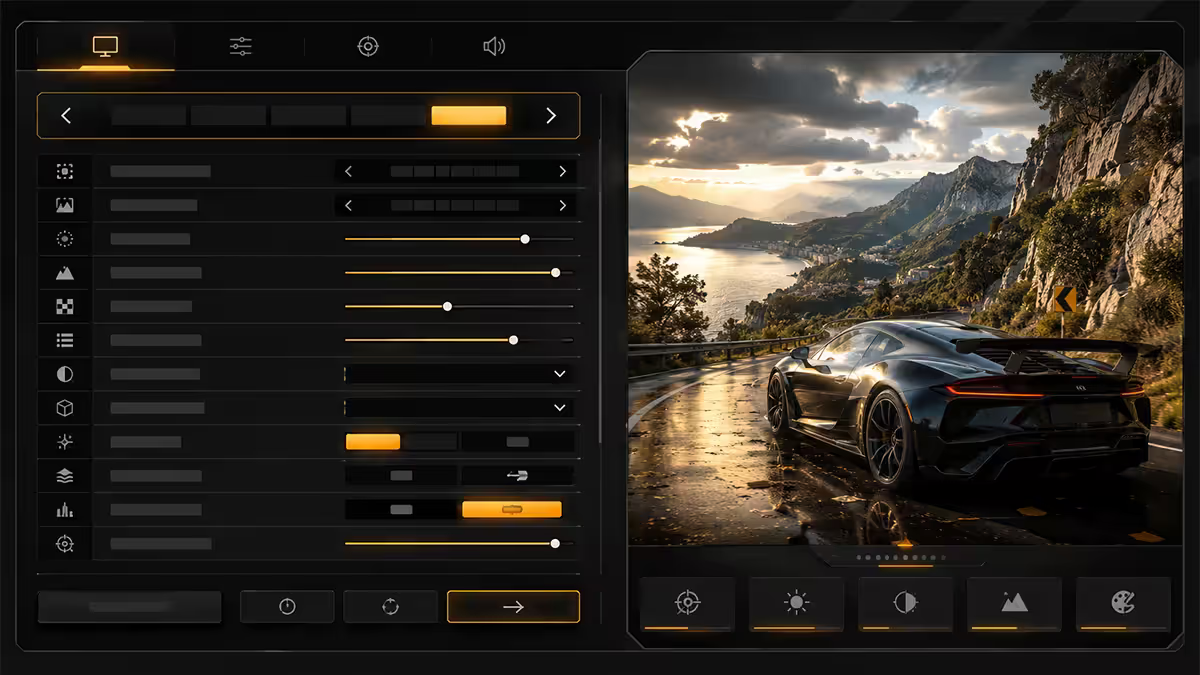
FH6 ships with five presets — Low, Medium, High, Ultra, Extreme. The default for "auto-detect on an RTX 50 series" is Ultra. The visual jump from Ultra to Extreme is large and the FPS cost is surprisingly small — typically 8-12% — because the things Extreme adds are mostly geometry detail (world cars, mirror quality, terrain LOD) rather than expensive shader work.
Move to Extreme as a starting point, then change three things to recover most of what Extreme costs.
| Setting | Recommended | Why |
|---|---|---|
| World cars | Extreme | Most affects how alive the world feels |
| World detail | Extreme | Terrain LOD pop-in is jarring at speed |
| Mirror quality | High | Extreme is cinematic-mode-only overkill |
| Shadow quality | Extreme | Shadow popping kills immersion |
| Reflection quality | High (with RT on) | Extreme is real-time SSR shimmer waste |
| Ray-traced reflections | High | Big FPS gain, minimal visual loss vs Extreme |
| Ray-traced shadows | Extreme | Cheap and looks excellent |
| Ray-traced GI | High or Extreme | Looks beautiful in tunnels and forest sections |
| Dynamic optimisation | Off | Causes visible softening at high speed |
| MSAA | Off | Use DLAA / FSR 4 Native AA instead |
| Motion blur | Camera only | Per-object blur hides framerate dips |
| Film grain | Off | Photo mode handles this better |
Turn dynamic resolution off
Dynamic resolution scaling (DRS) lowers the internal render resolution dynamically to hit a target frame rate. In FH6 it kicks in aggressively the moment your scene gets busy — at 240 km/h through Highland Reach with weather and dense foliage, DRS will silently drop the internal resolution from 1440p to as low as 1080p without telling you. The result is visibly soft and blurry car bodywork, distant textures and tarmac during the exact moments you want them to look the sharpest.
Instead, use DLSS Quality (RTX) or FSR 4 Quality (RX 9000) — they upscale from a fixed lower resolution using AI, and the result is sharper, more stable and more consistent than dynamic resolution. The frame rate benefit is roughly the same; the image quality is dramatically better.
Ray tracing — keep it on, but be smart
FH6 has three separate ray-tracing toggles. Their cost-to-visual ratios are very different.
Ray-traced shadows (Extreme — cheap): roughly 4-7% FPS cost, eliminates almost all shadow pop-in and acne. Always on.
Ray-traced reflections (High — moderate cost): at Extreme this is 18-25% FPS cost. At High it's 8-12% and looks nearly identical in 95% of camera angles. Drop to High and don't look back.
Ray-traced global illumination (High or Extreme): ~10-14% FPS cost. Looks beautiful in forest sections, tunnels, parking garages and at dawn / dusk. Worth keeping on. Extreme adds longer ray distance — visible on overcast wide-shot scenes.
Total ray-tracing cost with the above stack is roughly 25-30% FPS — significant but justified by how much better the world looks. On mid-range cards (RTX 5070, RX 9070) you can drop reflections to Medium and gain another 6-8% if you need it for 120 FPS.
DLAA, DLSS 4, FSR 4 — which to use
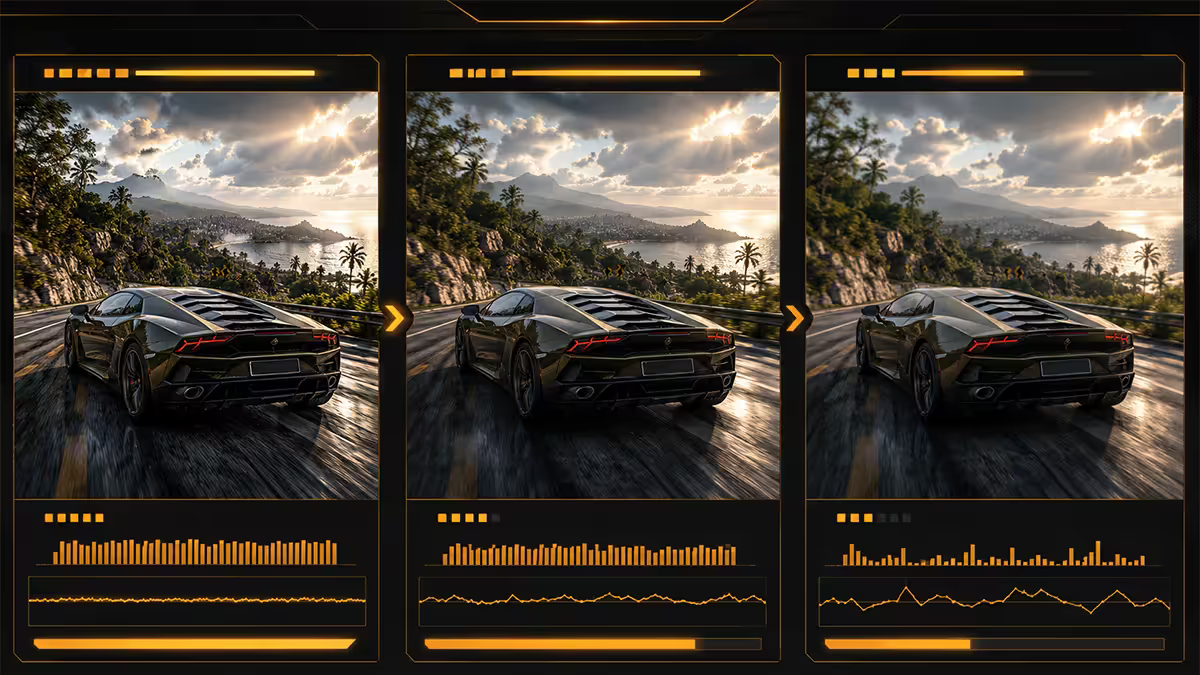
FH6 is one of the rare games that supports the full upscaler matrix.
DLAA (Nvidia, RTX 50 / 40): render at native resolution but use the DLSS deep-learning anti-aliasing pipeline. Best image quality available. Use this if you have FPS headroom (RTX 5080 or above at 1440p, RTX 5090 at 4K).
DLSS 4 Quality (Transformer model): render at 67% resolution and upscale. Looks excellent in FH6 — almost indistinguishable from native at typical viewing distance. The right setting on RTX 5070 / 5070 Ti at 4K, and on RTX 5080 at 4K when you want 120+ FPS.
DLSS 4 Balanced/Performance: only use on RTX 5060 / 4060 trying to push 4K. At 1440p there's no good reason to drop below Quality. Performance mode introduces visible shimmer on car bodies during fast cornering.
FSR 4 Native AA (AMD RX 9000): the equivalent of DLAA. Use if you have headroom on an RX 9070 XT at 1440p.
FSR 4 Quality: on RX 9070 / 9070 XT at 4K. FSR 4 closed most of the gap to DLSS 4 in 2026 — it's no longer a clear visual penalty.
Frame generation (DLSS 4 FG / FSR 4 FG): use it for 4K 120+ targets on RTX 5080 / 5090. Adds ~25-30 ms of input latency on top of base frame rate, which is fine for controller play but noticeable on a wheel. Only enable when your base frame rate is already 60+ — frame gen from a 30 FPS base feels awful.
FPS targets by GPU tier
| GPU | Target | Recommended stack |
|---|---|---|
| RTX 5090 | 4K 120 with FG | Extreme + RT all on + DLAA / FSR 4 Native + FG |
| RTX 5080 | 4K 60 native or 1440p 144 | Extreme + RT (reflections High) + DLSS 4 Quality |
| RTX 5070 Ti / RX 9070 XT | 1440p 120 | Extreme + RT (reflections High) + DLSS 4 Quality |
| RTX 5070 / RX 9070 | 1440p 90-100 | Extreme + RT (reflections Medium) + DLSS 4 Quality |
| RTX 5060 / RX 9060 | 1080p 120 or 1440p 60 | Ultra preset + RT shadows only + DLSS 4 Balanced |
| RTX 4080 / 4090 / RX 7900 XTX | Same as 5070 Ti / 5080 | FSR 4 not supported on RDNA 3 — use FSR 3.1 |
Set a hard FPS cap 1-2 frames below your monitor's max refresh rate via the in-game limiter or RivaTuner Statistics Server. This keeps Gsync / Freesync VRR engaged at the top of the range and prevents the framerate from spiking above the panel's sync window during loading screens.
Controller vs wheel — the honest answer
FH6 is tuned for controller. The handling model assumes thumbstick input — assists, traction control, anti-roll calculations and the dynamic difficulty all calibrate around it. A wheel can absolutely be used, but you'll need to dial down force feedback substantially from the default (it's tuned to be theatrical, not realistic), and the cornering speed of an XBox controller is genuinely faster than a 900° wheel in most situations.
Recommended controllers:
- Xbox Wireless Controller (the obvious pick — first-class FH6 integration, R1,200-R1,600 in SA).
- Xbox Elite Series 2 if you want hair triggers and paddles for handbrake / shift (R3,500-R4,200).
- DualSense Edge if you're a PS5 player crossing over — works fine on PC with Steam Input (R3,800-R4,500).
- 8BitDo Ultimate 2 as the budget pick — Hall-effect sticks, premium build (R1,400-R1,800).
If you already own a wheel: Logitech G29/G923, Fanatec CSL DD, Thrustmaster T300/T818 all work. Set in-game FFB to 70-80, road effects to 40-50, weight transfer to 60, and steering linearity to 1.0. Use the wheel for cinematic moments and sim-style touring — switch back to controller for actual progression races where you need to win.
HDR setup and photo mode
FH6's HDR pipeline is excellent but requires correct configuration. The default HDR settings on most OLED panels look washed out because the game doesn't auto-detect your panel's peak luminance.
Windows 11 HDR setup first:
- Settings → System → Display → enable HDR globally.
- Run the Windows HDR Calibration tool from the Microsoft Store. Follow the three brightness screens with your face about 50 cm from the panel.
- If you have a Display HDR 600+ panel, enable Auto HDR for non-HDR games.
In-game FH6 HDR:
- Settings → Video → HDR On.
- Peak brightness: set to your monitor's tested peak (OLED ~1000 nits, mid-range HDR LCD ~600 nits).
- Black level: lowest setting that doesn't crush shadow detail (drive into a tunnel to test).
- Paper white: 150-200 nits depending on room brightness.
- HDR colour gamut: Rec. 2020 if your panel supports it, otherwise DCI-P3.
Photo mode tips:
- Photo mode ignores your in-game graphics settings and renders at supersampled quality with full ray tracing on. The shot will look better than gameplay.
- Aperture f/2.8 to f/4 gives nice background separation. Below f/2 you'll get over-blurred backgrounds.
- Shift time-of-day to dawn (05:30) or golden hour (17:30-18:30) for the best lighting.
- Use the colour temperature slider — pull warm for sunset, neutral for noon, slightly cool for dawn.
- Capture during a replay — you can scrub to the exact frame you want, rather than fighting live action.
Recommended FH6 builds by target
| Target | GPU | SA build cost |
|---|---|---|
| 4K 120 FPS with frame gen | RTX 5090 | R75,000-R95,000 |
| 4K 60 native + DLAA | RTX 5080 | R55,000-R65,000 |
| 1440p 120 ultrawide | RTX 5070 Ti / RX 9070 XT | R38,000-R45,000 |
| 1440p 90-100 Extreme | RTX 5070 / RX 9070 | R30,000-R36,000 |
| 1080p 120 / 1440p 60 | RTX 5060 / RX 9060 | R22,000-R28,000 |
Key takeaways
- Start from Extreme preset. Turn off dynamic resolution. Replace MSAA with DLAA or FSR 4 Native AA.
- Drop ray-traced reflections from Extreme to High — recovers 10-15% FPS, no visible loss.
- RTX 5070 Ti / RX 9070 XT is the 1440p 120 FPS sweet spot for this game.
- Use DLSS 4 Transformer model on RTX. FSR 4 Quality is finally competitive on RX 9000.
- Controller is faster than wheel for 80% of FH6 players. Use the wheel for cinematic touring.
- HDR is a Windows + in-game calibration job. Run Windows HDR Calibration first.
Frequently asked questions
What are the best graphics settings for Forza Horizon 6 on PC?
Start from the Extreme preset and modify three settings: turn off dynamic resolution (it muddies the picture), set MSAA off and use DLAA on Nvidia cards or FSR 4 Native AA on AMD, and drop ray tracing reflections from Extreme to High (huge FPS gain, minimal visual loss). Keep world cars at Extreme — it's the setting that most affects how alive the world feels. Keep mirror quality at High at minimum, not Medium.Should I turn on ray tracing in Forza Horizon 6?
Yes, ray tracing in FH6 looks excellent and the cost is reasonable on RTX 50 series and RX 9000 series cards. The setting that costs the most performance is ray-traced reflections — keep this at High, not Extreme, for a sensible balance. Ray-traced shadows and GI cost much less and look great. On RTX 5080 or above you can run everything Extreme at 1440p 120 FPS with DLSS Quality.Is DLSS or DLAA better for Forza Horizon 6?
DLAA is better than any DLSS upscaler if your GPU can hit your target frame rate natively — it adds DLSS-quality anti-aliasing without upscaling. Use DLAA when you have FPS headroom (RTX 5080 at 1440p, or RTX 5090 at 4K). Use DLSS Quality when you need more FPS — it still looks excellent in FH6 and is the right setting on RTX 5070 / RX 9070 at 4K. Avoid DLSS Performance unless you're on a 4K display with a mid-range GPU and need the FPS.What frame rate should I target in Forza Horizon 6?
For controller play, 60 FPS is genuinely sufficient and FH6's input lag is well-tuned at 60. For wheel and pedal sim-style play, target 120 FPS — the responsiveness gain is real and matters at a wheel. Set a hard FPS cap (RivaTuner or in-game limiter) to 1-2 FPS below your monitor's refresh rate to avoid Gsync/Freesync VRR breakdown at the top of the range.Should I use a controller or wheel for Forza Horizon 6?
Controller is the right answer for 80% of FH6 players. The game is tuned for it, all force feedback and assists are calibrated around controller input, and the open-world arcade-sim handling is faster and more satisfying with a thumbstick than a wheel. Wheels (Logitech G29/G923, Fanatec CSL, Thrustmaster T300) are for players who already own one for ACC, iRacing or sim racing — FH6 is a great showcase but not a wheel-first game like ACC.What is dynamic resolution scaling in Forza Horizon 6 and should I use it?
Dynamic resolution dynamically lowers the internal render resolution to maintain a target frame rate. It is on by default on most preset stacks. In FH6 it causes visible softening of distant textures and shimmering on car bodywork during fast cornering. Turn it off and instead use DLSS Quality or FSR 4 Quality to get a similar performance benefit without the dynamic blur. The difference at speed (200 km/h+ in the Highlands) is significant.How do I set up HDR correctly in Forza Horizon 6?
In Windows 11, enable HDR globally and run the Windows HDR Calibration tool first — this sets the baseline correctly. Then in FH6, enable HDR in graphics settings and use the in-game HDR calibration screens. Set peak brightness to your monitor's tested peak (1000 nits for most OLEDs, 600 for mid-range HDR monitors), set black level to crush at 0 (the lowest setting that doesn't lose shadow detail), and set midtones via the gamma slider until skin tones look natural. HDR transforms sunset and rain shots — worth getting right.What is the best photo mode setting in Forza Horizon 6?
Photo mode in FH6 ignores your in-game graphics settings and renders at much higher quality automatically — supersampling, full ray tracing regardless of your gameplay settings, and longer-frame motion blur and DOF computation. The only photo-mode-specific tips: set aperture (f-stop) around f/2.8 to f/4 for nice background separation, raise the time-of-day to dawn or golden hour, use the colour-temperature slider for warm sunset shots, and trigger photo mode while replaying a corner where you can choose the exact moment of action.