Gaming Performance · CS2 2026
Best settings for Counter-Strike 2. — The competitive config the pros actually run.
Two and a half years into Source 2, CS2's "good settings" have stabilised. Low everything, Reflex on, raw input, fps_max 0. Tournament-grade clarity in 30 minutes of config.
- target FPS @ 1440p
- 400+
- monitor recommended
- 240Hz+
- competitive EDPI
- 600-1200
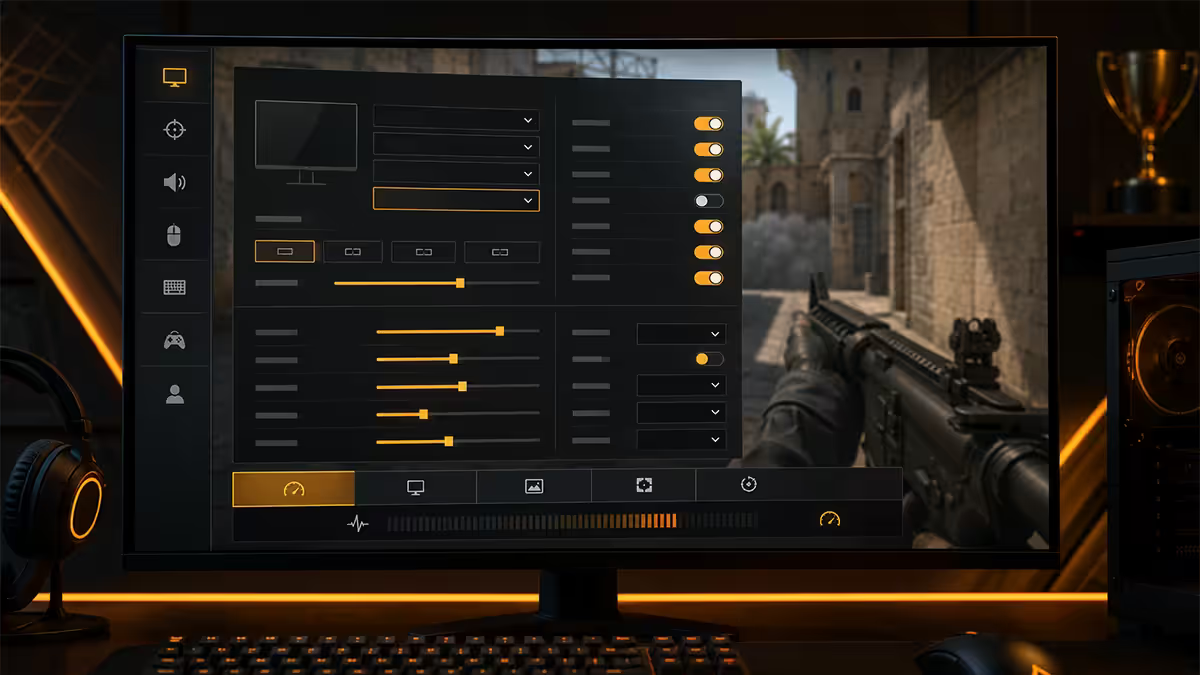
Video settings — fullscreen, native, no compromise
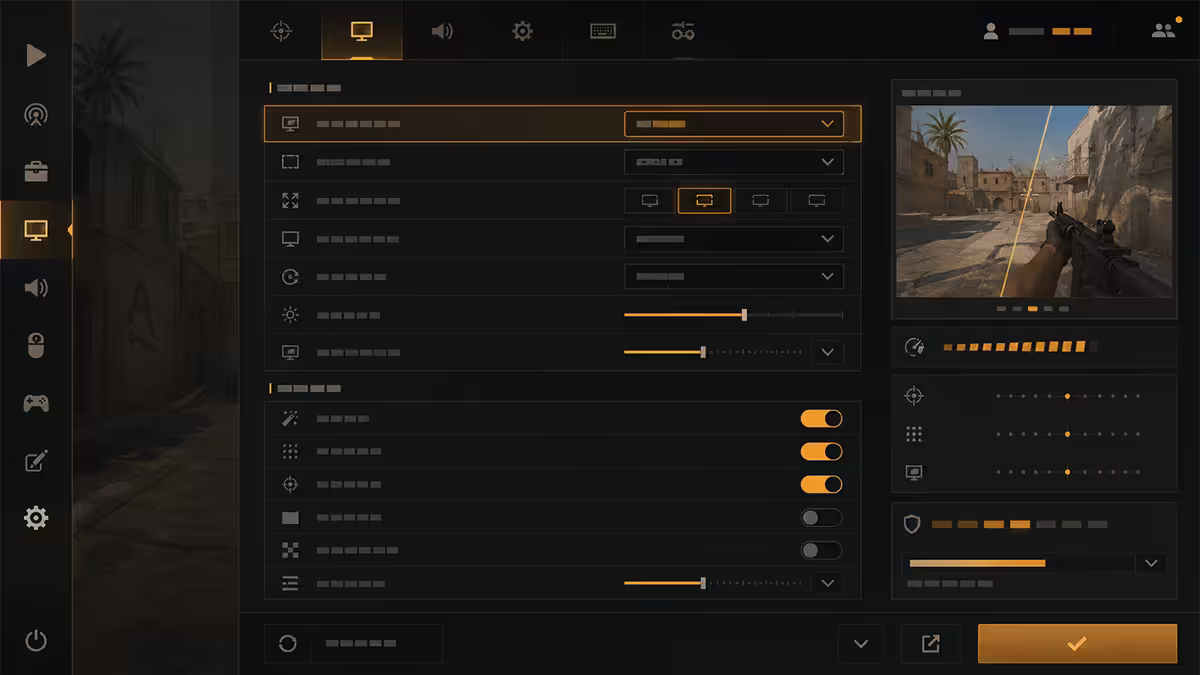
Open CS2 → Settings → Video. The single most-overlooked setting is the display mode. Always pick Fullscreen (exclusive fullscreen) — not borderless windowed. Exclusive mode hands the GPU direct control of the framebuffer, eliminating compositor overhead and the 1-3ms of latency Windowed adds.
| Setting | Value | Why |
|---|---|---|
| Display mode | Fullscreen | Lowest input latency, exclusive GPU access |
| Resolution | Native (1440p / 1080p) | Avoid scaling artifacts |
| Aspect ratio | 16:9 (or 4:3 stretched) | Native unless you specifically prefer 4:3 |
| Brightness | 120-130% | Visibility in dark corners |
| V-sync | Disabled | Adds frames of latency; use G-Sync at the display |
| NVIDIA Reflex Low Latency | Enabled + Boost | Cuts click-to-pixel latency 10-30ms |
4:3 stretched debate: a faction of pros still runs 1024×768 or 1280×960 stretched to 16:9, because it makes player models appear wider. In 2026 the vast majority have moved to native 16:9 — the muscle-memory advantage of 4:3 from CS:GO has largely worn off, and the visibility loss isn't worth the trade. If you're new to CS2, start native 16:9.
Advanced video — clarity over prettiness
Source 2 is more visually demanding than CS:GO's Source 1, so even on competitive presets you give up performance. The right choice: low everything except the few settings that genuinely help you see.
| Setting | Value | Reason |
|---|---|---|
| Boost Player Contrast | Enabled | Outlines enemies — game-changing visibility |
| Wait for Vertical Sync | Disabled | Off for the lowest latency |
| Multisampling AA Mode | None | MSAA adds 10-20% perf cost in CS2 |
| Global Shadow Quality | Medium | Low hides enemy shadows |
| Dynamic Shadows | All | Enemy shadow tells > FPS cost |
| Model / Texture Detail | Medium / High | Distinguish player models |
| Texture Filtering Mode | Anisotropic 4× or 8× | Sharper at distance, low cost |
| Shader Detail | Medium | Low looks broken on Source 2 |
| Particle Detail | Low | Smoke clarity |
| Ambient Occlusion | Disabled | Pure prettiness cost |
| High Dynamic Range | Quality | Only if you have HDR monitor |
| FidelityFX Super Resolution / DLSS | Disabled | Smearing kills enemy tracking |
| NVIDIA Reflex Low Latency | Enabled + Boost | Cut input latency on RTX |
NVIDIA Reflex & AMD Anti-Lag 2 — free latency reduction
Reflex (NVIDIA) and Anti-Lag 2 (AMD, finally supported in CS2 from late 2025) sync the GPU's render queue with monitor scan-out and CPU input polling, eliminating frames of buffered work between your click and the pixels appearing. The result is 10-30ms less click-to-pixel latency.
- RTX 30/40/50 series: set Reflex to Enabled + Boost. Boost holds the GPU at higher clock to reduce frame variance.
- RTX 20 series and earlier: Reflex Enabled (no Boost).
- AMD Radeon 7000/9000: enable Anti-Lag 2 in Adrenalin → Gaming Profile → CS2.
- GTX cards and older: Reflex is not supported — keep V-sync off and rely on G-Sync at the display.
Reflex costs nothing measurable in FPS and gives you a real reaction-time edge. There's no reason not to use it.
fps_max — uncap it (yes, even at 500+ FPS)
CS2 ships with a default fps_max cap that's lower than most modern systems can sustain. Open the developer console (~ key) and run:
// Uncap main gameplay
fps_max 0

// Cap the UI to monitor refresh
fps_max_ui 240
Why uncap? Three reasons:
- Lower frame-time variance. A 400+ FPS engine has tighter frame-to-frame timing, making mouse input feel more consistent.
- Reflex needs headroom. Reflex works by holding the GPU back from queueing frames — capping FPS removes that headroom.
- Tickrate alignment. CS2's subtick input layer benefits from sampling input at the highest possible rate.
There is no benefit to capping at your monitor's refresh rate (240 / 360Hz) unless you've enabled G-Sync, in which case cap at refresh − 3 (e.g. 237 on a 240Hz panel) to stay inside the G-Sync window.
Sensitivity, DPI & EDPI
EDPI = DPI × in-game sensitivity. It's the metric pros and reviewers use because it captures total cursor speed regardless of how you split the math. Competitive CS2 lives in the 600-1200 EDPI range:
| Style | Example combo | EDPI |
|---|---|---|
| Pro low (AWPer style) | 400 DPI × 1.5 | 600 |
| Pro standard | 800 DPI × 1.0 | 800 |
| Higher tier | 800 DPI × 1.4 | 1120 |
| Rifle / movement focus | 400 DPI × 2.5 | 1000 |
| Too low | 400 DPI × 0.5 | 200 (avoid) |
| Too high | 1600 DPI × 1.5 | 2400 (avoid) |
Important: always enable Raw Input in Settings → Mouse. This bypasses Windows mouse acceleration and pointer ballistics, giving the engine your mouse's true reported movement. Disable Windows "Enhance pointer precision" in Control Panel as well — they fight if both are on.
Launch options — keep them short
In Steam → CS2 → Properties → Launch Options, the 2026 minimal config is:
-nojoy -allow_third_party_software -high -console
What each does:
-nojoy— disables joystick polling. Tiny memory savings; CS2 doesn't use controllers anyway.-allow_third_party_software— required for FaceIt Anti-Cheat compatibility and many config tools.-high— sets CS2's CPU priority to High in Windows scheduler. Marginal but free.-console— auto-opens the developer console on launch for tweaking.
What NOT to add (these are obsolete or harmful in 2026):
+fps_max 0— no longer needed; CS2 respects in-game fps_max settings.-threads X— forcing thread count hurts Source 2's scheduler; let the engine decide.-dx11,-dx9,-d3d9ex— obsolete; CS2 is Vulkan / DX12 only.-novid— was for old Source 1; modern launch skips the intro by default.-tickrate 128— tickrate is server-side; client launch options can't change it.
Rate & network — full bandwidth for SA servers
CS2's networking layer needs you to tell the server how much bandwidth your connection can handle. The old CS:GO cap of rate 196608 is obsolete — CS2 supports full rate 786432 (786 Kbps per second per channel) on virtually all SA fibre connections.
rate 786432
cl_interp_ratio 1
cl_updaterate 64
cl_cmdrate 64
For FaceIt 128-tick matches, the server overrides client interp settings automatically — leave the values as above and let the server dictate. For valve matchmaking 64-tick, this is your baseline.
Esports pro config reality
It's tempting to copy a pro's config wholesale from sites like prosettings.net — but it usually backfires. Pros have spent years adapting to specific settings; their muscle memory isn't yours. Use pro configs as reference for sanity-checking ranges, not as templates:
- Sensitivity: almost all top-50 pros in 2026 use 400 or 800 DPI with 0.8-2.0 in-game. Verify your EDPI is between 600 and 1200.
- Mouse polling: 1,000Hz is the universal pro setting. 8,000Hz is debated — minor gain at significant CPU cost.
- Resolution: the 4:3 stretched holdouts (some old-guard pros) are now a minority. 16:9 native rules.
- Crosshair: pros run static (no dynamic), thin (1-2 pixels), small gap (1-3), white or cyan colour. The "perfect crosshair" is whichever you can see consistently.
- Viewmodel: low FOV (60-65), pulled in slightly. Reduces weapon model blocking screen real estate.
Common CS2 settings mistakes
Running V-sync to "smooth out" tearing. V-sync adds 1-3 frames of input latency. Use G-Sync / FreeSync at the display level instead.
Running FSR or DLSS. Both produce visible smearing on moving enemy models — the exact wrong artefact for competitive FPS. Stay native.
Cranking sensitivity above 1500 EDPI. Encourages over-flicking and reduces tap-aim precision. Even fast-flick AWPers stay under 1200.
Trusting "optimisation scripts" with admin rights. Many disable Windows services CS2 actually relies on, or modify the registry in ways that trigger VAC false positives. The native settings in this guide cover 95% of any script's gain.
Capping FPS just below monitor refresh. Only valid with G-Sync. Uncap fully if G-Sync is off, cap at refresh − 3 if G-Sync is on.
Key takeaways
- Low everything except Model/Texture/Shader Detail on Medium and Dynamic Shadows on All. MSAA off, FSR/DLSS off.
- Fullscreen Exclusive, V-sync off, NVIDIA Reflex Enabled + Boost (or AMD Anti-Lag 2).
- fps_max 0 (uncap), fps_max_ui 240, rate 786432. Aim for 300+ FPS minimum.
- Launch options:
-nojoy -allow_third_party_software -high -console. Nothing else. - EDPI 600-1200, Raw Input on, mouse polling 1,000Hz. Disable Windows "Enhance pointer precision".
Frequently asked questions
What are the best CS2 graphics settings for competitive play?
Low everything except Model/Texture Detail (Medium), Shader Detail (Medium), Dynamic Shadows (All). MSAA off, FSR/DLSS off, Boost Player Contrast on, Reflex Enabled + Boost.Should I uncap FPS in CS2?
Yes — fps_max 0 unless you have G-Sync, in which case cap at refresh−3. Reflex needs headroom; lower frame-time variance gives consistent input feel.What are good CS2 launch options in 2026?
-nojoy -allow_third_party_software -high -console. Skip -threads, -dx11, +fps_max 0 — all obsolete on Source 2.What is NVIDIA Reflex and should I enable it in CS2?
Yes — Enabled + Boost on RTX cards cuts click-to-pixel latency 10-30ms with no FPS cost. AMD Anti-Lag 2 is the equivalent on Radeon in 2026.What sensitivity and EDPI do CS2 pros use?
600-1200 EDPI range. Typical: 800 DPI × 1.0 = 800 EDPI. Raw Input on, "Enhance pointer precision" off in Windows.Should I use FSR or DLSS in CS2?
No — both smear moving enemies. CS2 is light enough that modern mid-range GPUs hit 400+ FPS native at 1440p without help.What rate command should I use in CS2 for SA servers?
rate 786432. Works on AWS Cape Town and Johannesburg servers and FaceIt. Old 196608 cap is obsolete on Source 2.Are CS2 optimisation scripts (Apache GUI, BoostGam) safe?
Mixed. Most disable services CS2 needs or trip VAC false positives. The native settings in this guide deliver 95% of any script's gain with zero ban risk.