Troubleshooting
How to fix game lag and stuttering. — Lag is network. Stutter is frametime. Two different fights.
“My game is lagging” usually means one of two completely different things — and trying to fix the wrong one wastes hours. Here’s how to figure out which problem you actually have, and the exact steps that work for each.
- smooth 60 fps target
- <16.7 ms
- shader stutter spike
- 50-200 ms
- competitive ping target
- <40 ms
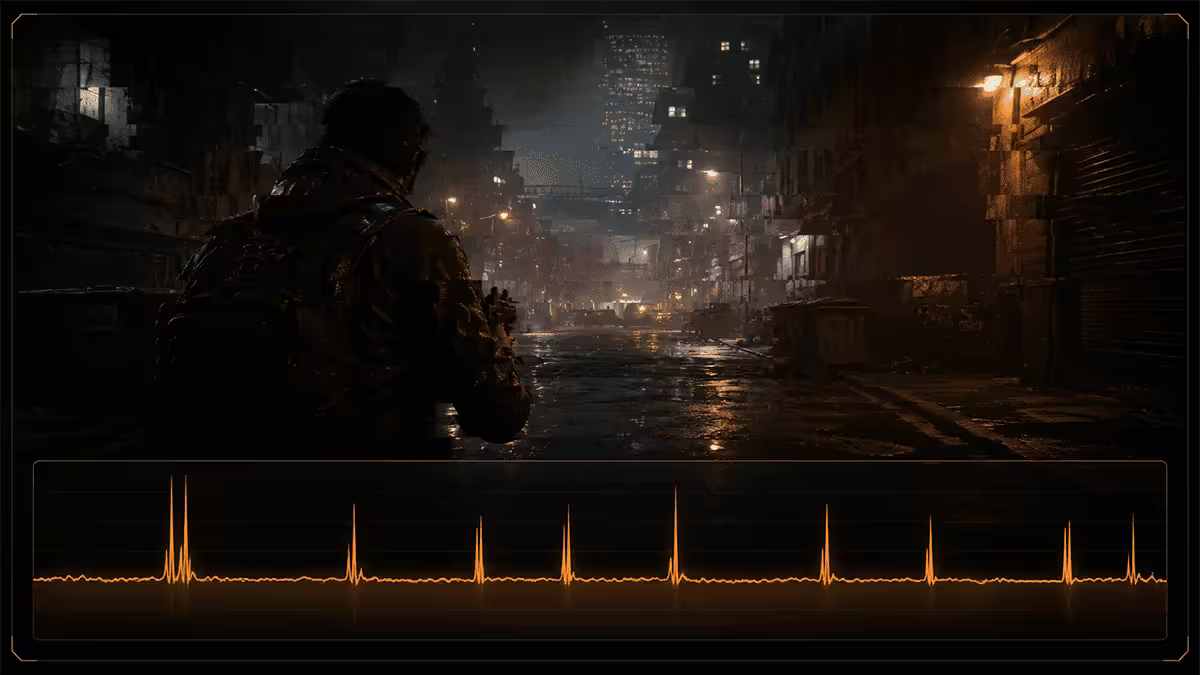
Lag is not stutter — diagnose first
The single most common mistake people make when their game “feels bad” is treating lag and stutter as the same problem. They aren’t. They have different causes, different symptoms and different fixes. If you spend the afternoon fiddling with GPU driver settings to fix a problem that’s actually your fibre router having bufferbloat, nothing improves.
Lag is a network problem. The time between you clicking the mouse and the game server registering it is too high. Symptoms: your shots register late, enemies teleport when they’re moving, you die behind walls. The relevant metric is ping (round-trip time to the game server) and jitter (variation in ping). Affects only online games.
Stutter is a local frametime problem. Your GPU is producing frames at inconsistent intervals. Even when your average FPS is high, individual frames take much longer than others, and your eye perceives each hitch. Symptoms: hitches during fast camera pans, freezes when entering new areas, judder in cutscenes. The relevant metric is frametime variance, not average FPS. Affects single-player and multiplayer alike.
| Symptom | What it is | Where to look |
|---|---|---|
| “Rubber-banding” on enemies | Network lag | Ping, jitter, ISP route |
| You die behind walls | Network lag + tickrate | Server distance, ISP |
| Hitch when entering new area | Traversal stutter | Disk speed, DirectStorage |
| Brief freeze at new visual effects | Shader compilation | Game settings, GPU driver |
| Frame skips during camera pan | Frametime variance | Background apps, overlays |
| Smooth but capped FPS | GPU bottleneck (normal) | Lower settings or upgrade |
| Periodic 1-sec hitches at high FPS | CPU bottleneck | CPU per-core usage |
Reading your frametime — the metric that actually matters
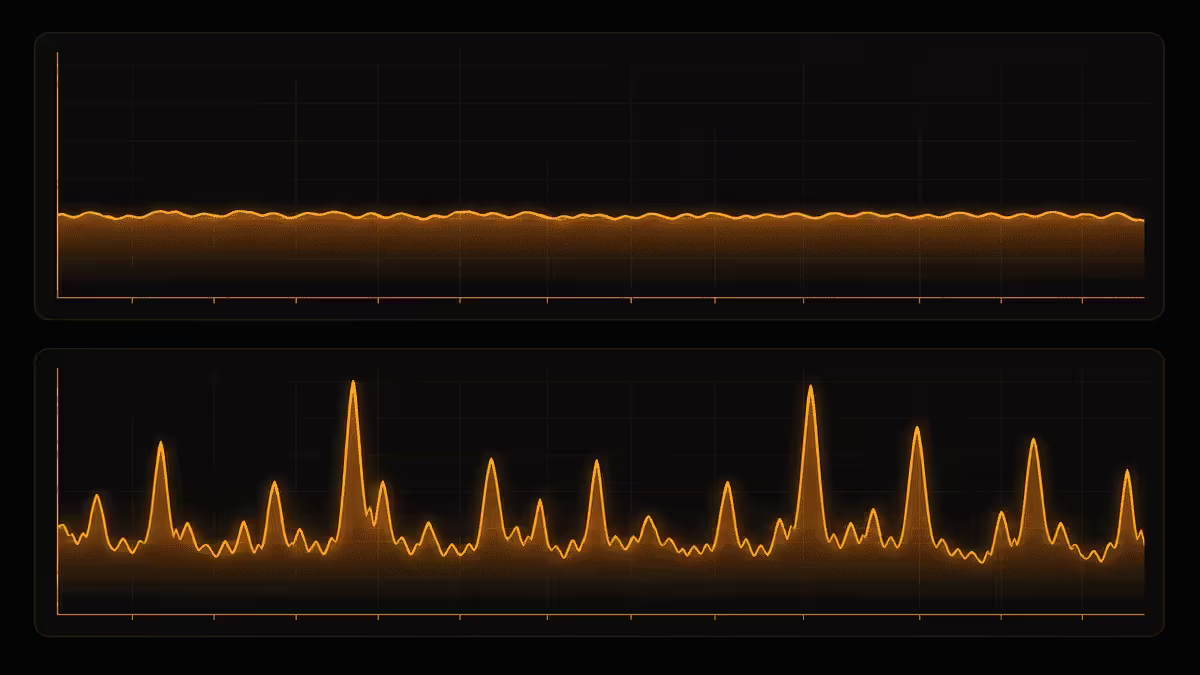
Average FPS is misleading. A game showing 144 fps average can have terrible felt smoothness if individual frames take 30 ms (effectively 33 fps) sprinkled through a sea of 5 ms frames. What you actually need to look at is frametime variance — how consistently each frame is produced.
The target numbers:
- 60 fps target = each frame should take 16.7 ms or less, consistently.
- 120 fps target = each frame should take 8.3 ms or less.
- 144 fps target = each frame should take 6.9 ms or less.
- 240 fps target = each frame should take 4.2 ms or less.
To check this in real time: install MSI Afterburner with RivaTuner Statistics Server (RTSS). In RTSS settings, enable the frametime graph overlay. Now during gameplay you’ll see a live graph of every frame’s time-to-render. A smooth game shows a flat horizontal line. A stuttering game shows spikes — each spike is a hitch you can probably feel. The spikes are what you’re trying to eliminate.
Shader compilation stutter — the biggest hitch in 2024-2026 games
Modern PC games compile shaders (small GPU programs that handle each visual effect) on-the-fly the first time you encounter them. Each compilation can pause the game for 50-200 ms — a single big spike that’s instantly noticeable. Cyberpunk 2077, Hogwarts Legacy, Star Wars Jedi: Survivor, Last of Us Part I and most Unreal Engine 5 games have suffered badly from this. It’s the dominant stutter problem in modern PC games and it’s not a hardware fault.
The fixes, in order:
- Enable shader pre-compilation in game settings. Most newer titles now have a “Compile shaders” option you can run from the main menu. This pre-builds the shader cache for your GPU before you start playing. Takes 3-10 minutes; eliminates almost all in-game shader hitches.
- If the game doesn’t offer pre-compilation, play through the tutorial / opening area at low settings to populate the cache. Subsequent playthroughs are smooth.
- Don’t change GPU driver mid-game. Each new driver version usually invalidates the shader cache and you have to rebuild it.
- Don’t delete the shader cache unless you’re troubleshooting — many “performance optimisation guides” wrongly recommend this.
Traversal stutter and DirectStorage
Traversal stutter is the hitch you get when you move through a large open world and the game streams the next zone’s assets from disk. The CPU and disk-I/O subsystem get hammered briefly while textures, meshes, sounds and AI data load. Jedi: Survivor’s open-world hitches, Spider-Man Remastered’s “swinging-into-new-area” pauses, and most Unreal Engine 5 open-world stutters are this category.
The fixes:
- Put the game on an NVMe Gen4 SSD. Not a SATA SSD, definitely not a hard drive. Random read IOPS is what matters for streaming — NVMe is 700,000+ IOPS, SATA SSD is 90,000, HDD is 100.
- Enable DirectStorage if the game supports it. Forspoken, Ratchet & Clank: Rift Apart, and a growing list of UE5 titles use DirectStorage to bypass CPU decompression and load assets directly to GPU memory. The frametime improvement is real.
- Keep 20%+ free space on your game drive. NVMe SSDs slow down dramatically when they’re near full — affects streaming performance.
- Update Windows to the latest version, since DirectStorage relies on recent storage stack updates.
Background app overhead — the silent stutter source
Modern games are CPU-hungry. So is the rest of your modern desktop. When a background app is hooking into your GPU’s rendering pipeline (overlays) or eating CPU cycles (web browser auto-refresh, virus scan, Windows Update), the result is periodic frametime spikes that look like stutter but are actually background interference.
The usual culprits:
- Discord overlay — single most common stutter cause in DX12 games. Turn it off in Discord > Settings > Game Overlay.
- MSI Afterburner OSD — useful for diagnosis but adds 1-2 ms per frame. Disable when not actively monitoring.
- GeForce Experience / Nvidia App overlay — Alt+Z menu. Off if you’re not recording.
- Razer Synapse, Corsair iCUE, Logitech G HUB — RGB and macro tools quietly polling devices. Set device polling to lower frequency.
- Anti-cheat scanners (Riot Vanguard, BattlEye) — unavoidable for the games that need them, but worth knowing they cost frametime.
- Chrome / Edge auto-refresh tabs — close the browser before competitive matches.
- Windows Defender scheduled scan — set scan time to overnight.
- OneDrive / Dropbox sync — pause sync during gameplay.
DDU and a clean GPU driver — when stutter is mysterious
After several years of Nvidia or AMD driver updates on the same Windows install, driver state accumulates — leftover registry entries, half-replaced DLLs, conflicting cache versions. This can cause stutter that no amount of game-side tweaking will fix. The standard remediation is DDU (Display Driver Uninstaller), a third-party utility that completely strips your GPU drivers so you can install fresh.
The procedure:
- Download the latest driver for your GPU from the manufacturer (Nvidia or AMD), but don’t install yet.
- Download DDU from Wagnardsoft.
- Boot Windows into Safe Mode (Shift + Restart > Troubleshoot > Advanced > Startup Settings > 4).
- Run DDU. Select your GPU vendor. Choose “Clean and restart”.
- After reboot, install the fresh driver normally.
- Reboot once more. Run your test game.
DDU resolves roughly 30% of mysterious stutter issues on PCs that have been upgraded multiple times. It’s also a sensible first step after a GPU swap (Nvidia to AMD or vice versa). On a fresh Windows install with one driver version, DDU is unnecessary — only reach for it when something is wrong.
Network lag — ethernet, ping trace and SA fibre reality
If your symptom is true network lag — rubber-banding, dying behind walls, abilities not firing — the fixes are entirely separate from the stutter playbook.
Step 1 — use ethernet, not WiFi. Even WiFi 6E adds 2-8 ms of variable latency vs ethernet’s consistent 1 ms. For competitive games, that variability matters more than the raw number.
Step 2 — pick the closest server in matchmaking. In SA, that means Joburg / Cape Town servers if the game has them (5-15 ms typical). Falling back to EU is 80-130 ms — playable, not great. US East is 200-250 ms — only for casual games.
Step 3 — ping trace your route. Open PowerShell, run tracert game-server-ip (substituting in the game server’s IP). Look for any hop that’s adding 50+ ms — that’s where your packets are getting stuck. Often it’s the international gateway from your ISP. Switching ISPs (Vumatel, Openserve, Frogfoot variants) can dramatically change which international route you take.
Step 4 — check for bufferbloat. Visit waveform.com/tools/bufferbloat and run their test. If you score worse than B grade, your router is queueing too many packets under load and adding latency. Solutions: enable QoS in your router for gaming traffic, or replace a cheap ISP-supplied router with a TP-Link / ASUS gaming router.
CPU vs GPU bottleneck — knowing which one to upgrade
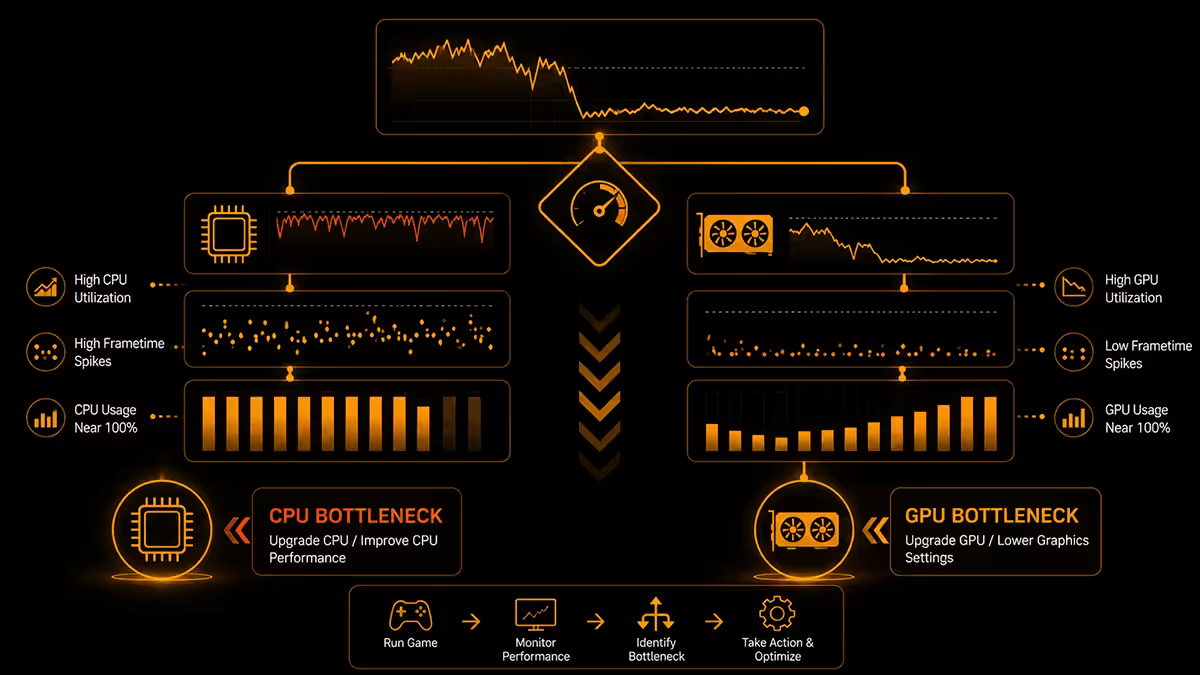
If you’ve cleaned overlays, run DDU, fixed shader cache and you’re on ethernet — and the game still feels bad — you might have a genuine hardware bottleneck. The hardware that’s holding you back determines what to upgrade.
How to check: open MSI Afterburner with the OSD enabled, set it to show per-core CPU usage (not total — total is misleading), GPU usage, and frametime. Run your problem game and look at the numbers when stutter happens.
- If any single CPU core is at 95-100% and GPU is below 95%: you’re CPU-bound. The CPU is the bottleneck. Upgrading your GPU won’t help. Solutions: lower CPU-heavy settings (draw distance, NPC count), or upgrade CPU.
- If GPU is at 99% and CPU cores are all below 80%: you’re GPU-bound. This is normal at high settings. Solutions: lower graphics settings, enable DLSS / FSR upscaling, or upgrade GPU.
- If GPU is below 95% and no CPU core is high: you have a different bottleneck — usually RAM speed, storage I/O, or game engine limitation.
Stuttering specifically from CPU bottleneck tends to show as periodic 1-second hitches at otherwise high FPS — the CPU briefly maxes out a core and can’t dispatch the next frame in time. GPU bottlenecking shows as smooth but capped FPS — the game runs at a steady but lower frame rate.
Key takeaways
- Diagnose first — lag is network, stutter is frametime. Fix the wrong problem and you waste hours.
- Average FPS hides the spikes. Watch frametime and 1% low FPS in MSI Afterburner instead.
- Shader compilation is the biggest stutter cause in modern PC games. Pre-compile shaders before playing.
- Disable Discord overlay before anything else — single most common stutter cause we see.
- For competitive multiplayer, ethernet is non-negotiable and the closest server always wins.
Frequently asked questions
What is the difference between lag and stutter in games?
Lag is a network delay — the time between your input and the server registering it. It’s measured in milliseconds of ping. Stutter is a local frametime problem — your GPU rendering frames at inconsistent intervals so the game animation hitches even though your average FPS looks fine. Lag is solved with ethernet, a better ISP route or a closer server. Stutter is solved with driver work, shader pre-compilation, or hardware upgrades.Why does my game stutter even though my FPS is high?
Because average FPS hides the spikes. A game showing 144 fps average can have individual frames taking 30 ms (33 fps equivalent) — and your eye will notice every one of those hitches. The metric that matters is frametime consistency, not average FPS. Common causes: shader compilation, traversal stutter (data streaming as you move through a level), background apps stealing CPU cycles, or a bad GPU driver.What is shader compilation stutter and how do I fix it?
Modern PC games compile shaders on-the-fly the first time you encounter a new visual effect. The CPU spike from this compilation causes a 50-200 ms hitch. Cyberpunk 2077, Hogwarts Legacy and most Unreal Engine 5 games suffer badly from this. Fix: enable ‘shader pre-compilation’ in game settings (most newer titles have it), or run through the game’s tutorial / opening area once at low settings to pre-build the shader cache. Subsequent playthroughs are smooth.Should I use DDU to clean GPU drivers?
Yes — DDU (Display Driver Uninstaller) is the standard fix for accumulated driver crud after multiple Nvidia or AMD driver updates over several years. Boot into Windows Safe Mode, run DDU, choose ‘Clean and restart’, then install the latest driver fresh. This resolves about 30% of mysterious stutter and crash issues on systems that have been upgraded multiple times. Skip it on a fresh Windows install — DDU is only useful when something is actively wrong.Does Discord overlay cause game stutter?
Yes — Discord’s in-game overlay, MSI Afterburner’s OSD, Razer Synapse, GeForce Experience’s overlay and several anti-cheat services all hook into the game’s rendering pipeline and can cause stutter, especially in DirectX 12 titles. If you’re chasing a stutter problem, the first diagnostic step is to disable all overlays one at a time and retest. Discord overlay is the most common culprit.What is traversal stutter?
Traversal stutter happens when a game streams new assets from disk as you move through a large open world. The game pauses briefly to load the next zone’s textures, meshes and sounds. It’s especially visible in Jedi Survivor, Hogwarts Legacy, Spider-Man Remastered and most large UE5 titles. Fix: ensure your game is installed on an NVMe SSD (not SATA SSD or HDD), enable DirectStorage if the game supports it, and keep 20%+ free space on the drive.How do I check if my issue is CPU or GPU bottleneck?
Open MSI Afterburner with Riva Tuner OSD enabled. In-game, check CPU usage per core (not total) and GPU usage. If any single CPU core is at 95-100% and GPU usage is below 95%, you’re CPU-bound — the CPU can’t feed frames fast enough. If GPU is at 99% and CPU cores are below 80%, you’re GPU-bound — typical. Stutter from CPU bottlenecking shows as periodic 1-second hitches; GPU bottlenecking shows as smooth but capped average FPS.What network ping is acceptable for online gaming?
For competitive games (Valorant, CS2, Apex Legends): under 40 ms is excellent, 40-80 ms is fine, 80-120 ms is noticeable but playable, over 120 ms makes you a liability to teammates. For casual co-op (Destiny 2, Fortnite): under 100 ms is fine. In SA, expect 5-25 ms on local servers (Joburg/Cape Town), 80-130 ms on EU servers, 200-250 ms on US East, 280-340 ms on US West. Always pick the closest server option in matchmaking.
Get the Evetech app
Exclusive app-only prices, daily flash sales, and free delivery on orders over R4,000 — download the app and start saving.