Hardware Explainer · Latency
What is NVIDIA Reflex?
— The free 30-50% latency cut competitive players never turn off.
The setting that beats every overclock, every premium mouse, every fancy mousepad. It's also the one most casual players have never enabled — even though their GPU supports it.
- latency reduction
- 30-50%
- must-have
- Competitive
- to measure
- Reflex Analyser
What NVIDIA Reflex actually does
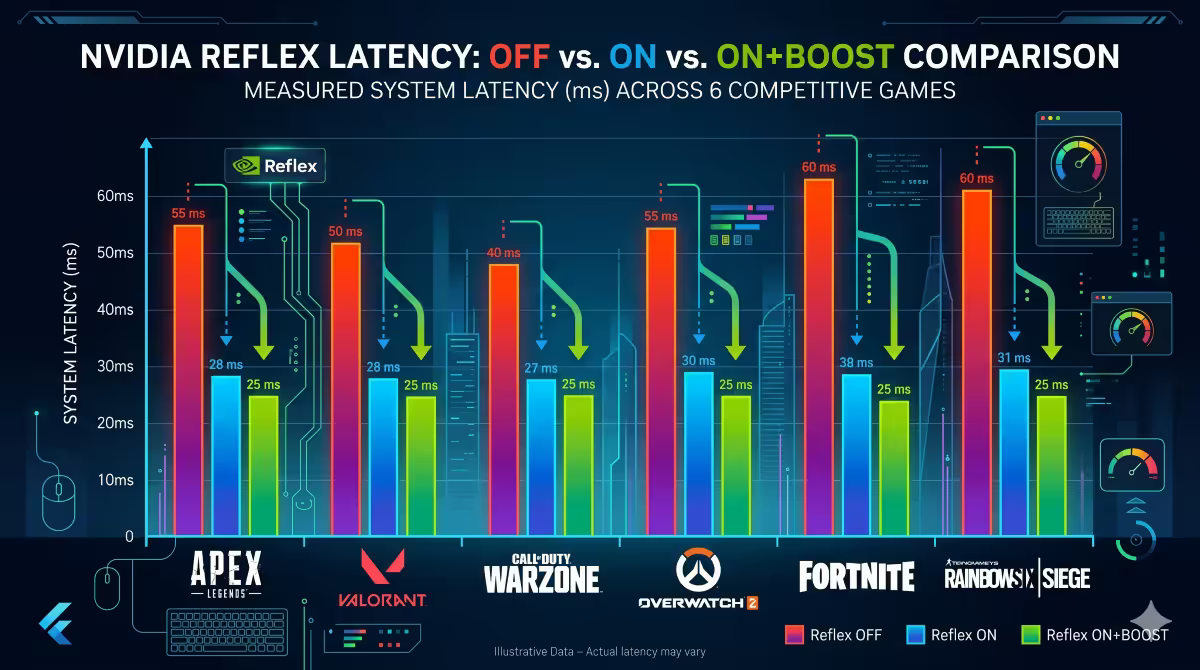
Every PC game has an invisible chain of events between your click and the pixel changing on-screen. That chain typically looks like: mouse click → USB poll → game engine processes input → CPU prepares draw calls → GPU render queue → GPU renders frame → scanout → pixel response. The total time end-to-end is your system latency, and it's typically 40-70 ms on a standard PC playing a competitive game.
NVIDIA Reflex compresses that chain by attacking two specific bottlenecks:
The render queue. Without Reflex, the CPU runs ahead of the GPU and queues several frames worth of draw calls so the GPU is never idle. Great for hitting the GPU's full output rate — terrible for latency, because by the time the GPU finishes the frame you initiated, several more queued frames sit behind it. Reflex eliminates this queue, telling the CPU to wait until the GPU is ready before issuing the next frame. The CPU and GPU run in lock-step, with no backlog.
CPU/GPU pacing. Even with the queue gone, the CPU and GPU need to be synchronised so the GPU starts work on your input as soon as it's available. Reflex dynamically paces the CPU's work so the GPU starts each frame at the right moment — reducing wasted time at both ends of every frame.
The net result is the chain shortens by 20-40 ms on a typical competitive game, with no FPS cost (and sometimes a small FPS gain because the GPU isn't being asked to render frames that will be discarded).
FPS vs latency — two completely different metrics
This is where most players get confused. They assume "more FPS = lower latency" — but it's not that simple.
FPS measures how often a new frame is drawn — frames per second. A game running at 240 FPS draws a fresh frame every ~4.2 ms.
System latency measures how long between your input and the corresponding change reaching your eyes. It's measured end-to-end, in milliseconds, and includes input processing time, render time, scanout and display response.
| Scenario | FPS | System latency |
|---|---|---|
| 144 Hz monitor, Reflex OFF | 144 FPS | 52 ms |
| 144 Hz monitor, Reflex ON | 144 FPS | 28 ms |
| 240 Hz monitor, Reflex OFF | 240 FPS | 42 ms |
| 240 Hz monitor, Reflex ON + Boost | 240 FPS | 18 ms |
| 360 Hz monitor, Reflex ON + Boost | 360 FPS | 14 ms |
The same FPS can deliver wildly different latency. A 240 Hz monitor at 240 FPS feels much snappier with Reflex on (18 ms) than off (42 ms). For competitive shooters, that 24 ms is the difference between "I'm not sure I tagged him first" and "clean kill".
Reflex Low Latency Mode
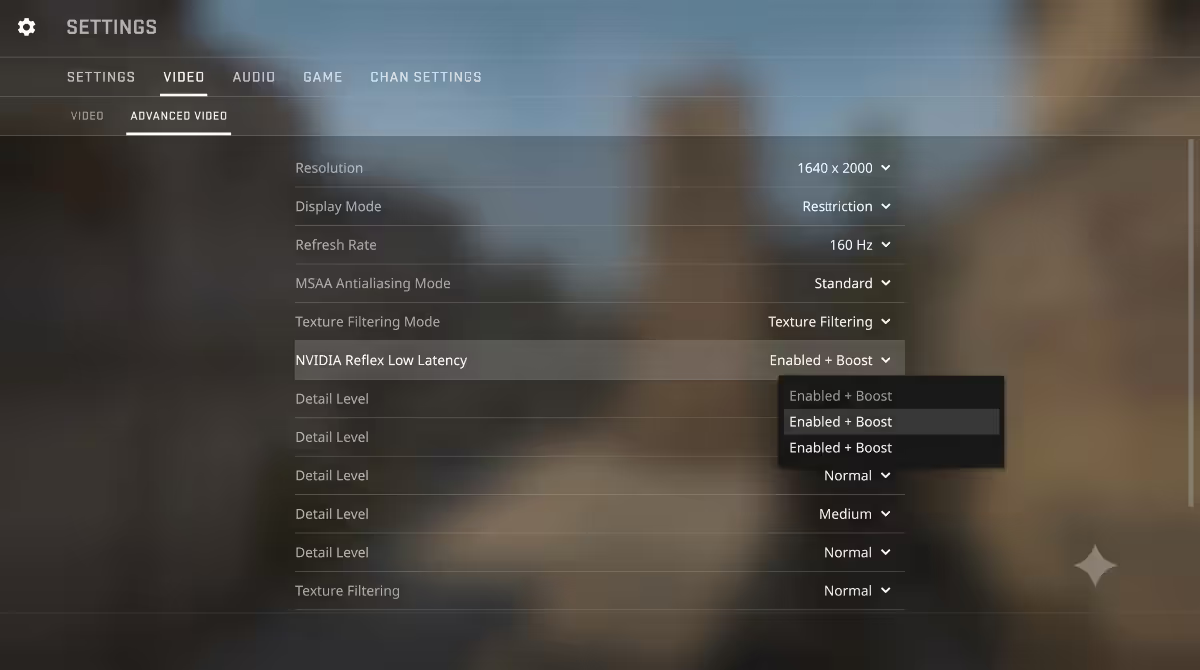
"Reflex Low Latency Mode" is the standard Reflex setting you'll find in supported games. It's the core feature — render queue elimination + CPU/GPU pacing. Toggle it on and you get the bulk of the latency reduction described above.
Game developers integrate Reflex via NVIDIA's SDK, exposing it as a graphics setting. The setting usually appears as:
- Off — no Reflex; classic queued render path.
- On — render queue eliminated, CPU/GPU synced. The recommended setting.
- On + Boost — adds Reflex Boost (see next section).
For 99% of competitive players, On is the right baseline. On + Boost for ranked / tournament play.
Reflex Boost — the last few milliseconds
Reflex Boost is an additional optimisation that prevents the GPU from downclocking between frames. Without Boost, the GPU can briefly drop its clock speed when it finishes a frame quickly — saving power, but adding a small startup delay when the next frame begins.
With Boost on, the GPU stays at its boost clock continuously, eliminating that startup delay. You save 2-4 ms more latency at the cost of slightly higher power draw and GPU temperature.
When to use Boost: ranked matches, tournament play, anything where every millisecond matters. When to leave it off: casual play where you'd rather save 30-50 W of power draw on a long session.
Reflex 2 and Frame Warp
Reflex 2 (also called Frame Warp) is the next-generation evolution announced for 2026. The clever trick: rather than just shortening the rendering chain, Reflex 2 predicts where the camera will be by the time the frame finishes rendering, then warps the finished frame at the very last moment to match your most recent mouse input.
The result is even lower perceived latency — typically a further 10-20 ms reduction on top of regular Reflex — without breaking the frame visually. Frame Warp works particularly well in fast-look-angle games like CS2 and Valorant, where the camera moves rapidly between frames.
Reflex 2 is rolling out game-by-game through 2026, starting with The Finals, Valorant and a small group of competitive titles. Requires RTX 50-series for the full feature set; RTX 40-series gets the basic version.
How to enable Reflex per game
Reflex is enabled in the game's graphics settings, not the NVIDIA Control Panel. Here's where to find it in the most common competitive titles:
| Game | Setting location | Default |
|---|---|---|
| Valorant | Settings → Video → Graphics Quality → NVIDIA Reflex Low Latency | On (auto-detected on RTX) |
| Counter-Strike 2 | Settings → Video → Advanced → NVIDIA Reflex Low Latency | Enabled |
| Apex Legends | Settings → Video → NVIDIA Reflex | Disabled — toggle on |
| Fortnite | Settings → Graphics → Advanced Graphics → NVIDIA Reflex Low Latency | Disabled — toggle on |
| Overwatch 2 | Options → Video → NVIDIA Reflex | Enabled (Boost optional) |
| Call of Duty (current) | Settings → Graphics → Display → NVIDIA Reflex Low Latency | Enabled |
| The Finals | Settings → Video → NVIDIA Reflex | On (Reflex 2 available) |
| Marvel Rivals | Settings → Display → NVIDIA Reflex Low Latency | Disabled — toggle on |
For games that don't integrate Reflex, the older "Low Latency Mode" in the NVIDIA Control Panel (Manage 3D Settings → Low Latency Mode → Ultra) gives a smaller fraction of the benefit. It's not as effective as in-game Reflex, but it's better than nothing.
Reflex Analyser hardware
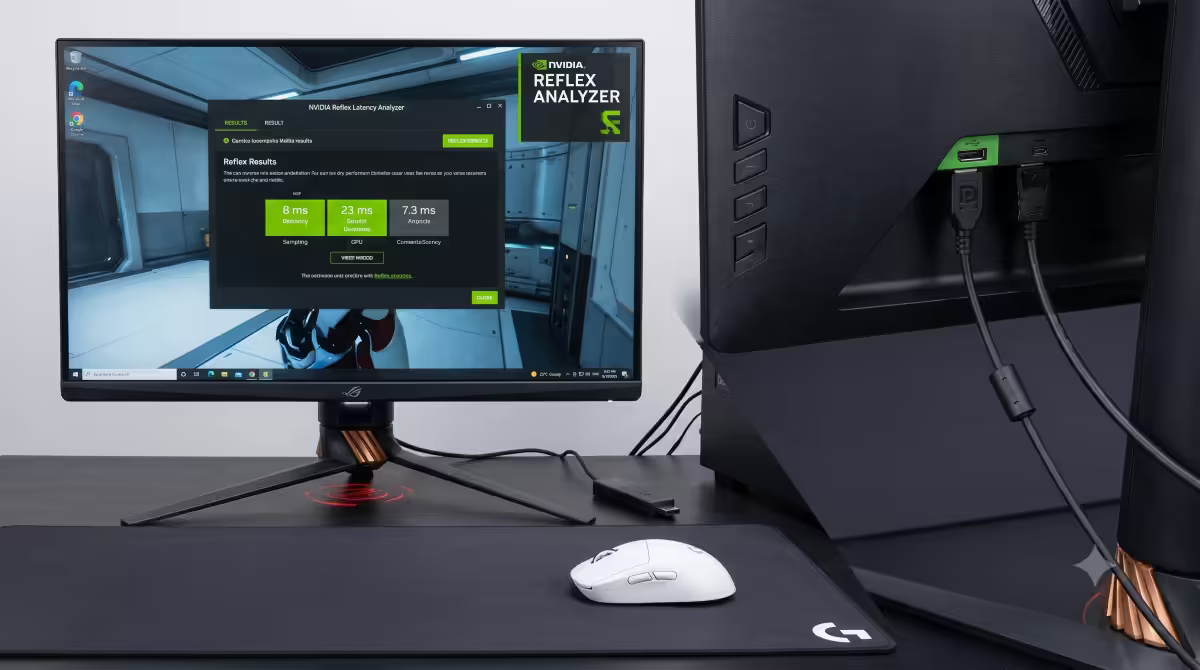
If you want to measure latency rather than just feel the improvement, you need a Reflex Analyser setup:
- A monitor with built-in Reflex Analyser circuitry: ASUS ROG Swift PG279QM, BenQ ZOWIE XL2566K, ASUS PG259QNR, Acer Predator X25, Alienware AW2521H, AOC Agon Pro AG274QZM.
- A USB cable connected to a compatible NVIDIA mouse (Logitech G Pro X Superlight, Razer DeathAdder V3 Pro, ASUS ROG Harpe Ace, etc.).
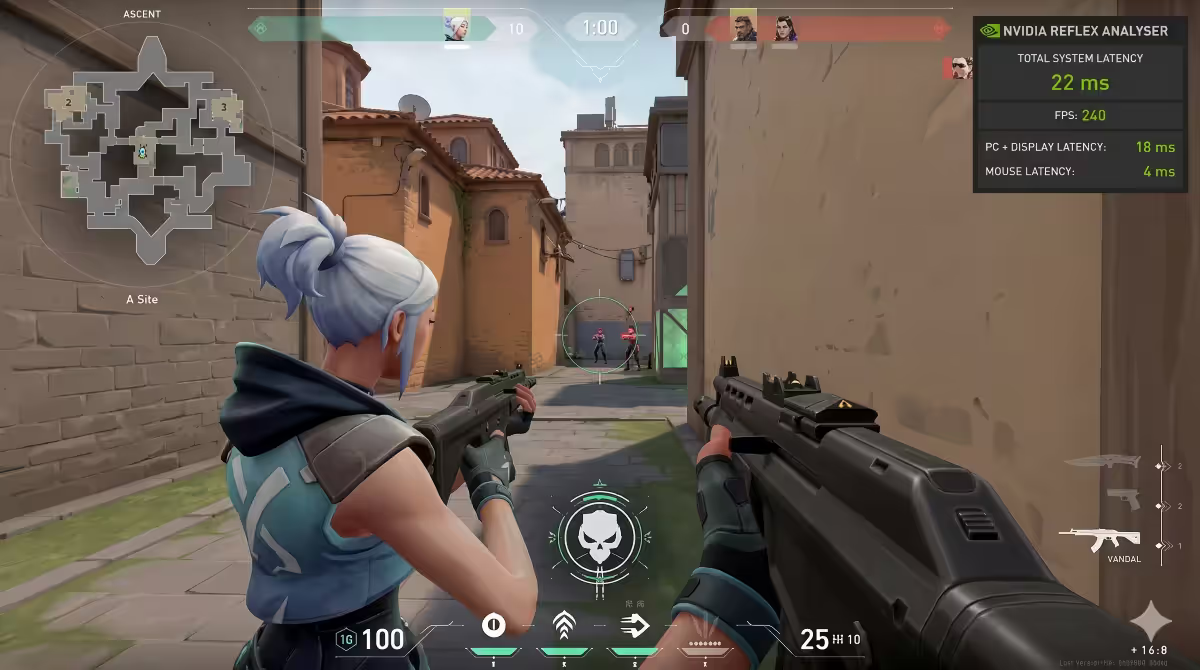
- NVIDIA GeForce Experience or NVIDIA App with the latency overlay enabled.
With this setup, the on-screen overlay displays total system latency in real time — typically 18-40 ms in a competitive title with Reflex on. You can compare configurations directly. This is also how reviewers (Hardware Unboxed, Optimum Tech, etc.) generate the latency-tested charts you see online.
G-Sync + Reflex — how they work together
Confusion point: G-Sync (variable refresh rate) and Reflex (latency reduction) are independent and complementary features. Reflex is not a substitute for G-Sync, and G-Sync doesn't reduce input latency the way Reflex does.
Recommended competitive-gaming setup:
- G-Sync: On in NVIDIA Control Panel.
- V-Sync: On in NVIDIA Control Panel (paired with G-Sync to handle frames above refresh rate).
- FPS cap: 3-5 below monitor refresh rate (e.g., 237 FPS on a 240 Hz monitor).
- Reflex Low Latency: On + Boost in-game.
This combination eliminates tearing (G-Sync + V-Sync), prevents V-Sync's latency penalty (Reflex + the FPS cap keeps the framebuffer from filling), and gives the lowest system latency the hardware can deliver. It's the configuration used by virtually every competitive esports pro on NVIDIA hardware.
AMD Anti-Lag 2 — the equivalent
AMD's competing technology is Anti-Lag 2. It works similarly to Reflex — eliminates the render queue, synchronises CPU/GPU pacing, and reduces system latency. Anti-Lag 2 is integrated game-by-game (Counter-Strike 2, Valorant, Apex Legends, COD, Marvel Rivals) and delivers comparable improvements (25-40% latency reduction in supported titles).
A note of history: AMD's earlier Anti-Lag+ caused anti-cheat false positives in 2023 (Vanguard, BattlEye flagged it as DLL injection), and AMD pulled it. Anti-Lag 2 is the rewrite — game-side integration rather than driver-side hooking — and is now compatible with anti-cheat systems.
If you're on AMD hardware, enable Anti-Lag 2 in the same way you'd enable Reflex on NVIDIA — in the game's graphics settings. Don't enable the driver-level Anti-Lag (deprecated) on top of in-game Anti-Lag 2.
When Reflex matters most — and least
Reflex matters most when:
- You're playing a competitive shooter (CS2, Valorant, Apex, OW2, Fortnite, COD, Marvel Rivals).
- You have a 240 Hz or 360 Hz monitor that can actually display the latency improvement.
- You're a ranked or tournament player where milliseconds affect your win rate.
- You're playing on a low-latency mouse (1000 Hz polling +) and a quality desk peripheral chain.
Reflex matters less when:
- You're playing a narrative single-player game (Cyberpunk story, RDR2, BG3) — latency is largely irrelevant.
- You're on a 60 Hz monitor — the 16.7 ms scanout dominates the latency budget anyway.
- You're playing turn-based or strategy games — chess on Reflex is still just chess.
- You're streaming gameplay where capture / encoding latency dominates regardless.
Common Reflex mistakes
Assuming Reflex is enabled by default everywhere. Some games default-on (Valorant, CS2 on RTX hardware); many default-off (Apex Legends, Fortnite, Marvel Rivals). Check each game individually.
Enabling driver-level Low Latency Mode alongside in-game Reflex. The two can conflict. If a game has native Reflex support, use only the in-game setting and leave NVIDIA Control Panel's Low Latency Mode at "Off" or "On" (not "Ultra").
Using Reflex without a high-refresh-rate monitor. On 60 Hz you might shave a few ms but it's largely invisible — the 16.7 ms scanout dominates. The investment is wasted unless you can actually display the latency reduction.
Believing Reflex reduces ping or network latency. Reflex only affects local system latency — click to display on your machine. Server response time, network round-trip, and netcode are completely separate and unchanged.
Skipping the FPS cap when running G-Sync + Reflex. If your FPS exceeds your refresh rate, G-Sync stops working and V-Sync (if enabled) introduces buffer latency. Cap FPS to 3-5 below your refresh rate to stay in G-Sync range and let Reflex do its job.
Key takeaways
- Reflex eliminates the GPU render queue and syncs CPU/GPU pacing — cuts system latency 30-50% in supported games.
- FPS and latency are different metrics. Same FPS can feel very different depending on whether Reflex is on or off.
- Enable in-game (Valorant, CS2, Apex, Fortnite, OW2, COD, Marvel Rivals). Skip the NVIDIA Control Panel toggle.
- Pair G-Sync + V-Sync + Reflex On + Boost with an FPS cap 3-5 below refresh rate for the optimal competitive setup.
- AMD Anti-Lag 2 is the direct equivalent on Radeon hardware. Same approach, comparable savings.
Frequently asked questions
What does NVIDIA Reflex do?
Eliminates the GPU render queue and synchronises CPU/GPU pacing, cutting click-to-display latency by 30-50% in supported games — typically 20-40 ms off the total chain.Is Reflex the same as higher FPS?
No. FPS = how often frames draw. Latency = how soon input shows on-screen. Same FPS can have very different latency depending on Reflex.What GPUs support NVIDIA Reflex?
RTX 20-series and newer for full Reflex SDK; GTX 900-series and newer get the Low Latency Mode subset. The game also needs to support Reflex natively.How do I enable NVIDIA Reflex?
In the game's graphics settings, look for "NVIDIA Reflex Low Latency". Set to On or On + Boost. No NVIDIA Control Panel toggle needed.What is Reflex Boost?
An additional 2-4 ms of latency reduction by keeping the GPU at boost clock continuously. Trade-off is slightly higher power draw and heat. Worth it for ranked/tournament play.Does AMD have a Reflex equivalent?
Yes — AMD Anti-Lag 2, integrated game-by-game with comparable latency reduction (25-40%). Avoid Anti-Lag+ (deprecated, had anti-cheat issues).Do I need a Reflex-capable monitor?
No — Reflex works with any monitor. The Reflex Analyser overlay (which measures latency in ms) requires a specific monitor with built-in measurement hardware.When should I leave Reflex off?
Single-player narrative games, turn-based games, or 60 Hz monitors where the latency improvement is invisible. Otherwise leave it on — it's free.
Get the Evetech app
Exclusive app-only prices, daily flash sales, and free delivery on orders over R4,000 — download the app and start saving.