GPU Driver Maintenance Guide
How to update GPU drivers. — NVIDIA, AMD & Intel. Without breaking anything.
The GPU driver is the most consequential single download on a gaming PC — and the one most builders update wrong. Day-1 chasing breaks things. Skipping it for two years breaks things. Here's the rhythm that doesn't.
- healthy cadence
- 6-8 wk
- wait after Day 1
- 7-14 d
- rollback path
- 2 min
NVIDIA App — the 2026 replacement for GeForce Experience
The NVIDIA App is the official driver and game-optimisation client for GeForce cards, and as of 2026 it has fully replaced the old GeForce Experience. If you still have GeForce Experience installed, the migration prompt will appear on next launch — accept it. The NVIDIA App removes the mandatory login GeForce Experience required, ships with a lighter Alt+Z overlay, and includes RTX HDR, RTX Dynamic Vibrance and the new AI-tuned per-game profiles.
To install fresh: grab it from nvidia.com/en-us/software/nvidia-app/. It is roughly 200 MB to download then pulls the latest driver itself (another 800 MB — 1.2 GB). On a 50 Mbps SA fibre line that is about 4 minutes; on 10 Mbps capped uncapped it can stretch to 25-30 minutes.
The setting you want: open NVIDIA App > Settings > General and set driver downloads to "Notify me when a new driver is available" rather than the auto-download default. This stops the app from quietly pulling a 1 GB driver in the middle of your evening cap.
| Driver track | Released | Best for |
|---|---|---|
| Game Ready (GRD) | Every 2-4 weeks | Gamers, esports, new release days |
| Studio (SD) | Every 6-8 weeks | Creative workstations, Resolve / Blender / Adobe |
| NVIDIA Production Branch | Quarterly | Quadro / RTX Pro workstations |
AMD Software Adrenalin Edition
AMD Software Adrenalin Edition is the driver and tuning suite for Radeon RX 6000, 7000 and 9000 cards. It's the most feature-rich of the three vendor clients — Radeon Anti-Lag, Radeon Boost, Radeon Image Sharpening, Smart Access Memory toggles and the built-in performance overlay all live in one place.
Download from amd.com/en/support. The page auto-detects your card if you allow it, otherwise pick your card family manually. The package is around 750 MB; the installer offers "Factory Reset" as an option — that wipes the previous driver and Adrenalin settings before installing. Use it if you're upgrading after a long gap, troubleshooting, or moving from a different driver branch.
Adrenalin release branches:
- WHQL (Recommended). Microsoft-certified, monthly cadence. The default choice.
- Optional / Preview. Beta-grade releases for early access to game-ready optimisations. Less validation.
- Pro Edition. Workstation driver for Radeon Pro cards. Conservative and certified for CAD / DCC apps.
Intel Arc — Driver & Support Assistant
If you're running an Intel Arc A-series or Battlemage B-series card, the official client is the Intel Driver & Support Assistant (intel.com/dsa). It also handles chipset, Wi-Fi and Bluetooth drivers — useful on Intel-based laptops, less useful on desktops where you're mostly there for the GPU.
Arc drivers have matured dramatically since launch but still ship with a faster cadence and slightly more variability than GeForce or Radeon. Expect a new "WHQL" branch every 3-4 weeks plus the occasional hotfix. Each release notes which titles got optimisation work — actually read the notes, because Arc benefits are far more title-specific than the bigger brands.
Arc Control is the in-driver overlay equivalent of NVIDIA App or Adrenalin. Lighter on features than either, but fine for capture, performance overlay and per-game profiles.
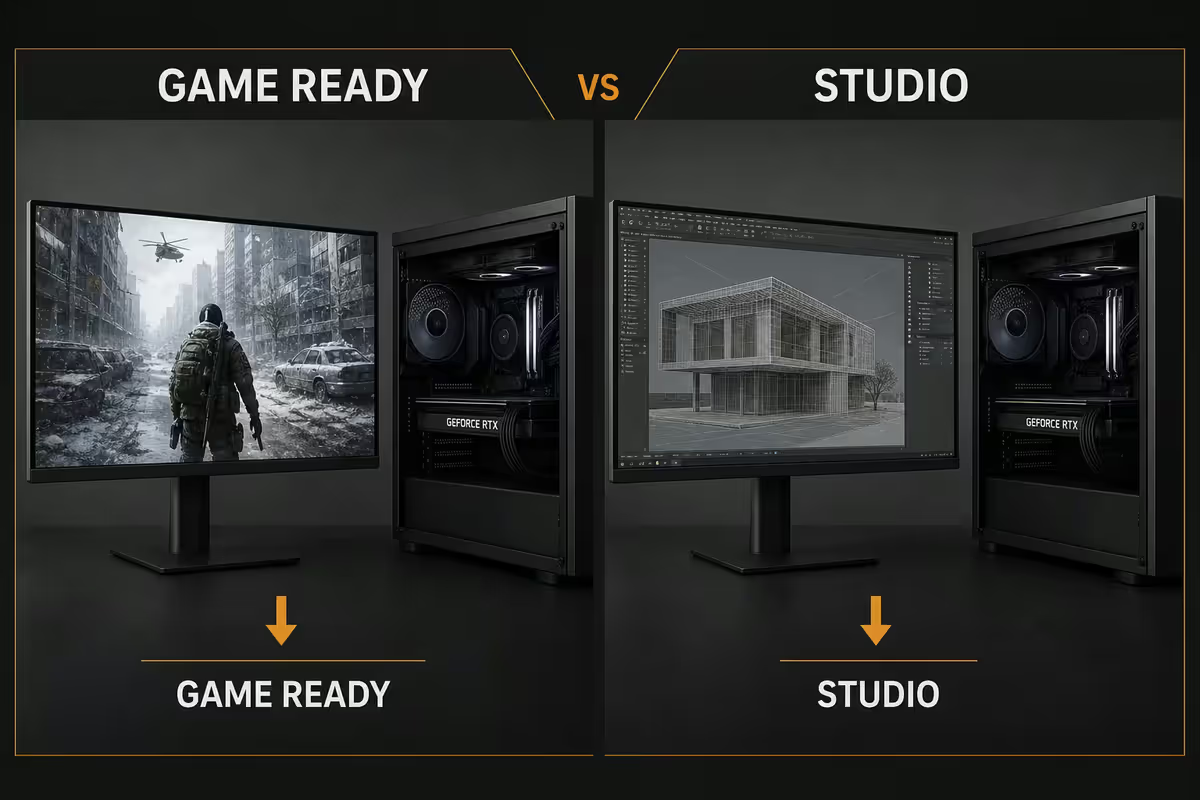
Game Ready vs Studio Driver — when each is right
NVIDIA cards have two parallel driver tracks, and the distinction trips up a surprising number of customers who bought a GeForce for Blender renders and ended up with a gaming-tuned driver.
| Aspect | Game Ready (GRD) | Studio (SD) |
|---|---|---|
| Release cadence | Every 2-4 weeks | Every 6-8 weeks |
| Optimised for | New game launches | Adobe, DaVinci, Blender, Octane |
| Validation depth | Standard QA | Extended QA across creative apps |
| Stability profile | Higher regression risk early | More conservative, fewer surprises |
| Switching between | Requires clean install — not just an update | Requires clean install — not just an update |
Pick GRD if your PC is mostly used for gaming, you play new releases on launch day, or you stream / record gameplay with NVENC. Pick Studio if the PC pays its own way through video editing, 3D rendering, AI inference work, or you simply hate driver-update surprises and want maximum stability.
How to switch: uninstall the current driver (Settings > Apps > NVIDIA Graphics Driver > Uninstall), reboot, then install the other track from the NVIDIA App or nvidia.com directly. For a guaranteed-clean switch, run DDU in Safe Mode in between — see next section.
Clean install with DDU — when and how
Display Driver Uninstaller (DDU) is a free utility from Wagnardsoft that completely strips GPU driver remnants from Windows — registry keys, INF files, leftover services, the lot. Standard Windows uninstall leaves traces. DDU does not.
When you actually need DDU:
- Switching between AMD and NVIDIA (or vice versa) on the same install.
- Persistent black screens, BSODs or DXGI errors after a driver update that ordinary uninstall didn't fix.
- Moving between Game Ready and Studio tracks if you want zero risk.
- Fresh-installing Windows when you've copied a recovery image rather than done a clean Windows install.
- Repeated driver-install failures from the official installer.
When you don't need DDU: routine driver updates from one version to the next on the same vendor and track. The official installers handle that fine, and adding DDU just adds steps and risk.
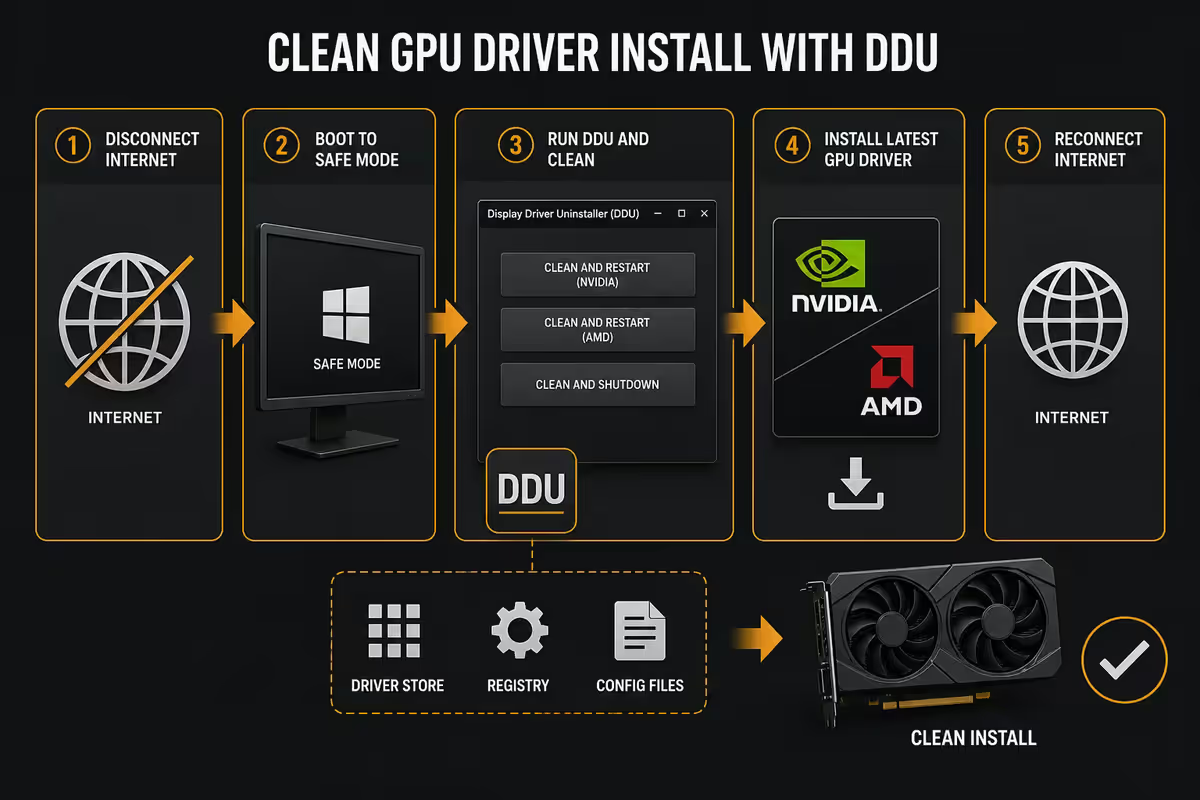
The DDU flow:
- Download DDU from wagnardsoft.com (always the official source — there are fake DDU sites).
- Download the new driver you intend to install. Save it to a folder you'll be able to find without internet — Safe Mode has no Wi-Fi.
- Disable Windows Update auto-install of drivers (Settings > Advanced > Optional Updates).
- Boot into Safe Mode (Shift + Restart > Troubleshoot > Advanced > Startup Settings > 4).
- Run DDU. Pick GPU, pick your vendor, choose "Clean and restart".
- On reboot, install the new driver before doing anything else.
The Day-1 rule — when NOT to update immediately
The chase for the latest driver is the single biggest cause of self-inflicted instability we see on the service bench. The honest reality: you do not need every driver release, and you definitely don't need them on Day 1.
Skip the Day-1 driver when:
- A major Windows feature update has just dropped (the 24H2 / 25H1-style releases). Wait 7-14 days for the first hotfix revision.
- It's the launch day of a new AAA title and the driver is "optimised" for it. Wait for the first follow-up driver, usually within two weeks.
- You've got a stable, working setup and the release notes don't fix anything you're actually hitting. Stability is the goal, not the version number.
- You have a paid deadline this week. Never update drivers the night before a render is due.
Update without delay when: the release notes specifically fix a bug you're hitting, you're upgrading hardware that needs the new driver, or it's been 8+ weeks since your last update and you'd like to skip past several intermediate releases at once.
Beta drivers — discipline and risk
Both NVIDIA and AMD ship optional / beta driver branches. They get the new features and game optimisations first. They also get the most regression reports.
Rules for beta drivers:
- Create a Windows restore point before installing. Two-click rollback if the beta breaks something.
- Only install a beta if its release notes fix a specific bug you're hitting. Don't install for fun.
- Never on a workstation you rely on for paid work or exam-deadline schoolwork.
- Make a note of the version you came from. You'll want it for the rollback path.
Beta drivers are not "broken" by default — most are perfectly fine. The discipline isn't about avoiding them, it's about not running blind.
Rolling back a bad driver
Sometimes a driver lands wrong on your specific hardware combo. Black screen on game launch. Sudden DXGI error. Discord screen-share suddenly broken. Roll back fast and assess later.
Inside Windows (last 10 days): Right-click Start > Device Manager > Display adapters > right-click your GPU > Properties > Driver tab > Roll Back Driver. If the button is greyed out, Windows has already deleted the cached older driver — proceed to the DDU path below.
Older rollback (DDU path):
- Download the previous-known-good driver from NVIDIA's archive (nvidia.com/en-us/drivers/) or AMD's previous drivers list (amd.com/en/support/previous-drivers). Always keep a copy of one known-good version on disk — saves you finding it during a panic.
- Boot to Safe Mode.
- Run DDU > Clean and restart.
- Install the older driver.
- Disable Windows Update driver auto-install until you're sure of the next move.
Document what broke. Note the bad version, the game / app it broke, and the symptom. Submit it via the NVIDIA App "Send Feedback" or AMD's Bug Reporting tool. Future-you and future-everyone else benefit.
Laptop GPUs — OEM driver source matters
A desktop GPU gets NVIDIA or AMD's generic driver, end of story. Laptops are different. The same GeForce RTX 5070 mobile is tuned differently by HP than by Lenovo than by ASUS, because each OEM specs different thermal limits, fan curves and power budgets.
Preferred laptop driver source by brand (SA market):
| Brand | OEM app | Notes |
|---|---|---|
| Lenovo (Legion, ThinkPad) | Lenovo Vantage | Reliable. Pulls Lenovo-tuned NVIDIA/AMD drivers and BIOS. |
| ASUS (ROG, TUF, Zephyrus) | Armoury Crate | Bloated but the source of truth for ROG laptops. |
| HP (Omen, Victus) | HP Support Assistant | OK. Verify with hp.com/support if Support Assistant misses an update. |
| Dell (Alienware, G-series) | Dell Update / SupportAssist | Fast, clean, the most reliable of the OEM apps. |
| MSI (Stealth, Vector, Katana) | MSI Center | Improved a lot since 2024. Use it. |
| Razer (Blade) | Razer Synapse + Razer.com | Synapse handles peripherals; GPU drivers come from razer.com/support. |
What about NVIDIA App / Adrenalin on a laptop? Both now support mobile GPUs natively and will install successfully on most modern laptops. Use them if your laptop's OEM app is months behind or has stopped supporting the model. But for the first 18 months of a laptop's life, the OEM driver is usually the better choice — it gets the laptop-specific thermal and battery tuning.
Common GPU driver mistakes
Updating from Windows Update. Windows pulls a generic, often outdated driver and overwrites your proper vendor driver. Disable driver auto-install in Settings > Windows Update > Advanced Options > Optional Updates.
Day-1 chasing every release. The Game Ready driver dropped at 10pm last night, the game launched at midnight, the driver has a known UE5 crash in the first hotfix notes. Wait two weeks.
Running DDU for routine updates. DDU is for switching brands, troubleshooting, or fresh installs — not for every monthly driver. Adding unnecessary Safe Mode reboots adds risk for zero benefit.
Ignoring release notes. The "What's new / Fixed issues / Open issues" section of every driver release tells you whether the update matters for you. Read it. Takes 60 seconds.
Installing both NVIDIA App and GeForce Experience. They conflict. NVIDIA App replaces GeForce Experience. Migrate, don't dual-install.
Skipping a Windows restore point. Before any major driver change, type "restore" in Start and create a manual restore point. Two-click recovery if something goes wrong.
Key takeaways
- Install the official client — NVIDIA App for GeForce, Adrenalin for Radeon, Intel DSA for Arc. Skip Windows Update for GPUs.
- Update every 6-8 weeks, not every release. Set the client to "notify" rather than auto-install.
- Wait 7-14 days after a Day-1 driver or major Windows feature update — let other people find the regressions.
- Use DDU in Safe Mode for brand swaps, persistent crashes, or stuck installer failures. Not for routine updates.
- Always keep one known-good driver installer archived locally — load-shedding insurance.
- On laptops, prefer the OEM driver (Vantage, Armoury Crate, Dell Update, MSI Center) over the generic vendor one.
Frequently asked questions
How often should I update my GPU drivers?
Every 6-8 weeks is plenty. NVIDIA and AMD ship roughly monthly drivers, but you don't need every one. Update when a new title you play gets a launch-day optimisation, when you upgrade Windows, or when release notes confirm a fix for a bug you're hitting.What replaced GeForce Experience in 2026?
The NVIDIA App. It removes the mandatory login GeForce Experience required, ships with a lighter overlay, and includes RTX HDR, RTX Dynamic Vibrance and AI-tuned game profiles. GeForce Experience installs prompt to migrate; you can also grab the NVIDIA App from nvidia.com/en-us/software/nvidia-app/.Game Ready Driver or Studio Driver — which should I install?
Game Ready for gaming-first PCs (shipped every 2-4 weeks, tuned for new releases). Studio for creative workstations (shipped every 6-8 weeks, validated against Adobe / DaVinci / Blender). Switching between them requires a clean install, not just an update.What is DDU and when should I use it?
Display Driver Uninstaller — a free utility that completely wipes GPU driver remnants from Windows. Use it for brand swaps, persistent crash troubleshooting, or repeatedly-failing driver installers. Run it in Safe Mode. Don't use it for routine updates.Should I install drivers on Day 1 of a major Windows release?
No. Wait 7-14 days. Day-1 drivers carry the most regression risk because they're racing the release calendar. The exception: a release-day driver that fixes a bug you're already hitting.Are beta GPU drivers safe to use?
Safe-ish, not for production. Install only when (a) the beta fixes a specific bug you're hitting, (b) you've made a restore point or backup, and (c) you can roll back without panic. Never on a workstation you rely on for paid work or a school deadline.How do I roll back a bad GPU driver?
Device Manager > Display adapters > right-click GPU > Properties > Driver tab > Roll Back Driver works for the last 10 days. For older rollbacks, download the previous driver from the vendor's archive, boot Safe Mode, run DDU, then install the older driver.Should I use Windows Update for GPU drivers on a laptop?
No — prefer the OEM driver (Lenovo Vantage, ASUS Armoury Crate, HP Support Assistant, Dell Update, MSI Center). OEM drivers include laptop-specific power and thermal tuning. Windows Update GPU drivers are a last resort.
Related guides
- Monthly PC Maintenance Checklist — Drivers, BIOS, NVMe firmware, Windows hotfixes — the 20-minute routine.
- How to Fix Black Screen After Driver Update — Safe Mode, DDU, and the rollback path that actually works.
- How to Benchmark a GPU After Driver Updates — 3DMark, UNIGINE and per-game tests to confirm a clean install.
- How to Choose a GPU — NVIDIA vs AMD vs Intel — Match the card to your monitor, resolution and use case.
Get the Evetech app
Exclusive app-only prices, daily flash sales, and free delivery on orders over R4,000 — download the app and start saving.