Windows 11 Disk Cleanup
How to free up disk space.
The C: drive fills faster than you think — modern games are 100GB+, browser caches creep, Windows.old hangs around. Most users can recover 50-300GB in under an hour without uninstalling anything important.
- hibernation file
- 8 GB+
- Windows.old
- 15-30 GB
- per modern game
- 80-200 GB
Storage Sense — set and forget
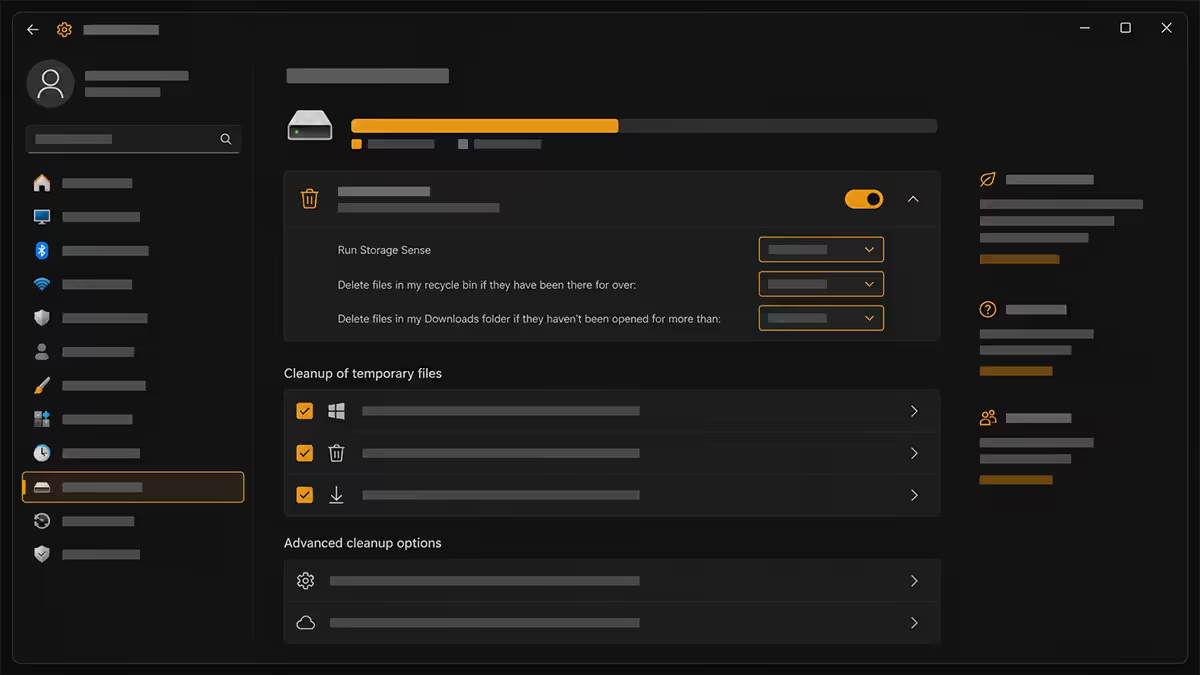
Storage Sense is the Windows 11 way to keep the C: drive trimmed automatically. Turn it on once, forget it, and it'll clean temp files, empty old recycle bin items and free OneDrive cloud-only files on a schedule.
- Open Settings → System → Storage.
- Toggle Storage Sense on at the top.
- Click into it to configure: schedule (daily, weekly, monthly), empty Recycle Bin after (1, 14, 30, 60 days), delete Downloads folder items after (off, 1, 14, 30, 60 days).
- Set Recycle Bin to 30 days, Downloads to off (you'll forget you saved something there), OneDrive cloud-only after 60 days of no access.
Recurring run keeps the drive from creeping back to "Storage Almost Full" warnings six months from now.
Storage analysis — see what's filling the drive
Below Storage Sense on the same Storage screen, Windows shows a category breakdown — Apps & features, Temporary files, Documents, Pictures, OneDrive, Games, System & reserved, Other. Click any category to drill in.
Cleanup recommendations at the top of the Storage screen is the single most useful entry point. Windows surfaces:
- Temporary files (Windows Update remnants, log files, prefetch, thumbnails).
- Large or unused files (typically videos and installers in Downloads).
- OneDrive files synced locally but not opened recently — candidates for cloud-only.
- Unused apps you haven't opened in 60+ days.
Tick the checkboxes for what you want gone and confirm. Always review the Downloads list before bulk-deleting — installers you might need are easy to miss.
Hunting big files — WinDirStat and TreeSize
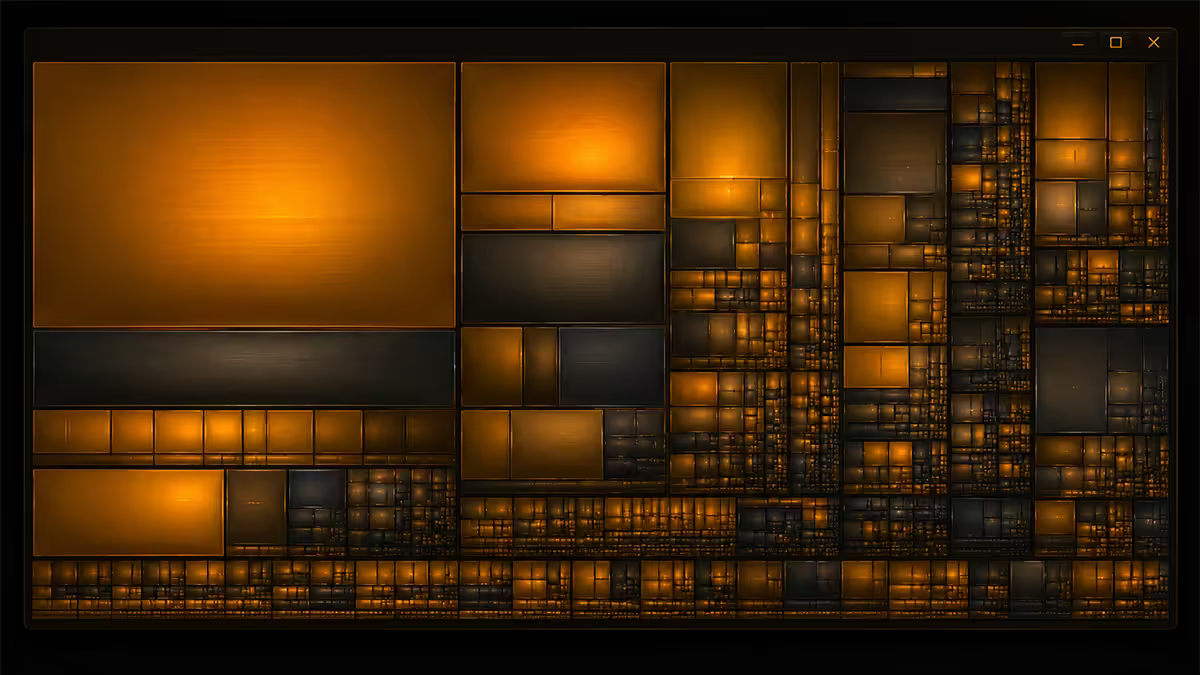
Windows' built-in tools show category totals but not which individual folder is the actual offender. For that, you want a tree-map disk visualiser.
WinDirStat
Free, open source, classic. Download from windirstat.net. Run, point at the drive, wait 2-10 minutes for the initial scan. You get a folder tree on top and a tile-map below where each rectangle is a file sized proportionally to its bytes. Click any rectangle to highlight the file. Right-click to delete safely via Explorer or Recycle Bin.
Particularly useful: WinDirStat colours files by extension. If you see a huge red blob, that's all your .mp4 files; orange might be .iso installers; purple game cache files. Patterns jump out immediately.
TreeSize Free
Modern UI, faster on big NVMe drives, supports network shares. Download from jam-software.com. Same idea — drill into folders sorted by size, see which subfolder is responsible. Better than WinDirStat on 2TB+ drives where the scan time matters.
Move Steam games to a secondary drive
Gaming PCs see the biggest disk recovery from Steam library moves. Modern AAA titles are 80-200GB each — Call of Duty Black Ops 6 is 250GB+, Star Citizen is 130GB+, Microsoft Flight Simulator 2024 is 90GB+. Move 4-5 games and you reclaim half a terabyte.
Add a second Steam library
- Open Steam → click Steam menu → Settings.
- Click Storage.
- Click the drive dropdown at the top → Add Drive.
- Pick your secondary drive (D:, E:, etc.). Create or accept the default path. Steam creates a new
SteamLibraryfolder there.
Move games
- Stay on the Storage page. The dropdown now lets you switch between your libraries.
- Select your system drive's library to see installed games there.
- Tick the games you want to move, click Move, choose the new library.
- Steam moves the files without re-downloading. Large games (100GB+) take 5-20 minutes on NVMe-to-NVMe; longer to a SATA SSD or HDD.
Same approach works for Epic Games Launcher (uninstall, reinstall to new path), Battle.net (move folder, repoint in launcher settings), Riot Games (reinstall to new path is simplest).
Windows.old — the post-reset leftover
After a Windows feature update (24H2 to 25H1 etc.) or a Reset This PC, Windows keeps your previous installation in C:\Windows.old for 10 days. This is the rollback safety net for "Go back" in Settings.
If you're sure you don't need to roll back, delete it:
- Open Settings → System → Storage → Cleanup recommendations.
- Look for Previous Windows installations in the Temporary files list.
- Tick it. Click Remove. Confirms 15-30GB freed depending on what you had installed before.
Disable the hibernation file — instant 8GB+
Windows reserves a hidden file called hiberfil.sys equal to roughly 75% of your installed RAM. On a 16GB system that's 12GB; on a 32GB system, 24GB. The file stores the OS state when you hibernate.
Most desktop users never hibernate. Disabling reclaims the file immediately.
- Open Command Prompt as Administrator (right-click Start → Terminal (Admin)).
- Type
powercfg /hibernate offand press Enter. - Done.
hiberfil.sysis deleted on the next boot or immediately on some systems.
Trade-off: you lose Hibernate as a sleep mode and Fast Startup (which uses a similar mechanism). Most desktop users don't notice. Laptop users on long battery may want to keep it. Re-enable any time: powercfg /hibernate on.
Virtual memory (page file) — tune only on tiny drives
Windows auto-manages the page file (pagefile.sys) and lets it grow up to 1.5-3x your installed RAM. On a 32GB system, that's potentially 48-96GB. Most of the time, default is right.
Tune it manually if:
- You have a small system drive (256GB or less) and the page file is eating critical space.
- You're running mostly creative apps with predictable memory needs and want to fix a stable size.
- You have multiple drives and want the page file on a faster one.
How to tune
- Settings → System → About → Advanced system settings.
- Performance → Settings → Advanced tab.
- Virtual memory → Change.
- Uncheck "Automatically manage". Pick your drive, select Custom size.
- For a 16GB RAM system: Initial 8192MB, Maximum 16384MB is a sane default.
- For 32GB+: Initial 4096MB, Maximum 16384MB. Save and reboot.
Never set the page file to zero / disabled. Many apps assume some page file exists and will crash without one — Adobe products and games are particularly prone to this.
OneDrive Files On-Demand
Files On-Demand lets your OneDrive look 500GB on disk but actually consume a few hundred MB. Only files you've opened recently are stored locally; everything else has placeholder metadata until you open it.
- Right-click the OneDrive cloud icon in the system tray → Settings.
- Sync and backup tab → ensure Files On-Demand is enabled.
- In File Explorer, right-click any OneDrive folder. Free up space pushes downloaded files back to cloud-only. Always keep on this device forces offline availability.
Use selectively. Make Documents always-on-device, set archive folders (old projects, photos from 2019) to cloud-only. You get the disk space back without losing access.
Recycle Bin, Temp folders, Prefetch
The small wins, but they add up to 5-20GB on a typical system:
- Recycle Bin — empty manually or set Storage Sense to clear it after 30 days. Multi-GB easily on heavy-use systems.
- %temp% folder — Win + R →
%temp%→ Enter, select all, delete. Skip files in use; everything else is safe. - C:\Windows\Temp — clear similarly via Disk Cleanup with System file cleanup elevated permissions.
- Prefetch (C:\Windows\Prefetch) — Windows regenerates these app launch optimisation files automatically; delete contents to clear stale entries (will be rebuilt over a few days of use).
- Browser caches — Chrome: Settings → Privacy → Clear browsing data → Cached images and files (last 4 weeks). Often 2-5GB on long-used profiles.
- Discord cache — settings → Advanced → Clear Cache, or delete %appdata%\Discord\Cache contents.
| Action | Typical recovery | Time |
|---|---|---|
| Disable hibernation | 8-24 GB | 30 sec |
| Delete Windows.old | 15-30 GB | 2 min |
| Move 4 Steam games to D: | 400-800 GB | 15-40 min |
| OneDrive cloud-only archive folders | 20-200 GB | 5 min |
| Clear temp + caches + Recycle Bin | 5-20 GB | 5 min |
| Uninstall unused apps | 5-50 GB | 10 min |
| Reduce page file (16GB cap) | 0-30 GB | 2 min |
| Storage Sense ongoing | 5-20 GB / month | Auto |
Key takeaways
- Enable Storage Sense once and let it handle ongoing cleanup. Cleanup recommendations for the first big pass.
- WinDirStat or TreeSize is how you find the 50GB folder you didn't know existed. Run as admin.
- Moving Steam libraries to a second drive is the single biggest disk recovery on a gaming PC.
powercfg /hibernate offin admin terminal recovers 8-24GB instantly. Reverse with /on if you need it.- OneDrive Files On-Demand keeps everything visible while consuming a fraction of the disk space.
Frequently asked questions
How do I quickly free up disk space in Windows 11?
Settings → System → Storage → Cleanup recommendations. Enable Storage Sense for ongoing cleanup. For big wins, move Steam games to a second drive, delete Windows.old, disable hibernation.What is the difference between WinDirStat and TreeSize?
Both scan and visualise disk usage. WinDirStat has the classic colour-coded tile map. TreeSize is faster on large NVMe and has a cleaner UI. Both free.Can I move my Steam library to a different drive?
Yes. Steam Settings → Storage → Add Drive, then move games via the Move button. Steam handles the file transfer with no re-download.Should I delete the Windows.old folder?
Yes after 10 days if happy with the install. Use Settings → Storage → Cleanup recommendations to delete, never File Explorer.Is disabling the hibernation file safe?
Yes if you don't hibernate.powercfg /hibernate offin admin Command Prompt deletes hiberfil.sys (8-24GB). Reverse with /on any time.How does OneDrive on-demand sync save space?
Files appear in Explorer but only download when opened. Right-click any folder → Free up space to push downloaded files back to cloud-only.Should I tune the Windows page file?
Only on small drives (256GB or less) where the auto-managed size is eating critical space. Never disable entirely — apps assume it exists.What's the difference between Storage Sense and Disk Cleanup?
Storage Sense is the modern automatic Windows 11 tool. Disk Cleanup (cleanmgr.exe) is the classic on-demand tool. Use Storage Sense for ongoing maintenance, Disk Cleanup for deeper one-off passes.