Laptop Guide · Touchscreen Verdict
Laptop touchscreen — is it worth it?
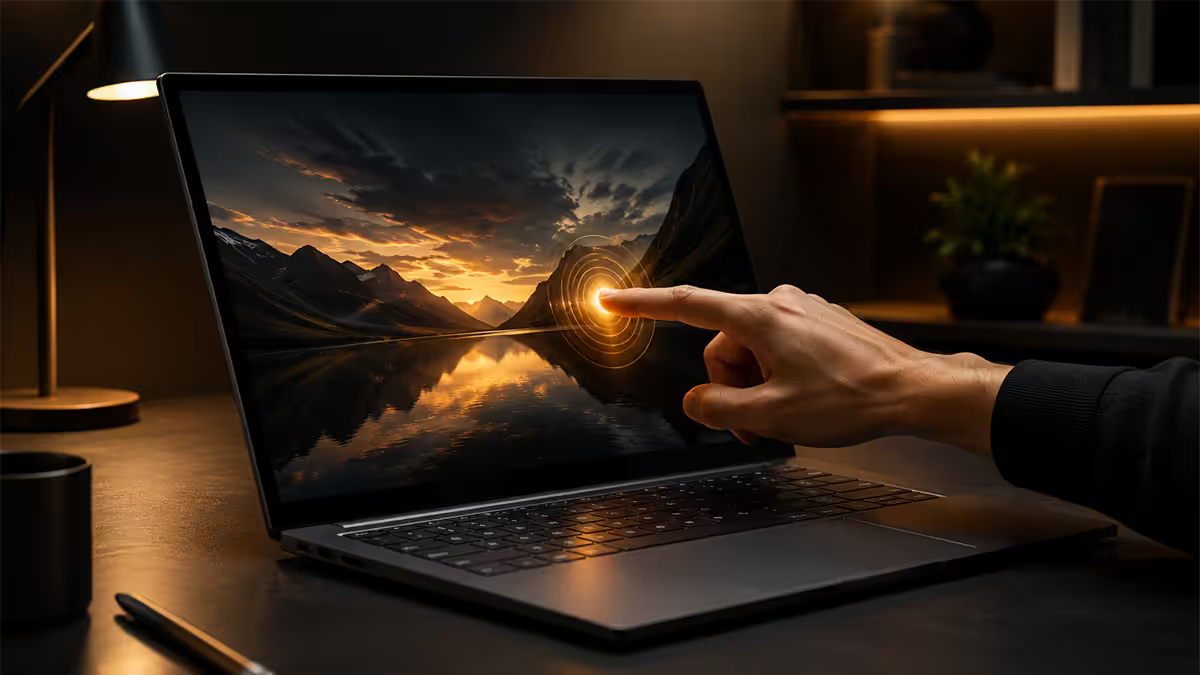
Touchscreens on laptops promised tablet-like interaction in a clamshell form factor. After a decade of trying, the reality is clearer: brilliant for note-taking with a stylus, mostly ignored for typing and coding. Here's when it earns its place.
- added weight
- +150g
- battery life
- -30-60m
- added cost
- +R2k-5k
2-in-1 convertible vs plain touchscreen — different products
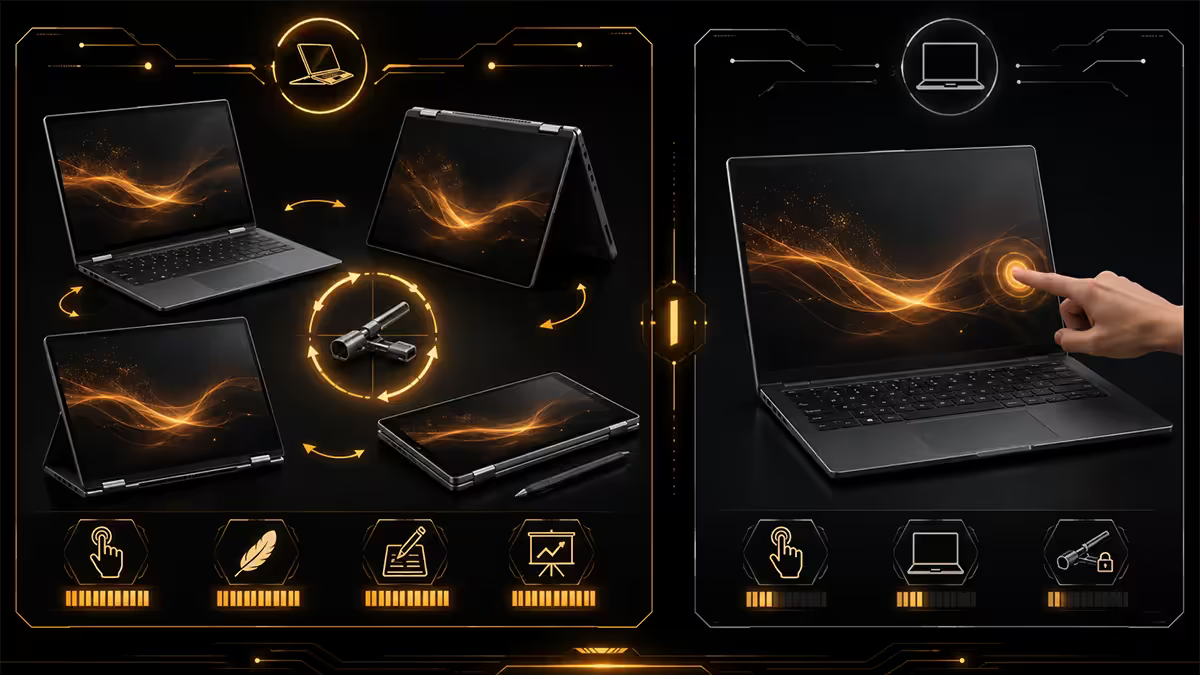
Touchscreen laptops in 2026 fall into two distinct categories that get conflated in shop descriptions but are very different products. Buying the wrong one is the most common touchscreen mistake.
Plain touchscreen clamshell
A normal laptop with a touch-capable display. You can tap the screen but the hinge doesn't fold past ~135 degrees. The screen sits upright at typing distance the whole time. Examples: Dell XPS with optional touch, certain Lenovo ThinkPads, MacBook (which doesn't have touch at all in 2026, but that's by design).
The problem with plain touchscreen clamshells: the screen is positioned for typing, not touching. Reaching up and out to tap during normal work is awkward, slow and tiring. Most users stop touching the screen within weeks of buying — but they've paid the weight, battery and rand premium for the rest of the laptop's life.
2-in-1 convertible
A 360-degree hinge that lets the screen fold all the way back. You can use the laptop in four modes: clamshell (normal laptop), tent (screen propped up for video, keyboard underneath), display (keyboard flat against desk, screen forward for a person opposite), and tablet (screen folded fully back, keyboard disabled, hold like an iPad).
Examples: Lenovo Yoga, HP Spectre x360, Microsoft Surface (the detachable variants), Asus Zenbook Flip. This is the form factor where touchscreen earns its place — because you can actually orient the screen for touch use rather than reaching across the keyboard.
The real cost — weight, battery, rand
Touch hardware isn't free. There are three concrete costs that show up on every touchscreen laptop, and most buyers underestimate at least one of them.
| Cost dimension | Touch added | 2-in-1 added |
|---|---|---|
| Weight | +150-250g | +200-350g |
| Battery (full charge) | -30-50 min | -45-75 min |
| Price (similar specs) | +R1,500-R3,500 | +R2,500-R5,500 |
| Glossy screen | Almost always | Always |
| Stylus support | Sometimes | Almost always |
| Premium stylus | R800-R2,500 | R1,500-R4,000 (often bundled) |
Take a representative example: a Lenovo ThinkPad with non-touch IPS panel at R28,000 vs the touch variant at R30,500 vs the 2-in-1 Yoga variant of similar spec at R33,500. The 2-in-1 is R5,500 more than non-touch. If the touch genuinely gets used (note-taking, design work) the premium is reasonable. If it sits in clamshell mode 95% of the time, you've paid R5,500 for occasional novelty.
Glossy and SA sunlight — the underrated annoyance
Touchscreen panels need a hard glass surface for the capacitive touch layer to work. That glass is reflective by default. Anti-reflective coatings help but rarely match the matte experience of a good non-touch IPS or OLED panel.
Glossy reflectivity is a bigger problem in South Africa than buyers from cooler climates might assume. SA homes have high windows, lots of natural light, often direct sun bouncing off interior walls. SA offices use lots of overhead fluorescents and LED panels. SA students take laptops to lecture halls with bright AV lighting.
In all of these environments, a glossy touchscreen forces you to crank screen brightness 30-50% higher to overcome reflections. Higher brightness eats battery. And you still see your own face in the dark areas of the screen during video meetings — distracting at best, embarrassing at worst.
What helps: OLED panels (better contrast hides reflections somewhat), high peak brightness (400+ nits sustained, 600+ peak), good anti-reflective coatings (Microsoft Surface laptops do this well). What doesn't help: assuming a R45,000 laptop magically solves glossy reflections.
Stylus — the actual reason to buy touchscreen
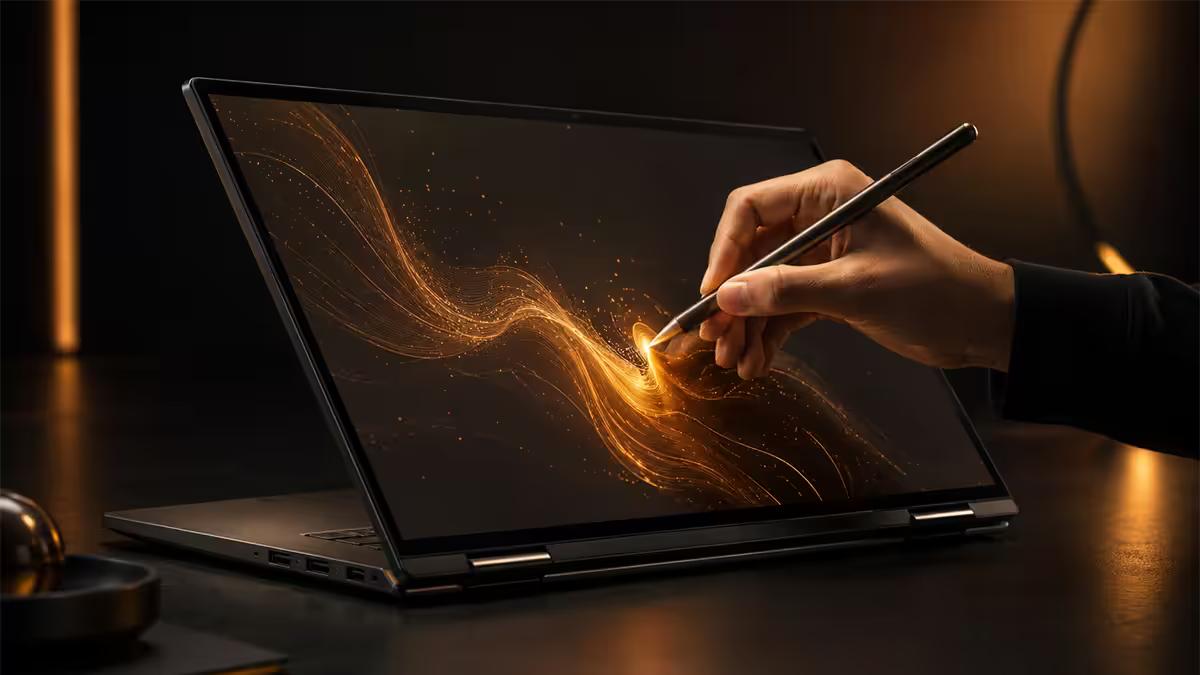
If touchscreen has one genuine killer use case in 2026, it's the stylus. Modern stylus hardware on Windows laptops is remarkable: 4,096 to 8,192 pressure levels, tilt sensitivity, palm rejection that genuinely works, sub-10ms latency on premium panels. You can write, sketch, draw, mark up PDFs as naturally as on paper.
The Microsoft Pen Protocol (MPP) is the de-facto Windows standard. Wacom AES (2.0) is also common. Surface Slim Pen 2 and 3, Wacom Bamboo Ink Plus, HP Tilt Pen and Lenovo Precision Pen 2 are all excellent. Generic styluses (R200-R600) work for basic input but lack tilt and pressure layers.
Who genuinely benefits from stylus support
- Students — handwritten notes in OneNote, Notability, Microsoft Whiteboard. Mixed text and diagrams in margins. Hand-drawn equations and chemical structures.
- Illustrators and designers — Photoshop, Procreate Web, Clip Studio Paint, Krita all have full stylus support on Windows. Not a Wacom replacement but adequate for sketching and mid-fidelity work.
- Architects and engineers — quick sketches in AutoCAD or SketchUp, marking up technical drawings, rough concepts in tablet mode.
- PDF markup users — lawyers reviewing contracts, academics commenting on papers, anyone signing documents who doesn't want to print-sign-scan.
- Whiteboard and brainstorm users — mind maps, flowcharts in real-time during video meetings using Surface app or Concepts.
If you fall into one of these categories, stylus changes your workflow. If you don't, the stylus stays in its slot.
Windows 11 touch UX — better than people remember
Windows touch UX has improved noticeably since Windows 8's calamitous early attempts. Windows 11 in 2026 is the best Microsoft has shipped for touch: properly-sized tap targets, gesture support (three-finger swipes between virtual desktops, four-finger pinch to minimise), an updated tablet keyboard, and reasonable handwriting recognition.
The honest assessment: Windows touch UX is good for media consumption (browsing, watching, reading) and limited input (note-taking, annotation). It's not as polished as iPadOS for touch-first content creation. It's significantly better than the Windows 8/8.1 days that scarred everyone's memory.
Where Windows touch still struggles: text selection is finicky, dragging items between windows is awkward compared to mouse, gesture discoverability is poor (Microsoft never advertises them), and many third-party Windows apps remain designed exclusively for mouse-keyboard input with tap targets that are too small.
Fingerprints, dark mode and constant cleaning
A touchscreen will be smudged with fingerprints within 5-15 minutes of use. This is physics, not poor design. The smudges show most visibly on dark backgrounds — which is half the world now, given dark mode adoption in OS, browsers, IDEs, and most modern apps.
Anti-fingerprint (AF) oleophobic coatings on premium laptops reduce but don't eliminate the problem. The coatings wear off over 2-3 years of regular use and re-smudge worse than they did at first. Whisper-thin laptop bezels make it harder to handle the device without fingerprints landing on the active screen.
Practical mitigation: keep a microfibre cloth with the laptop. Wipe the screen at the start of each work session (30 seconds). Avoid touching the screen when not necessary (use trackpad and shortcuts). Accept that watching video with the screen at full brightness will reveal every fingerprint regardless of how diligent you are.
Across the 200,000+ laptop configurations we've shipped from Centurion, the most reliable predictor of touchscreen satisfaction is the answer to one question: "Will you take handwritten notes, sketch, or mark up documents?" If yes, customers love the 2-in-1 form factor and use it daily. If no, the same hardware sits as an unused capability — and within 6 months these customers tell our support team they would have preferred a non-touch laptop with better battery life. We now recommend touchscreen only when the use case is identified upfront, not as a generic premium upgrade. Very few laptop buyers without a stylus workflow end up using touch features after the novelty wears off.
Evetech Hardware Team · From our service bench
Where touchscreen earns its place
Concrete scenarios where touchscreen (especially 2-in-1 with stylus) genuinely improves life, based on what customers actually tell us months after purchase.
- University students taking science / engineering / med notes. Equations, diagrams, hand-drawn chemistry structures, anatomy sketches. Beats typing massively. Notability or OneNote with a stylus is the workflow.
- Architects and interior designers taking laptops to client meetings to sketch concepts on the spot.
- Real estate agents who need to mark up plans, sign contracts and present visuals to clients in client homes.
- Tutors and teachers who present mathematics, languages or visual subjects via screen-share, drawing diagrams in real-time during online classes.
- Designers and illustrators who travel and need on-the-go sketching capability — not a Wacom replacement but a portable creative tool.
- Frequent flyers and rideshare commuters who consume video in tablet mode with the keyboard folded away — easier to hold than a clamshell on a tray table.
- Anyone running interactive presentations where pointing at things on screen directly to highlight matters more than using a mouse-cursor.
Where touchscreen sits in the box (untouched)
The honest list of use cases where touchscreen rarely gets used in practice, regardless of how often it's discussed in marketing material.
- Coding and software development. Keyboard-driven. Touch is slower than shortcuts for every common operation.
- Long-form writing — articles, novels, essays, reports. Hands stay on the home row.
- Office work — spreadsheets, presentations, email. Mouse and keyboard remain dominant. Touch is only useful for occasional pinch-zoom.
- Video editing beyond the timeline. Premiere Pro, DaVinci Resolve and Final Cut have such dense UIs that mouse precision wins.
- Gaming. Touch is irrelevant for almost every PC game. Reaching across the keyboard to tap a screen during gameplay defies physics.
- Data entry and accounting. Keyboard shortcuts and number-pad dominance. Touch screen adds nothing.
- 3D modelling and CAD. Precision input via mouse or pen tablet is the workflow. Direct screen touch isn't accurate enough for technical work.
Key takeaways
- Buy a 2-in-1 convertible or skip touch entirely. Plain touchscreen clamshells almost never get used.
- Real cost: +150-300g weight, -30-60 min battery, +R1,500-R5,500 price, glossy screen.
- SA sunlight makes glossy worse. Plan for higher brightness usage and shorter battery life as a result.
- Stylus is the killer feature. 4,096-8,192 pressure levels, tilt, palm rejection — genuinely good in 2026.
- Touch is right for note-taking, sketching, PDF markup, presentations. Wrong for coding, writing, gaming, data entry.
Frequently asked questions
Is a touchscreen worth it on a laptop?
Depends on your workflow. Worth it for note-taking, sketching, design work, 2-in-1 tablet-mode users. Not worth it for typing, coding, writing, gaming, data entry. Buy for a specific use case, not as a default upgrade.What's the difference between a 2-in-1 and a plain touchscreen?
2-in-1 has a 360-degree hinge folding into tablet, tent and display modes. Plain touchscreen is a normal clamshell with touch capability you rarely reach to use. 2-in-1 is the form factor where touch hardware actually earns its place.Does a touchscreen hurt battery life?
Yes, 30-60 minutes typical. Digitiser layer draws power continuously, screen needs higher brightness to overcome glossy coating, controller IC adds parasitic load. Touchscreen laptops give 7-9 hours vs 8-11 hours for non-touch equivalents.Are touchscreen laptops glossy?
Almost always. The capacitive touch layer requires glass over the panel. Anti-reflective coatings help but don't match matte. In SA bright environments, glossy screens force higher brightness which hurts battery further.Is stylus support worth it?
For students, illustrators, designers, architects, PDF-markup users — yes. Modern stylus hardware (4,096-8,192 pressure levels, tilt, palm rejection) is excellent. For everyone else, the stylus stays in the box.Are fingerprint smudges a real problem?
Yes, particularly on dark UIs and video. Touchscreens smudge within minutes. Microfibre cloth becomes part of your routine. Anti-fingerprint coatings help but wear out over 2-3 years.Is touchscreen useful for typing or coding?
No. Typing and coding are keyboard-driven. Reaching up to tap the screen is slower than shortcuts or trackpad. Gorilla-arm fatigue is real. Most developers stop using touch within a week.How much extra does a touchscreen cost in SA?
Touchscreen adds R1,500-R3,500 vs non-touch. 2-in-1 convertibles add R2,500-R5,500. Premium 4K OLED touch with stylus support runs R5,000-R8,000 above equivalent non-touch.
Get the Evetech app
Exclusive app-only prices, daily flash sales, and free delivery on orders over R4,000 — download the app and start saving.