Gaming Performance Guide
How to use DLSS / FSR. — Quality over Performance. Frame Gen when you can.
AI upscaling and frame generation are the single biggest free FPS upgrade your existing GPU can deliver. Configured wrong, you trade image clarity for nothing. Configured right, you double your FPS with a press of a setting.
- FPS uplift
- 30-80%
- Frame Gen × 4
- DLSS 4
- the sweet spot
- Quality
How AI upscaling actually works
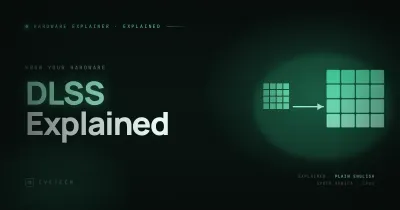
DLSS, FSR and XeSS all do roughly the same thing: render your game at a lower internal resolution, then use a trained AI model to reconstruct a higher-resolution output frame. The trick is that the AI model has been trained on thousands of high-resolution game frames, so it can plausibly infer detail that the lower-resolution render doesn't contain.
A simplified flow:
- Render: The game renders at the upscaler's internal resolution. For DLSS Quality at 4K output, that's 1440p internal — saving roughly half the rendering cost vs native 4K.
- Sample collection: The renderer also produces motion vectors and depth information per pixel — critical inputs for the AI model.
- AI reconstruction: The model takes the current low-res frame plus motion data plus previous frames' history, and synthesises a high-res output that looks like a native render.
- Display: The reconstructed frame is sent to your monitor — at full output resolution but rendered far cheaper than native.
DLSS uses NVIDIA's tensor cores (RTX 20-series and newer) for the AI inference. FSR 4 uses AMD's AI accelerators (RX 7000 / 9000 series). XeSS has two paths — one optimised for Intel Arc's XMX cores, one shader-only path that works on any modern GPU.
Quality modes — what to pick at each resolution
All three upscalers expose a similar set of quality modes. The internal render resolution shrinks (and FPS uplift grows) as you move from Quality → Performance → Ultra Performance.
| Mode | Internal % of output | Typical FPS uplift | Visual cost |
|---|---|---|---|
| DLAA | 100% (native + AA) | 0% (slight loss) | +image quality |
| Quality | 67% | +30-45% | Negligible |
| Balanced | 58% | +45-60% | Slight softness |
| Performance | 50% | +60-80% | Visible at 1440p |
| Ultra Performance | 33% | +90-120% | Acceptable only at 4K+ |
Practical resolution guidance:
- 1080p output: Skip upscaling. Internal render at 720p (Quality mode) loses too much detail. Use DLAA if FPS allows — it's a quality upgrade over native + TAA.
- 1440p output: Quality mode is the default. Balanced is acceptable in fast-paced action. Performance is too aggressive — visible softness on UI and thin geometry.
- 4K output: Quality mode is excellent — most users can't distinguish from native. Balanced and Performance are both viable. Ultra Performance is the last resort but holds up surprisingly well at 4K because the upscale ratio is so extreme that the AI model can do a lot.
Frame Generation — when smoothness is worth latency
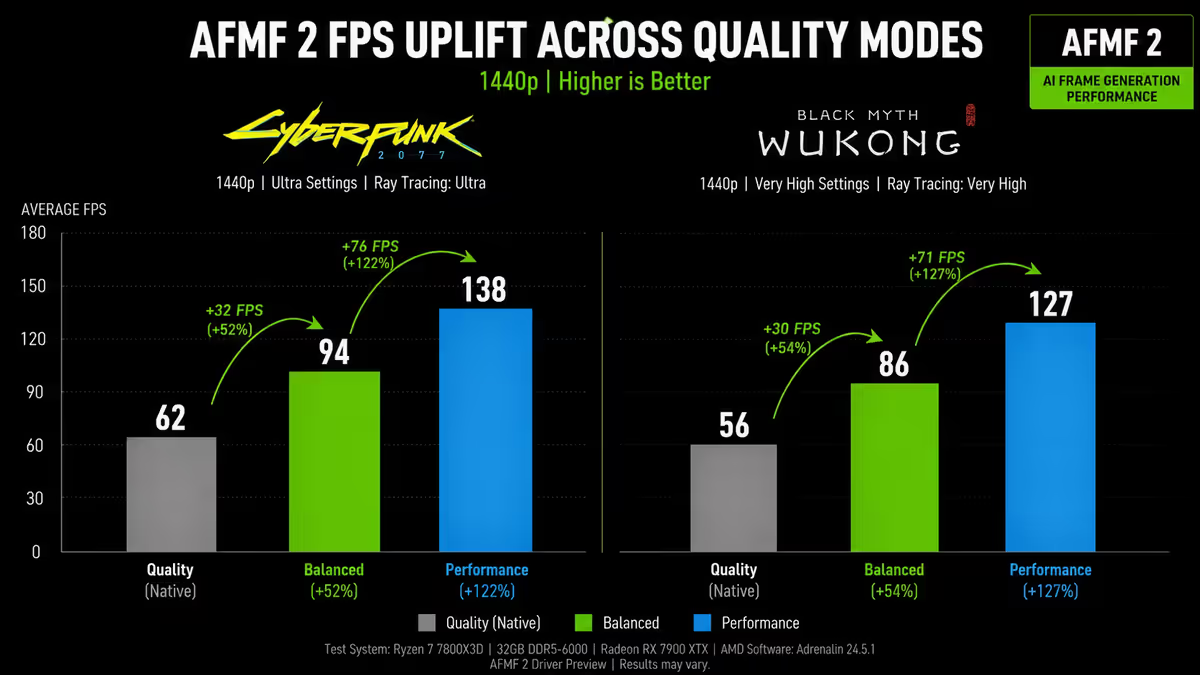
DLSS 3 introduced Frame Generation: the AI synthesises one fake frame between every two real rendered frames, effectively doubling perceived FPS. DLSS 4 (released early 2025) extended this to Multi Frame Generation, allowing 3 fake frames per real frame — a theoretical 4x multiplier. FSR 3 has a 2x equivalent. The result on a 120Hz monitor with DLSS 4 MFG enabled is up to 480 frames per second of smoothness.
There's no free lunch:
- Input latency penalty. Frame Gen needs to hold the next real frame briefly to interpolate between it and the previous one. The cost is typically 8-25ms — small in absolute terms, noticeable in competitive multiplayer.
- Reflex compensation. NVIDIA Reflex (auto-enabled with DLSS Frame Gen) reclaims 5-15ms by aligning CPU and GPU work. Net latency usually ends up within 5ms of native.
- Base FPS threshold. Frame Gen needs a healthy base FPS to work well. Below 50 base FPS, the interpolated frames feel rubbery and motion looks wrong. Above 60 base FPS, Frame Gen feels smooth and natural.
Use Frame Gen for: cinematic single-player gaming (Cyberpunk, Alan Wake 2, Indiana Jones), high-refresh monitors where 120-240Hz output is the goal, GPU-bound titles where you have base FPS to spare.
Don't use Frame Gen for: competitive multiplayer (Valorant, CS2, Apex, Overwatch), titles where you're already CPU-bound (Frame Gen needs GPU headroom), low base FPS situations (under 45-50 base it feels worse than not using it).
DLSS vs FSR vs XeSS — which to use
In 2026, all three upscalers are genuinely viable. The convergence has been remarkable — FSR 4 in particular closed almost all the gap to DLSS 3.x. But DLSS still leads in three specific areas: image stability in motion, particle/transparency handling, and the Multi Frame Gen feature.
| Aspect | DLSS 4 | FSR 4 | XeSS |
|---|---|---|---|
| GPU support | RTX 20-50 | RX 7000 / 9000 + RTX | All modern GPUs |
| Image quality | Gold standard | Within 5-10% | Within 10-15% |
| Motion stability | Best | Good | Good |
| Frame Generation | DLSS 4 MFG (×4) | FSR 3 FG (×2) | Not yet |
| Game support | ~700 titles | ~400 titles | ~250 titles |
| Ray Reconstruction | Yes (DLSS 3.5+) | No (FSR 4) | No |
Practical recommendation:
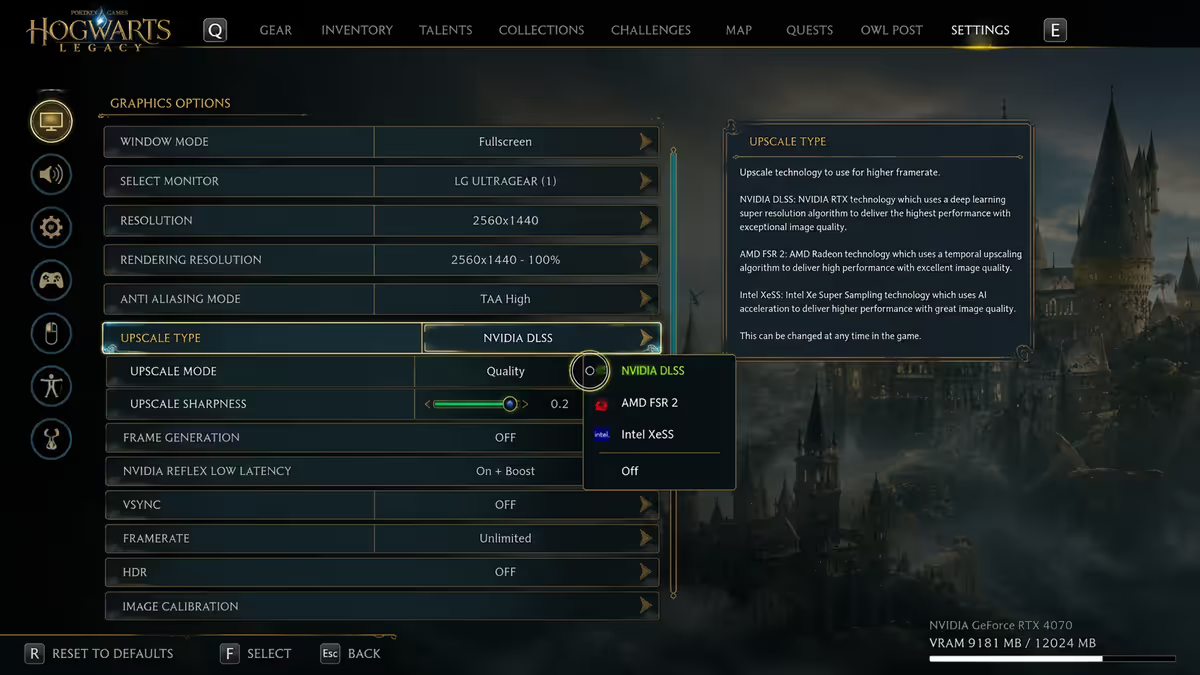
- NVIDIA RTX users: always pick DLSS when available. Fall back to FSR only in titles that don't have DLSS support.
- AMD RX 7000/9000 users: pick FSR 4. It's now a credible competitor to DLSS 3.x. Avoid FSR 1/2 in older titles — they look noticeably worse.
- Intel Arc users: XeSS first (XMX-accelerated path on Arc is excellent), DLSS or FSR fallback only if XeSS isn't in the game.
- Older AMD / GTX users: XeSS shader path or FSR 2/3 are your options. Don't expect DLSS-quality results but the FPS uplift is real.
When not to use upscaling
Despite the headlines, there are real cases where upscaling hurts more than helps:
- Competitive shooters where every millisecond matters. Native resolution + Reflex + low-latency mode beats upscaled output for top-tier competitive play.
- 1080p output. Below 1080p internal render, upscaling can't reconstruct enough detail. Use DLAA or native + sharpening filter.
- Games with poor implementation. Some older titles shipped with broken DLSS or FSR — visible ghosting on UI, motion smear, particle issues. Updating the DLL helps; sometimes turning the feature off is the right call.
- Pixel-art / 2D / retro games. The AI models are trained on 3D rendered content. Pixel art and stylised 2D games can look strange under upscaling.
- VR. The latency cost of any frame-time stretching is too high in VR. Use VR-specific upscaling (DLSS for VR, FSR for VR) only when explicitly supported.
Fixing common artefacts
Even properly configured, upscalers occasionally produce visible artefacts. Most have fixes:
Ghosting / motion smearing
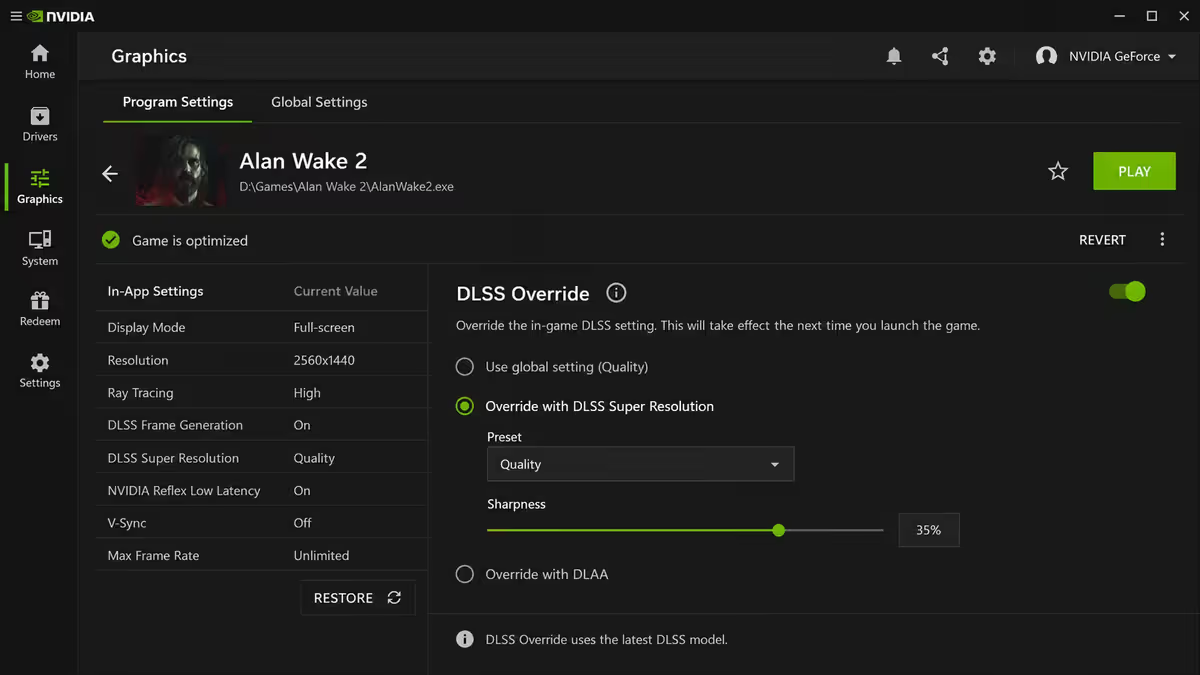
Usually caused by older DLSS / FSR DLLs. In NVIDIA app, enable DLSS Override globally — this forces the newest DLSS version on every title. For FSR, AMD's Adrenalin software has a similar "AMD HYPR-RX" preset. Manually replacing nvngx_dlss.dll in a game's installation folder with the latest version from techpowerup.com works as a fallback.
Shimmering on thin geometry
Most visible on power lines, fences, fine fabric textures. DLSS 3.5+ with Ray Reconstruction enabled (in supported games) usually resolves this. If RR isn't available, move from Performance to Quality, or enable a small amount of in-game or driver-level sharpening (5-10% — anything more looks artificial).
UI / HUD blur
Some games incorrectly upscale the UI layer. The fix is per-game — check the game's settings for "UI resolution scale" or "HUD resolution". Forcing UI to 100% native (where supported) eliminates the issue. Cyberpunk 2077, Hogwarts Legacy and Alan Wake 2 all have this option.
Particle / smoke effects looking soft
Older DLSS versions handled transparencies poorly. DLSS 3.7+ and FSR 3.1+ improved this significantly. Update the DLL, or accept that some particle systems will always be a slight weak point of upscaled rendering.
Per-game tips
| Game | Recommended setting |
|---|---|
| Cyberpunk 2077 | DLSS Quality + Ray Reconstruction + Frame Gen × 2 |
| Alan Wake 2 | DLSS Quality + Frame Gen × 2 + Path Tracing (RTX 5070+) |
| Hogwarts Legacy | DLSS Quality + Frame Gen × 2 |
| The Witcher 4 | DLSS Quality + DLSS 4 MFG (RTX 50-series) |
| Black Myth: Wukong | DLSS Quality + Frame Gen (50 FPS base minimum) |
| CS2 / Valorant | Native + Reflex (skip upscaling) |
| Call of Duty: MW3 | DLSS Quality + Reflex (no Frame Gen) |
| Marvel Rivals | DLSS Quality + Reflex |
| MSFS 2024 | DLSS Quality + Frame Gen (smoothness matters) |
| Indiana Jones | DLSS Quality + Path Tracing (Frame Gen optional) |
Key takeaways
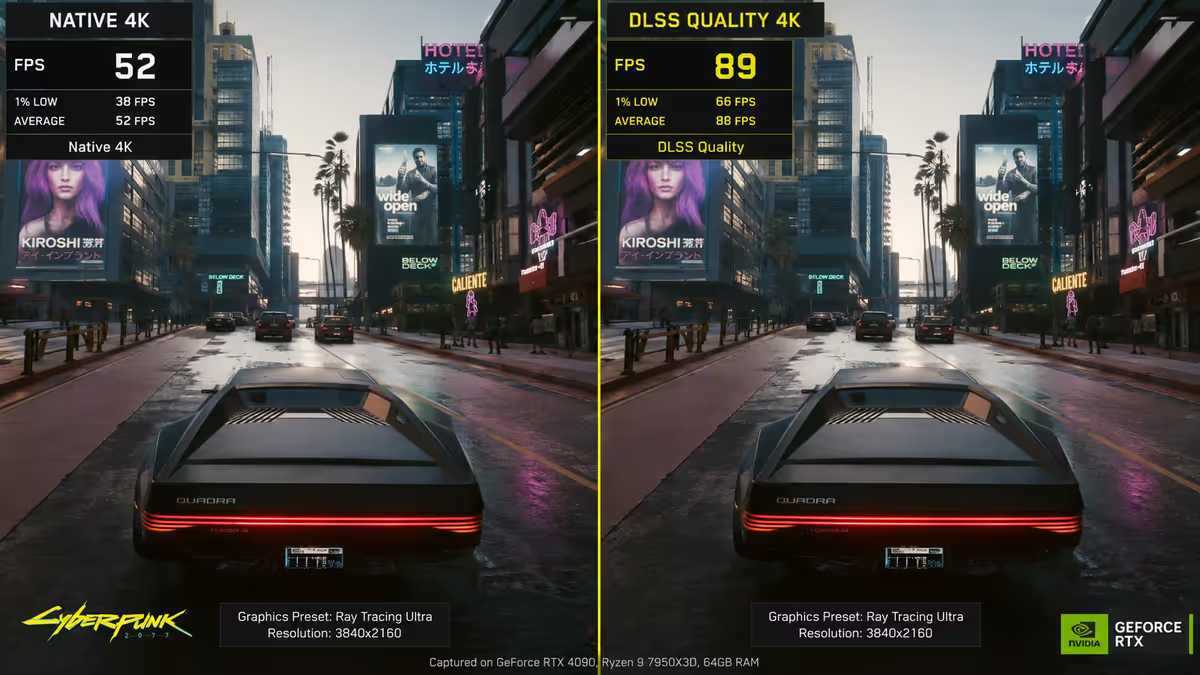
- DLSS / FSR Quality mode is the default at 1440p and 4K — 30-45% FPS with image quality indistinguishable from native.
- Use Frame Generation when base FPS is 50+ and the game is single-player. Skip in competitive multiplayer.
- DLSS 4 (RTX 20-50) is the gold standard. FSR 4 (RX 7000/9000) is genuinely competitive. XeSS for Intel Arc.
- Update old DLSS DLLs via NVIDIA app's DLSS Override or manual replacement — fixes most "blurry DLSS" complaints.
- Pair DLSS Frame Gen with Reflex and an FPS cap 2 below your refresh rate for the smoothest result.
Frequently asked questions
Which DLSS / FSR quality mode should I use?
Quality at 1440p and 4K. Balanced at 4K when you need more FPS. Performance only at 4K as last resort. DLAA when you have FPS headroom to spare.Does DLSS work on AMD or Intel GPUs?
No — DLSS is NVIDIA exclusive (RTX only). AMD has FSR; Intel has XeSS. All three are now competitive in 2026.What is Frame Generation and should I use it?
AI-synthesised in-between frames that multiply perceived FPS. Use for single-player gaming with 50+ base FPS. Avoid in competitive multiplayer.DLSS vs FSR vs XeSS — which is best?
DLSS 4 leads on image quality and Multi Frame Gen. FSR 4 is now genuinely competitive. XeSS is excellent on Arc and respectable elsewhere.Does DLSS cause input lag?
Upscaling reduces latency (higher FPS = fresher frame). Frame Generation adds 8-25ms, mostly offset by Reflex. Net result feels smoother but slightly less responsive.Why does DLSS look blurry or have ghosting?
Usually an old DLSS DLL. Update via NVIDIA app's DLSS Override or replace nvngx_dlss.dll with the latest from techpowerup.com.Can I use DLSS in competitive games like Valorant or CS2?
Most competitive games run hundreds of FPS natively. Where supported, use Quality + Reflex. Avoid Frame Gen in competitive play.How do I update DLSS in older games?
NVIDIA app's DLSS Override forces the newest DLSS version per game. Manual fallback: replace nvngx_dlss.dll in the game folder.
Get the Evetech app
Exclusive app-only prices, daily flash sales, and free delivery on orders over R4,000 — download the app and start saving.