Windows How-To Guide
How to use Disk Management. — Shrink without panic. Partition without loss.
The built-in Windows tool most people open once, get confused by, and never touch again. Used properly it handles 90% of partition jobs — without paying for MiniTool, without booting a Linux live USB, without breaking your boot record.
- one command
- diskmgmt.msc
- shrink small volume
- ~30 sec
- for most jobs
- 0 reboots
Disk Management basics
Disk Management is a Microsoft Management Console snap-in that has shipped with every NT-based Windows since Windows 2000. It survived the Settings-app rewrite, the Control Panel sunset, and the Windows 11 redesign mostly because nothing else in the OS does what it does at the same level of administrator control.
Three ways to open it on Windows 10 and Windows 11:
- Press
Win+R, typediskmgmt.mscand press Enter — fastest. - Right-click the Start button (or press
Win+X) and choose Disk Management from the power-user menu. - Search "Create and format hard disk partitions" from the Start search box — same console, longer route.
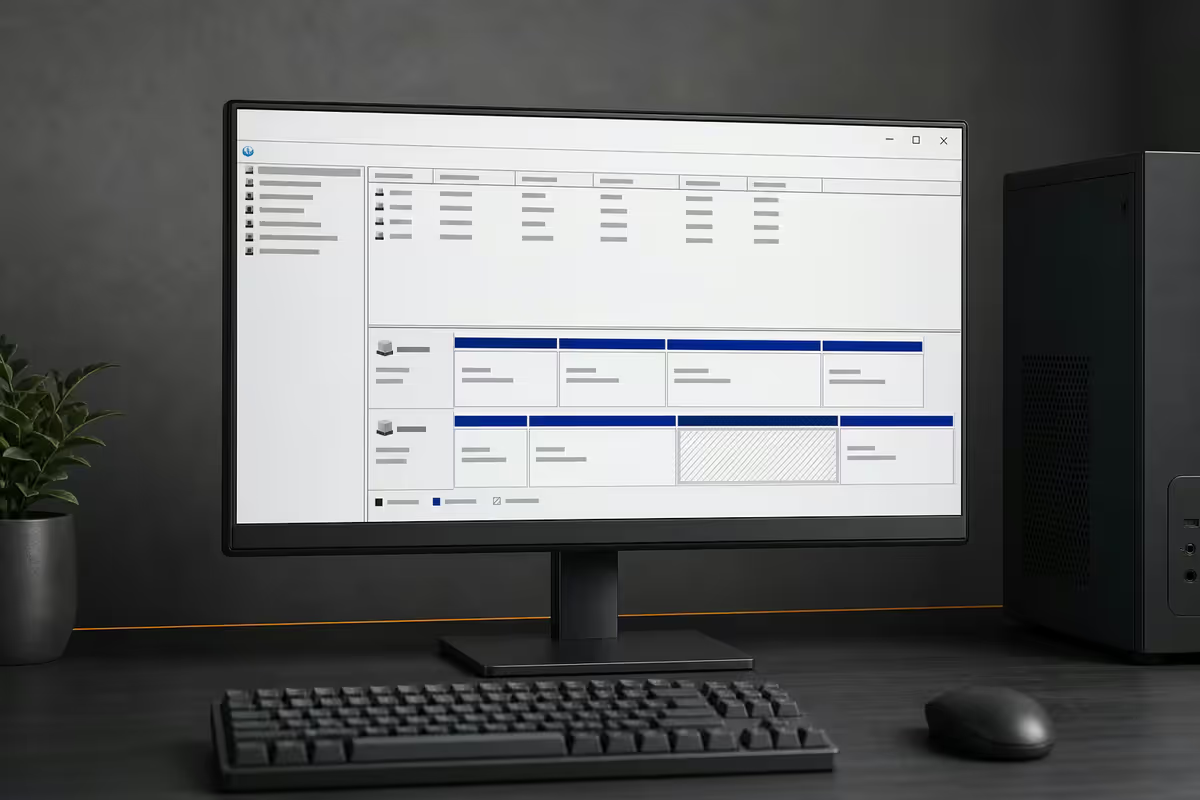
The window splits into two panes. The upper pane lists every recognised volume with its status, capacity and free space. The lower pane shows the same disks laid out as horizontal strips — this is where you right-click partitions to act on them. Almost every action you'll perform lives in the lower-pane context menu.
Partition vs volume vs disk — the vocabulary
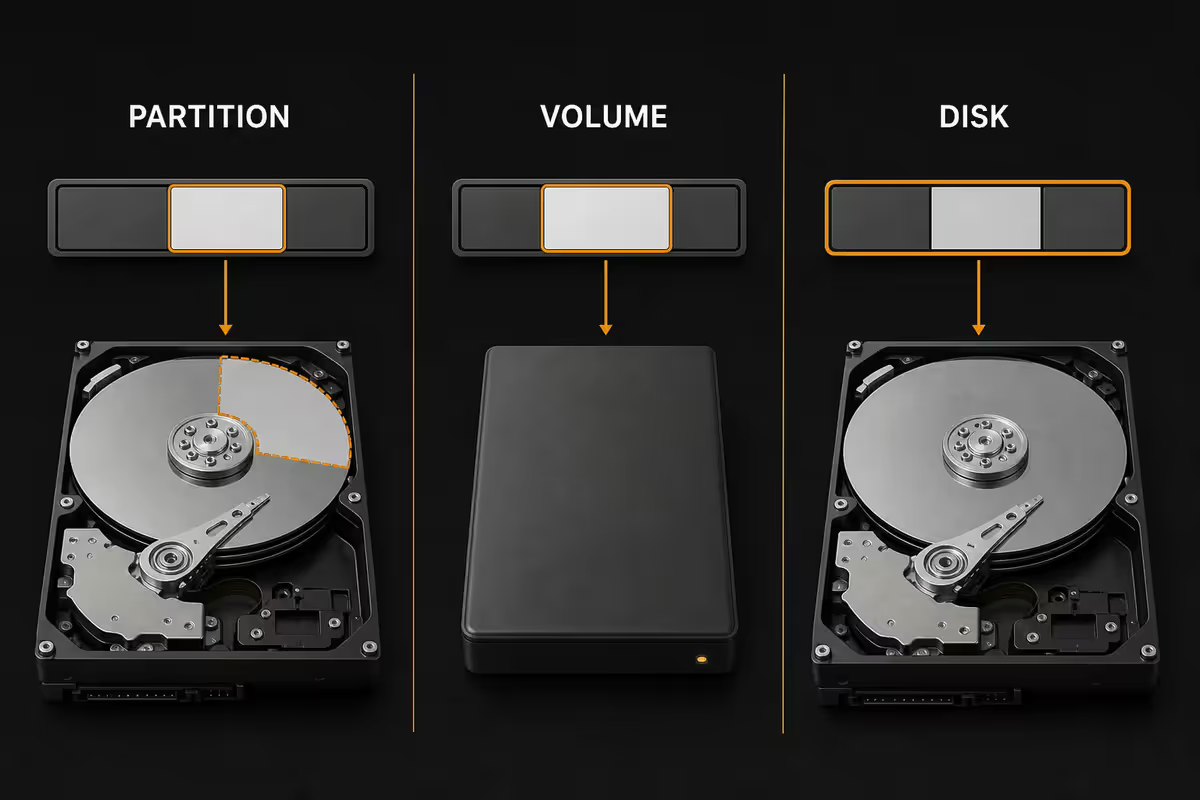
Microsoft's documentation uses these terms inconsistently, which is half the reason new users get lost in Disk Management. Pin these down once and the rest of the tool stops being mysterious.
| Term | What it actually is | Example |
|---|---|---|
| Disk | The physical drive | 1TB Samsung 990 EVO Plus NVMe |
| Partition | A logical fence on a disk | The 476GB section reserved for Windows |
| Volume | A formatted, mountable partition | C: drive, NTFS, with files on it |
| Basic disk | Default mode — simple partitions | What every consumer Windows install uses |
| Dynamic disk | Software RAID / spanned volumes | Legacy feature, avoid on modern Windows |
| Unallocated | Disk space with no partition on it | Black-striped bar in Disk Management |
In practice, Disk Management uses "volume" and "partition" almost interchangeably in its menus — "New Simple Volume" creates a partition and formats it as a volume in one step. The distinction only matters once you start working with spanned or striped layouts, which most home users never need.
Don't convert basic disks to dynamic unless you have a very specific reason. Dynamic disks are a Windows-only construct that breaks when you move the drive to another machine, doesn't play well with cloning software, and offers nothing modern Windows users actually need.
Shrink and extend volume — the two everyday jobs
Shrink a volume
Right-click the volume in the lower pane and choose Shrink Volume. Windows scans for the maximum amount of shrinkable space and shows you a dialog with three numbers: total size before shrink, size of available shrink space, and the amount of space you want to shrink (which you can edit).
Edit the bottom number to the size you want to take off (in MB — 1024 MB = 1 GB), then click Shrink. The operation runs live with no reboot needed. A small shrink on a quiet C: drive takes under a minute; a 200GB shrink on a busy drive can take 10 minutes.
Extend a volume
Right-click the volume, choose Extend Volume, and Windows walks you through a wizard to merge unallocated space into it. Two rules trip people up here:
- The unallocated space must be on the same physical disk — you can't extend C: across two drives.
- The unallocated space must sit immediately to the right of the volume in the lower pane. Disk Management cannot "jump over" a recovery partition or a sibling volume.
If a recovery partition is in the way, you have three options: delete the recovery partition (only if you've already created USB recovery media), use DiskPart to remove its protected flag and delete it, or use a third-party tool like MiniTool Partition Wizard to physically move the recovery partition rightward and free up contiguous space.
Format, initialise and delete — knowing what each one wipes
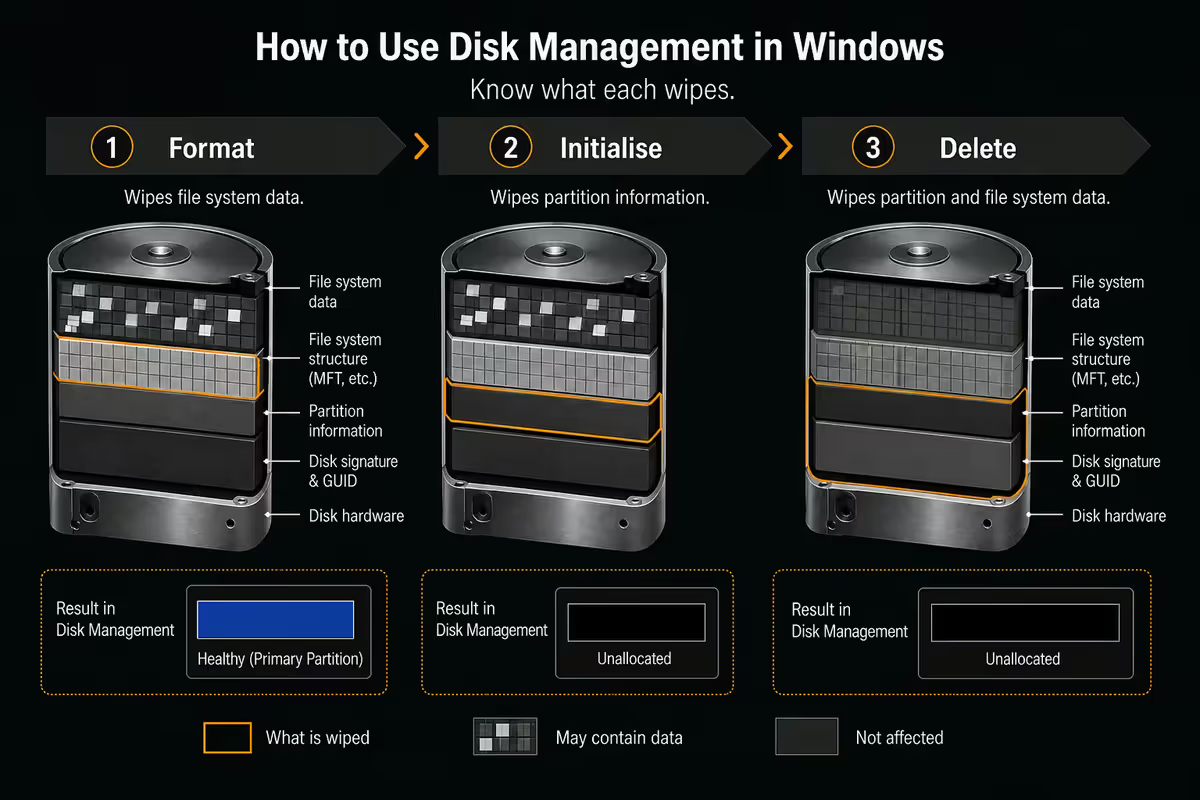
Three Disk Management operations all loosely "wipe" things but at very different scopes. Mixing them up is how people lose data they didn't mean to.
| Operation | What it removes | Reversible? |
|---|---|---|
| Format | File system on one partition | Quick format leaves data recoverable until overwritten |
| Delete Volume | Partition entry + file system | Data recoverable with TestDisk if no new write happens |
| Initialise Disk | Partition table on a whole disk | Only safe on truly empty new disks; destroys old maps |
| Clean (DiskPart) | Partition table + signatures | Recovery possible but harder |
| Clean all (DiskPart) | Every sector overwritten with zeros | Effectively unrecoverable; only use on SSDs you're disposing of |
Format takes a partition that already exists and lays down a fresh file system (NTFS, exFAT, FAT32, ReFS). Quick format only writes the file system metadata; full format additionally scans every sector for bad blocks, which can take hours on a spinning drive.
Delete Volume removes the partition entry from the disk's partition table and marks the space as unallocated. The actual file bytes remain on disk until overwritten — which is why data-recovery tools can often pull files back from a "deleted" partition if you act quickly.
Initialise Disk only appears as a prompt when you connect a brand-new disk that has no partition table at all. Windows asks whether you want MBR or GPT and writes a fresh, empty partition table. You then have an empty disk to create partitions on.
GPT vs MBR — and converting safely
Every partitioned disk uses one of two partition-table standards: MBR (Master Boot Record, the 1983 IBM design) or GPT (GUID Partition Table, the modern UEFI replacement). For any drive you're building or installing in 2026, the answer is GPT.
| Spec | MBR | GPT |
|---|---|---|
| Max disk size | 2 TB | 9.4 ZB (effectively unlimited) |
| Primary partitions | 4 (or 3 + extended) | 128 |
| Boot mode required | Legacy BIOS / CSM | UEFI |
| Partition-table backup | None | Mirrored at end of disk |
| Use when | Booting very old Windows / legacy BIOS | Every modern system |
Converting MBR to GPT without data loss is possible — Microsoft ships a built-in tool called mbr2gpt.exe specifically for this. Disk Management's own "Convert to GPT Disk" option only appears when the disk has zero partitions on it, which is why people assume conversion always means wiping.
The mbr2gpt sequence (run from an elevated Command Prompt — and back up first):
mbr2gpt /validate /disk:0 /allowFullOS— checks whether the disk is convertible.mbr2gpt /convert /disk:0 /allowFullOS— does the conversion.- Reboot into UEFI firmware setup, switch boot mode from Legacy/CSM to UEFI, save and exit.
Drive letters and mount points
Right-click a volume and choose Change Drive Letter and Paths to do three things: assign a drive letter, change the letter, or mount the volume as a folder inside another drive instead of giving it its own letter.
Reassigning letters is mostly cosmetic but useful for tidying. C: is locked to the Windows system drive and cannot be changed. Other letters can be swapped freely, though any application with hardcoded paths to the old letter will break until reconfigured.
Mounting as a folder is the underused feature here. Instead of assigning E: to a second SSD, you can mount it at C:\Games — applications see one continuous path, but the data physically lives on the second drive. Useful when you've run out of letters, or when you want a particular folder to spill onto a bigger drive without breaking installed software.
Disk Management vs DiskPart vs third-party tools
Disk Management is the friendly face. DiskPart is the same engine without the safety rails. MiniTool, AOMEI and EaseUS are the third-party tools that step in when neither built-in option can do what you need without wiping data.
| Tool | Best for | Cost |
|---|---|---|
| Disk Management (GUI) | 90% of home jobs — create, format, shrink, extend, assign letters | Free, built in |
| DiskPart (CLI) | Clean disks, clear read-only, remove OEM/protected partitions, scripting | Free, built in |
| mbr2gpt.exe | In-place MBR → GPT conversion without data loss | Free, built in |
| MiniTool Partition Wizard Free | Moving partitions, OS migration, resizing recovery partitions | Free; Pro R600–R1,200 |
| AOMEI Partition Assistant Standard | Same use cases as MiniTool; cleaner UI for some users | Free; Pro R700–R1,400 |
| EaseUS Partition Master | Power-user features, scheduled jobs | Free tier; Pro R900–R1,500 |
When to reach for DiskPart: a USB drive shows up as write-protected and refuses to format (diskpart → select disk N → attributes disk clear readonly). A drive has a stuck OEM partition Disk Management won't delete. You need to script the same partition layout across multiple machines. You're rebuilding an EFI System Partition during recovery.
When to install MiniTool or AOMEI: the unallocated space you need is on the wrong side of another partition and you don't want to delete the partition in the way. You want to migrate Windows to a new SSD without reinstalling. You need to resize a recovery partition that Disk Management won't touch. You're recovering a lost partition table.
Recovering a missing or unallocated partition
A partition that was there yesterday is suddenly gone — Disk Management shows the space as Unallocated or RAW and File Explorer can't see the drive. Before you do anything destructive, understand what's likely happened: the partition table entry has been damaged, but the file data itself is almost always still intact on the platters or NAND.
The recovery sequence:
- Stop writing to the drive immediately. Every write reduces the chance of recovery.
- If Disk Management asks you to Initialise the disk, click Cancel. Initialising overwrites the partition map.
- Run TestDisk (free, open source) or MiniTool Partition Wizard's Partition Recovery Wizard. Both scan the disk surface for partition signatures and rebuild the partition table from what they find.
- For a RAW filesystem on a partition that's still present, try
chkdsk X: /fin an elevated CMD — sometimes the file system header is just corrupt and chkdsk can rebuild it. - If the data is irreplaceable and you're not confident, stop and send the drive to a SA data-recovery specialist (Drive Rescue, Data Recovery SA, R&R Data Recovery). Recoveries from R3,000 upward; cheaper than rebuilding years of lost work.
If Disk Management shows the partition as RAW but you can still see its size and previous label correctly, you're in the best-case scenario — the partition exists, only the file system is corrupt. If the space shows simply as Unallocated with no partition outline at all, the entry has been removed from the partition table and you'll need TestDisk-class recovery.
Key takeaways
- Open it fast —
Win+R,diskmgmt.msc, Enter. Almost every action lives in the lower-pane right-click menu. - Shrink is bounded by the last immovable file. Disable page file and hibernation to free more space, then re-enable.
- Extend only works into unallocated space immediately to the right — recovery partitions block extensions.
- Pick GPT for any modern disk. Convert MBR → GPT in place with
mbr2gpt.exe, never with Disk Management's wipe option. - Mount-as-folder is underused — a great fix when you've run out of drive letters or want a folder on a bigger disk.
- Escalate to DiskPart for clean and read-only flags; reach for MiniTool/AOMEI only when you need to move partitions.
- Never partition during Stage 4+ load-shedding without a UPS. Mid-shrink power cuts corrupt the file system header.
Frequently asked questions
How do I open Disk Management in Windows 11?
PressWin+R, typediskmgmt.mscand press Enter. Or right-click the Start button (Win+X) and choose Disk Management. Or search "Create and format hard disk partitions" from the Start search box.What's the difference between a partition, a volume and a disk?
A disk is the physical drive. A partition is a logical fence on that disk. A volume is a partition formatted with a file system and assigned a drive letter so Windows can mount it. Disk Management uses "partition" and "volume" interchangeably in menus.Why can't I shrink my C: drive further?
An immovable file (page file, hibernation file, System Volume Information) is sitting near the end of the partition. Disable the page file in sysdm.cpl, runpowercfg /h offto remove hibernation, turn off System Restore for the drive, defragment withdefrag C: /U /V, then retry the shrink. Re-enable everything after.Can I convert MBR to GPT without losing data?
Yes — use Microsoft's built-inmbr2gpt.exe, not Disk Management's wipe-and-convert option. Back up first, run validate then convert in an elevated CMD, then switch your motherboard from Legacy/CSM to UEFI boot mode before the next boot.What does "Initialise Disk" actually do?
It writes a fresh empty partition table (MBR or GPT) so Windows knows how to address sectors on the disk. Safe on brand-new empty disks; destructive on disks that have data with an unreadable partition map — never initialise a drive Windows is asking about if you know it had data on it.Can I extend my C: drive into unallocated space?
Only if the unallocated space sits immediately to the right of C: in the lower pane. If a recovery partition is in the way, you'll need to delete the recovery partition (after making USB recovery media), use DiskPart, or use MiniTool/AOMEI to move the partition out of the way.When should I use DiskPart instead of Disk Management?
Clearing read-only flags on USB drives, removing OEM/recovery partitions Disk Management won't delete, runningcleanorclean all, rebuilding EFI System Partitions during recovery, and scripting partition layouts. More powerful but no undo and no confirmation prompts.When are MiniTool or AOMEI worth installing?
When you need to move a partition to free contiguous unallocated space, migrate Windows to a new SSD without a clean install, resize a stubborn recovery partition, or recover a lost partition table. Free editions handle most home cases; install, use, uninstall.
Get the Evetech app
Exclusive app-only prices, daily flash sales, and free delivery on orders over R4,000 — download the app and start saving.