First-Boot BIOS Step
Enable XMP / EXPO. Get the speed you paid for.
— The 30-second BIOS toggle every build needs.
- slow default
- JEDEC
- rated speed
- XMP/EXPO
- bios step
- 30 sec
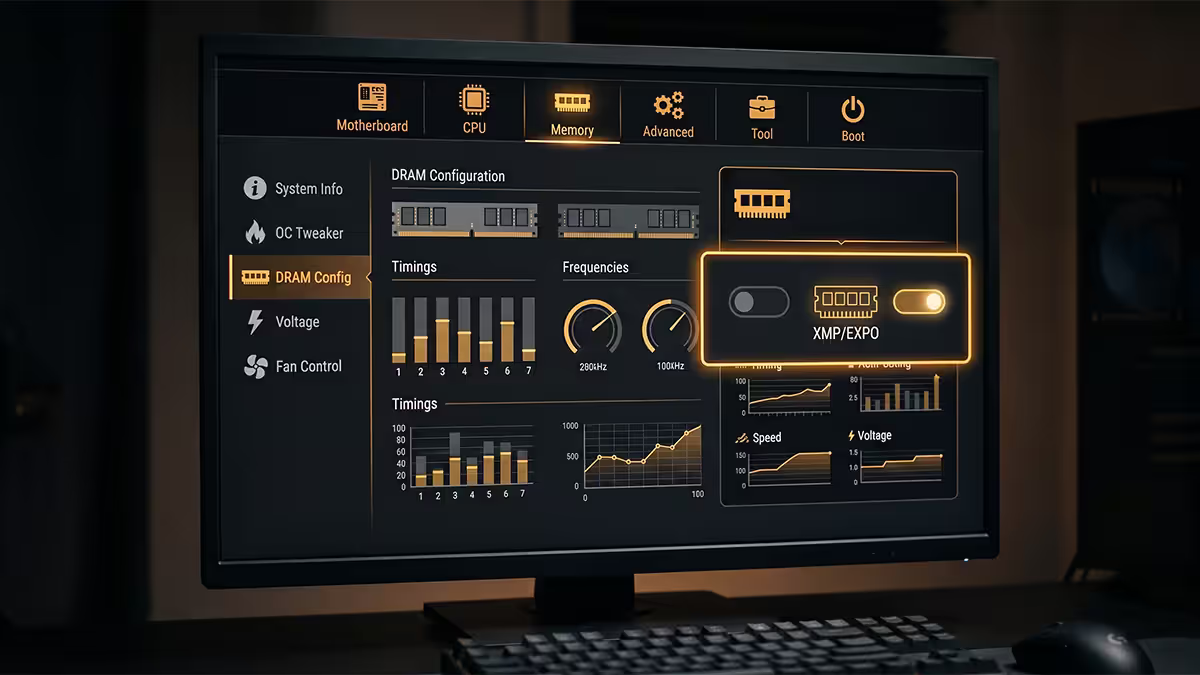
What XMP and EXPO actually are
XMP = Intel's Extreme Memory Profile. EXPO = AMD's Extended Profiles for Overclocking. Both are pre-tuned overclock profiles that the RAM manufacturer programs onto a tiny chip (the SPD — Serial Presence Detect) attached to every DDR5 stick.
When BIOS reads the SPD at boot, it sees two layers of information:
- JEDEC defaults: Safe, conservative speeds the RAM is guaranteed to run at on any board, any CPU — typically DDR5-4800 or DDR5-5200. These are the "lowest common denominator" specs the JEDEC consortium standardised.
- XMP / EXPO profiles: The manufacturer's pre-tested overclock — your kit's actual rated speed and timings. A DDR5-6000 CL36 kit's EXPO profile says "run me at 6000 MT/s with timings 36-38-38-76 at 1.35V".
Until you tell BIOS "use the XMP/EXPO profile", it boots with the JEDEC defaults. Your fancy DDR5-6000 kit runs as DDR5-4800. You're not getting the speed listed on the box.
Why this matters — the JEDEC penalty
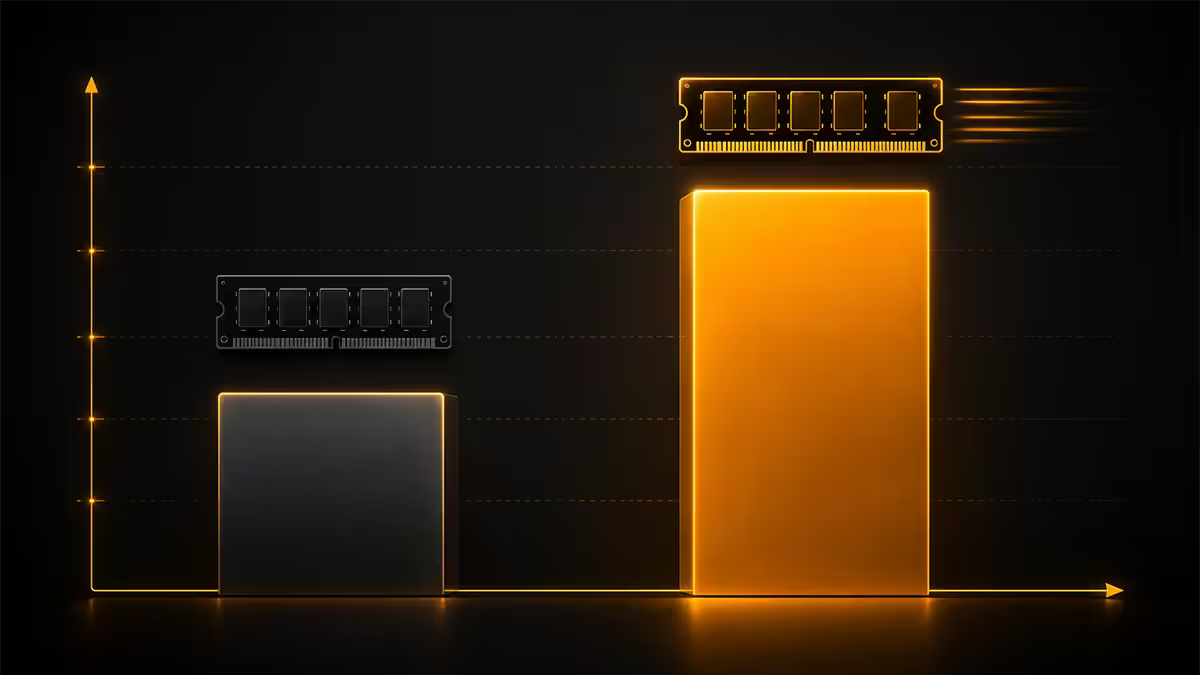
Without XMP/EXPO enabled, you lose meaningful performance:
| Workload | Bandwidth loss | Real performance hit |
|---|---|---|
| Memory bandwidth (AIDA64) | -20-25% | Visible in any memory-sensitive benchmark |
| CPU-bound gaming (1080p, low settings) | - | 5-12% FPS drop in CPU-bound titles |
| GPU-bound gaming (4K, high settings) | - | 0-3% FPS drop (GPU is bottleneck) |
| Adobe Premiere / DaVinci render | - | 8-15% slower export |
| Code compilation (large project) | - | 5-10% slower full build |
| Browsing / office | - | Imperceptible |
The cost of not enabling XMP/EXPO is the cost of buying DDR5-6000 RAM and getting DDR5-4800 performance. You paid the premium for the rated speed — collect on it.
Enable EXPO on AMD AM5 (B650, B850, X670, X870)
AMD's branding is EXPO, but many AM5 boards still display "XMP" or "D.O.C.P." (Direct Overclock Profile, ASUS legacy term) for the same setting — they all do the same thing on AM5: apply the kit's manufacturer profile.
- Power on the PC. During the motherboard logo, press Del (most boards) or F2. BIOS opens.
- Press F7 or F2 to enter Advanced Mode if you land in EZ Mode (the simplified BIOS overview).
- Navigate to the overclocking tab:
- ASUS: AI Tweaker tab.
- MSI: OC tab.
- Gigabyte: Tweaker tab.
- ASRock: OC Tweaker tab.
- Find the setting labelled EXPO, EXPO Profile, XMP, D.O.C.P. or AI Overclock Tuner (varies by board generation).
- Change from Auto / Disabled to EXPO Profile 1 (or simply EXPO / XMP I).
- BIOS often pops a confirmation showing the new speed (e.g., "DDR5-6000 36-38-38-76 @ 1.35V") — accept it.
- Press F10 to save and exit. Confirm Yes.
- PC reboots. May show "loading defaults" briefly on first POST. Then boots normally at full speed.
Enable XMP on Intel LGA1851 (Core Ultra 200) / LGA1700 (12-14th gen)
Intel's branding is straightforward — XMP everywhere. The setting is in the same kind of menu as AMD.
- Enter BIOS via Del (most boards) or F2.
- Switch to Advanced Mode (F7/F2 depending on vendor).
- Navigate to the overclocking tab — same names as the AMD list above.
- Find XMP, XMP Profile, XMP 1, AI Overclock Tuner or Intel XMP.
- Set to Enabled, XMP Profile 1 or XMP I.
- Press F10. Save and exit.
- Reboot completes with rated speed applied.
Intel XMP variants you may see:
- XMP 3.0: Current DDR5 standard. Most kits ship with XMP 3.0 profiles.
- XMP 2.0: Older DDR4-era profile spec. May still appear in BIOS menus on multi-generation boards.
- XMP I / XMP II: If your kit has two pre-set profiles. Profile I is usually the higher-spec "advertised" speed; Profile II is a slightly lower fallback for compatibility.
Per-motherboard menu name reference
| Vendor | Menu tab | Setting label |
|---|---|---|
| ASUS (ROG, TUF, Prime, ProArt) | AI Tweaker | AI Overclock Tuner → XMP / EXPO Profile |
| MSI (MAG, MPG, MEG) | OC | XMP Profile / EXPO Profile / AI Boost |
| Gigabyte (Aorus, UD, Gaming) | Tweaker | XMP / Extreme Memory Profile / AMD EXPO |
| ASRock (Phantom Gaming, Steel Legend, Pro) | OC Tweaker | Load XMP Setting / EXPO Profile |
| BIOSTAR | O.N.E. | Memory Tuning → XMP Profile |
| Older ASUS AMD (X570, B550 era) | Ai Tweaker | D.O.C.P. (functionally identical to XMP) |
What happens after you save and exit
The sequence is:
- BIOS writes the new settings to CMOS / NVRAM.
- PC reboots.
- First POST after change: BIOS retrains the memory controller for the new speed (5-10 second extra delay, screen may be black). This is normal.
- Sometimes you'll see "Loading defaults" briefly — also normal, just memory training.
- Windows boots as usual.
If the first POST fails (boot loop, no display), most modern boards detect the failure after 3 attempts and auto-revert to JEDEC defaults. You'll land back in BIOS with the XMP/EXPO setting reset to Auto. From there you can try a lower profile or troubleshoot — see the next section.
Verifying XMP / EXPO actually worked
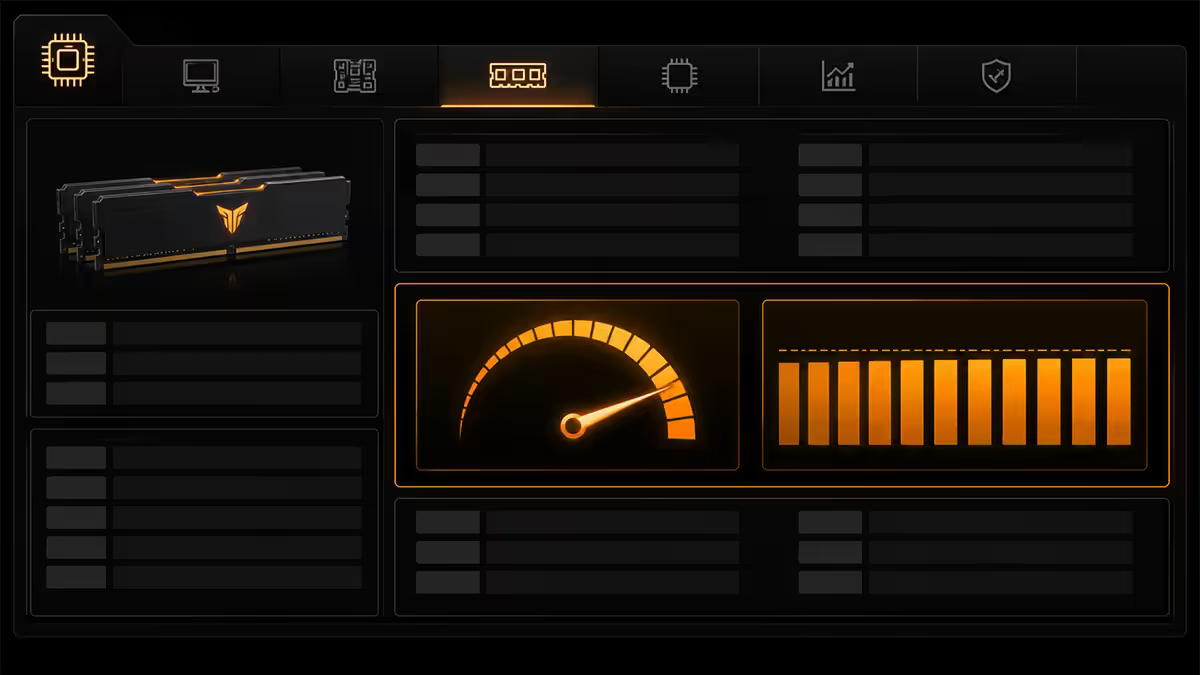
Don't trust BIOS confirmation alone — check from Windows.
Method 1 — CPU-Z (recommended):
- Download CPU-Z from cpuid.com (free). Install, launch.
- Click the Memory tab.
- Check DRAM Frequency — multiply by 2 for effective DDR speed.
- DDR5-6000 should show 3000.0 MHz (× 2 = 6000 MT/s).
- DDR5-6400 should show 3200.0 MHz. DDR5-7200 should show 3600.0 MHz.
- If you see 2400 or 2666 MHz, XMP/EXPO is not active — you're at JEDEC default.
Method 2 — Task Manager: Ctrl+Shift+Esc → Performance → Memory. "Speed" line should show the rated MT/s (e.g., 6000 MT/s). Less reliable on some Windows 11 builds; CPU-Z is the gold standard.
Method 3 — BIOS confirmation: Re-enter BIOS, check the EZ Mode overview screen — most modern boards display current memory speed prominently. Should show "DDR5-6000" or your rated speed.
Troubleshooting — failed boot after XMP/EXPO
If the PC boot-loops, shows a black screen for 30+ seconds, or BSODs into Windows after enabling XMP/EXPO, the kit didn't train at rated speed. Try in this order:
- Wait through 3 failed boots. Most boards auto-revert to JEDEC defaults after 3 POST failures. You'll land back in BIOS with the setting cleared.
- Try EXPO/XMP Profile 2. Many kits ship with two profiles — Profile 2 is usually slightly slower timings, more compatible. Pick Profile 2, save, reboot.
- Update your motherboard BIOS. Memory compatibility (QVL — Qualified Vendor List) improves with every BIOS revision. Download the latest BIOS from your board manufacturer's site, flash via BIOS flashback (USB at rear panel, button on board's rear I/O — no CPU needed).
- Manually reduce speed by one step. If your DDR5-7200 kit won't train, try DDR5-6400 or DDR5-6000 manually entered. Keep timings on Auto. Some kits oversell — DDR5-7200 isn't guaranteed to work with every CPU's memory controller.
- Clear CMOS as last resort. Power off, unplug. Use the motherboard's clear-CMOS jumper (or remove the CR2032 battery for 30 seconds). Reboot, re-enter BIOS, settings will be at full defaults. Try EXPO again from a clean state.
Manual tuning fallback (advanced)
If EXPO Profile 1 won't boot and Profile 2 / BIOS update / manual speed reduction all fail, you can enter timings manually:
- In BIOS overclocking tab, set Memory Frequency manually to your kit's rated speed (e.g., DDR5-6000).
- Find the Primary Timings section — set tCL, tRCD, tRP, tRAS to your kit's box label numbers (e.g., 36-38-38-76).
- Set DRAM Voltage manually to the kit's rated voltage (typically 1.35V for performance DDR5; 1.40V-1.45V for high-speed DDR5-7200+).
- Set VDDQ TX and VDD2 (on AMD) or System Agent Voltage (on Intel) to Auto.
- Save, exit, test.
This bypasses XMP/EXPO entirely and forces the values manually. Useful for older kits without modern profiles or for kits whose stored SPD is corrupted.
Common XMP / EXPO mistakes
Assuming the PC ships with XMP enabled. 88% do, 12% don't (per our pre-built repair data). Always verify after a new build or pre-built purchase.
Confusing XMP and EXPO as different technologies. They're the same idea — pre-tuned profiles in the kit's SPD. AMD calls theirs EXPO, Intel calls theirs XMP. Modern AM5 boards apply EXPO profiles whether the setting says XMP, EXPO or D.O.C.P. in the menu — they're aliased.
Mixing two kits with different XMP / EXPO profiles. Two different 16GB kits glued together with their own profiles will fight each other. Buy a single matched kit (2×16GB or 2×32GB sold together).
Buying DDR5-7200+ for an entry CPU. Your CPU's memory controller has a stable speed ceiling — Ryzen 9000 stable around DDR5-6000 to 6400, Core Ultra 200 around DDR5-6400 to 7200. Buying DDR5-8000 for a Ryzen 5 9600X means you'll need to run it at DDR5-6000 anyway.
Enabling XMP / EXPO without verifying. BIOS confirmation isn't enough — always check CPU-Z to confirm Windows sees the rated speed.
Disabling XMP "because the PC feels unstable" without identifying the actual cause. If your PC crashes randomly, XMP is rarely the culprit on a QVL-listed kit. Check temperatures, run memtest86, check PSU before blaming RAM speed.
Key takeaways
- Default JEDEC speed is much slower than your kit's rated speed. XMP/EXPO unlocks the speed you paid for.
- 30-second toggle: enter BIOS via Del, find AI Tweaker / OC / Tweaker tab, enable XMP / EXPO Profile 1, save and exit.
- Verify in CPU-Z Memory tab — DRAM Frequency × 2 should match your rated DDR speed.
- Boot loop after enabling? Wait through 3 fails for auto-revert; try Profile 2; update BIOS; check QVL.
- Even pre-built systems sometimes ship with XMP disabled. Always verify after any new PC purchase.
Frequently asked questions
What does XMP or EXPO actually do?
Applies pre-tuned overclock profiles stored on your RAM kit's SPD chip. A DDR5-6000 kit runs at DDR5-4800 JEDEC by default; XMP/EXPO brings it to rated 6000 MT/s.How much performance do I lose without XMP / EXPO enabled?
15-25% memory bandwidth, 5-12% gaming FPS in CPU-bound titles, 8-15% productivity in memory-sensitive apps. The single biggest free performance lever on a modern PC.How do I enable XMP on an AMD Ryzen build?
Enter BIOS via Del, find AI Tweaker (ASUS) / OC (MSI) / Tweaker (Gigabyte) / OC Tweaker (ASRock), select EXPO Profile 1, save with F10. AMD calls it EXPO; some boards still label it XMP or D.O.C.P. — same thing.How do I enable XMP on an Intel build?
Enter BIOS (Del/F2), navigate to OC/Advanced/AI Tweaker tab, find XMP Profile setting, set to Enabled or Profile 1, F10 to save.What if my PC won't boot after enabling XMP / EXPO?
Wait through 3 failed POSTs for auto-revert; try EXPO Profile 2; update BIOS; manually reduce speed one step; clear CMOS as last resort. Check the kit is on your board's QVL.How do I verify XMP / EXPO is working?
CPU-Z Memory tab — DRAM Frequency × 2 should match your rated speed (DDR5-6000 = 3000 MHz). Task Manager Performance Memory shows MT/s too but less reliably.Do pre-built PCs come with XMP / EXPO enabled?
Evetech custom builds — yes, verified at dispatch. Large-brand OEMs (HP, Dell, Lenovo) typically ship XMP disabled for warranty safety. Always verify on any new PC.Can XMP / EXPO damage my RAM or CPU?
No — XMP and EXPO are factory-validated profiles supported under both AMD and Intel CPU warranty. Voltage bumps are within safe DDR5 controller limits. Damage from XMP is essentially unheard of on modern platforms.
Get the Evetech app
Exclusive app-only prices, daily flash sales, and free delivery on orders over R4,000 — download the app and start saving.