Troubleshooting · Storage Diagnostics
How to diagnose a failing drive.
Drives don't usually die in one moment. They warn you — clicking, stuttering, SMART counters climbing — for days or weeks before the lights go out. Here's how to read those warnings and act fast enough to save your data.
- counters that matter
- 3 SMART
- SA RMA window
- 2-5 yrs
- average clone time
- 90 min
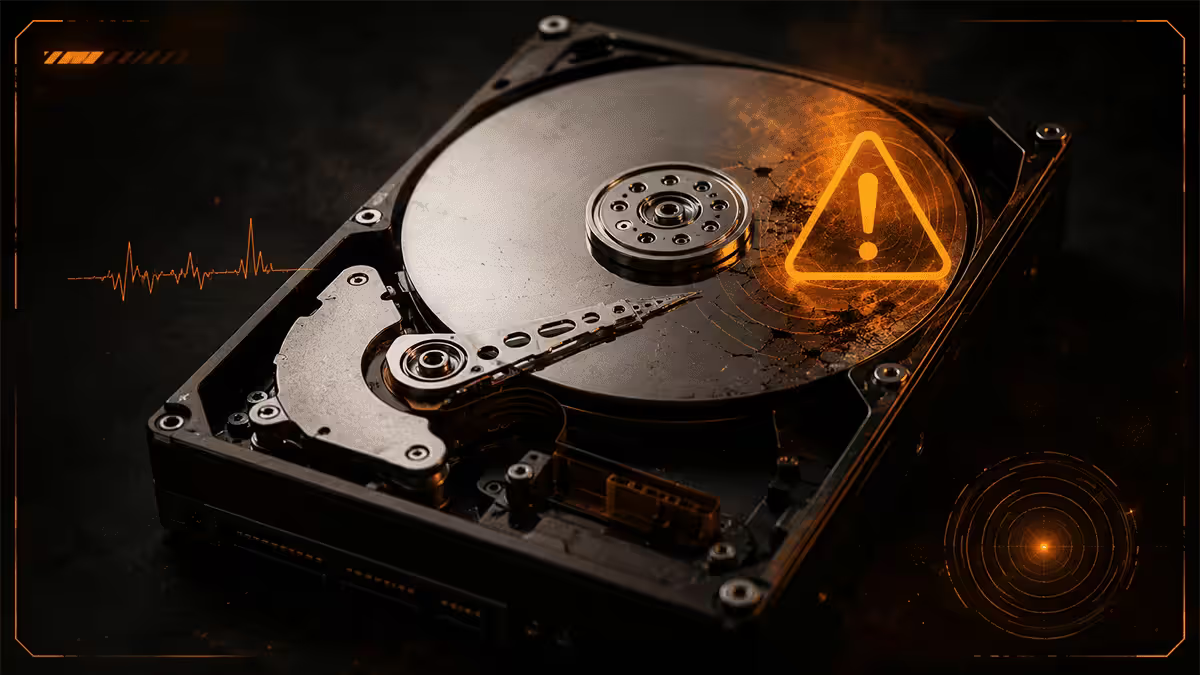
First symptoms — what you'll notice before SMART tells you
Drives almost always degrade before they fail. The warning signs depend on whether you've got a mechanical HDD, a SATA SSD, or an NVMe drive — but the human-perceivable symptoms are similar across all three. Trust them and back up before doing anything else.
Boot time doubling or tripling overnight. Your PC was booting in 12 seconds yesterday; today it takes 35. No software update happened. This is the most common early sign that something is wrong at the drive level. Don't assume it's "just Windows" — check SMART.
Random file corruption. A file you opened fine last week won't open today. A photo shows half-loaded with a coloured stripe through it. A ZIP archive says "corrupt." These are reads from bad sectors that the drive's error correction can no longer fix.
Random BSODs or "Disk read error" messages. Windows might throw a blue screen with codes like KERNEL_DATA_INPAGE_ERROR or NTFS_FILE_SYSTEM. These often point to drive issues rather than RAM or driver problems.
Drive disappearing from BIOS intermittently. You reboot and the boot device isn't found. Power cycle and it's back. This is a controller intermittently failing — common in NVMe drives nearing the end.
Stalls during file copy. Copying a folder to or from the drive stalls at random points for 30+ seconds. The drive is retrying reads or writes that aren't completing on first try.
Sound changes (HDD only). The drive sounds different than it used to. New clicks, scrapes, whirring patterns. If you don't usually hear your drive and now you do, that's the warning.
Reading SMART data — start with CrystalDiskInfo
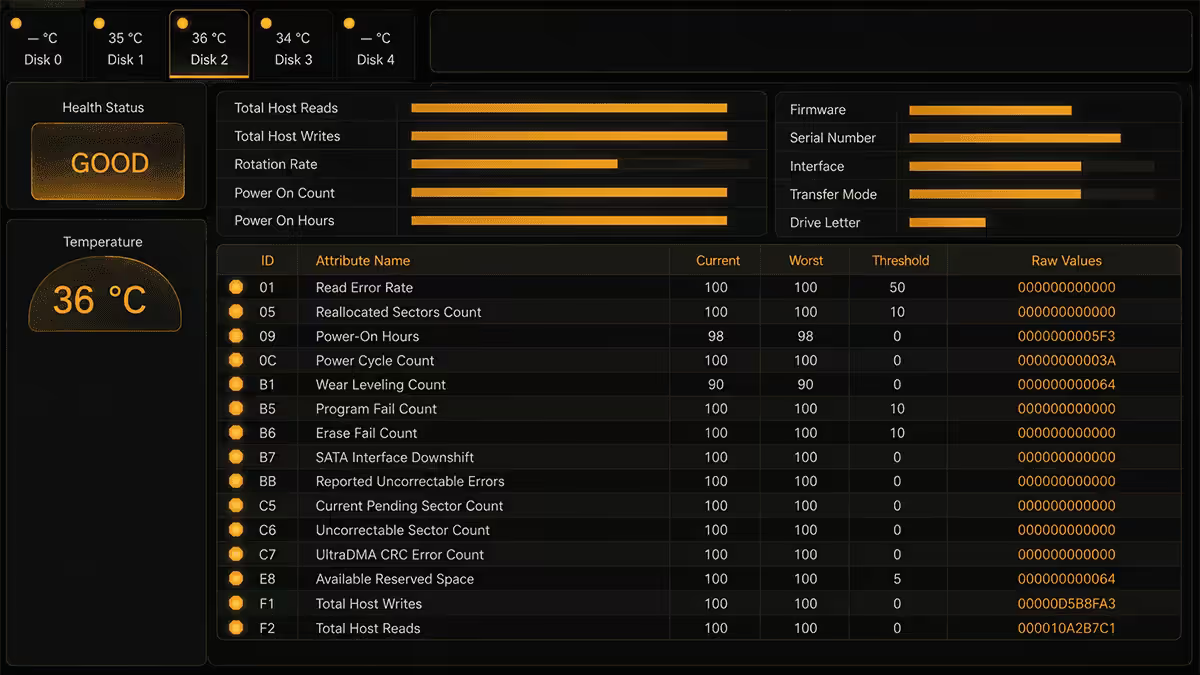
SMART (Self-Monitoring, Analysis and Reporting Technology) is a feature built into every modern HDD, SSD and NVMe drive. The drive tracks dozens of internal metrics — read errors, temperature, hours powered on, write cycles — and reports them via standard ATA/SCSI commands. The hard part is reading the data in a useful format.
CrystalDiskInfo (free, open-source, Windows) is the standard tool. Download from crystalmark.info or via the Microsoft Store. Install, launch, and you'll see every drive in your system with its overall health status colour-coded: blue/green for good, yellow for caution, red for bad.
For each drive you can expand the SMART attributes list. Each attribute has a Current value, a Worst value (lowest the metric has ever been), a Threshold (manufacturer-defined minimum), and a Raw value (the actual count).
On macOS: DriveDx (R350-ish), or smartmontools via Homebrew (free, command-line). On Linux: smartctl from smartmontools, or the GNOME Disks GUI. NVMe-specific: Samsung Magician for Samsung drives, Western Digital Dashboard for WD, Kingston SSD Manager for Kingston — these show vendor-specific data that CrystalDiskInfo can't decode.
The three SMART counters that actually matter
SMART reports 30-50 attributes per drive. Most don't matter for diagnosis. These three do.
Reallocated Sectors Count (SMART attribute 5)
Bad sectors the drive has already remapped to spare sectors. Every modern drive ships with a pool of spare sectors specifically for this. A non-zero count means the drive has started consuming spares. Anything above 0 is a yellow flag. Anything growing month-over-month is red. If the count was 5 last month and 25 this month, the drive will fail within weeks.
Current Pending Sector Count (SMART attribute 197)
Bad sectors the drive has identified but not yet remapped. These sectors are flaky — sometimes readable, sometimes not. The drive marks them and will remap them on next write. Pending Sectors greater than 0 is more serious than Reallocated, because it means active failure, not historical. Pending Sectors that grow without becoming Reallocated means the drive's spare pool is exhausted.
Uncorrectable Sector Count (SMART attribute 198)
Sectors that the drive's internal ECC can no longer recover. Any non-zero value here means you have already lost data, even if you don't know which files yet. This is the most serious of the three. Stop using the drive for new writes immediately. Clone what you can.
Clicking, grinding, and mechanical death
If you have a mechanical HDD that is clicking, you don't need SMART to tell you it's failing. The clicking is the read/write head trying to position itself on a track, failing, and resetting. The drive's logic tries again. Click. Tries again. Click. This is terminal.
Time-to-failure for a clicking drive is hours to days. Not weeks. The mechanism inside is grinding itself apart with every retry. You have one job: get a clone target ready and pull data off before the drive stops spinning entirely.
What to do, in order:
- Shut down the PC. Yes, while it's still on. Don't reboot — that's another spin-up cycle.
- Acquire a replacement drive of equal or larger capacity. Same-day if possible.
- Boot from a USB stick with Macrium Reflect Rescue or Clonezilla. Don't boot Windows from the failing drive.
- Run a clone, not an image. Image takes much longer because it inspects every file; clone copies block-by-block as fast as the drive can read.
- If the clone fails partway, you have at least the data that copied. Better than nothing.
What not to do: don't open the drive. Don't put it in the freezer (an old myth that's mostly bunk and can cause condensation damage). Don't run CHKDSK — it stresses the drive further. Don't reboot more than necessary. Each spin-up shortens what's left.
SSD and NVMe failure modes are different — and quieter
SSDs and NVMe drives don't click because there's nothing mechanical to click. They fail electrically: the NAND flash cells wear out from repeated writes, the controller chip dies, or onboard capacitors fail. The failure modes are different from HDDs and the warning signs are subtler.
NAND wear-out (SSD)
Each NAND flash cell has a finite number of program/erase cycles. Consumer TLC drives are rated for 600-1,500 cycles per cell; QLC is 200-600. Over years of writes, the drive runs out of healthy cells. Symptoms: dramatically slower writes (90 MB/s instead of 500 MB/s), occasional read errors on files written long ago. The SMART attribute to watch is Wear Leveling Count or Percentage Used. When Percentage Used hits 100%, the drive often goes read-only — you can still copy data off.
Controller failure (SSD/NVMe)
The controller chip that manages the NAND can fail unpredictably. Symptoms: drive disappearing from BIOS, drive showing as 0 bytes capacity, drive refusing to mount. Once the controller is gone, the data is unrecoverable without professional data recovery (R3,000-R15,000 in SA, sometimes more). This is why backups matter — controller failures give no warning.
NVMe thermal throttling and degradation
High-end NVMe drives (Samsung 990 PRO, Crucial T700, Kingston KC3000) can hit 80°C+ under sustained load. Operating consistently above 70°C accelerates wear. Check the temperature attribute in SMART. If your NVMe is at 75-85°C during normal use, install a heatsink — most modern motherboards include one in the box and many users forget to fit it.
Backup-first triage — the rule that saves data
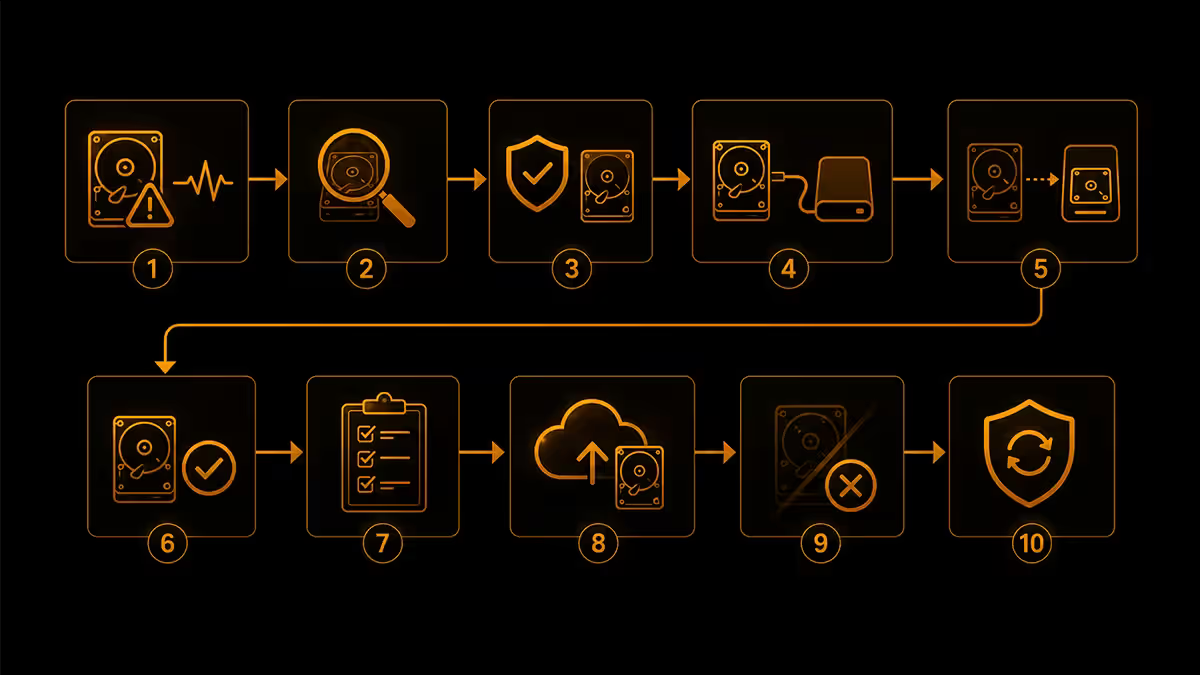
The single biggest mistake people make when a drive is failing is to start running diagnostics, repair tools, or chkdsk before copying the data off. Every operation on a failing drive risks pushing it over the edge. The first 60 minutes after noticing failure symptoms should be 60 minutes of pure backup activity, not diagnosis.
If the data is irreplaceable — family photos, work documents, source code, anything you'd cry to lose — copy it off first. Diagnostic tools are useful only after the data is safe somewhere else. The drive will still be there to diagnose in 90 minutes when the backup is complete.
Triage priority order:
- Identify the most irreplaceable data (photos, documents, projects). Copy these first.
- Copy to a different physical drive — external SSD, USB stick, network drive. Not another partition of the failing drive.
- Verify the copies actually opened and are not corrupt before relying on them.
- Once primary data is safe, attempt a full disk clone for the rest.
- Only then run SMART diagnostics, CHKDSK, or repair attempts.
Cloning a dying drive before it dies completely
A clone copies the entire drive — partitions, boot sectors, OS files, hidden recovery partitions — to a new drive that you can swap in and boot from. Done right, the new drive boots Windows exactly as the old one did, just faster (if you cloned HDD to SSD or SATA SSD to NVMe).
Macrium Reflect Free (Windows)
The standard tool for the past decade. Macrium Reflect Free was discontinued in 2024; the current free option is Macrium Reflect Home Trial (30 days) or Macrium Reflect X (paid). Alternatives: Acronis True Image, AOMEI Backupper Free, EaseUS Todo Backup Free.
Clonezilla (cross-platform, free)
Boots from USB, supports any OS, completely free and open source. Less friendly UI than Macrium but works on Mac/Linux drives and obscure file systems. Good fallback if Macrium can't read the failing drive.
Cloning tips for a failing drive
- Use a sector-by-sector clone, not an intelligent clone. Intelligent clones skip empty space but require reading the filesystem metadata first — which may be corrupt.
- Disable error retries in the clone tool settings. Default retries can hang the clone for hours on each bad sector.
- If the source drive supports it, set read speed to low (5,400 RPM equivalent or limited MB/s) to reduce mechanical stress.
- Don't run other software on the PC during clone. Browser, antivirus, anything competing for disk access will slow the clone and stress the failing drive.
Across the 200,000+ custom PCs we've shipped and the thousands of drives we've replaced under RMA from our Centurion warehouse, we've learned one painful pattern: customers usually notice drive failure 6-8 weeks after SMART started warning. They ignored a slow boot, a single BSOD, one weird file corruption — and only acted when the drive finally died. The data was usually unrecoverable by then. SMART monitoring runs silently in the background and catches drive failure 2-6 weeks before symptoms become catastrophic. Install CrystalDiskInfo, set it to start with Windows, and check it once a month. That habit alone has saved more customer data than any other single piece of advice we give.
From our service bench · Behind the Build — Evetech Hardware Team
SA RMA windows — what's covered and how to claim
If your drive failed within its warranty period, you can RMA (Return Merchandise Authorisation) it back through the retailer for a replacement. Manufacturers won't typically deal with end-users in SA — they want you to go through the seller. Keep your invoice.
| Drive type | SA warranty | Notes |
|---|---|---|
| Seagate Barracuda (consumer HDD) | 2 years | Most common SA RMA |
| Seagate IronWolf (NAS) | 3 years | Rescue Data Recovery included on Pro |
| WD Blue (consumer HDD/SSD) | 2 years | Quick RMA process |
| WD Black (performance HDD/SSD) | 5 years | Best HDD warranty in SA |
| WD Red Plus / Pro (NAS) | 3 / 5 years | Pro version is 5 years |
| Samsung 870 EVO (SATA SSD) | 5 years | Or TBW limit, whichever first |
| Samsung 990 PRO (NVMe) | 5 years | 1,200 TBW limit on 2TB |
| Kingston KC3000 / Crucial T700 | 5 years | Per TBW limit on each capacity |
| Enterprise drives (any brand) | 5 years | Typically |
RMA process: back up your data first (drives sent for RMA are wiped or destroyed — never returned). Contact the retailer with your invoice number. Most SA retailers will RMA via a courier collection within 5-10 working days. Replacement is typically a refurbished or new equivalent drive. If you bought from Evetech, our RMA team handles drive returns within 7 working days from our Centurion warehouse — call or email with your order number.
Key takeaways
- Install CrystalDiskInfo. Check SMART monthly. Focus on Reallocated, Pending and Uncorrectable sector counts.
- Clicking HDD = terminal. Hours to days. Don't reboot. Clone immediately.
- SSDs/NVMe fail silently. Use 3-2-1 backup (3 copies, 2 media, 1 offsite). No SMART warning may appear before sudden vanish.
- Always backup before diagnosing. First 60 minutes after symptoms = pure backup activity. Repair tools come after data is safe.
- SA RMA: 2-5 years depending on brand. Keep your invoice, RMA through the retailer not the manufacturer, and protect against power surges.
Frequently asked questions
What is the first sign of a failing hard drive?
On a mechanical HDD: clicking, grinding or whirring sounds that weren't there before. On an SSD or NVMe: files randomly becoming unreadable, BSODs during normal use, the drive disappearing from BIOS, or read/write speeds dropping dramatically. The first sign on either type is often a noticeable slowdown — boot times doubling, apps stalling, file copies stuck. Don't ignore these. Back up immediately.How do I read SMART data on Windows?
Download CrystalDiskInfo (free, open-source). Install and launch it. The dashboard shows each drive's overall health status (Good/Caution/Bad) plus every SMART attribute. Pay particular attention to Reallocated Sectors Count, Current Pending Sectors, Uncorrectable Sector Count, and (on SSDs) Wear Leveling Count and Total Bytes Written. Any non-zero values in the Pending or Uncorrectable rows mean the drive is actively failing.My drive is clicking — what does it mean?
The "click of death" is the read/write head failing to position correctly on the platter and resetting. Once you hear it consistently, the drive has hours-to-days left, not weeks. Stop using the drive for new work, shut down, and clone it immediately to a working drive using Macrium Reflect or Clonezilla. Every minute of clicking shortens what's left. Never reboot a clicking drive without a clone target ready.What does Reallocated Sectors Count mean?
The drive has marked bad sectors and remapped data to spare reserve sectors. A non-zero count means the drive has already started failing. SMART thresholds typically tolerate up to a few dozen reallocations before flagging the drive as failed. Any growth over time is a red flag — if the number was 5 last week and is 12 today, the drive is degrading actively and needs immediate backup.What's the difference between Pending and Reallocated sectors?
Pending sectors are bad sectors the drive has not yet remapped — they may still be readable on retry. Reallocated sectors have already been swapped out for spare sectors. Both indicate physical wear. A drive showing growing Pending Sectors is in the early stages of failure; if Pending counts climb without becoming Reallocated, the drive's spare pool is exhausted — replace the drive.How do SSDs fail differently from HDDs?
HDDs fail mechanically — head crashes, motor seizures, platter scratches — usually with audible warnings. SSDs fail electrically — NAND wearing out, controller failure, capacitor failure — usually with no audible warning and often suddenly. SSDs often go read-only when they detect wear nearing the limit (you can still copy data off). NVMe drives can simply vanish from BIOS without warning. Different failure modes, same diagnosis approach: SMART data and immediate backup.What is the click of death?
A repeating clicking sound from a mechanical hard drive caused by the read/write head failing to find or read the platter track it's trying to access. The drive's internal logic resets the head, hears nothing useful, tries again — clicking repeatedly. It's a terminal symptom: the drive will fail completely within hours to days. Power down immediately, prepare a clone target, then attempt one final clone.How long is the SA warranty period for hard drives?
South African RMA windows depend on the manufacturer. Seagate consumer drives are 2 years, WD Blue is 2 years, WD Black is 5 years, WD Red NAS is 3 years, Samsung 870 EVO is 5 years, Samsung 990 PRO is 5 years, Kingston KC3000 is 5 years, Crucial T700 is 5 years. Enterprise drives typically carry 5-year warranties. Always keep your invoice — the retailer (Evetech, Wootware, Takealot) handles the RMA on your behalf rather than dealing direct with the manufacturer in most cases.
Get the Evetech app
Exclusive app-only prices, daily flash sales, and free delivery on orders over R4,000 — download the app and start saving.