Workstation Build Guide
How to build a photo editing workstation.
The mistake almost every first-time builder makes: spend on the GPU, save on the screen. For colour-critical work that backwards order produces edits you can't trust. Build the monitor first.
- Adobe RGB target
- 99%
- RAM tier
- 32-64GB
- build tiers
- R25-75k
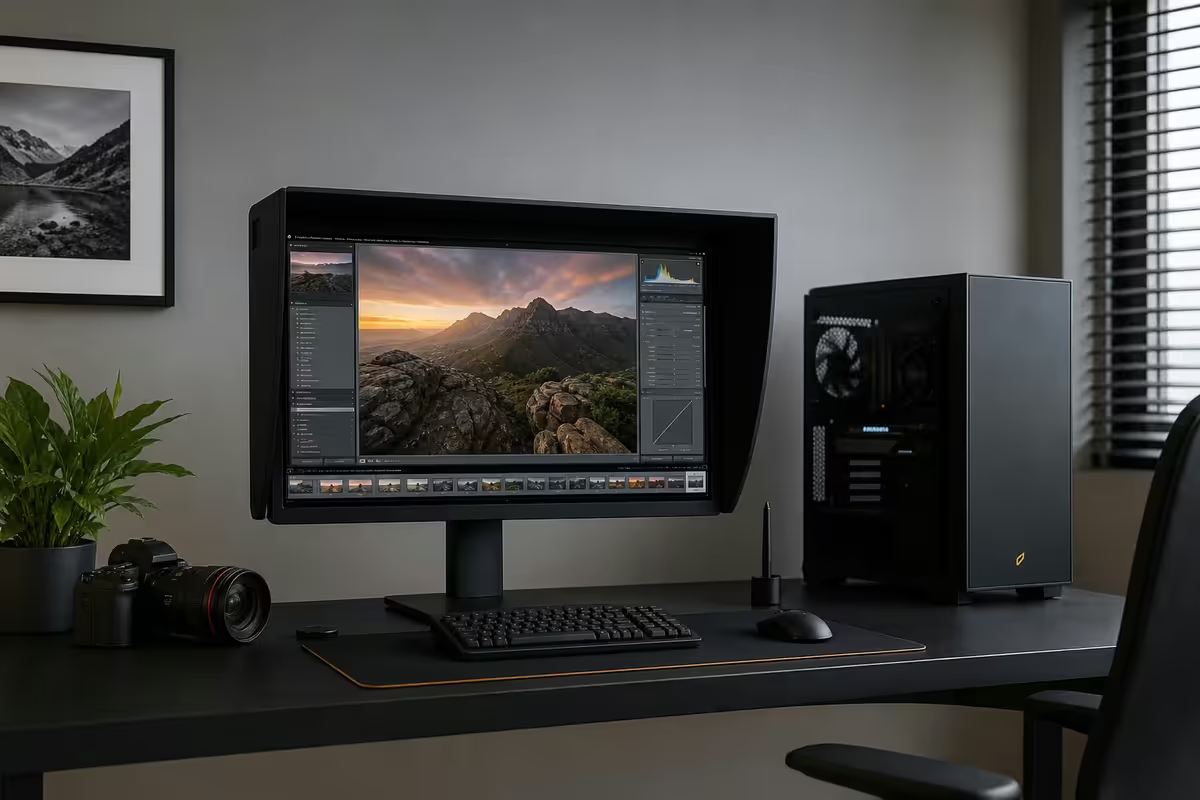
Monitor first — everything else supports it
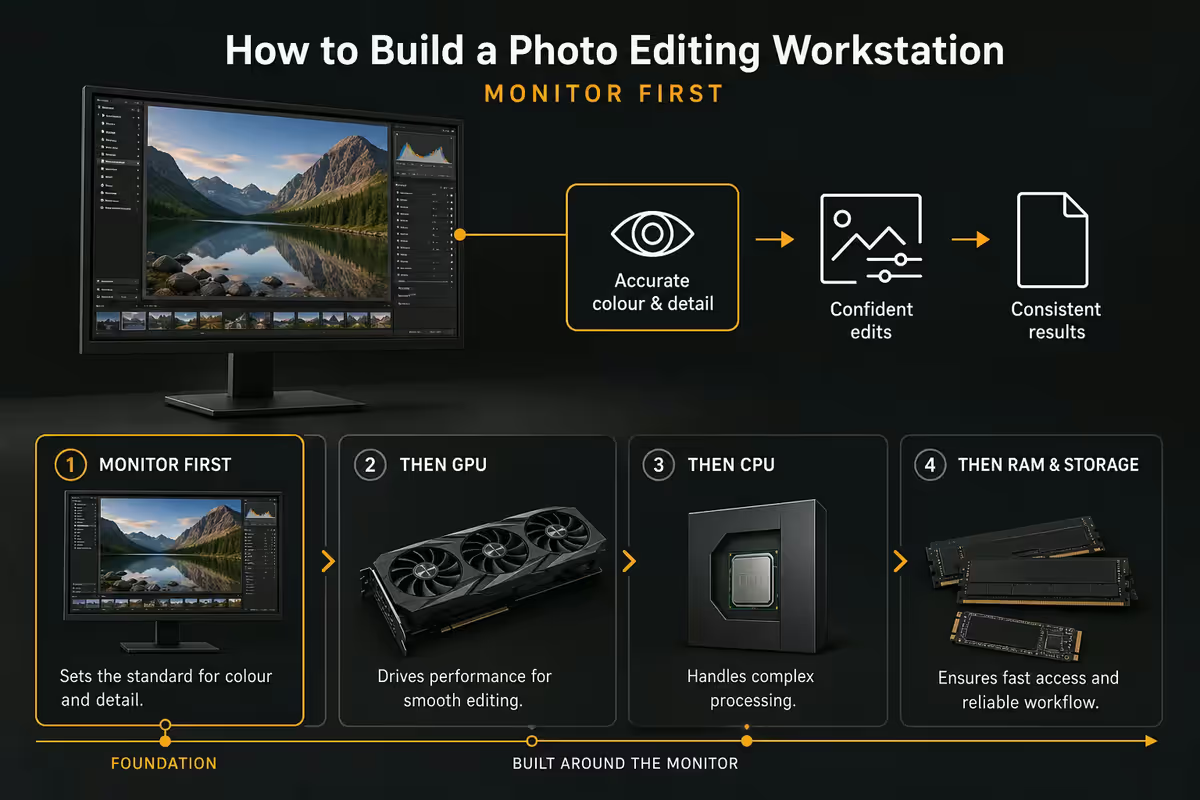
The single most consequential decision in a photo editing workstation is the monitor. A R30,000 PC with a R3,000 supermarket monitor produces edits that look wrong on every other display — including your prints. A R10,000 PC with a R15,000 colour-accurate monitor produces edits you can trust.
What matters in a photo editing monitor:
- Adobe RGB coverage — 99% Adobe RGB (or DCI-P3 95%+) means the monitor can display the wider colour gamuts used in fine-art printing, magazine work and Instagram-friendly saturated outputs. sRGB-only monitors (most gaming and office monitors) physically can't show many saturated reds and greens that exist in your raw files.
- Hardware calibration support — premium monitors (BenQ SW, ASUS ProArt PA, Eizo ColorEdge) include 14-bit or 16-bit LUTs that get programmed during calibration. The calibrator writes adjustments into the monitor itself rather than the GPU. Result: accurate colour without losing dynamic range.
- Resolution — 4K (3840×2160) at 27 inches is the price-performance sweet spot. Lots of pixels for fine detail editing, sharp text in panels, no scaling weirdness.
- Panel type — IPS (or premium IPS variants like Nano-IPS) for accurate colour and wide viewing angles. Avoid VA (poor off-angle uniformity), TN (washed-out colour) and OLED for primary editing (burn-in concerns and limited bright-area performance).
- Brightness uniformity — premium monitors actively compensate for edge darkening. Check reviews for "uniformity DUE" specs — under 5% is excellent.
- Anti-glare matt coating — glossy screens are unusable in any room with windows or overhead lighting.
Recommended photo editing monitors in SA (2026):
| Monitor | Highlights | SA price |
|---|---|---|
| BenQ SW272Q | 27" 1440p, 99% Adobe RGB, hardware calibration | R12,000-R14,500 |
| BenQ SW272U | 27" 4K, 99% Adobe RGB, hood included | R18,000-R22,000 |
| ASUS ProArt PA279CV | 27" 4K, 100% sRGB / 99% DCI-P3 | R10,500-R13,500 |
| ASUS ProArt PA32UCG-K | 32" 4K HDR mini-LED, 99% Adobe RGB | R55,000-R75,000 |
| Eizo ColorEdge CS2740 | 27" 4K, professional reference | R32,000-R42,000 |
| Eizo ColorEdge CG2700S | Built-in calibrator, fine-art print reference | R55,000-R72,000 |
| Dell UltraSharp U2723QE (budget pro) | 27" 4K, 98% DCI-P3, USB-C hub | R12,000-R15,000 |
RAM — 32GB minimum, 64GB the working sweet spot
Lightroom and Photoshop are RAM-hungry by modern standards, especially when working with high-megapixel raw files (Sony A7R V at 61MP, Canon EOS R5 II at 45MP, Hasselblad medium format at 100MP+).
What pushes RAM use up:
- Lightroom catalogue size — a catalogue with 50,000+ images and Smart Previews built easily consumes 4-8GB just at idle.
- Photoshop layer count — composite shots with 30+ layers, smart objects, masks and adjustment layers fill memory fast. Each undo state holds a snapshot of the canvas.
- Multiple apps simultaneously — Lightroom catalogue browsing while a Photoshop file is open while Bridge indexes a new shoot folder while Adobe Camera Raw processes externally.
- Edge / Chrome with research tabs — modern browsers casually eat 4-6GB.
- Capture One catalogues — Capture One is even more RAM-hungry than Lightroom on multi-thousand image sessions.
Practical RAM tiers:
- 16GB — functional for occasional editing, single-shot retouching. You'll feel it on catalogue builds and multi-layer Photoshop work.
- 32GB — floor for serious work. Comfortable for single-app sessions, tight when running everything at once.
- 64GB — sweet spot for professionals shooting daily. Everything has headroom; you stop thinking about RAM.
- 128GB — only justifiable for very large composite work, video alongside stills, or extreme catalogues (200,000+ images with previews).
DDR5-6000 CL30 (or CL32) is the price-performance sweet spot for desktop builds. The bandwidth premium of DDR5-7200 is mostly wasted on Adobe workflows.
Storage in three tiers — and why
A photographer's storage needs are unlike any other workload. Active project files want blazing speed; archives want capacity and reliability. The professional pattern is a three-tier setup.
Tier 1 — OS + Adobe install (1TB NVMe Gen4)
Where Windows, Adobe apps, plugins (Topaz, DxO, Capture One) and system pagefile live. A 1TB Samsung 990 Pro, WD Black SN850X or Crucial T700 (R1,900-R2,500 in SA) is the right pick. Don't skimp on this drive — it's the OS path and feels every saved-file write.
Tier 2 — Cache + active projects (2TB NVMe Gen4)
Where Lightroom Catalogue, Smart Previews, Photoshop scratch disk, Bridge cache and the current 3-6 months of shoots live. A separate 2TB NVMe drive prevents OS activity from interfering with Adobe scratch performance.
Lightroom scratch and Photoshop scratch can quickly consume 50-150GB during heavy work, and forcing them onto the OS drive throttles both. The separate scratch SSD is one of the single biggest workflow improvements available.
Tier 3 — Archive (10TB-22TB mechanical HDD)
Where finished shoots, raw archives, and reference libraries live long-term. Mechanical HDDs remain the cheapest cost-per-GB by a wide margin. Buy NAS-rated drives (Seagate IronWolf, WD Red Plus) — desktop drives like WD Blue aren't designed for the 24/7 read patterns of active archive use.
SA pricing in 2026 for 10TB+ HDDs:
| Drive | Capacity | SA price |
|---|---|---|
| WD Red Plus | 10TB | R5,500-R6,500 |
| Seagate IronWolf | 12TB | R6,500-R7,800 |
| WD Red Pro | 16TB | R9,000-R10,500 |
| Seagate IronWolf Pro | 22TB | R13,500-R15,500 |
| WD Gold (datacentre) | 22TB | R14,500-R17,000 |
CPU — single-thread first, then cores, then nothing
Adobe's Lightroom and Photoshop have improved their multi-thread support, but the truth in 2026 is that strong single-thread performance still beats raw core count for most photo workloads. Develop module sliders, Lightroom catalogue browsing and Photoshop most operations are single-thread or lightly multi-threaded.
Practical CPU picks:
| Tier | AMD pick | Intel equivalent |
|---|---|---|
| Entry / hobbyist | Ryzen 5 9600X | Core Ultra 5 245 / i5-14600K |
| Enthusiast / side-pro | Ryzen 7 9700X | Core Ultra 7 265 / i7-14700K |
| Professional | Ryzen 9 9900X | Core Ultra 7 265K / i9-14900K |
| Heavy compositing + video | Ryzen 9 9950X | Core Ultra 9 285K |
Avoid Threadripper for pure photo work. Even modern 32/64-core Threadrippers don't help most Adobe workflows enough to justify their cost. The exception is if you're doing photo + heavy video editing + 3D rendering on the same machine.
GPU — finally matters for photo work
A change from the pre-2023 era: photo editing now meaningfully benefits from a discrete GPU. Adobe has shifted heavy operations onto GPU acceleration over the past few releases:
- Lightroom AI Denoise — the standout feature. Processes a 45MP raw on an RTX 4060 in 8-12 seconds. CPU-only path takes 90+ seconds. Across a 500-image shoot, that's the difference between an evening and a weekend.
- Photoshop Generative Fill, Select Subject, Sky Replacement — all use the GPU heavily for the neural network inference.
- Capture One performance — GPU acceleration for thumbnails, develop module rendering and export.
- Topaz Photo AI, Topaz Sharpen AI, Topaz Gigapixel — these are practically GPU-only at modern usable speeds.
- DxO DeepPRIME XD denoise — heavily GPU-accelerated, sets the modern denoise quality benchmark.
Recommended GPU tiers:
| Use level | Pick | SA price |
|---|---|---|
| Entry / hobbyist | NVIDIA RTX 4060 8GB | R6,500-R7,500 |
| Enthusiast (sweet spot) | NVIDIA RTX 4070 Super 12GB | R12,000-R14,000 |
| Professional | NVIDIA RTX 4070 Ti Super 16GB | R16,000-R19,000 |
| Heavy compositing / 4K video | NVIDIA RTX 4080 Super 16GB | R22,000-R26,000 |
| AMD alternative (good value) | Radeon RX 7800 XT 16GB | R11,000-R13,500 |
Above the RTX 4070 Ti Super, returns diminish quickly for photo-only work. Spend the saved money on more RAM, a better monitor, or a calibrator. The exception is if you're running heavy 4K video editing alongside the photo work, where the RTX 4080 / 4090 deliver meaningful additional speed.
Mac vs PC — honest read for photo work
Both ecosystems work well for photo editing. The honest comparison:
Mac advantages
- Apple Silicon performance per watt — M4 Pro and M4 Max are excellent for Lightroom and Photoshop, with no noise and low heat. Apple's ProRes hardware encode is unmatched on the mobile side.
- Built-in colour accuracy on premium displays — Studio Display and Pro Display XDR ship factory-calibrated.
- Polished colour profile handling — macOS ColorSync is the most robust system-level colour management in any OS.
- Tight ecosystem integration — iPhone shots flowing to Photos to Lightroom is frictionless.
PC advantages
- Cost per spec — at R45,000 a custom PC will out-perform any equivalent-priced Mac for photo work. At R75,000 the gap widens.
- Component upgrade path — RAM, storage, GPU all upgradable individually as your workload grows. A Mac is fixed at purchase.
- Monitor flexibility — BenQ SW272U, ASUS ProArt and Eizo CG-series monitors all work better with PC hardware calibration workflows than with macOS.
- Plugin support breadth — Topaz, DxO and many Photoshop plugins are Windows-first.
- Local repair and warranty in SA — Evetech and other local SA shops can swap components quickly. Apple SA service requires specific authorised channels.
Practical recommendation: if you're already in the Apple ecosystem and shoot mostly with iPhone or have client expectations around Mac use, M4 Pro Mac mini or M4 Max Mac Studio are excellent choices. If you're starting fresh, want maximum performance per Rand, or care about long-term upgradeability, a custom PC build wins.
Calibration tools and colour-neutral lighting
An uncalibrated monitor is a monitor showing you wrong colours. Every monitor drifts over time, with ambient light changes, and as the backlight ages. Calibrate quarterly at minimum.
Recommended calibrators:
- Calibrite Display Plus HL (R5,000-R6,500 SA) — successor to the X-Rite ColorMunki Display. Best price-performance pick for working photographers.
- X-Rite i1Display Pro Plus (R5,500-R7,500) — the long-standing standard. Compatible with almost every monitor's calibration software.
- Calibrite Display Pro HL (R7,500-R9,500) — premium option with broader gamut support, better dark-area accuracy.
- Datacolor Spyder X2 Elite (R6,500-R8,500) — alternative to Calibrite/X-Rite, very capable software.
Colour-neutral viewing environment matters more than people realise:
- Daylight-balanced overhead lighting (5000K-6500K bulbs) — avoid warm-white kitchen bulbs in your edit area; they bias colour perception toward yellow.
- Matte neutral-grey walls behind the monitor — bright coloured walls reflect onto the screen and bias colour perception.
- Monitor hood — premium photo monitors ship with hoods or you can buy them separately. Eliminates side glare and overhead reflections.
- Avoid mixed lighting — don't edit with a window on one side and a warm lamp on the other. Your eyes adapt and the monitor calibration becomes meaningless.
Three SA builds — R25k, R45k, R75k
All prices include VAT and reflect typical 2026 SA retail. Component variations within each tier are normal.
| Component | Spec |
|---|---|
| CPU | Ryzen 5 9600X |
| RAM | 32GB DDR5-6000 |
| Storage | 1TB NVMe + 4TB HDD |
| GPU | RTX 4060 8GB |
| Motherboard | B650 ATX |
| Monitor | ASUS ProArt PA279CV 4K |
| Calibrator | Calibrite Display Plus HL |
| PSU | 650W 80+ Gold |
| Component | Spec |
|---|---|
| CPU | Ryzen 7 9700X |
| RAM | 64GB DDR5-6000 |
| Storage | 1TB + 2TB NVMe + 10TB HDD |
| GPU | RTX 4070 Super 12GB |
| Motherboard | X670 ATX |
| Monitor | BenQ SW272Q + 27" sRGB sec. |
| Calibrator | X-Rite i1Display Pro Plus |
| PSU | 750W 80+ Gold semi-passive |
| Component | Spec |
|---|---|
| CPU | Ryzen 9 9900X |
| RAM | 96GB DDR5-6000 |
| Storage | 2TB + 4TB NVMe + 22TB HDD |
| GPU | RTX 4070 Ti Super 16GB |
| Motherboard | X670E ATX |
| Monitor | BenQ SW272U + Eizo CS2740 |
| Calibrator | Calibrite Display Pro HL |
| PSU | 850W 80+ Platinum modular |
Add to all tiers: colour-neutral overhead lighting (R500-R1,500), monitor hood if not included (R600-R1,500), UPS for load-shedding protection (R4,500-R6,500), Wacom Intuos or Cintiq tablet if doing heavy retouching (R3,500-R45,000).
Key takeaways
- Monitor first — 27" 4K 99% Adobe RGB IPS with hardware calibration. Everything else supports the screen.
- 32GB RAM floor, 64GB sweet spot for serious work. DDR5-6000 CL30 is the price-performance pick.
- Three-tier storage: OS NVMe, cache NVMe, large archive HDD. Always pair archive with backup.
- CPU single-thread first. Ryzen 7 9700X or Core Ultra 7 sweet spot. Adobe doesn't scale beyond 12 cores.
- GPU finally matters — AI Denoise and Generative Fill love RTX 4060/4070 Super. Above 4070 Ti returns diminish.
- Calibrator + colour-neutral lighting + neutral-grey walls = trustworthy edits.
Frequently asked questions
What's the most important component of a photo editing workstation?
The monitor — and it isn't close. A R25,000 PC with a R3,000 supermarket monitor produces inaccurate colour you can't trust. A R15,000 PC with a R15,000 colour-accurate panel (BenQ SW272Q, ASUS ProArt PA279CV, Eizo ColorEdge) produces edits that match prints and other displays. Calibrate quarterly with an X-Rite i1Display Pro or Calibrite Display Plus. Everything else — CPU, RAM, GPU — supports the monitor, not the other way round.How much RAM does Lightroom and Photoshop actually need?
32GB is the floor for serious work in 2026. Lightroom catalogues with 50,000+ images, Smart Previews and Develop module operations push 18-24GB easily. Photoshop opens large RAW files and accumulates undo states quickly. 16GB still functions but you'll feel it on multi-layer Photoshop work and catalogue builds. 64GB is the sweet spot for professionals shooting daily — comfortable headroom for Lightroom plus Photoshop plus a browser plus the colour calibration software all running.Do I need a discrete GPU for photo editing?
In 2026, yes — but a mid-tier one. Lightroom and Photoshop now use the GPU heavily for AI Denoise (Lightroom's standout feature), Generative Fill, Select Subject, Sky Replacement and other neural network operations. An RTX 4060 or RX 7700 XT processes a 45MP raw AI Denoise in 8-12 seconds where a CPU-only path takes 90+ seconds. Above that tier, returns diminish quickly for photo work — save the budget for a better monitor or more RAM.Single-thread or multi-core CPU for photo editing?
Adobe is still surprisingly single-thread-biased. Lightroom catalogue browsing, Develop module sliders and Photoshop most operations benefit more from strong single-thread performance than raw core count. The Ryzen 7 9700X and Core Ultra 7 265 are the price-performance sweet spots — 8-12 cores with excellent single-thread. Avoid 16+ core CPUs for pure photo work; you're paying for cores Adobe rarely uses, and you're getting more heat for less actual benefit.What storage configuration is best for photo editing?
Three-tier: NVMe SSD (1TB Gen4) for OS and Adobe install, second NVMe SSD (2TB) for cache and active project drive (current month or year of shoots), large mechanical HDD (10TB-22TB WD Red Plus or Seagate IronWolf) for archive. Lightroom catalogues live on fast NVMe; the actual photo files can live on HDD if archived correctly. Always pair archive HDDs with a real backup (cloud or second HDD) — single-drive archives are a tragedy waiting to happen.Mac vs PC for photo editing — honest answer?
Both work. Mac advantages: excellent built-in colour accuracy on the higher-tier displays (Studio Display, Pro Display XDR), tight Apple Silicon performance on Lightroom and Photoshop, polished macOS handling of colour profiles. PC advantages: better cost-per-spec at the same performance level, easier component upgrade path, more monitor and storage options, can drive multiple high-spec colour-critical monitors more affordably. For a R50,000 budget, a custom PC build delivers more performance than a Mac mini M4 Pro setup. For brand-conscious clients or those embedded in Apple workflows, the Mac premium is justifiable.How much should I spend on a photo editing workstation in 2026?
R25,000 entry tier for hobbyists and weekend shooters — solid Ryzen 7 + 32GB + RTX 4060 + decent monitor. R45,000 mid-tier for serious enthusiasts and side-pro photographers — Ryzen 9 + 64GB + RTX 4070 Super + colour-accurate 27-inch 4K monitor. R75,000+ professional tier for working studios — RTX 4080 + dual monitor with calibrator + NAS + colour-neutral lighting. The monitor consumes 30-50% of the budget at every tier above entry.Do I really need a colour calibration tool?
For any serious photo work, yes. Factory monitor calibration drifts over months and changes with ambient light. An X-Rite i1Display Pro Plus (R5,500-R7,500) or Calibrite Display Plus HL (R5,000-R6,500) calibrates your monitor in 5-10 minutes quarterly. Without calibration you're editing photos that look different on every other screen they appear on — including your own prints. The calibrator is a one-time purchase that pays back forever.
Get the Evetech app
Exclusive app-only prices, daily flash sales, and free delivery on orders over R4,000 — download the app and start saving.