Video Editing Beginner's Guide
How to learn video editing. — DaVinci is the cheat code. Start tonight.
The single most expensive belief in this craft is that you need Premiere Pro and a R45,000 Mac to start. You don't. You need DaVinci Resolve (free), a 5-minute first edit, and the discipline to finish it.
- DaVinci Resolve
- R0
- first edit rule
- 5 min
- RAM minimum
- 16 GB
DaVinci vs Premiere vs Final Cut vs CapCut
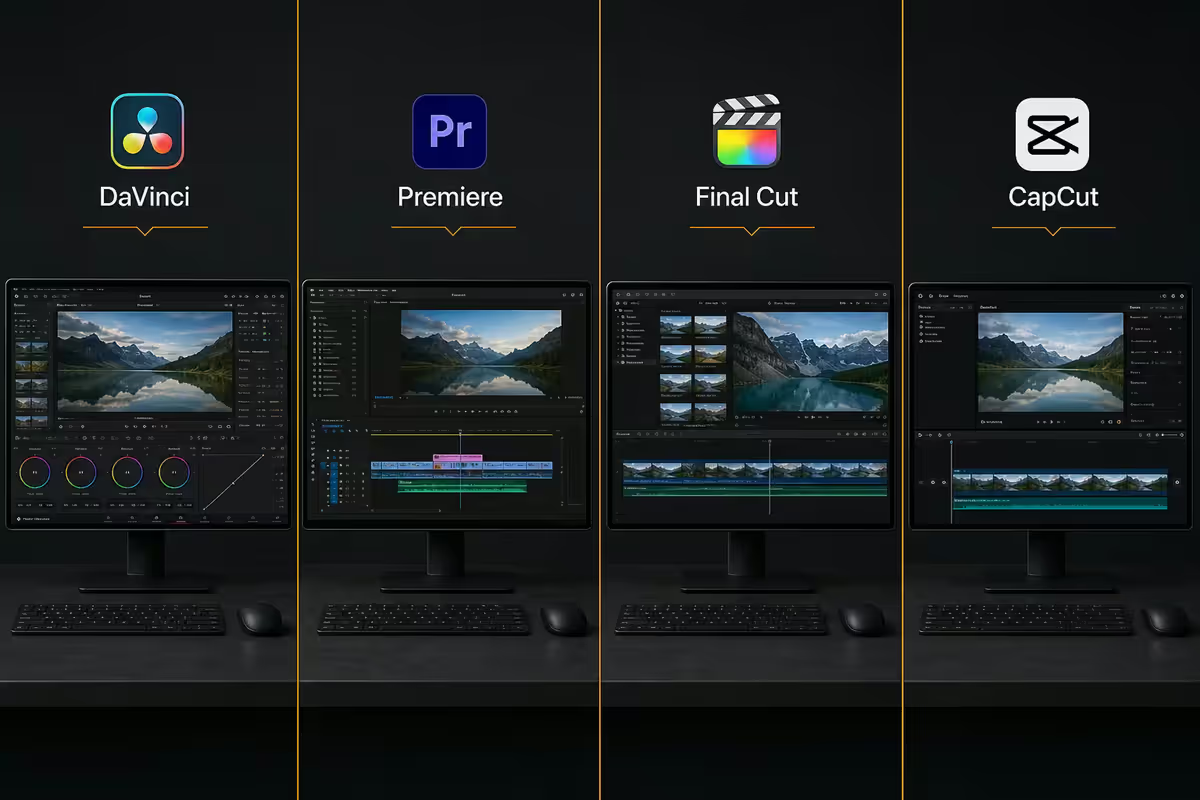
Four editors dominate the conversation in 2026, and only one of them is the right starting point for an SA beginner. Here's the honest comparison — not the affiliate-link version.
| Editor | Cost (ZAR) | Best for |
|---|---|---|
| DaVinci Resolve (free) | R0 forever | Beginners, colourists, indie filmmakers |
| DaVinci Resolve Studio | ~R8,500 one-off | Pros wanting AI tools & 8K |
| Premiere Pro (Adobe CC) | ~R380/month | Agency workflows, AE integration |
| Final Cut Pro | ~R6,000 one-off (Mac) | Mac users, magnetic timeline fans |
| CapCut Desktop / Mobile | Free / R150/mo Pro | Social, vertical, TikTok-first edits |
DaVinci Resolve is the outlier — fully free, no watermark, no export cap, runs on Windows, Mac and Linux. Blackmagic Design gives it away because they make money on cinema cameras and control panels; the software is the gateway drug. The free tier handles 99% of beginner-through-intermediate work.
Premiere Pro is the industry default in agencies and broadcast newsrooms — useful if you want to work somewhere that already runs Adobe CC. The R380/month bill (R4,560/year) buys you tight integration with After Effects and Photoshop, plus team collaboration features. For solo learners and freelancers, that's R4,560/year you could spend on lenses, mics or a faster GPU instead.
Final Cut Pro is Mac-only and brilliant if you live in the Apple ecosystem. The magnetic timeline divides opinion (you'll either adore it or hate it) and ProRes encoding on Apple Silicon is genuinely best-in-class. R6,000 one-off is fair value over five years — but only if you own a Mac.
CapCut is the social-first tool that ate TikTok. Excellent for vertical 9:16, lightning-fast templates, AI auto-captions. Limited for anything longer than 3 minutes, anything 16:9 cinematic, or anything that needs serious colour work. Useful as a secondary tool, dangerous as your only tool.
Why DaVinci Resolve is the cheat code
Industry pros sometimes resist this advice because they paid for their Premiere expertise. Let it go. In 2026, telling a beginner to pay R380/month for editing software is like telling them to buy a Nokia 3310 before learning to text.
DaVinci Resolve's free tier delivers:
- The same colour grading engine used on Deadpool, Avatar 2, The Boys, House of the Dragon and thousands of other productions.
- A non-linear editor (Cut and Edit pages) that's virtually identical in workflow to Premiere — same shortcuts, similar bin/timeline logic.
- Fusion (node-based VFX and motion graphics, comparable to After Effects).
- Fairlight (full multi-track audio mixer with EQ, compression, reverb).
- Deliver page with hardware-accelerated H.264, H.265, ProRes and DNxHR export.
The paid Studio version (R8,500 one-off, no subscription) adds AI features — Magic Mask (rotoscope a person in three clicks), Voice Isolation (isolate dialogue from background noise), Super Scale (upscale 1080p to 4K), and unlimited resolution beyond UHD. Most beginners can run free for two years before any of those features become daily-driver essential.
The best free YouTube tutorial paths
YouTube has more free editing education than any tertiary course in the country. The trick is picking the right teacher early and ignoring the algorithmic noise.
For DaVinci Resolve
- Casey Faris — the gold standard for DaVinci basics. His "Beginner Tutorial" series is structured like an actual course. Start here.
- Justin Robinson (JayAreTV) — DaVinci-focused storytelling and cinematic colour. Watch after you finish your first three edits.
- MrAlexTech — practical project-based tutorials. Less theory, more "do this with me right now."
- Blackmagic Design's official channel — free training courses with project files. Dry but technically complete.
For Premiere Pro
- Peter McKinnon — cinematic Premiere editing with a heavy focus on look and pacing. The "cinematic" YouTuber template he popularised is now everywhere.
- Daniel Schiffer — visual style, transitions, music-driven edits. Best learned after you can already cut clean dialogue.
- Adobe's own Premiere channel — feature-by-feature reference. Useful as a lookup tool, weak as a learning sequence.
General craft
- Every Frame a Painting (archived but still gold) — editing theory through film analysis. Watch the Edgar Wright and Jackie Chan episodes early.
- This Guy Edits — Sven Pape, 30 years of Hollywood experience. Best channel for understanding why a cut works, not just how.
- Aputure's Spencer Talks — lighting and shooting fundamentals that make the editing job easier.
Paid options are worth it once you've burned through free content: Skillshare at R200/month (often a R0 first-month trial), Wedio for filmmaking, MZed Pro at ~R1,500/year for masterclasses, and Color Grading Central for serious colourist training.
Proxies, render queues & project organisation
The single biggest beginner pain point isn't the cut — it's a 4K timeline that stutters every time you press play. The fix is called proxies, and learning it on day one saves months of frustration.
Proxies — the laggy 4K rescue
A proxy is a low-res copy of your source clip (typically 720p ProRes Proxy or H.264 medium) that the editor uses for smooth timeline playback. When you export, the software automatically switches back to the original high-res master files. Same final quality, instant timeline response.
In DaVinci Resolve: right-click any clip in the Media Pool → Generate Proxy Media → choose ProRes Proxy or DNxHR LB → set the proxy folder to a fast SSD. DaVinci handles the swap automatically.
In Premiere Pro: open Ingest Settings on import → tick Create Proxies → choose the H.264 1024×540 preset. Toggle proxies on/off with a single button in the Programme Monitor.
Render queue priorities
Render times matter when you're iterating. Use hardware acceleration — your CPU should never be doing the encoding work alone in 2026.
- NVIDIA RTX GPU: use NVENC encoder. RTX 4070 encodes 4K H.265 roughly 4-5× faster than CPU-only.
- AMD Radeon GPU: use AMF encoder (slightly slower than NVENC but still vastly faster than CPU).
- Apple Silicon Mac: ProRes encoding on M-series chips is industry-best — uses dedicated media engines.
Project organisation
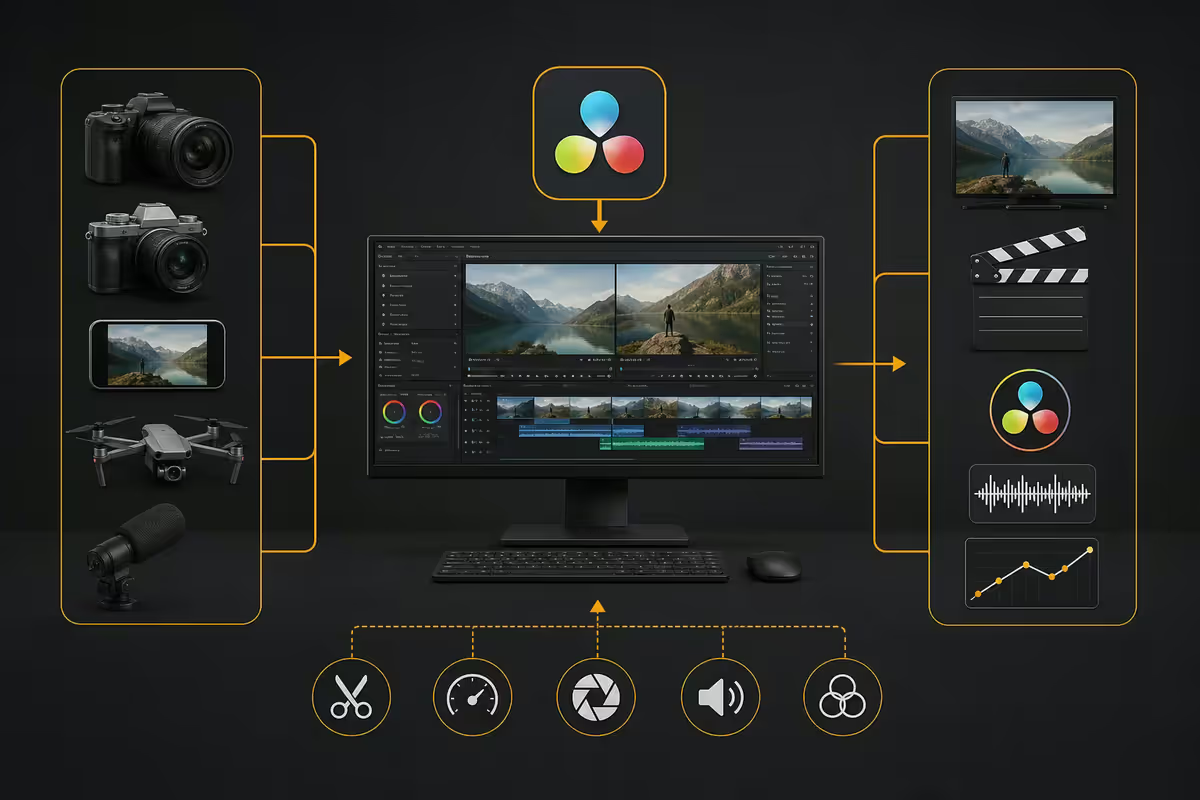
Build the bin folder structure on day one or you'll regret it on day thirty. Inside every project:
- 01_Footage — A-Roll, B-Roll, drone, screen recordings, sub-folders by date or scene.
- 02_Audio — Dialogue, music, SFX, voiceover.
- 03_Graphics — Titles, lower-thirds, logos, photos.
- 04_Renders — Exported masters and social cutdowns.
- 05_Proxies — Always on a fast SSD, ideally separate from your media drive.
Audio mixing & colour grading basics
Beginners often spend 80% of their time on the cut and 20% on audio. Reverse that ratio and your edits will instantly feel professional. Bad sound on a great visual = an amateur edit. Adequate visuals on great sound = a professional edit.
Audio — the four-step beginner mix
- 1
Levels first.
Dialogue around -12 dB peak, music bed -24 to -18 dB, SFX -18 dB. - 2
EQ second.
High-pass dialogue at 80-100Hz to kill rumble. Notch out 200-400Hz if voice sounds muddy. - 3
Compression third.
3:1 ratio with a 2-3 dB gain reduction smooths dialogue dynamics. - 4
Loudness last.
Master to -16 LUFS for YouTube, -14 LUFS for Spotify, -23 LUFS for broadcast. Both Resolve and Premiere have built-in loudness meters.
Auphonic (auphonic.com) gives 2 hours of free audio processing per month — drop in your podcast or interview audio, get a professionally levelled, noise-reduced track in return. Lifesaver for solo creators with no studio.
Colour grading — primaries before secondaries
DaVinci's colour page can feel overwhelming. Start with this three-node sequence and ignore everything else for your first ten edits:
- Node 1 — Primary correction. Lift/Gamma/Gain wheels to balance exposure and white balance. Get a clean, neutral image.
- Node 2 — Secondary correction. Use HSL qualifiers to isolate skin tones, sky or grass and adjust individually.
- Node 3 — Creative look. Apply a LUT (look-up table) for the mood. Free Hollywood LUT packs are everywhere — Lutify.me, RocketStock, IWLTBAP all give away packs.
Power windows (DaVinci's term for shape masks with feathering and tracking) let you adjust just the face, just the sky, just a specific object. This is where DaVinci leaves Premiere behind — the colour workflow is genuinely faster and more capable.
What hardware you actually need
There's a romantic myth that you can learn editing on any laptop. You can — but the experience will be so painful you'll quit before your first finished edit. Here's the hardware reality in 2026.
| Tier | Spec | Reality |
|---|---|---|
| Painful minimum | 8GB RAM, integrated graphics, HDD | 1080p only, expect crashes |
| Beginner workable | 16GB RAM, RTX 3060, 500GB NVMe | 1080p smooth, 4K with proxies |
| Recommended | 32GB RAM, RTX 4070, 1TB NVMe + 2TB media | 4K native, comfortable AI features |
| Pro / colourist | 64GB RAM, RTX 4080+, dual NVMe, calibrated monitor | 8K, multi-cam, full Fusion VFX |
RAM is the single biggest investment. 16GB is the practical minimum in 2026; 32GB is where the experience stops being painful. Editing software caches timeline frames and render previews in RAM — when you run out, everything stutters or crashes.
GPU matters more than CPU for modern editors. DaVinci Resolve, Premiere Pro and Final Cut all offload colour, effects and encoding to the GPU. An RTX 3060 (R6,500) outperforms a CPU upgrade for the same money. Resolve Studio's AI features (Magic Mask, Voice Isolation, Super Scale) effectively require an RTX 30/40-series or Apple Silicon to run at usable speeds.
Storage strategy. An NVMe SSD for your operating system and editing software, a second NVMe (or fast SATA SSD) as a scratch/proxy drive, and a large HDD or SATA SSD for media. Editing from a slow HDD is the second-most-common reason beginners think their PC is broken (the first is running out of RAM).
Monitor. Don't buy a colour-critical monitor as a beginner. A decent 27-inch IPS at 1440p (R4,500-R7,000) is plenty. Colour-critical work needs a calibrated display (Dell U-series UltraSharp, BenQ SW-series, R12,000+) and that's a year-two purchase.
The 5-minute first edit rule
The single most important lesson in this entire guide, and most beginners ignore it: finish a tiny edit before you start a large one.
Pick any five minutes of footage on your phone — a walk, your dog, your morning coffee routine. Import it into DaVinci tonight. Cut the boring bits. Add one music track from YouTube Audio Library. Add three titles. Export at 1080p. Watch it back.
That's it. That's the first edit. Total elapsed time: 60-90 minutes for someone who's never opened DaVinci before. You will have learned more in that one finished project than you would from ten hours of YouTube tutorials watched without your hands on a keyboard.
Why the 5-minute rule works:
- It forces you through the full workflow — import, cut, transition, audio, export — once.
- It exposes the real bottlenecks (lag, file format issues, render times) before you've invested 40 hours.
- It gives you a finished thing to share, get feedback on and iterate from.
- It breaks the "I need to learn everything before I make anything" trap that kills 80% of beginner editors.
What to avoid: a 90-minute travel documentary as your first project, a wedding edit as a favour for a friend, anyone else's deadline, anything that needs to look "professional." Your first ten edits should be for you and you alone.
Key takeaways
- Download DaVinci Resolve tonight — fully free, no watermark, Hollywood-grade. Don't pay R380/month for Premiere unless your workplace requires it.
- Start with Casey Faris on YouTube. Watch one tutorial, then immediately apply it. Tutorials watched without keyboard practice are entertainment, not learning.
- Generate proxies on day one if 4K stutters. ProRes Proxy in DaVinci, H.264 in Premiere — fixes 90% of beginner performance frustration.
- RAM matters more than CPU. 16GB minimum, 32GB recommended. NVENC/AMF hardware encoding makes render times 4-5× faster than CPU-only.
- The 5-minute finished edit beats the 90-minute masterpiece you never ship. Finish your first project before you start your second.
Frequently asked questions
What's the best free video editor for beginners?
DaVinci Resolve, no contest. It's fully free (not a trial), runs on Windows, Mac and Linux, and is the same software used to grade Hollywood films like Deadpool and Avatar 2. The free tier includes the editor, Fusion VFX, Fairlight audio and the colour page. CapCut is the runner-up for quick social edits but it's locked to vertical formats and limited timeline complexity. Premiere Pro (R380/month) and Final Cut Pro (R6,000 one-off, Mac only) are paid options most beginners don't need.Is DaVinci Resolve really free?
Yes, fully free with no watermark, no time limit and no export restrictions. Blackmagic Design (the maker) sells DaVinci Resolve Studio (R8,500 one-off) which adds AI features like Magic Mask, Voice Isolation, noise reduction and 8K output, but the free version handles 99% of what beginners and even most pros need. There is no subscription option — it's free or one-off paid, your choice.DaVinci or Premiere for a beginner in 2026?
DaVinci Resolve, unless your workplace or course specifically requires Premiere. The R380/month Adobe Creative Cloud cost adds up to R4,560/year — that's a big spend before you've earned a cent. DaVinci's editing workflow is virtually identical (drag clips to timeline, cut, transition, export), the colour page is industry-best, and there's no monthly bill. Premiere makes sense if you collaborate with Premiere-only teams or rely heavily on Adobe ecosystem (After Effects, Photoshop).What hardware do I need to learn video editing?
Minimum: 16GB RAM, a quad-core CPU (Ryzen 5 or Core i5), an NVMe SSD with at least 500GB free, and a discrete GPU (RTX 3060 or RX 7600 minimum). 8GB RAM technically works but is painful — you'll spend more time waiting than editing. For 4K editing comfortably: 32GB RAM, RTX 4070 or better, 1TB NVMe for the scratch drive and a separate drive for media. DaVinci's AI features (Magic Mask, Voice Isolation in Studio) want NVIDIA RTX or Apple Silicon to run smoothly.How long until I can edit professionally?
Three to six months of consistent practice (2-3 edits per week) to feel competent on basic edits — cuts, transitions, simple colour, simple audio mixing. Twelve to eighteen months to be employable at junior level. The technical software part is the easy bit — anyone can learn the buttons in two weekends. The slow part is developing taste, pacing and story instinct. Edit constantly, watch your own old edits cringingly, and finish projects rather than perfect them.Do I need a Mac to edit video?
No. The Mac advantage was real ten years ago when Final Cut Pro and Mac display calibration dominated. In 2026, a Windows PC with an RTX GPU runs DaVinci Resolve and Premiere Pro just as well — often faster for raw render times thanks to NVIDIA's NVENC encoder. Apple Silicon Macs (M4 and up) are exceptional for sustained battery editing and ProRes workflows, but a R30,000 Windows desktop will outperform a R40,000 MacBook for stationary work. Final Cut Pro requires a Mac if that's a non-negotiable for you.What is a proxy and do I really need one?
A proxy is a low-resolution copy of your video clips (typically 720p or 1080p) that the editor uses for smooth timeline playback instead of the full 4K source. When you export, the software automatically switches back to the original high-res files. If your 4K timeline stutters during playback or your CPU sits at 100%, generating proxies (DaVinci: right-click clip → Generate Proxy Media; Premiere: Ingest Settings → Create Proxies) will rescue your workflow. Proxies are essential on 8GB or 16GB RAM systems and any laptop without a discrete GPU.
Get the Evetech app
Exclusive app-only prices, daily flash sales, and free delivery on orders over R4,000 — download the app and start saving.