CPU Repaste Guide
How to repaste your CPU.
— When to do it. How to do it. 30 minutes for 8-12°C cooler.
- repaste window
- 3-5 yrs
- jump = signal
- +5-10°C
- for 8-12°C drop
- 30 min
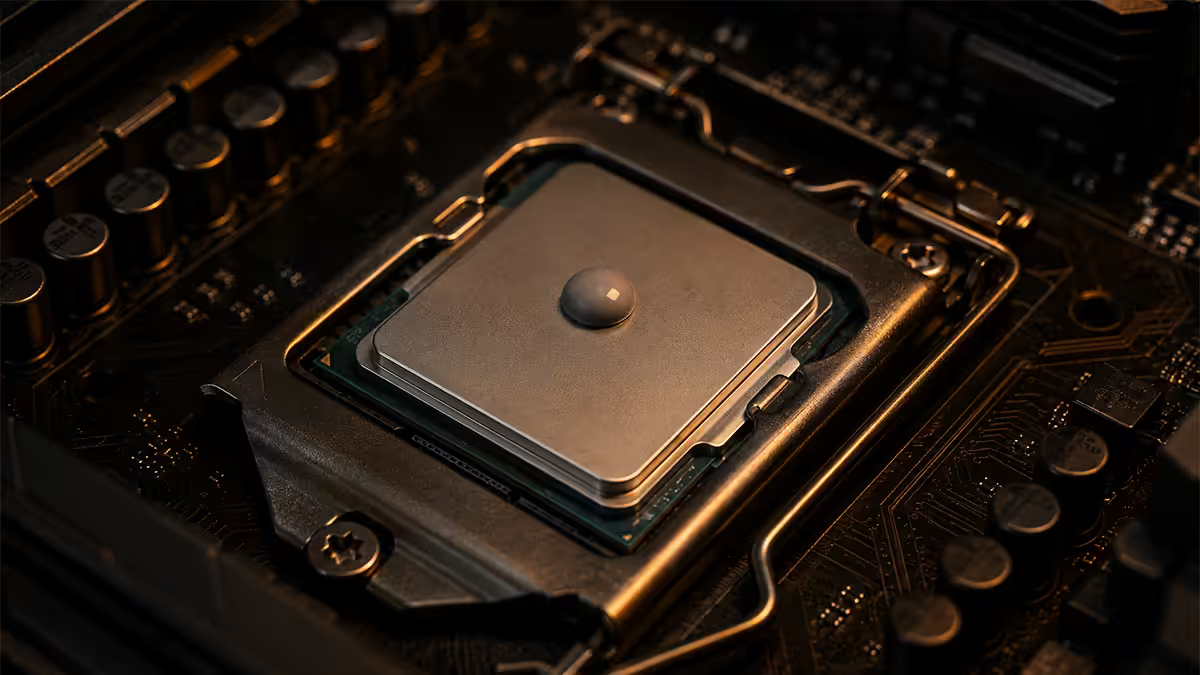
When to repaste — three reliable triggers
Modern thermal paste doesn't dry out the way 2000s-era cheap silicone pastes did. Quality carbon-based paste (Arctic MX-6, Thermal Grizzly Kryonaut, Noctua NT-H2) holds performance for 3-5 years easily, often longer in cool environments.
Repaste when ANY of these is true:
- 3-5 years has passed since the last application — preventative maintenance window.
- CPU temperatures jumped 5-10°C above historical baseline at the same workload — clear paste degradation signal. Check by comparing HWInfo64 readings against earlier screenshots or notes.
- You removed the cooler for any reason — moving to a new build, transporting the PC, upgrading the cooler, accessing M.2 underneath. Always reapply fresh paste; never reuse spread paste.
Don't repaste just because:
- "It's been a year." Quality paste shouldn't need annual reapplication. If temps haven't changed and you haven't moved the cooler, leave it alone.
- "I want to overclock 200 MHz higher." Fresh paste rarely adds enough thermal headroom for additional OC. Better cooling (case fans, AIO size) helps more.
- "Someone on YouTube said I should." Carbon-based pastes have publicly tested 7-10 year longevity in most environments.
Tools needed + SA pricing
| Tool | Why | SA price (May 2026) |
|---|---|---|
| Arctic MX-6 (4g) | Best-value paste | R200-R280 |
| Thermal Grizzly Kryonaut (1g) | Enthusiast pick | R280-R350 |
| Noctua NT-H2 (3.5g) | Premium pick | R260-R380 |
| 99% isopropyl alcohol (250ml) | Clean old paste | R60-R100 |
| Lint-free cloth / coffee filter | Wiping surface | R20-R50 |
| PH2 Phillips screwdriver | Cooler unmount | R50-R150 (or owned) |
| Anti-static wrist strap (optional) | Static protection | R80-R150 |
| Latex / nitrile gloves (optional) | No skin oil on IHS | R30-R80 |
The minimum kit: R200-R380 paste + R60-R100 IPA + R20 cloth = under R500 total. A 4g syringe of MX-6 has 15-20 applications in it, so the per-repaste cost averages R30-R40 in paste.
Step 1: Power off + cool down
- Power off the PC fully. Use Shutdown, not Sleep or Hibernate.
- Unplug the power cable from the back of the PSU (or flip the PSU switch to off).
- Wait 20-30 minutes for the cooler to cool down. Old paste is much easier to remove when it's at room temperature than when it's still warm and tacky.
- Touch the bare metal case to discharge static from your body before handling internal components.
- Lay the case flat on its side (left side panel facing up) on a stable surface. This lets you work on the CPU socket from directly above.
Step 2: Unmount the CPU cooler
Most modern CPU coolers use one of three mounting types: spring-loaded backplate screws (Noctua, Be Quiet, Arctic), backplate-clip system (Cooler Master Hyper / older), or AIO-specific brackets (NZXT, Corsair, Lian Li, EK).
- Disconnect the cooler fan power cable from the motherboard CPU_FAN / CPU_OPT header.
- For AIO coolers, also disconnect the pump cable (usually on CPU_FAN, AIO_PUMP, or a USB header for RGB versions).
- Identify the mounting screws. Usually 4 spring-loaded screws on the cooler that go through to the motherboard backplate.
- Loosen each screw 2-3 turns in a cross pattern (top-left, bottom-right, top-right, bottom-left). Don't fully remove one screw before loosening the others — uneven pressure can damage the IHS.
- Once all loose, fully unscrew each one.
- Lift the cooler straight up. If it's stuck (old paste acting as glue), twist gently left-right while pulling until it releases. Don't pry with a screwdriver — you'll scratch the IHS.
Step 3: Clean the CPU IHS
- Pour a small amount of 99% IPA onto a lint-free cloth or coffee filter paper. Never apply IPA directly to the CPU — it can wick around the IHS edges and onto the PCB.
- Wipe the IHS in straight lines from edge to edge until all visible paste is gone. Apply gentle pressure — don't scrub aggressively.
- Use a fresh portion of the cloth for each pass. Old paste pigment can re-deposit if you keep using the same dirty surface.
- Check at an angle with good light. Old paste residue often hides in the chamfer at the edges of the IHS.
- Wait 30-60 seconds for the IPA to evaporate completely. The IHS should look mirror-clean and dry before applying new paste.
Things to avoid:
- Methylated spirits — contains denaturing additives that leave residue.
- Water-based cleaners — corrosion risk, slow to dry.
- Abrasive scouring pads, kitchen scrubbers, sandpaper — scratch the IHS finish.
- Vinegar, lemon juice, household degreasers — leave residue and risk corrosion.
- Pure ethanol below 99% — water content slows drying and can leave streaks.
Step 4: Clean the cooler cold plate
The cooler's cold plate gets the same treatment as the CPU IHS:
- IPA on a fresh portion of cloth.
- Wipe in straight lines until visible paste is gone.
- Check the cold plate finish. Nickel-plated copper (most coolers) should look mirror-finish. Direct-die copper (some older Noctuas) should look brushed copper. Bare aluminium (cheap stock coolers) is matte silver.
- Look for paste pigment in the corners of the cold plate — old paste loves to accumulate at the edges where pressure is lower.
If the cold plate has been used with liquid metal previously and you're going back to traditional paste, the cleaning is more involved — liquid metal residue (especially on copper coolers) requires polishing compound or fine sandpaper. This is a separate procedure beyond a standard repaste.
Step 5: Apply the paste — pea-sized dot in centre
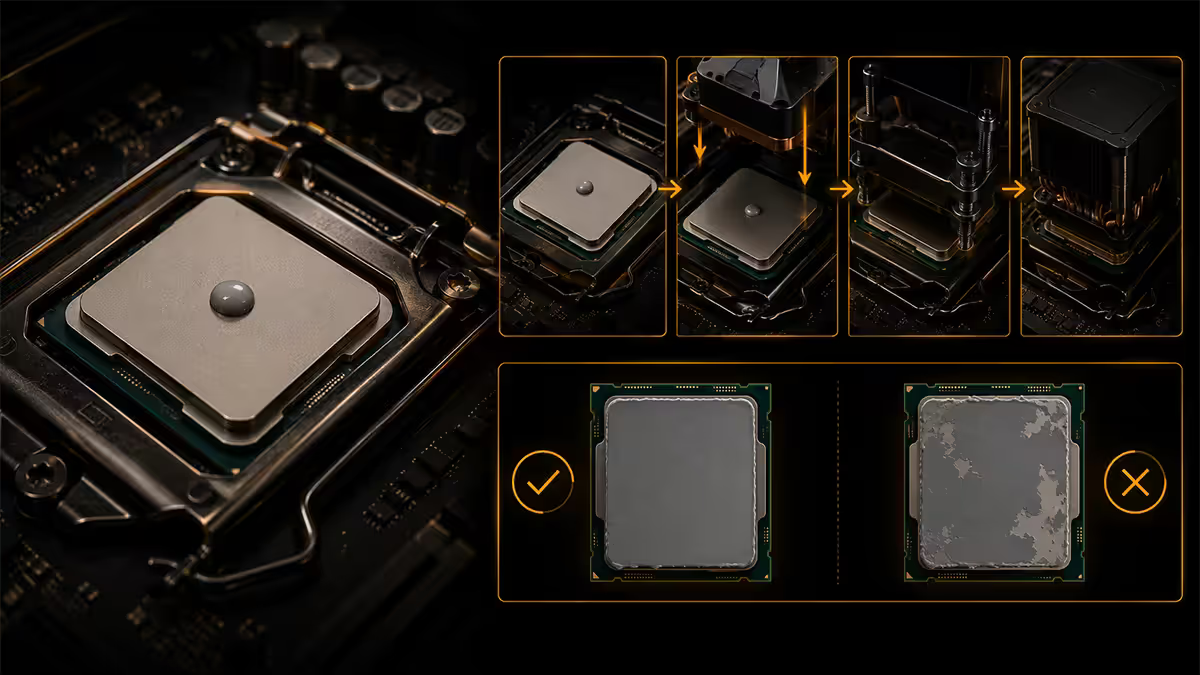
There are a half-dozen application methods debated online. After tens of thousands of builds, the answer is consistently:
Apply a single pea-sized dot in the geometric centre of the CPU IHS.
- The cooler's downforce spreads the paste outward into an even thin layer.
- Too much paste squeezes out the edges and can pool around the socket.
- Too little leaves uncovered corners.
- Pre-spreading with a card introduces micro air pockets that hurt thermal transfer.
- X-pattern, line, spread-with-card and pea methods test within 0.5°C of each other in controlled tests — pea wins on simplicity and forgiveness.
Reference size: a properly-sized pea-dot is about 4-5mm diameter — roughly the size of a green pea or a small uncooked grain of rice. If you can see substantial bare IHS around the dot, that's correct. If the dot covers more than 1/4 of the IHS, that's too much.
For larger CPUs:
- AMD Threadripper / Xeon-W: larger IHS warrants two pea dots side by side, or one larger pea-dot (8mm).
- Direct-die laptop CPUs (bare silicon, no IHS): smaller dot (2-3mm) or carefully spread with card since there's no IHS to even out coverage.
Step 6: Lower the cooler straight down
- Hold the cooler directly above the CPU, aligned with the mounting holes.
- Lower it straight down onto the CPU. Don't approach at an angle — that pushes paste to one side.
- Once contact is made, do not twist the cooler. Twisting spreads paste unevenly and creates voids where the cooler "wiped" past the dot rather than compressing it.
- Apply gentle vertical pressure to keep the cooler seated while you start the first screw.
Step 7: Tighten in cross pattern incrementally
Uneven cooler mounting torque is the second most common repaste mistake (after too much paste). The fix is incremental cross-pattern tightening:
- Start the first screw 3-4 turns by hand (don't tighten yet — just thread it).
- Move to the diagonally opposite screw, thread it 3-4 turns.
- Now the third screw (top-right or bottom-left), threaded.
- Then the fourth.
- Now tighten in the same cross pattern 1 turn at a time. Top-left 1 turn → bottom-right 1 turn → top-right 1 turn → bottom-left 1 turn.
- Continue 1 turn at a time until the screws bottom out / stop turning easily. Spring-loaded screws have a designed stop point — when they don't tighten further with reasonable force, stop. Don't over-tighten.
Why cross-pattern matters: if you tighten one corner fully before others, paste squeezes to one side instead of spreading evenly outward from the centre. The IHS contact pressure becomes uneven, leaving some areas with thicker paste than others — exactly what you're trying to avoid.
Step 8: Reassemble + first boot
- Reconnect the cooler fan cable to CPU_FAN. Reconnect AIO pump cable if applicable.
- Visually check no paste is visible outside the IHS — if there's squeeze-out visible around the edges, you used too much. Worth taking apart and starting over with less.
- Close the case side panel.
- Plug in power, boot the PC.
- Watch the boot — temps should rise slowly from cold start. If temps spike to 80-90°C+ immediately at idle, the cooler isn't making good contact and you need to re-do the mount.
- Boot into Windows.
Step 9: Verify temps + stress test
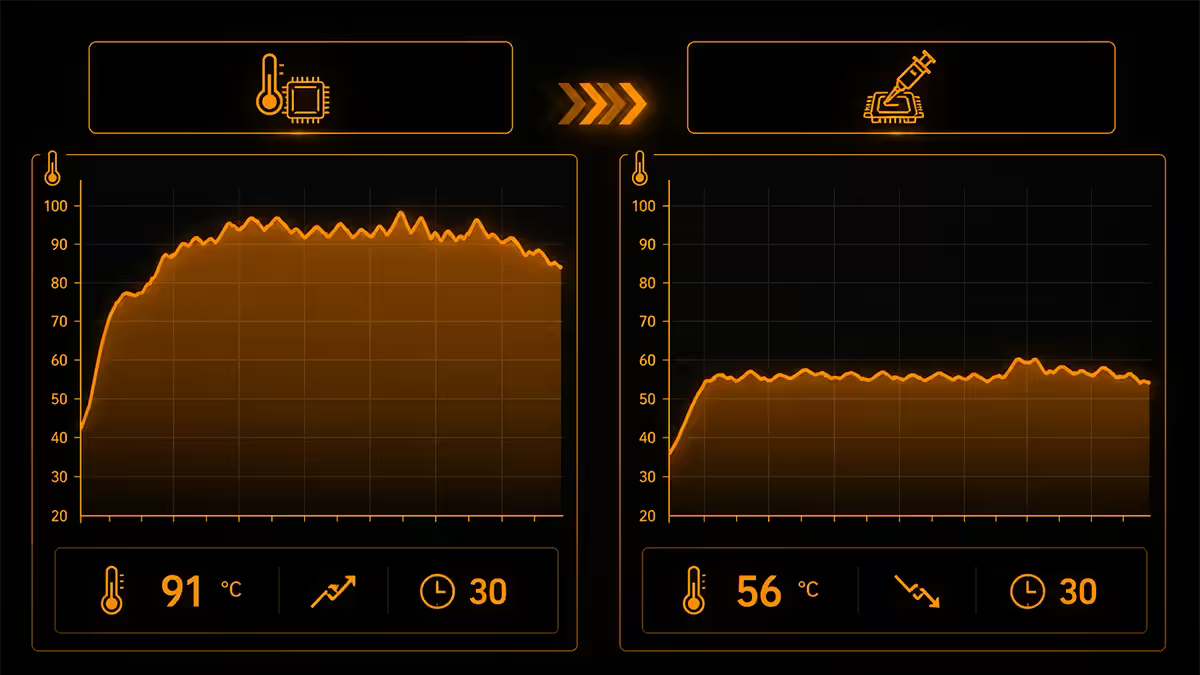
- Open HWInfo64. Note the idle CPU temperature — should be ambient + 5-15°C (e.g. 25-35°C in a 22°C room).
- Run Cinebench R23 multi-core for 30 minutes.
- Compare max temperature against your pre-repaste baseline. Quality repaste should show 5-12°C drop on sustained load.
- If temps are HIGHER than before: the cooler isn't seated correctly. Re-do the mount.
- If temps are roughly the same: the old paste wasn't as degraded as you thought, OR the new application wasn't quite right. Acceptable result.
- If temps are lower: success. Lock in the new build journal entry as your fresh baseline for the next 3-5 years.
Paste type safety
Standard ceramic / carbon (recommended for everyone)
Arctic MX-6, Thermal Grizzly Kryonaut, Noctua NT-H2, Cooler Master MasterGel. Non-electrically-conductive — if a tiny bit squeezes onto the motherboard near the socket, nothing bad happens. Safe for first-timers, safe for professional builders, safe for daily life. The right choice for 99% of repastes.
Liquid metal (advanced users only)
Thermal Grizzly Conductonaut, Coollaboratory Liquid Pro. Gallium-based, drops temps a further 4-7°C compared to top-tier carbon paste. Electrically conductive — a single drop on the wrong motherboard pin can short and destroy the board. Reacts with aluminium — destroys aluminium coolers. Application requires careful prep, masking and patience. Not for first-time repasters; not for builds in transport-prone use; not for anyone uncomfortable with the risk.
Pre-applied (bundled with new coolers)
Mid-tier coolers (Arctic Freezer, Deepcool AK series) ship with thermal paste pre-applied on the cold plate. Good enough for most builds. Premium coolers (Noctua, Be Quiet Dark Rock) include a separate syringe of high-grade paste in the box for repastes. If you have a leftover Arctic MX-6 or Thermal Grizzly tube on hand, use that instead of the bundled paste for the small thermal upgrade.
Common repaste mistakes
Applying too much paste. The single most common mistake (60% of fix-it tickets we see). A pea-sized dot is the right amount; the cooler spreads it. Excess squeezes out and can pool near socket components.
Uneven cooler mounting torque. Second most common (28%). Always cross-pattern tighten in 1-turn increments — never fully tighten one corner before others.
Spreading paste with a card before mounting. Introduces micro-bubbles that hurt thermal transfer. Cooler pressure alone spreads paste better than any card technique.
Reusing spread paste from previous install. Once compressed and heated, paste's properties change. Always clean and apply fresh paste when remounting — even if you only removed the cooler for 5 minutes.
Touching the IHS with bare fingers. Skin oils leave residue on the IHS that reduces thermal contact. Hold the CPU by the edges only, or wear nitrile gloves.
Twisting the cooler after contact. Spreads paste unevenly. Lower straight down, then tighten — never twist after touchdown.
Using the wrong cleaning solvent. Methylated spirits, water-based degreasers and household cleaners leave residue or cause corrosion. 99% IPA is the only safe choice.
Repasting too often. Modern carbon paste lasts 3-5 years. Annual repastes are unnecessary effort that adds 0-1°C improvement over fresh-but-unchanged paste.
Key takeaways
- Repaste every 3-5 years, or when temps creep 5-10°C above baseline, or whenever you remove the cooler.
- Pea-sized dot in centre of IHS — never spread. Cooler pressure does the spreading.
- Clean both IHS and cold plate with 99% IPA on a lint-free cloth. Never apply IPA directly to the chip.
- Cross-pattern tighten in 1-turn increments. Never fully tighten one corner before the others.
- Verify with HWInfo64 + 30-min Cinebench R23. Expect 8-12°C drop replacing degraded paste with fresh.
Frequently asked questions
How often should I repaste my CPU?
Every 3-5 years on quality paste, or sooner if temps jump 5-10°C above baseline, or whenever you remove the cooler for any reason.What tools do I need to repaste a CPU?
Thermal paste (R200-R380), 99% IPA (R60-R100), lint-free cloth, PH2 screwdriver. Minimum kit under R500 total.How do I know when my CPU needs a repaste?
3 triggers: (1) 3-5 years since last application, (2) temps crept 5-10°C above baseline, (3) you've removed the cooler for any reason.How much thermal paste should I apply when repasting?
A pea-sized dot (4-5mm diameter) in the geometric centre of the CPU IHS. The cooler's pressure spreads it evenly outward.How do I clean off the old thermal paste safely?
99% IPA on a lint-free cloth (never directly on the chip). Wipe in straight lines until clean. Wait 30-60 sec for IPA to evaporate.Will repasting my CPU void my warranty?
No — CPU warranty is not affected by repasting itself. Damage during removal (bent pins, dropped IHS) is not covered though, so be careful.How much will repasting drop my CPU temps?
8-12°C cooler at sustained load when replacing 3-5 year old paste with fresh quality paste. 1-3°C if the original was recently applied and properly done.What's the most common mistake when repasting?
Too much paste (60% of fix-it tickets we see). Pea-sized dot is correct. Second most common: uneven cooler mounting torque (28%).
Get the Evetech app
Exclusive app-only prices, daily flash sales, and free delivery on orders over R4,000 — download the app and start saving.