PC Migration Guide
Transfer data to a new PC. — Cloud, SSD or cable. Pick one, get on with it.
HomeGroup is dead. Windows Easy Transfer is dead. What's left in 2026 is faster, cleaner and — if you don't romanticise the old PC — usually finished in an afternoon.
- total migration
- 3-5 hrs
- SSD copy speed
- ~1GB/s
- to choose from
- 3 routes

Fresh install vs migrate — make this decision first
Before choosing a route, choose a philosophy. The way you migrate matters less than what you migrate.
Fresh install means: move only your files (Documents, Pictures, Videos, Downloads, Desktop, project folders) and your licence keys. Reinstall every application from scratch — fresh, current, sign in, done.
Migrate means: move files and applications, settings, user profiles, registry entries. Tools like Laplink PCmover and EaseUS Todo PCTrans can do this — but you inherit every cruft, every conflicting driver, every "Adobe Reader 9 left over from 2019" issue.
Why fresh-install almost always wins:
- A new Win11 24H2 install with clean drivers boots in 8-12 seconds and stays fast for years.
- Most apps you "need" you actually don't — half your Programs list is software you used once in 2022.
- Migrated installs inherit driver conflicts, abandoned background services and registry rot.
- Reinstalling forces you to update licence emails, find current download links and clean up unused subscriptions.
When migrate makes sense: you have a specific legacy app with a lost installer (old engineering software, custom ERP clients, old game launchers no longer distributed). For those cases, PCmover earns its R600 sticker.
Route 1 — Cloud sync (OneDrive, Google Drive, iCloud Drive)
Cloud sync is the lowest-friction route: sign into the same cloud account on both PCs and your files appear. Windows 11 ships with OneDrive built in; Google Drive and iCloud Drive install as native sync clients.
- 1
Upload from old PC
On the old PC, sign into OneDrive (or Google Drive / iCloud Drive). Move Documents, Pictures and Desktop into the cloud folder, or use OneDrive's Backup feature to auto-redirect those folders. - 2
Wait for upload to complete
Wait for upload to complete. Check the OneDrive icon — green tick means fully synced. - 3
Sign in on new PC
On the new PC, sign into the same cloud account. Files download as needed (Files On-Demand) or all-at-once (Always keep on this device).
Reality check for SA: typical home fibre uplink is 5-50Mbps. A 200GB photo library uploads in 9-90 hours depending on your line. Most builders should kick the upload off the night before they get the new PC — by morning it's done.
Storage limits: free OneDrive gives 5GB, Microsoft 365 includes 1TB. Google Drive free is 15GB, Google One 200GB is ~R65/month. iCloud Drive free is 5GB, 200GB is ~R59/month, 2TB is ~R199/month. For most users, the upgrade pays for itself in just two months of zero-stress migration.
Route 2 — External NVMe SSD copy (the SA winner)
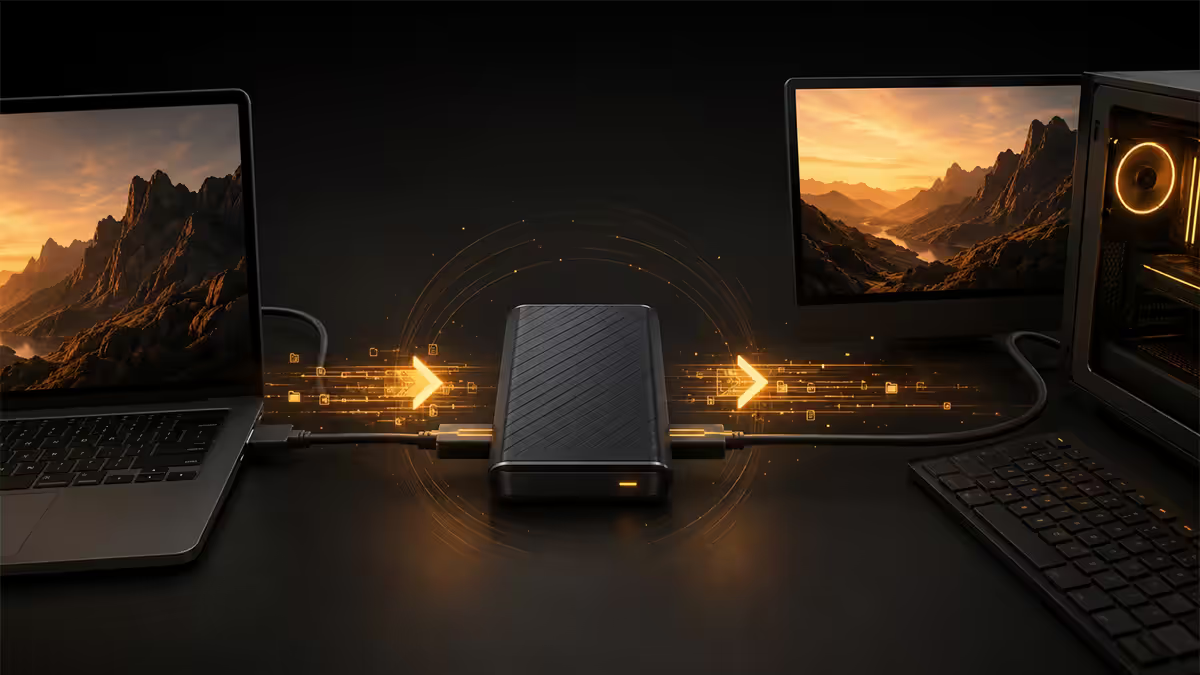
An external NVMe SSD is the fastest, cheapest and most reliable route for SA users. A modern USB-C external SSD copies at ~1GB/s — 200GB in 4 minutes, 1TB in about 17 minutes.
Recommended drives (in SA stock at Evetech):
| Drive | Speed | SA price (1TB) |
|---|---|---|
| Crucial X9 Pro | 1050 MB/s | R1,650-R1,900 |
| Samsung T7 Shield | 1050 MB/s | R1,800-R2,200 |
| SanDisk Extreme Pro V2 | 2000 MB/s | R2,400-R2,900 |
| WD My Passport SSD | 1050 MB/s | R1,800-R2,300 |
| Lexar SL500 (budget) | 800 MB/s | R1,200-R1,500 |
- 1
Connect SSD to old PC
Plug the SSD into the old PC's rear USB-C port (front ports are often slower). - 2
Copy user folders
Open File Explorer. Drag Documents, Pictures, Videos, Music, Downloads and Desktop to the SSD. - 3
Copy additional app data
Also copy any custom project folders, AppData/Roaming app data you care about (Discord profiles, OBS scenes, etc.), and your Outlook .pst file if applicable. - 4
Wait for copy to complete
Wait for copy to complete (typically 10-30 minutes for typical user data). - 5
Copy to new PC
Plug the SSD into the new PC. Copy the folders into place. Done.
The SSD becomes a useful backup drive after migration, which is a much better R1,800 investment than a single-use transfer cable.
Route 3 — Transfer cable + migration software
A USB transfer cable connects two PCs directly via USB-A on both ends and bundles migration software. Popular options in SA:
- Plugable USB 3.0 Easy Transfer Cable (with bundled software): R900-R1,200 imported via Takealot or Evetech.
- Laplink PCmover Professional (software only, R600-R900 standalone) — runs over a regular network or USB cable.
- EaseUS Todo PCTrans Pro — R750/year, runs over LAN.
- Bombich Carbon Copy Cloner — Mac-only equivalent; not relevant for Windows-to-Windows migration.
Transfer cables/software can move applications, user accounts and Windows settings in one session — which is the migrate route, not the fresh-install route. If you've decided fresh install is better for you, you don't need this. If you have legacy apps you can't reinstall, transfer cable is worth it.
LAN sharing in 2026 — the HomeGroup-is-dead reality
Microsoft killed HomeGroup in Windows 10 (April 2018 update) and never replaced it with a built-in successor. Windows 11 has no HomeGroup. The 2026 LAN sharing reality is older and clunkier.
SMB file sharing (server message block) still works — but enabling it requires a few steps:
- 1
Share a folder on source PC
On the source PC: right-click a folder → Properties → Sharing → Share → add your Windows user, set permissions, Share. - 2
Enable Network Discovery
Open Settings → Network & Internet → Advanced network settings → Advanced sharing settings. Turn on Network Discovery and File Sharing for the Private network profile. - 3
Browse from destination PC
On the destination PC: open File Explorer → click Network in the sidebar → the source PC should appear. Browse to the shared folder. - 4
Drag files across
Drag files across. Typical speed: 100MB/s on gigabit LAN.
The reality: SMB sharing breaks more often than it works on consumer Win11 — antivirus blocks it, accounts mismatch, IPv6 vs IPv4 conflicts. For occasional file moves it's fine; for full migration, external SSD is dramatically less frustrating.
Moving your Steam library without re-downloading
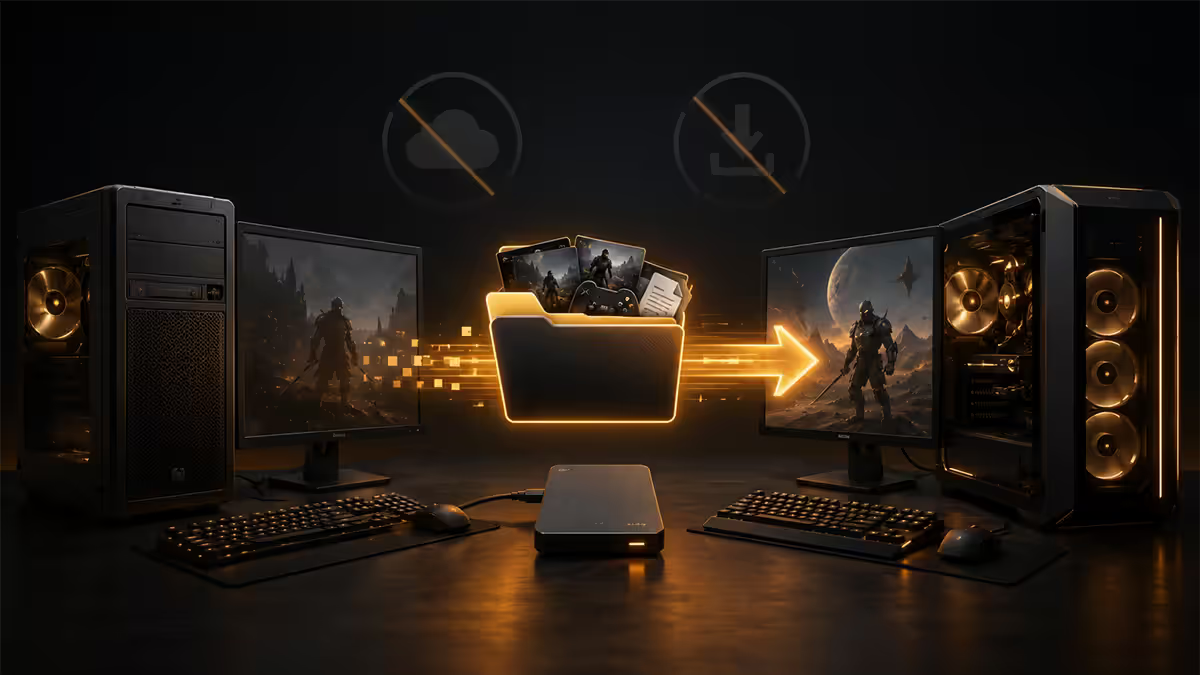
Re-downloading a 500GB Steam library on a 100Mbps SA line takes 12+ hours. Don't do it. Steam has had a built-in library-move feature for years.
- 1
Open Steam Storage on old PC
On the old PC: open Steam → Settings → Storage. - 2
Move folder to external SSD
Click the drive holding your library → click the three-dot menu → Move folder. - 3
Wait for Steam to copy
Pick your external SSD as the destination. Wait for Steam to copy and verify. - 4
Add drive on new PC
On the new PC: install Steam, log in. Open Settings → Storage → Add Drive and point it at the external SSD location. - 5
Steam re-verifies
Steam re-verifies file integrity (a few seconds per game) and your library appears installed. Play immediately.
The faster way (manual copy): copy your steamapps folder from old PC to new PC (or to external SSD then to new PC). On the new PC, install Steam to the same drive structure, then Steam → Settings → Storage → Add Drive and point at the folder. Steam scans, finds the games, validates them in seconds.
Epic, GOG, Battle.net, EA App, Ubisoft Connect all support similar "scan existing folder" workflows — exact menu options vary. Always copy the install folder first, then point the launcher at it. Re-downloading is for cases where the launcher refuses to recognise your existing install.
Browser bookmarks, passwords and extensions
The easy way: sign into your browser sync account on both PCs.
- Chrome — sign into your Google Account. Settings → "Sync and Google services" → "Manage what you sync" → turn on Bookmarks, Passwords, Extensions, History, Settings. Five minutes after sign-in, everything's there.
- Microsoft Edge — sign in with your Microsoft Account. Settings → Profiles → Sync. Same items, same workflow.
- Firefox — sign into your Firefox Account. Settings → Sync. Same workflow.
- Brave / Vivaldi / Arc — all have built-in sync (usually free, optional encrypted accounts).
Manual export (no sync account):
- Chrome bookmarks: Bookmarks Manager → three-dot menu → Export bookmarks → HTML file. Import on new PC the same way.
- Edge favorites: Favorites → three-dot menu → Export.
- Firefox bookmarks: Library (Ctrl+Shift+O) → Import and Backup → Export Bookmarks to HTML.
Passwords — never use the export-to-CSV option. The exported file is plain text and a security disaster waiting to happen. Use a password manager instead: Bitwarden (free, open-source) or 1Password (R75/month) — sign in on the new PC, everything's there.
Recommended migration kit
| Need | Pick | SA price |
|---|---|---|
| External NVMe SSD (1TB) | Crucial X9 Pro or Samsung T7 Shield | R1,650-R2,200 |
| External NVMe SSD (2TB) | Crucial X9 Pro 2TB | R2,800-R3,400 |
| USB transfer cable + software | Plugable USB 3.0 Easy Transfer | R900-R1,200 |
| Cloud storage (1TB) | Microsoft 365 Personal (1TB OneDrive + Office) | R109/month |
| Cloud storage (2TB) | Google One 2TB | R169/month |
| Migration software (legacy apps) | Laplink PCmover Professional | R600-R900 |
| Password manager (free) | Bitwarden | Free |
Pick your route at a glance
- Route 01 · Cloud — OneDrive / Google Drive: Zero hardware. Set up the night before. SA uplink-bound (5-50Mbps). Best for <100GB.
- Route 02 · External SSD — USB-C NVMe drive copy: ~1GB/s. 200GB in 4 minutes. R1,800 buys a backup drive after migration. Best for SA.
- Route 03 · Cable — Plugable + PCmover: ~60MB/s. Slower than SSD but moves applications and settings. For legacy app refugees only.
Key takeaways
- Fresh install almost always beats migrate. Move the files; reinstall the apps.
- External NVMe SSD is the fastest route for SA — ~1GB/s, R1,800 for 1TB, becomes a useful backup drive after.
- Cloud sync (OneDrive, Google Drive) is great but capped by SA fibre uplink — check yours first.
- HomeGroup and Easy Transfer are dead. SMB still works but is more frustrating than an SSD copy.
- Steam library moves via Settings → Storage → Move folder, then Add Drive on the new PC. No re-download.
- Browser sync handles bookmarks, passwords and extensions automatically — use it.
Frequently asked questions
What's the fastest way to transfer data to a new PC?
For under 200GB: an external NVMe SSD (Crucial X9, Samsung T7, SanDisk Extreme Pro) is fastest — you can copy 200GB in 4-5 minutes at 1GB/s. For everything else: a transfer cable (Plugable USB 3.0 Transfer Cable or PCmover hardware) handles 100GB in 20-40 minutes. Cloud sync is slowest in SA because of uplink caps but is the only zero-hardware option.Should I do a fresh Windows install or migrate everything?
Fresh install almost always wins. A new PC running Win11 24H2 with clean drivers, no leftover app cruft and a clean registry will boot in 8-12 seconds and outperform a migrated install for the next 3-5 years. Migrate only your files and licence keys — reinstall applications fresh. The hour you save copying installers is paid back by performance over the life of the machine.Does Windows 11 still have HomeGroup or Easy Transfer?
No. Microsoft killed HomeGroup in Windows 10 (2018) and removed Windows Easy Transfer in Windows 10/11 entirely. The 2026 alternatives are: OneDrive (built into Windows 11), LAN file sharing via SMB, an external SSD as physical transfer media, or third-party tools like Laplink PCmover Professional and Bombich Carbon Copy Cloner.How do I move my Steam library to a new PC without re-downloading?
Steam has a built-in backup/restore feature — and easier still, just copy the entire steamapps folder. On the old PC: navigate to Steam → Settings → Storage → right-click your library → 'Move folder' to an external SSD. On the new PC: install Steam, then drag the steamapps folder onto the new SSD location and tell Steam where to find it via Settings → Storage → Add Drive. Steam re-verifies game integrity and you're playing in minutes — no re-downloads.How do I export browser bookmarks and passwords?
Browser sync is the easy way: log into Chrome/Edge/Firefox with the same account on both PCs and bookmarks, passwords, history and extensions sync automatically. Manual export: Chrome → Bookmarks Manager → three-dot menu → Export Bookmarks. Edge → Favorites → three-dot menu → Export. Firefox → Library → Import and Backup → Export Bookmarks to HTML. For passwords without sync, use a password manager (Bitwarden, 1Password) — never export passwords to a plain file.What is a transfer cable and is it worth it in SA?
A USB transfer cable connects two PCs directly via USB-A and bundles migration software (PCmover, EaseUS Todo PCTrans). It transfers files, applications, settings and user accounts in one session. In SA you'll pay R450-R1,200 for the cable plus software bundle — worth it if you have a PC full of legacy installs you don't want to reinstall, otherwise an external SSD is cheaper and faster.How long should a PC migration take in 2026?
Plan an afternoon. External SSD copy of typical user data (50-200GB Documents + Photos): 30-60 minutes. Reinstalling apps and signing into cloud services: 1-2 hours. Steam library copy and verify: 30-60 minutes depending on size. Browser sync: 5-10 minutes. Total: 3-5 hours from old PC powered on to new PC fully productive. Plan it for a weekend, not a weekday morning.What should I delete from the old PC before retiring it?
Sign out of every cloud account (Microsoft, Google, Apple, Adobe, Steam, Discord, OneDrive, Dropbox). Deauthorise the PC in iTunes/Apple Music, Adobe Creative Cloud and any other licence-bound app. Then wipe the drive: Settings → System → Recovery → Reset this PC → Remove everything → Clean the drive (fully). If you're reselling locally, that's enough. If you're worried about forensic recovery, run a 1-pass overwrite with a tool like Eraser or Microsoft cipher /w.