Windows 11 Cleanup Guide
Disable the bloatware. — 30 minutes to a Windows 11 you actually want.
Every new PC ships with software you didn't ask for. McAfee trials, OEM dashboards, Cortana, Xbox Game Bar, Bing News, pinned promo apps. Here's how to clean it without breaking anything that matters.
- total cleanup
- ~30 min
- faster boot
- 5-15 s
- Settings · Script · PS
- 3 methods
What counts as bloatware on a new PC
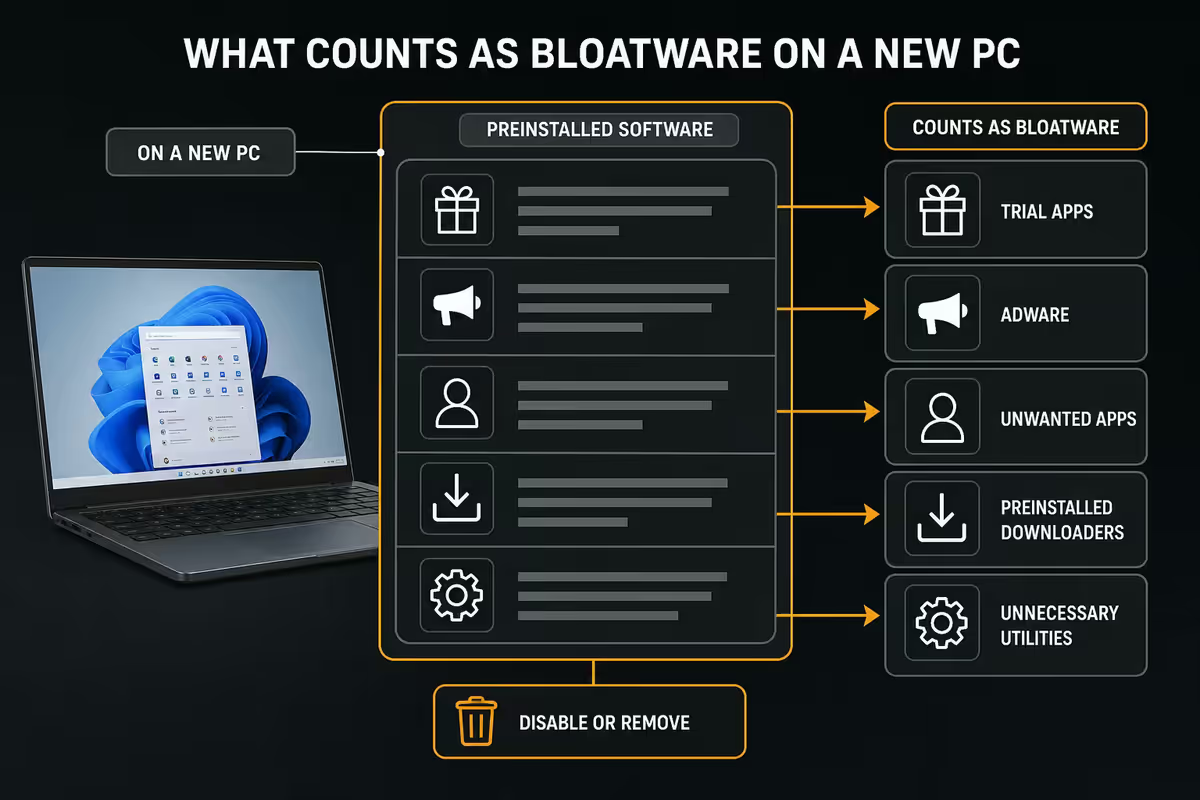
"Bloatware" is the catch-all term for software pre-installed on a new PC or laptop that you didn't ask for and probably don't want. It comes from three different sources, and the cleanup approach for each is different.
First, OEM software — what HP, Dell, Lenovo, Acer, Asus, MSI and other manufacturers add on top of Windows before they ship the machine. This includes legitimately useful vendor utilities (Lenovo Vantage, Dell SupportAssist, Asus Armoury Crate), commercial partner pre-installs (McAfee 30-day trials, Norton 360 trials), and pure shovelware (WildTangent games, Power2Go, CyberLink suites).
Second, Microsoft's own bundled apps — what Windows 11 itself includes that you may not want. Xbox Game Bar, Cortana, Bing News, Weather, Skype, Solitaire, Microsoft Teams (consumer), Recall, and a growing list of Edge-promotional features.
Third, Microsoft Store promotional pins — TikTok, Spotify, Disney+, Instagram, Candy Crush Saga, LinkedIn shortcuts that pin themselves to the Start menu on first sign-in via a Microsoft Account. These aren't fully installed apps; they're "stub" placeholders that download on first click.
OEM tier reality — what your laptop maker added
Every laptop brand has its own bloatware signature. Knowing what's on yours helps prioritise.
| Vendor | Common pre-installs | Keep / Remove |
|---|---|---|
| HP | HP Wolf Security, HP Support Assistant, HP Smart, McAfee LiveSafe trial | Remove McAfee. Keep Support Assistant for driver updates if you don't use third-party tools. |
| Dell | Dell SupportAssist, Dell Update, McAfee, Dropbox promotion | Keep SupportAssist and Dell Update. Remove McAfee and Dropbox. |
| Lenovo | Lenovo Vantage, Lenovo Now, McAfee, ThinkPad utilities | Keep Vantage (useful settings). Remove Lenovo Now and McAfee. |
| Acer | Acer Care Center, Acer Quick Access, Norton, OneDrive promotion | Keep Care Center. Remove Norton and Quick Access if unused. |
| Asus | Armoury Crate, MyAsus, Norton 360, Asus Office trial | Keep Armoury Crate on ROG/TUF gaming machines. Remove Norton. |
| MSI | MSI Center, Nahimic, Norton, partner game launchers | Keep MSI Center and Nahimic. Remove Norton and game launchers. |
The pattern: keep the manufacturer utility that actually controls hardware features (battery thresholds, fan profiles, RGB, screen colour). Remove the bundled antivirus trial — every single one. And ignore or remove the promotional partner apps.
Microsoft's own bundled bloat
Even a clean Windows 11 install from Microsoft ships with apps most users don't want. The full list keeps growing:
- Cortana — the AI assistant Microsoft has been quietly retiring. Still pre-installed, still consuming background resources.
- Xbox Game Bar — useful for gaming, useless for everyone else. Many users prefer to disable it entirely.
- Bing News & Weather widgets — Microsoft Start panel and weather widget on the taskbar.
- Skype Meet Now — bundled despite Skype being on its way out.
- Microsoft Solitaire Collection — yes, with ads.
- Recall (on Copilot+ PCs) — the AI screenshot history feature. Many users disable for privacy.
- Mixed Reality Portal — for VR headsets you almost certainly don't have.
- Get Started / Tips — pop-up tutorials.
- People app — separate contacts app most people ignore.
- Microsoft Teams (consumer) — distinct from work Teams, auto-launches.
Method 1 — Settings → Apps cleanup (do this first)
Eighty percent of bloatware removal happens here, and it requires zero scripts or PowerShell.
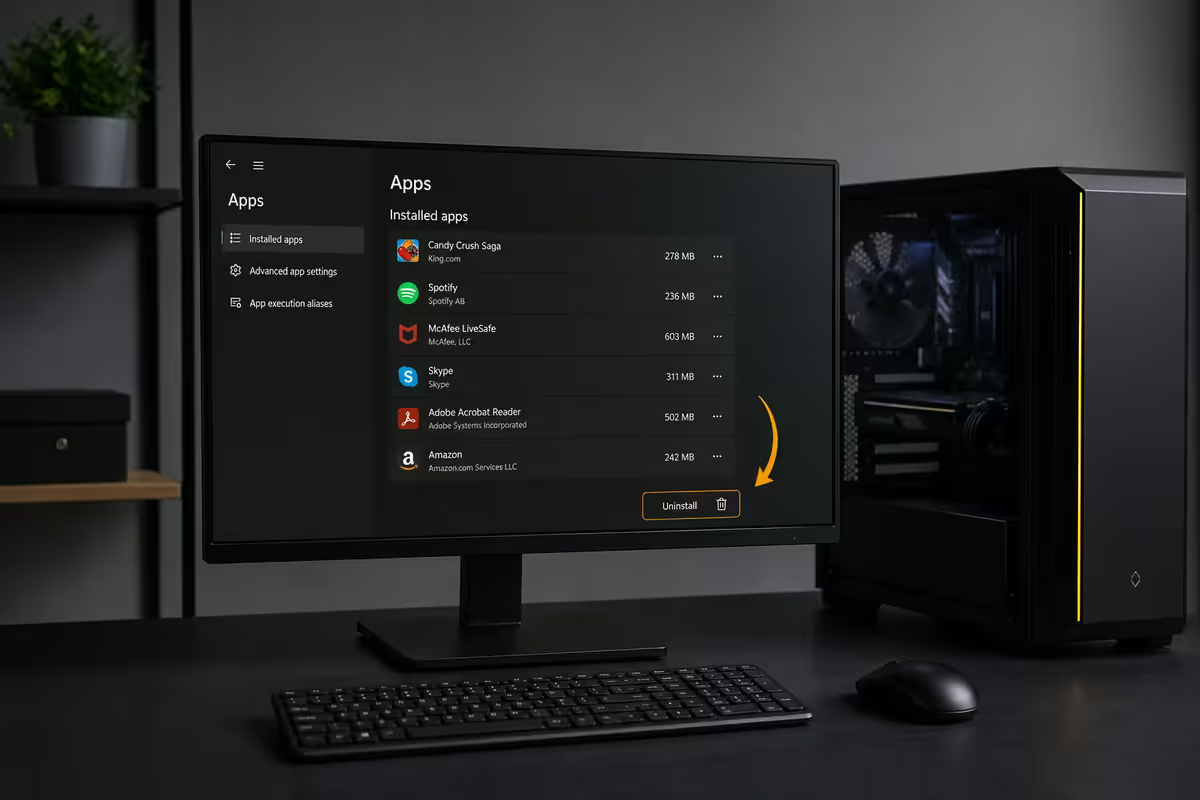
- Open Settings (Win key + I) → Apps → Installed apps.
- Sort by Size or Install date to surface what's recent and heavy.
- For each item you don't want: click the three-dot menu → Uninstall.
- Some Microsoft apps (Cortana, Edge, Recall) show Advanced options instead of Uninstall — use Win11Debloat or PowerShell for those.
Order of attack: McAfee/Norton first, then OEM promotional apps (Lenovo Now, Dropbox promotion), then Microsoft Store pinned promos (TikTok, Spotify pin, Candy Crush, Disney+), then any game launcher you didn't ask for (WildTangent, partner-bundled launchers).
Method 2 — Win11Debloat for the hard stuff
For Microsoft-bundled apps that won't uninstall via Settings — Cortana, Bing News, Xbox Game Bar, Recall, Mixed Reality Portal, the People app — the cleanest community option is Win11Debloat. It's an open-source PowerShell script maintained on GitHub with thousands of stars, an interactive prompt, and reversible changes.
How to run it (one-liner, as Administrator):
iwr -useb "https://win11debloat.raphi.re/" | iexThe script asks what you want to remove — bundled apps, telemetry, Recall, Bing in search, Copilot, Edge promotional features, registered AppxPackages — and you select per category. Nothing happens silently. You can run it again with different choices, or undo most changes.
Method 3 — PowerShell precision removal
For granular, single-app removal — when you want to remove one specific Appx package and leave everything else — PowerShell is the cleanest tool.
Open PowerShell as Administrator (Start → type PowerShell → right-click → Run as administrator).
List all installed Appx packages:
Get-AppxPackage | Select Name, PackageFullNameRemove a specific package (current user only):
Get-AppxPackage *BingWeather* | Remove-AppxPackageRemove for all users on the system (machine-wide):
Get-AppxPackage -AllUsers *XboxGameBar* | Remove-AppxPackage -AllUsersCommon targets (the wildcards you'll actually use):
*Bing*— Bing News, Bing Weather, Bing Search*Xbox*— Xbox Game Bar, Xbox Identity Provider, Xbox Live*Skype*— Skype Meet Now*Solitaire*— Microsoft Solitaire Collection*Teams*— consumer Teams (Microsoft.Teams)*Mixed*— Mixed Reality Portal*People*— the People app*GetStarted*— Tips / Get Started app*OneNote*— only if you don't use OneNote
Some Microsoft apps are protected and cannot be removed via Uninstall-AppxPackage even with admin rights. Edge, Recall in some builds, Windows Security and a few others fall into this category. Win11Debloat handles most of those with registry tweaks.
What you must NEVER remove
More PCs break from over-zealous debloating than from leaving bloatware alone. The following are off-limits on any production machine:
- GPU drivers and control panels — NVIDIA App, AMD Adrenalin, Intel Graphics Command Center. They control game profiles, monitor settings, refresh rate management. Removing breaks games.
- Chipset drivers — AMD Chipset Software, Intel Chipset Device Software. Underpins core CPU/board communication.
- Audio drivers — Realtek Audio Console, Nahimic, Asus Sonic Studio. Removing breaks system audio.
- Your laptop or motherboard's BIOS update utility — HP Support Assistant, Dell Update, Lenovo Vantage, MSI Center, Asus Armoury Crate. The only easy way to get security firmware updates.
- Microsoft Visual C++ Redistributables — every version. Hundreds of games and apps depend on them.
- .NET Framework / .NET Runtimes — same reason.
- Windows Security if you don't have a third-party antivirus. Don't leave the system unprotected.
- OneDrive if your Documents/Pictures are syncing through it. Disconnect and uninstall properly first if you want to remove.
Key takeaways
- Create a System Restore point first — 60 seconds, full rollback safety.
- Settings → Apps → Installed apps handles 80% of cleanup — start there. McAfee/Norton trials first.
- Win11Debloat is the safest community script for Microsoft-bundled stuff Settings won't remove. Open-source, interactive prompts.
- PowerShell Get-AppxPackage / Remove-AppxPackage gives granular per-app control with wildcards.
- Never remove GPU/chipset/audio drivers, BIOS update utilities, Visual C++ Redistributables, or Windows Security if it's your only AV.
Frequently asked questions
What counts as bloatware on a new Windows 11 PC?
Three categories. OEM software the laptop or PC maker added (HP Wolf Security, Lenovo Vantage, Dell SupportAssist, McAfee 30-day trial, Norton trials, pre-installed game launchers like WildTangent). Microsoft's own bundled apps you may not want (Xbox Game Bar, Cortana, Bing News, Weather, LinkedIn shortcut, Skype, Microsoft Solitaire). Microsoft Store promotional shortcuts (Spotify, Disney+, TikTok, Candy Crush) that pin themselves to Start. Anything pre-installed you didn't ask for and don't use is fair game for removal.Is it safe to use Win11Debloat?
Yes, for personal PCs. Win11Debloat is the most reputable community Windows debloat script — open-source, actively maintained on GitHub, with a clear interactive prompt explaining each removal. It does not modify system files in destructive ways and changes can be reversed by reinstalling AppxPackages from the Microsoft Store. Do NOT run it on a work PC managed by IT — that violates corporate policy and may break management tools.What should I never remove from a new PC?
Never remove: GPU drivers (NVIDIA/AMD/Intel graphics control panels — needed for game profiles), chipset drivers, your motherboard or laptop vendor's BIOS update utility, the audio driver control panel (Realtek, Nahimic — affects sound), Windows Security if you don't have a third-party antivirus, and Microsoft Visual C++ Redistributables (lots of games and apps require them). Removing these breaks things.How do I uninstall a pre-installed app that has no Uninstall option?
Use PowerShell as administrator with the Uninstall-AppxPackage command. Open Start, type PowerShell, right-click and Run as Administrator. To list installed apps: Get-AppxPackage | Select Name, PackageFullName. To remove one: Get-AppxPackage *PackageName* | Remove-AppxPackage. For all users on the system: add -AllUsers flag. Some Microsoft-bundled apps like Edge and Recall cannot be removed via this method by design.Should I remove McAfee or Norton that came pre-installed?
Yes, for most users. Pre-installed McAfee and Norton are 30-day trials that convert to expensive auto-renewing subscriptions. Windows 11 Security (Microsoft Defender) is genuinely sufficient for typical users in 2026. Use Windows Settings → Apps → Installed apps → find McAfee/Norton → Uninstall. Use their official removal tools (McAfee Consumer Product Removal Tool, Norton Remove and Reinstall Tool) for a complete uninstall — Windows Add/Remove leaves residual services running.What's the difference between an OEM PC and a custom-built PC for bloatware?
Massive. Custom-built PCs from a system integrator like Evetech ship with a clean Windows 11 install — no McAfee trials, no Lenovo Vantage, no Dell SupportAssist, no OEM-pushed shortcuts. The only software added is what you specifically requested. OEM laptops and pre-built PCs from HP, Dell, Lenovo, Acer, Asus all ship with manufacturer software that often pre-installs partner apps. Custom-built PCs need only the standard Windows 11 cleanup (Cortana, Xbox Game Bar, Bing News) — far less work.Will removing bloatware actually make my PC faster?
Modest gains for most users. Faster boot times (5-15 seconds), reduced background CPU/RAM usage, fewer notification pop-ups, less startup junk. The difference is most noticeable on lower-end laptops with 8GB RAM and slower SSDs. On a fast modern PC with 16GB+ RAM, bloatware removal is more about removing annoyance and reclaiming the Start menu than performance — though McAfee and similar always-on AV trials genuinely do slow systems.Can I undo a bloatware removal if I change my mind?
Mostly yes. Modern Windows apps removed via AppxPackage can be reinstalled from the Microsoft Store. OEM utilities can be redownloaded from the vendor's support site (HP.com/support, Lenovo Support, Dell Support). Win11Debloat changes are reversible. Create a System Restore point before any major debloating — Settings → System → About → System protection → Create — so you can roll back if something breaks. A full Windows reset via Settings → Recovery → Reset this PC also reinstalls everything that originally shipped.