Home Networking Security
How to secure your home WiFi network — Twenty minutes. Lifetime peace.
Most home WiFi compromises happen because of three things: a weak passphrase, default admin credentials, or WPS still enabled. Fix those and you've blocked 95% of casual attacks. The other 5% — IoT isolation, firmware updates, guest segregation — is the work of an afternoon.
- total setup time
- ~20 min
- 2026 encryption
- WPA3
- passphrase length
- 16+ chars
Change the router admin password (first 5 minutes)
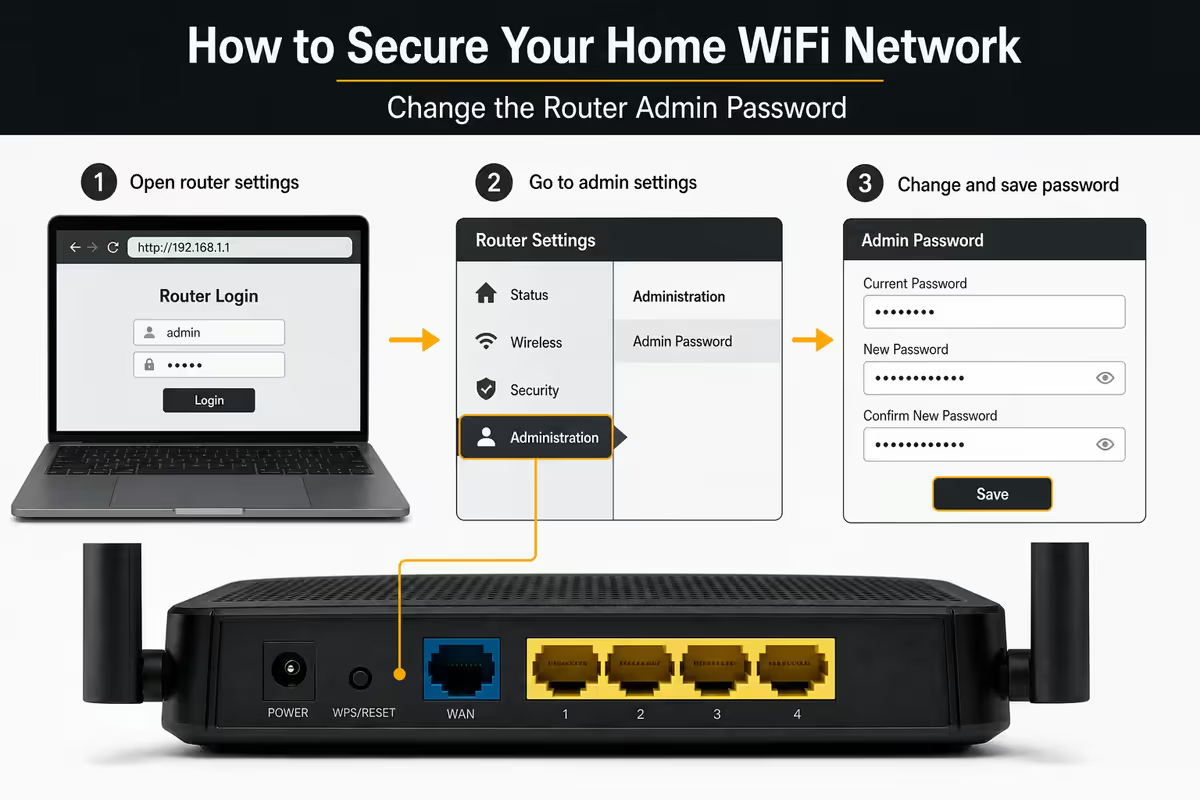
The single most-skipped step in home networking. Your router has two passwords:
- The WiFi passphrase — what your devices use to connect to the wireless network.
- The admin password — what you use to log into the router's settings page (usually 192.168.0.1 or 192.168.1.1 in your browser).
A shocking number of SA homes leave the admin password as the factory default ("admin" / "password" / printed on the back of the router). Anyone who connects to your WiFi — guests, neighbours sharing your password, a former housemate — can log into the router admin panel and change anything they like: redirect your DNS to a phishing server, kick devices off, sniff your traffic, or simply harvest your WiFi password to give to someone else.
How to do it:
- Open a browser, go to 192.168.0.1 or 192.168.1.1 (or whatever the router sticker says).
- Log in with the factory credentials printed on the router.
- Look for "Administration", "System", or "Management" → "Admin Password" or "Account".
- Set a new strong password (12+ characters, mix of letter, numbers, symbols).
- Save it to your password manager. You'll only use it 2-3 times a year.
Switch to WPA3 encryption
Encryption protocols protect the traffic flying between your devices and the router. The current options on a 2026 router:
| Protocol | Use it? | Notes |
|---|---|---|
| WEP | Never | Broken for 15+ years. If your router still defaults to WEP, replace it. |
| WPA / WPA-PSK | Never | Effectively broken. Replace. |
| WPA2 / WPA2-PSK | Fallback only | Still common, vulnerable to offline dictionary attack with weak passphrases. |
| WPA2/WPA3 transition | Yes — if some old devices | Best for households mixing 2018+ and older IoT. |
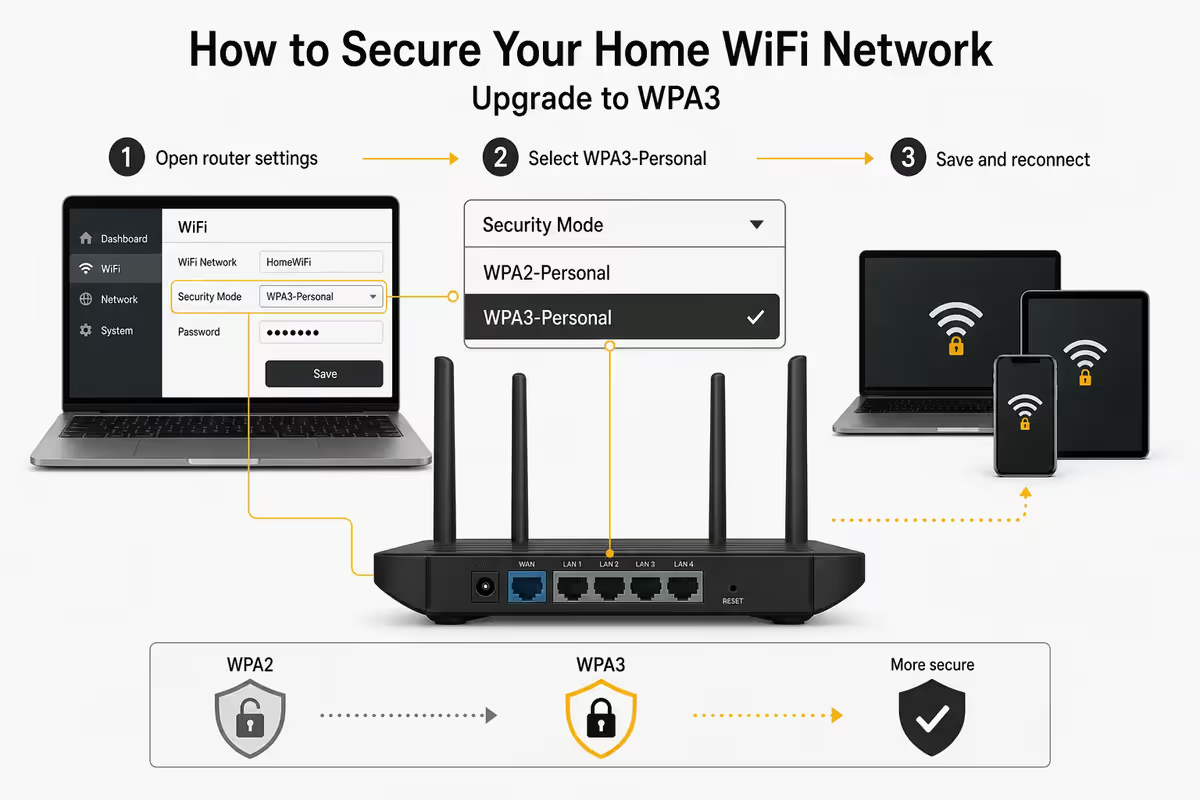
| WPA3 / WPA3-Personal | Yes — first choice | 2026 standard. Resistant to offline brute force. Use this. |
| WPA3-Enterprise (802.1X) | Only for SMB/corporate use | Adds per-user RADIUS authentication. |
In your router's wireless settings, find "Security mode" or "Authentication" and pick WPA3-Personal (sometimes labelled WPA3-SAE). If you have older devices (pre-2018 IoT, original-generation Chromecasts, old smart TVs) that won't connect, fall back to "WPA2/WPA3 Transition" — same security for newer devices, compatibility for older ones.
Set a strong WiFi passphrase
Your WiFi passphrase is the only thing standing between your network and someone who has captured a handshake packet (trivially easy to do from a parked car). Length matters far more than complexity.
Bad passphrases:
- Anything from a leaked-password list (the most common worldwide: "12345678", "password", "qwerty123").
- Your name, address, phone number, ID number, or year of birth.
- Your child's, partner's or pet's name plus a year ("Sasha2018").
- The ISP-default like "Vumatel1234" — these are well-known to attackers.
- Dictionary words with predictable substitutions ("P@ssw0rd1!" cracks in under a minute).
Good passphrases:
- 4-5 random unrelated words: "Anchor7-Quokka-Tarmac-Magenta!"
- 16-20+ characters of random mixed case, numbers, symbols (use a password manager to generate and store).
- A nonsense phrase only you know, with substitutions: "BlueG1raffe-EatsTartine?42".
Both styles are essentially uncrackable in any realistic timeframe. The 4-words style is easier to read aloud when a friend needs the WiFi.
Disable WPS — non-negotiable
WPS (WiFi Protected Setup) was a 2007 attempt to make joining a WiFi network easier. You press a button on the router and a device pairs without entering a password. Sounds convenient.
The problem: the 8-digit PIN system used by WPS is fundamentally broken. The PIN is checked in two 4-digit halves, reducing the brute-force search space from 100 million combinations to about 11,000. Tools like Reaver can brute-force a WPS PIN in 4-10 hours. There's no patch — the protocol itself is the flaw.
In your router's wireless settings, find "WPS" and turn it off. The "WPS push-button" mode is also vulnerable in many implementations. Disable it entirely. Connecting new devices by typing in your passphrase takes 30 seconds longer — a trivial cost for the security.
Create a guest SSID and IoT VLAN
A guest network is a second SSID on the same physical router that's isolated from your main network. Devices on the guest network can reach the internet but cannot see or talk to devices on your main network — your laptop, NAS, work computer, smart TV, anything personal.
Why this matters:
- Visitors' phones and laptops connect to a network with no access to your stuff.
- IoT devices (smart bulbs, cameras, doorbells, fridges, voice assistants) live on the guest network — if any of them gets compromised (it's not "if", it's "when"), the attacker can't reach your personal devices.
- Kids' or housemates' devices can be similarly isolated.
Most routers support 2-4 SSIDs. The setup typically lives under "Guest Network" or "Wireless Settings → Add SSID". Give it a different name (e.g. "Mokoena-Guest") and a different passphrase. Enable "AP Isolation" or "Client Isolation" if available.
For prosumer setups: if you have a router that supports VLANs (Ubiquiti UniFi, ASUS routers running Merlin firmware, TP-Link Omada), set up a dedicated IoT VLAN with no internet-to-LAN routing. This means even if an attacker compromises your smart doorbell from the outside, they cannot pivot through it to reach your other devices. Overkill for most households; sensible for anyone with sensitive work data.
Keep router firmware updated
Router firmware updates patch security vulnerabilities — sometimes severe ones. Most home routers either don't auto-update or have it disabled by default. Quarterly checks are the minimum, monthly is better.
How to check:
- Log into your router admin (steps from earlier).
- Find "System" or "Administration" → "Firmware Update" or "Software Update".
- Look for the current firmware version, then visit the manufacturer's support page for your specific model to see if there's a newer version.
- Many modern routers (ASUS, TP-Link Deco, Ubiquiti, Mikrotik) have "Check for updates" buttons. Run them.
- If your router hasn't received a firmware update in 18+ months, the manufacturer has probably stopped supporting it — consider replacing.
Enable auto-updates if your router supports them. Modern routers can apply security updates automatically during off-hours. This is the right tradeoff for almost every home.
SA ISP router realities — the weak defaults problem
If you're on Vumatel-managed fibre (Frogfoot, Octotel, Openserve LIT, Vumatel, Evotel), Openserve, or one of the big ISP-bundled deals from Afrihost, Webafrica, Rain, Cell C or MTN, the router you got is one of:
- Huawei OptiXstar / EchoLife series (very common on Vumatel).
- Nokia G-140W series (Openserve).
- TP-Link, ZTE or D-Link ONT-router combos.
- Generic ISP-branded all-in-one units.
Common weak defaults on SA ISP routers:
- Default admin credentials printed on the device — often the same for every unit of that model.
- WPS enabled by default.
- WPA2 only, no WPA3 support (some older Huawei units).
- Default SSID containing the ISP name and last 4 of MAC address (e.g. "Vumatel-1234").
- Default WiFi passphrase printed on a sticker — sometimes derivable from the serial number.
- Remote management enabled (the ISP can log in from outside, and so can anyone who finds an exploit).
- UPnP enabled — convenience for game consoles, security risk for IoT.
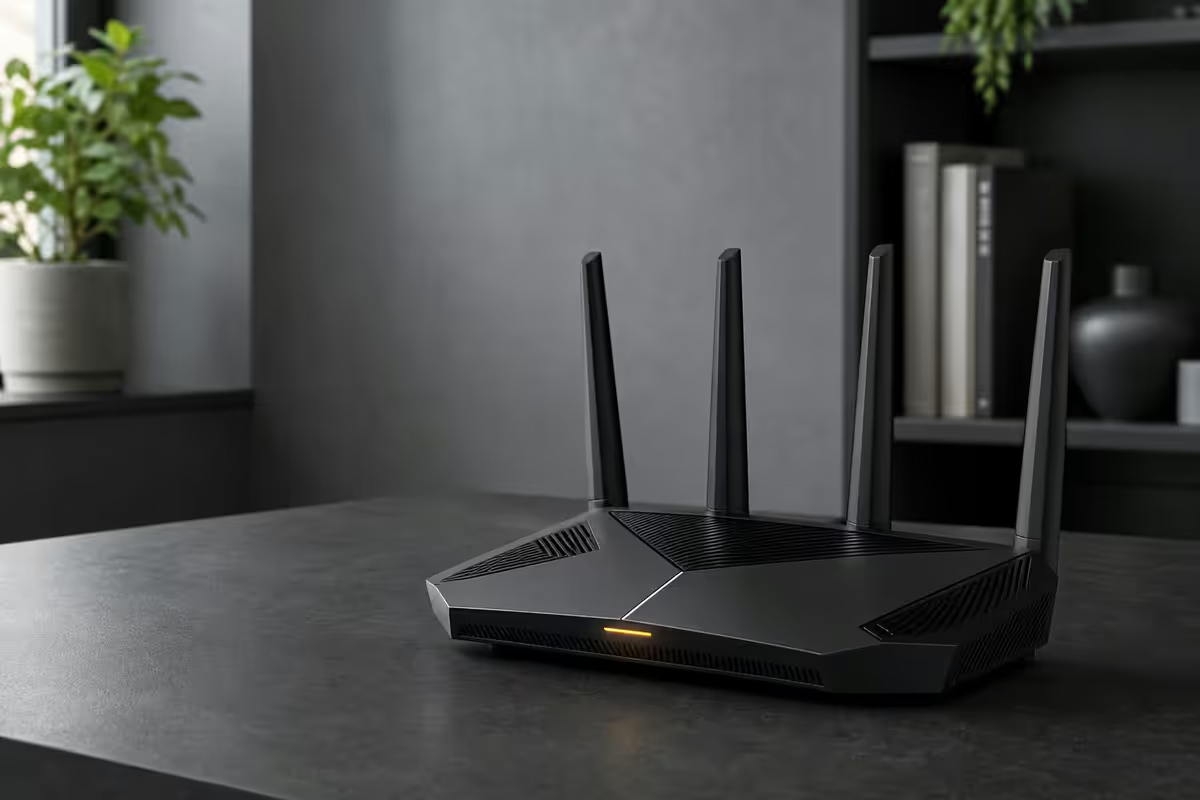
Step one: change everything from defaults. Step two: consider replacing the router (or putting your own router downstream in bridge mode). The ASUS RT-AX86U, TP-Link Deco XE75, Ubiquiti Dream Router and Mikrotik hAP ax3 all give you proper control for R2,500–R6,500.
Router placement as a security consideration
Most people place their router for best signal coverage. Worth thinking about from a security angle too:
- Don't put it near the front window or front door — your signal radiates strongest in that direction. Anyone sitting in the street has the best signal.
- Centre of the home is best for both coverage and security — signal falls off into the street.
- Don't put it next to the security camera control box — accidentally giving the camera installer your WiFi password is a common compromise vector.
- Mesh nodes in side rooms or upstairs should also be centrally placed, not against an outside wall.
For complexes and townhouse developments, signal bleed into neighbouring units is normal — strong encryption and a long passphrase matter more than physical placement.
Security myths to stop worrying about
Hiding your SSID. Adds zero real security, and means your devices broadcast "looking for [your SSID]" wherever you go. Leave the SSID visible.
MAC address filtering. MAC addresses can be spoofed in 30 seconds with public tools. Filtering blocks accidents, not attackers. The maintenance burden is significant. Skip it.
Disabling DHCP and using static IPs. Doesn't help. Anyone capable of connecting to your network can read traffic and figure out the IP range in seconds.
"Whitelist only weekdays" timers. Useful for parental controls, not security — attackers wait. Use them if you want to limit your kid's screen time, not as defence.
Lowering transmit power so signal doesn't leak. Worth a tiny bit on the margin but breaks your in-house coverage faster than it stops a determined attacker.
Key takeaways
- Change the router admin password — it's the single most-skipped step.
- Enable WPA3 (or WPA2/WPA3 transition if you have older devices).
- Use a 16+ character passphrase. Length beats complexity.
- Disable WPS. Set up a guest SSID for IoT and visitors.
- Update firmware. Replace SA ISP routers or run them in bridge mode.
Frequently asked questions
What's the most important step to secure home WiFi?
Three steps tied for most important. First, change the default admin password on the router (the one you log into the router's settings with — separate from the WiFi password). Second, switch encryption to WPA3 (or WPA2/WPA3 mixed if you have older devices). Third, set a strong unique WiFi passphrase of 16+ random characters. Doing only these three blocks ~95% of casual attacks.Is WPA3 actually better than WPA2?
Yes — meaningfully. WPA3 uses Simultaneous Authentication of Equals (SAE), which is resistant to offline dictionary attacks that broke WPA2. WPA2 4-way handshakes can be captured and brute-forced offline with weak passphrases. WPA3 makes that effectively impossible. If your router and all devices support WPA3, use it. If some older devices need WPA2, use WPA2/WPA3 transition mode.How long should my WiFi passphrase be?
At least 16 characters, ideally 20+. The strongest practical approach is a passphrase of 4-5 random words separated by symbols or numbers (e.g. 'Anchor7-Quokka-Tarmac-Magenta!'). This is easier to type than random characters and far harder to brute-force than a short complex password. Avoid common phrases, song lyrics, names and dates.Should I disable WPS?
Yes — always. WPS (WiFi Protected Setup) was designed to make joining the network easier but has known vulnerabilities. The 8-digit PIN can be brute-forced in hours by readily available tools. There is no scenario in 2026 where leaving WPS enabled is a sensible trade-off. Disable it in your router's wireless settings.Do I need a guest WiFi network?
Yes if visitors connect to your WiFi or if you have IoT devices (smart bulbs, cameras, doorbells, fridges, voice assistants). The guest SSID isolates devices from your primary network — so a compromised IoT camera or a visitor's malware-laden laptop cannot reach your work laptop, NAS or family computers. Setup takes 3 minutes in your router admin panel.What about my ISP-supplied router — is it safe?
ISP routers (Vumatel-supplied Huawei units, Openserve TP-Link, Vumatel ZTE) frequently ship with weak defaults: default admin passwords, WPS enabled, no firewall, outdated firmware. They're acceptable as a starting point but should be reconfigured immediately. For households with sensitive work data, replacing the ISP router with a quality unit (ASUS, TP-Link Deco, Ubiquiti UniFi) gives you more control. Disable the ISP unit's WiFi or set it to bridge mode if you keep both.Should I hide my WiFi SSID?
No — it doesn't add real security. Hiding the SSID stops the network name appearing in casual scans but any tool serious about attacking your network can find it in 5 seconds. Worse, hidden SSID networks force your devices to actively broadcast 'looking for [your SSID]' wherever you go, which is a privacy issue. Leave it visible and rely on strong encryption + a good passphrase.Does MAC filtering help WiFi security?
Marginally and at high inconvenience cost. MAC addresses can be spoofed in 30 seconds with public tools. MAC filtering blocks accidental visitors but stops zero deliberate attackers. The maintenance burden (adding every new phone, tablet, laptop, console, doorbell, light bulb individually) outweighs the security gain. Spend the time enabling WPA3 and a guest SSID instead.
Get the Evetech app
Exclusive app-only prices, daily flash sales, and free delivery on orders over R4,000 — download the app and start saving.