Windows 11 · Recovery Guide
How to create system restore points. — The free undo button Windows hides from you.
A bad GPU driver, a load-shedding-induced corrupt update, a registry tweak gone wrong — these all take 8 minutes to undo instead of 8 hours of reinstall. But only if you've enabled and used the feature most Windows 11 PCs ship with disabled.
- to create one
- ~2 min
- to restore
- ~8 min
- disk allocation
- 5-10%
What System Restore actually is (and isn't)
A system restore point is a snapshot of Windows itself — system files, the registry, installed program lists, driver state — captured at a specific moment. When something breaks, you can roll Windows back to that snapshot in roughly the same time it takes to make a cup of coffee.
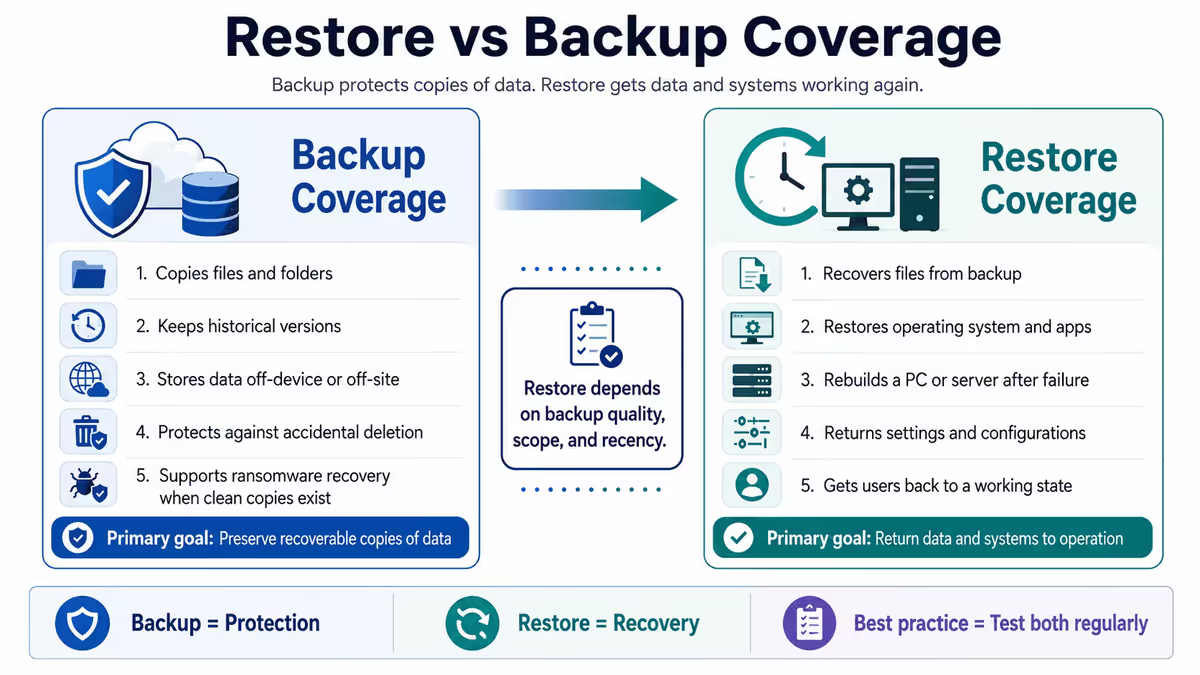
It is not a backup. It does not protect your personal files. It does not save you from ransomware or a failed SSD. What it does, exceptionally well, is undo a bad change to Windows itself — the kind of breakage that used to mean a weekend of reinstalling.
| System Restore covers | What that means | Recovery time |
|---|---|---|
| Windows system files | Boot files, DLLs, kernel state | ~8 min |
| Registry hives | All HKLM & HKCU keys at snapshot | ~8 min |
| Installed programs (registry refs) | Apps installed after point are removed | ~8 min |
| Driver state | GPU, chipset, audio, network drivers reverted | ~8 min |
| System Protection settings | Restored to the snapshot's configuration | ~8 min |
Think of it as a git stash for your operating system — a cheap, fast, surgical way to back out a recent change. The cost is a few percent of your SSD; the upside is hours of reinstall avoided.
Enable System Protection on Windows 11
Before you can create a restore point, the feature has to be switched on for the system drive. On Windows 11 it ships disabled — verify, then enable.
- Press
Win + Rto open the Run dialog. - Type
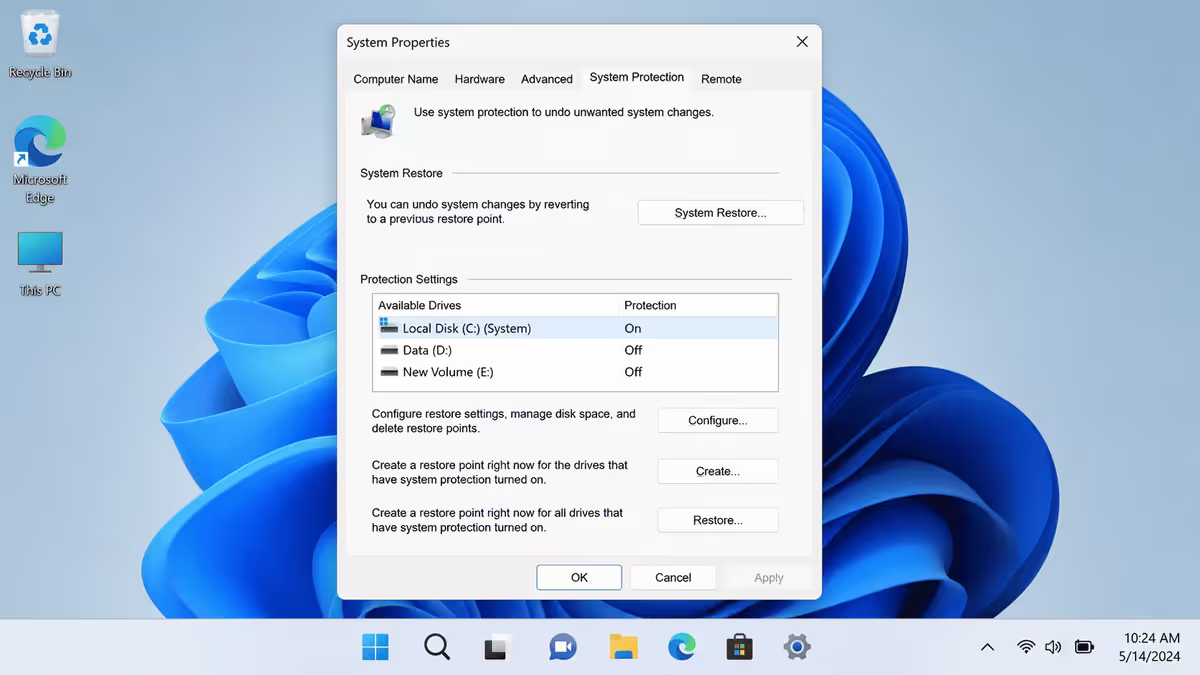
sysdm.cpland press Enter. The System Properties dialog opens. - Click the System Protection tab.
- In the "Protection Settings" list, find your C: drive (System). If Protection says Off, you have work to do.
- Select the C: drive and click Configure….
- Choose Turn on system protection.
- Drag the Max Usage slider to 5-10% of the drive. On a 1TB SSD that's 50-100GB — plenty for 6-12 months of restore points.
- Click OK. You're back on the System Protection tab and protection now reads On.
If your system drive is a small 256GB SSD (common in some pre-built laptops still circulating in SA), allocate 5% and accept that older restore points will be culled quickly. If your system drive is 500GB-2TB (most Evetech custom builds), 8-10% leaves comfortable runway.
Create a manual restore point — the 90-second drill
Once System Protection is on, creating a checkpoint is two clicks and a name. Treat it as muscle memory before any risky change.
- Press
Win + R, typesysdm.cpl, Enter. - System Protection tab → click Create… at the bottom.
- Type a descriptive name. Date and time are added automatically — focus the name on what's about to happen:
Before NVIDIA 580.xx driver install,Before BIOS update F12 → F14,Before Kaspersky → ESET swap,Before registry tweak for context menu. - Click Create. A progress bar runs for 30-90 seconds.
- You'll see "The restore point was created successfully". Click Close. That's it.
A clear name is the difference between confidence and panic six months later. "Restore Point" with a date tells you nothing; "Before NVIDIA 580.xx driver install" tells you exactly what you're rolling back to and why.
Automatic triggers and Task Scheduler
Windows will create restore points automatically — sometimes. In Windows 7 era this happened daily. In current Windows 11 builds the automatic triggers have become sporadic and untrustworthy.
Triggers that still create automatic restore points (most of the time):
- Major Windows Updates — feature updates and large cumulative updates usually create a pre-install point.
- Driver installs via Windows Update — usually, but not for drivers installed via vendor utilities (GeForce Experience, AMD Adrenalin, Realtek installer).
- Some app installs — only when the installer requests one (rare in modern installers).
Windows also enforces a 24-hour skip window by default — if a restore point was created in the last 24 hours, it skips creating another. This means a heavy day of installs can leave you with one stale checkpoint covering the lot. The fix: schedule it explicitly with Task Scheduler.
Schedule a weekly restore point via Task Scheduler
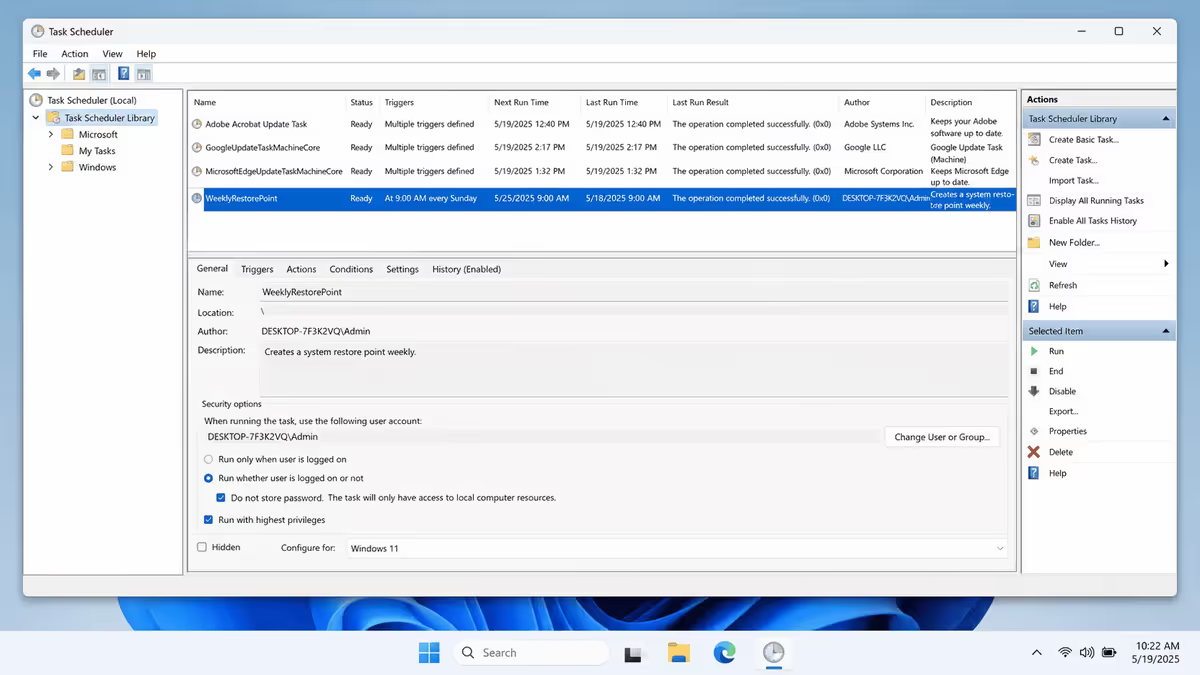
Run the following in an elevated PowerShell (right-click PowerShell → Run as Administrator) to schedule a weekly Sunday-morning restore point and bypass the 24-hour skip rule:
# Remove the 24-hour throttle (one-time)
New-ItemProperty -Path "HKLM:\Software\Microsoft\Windows NT\CurrentVersion\SystemRestore" `
  -Name "SystemRestorePointCreationFrequency" -Value 0 -PropertyType DWord -Force

# Schedule a weekly checkpoint, Sundays at 09:00
$action  = New-ScheduledTaskAction -Execute "powershell.exe" `
  -Argument "-Command Checkpoint-Computer -Description 'Weekly Auto' -RestorePointType 'MODIFY_SETTINGS'"
$trigger = New-ScheduledTaskTrigger -Weekly -DaysOfWeek Sunday -At 9am
Register-ScheduledTask -TaskName "WeeklyRestorePoint" -Action $action `
  -Trigger $trigger -RunLevel Highest -Description "Weekly automatic system restore point"
Verify it ran by opening Task Scheduler (taskschd.msc), finding WeeklyRestorePoint in the library, and checking the Last Run Result column the following Monday. The first checkpoint will appear in System Protection within 5 minutes of the scheduled time.
Restoring from a restore point — when something breaks
A bad driver install crashes the GPU into a black screen. A new antivirus conflicts with another security tool. A registry tweak from a YouTube tutorial wrecks your context menu. These are the moments restore points were built for.
If Windows still boots
- Press
Win + R, typerstrui.exe, Enter. (Or: sysdm.cpl → System Protection → System Restore….) - Click Next on the welcome screen.
- Select the most recent pre-breakage restore point. Read the names — the one you created before the change is your target.
- Click Scan for affected programs to see which apps will be removed (anything installed after the point) and which drivers will be reverted. Review carefully.
- Click Next → Finish → Yes. Windows reboots, runs the restore (5-8 minutes), reboots again.
- Sign in. Verify the issue is resolved. The "System Restore was successful" dialog appears.
If Windows won't boot
Force three failed boots (hold power button during the Windows logo, three times) to trigger the Windows Recovery Environment. Then: Troubleshoot → Advanced options → System Restore. Same wizard, run from WinRE.
If WinRE doesn't trigger on its own, boot from a Windows 11 install USB and click Repair your computer → Troubleshoot → System Restore. Every Evetech build ships with a recovery USB option — keep it in a drawer.
What restore points DON'T cover
This is where people get caught. System Restore is not a backup, and assuming it is has cost more SA customers their files than any single other Windows misconception we see.
- Personal files in your user folders — Documents, Downloads, Pictures, Music, Desktop, Videos. None of these are touched by a restore (good news if you fear losing them, but also means restore won't bring back a deleted file).
- Email and browser data — Outlook PST/OST files, Chrome/Edge profiles, Firefox bookmarks. These live in user folders and aren't in the snapshot.
- Game saves, project files, photos from your camera — anything you've created lives in user folders. Restore won't roll them back, but it also won't recover them if accidentally deleted.
- Ransomware-encrypted files — a restore reverts the system but does not decrypt files already encrypted. Modern ransomware specifically deletes restore points before encrypting (via
vssadmin delete shadows), so don't rely on it as ransomware defence. - Hardware failure — a dying SSD doesn't care about restore points. If the drive is failing, the restore points are on a failing drive.
- Files on other drives — restore only covers drives where System Protection is enabled. By default that's only C:.
Pair System Restore with a real backup — OneDrive or Google Drive for documents, an external SSD for full image backups, Backblaze or Dropbox for offsite. Restore points cover the OS; backups cover the files. Both, always.
Restore vs Reset vs Reinstall — the 3-tier recovery ladder
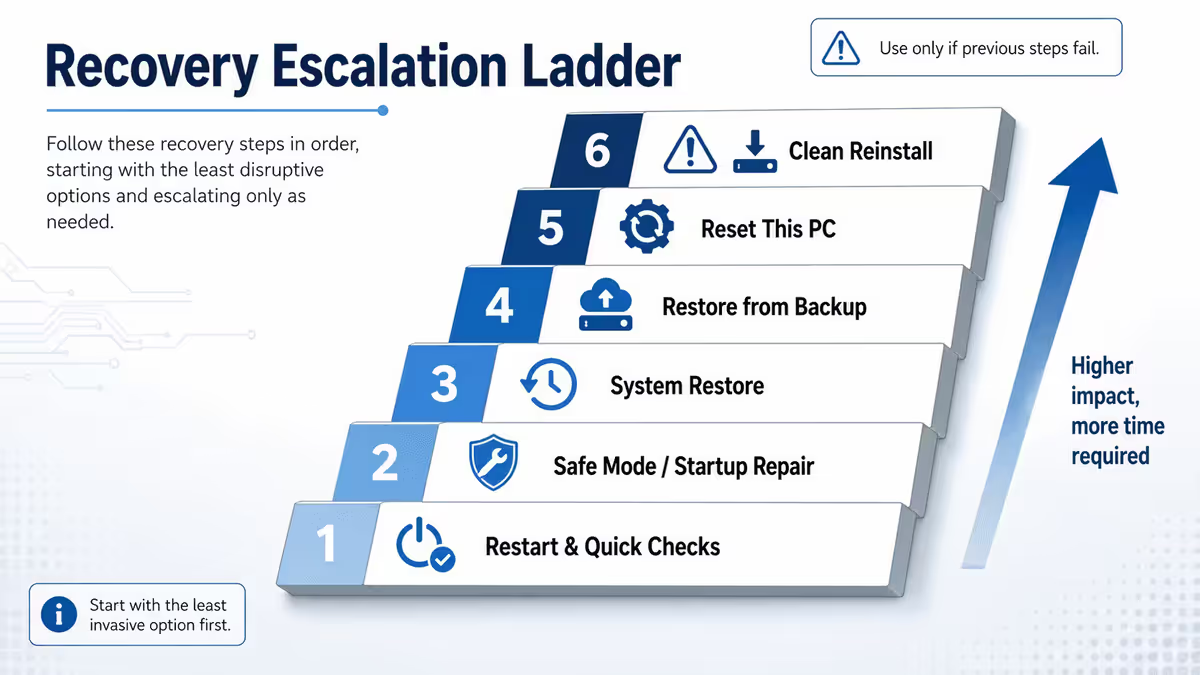
When something breaks, choose the smallest tool that can fix it. Going straight to Reinstall when a Restore would suffice is hours of unnecessary pain.
| Recovery option | What it does | Time · Risk |
|---|---|---|
| System Restore | Reverts Windows files, registry, drivers to a snapshot. Personal files untouched. | 8 min · low |
| Reset This PC (Keep files) | Reinstalls Windows. Keeps user files. Removes all installed apps. | 45-60 min · medium |
| Reset This PC (Remove everything) | Full Windows reinstall + wipes user files. Apps gone. Drivers reset. | 60-90 min · high |
| Clean reinstall from USB | Boot Windows installer, format C:, fresh install. Nuclear option. | 2-4 hr · highest |
The escalation playbook:
- Try System Restore first. If the issue started after a specific install/update and you have a pre-change restore point, this is almost always the right call. 8 minutes, no data risk.
- If Restore fails or you have no useful point, run
sfc /scannowfollowed byDISM /Online /Cleanup-Image /RestoreHealthin elevated PowerShell. These repair Windows system files without affecting anything else. 20 minutes. - If Windows is still broken, escalate to Reset This PC → Keep my files. Windows is reinstalled, your documents stay. Reinstall your apps after. 60 minutes.
- Last resort: clean install from USB. Only when Reset itself fails, hardware is suspect, or you want a clean slate. Back up everything first. Half a day.
When you'd skip straight to Reinstall
Three scenarios where the ladder doesn't apply:
- Suspected malware or rootkit infection — restore points may themselves be compromised. Wipe and reinstall.
- You're swapping to a new SSD — fresh install on new hardware is correct.
- Pre-sale wipe of an old PC — Reset This PC with full data removal, or a clean install, is the right move.
Key takeaways
- System Protection is off by default on Windows 11 — enable it via
sysdm.cpland allocate 5-10% of your system drive. - Create a manual restore point before every risky change — driver installs, BIOS updates, registry tweaks, antivirus swaps. 90 seconds of work, hours of insurance.
- Schedule a weekly automatic checkpoint via Task Scheduler — load-shedding insurance in two PowerShell commands.
- Restore points don't cover personal files — pair them with OneDrive, Google Drive or external SSD backups. The two solve different problems.
- Always back up your BitLocker recovery key before any restore — a TPM-sealed key invalidation post-restore can mean total drive lockout.
Frequently asked questions
What is a system restore point?
A snapshot of Windows system files, the registry, installed programs and driver state at a specific moment. If something breaks, you can roll back to that snapshot — personal files (documents, photos, downloads) aren't touched.How do I create a restore point in Windows 11?
Press Win+R, typesysdm.cpl, Enter. System Protection tab → Configure → turn on protection (if disabled) → 5-10% disk usage → OK. Back on the tab, click Create, name it clearly, wait 60-90 seconds. Done.Does System Restore delete my files?
No. Personal files in Documents, Pictures, Downloads etc. are untouched. However, apps installed after the restore point are removed and registry changes made since then are undone.How often should I create restore points?
Before every risky change — driver updates, BIOS updates, registry tweaks, AV installs. Schedule a weekly automatic one via Task Scheduler as a safety net. Don't rely on Windows' automatic triggers alone in current Windows 11 builds.Why isn't System Restore enabled by default?
Microsoft disabled it by default from Windows 10 onwards to save SSD wear and disk space on small-drive devices. Most desktop and laptop builds with 500GB+ SSDs should enable it — the disk cost is trivial compared to the recovery insurance.Will restoring affect my BitLocker drive?
It can. After a restore, BitLocker may demand the 48-digit recovery key on next boot — especially if the restore touched boot configuration or TPM state. Always back up the recovery key from account.microsoft.com/devices/recoverykey before any restore.What's the difference between System Restore and Reset This PC?
System Restore rolls back system files to a checkpoint (8 min, low risk). Reset This PC reinstalls Windows entirely (45-90 min, removes all apps, optionally keeps user files). Use Restore first; escalate to Reset only if Restore fails.Can ransomware delete my restore points?
Yes. Modern ransomware specifically targets shadow copies via vssadmin delete shadows before encrypting files. Don't rely on System Restore as ransomware defence — pair it with offline or cloud backups that ransomware on the host can't reach.