Windows 11 for Gamers
Windows 11 — tuned for gaming. Game Mode is mid. HAGS is mighty.
Most "Windows gaming optimisation" YouTube videos waste your time. A handful of toggles, scripts and per-app settings actually shift frame rate, frame pacing and input latency. Here's the working list for 2026.
- FPS from HAGS
- ~5%
- load-time drop
- 30-70%
- RAM reclaim
- ~3 GB
Game Mode — what it actually does
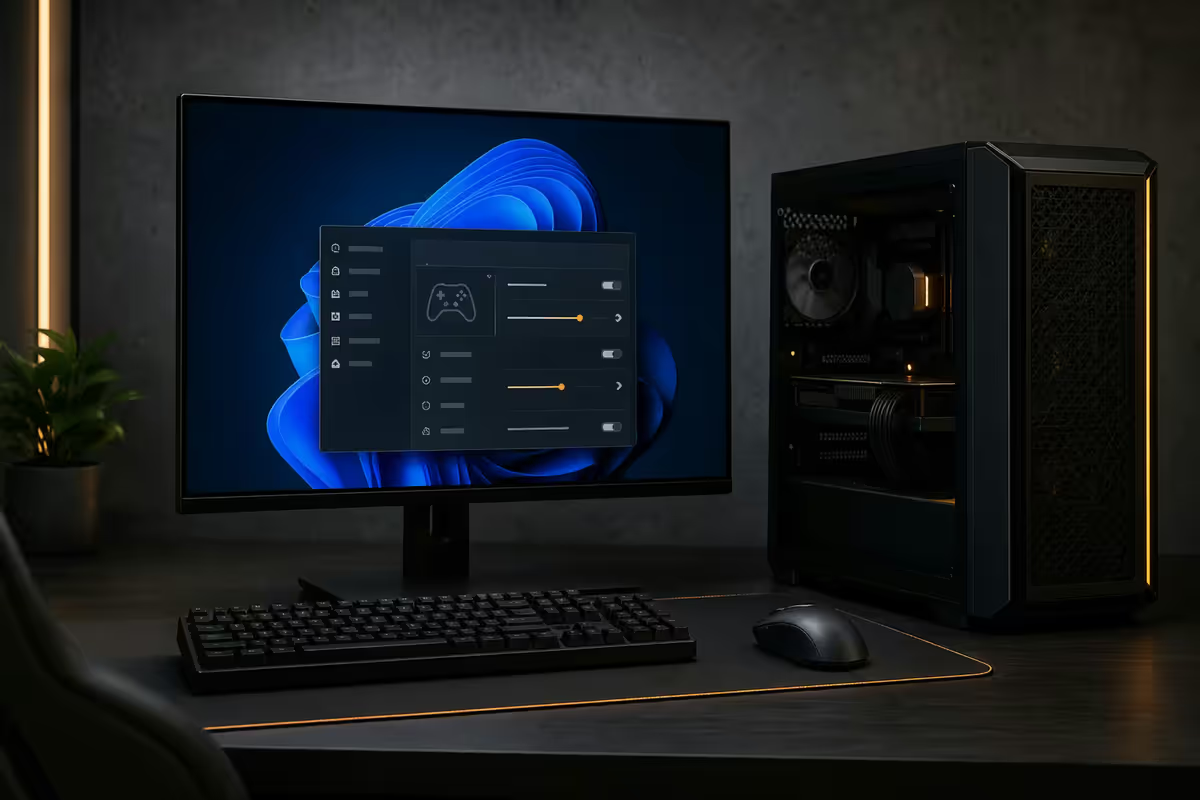
Game Mode is Microsoft's "press a button, get FPS" feature. The reality is more modest. When Windows detects a fullscreen game, Game Mode does three things: pauses Windows Update background downloads, defers driver install notifications, and gives the foreground game CPU/GPU resource priority over background apps.
In our testing across CS2, Cyberpunk 2077, Forza Motorsport, F1 24 and Apex Legends, the FPS gain is typically 0-3% in CPU-bound titles and indistinguishable in GPU-bound ones. The benefit is real but small — there's no downside to enabling it, but don't expect dramatic improvement.
To enable: Settings > Gaming > Game Mode > toggle on. Leave the auto-detection enabled — it adds recognised games to the high-priority list automatically.
HAGS — the toggle that actually matters
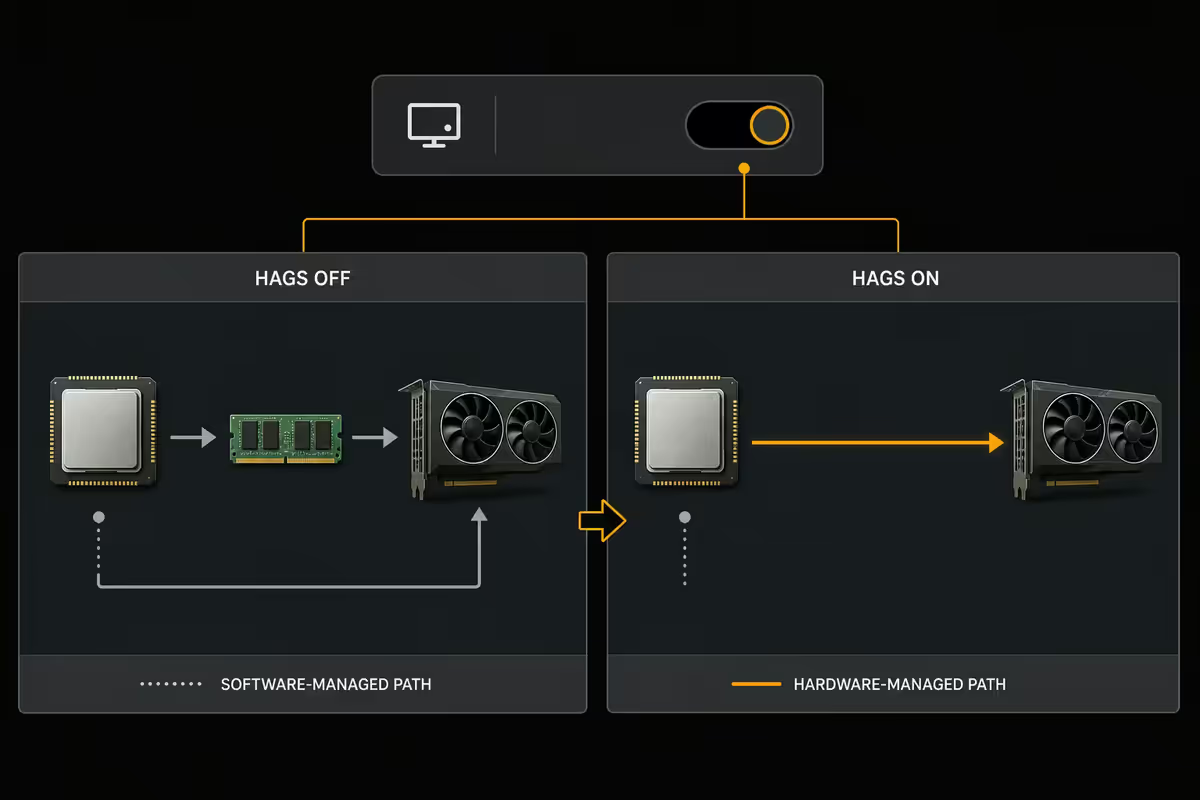
HAGS (Hardware-accelerated GPU Scheduling) is the under-rated Windows 11 gaming feature. It moves some GPU scheduling work from the Windows display driver — which runs on the CPU — to dedicated hardware on the GPU itself. The result is smoother frame pacing, slightly lower input latency, and roughly 3-7% FPS improvement in many titles.
HAGS is also a requirement for DLSS 4 Multi Frame Generation and AMD FSR Frame Generation — both rely on it for proper frame pacing of the generated frames. If you've enabled DLSS 4 frame gen and it feels stuttery, HAGS is the first thing to check.
To enable: Settings > System > Display > Graphics > Default GPU Settings > Change default graphics settings > Hardware-accelerated GPU scheduling on. Reboot required.
Supported on: NVIDIA RTX 20 series and newer, AMD Radeon RX 5000 series and newer. Older GPUs will simply not show the option. Driver 511.65+ for NVIDIA and 22.4.1+ for AMD.
DirectStorage — actually used in 2026
DirectStorage went from "promised future feature" to "shipping in real games" between 2023-2026. The current state: a steady stream of AAA releases now support it, and load times drop dramatically on a fast NVMe.
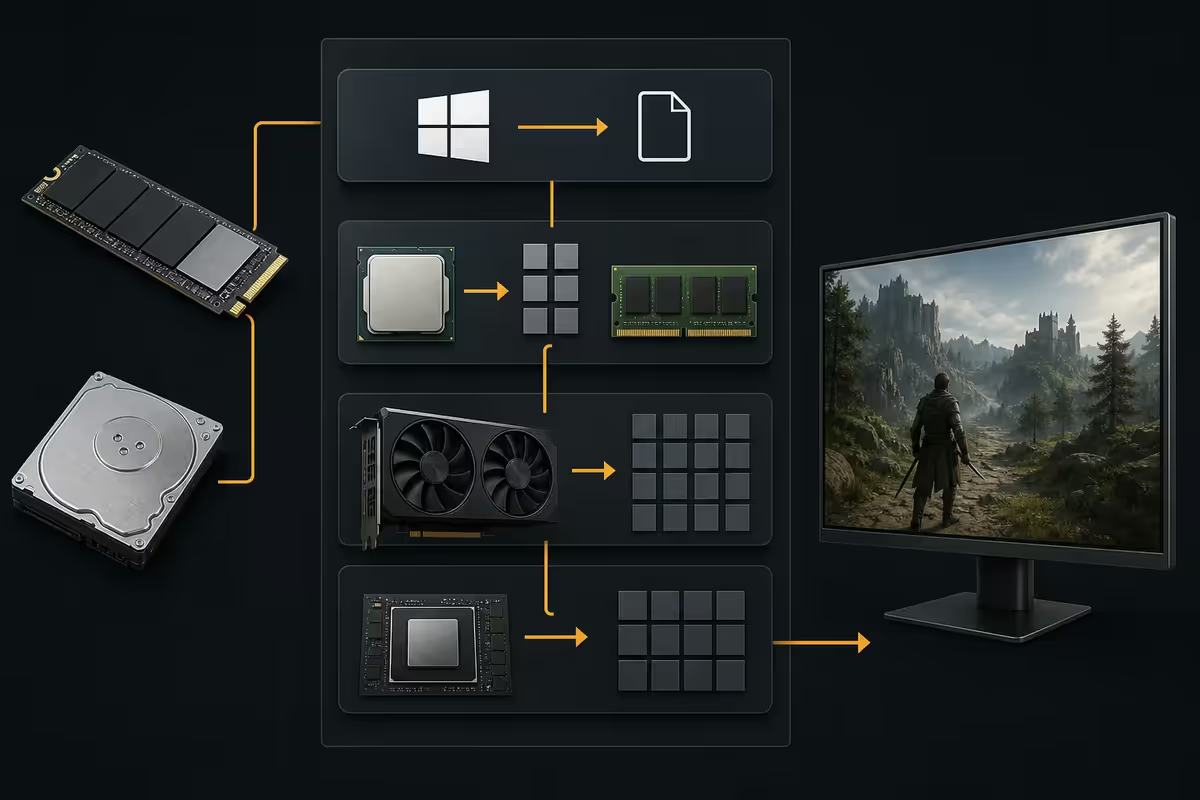
DirectStorage 1.2 with GPU decompression is the version that matters. It bypasses CPU decompression of game assets entirely — the NVMe streams compressed data directly to GPU memory, the GPU decompresses it, and game assets load 30-70% faster. Notable games shipping with it in 2026 include:
- Avatar: Frontiers of Pandora
- Star Wars Outlaws
- Forspoken (the launch title)
- Ratchet & Clank: Rift Apart (PC port)
- Returnal
- Horizon Forbidden West
- Black Myth Wukong (partial)
- Indiana Jones and the Great Circle
Requirements: Windows 11 22H2 or newer (already shipped to most installs), DirectStorage runtime (auto-installed with games that need it), and a PCIe Gen4 or Gen5 NVMe drive. SATA SSDs and HDDs don't qualify. A Samsung 990 Pro, WD SN850X, Crucial T705 or similar will deliver the full benefit.
Auto HDR — only on HDR displays
Auto HDR applies AI-based HDR mapping to older SDR games on HDR-capable monitors. It works on DirectX 11 and 12 titles, and is particularly effective on games released before HDR was common (Skyrim Anniversary, Witcher 3, Mass Effect Legendary, Diablo III).
Quality varies by title. Games with painterly aesthetics (Borderlands, A Hat in Time) tend to look worse with Auto HDR — the algorithm over-emphasises lights and crushes mids. Games with realistic lighting (RDR2, Cyberpunk 2077 if you're not using its native HDR, Forza Horizon 5) look excellent.
To enable: Settings > System > Display > Use HDR on (requires HDR display). Below it, toggle Auto HDR. Per-game override at Settings > Gaming > Game Bar (Win+G) > per-game settings.
Win11 24H2 game features worth knowing
Windows 11 24H2 (rolled out through 2024-2025 and current in 2026 installs) added several gaming-relevant changes:
- Improved CPU scheduler for hybrid architecture — better P-core / E-core dispatch for Intel Core Ultra 200/300 and AMD Ryzen 9000-series 3D V-Cache parts.
- Wi-Fi 7 gaming optimisations — better Multi-Link Operation handling for routers supporting it.
- Windows Studio Effects via NPU — keeps Discord/OBS streaming AI-effects off the GPU, freeing it for game rendering.
- Improved Variable Refresh Rate handling on multi-monitor setups.
- DirectSR upscaling — common API for DLSS/FSR/XeSS, gradually being adopted.
- Sudo for Windows — convenient for running gaming admin scripts (process priority changes, profile switching).
Debloat scripts — use carefully
Fresh Windows 11 installs include Cortana, Edge promotions, Xbox app, Microsoft 365 ads, Bing search integration and several "Suggestions" services running in the background. Community debloat tools remove these. The trustworthy ones in 2026:
Chris Titus Tech Windows Utility (christitus.com/windev). PowerShell script with a GUI. Curated debloat presets, performance tweaks, and one-click install of common apps. Reversible. The "standard" preset is safe for everyday users.
Win11Debloat (GitHub: Raphire/Win11Debloat). Simpler PowerShell script focused on removing bloat without touching system services. Safer than the "destructive" presets in other tools.
Tiny11 Builder (GitHub: ntdevlabs/tiny11builder). Creates a slimmed-down Windows 11 ISO for fresh installs. Removes pre-bundled apps but keeps Update working. Useful for new builds where you want a clean OS from day one.
Xbox Game Bar — trim, don't kill
Xbox Game Bar (Win+G overlay) gets a lot of "uninstall it for FPS" advice. Don't. It's deeply tied to Game Mode, screen recording, and the audio mixing UI Microsoft now uses for game-specific volume control. Full removal breaks more than it helps.
Instead, trim what you don't use:
- Disable Background Recording — Captures > Record Game > off. This kills the constant 30-second buffer the Game Bar holds in RAM and on disk. Reclaims ~500MB RAM and stops 1-2% CPU drain.
- Disable unused widgets — Win+G > widget menu > uncheck Achievements, Social, Resources you don't use.
- Keep the FPS overlay if you want quick in-game FPS without RTSS.
- Disable the auto-launch tip — Settings > Gaming > Xbox Game Bar > off the "show tips" toggle.
Virtual desktops for gaming + work
Windows 11's virtual desktops (Win+Ctrl+Left/Right) work brilliantly as a context-switch between gaming and work. Set one desktop with Slack, Notion, browser tabs, Outlook. Set another with Steam, Discord, OBS, your game. Switch between them with no app teardown.
Per-desktop wallpaper arrived in Win11 22H2 — visual cue that you've switched modes. Use it: a dark gaming wallpaper on the gaming desktop, your usual on the work one. Keyboard muscle memory adapts within a week.
For streamers, virtual desktops also reduce the chance of accidentally exposing work content during a stream — Slack DMs stay on the work desktop, your game capture sees only the gaming one.
Storage Sense — safe with one Steam caveat
Storage Sense automatically clears temp files, empties Recycle Bin items older than 30 days, and deletes Downloads files older than 30 days. It runs invisibly in the background and reclaims 5-20 GB on a typical install over a few months.
It does not delete Steam games. Steam game installs live in SteamApps folders that Storage Sense is not configured to touch. You'd have to manually delete them via Steam or File Explorer.
The one caveat: OneDrive Files On-Demand. If you have OneDrive syncing a game's save folder (some Steam games default to Documents which OneDrive picks up), Storage Sense can dehydrate cloud-only files that haven't been touched recently. When you next launch the game, it tries to read a "cloud-only" file, hangs, and can cause a sync conflict that loses progress.
The fix: in OneDrive settings, exclude your Steam-using game folders from the synced set. Or in Storage Sense settings, disable the "delete files in my OneDrive that haven't been used" option specifically.
Focus during gaming hours
Focus (called "Focus Assist" before 23H2) suppresses notifications and toast pop-ups during a session. Set up a Focus session for your typical gaming hours — Discord DMs, Slack pings, email and Windows Update notifications all stop interrupting your fullscreen game.
To configure: Settings > System > Focus > Set focus session start time, duration. Enable "Hide notifications" and "Hide badges in taskbar." For an automatic profile: Settings > System > Notifications > Priority notifications > configure which apps can break through (probably Discord voice calls, that's it).
Game Mode triggers Priority Notifications automatically when a recognised game launches in fullscreen — so even without configuring Focus manually, you get reduced interruptions during gameplay.
Key takeaways
- HAGS is the single biggest toggle — enable it, reboot. Required for DLSS 4 Frame Gen.
- Game Mode is small but free. Auto HDR on per-game (HDR display only).
- DirectStorage 1.2 is real in 2026 — 30-70% load time drop on supported games + NVMe Gen4/5.
- Trim Game Bar (background recording off, unused widgets off) — don't uninstall it.
- Storage Sense safe except when OneDrive syncs your save folders — exclude those.
- Focus during gaming hours kills notification interruption. Debloat with Chris Titus Tech standard preset.
Frequently asked questions
Does Windows 11 Game Mode actually improve FPS?
Marginally and inconsistently. Game Mode pauses Windows Update background tasks during fullscreen games and gives the foreground game CPU/GPU priority. In our testing, the FPS gain is typically 0-3% in CPU-bound titles and indistinguishable in GPU-bound titles. Leave it enabled — there's no downside — but don't expect transformative gains.What is HAGS and should I enable it?
HAGS (Hardware-accelerated GPU Scheduling) moves some GPU scheduling work from the Windows driver to dedicated hardware on the GPU itself. On RTX 30/40/50 and RX 6000/7000/9000 it consistently improves frame pacing and slightly reduces input latency. Enable it via Settings > System > Display > Graphics > Default GPU Settings. Reboot required. Required for DLSS 4 Multi Frame Generation and AMD FSR Frame Gen.Is DirectStorage actually used by games in 2026?
Yes — adoption has accelerated. Forspoken, Ratchet & Clank: Rift Apart, Returnal, Avatar: Frontiers of Pandora, Star Wars Outlaws and Horizon Forbidden West all support DirectStorage 1.2 with GPU decompression. Load times drop 30-70% versus traditional CPU decompression on a fast NVMe Gen4/Gen5 drive. The benefit requires a DirectStorage-supporting game, a PCIe Gen4+ NVMe, and Windows 11 22H2 or newer.Should I use Windows 11 debloat scripts?
Carefully. Reputable community debloat tools — Chris Titus Tech's Windows Utility, Win11Debloat, Tiny11 Builder — disable telemetry, ad services, Cortana, Edge and unused system apps that consume background resources. The performance gain is small but the quality-of-life improvement is significant. Always create a system restore point first, and avoid the most aggressive presets (which can break Windows Update).What does Auto HDR do in Windows 11?
Auto HDR applies AI-based HDR to older SDR games on HDR-capable displays. It works in DirectX 11 and 12 titles. The result is brighter highlights and deeper shadows without requiring the game to support HDR natively. Quality varies — it looks excellent in Skyrim, Witcher 3, Diablo IV on a 1000-nit HDR display, weak on titles with hand-painted SDR aesthetics. Toggle per-game in Settings > System > Display.How do I trim Xbox Game Bar without breaking it?
Don't fully uninstall Game Bar — it's deeply integrated with Game Mode and Windows shortcuts. Instead, disable the unused widgets (resource graphs, social, achievements) under Game Bar > Settings > Widgets. Disable Background Recording (Captures > Record Game) to reclaim the disk space and CPU it uses. Keep the Game Bar service running for Win+G overlay access if you use the FPS counter or screen recording.Is Storage Sense safe to enable for Steam folders?
Mostly safe with one caveat. Storage Sense automatically deletes Recycle Bin items older than 30 days, empties Downloads of stale files, and clears temp files. It does not delete Steam game installs — those are managed by Steam itself. However, if you have OneDrive Files On-Demand enabled, Storage Sense will dehydrate (cloud-only) Steam cloud-save folders that haven't been touched, which can cause cloud-sync conflicts. Exclude OneDrive-synced game folders from Storage Sense.What is Focus Assist and when should I use it for gaming?
Focus Assist (renamed to Focus in Windows 11 23H2+) suppresses notifications and toast pop-ups during gaming sessions. Set a Focus session for your typical gaming hours so Discord, Slack, email and Windows Update don't pop over your fullscreen game. Game Mode also triggers Priority Notifications mode automatically when a recognized game launches in fullscreen.